


 Video Converter Ultimate
 Gravadora de pantalla
 Reparació de vídeo
 Baixada segura
Tallar fitxers WMA: Guia definitiva per a usuaris de Windows i Mac
Editar fitxers d’àudio és divertit, fins que has de tractar amb pistes WMA llargues que semblen impossibles d’escurçar. Tant si ets podcaster, músic o simplement algú a qui li agrada trastejar amb l’àudio, retallar fitxers WMA pot ser una tasca feixuga sense les eines i els coneixements adequats. Aquest article pretén simplificar el procés tant per a usuaris de Windows com de Mac, proporcionant-te instruccions pas a pas i les millors eines disponibles per fer que el teu viatge en l’edició d’àudio sigui més suau i eficient. Llegeix aquest article per saber-ne més.

Part 1: la millor manera de tallar fitxers WMA a Windows/Mac
La millor i definitiva manera de retallar fitxers WMA tant a Windows com a Mac és a través de l’eina seleccionada FVC, el Video Converter Ultimate. Aquesta eina tot en un de conversió de vídeo i àudio funciona especialment bé amb formats WMA, sobretot per retallar-los. Aquesta eina té una funció especial que retalla els fitxers d’àudio amb facilitat. Això és especialment útil per a aquells que necessiten tallar fitxers WMA que són excessivament llargs o que contenen parts o segments no desitjats. A més, amb aquesta eina, pots seleccionar manualment la part del fitxer WMA que vols retallar o bé escurçar-la automàticament mitjançant la seva funció de tall ràpid Fast Slip.
Pas 1. Primer, a l’ordinador Mac o Windows, descarrega i instal·la el Video Converter Ultimate.
Descàrrega gratuïtaPer a Windows 7 o posteriorDescàrrega segura
Descàrrega gratuïtaPer a macOS 10.7 o posteriorDescàrrega segura
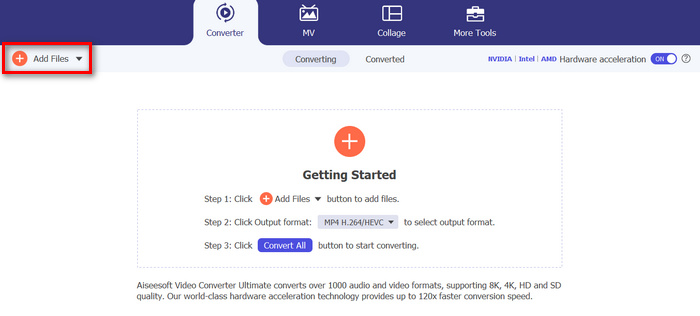
Pas 2. Per importar els fitxers WMA que vols retallar, fes clic al botó Add Files.
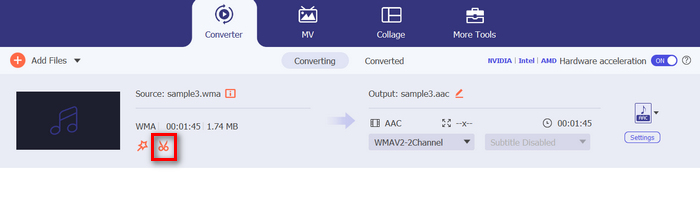
Pas 3. Després, fes clic al botó Cut.
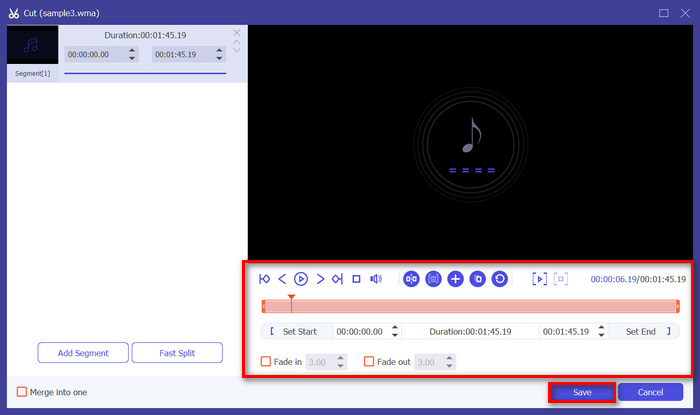
Pas 4. Per retallar els teus fitxers WMA, ho pots fer manualment ajustant o movent fàcilment la barra d’inici i de final del clip arrossegant-la, movent-la d’esquerra a dreta, o bé escrivint l’hora d’inici i de final de la part del fitxer WMA que vols retallar.
Aquest procés talla automàticament la part de l'àudio en funció de l'hora en què voleu iniciar i acabar el retall.
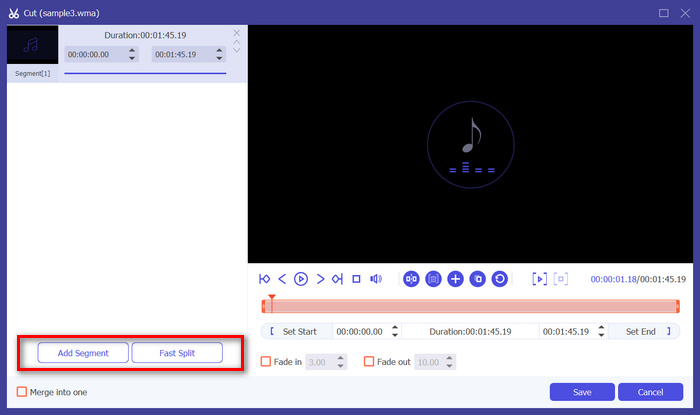
Pas 5. Mentrestant, si vols tallar-lo utilitzant la funció de retallador Fast Slip, només cal que facis clic al botó Fast Slip al costat del botó Add Segment. A continuació, selecciona el mode en què vols dividir el segment. Si tries Split by average, només cal que n’indiquis el nombre; però si vols dividir-lo per temps, indica’n el temps. Després d’això, fes clic al botó Save.
Pas 6. Finalment, per exportar el fitxer WMA retallat, fes clic al botó Convert All.
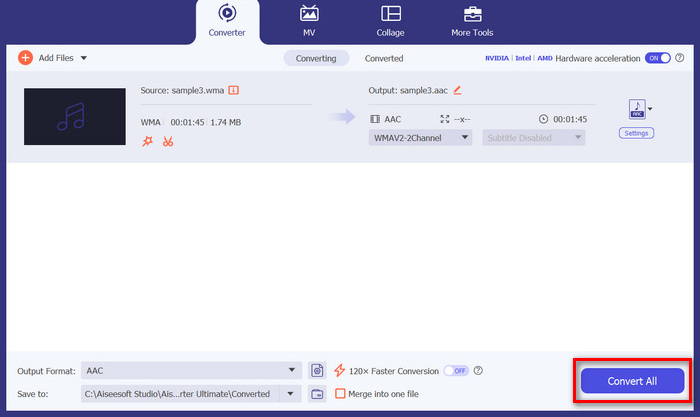
Quan es tracta de tallar fitxers WMA, aquest Video Converter Ultimate escollit per FVC és realment una solució imprescindible. La seva interfície senzilla i fàcil d'utilitzar us garanteix que podeu retallar els vostres fitxers WMA amb precisió i sense esforç, i les seves diverses opcions de retall us ofereixen flexibilitat sobre com voleu retallar fàcilment els vostres fitxers d'àudio.
Part 2: Retalla el fitxer WMA en línia de forma gratuïta
Audio Trimmer és una eina gratuïta que permet als usuaris retallar fitxers d'àudio sobre la marxa. Això admet una àmplia gamma de formats d'àudio populars, inclòs WMA, la qual cosa fa d'aquesta eina una de les millors alternatives si preferiu tallar fitxers WMA en línia.
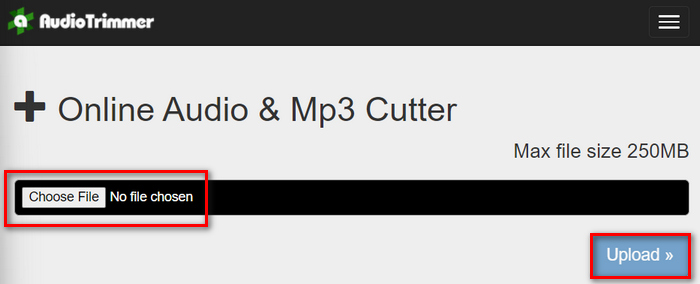
Pas 1. Per importar els fitxers WMA que vols retallar, fes clic al botó Choose File i després al botó Upload.
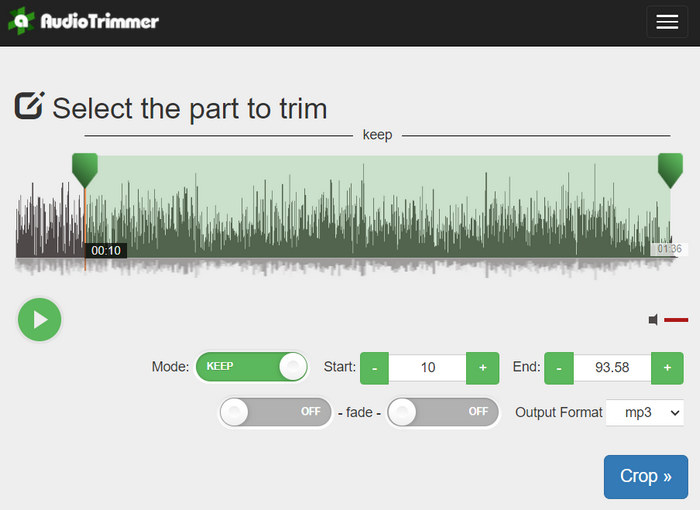
Pas 2. Ara, només cal que desplacis la barra cap avall i seleccionis la part de la pista d’àudio que vols retallar. Quan acabis, fes clic al botó Crop.
Pas 3. Finalment, per desar el teu fitxer WMA retallat, només cal que facis clic al botó Download.
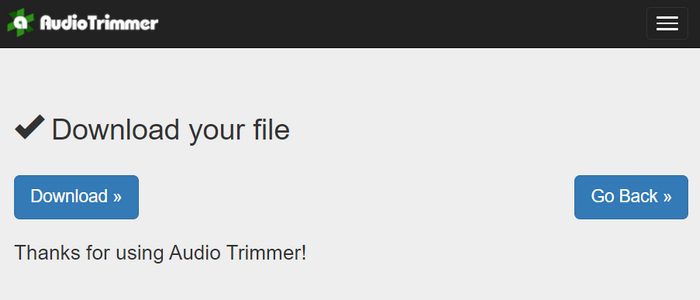
Ja ho tens, i pots veure els teus clips amb el reproductor WMA per comprovar si els has retallat correctament. Amb la seva interfície senzilla i molt intuïtiva, retallar fitxers WMA només requereix 3 passos. Tot i que ofereix facilitat a l’hora de retallar fitxers d’àudio, no tots els usuaris poden gaudir d’aquesta eina en línia gratuïta, ja que només permet processar fitxers de menys de 250 MB.
Part 3: tallar WMA amb VLC Media Player
VLC Media Player és un reproductor multimèdia de codi obert àmpliament utilitzat per la seva versatilitat. Aquesta eina admet una gran varietat de formats d'àudio i vídeo, inclosos els fitxers WMA. A més de les seves funcions per reproduir, reproduir en streaming i gravar suports, aquesta eina també es pot utilitzar per tallar fitxers WMA. Amb això, els usuaris poden retallar seccions fàcilment gravant en temps real sense necessitat d'alterar el temps de reproducció manualment.
Pas 1. Obre el VLC Media Player. Arrossega i deixa anar simplement el fitxer WMA que vols retallar.
Pas 2. L’àudio començarà a reproduir-se automàticament. Posa’l en pausa un moment, després fes clic al botó View i marca l’opció Advanced Controls. Ara veuràs quatre botons nous sobre la icona de reproducció.
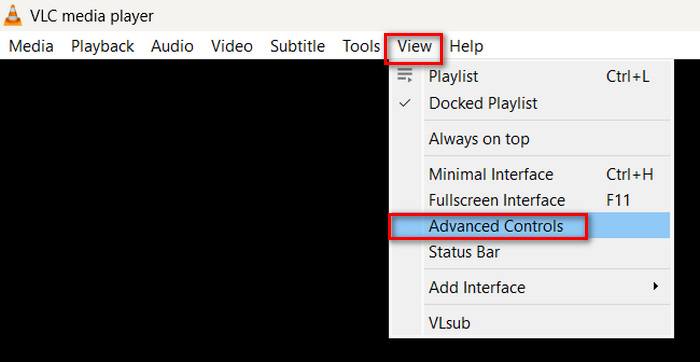
Pas 3. Arrossega la barra de progrés fins al punt on vulguis començar el teu clip. Ara, ajusta la barra fins on vulguis començar a retallar el teu fitxer WMA. Quan acabis, reprodueix-lo i fes clic al botó Record.
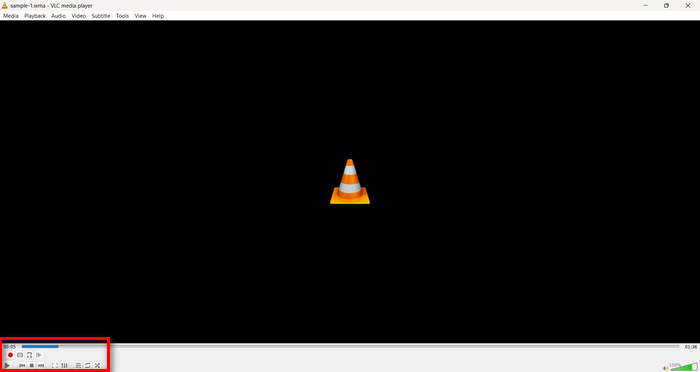
Pas 4. Quan arribis al final de la secció que vols desar, torna a fer clic al botó Record per aturar l’enregistrament.
Evita arrossegar la barra de progrés per canviar el temps de reproducció mentre estiguis enregistrant, ja que el VLC necessita enregistrar el segment en temps real. Si t’agrada aquesta eina, no et perdis les alternatives a VLC que trobaràs aquí.
Part 4: Preguntes freqüents sobre tallar WMA
Com puc tallar una part d'un fitxer d'àudio?
Per tallar una part d'un fitxer d'àudio, podeu utilitzar eines com Video Converter Ultimate. Per fer-ho, només cal que importeu el vostre fitxer WMA, feu clic al botó Retalla i ajusteu les hores d'inici i finalització.
És millor WMA que MP3?
El WMA sovint té una qualitat de so millor a taxes de bits baixes en comparació amb l’MP3, cosa que es tradueix en fitxers més petits amb una bona qualitat d’àudio. Tanmateix, l’MP3 és molt més compatible en una gran varietat de dispositius i plataformes. L’elecció entre WMA i MP3 depèn de les teves necessitats de qualitat i compatibilitat. A més, pots canviar WMA a MP3 amb les eines de conversió de WMA a MP3 de manera ràpida.
Com retallar fitxers d'àudio a Windows Media Player?
Per retallar fitxers d'àudio a Windows Media Player, haureu d'utilitzar un connector anomenat SolveigMM WMP Trimmer Plugin Home Edition. Aquest connector permet als usuaris retallar fàcilment els fitxers d'àudio directament a la interfície de Windows Media Player, proporcionant una solució convenient per a les tasques d'edició d'àudio.
Conclusió
Retallar fitxers WMA no ha de ser estressant. Tant si prefereixes utilitzar programari com Video Converter Ultimate, una eina en línia com Audio Trimmer o el versàtil VLC Media Player, hi ha mètodes eficients disponibles tant per a usuaris de Windows com de Mac. Tria el mètode que millor s’adapti a tu i comença a editar els teus fitxers d’àudio amb facilitat. Preparat per fer l’edició d’àudio més senzilla? Prova avui mateix algun d’aquests mètodes!
-
 2 mètodes per convertir FLV a WMA àudio [gratis i en línia]
 Voleu extreure àudio WMA del vídeo FLV? Aquí hi ha 2 extractors d’àudio WMA gratuïts per convertir FLV (Flash Video) a WMA (Windows Media Audio) amb una velocitat de conversió ràpida a Mac OS X i Windows 10/8/7.
-
 Els millors editors de metadades WMA que no us hauríeu de perdre [2024]
 Per què'no puc editar etiquetes WMA? Aquest problema és comú als usuaris' consultes. Però avui us donarem els metaeditors WMA que podeu utilitzar el 2024.
-
 8 maneres de convertir MP4 a àudio MP3 (conversió per lots i mida gran)
 Si voleu extreure àudio MP3 de vídeo MP4, podeu consultar aquest article i obtenir 8 solucions. Hi ha maneres en línia i fora de línia de convertir MP4 a MP3 al telèfon o a l'ordinador amb facilitat.
