


 Video Converter Ultimate
 Gravadora de pantalla
 Reparació de vídeo
 Baixada segura
Com configurar la cançó de Spotify com a to de trucada: una guia completa
Spotify ofereix als usuaris d’arreu del món una biblioteca enorme de música, podcasts i altres continguts d’àudio. Milions de cançons estan disponibles perquè la gent les escolti a la carta. Si també vols establir la preciosa música que ofereix com a to de trucada del teu telèfon mòbil, primer has de descarregar el fitxer d’àudio seleccionat al dispositiu. El bo és que aquest procediment no és complicat. En aquest article, dividirem tota l’operació de com posar una cançó de Spotify com a to de trucada en tres parts i n’analitzarem cadascuna detalladament per a tu. Quan preparis els teus tons de trucada, pot ser que necessitis retallar una part de l’àudio. Tenint això en compte, també et recomanarem una de les eines d’edició d’àudio i vídeo més professionals. També respondrem algunes de les preguntes més freqüents sobre la configuració dels tons de trucada.

Part 1. Baixeu la cançó de Spotify per al to de trucada
Pots utilitzar Spotify per als tons de trucada? La resposta és que sí, és clar. El que heu de saber abans de procedir oficialment és que actualment no podeu descarregar música directament al vostre dispositiu mitjançant Spotify i configurar-los com a tons de trucada. Per tant, necessitem l'ajuda d'algunes eines. Segons la nostra enquesta, Spotify Downloader és una bona opció. Tot el que heu de fer és obrir el seu lloc web oficial al vostre navegador, copiar l'enllaç a la vostra música preferida i enganxar-lo a la secció corresponent. Així, podreu descarregar el fitxer directament al vostre ordinador. Si teniu cap problema amb ell, us explicarem els passos a la secció següent.
Aquí teniu el que heu de fer per descarregar cançons de Spotify per a tons de trucada amb Spotify Downloader.
Pas 1. Entra al lloc web oficial de Spotify Downloader utilitzant el teu navegador.
Pas 2. Obre l’aplicació de Spotify al telèfon. Després, cerca el so que vols descarregar.
Pas 3. Toca la icona dels tres punts i tria Share > Copy Link.
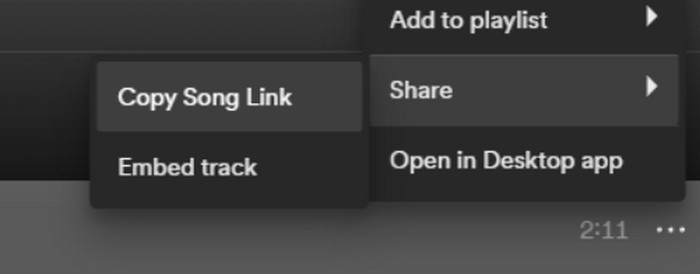
Pas 4. Ara, ves a la pàgina de Spotify Downloader. Enganxa l’enllaç copiat i fes clic a Submit.
Pas 5. Quan el procés acabi, fes clic a Download.

Part 2. Fes d'una cançó de Spotify el teu to de trucada
Després de baixar la teva música preferida al teu dispositiu, pots començar a editar-la. Podem editar el clímax de la cançó o la teva part preferida de la cançó i fer que una cançó de Spotify sigui el teu to de trucada. Cal tenir en compte que els telèfons iPhone i Android admeten diferents formats d'àudio de tons de trucada. Actualment, l'iPhone només admet tons de trucada en format M4R, mentre que els telèfons Android actualment admeten MP3, M4A, WAV i OGG. Si trobeu que el vostre format de fitxer d'àudio no compleix els requisits anteriors, podeu utilitzar un convertidor de format professional per ajudar-vos.
En aquest cas, et recomanem provar una eina tot-en-u d’edició d’àudio, l’eina seleccionada per FVC Video Converter Ultimate, per aconseguir una edició de cançons integral. A més de la conversió de formats com a funció principal, també permet editar la durada de l’àudio, ajustar-ne el volum i la pista d’àudio, i afegir efectes d’esvaïment d’entrada i sortida als teus tons de trucada. Hauràs d’esperar molt poc o gens mentre la fas servir per processar els teus fitxers. T’ajudarà a modificar els paràmetres del teu àudio amb gran eficiència.
Descàrrega gratuïtaPer a Windows 7 o posteriorDescàrrega segura
Descàrrega gratuïtaPer a macOS 10.7 o posteriorDescàrrega segura
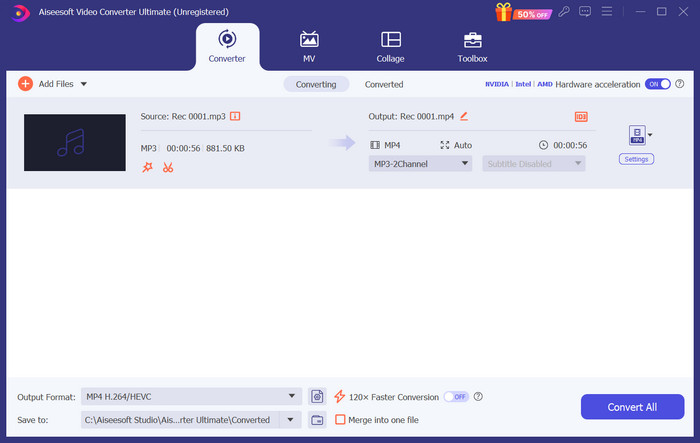
Aquí, us ensenyarem com crear un to de trucada des de Spotify amb FVC Video Converter Ultimate.
Pas 1. Descarrega i instal·la FVC Video Converter Ultimate a l’ordinador. Assegura’t d’haver desat la teva cançó preferida al dispositiu.
Pas 2. Obre aquest programa a l’escriptori i fes clic a Add Files per pujar la cançó de Spotify a aquesta plataforma.
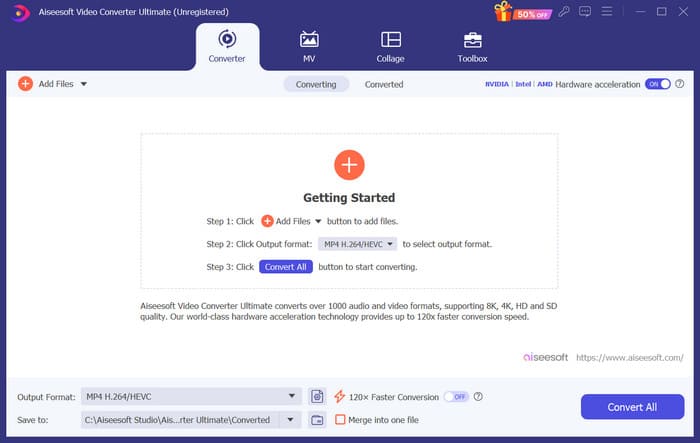
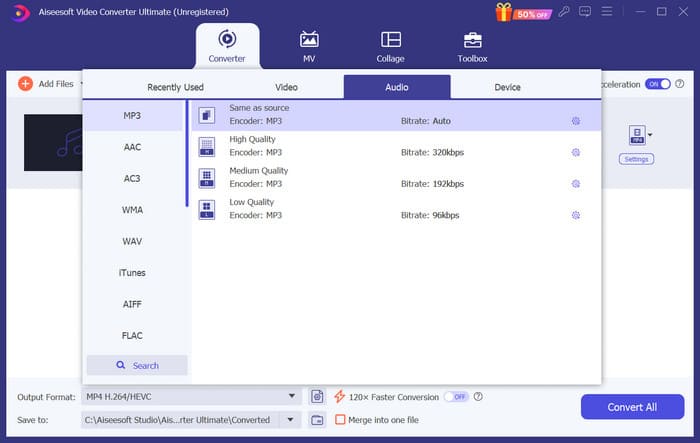
Pas 3. Per convertir el format del teu to de trucada, desplega el menú al costat de Output Format. Després, pots triar el format de destinació entre totes les opcions d’Audio.
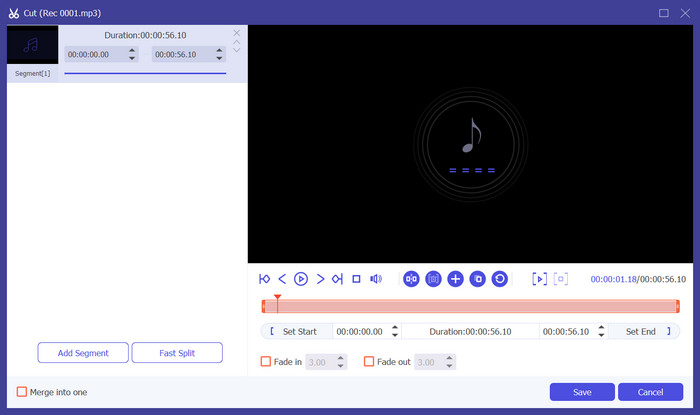
Pas 4. Per seleccionar una part de la cançó com a to de trucada del telèfon, fes clic a Cut. Accediràs a la pàgina de retall. Arrossega el control lliscant per triar la part que vols conservar. En aquesta finestra també pots afegir un efecte d’esvaïment d’entrada i sortida al teu to de trucada.
Pas 5. Per canviar el volum o la pista d’àudio del fitxer, fes clic a Edit. A la nova pàgina, fins i tot pots previsualitzar directament el resultat de l’edició. Per desar els canvis, fes clic a OK.
Pas 6. Quan acabis de configurar el teu to de trucada, fes clic a Convert All per exportar el fitxer.
Part 3. Estableix la cançó de Spotify com a to de trucada
Ara que tenim el nostre nou to de trucada a punt i l'hem editat amb la durada adequada, hem de fer el pas final: configurar la cançó de Spotify com a to de trucada per a les trucades entrants al telèfon. Tenint en compte que els diferents dispositius funcionen de manera diferent, us guiarem per configurar-lo al vostre dispositiu tant des de telèfons iPhone com Android.
Android
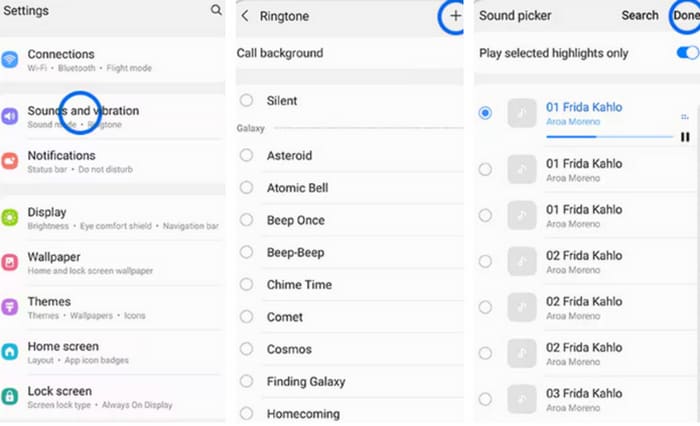
En aquesta secció, us guiarem per configurar les cançons de Spotify com a tons de trucada al vostre telèfon Android. Utilitzarem un telèfon Samsung com a exemple. Abans de començar, hauríeu de transferir la vostra cançó de Spotify al vostre telèfon. La transformació mitjançant cable USB o Bluetooth són ambdues rutes que es poden fer referència.
Pas 1. Ves a Settings al teu telèfon i toca Sons i vibració > To de trucada del telèfon > Els meus sons.
Pas 2. Toca Add i tria la cançó de Spotify editada d’entre tots els fitxers del telèfon mòbil.
Pas 3. Per desar l’ajust, toca Done. Ara ja has afegit correctament una cançó de Spotify com a to de trucada al teu Samsung.
iPhone
Si vols crear un to de trucada per al teu iPhone, és possible que hagis d’utilitzar eines de tercers. L’eina més popular és GarageBand, i explicarem com configurar cançons de Spotify com a tons de trucada a l’iPhone.
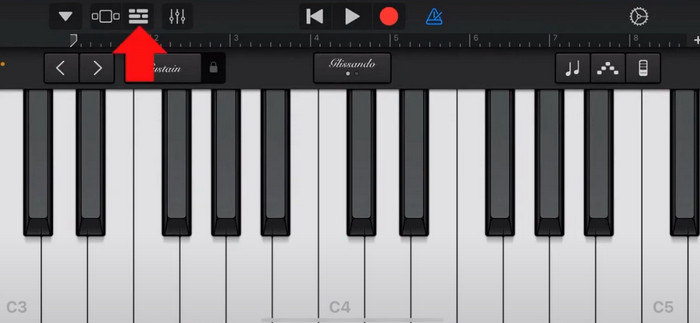
Pas 1. Descarrega i executa GarageBand al teu iPhone. Tria Project.
Pas 2. Després, tria Loop > Files. Per seleccionar la cançó de Spotify, selecciona Browse items from the Files app.
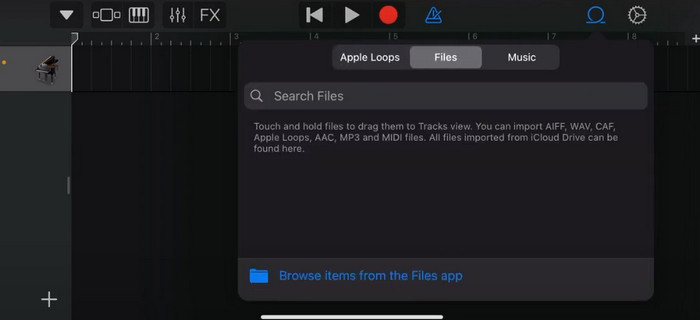
Pas 3. Posa el fitxer de Spotify retallat a la línia de temps.
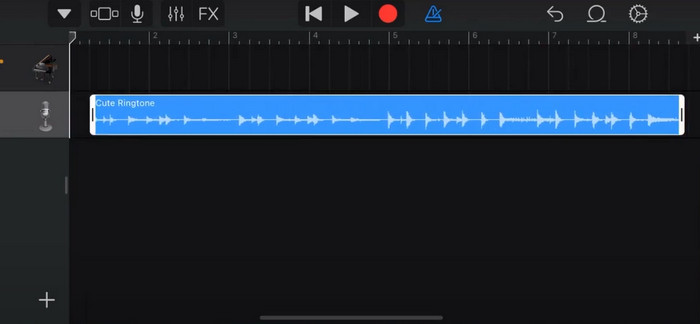
Pas 4. Desactiva el metrònom. Després toca la icona de fletxa avall i tria My Songs.
Pas 5. Mantén premut el clip de la cançó i toca Share.
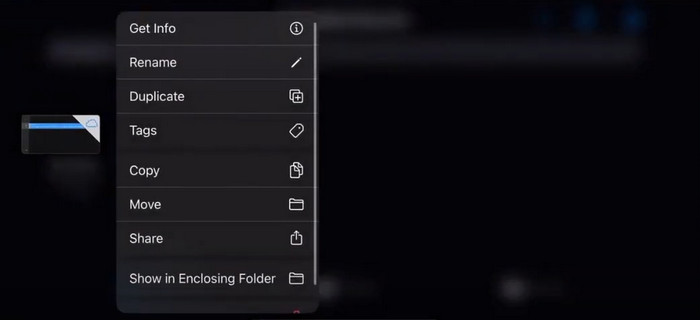
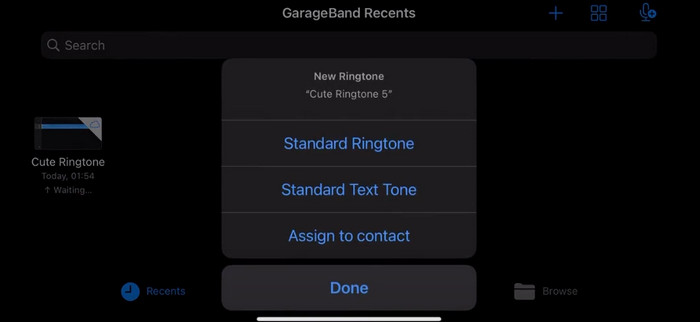
Pas 6. Tria Ringtone > Export. Toca Use sound as > Standard Ringtone.
Part 4. Preguntes freqüents sobre com fer que una cançó d'Spotify sigui el vostre to de trucada
Puc utilitzar una cançó de Spotify com a to de trucada directament?
Spotify no permet als usuaris utilitzar directament una cançó de l'aplicació com a to de trucada en un dispositiu mòbil. Tanmateix, hi ha mètodes alternatius que podeu utilitzar per configurar una cançó de Spotify com a to de trucada. Pots comprar la cançó que t'agradi en una botiga de música digital com iTunes o Google Play Music. Hi ha eines de tercers disponibles que us permeten convertir cançons de Spotify a fitxers MP3.
Com puc fer un to de trucada personalitzat per al meu iPhone sense iTunes?
Si voleu crear un to de trucada personalitzat per al vostre iPhone sense utilitzar iTunes, podeu utilitzar GarageBand, una aplicació de música disponible als dispositius iOS. Aquest mètode us permet personalitzar el vostre to de trucada amb els vostres clips d'àudio preferits al vostre dispositiu.
Com convertir Spotify en un to de trucada d'iPhone sense ordinador?
Convertir una cançó de Spotify directament a un to de trucada d'iPhone sense utilitzar un ordinador és difícil. Tanmateix, podeu trobar alguns mètodes alternatius per aconseguir un resultat similar. Per exemple, podeu utilitzar una aplicació per crear tons de trucada o triar GarageBand.
Conclusió
A dalt t’hem ofert una visió completa de com configurar una cançó de Spotify com a to de trucada per a les trucades entrants. Hem cobert tots els passos i t’hem proporcionat una eina d’edició d’àudio d’última generació, Video Converter Ultimate recomanada per FVC, per ajudar-te a personalitzar la teva cançó. Si ho prefereixes, aquesta eina també t’ajuda fàcilment a convertir un vídeo en to de trucada. Estem convençuts que obtindràs les instruccions que necessites.
-
 Millor tutorial Com convertir WAV a to de trucada en molt poc temps
 Voleu convertir WAV en un to de trucada sense esforç? Les nostres eines fàcils d'utilitzar fan la feina! Gaudeix de la conversió d'àudio d'alta qualitat en un instant, sense maldecaps tecnològics. Prova'ls avui!
-
 Com fer una nota de veu un to de trucada a iPhone i Android
 Si voleu convertir una nota de veu en un to de trucada, llegiu aquest article. Tant si sou un usuari d'iPhone com un usuari d'Android, podeu trobar solucions al nostre contingut.
-
 5 talladors de MP3 per tallar qualsevol àudio fàcilment [Actualitzat el 2024]
 Necessites un tallador de MP3 per retallar l'àudio? En aquest cas, llegiu aquest article perquè oferim les eines de les quals dependre per tallar l'àudio fàcilment.
