


 Video Converter Ultimate
 Gravadora de pantalla
 Reparació de vídeo
 Baixada segura
Guia detallada sobre com invertir l'àudio a Audacity [2024]
Invertir pistes d'àudio pot afegir una dimensió i un color únics a les vostres produccions musicals, generant efectes de so captivadors per a la narració creativa. Aquest estil és molt utilitzat i s'està popularitzant quan es tracta d'enriquir projectes d'àudio amb profunditat i originalitat. Per tant, si esteu editant àudio a Audacity i voleu afegir un gir invertint-lo, sou al lloc correcte!
En aquest article, us guiarem a través dels passos detallats sobre com invertir l'àudio a Audacity i compartirem consells valuosos per ajudar-vos a treure el màxim profit d'aquesta funció. Al final d'aquesta guia, estaràs preparat per invertir les teves pistes d'àudio i explorar nous horitzons creatius fàcilment. Així doncs, prepara't per transformar els teus projectes d'àudio i descobreix l'apassionant potencial de l'àudio invertit!

Part 1. Com revertir l'àudio a Audacity
Audacity és un programa dissenyat per permetre als usuaris editar fitxers d'àudio sense necessitat d'eines premium cares, garantint una sortida d'alta qualitat sense cap cost. Com a eina de codi obert, és d'accés lliure per a tothom i ofereix una llarga llista de funcions que normalment es troben al programari de pagament. Entre la seva varietat de capacitats, Audacity destaca per la seva capacitat per invertir pistes d'àudio. Aquesta funció permet als usuaris ser creatius amb com volen que soni el seu àudio. Normalment, els editors inverteixen el seu àudio perquè afegeix un efecte únic als seus projectes.
A continuació t'expliquem com pots invertir àudio a Audacity.
Pas 1. Baixa i instal·la Audacity a l'ordinador.
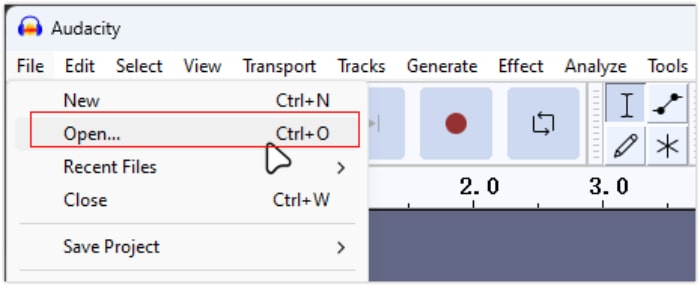
Pas 2. Obre l'eina, ves al menú File a l'angle superior esquerre i selecciona Open. Des d'allà, navega per l'ordinador per localitzar i seleccionar el fitxer d'àudio o arrossega i deixa anar el fitxer d'àudio que vols invertir dins del programa.
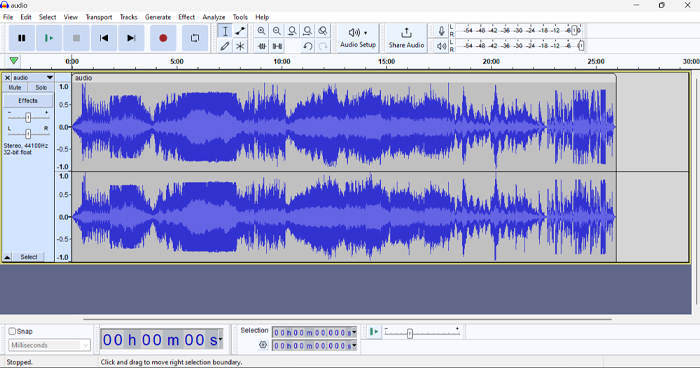
Pas 3. Ara, fes clic a la pista d'àudio, ves a la pestanya Select i tria All per seleccionar tot el fitxer d'àudio.
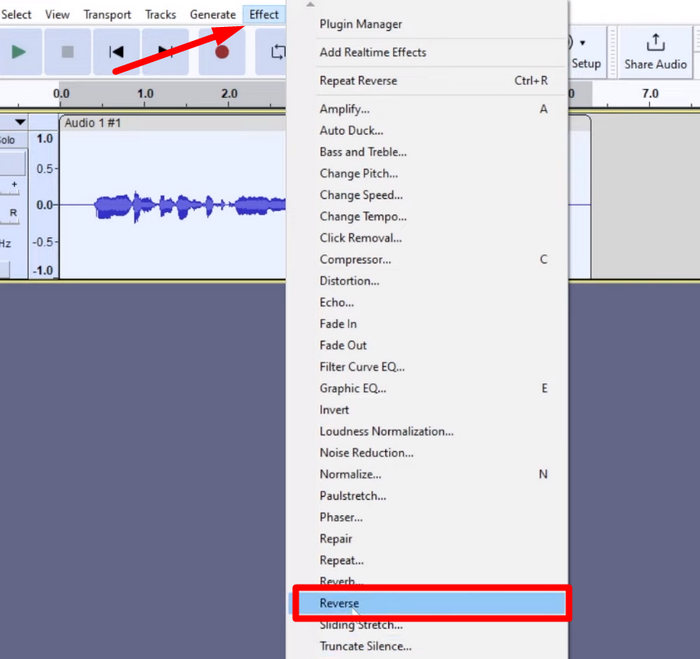
Pas 4. Per invertir l'àudio, ves a la pestanya Effect i selecciona Reverse al menú desplegable. Audacity processarà i invertirà el clip d'àudio seleccionat.
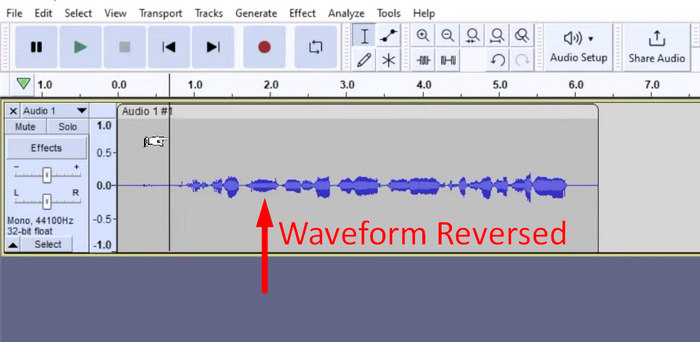
Pas 5. Pots previsualitzar l'àudio invertit prement la barra espaiadora del teclat. També pots utilitzar els controls de reproducció a l'angle superior esquerre de la finestra d'Audacity i fer clic al botó Play.
Pas 6. Finalment, per exportar el fitxer d'àudio invertit, torna al menú File i, dins d'aquest, tria Export. D’aquesta manera, el teu àudio es desarà com un fitxer nou. Mentrestant, no oblidis triar el format de fitxer d'àudio que prefereixis abans d'exportar-lo.
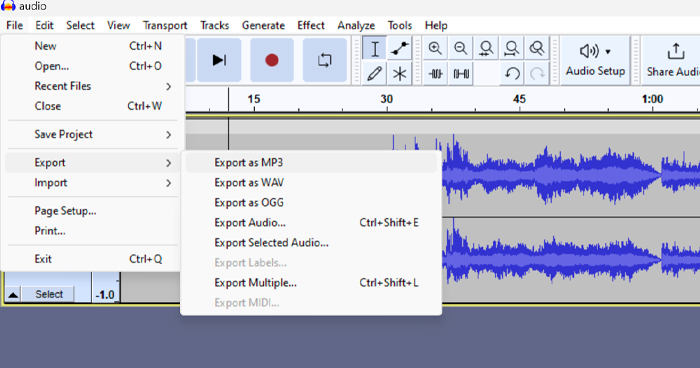
A causa d'alguns problemes relacionats amb la pèrdua de treball de manera inesperada, deseu regularment el vostre projecte mentre editeu per evitar qualsevol pèrdua de progrés. Podeu desar ràpidament la vostra feina fent servir Ctrl + S a Windows o Cmd + S a Mac. A més, considereu utilitzar noms de fitxers descriptius i organitzar els fitxers en una carpeta dedicada per mantenir els vostres projectes ben organitzats i fàcilment accessibles.
Part 2. Com invertir part de l'àudio a Audacity
Hi ha casos en què els usuaris només volien revertir una part de l'àudio a Audacity, potser perquè només hi ha seccions específiques que volen emfatitzar o crear un efecte diferent. Els passos següents són gairebé els mateixos que com invertir una pista sencera. Tanmateix, seleccionar una part d'un àudio és una mica complicat i cal posar èmfasi en els passos per evitar confusions, especialment per als principiants.
A continuació t'expliquem com invertir només una part de l'àudio a Audacity.
Pas 1. Quan siguis a la interfície principal de l'eina, ves al menú File a l'angle superior esquerre i selecciona Open. Des d'allà, navega per l'ordinador per localitzar i seleccionar el fitxer d'àudio o arrossega i deixa anar el fitxer d'àudio que vols invertir dins del programa.
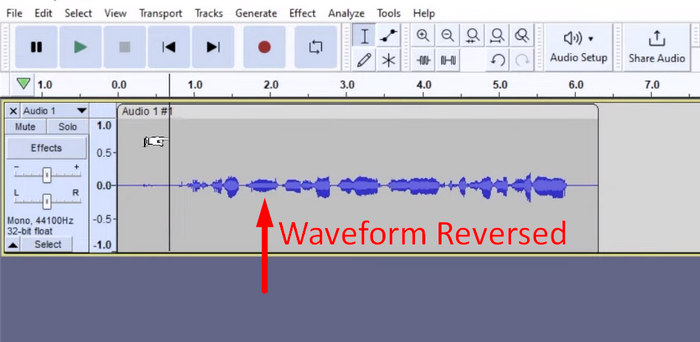
Pas 2. Ara, per seleccionar la part de l'àudio que vols invertir, utilitza la funció Zoom per fer zoom sobre l’ona i arrossega el ratolí per seleccionar el fragment o la part de l'àudio que només vols invertir.
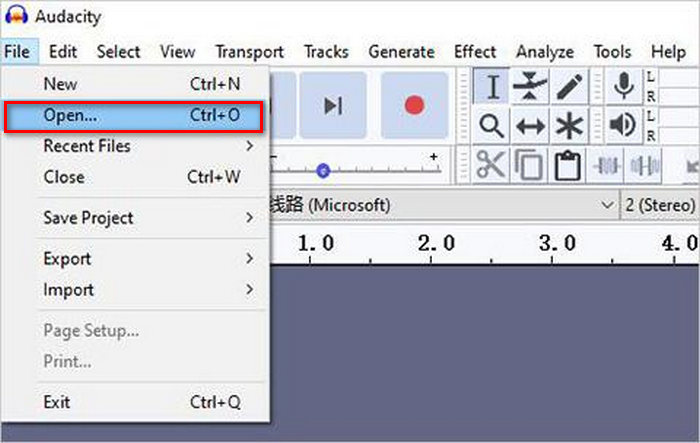
Pas 3. Per invertir l'àudio, ves a la pestanya Effect i selecciona Reverse al menú desplegable. Audacity processarà i invertirà el clip d'àudio seleccionat.
Pas 4. Pots previsualitzar l'àudio invertit prement la barra espaiadora del teclat. També pots utilitzar els controls de reproducció a l'angle superior esquerre de la finestra d'Audacity i fer clic al botó Play.
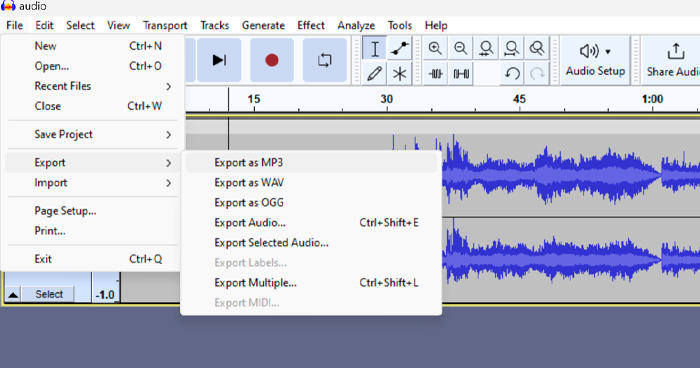
Pas 5. Finalment, per exportar el fitxer d'àudio invertit, selecciona Export al menú File. Tria Export as i selecciona el format de fitxer d'àudio que prefereixis abans d'exportar-lo.
Quan seleccionis una part específica de l'àudio per invertir-la a Audacity, assegura’t de fer prou zoom a la forma d’ona per veure clarament on comença i on acaba el fragment. Això ajuda a fer seleccions precises i evita incloure parts de l'àudio que no vols. A més, abans d'invertir, fes servir l’eina Clip Split si cal per dividir l'àudio en segments més petits, per exemple, retallant un àudio MP3, cosa que facilita manipular i editar seccions específiques de manera independent. Aquest enfocament et dona més control sobre les edicions i garanteix que l'àudio invertit aconsegueixi l’efecte desitjat de manera fluida.
Part 3. Àudio/vídeo invers amb l'alternativa d'Audacity
Mentrestant, si prefereixes una manera més simple i fàcil d'invertir àudio o vídeo, pots fer servir aquesta alternativa a Audacity, el Video Converter Ultimate recomanat per FVC. Aquest paquet complet d’eines de vídeo i àudio és conegut per les seves potents capacitats de conversió, però, a més, també és ideal per als usuaris que necessiten una manera pràctica d'invertir àudio o vídeo.
Pas 1. A l'ordinador, baixa i instal·la el Video Converter Ultimate recomanat per FVC.
Descàrrega gratuïtaPer a Windows 7 o posteriorDescàrrega segura
Descàrrega gratuïtaPer a macOS 10.7 o posteriorDescàrrega segura
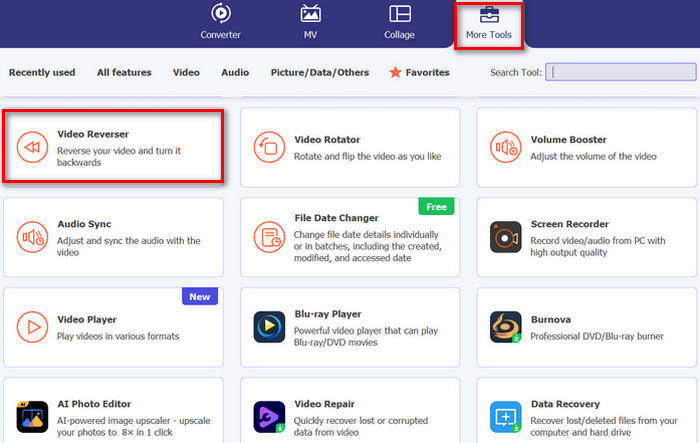
Pas 2. Obre l'eina i ves a la pestanya Moretools. Des d'allà, selecciona Video Reverser.
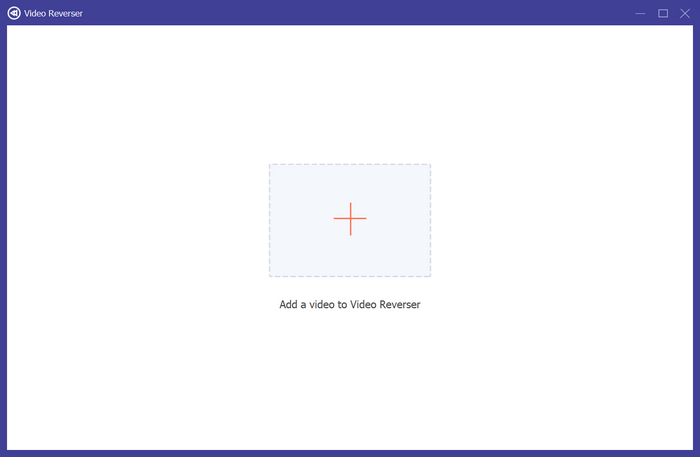
Pas 3. Ara, importa l'àudio o el vídeo que vols invertir fent clic al botó Add a Video to Video Reverser.
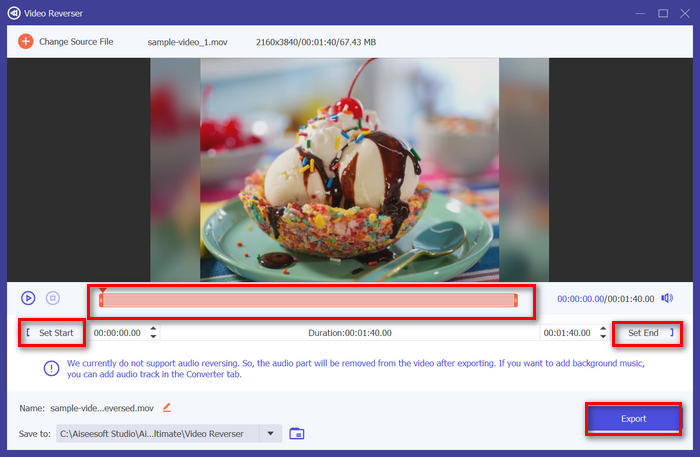
Pas 4. Un cop siguis a la interfície de Video Reverser, si vols invertir tota la pista, només cal que vagis al botó Export per invertir automàticament el fitxer. Però si només vols invertir-ne una part, pots lliscar la barra i triar amb cura la part de l'àudio o del vídeo que vols invertir. També pots introduir manualment l’hora d’inici i l’hora de final del fragment que vols invertir. Quan acabis, fes clic al botó Export.
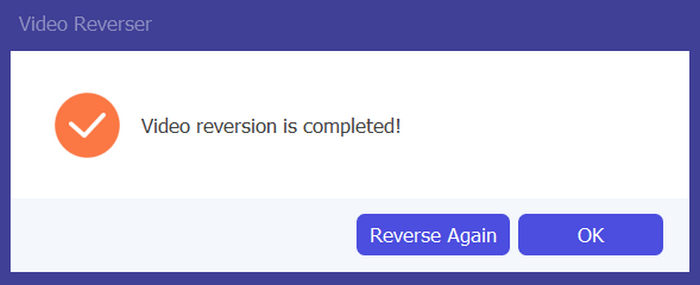
Pas 5. Quan l’exportació s’hagi completat, rebràs aquest missatge i podràs accedir al teu vídeo invertit a la carpeta corresponent de l’ordinador.
Aquí ho tens! Fàcil, oi? No cal que us confongueu amb una interfície complexa. Amb Video Converter Ultimate escollit per FVC, tot el que necessiteu està al vostre abast.
Part 4. Preguntes freqüents sobre la inversió d'àudio a Audacity
Com desfer l'efecte d'àudio invers a Audacity?
Si heu invertit un a Audacity i voleu desfer-lo, podeu tornar fàcilment a l'àudio original. Simplement aneu al menú Edita a l'extrem superior esquerre de la interfície d'Audacity i seleccioneu Desfés la inversa. A més, podeu utilitzar la drecera de teclat Ctrl + Z per a Windows o Cmd + Z per a Mac per desfer l'última acció. Això revertirà l'àudio al seu estat original abans que s'apliqui l'efecte invers.
Quins formats d'àudio admet Audacity per invertir l'àudio?
Audacity admet diversos formats d'àudio populars, com ara WAV, MP3, FLAC, AIFF i OGG.
Es pot distorsionar l'àudio a Audacity?
Sí. Podeu distorsionar l'àudio a Audacity. Audacity ofereix diversos efectes i eines que us permeten aplicar distorsió a les vostres pistes d'àudio. Per afegir-ho, aneu a Efecte, feu clic a Distorsió i modulació i trieu Distorsió.
Es pot convertir l'àudio a Audacity?
Sí, pots. Audacity admet molts formats d'àudio. Si veus que algun dels teus fitxers d'àudio no és compatible amb el dispositiu, per exemple, pots utilitzar Audacity per convertir fàcilment AIFF a MP3.
Conclusió
En conclusió, aprendre com invertir àudio a Audacity és senzill i afegeix efectes únics als teus projectes d'àudio o vídeo. Segueix els passos detallats per començar a invertir les teves pistes d'àudio avui mateix. Si vols una alternativa més fàcil, prova el Video Converter Ultimate recomanat per FVC. Preparat per ser creatiu? Prova ara qualsevol d’aquests mètodes!
-
 Uniu-vos a MOV gratuïtament: com combinar dos fitxers MOV en un de sol
 Pot ser difícil per als principiants unir-se a diversos videoclips MOV. Per tant, hi ha una manera senzilla i ràpida de combinar fitxers MOV? Si n’hi ha, com s’utilitza? Aquesta publicació us ajudarà a obtenir aquestes respostes.
-
 4 maneres de combinar vídeos de forma gratuïta al Windows / Mac / en línia
 Aquí teniu 4 maneres ràpides de combinar vídeos en un vídeo nou. No hi ha límit de mida ni de format de fitxer de vídeo. Podeu unir 2, 3, 4 i fins i tot més videoclips en diferents formats i resolucions amb èxit.
-
 Guia concreta per unir fitxers M4V de forma gratuïta a Windows i Mac
 Si busqueu una solució per combinar fitxers de vídeo M4V en un de sol, no us perdeu mai aquest passatge. Aquí parlarem dels dos millors mètodes per combinar fitxers de vídeo M4V.
