


 Video Converter Ultimate
 Gravadora de pantalla
 Reparació de vídeo
 Baixada segura
2 millors maneres d'unir fitxers MKV per veure la pel·lícula sense parar
Normalment, les pel·lícules que descarregueu d’Internet es separen en 2 o 3 fitxers MKV perquè els fitxers de pel·lícules sempre són grans, sobretot aquells d’alta qualitat. I les sèries de TV copiades des del disc DVD sempre es divideixen en diversos fitxers MKV. Si sou aficionats al cinema, heu de tenir curiositat per aprendre a unir fitxers MKV. Potser heu intentat canviar el codi original per unir fitxers MKV segons les instruccions de FFmpeg, però és massa complex i difícil d’aprendre. En aquest cas, les següents 2 eines professionals us ajudaran a unir fitxers MKV de manera fàcil i eficaç.

Primera part: Com unir-vos a fitxers MKV gratuïtament en línia
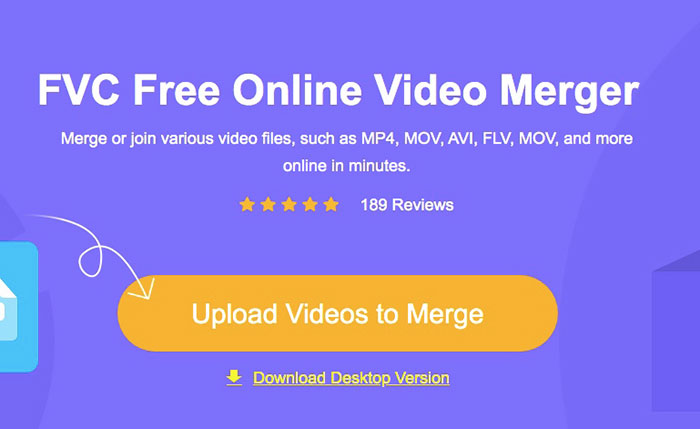
FVC Free Online Video Merger is the most efficient video joiner to help you combine MKV files free online. Within 3 steps, you can get a complete MKV movie file with subtitles in order.
- 1. Uniu dos o més fitxers MKV en un amb tres senzills passos gratuïts en línia.
- 2. Utilitzeu totes les funcions, inclosa la unió a fitxers MKV, sense descarregar cap programari.
- 3. Admet diversos formats d'entrada i sortida, inclosos els fitxers de pel·lícules MKV.
- 4. Els fitxers penjats se suprimiran en un termini de 24 hores per protegir la vostra privadesa.
Step 1: Open FVC Free Online Video Merger and click the Upload Files to Merge button to launch the plugin, and then click the button again to choose the MKV files you want to merge.
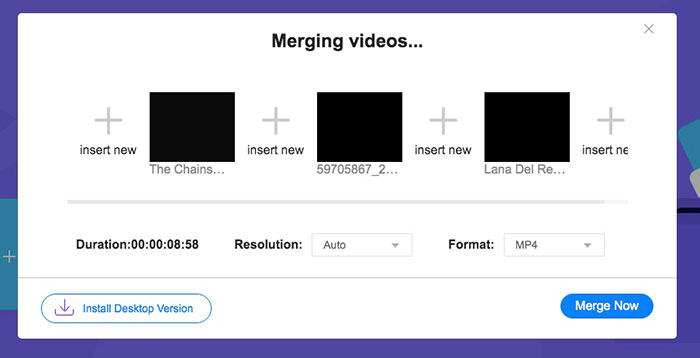
Step 2: Click the insert new button to choose other MKV files. Then choose 1920x1080 resolution to keep high quality and choose the original MKV format to retain the original encode, which will ensure the subtitles play well.
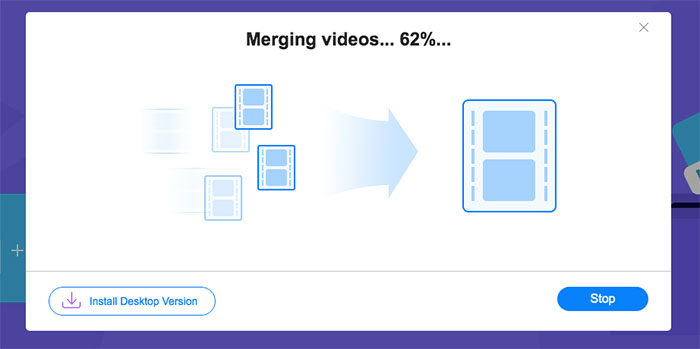
Step 3: Click the Merge Now button and choose the desired folder to save.
Part 2: utilitzeu Video Converter per unir fitxers MKV
Free Online Merger can satisfy your requirement in simple clicks without downloading software. However, if you also have troubles in disordered subtitles or low quality. FVC Video Converter Ultimate is more professional than online tools to combine MKV files with high image and audio quality. What’s more, it supports higher resolution including HD 1080P, 4K, and even 8K.
- 1. Combineu diversos fitxers MKV en un sense perdre qualitat per mantenir l'experiència de visualització.
- 2. Uniu fitxers MKV al format MKV original amb qualsevol codi que inclogui H.264, HEVC i XVID.
- 3. Trieu diferents subtítols i canals d'àudio que us convinguin.
- 4. Suporteu l'edició de vídeos MKV afegint efectes, filtres, filigranes i retallant l'àrea.
Descàrrega gratuïtaPer a Windows 7 o posteriorDescàrrega segura
Descàrrega gratuïtaPer a macOS 10.7 o posteriorDescàrrega segura
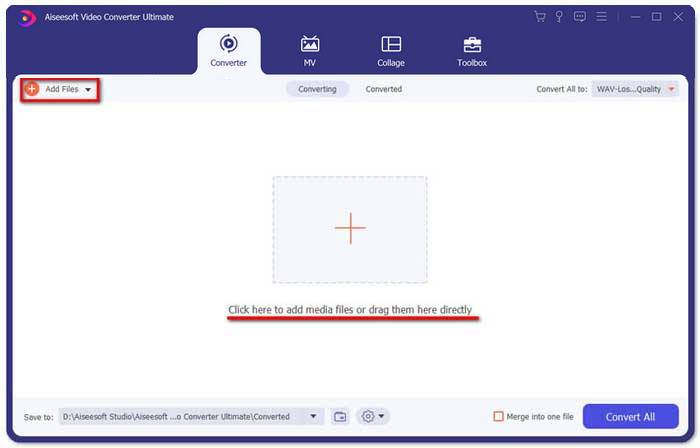
Step 1: Download FVC Video Converter Ultimate for Windows/Mac and launch it. Then click the Add Files button in the converter tool to choose all the MKV files you want to combine in the correct order.
Step 2: Click the arrow beside Convert All to and choose MKV format in the video list. Then choose the same as source settings, which will keep the original image and audio quality. If you want to play MKV videos on other devices, you can also choose other compatible formats, such as MP4, AVI, and so on.
Encoder: You’d better choose H.264/HEVC encoder in the settings to ensure that movies play well on computers or television.
Subtitle and Audio Track: If the original MKV movie files have several subtitles and audio track, you can also choose the desired language at the bottom of every file or remove subtitle from MKV.
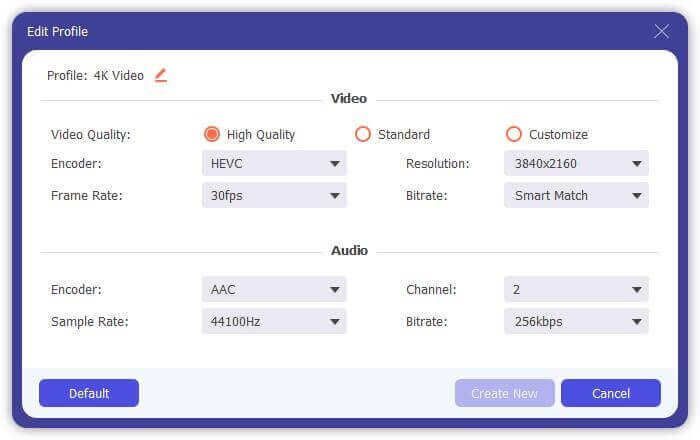
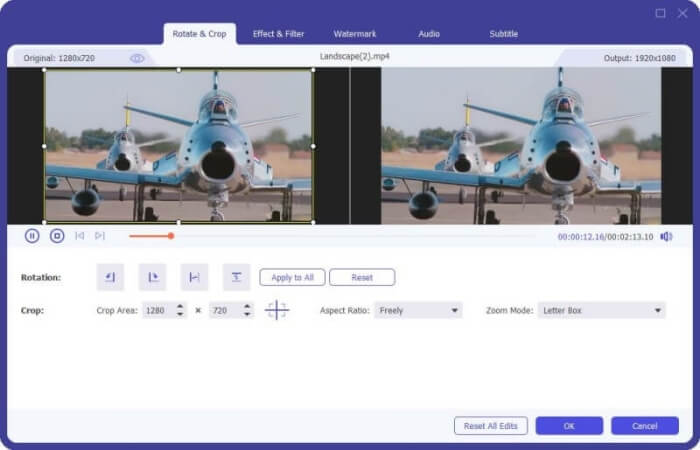
Step 3: Click the Edit button at the bottom of files, you can find 5 editing tools including rotating or crop videos, and adding effects and filters. In this way, you can create a better movie with special effects. Its toolbox can compress MKV, edit metadata information for MKV, convert MKV from 2D to 3D and more.
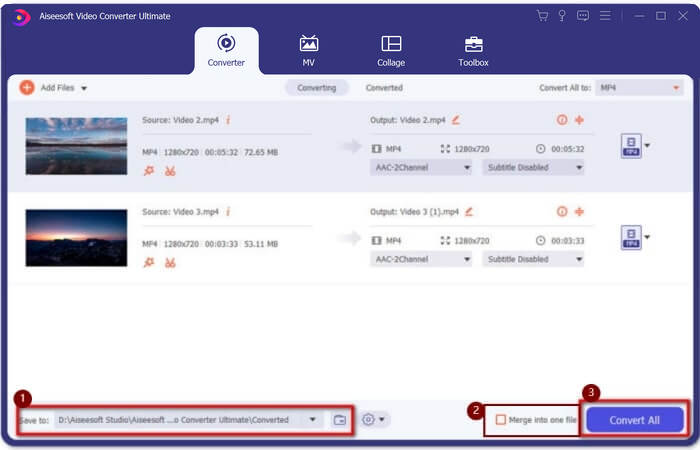
Step 4: Before combining all the MKV videos together, you can drag the video files up and down and place them in the right position to adjust the order. Then tick the Merge into one file box and click the Convert All button to join MKV files and save it in the set storage path.
Part 3: Preguntes més freqüents sobre com unir fitxers MKV
1. Què és MKV?
Normalment es diu que MKV és un tipus de format de vídeo, però en realitat MKV és un format de contenidor multimèdia que pot incorporar fitxers d’àudio, vídeo i subtítols amb codi diferent en un sol fitxer. Per tant, gairebé totes les pel·lícules es guarden en fitxers en format MKV.
2. Puc fer servir Handbrake per unir fitxers MKV?
No, no es pot. Handbrake és només una mena de programari per a la conversió de vídeo per convertir fitxers MKV. Si voleu unir fitxers MKV, podeu provar d'utilitzar unidors de vídeo en línia gratuïts o altres convertidors de vídeo per solucionar el problema.
3. Quin reproductor de vídeo admet fitxers de pel·lícules MKV?
Les pel·lícules en format MKV no necessiten reproductors de vídeo especialitzats per reproduir-los. Tot i això, heu d’instal·lar el complement de descodificació MKV corresponent. D'aquesta manera, gairebé tots els reproductors de vídeo, inclòs el reproductor de vídeo original de l'ordinador, poden reproduir fitxers de pel·lícules MKV.
Conclusió
Quan descarregueu una pel·lícula per veure-la, veieu que aquests fitxers de pel·lícules MKV estan separats en diversos fitxers. Per tal de veure-ho sense parar, podeu utilitzar el vídeo combinador per combinar fitxers MKV gratuïtament en línia. A més, utilitzar un convertidor de vídeo també pot ajudar a unir fitxers MKV amb alta qualitat d’imatge i àudio. Benvingut a deixar les vostres preguntes sobre la fusió de fitxers MKV a continuació.
-
 Com combinar fitxers WebM en un sense pèrdues a l'ordinador
 Quan voleu combinar fitxers de vídeo WebM per veure vídeos contínuament o voleu crear un vídeo nou segons els fitxers WebM, hi ha dues maneres eficients d'unir fitxers WebM sense perdre qualitat.
-
 Els 8 millors reproductors MKV per reproduir fitxers MKV amb el subtítol desitjat
 Quan vulgueu reproduir el vídeo MKV amb el subtítol desitjat, podeu obtenir més informació sobre els 8 millors reproductors de fitxers MKV per a PC / Mac i triar el que vulgueu segons el vostre requisit.
-
 MKV a MOV - Com convertir MKV a MOV
 Com puc convertir MKV a MOV a Mac? Pot iMovie llegir MKV? Què significa el format MOV? Aquesta publicació explica dues maneres senzilles d'ajudar-vos a convertir MKV a MOV amb convertidors de vídeo gratuïts en línia i professionals.
