


 Video Converter Ultimate
 Gravadora de pantalla
 Reparació de vídeo
 Baixada segura
Com gravar una videotrucada a Telegram: és possible?
Telegram s’està convertint ara en una de les plataformes de referència quan es tracta de missatgeria segura, xats de veu i fins i tot videotrucades. Amb la seva popularitat creixent, molts usuaris comencen a preguntar-se: es pot gravar una videotrucada a Telegram? Doncs anem-ho a descobrir!
En aquesta guia, explorarem si Telegram pot gravar una videotrucada per defecte. A més, no et perdis l’oportunitat d’aprendre dos mètodes diferents sobre com pots gravar una videotrucada a Telegram. Així que, si alguna vegada has volgut gravar la teva videotrucada per qualsevol motiu, continua llegint per saber-ne més.
Part 1. Es pot gravar una videotrucada a Telegram?
Ara, com que molts de vosaltres potser us esteu plantejant el mateix: es pot gravar una videotrucada a Telegram? La resposta tècnicament no és que sí, però és possible amb l’ajuda d’eines externes. Telegram actualment no ofereix una funció integrada per gravar videotrucades o trucades de veu, principalment per la seva forta aposta per la privadesa de l’usuari i la protecció de dades. Això vol dir que, tot i que pots gaudir de trucades segures i encriptades, l’aplicació no et permetrà gravar-les automàticament dins de la mateixa plataforma.
Tanmateix, això no vol dir que et quedis sense opcions. Encara pots gravar les teves videotrucades de Telegram utilitzant gravadores de pantalla de tercers o funcions de gravació integrades al teu dispositiu. Per tant, mentre Telegram manté les teves converses privades i segures, deixa la part de la gravació a les teves mans. La bona notícia és que, amb les eines adequades, pots gravar fàcilment les teves trucades en només uns quants passos.
Part 2. Com gravar una videotrucada a Telegram [Mètode en línia]
Si busques una manera ràpida i senzilla de gravar una videotrucada a Telegram sense instal·lar res, aquest mètode és perfecte per a tu. La bona notícia és que en realitat ho pots fer directament des del navegador utilitzant una gravadora de pantalla en línia fiable.
En aquesta part, et presentarem una eina en línia gratuïta que et permet gravar videotrucades de Telegram, amb vídeo i àudio inclosos.
FVC Free Screen Recorder és una de les millors eines de gravació de pantalla que pots utilitzar en línia. És una gravadora basada en web que et permet enregistrar tot el que passa a la teva pantalla, incloses les videotrucades de Telegram. Tant si fas servir Windows com Mac, aquesta eina funciona a la perfecció des del navegador, oferint una interfície neta i fàcil d’utilitzar tant per a principiants com per a professionals.
Principals característiques:
- • Et permet gravar tota la pantalla, una finestra específica o una àrea personalitzada que triïs.
- • Es pot utilitzar directament des del navegador web per gravar trucades de Telegram.
- • Ideal per gravar videotrucades, reunions, partides o classes en línia.
- • Et permet afegir text, formes, ressaltats i anotacions mentre graves.
- • Captura alhora el so del sistema i l’àudio del micròfon.
- • Admet diversos formats de sortida de vídeo i àudio per a més flexibilitat.
- • Grava vídeos en qualitat d'alta definició (HD).
- • Funciona perfectament tant en plataformes Windows com macOS.
Passos per gravar una videotrucada a Telegram en línia:
Pas 1. Primer has de buscar FVC Free Screen Recorder al navegador. Tingues en compte que està disponible tant per a Windows com per a macOS.
Pas 2. Ara, ves al teu Telegram i comença la trucada. Després, a la interfície principal de l’eina, fes clic a Start Recording.
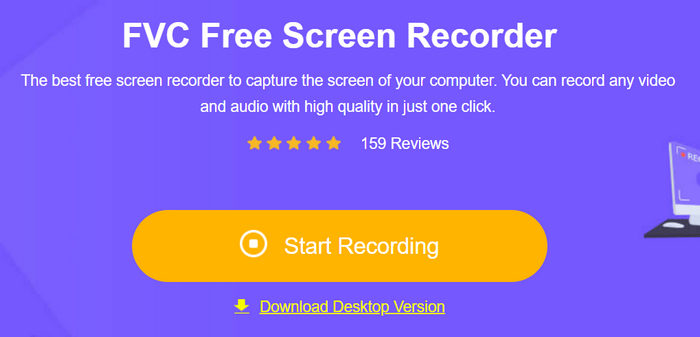
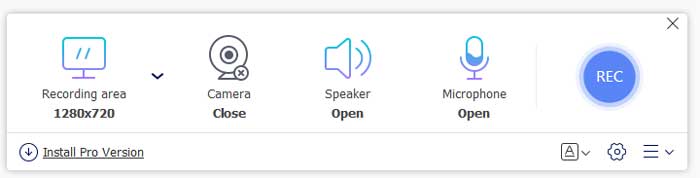
Pas 3. Finalment, per començar a gravar, fes clic al botó Rec.
En conjunt, si busques una manera ràpida, senzilla i fiable de gravar videotrucades a Telegram, FVC Free Screen Recorder val realment la pena. T’estalvia l’esforç d’haver d’instal·lar programari i ofereix resultats clars i d’alta qualitat directament des del navegador.
Part 3. Com gravar una videotrucada a Telegram [Escriptori]
Si fas servir sovint Telegram a l’ordinador i vols una manera més estable de gravar les teves videotrucades, el mètode d’escriptori és la millor opció. A diferència de les eines en línia, el programari d’escriptori ofereix millor rendiment, temps de gravació més llarg i més qualitat de vídeo. És perfecte per a usuaris que necessiten gravacions consistents i professionals per a reunions, entrevistes o converses importants.
Per a això, recomanem utilitzar FVC Screen Recorder, una potent eina d’escriptori dissenyada per a una gravació de pantalla fluida i d’alta qualitat. Et permet capturar videotrucades de Telegram amb àudio i vídeo perfectament sincronitzats, alhora que et dóna control total sobre els paràmetres de gravació.
Principals característiques:
- • Grava qualsevol cosa que aparegui a la pantalla, incloses les videotrucades de Telegram.
- • Grava vídeo amb àudio clar des del sistema, el micròfon o tots dos alhora.
- • Tria capturar la pantalla completa, una finestra concreta o una àrea personalitzada.
- • Desa les gravacions en qualitat HD o fins a 4K.
- • Exporta els vídeos en múltiples formats com MP4, MOV, MKV i AVI.
- • Grava partides de joc o reflecteix i captura fàcilment la pantalla del teu iPhone o Android.
- • Captura només la webcam o bé la webcam juntament amb la pantalla.
- • Afegeix dibuixos, ressaltats i formes mentre graves en temps real.
- • Retalla, previsualitza i edita les gravacions abans de desar-les.
- • Programa gravacions perquè s’iniciïn automàticament a una hora determinada.
- • Funciona tant a Windows com a macOS.
Com gravar una videotrucada a Telegram [Escriptori]:
Pas 1. Descarrega i instal·la FVC Screen Recorder a l’ordinador.
Descàrrega gratuïtaPer a Windows 7 o posteriorDescàrrega segura
Descàrrega gratuïtaPer a MacOS 10.7 o posteriorDescàrrega segura
Pas 2. Obre el programa i fes clic a Video Recorder, obre el teu Telegram i comença a fer una videotrucada.
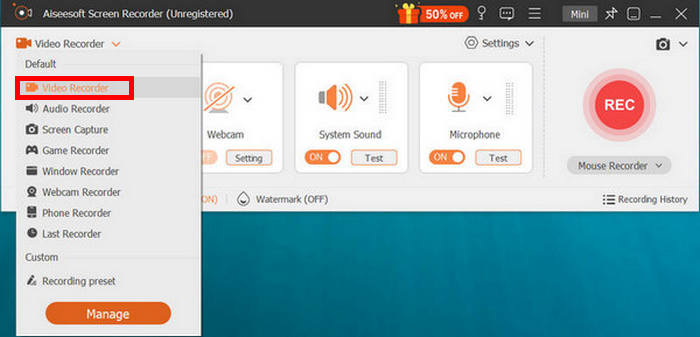
Pas 3. Ara, quan hi hagi una videotrucada en curs a Telegram, fes clic a Video Recorder. Pots ajustar l’àrea de gravació de la pantalla. Després, tria la font d’àudio entre l’àudio del sistema o el micròfon.
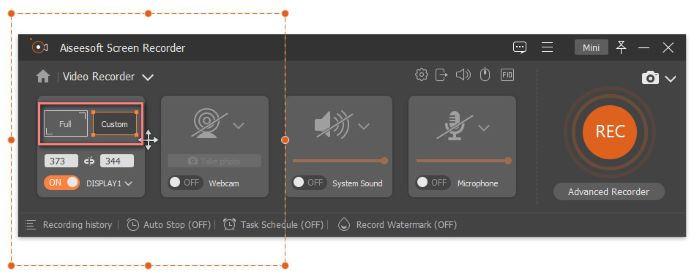
Nota: La funció Duration s’utilitza per gravar una videotrucada durant un temps determinat.
Pas 4. Quan acabis, només has de fer clic al botó Stop.
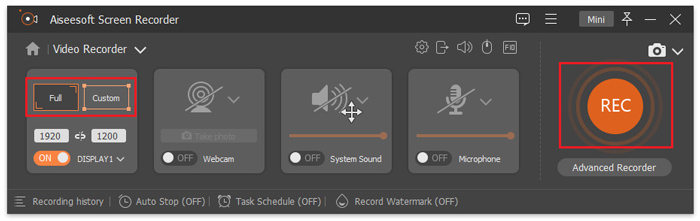
El millor de FVC Screen Recorder, en comparació amb altres eines de gravació de pantalla, és que ofereix flexibilitat i versatilitat a l’hora de gravar una videotrucada a Telegram. A més, proporciona un rendiment estable fins i tot durant videotrucades llargues. Pots personalitzar l’àrea de gravació, ajustar les fonts d’àudio i fins i tot incloure la imatge de la webcam per obtenir una configuració més personalitzada. Les seves funcions integrades d’edició i programació també el fan molt pràctic per als usuaris que volen gestionar les seves gravacions de manera eficient. En resum, FVC Screen Recorder destaca com una solució fiable i tot en un per a qualsevol persona que vulgui una manera fluida i professional de gravar videotrucades a Telegram.
Part 4. Preguntes freqüents sobre la gravació d’una videotrucada a Telegram
Puc gravar tant el vídeo com l'àudio durant una videotrucada de Telegram?
Sí. Fent servir eines com FVC Free Screen Recorder o FVC Screen Recorder, pots enregistrar tant el vídeo com l’àudio de les teves trucades de Telegram. Aquestes eines et permeten capturar alhora el so del sistema i l’entrada del micròfon, garantint una reproducció clara de les converses.
L’altra persona sabrà si estic gravant la videotrucada de Telegram?
No, Telegram no notifica els participants si estàs gravant la trucada amb una eina de tercers. Tot i això, és recomanable informar sempre l’altra persona abans de gravar per respectar la privadesa i garantir la transparència.
Puc gravar una videotrucada de Telegram en qualitat HD o 4K?
Sí. Amb FVC Screen Recorder, pots gravar videotrucades a Telegram en HD o fins a resolució 4K, cosa que el fa ideal per a un ús professional, entrevistes o presentacions que requereixin imatge i so clars.
Conclusió
Gravar una videotrucada a Telegram potser no és una funció integrada a l’app, però amb les eines adequades és absolutament possible. Així que, la propera vegada que intentis gravar una videotrucada a Telegram, ja no t’hauràs de preocupar de perdre moments importants. Amb les eines fiables esmentades en aquesta guia, com FVC Free Screen Recorder, podràs gravar, desar i tornar a veure les teves videotrucades de Telegram sempre que ho necessitis.
-
 8 millors gravadors de ratolí per capturar fàcilment el cursor del ratolí
 Busques una gravadora de ratolí per enregistrar els moviments del ratolí? Aquí tens les 8 millors eines de gravació de ratolí per ajudar-te a millorar la teva productivitat i el teu flux de treball.
-
 Com obtenir qualitat 4K a OBS: la descripció més detallada
 Si esteu jugant a un joc d'alta resolució i voleu gravar el vídeo més nítid de les vostres accions, llegiu aquesta guia. Us ensenyarem com obtenir qualitat 4K a l'OBS.
-
 Què és NVIDIA Screen Recorder: una revisió completa
 Llegeix aquest article per obtenir informació sobre les funcions, els avantatges, els inconvenients i l'ús de la gravadora de pantalla NVIDIA. Ho tenim tot a punt i també et recomanarem una alternativa.
