


 Video Converter Ultimate
 Gravadora de pantalla
 Reparació de vídeo
 Baixada segura
Com es reprodueix MP4 al Windows Media Player a l’ordinador Windows 10
De vegades, un fitxer MP4 no es reprodueix al Windows Media Player, però es pot reproduir en altres reproductors com VLC Media Player o KM Player. Atès que MP4 és el format de vídeo més popular que és compatible amb tots els reproductors multimèdia i dispositius multimèdia. És possible que tingueu molts fitxers de vídeo desats en format MP4. És molt molest si el fitxer MP4 no es pot reproduir al Windows Media Player. Llavors, com reproduir fitxers MP4 a Windows 10? Bé, no cal que us preocupeu. Aquí hi ha totes les solucions per solucionar el Windows Media Player que no reprodueix fitxers MP4.

Part 1. Per què el reproductor de Windows Media no reprodueix MP4
Segons Microsoft, no totes les versions de Windows Media Player admeten el format de fitxer MP4. Windows Media Player 7, Windows Media Player per a Windows XP, Windows Media Player 9 Series i Windows Media Player 10/11 no admeten el format de fitxer MP4.
Si el Windows Media Player no pot reproduir el videoclip MP4, potser el vídeo MP4 estigui danyat o malmès. En aquest cas, podeu provar de reproduir el fitxer MP4 no reproduïble en un altre reproductor multimèdia.
Una altra raó per la qual el Reproductor de Windows Media no reprodueix MP4 és que el fitxer MP4 no té el paquet de còdecs adequat.
Part 2. Reprodueix MP4 amb la millor alternativa al reproductor de Windows Media
Si els vídeos MP4 encara no es reprodueixen, pots canviar a un reproductor multimèdia com FVC Free Video Player. És un reproductor de vídeo en línia gratuït que reprodueix tots els fitxers multimèdia populars com MP4, MKV, FLV, MOV, AVI, 3GP, MP3, FLAC, AAC, etc., a Windows i Mac. Basat en la tecnologia HTML 5, pots reproduir qualsevol fitxer de vídeo, tant si és de l’ordinador local com si l’has baixat.
Pas 1. Visita el lloc web oficial de FVC Free Video Player (https://www.free-videoconverter.net/free-video-player/). Fes clic al botó Play Now per descarregar i instal·lar el llançador.

Pas 2. Fes clic al botó Open File per carregar el fitxer MP4 que vols reproduir. També pots fer clic al menú File i seleccionar Open File per afegir el fitxer MP4.

Quan el vídeo MP4 s’hagi pujat, es reproduirà automàticament al teu ordinador amb Windows. Si vols editar els efectes de vídeo, pots fer clic a Tools i seleccionar l’opció Effects, i podràs ajustar el to, la brillantor, el contrast, la saturació i el gamma per millorar el teu vídeo.

Part 3. Converteix MP4 per reproduir-lo al Windows Media Player
Si Windows Media Player no pot reproduir el fitxer MP4, una manera senzilla és convertir el fitxer MP4 a un altre format compatible amb Windows Media Player. Pots utilitzar una eina de conversió de vídeo com FVC Video Converter Ultimate per convertir l’MP4 al format de fitxer predeterminat per a Windows Media Player, com WMV, ASF o WMA.
Descàrrega gratuïtaPer a Windows 7 o posteriorDescàrrega segura
Descàrrega gratuïtaPer a macOS 10.7 o posteriorDescàrrega segura
Pas 1. Descarrega gratuïtament, instal·la i inicia Video Converter Ultimate al teu ordinador amb Windows. Fes clic al botó Add Files per afegir el fitxer MP4 que vols reproduir.

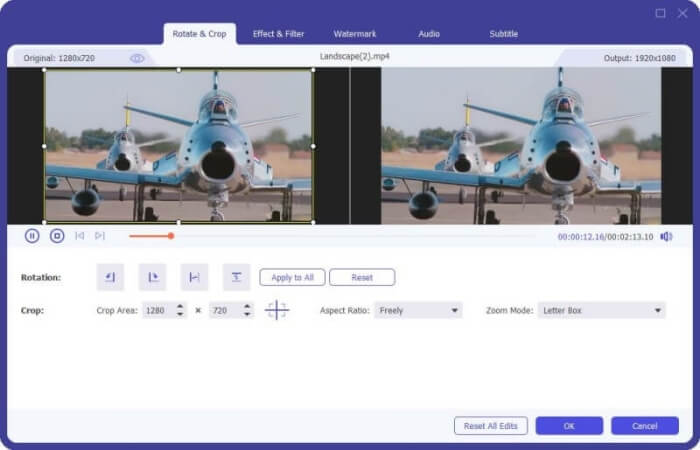
Pas 2. Si vols afegir alguns efectes al teu fitxer MP4, pots fer clic a la icona Edit per entrar a la interfície d’edició. Aquí pots afegir efectes, aplicar un filtre, girar o retallar el fitxer MP4, afegir una marca d’aigua i ajustar la pista d’àudio i els subtítols.
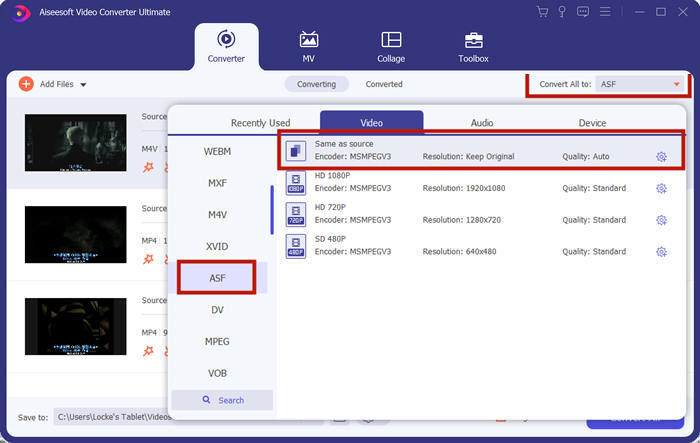
Pas 3. A continuació, fes clic a la fletxa desplegable al costat de Convert All to, ves a la pestanya Video i selecciona ASF o WMV com a format de sortida.
Pas 4. Finalment, estableix la carpeta de sortida on es desarà el fitxer MP4 convertit. Fes clic al botó Convert All per convertir el fitxer MP4. Després de la conversió, podràs reproduir el fitxer MP4 convertit a Windows Media Player.

Part 4. Consells habituals per reproduir MP4 al Windows Media Player
Per reproduir MP4 a Windows 10, pots anar a la carpeta on es desen els fitxers MP4. Fes clic amb el botó dret al fitxer MP4 que vols reproduir, selecciona Open with i tria Windows Media Player. Encara que és tan senzill, de vegades pot fallar l’obertura del fitxer MP4 a Windows Media Player. Per solucionar el problema, pots provar els consells següents.
1. Reprodueix MP4 amb altres reproductors multimèdia
Si el teu fitxer MP4 no es reprodueix a Windows Media Player, pots provar altres reproductors multimèdia per obrir el fitxer MP4. Hi ha molts reproductors multimèdia com FVC Free Video Player, VLC Media Player, KM Player, Real Player, GOM Player, BS Player, DivX Player i molts més.
2. Instal·leu el còdec adequat per al Windows Media Player
Falten còdecs si el Reproductor de Windows Media no reprodueix fitxers MP4. Per solucionar el problema, heu d’instal·lar el còdec adequat per al Windows Media Player.
Pas 1. Obre Windows Media Player. Fes clic al menú Organize i selecciona Options.
Pas 2. Ves a la pestanya Privacy i marca l’opció Download usage rights automatically when I play or sync a file.
Pas 3. Per reproduir el fitxer MP4, pots fer clic al botó OK per desar els canvis.
3. Executeu l'eina de resolució de problemes al Windows
Si MP4 no s'ha pogut reproduir al Windows Media Player, podeu utilitzar l'eina de resolució de problemes per resoldre el problema a Windows 10. Seguiu els passos per solucionar el problema.
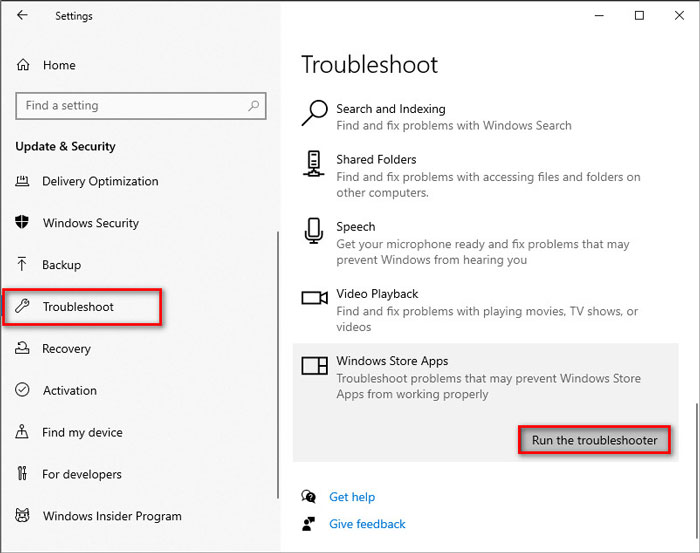
Pas 1. Al teu ordinador amb Windows 10, obre Settings i selecciona Update & Security.
Pas 2. Ves a l’àrea Troubleshoot i fes clic a Windows Store Apps.
Pas 3. Fes clic al botó Run the troubleshooter per solucionar el problema de reproducció de Windows Media Player.
Part 5. Preguntes més freqüents sobre la reproducció de MP4 al Windows Media Player
Quin és el format de vídeo predeterminat del Windows Media Player?
El format de fitxer per defecte del Windows Media Player és WMV (Windows Media Video) i WMA (Windows Media Audio). També és compatible amb ASF (Advanced Systems Format) i el seu propi format de llista de reproducció basat en XML, Windows Playlist.
Quin és el millor reproductor MP4?
Hi ha molts reproductors MP4 populars al mercat, incloent-hi FVC Free Video Player, VLC Media Player, KM Player, QuickTime Player, RealPlayer, Media Player Classic, GOM Player, PotPlayer i molts més.
Puc reproduir MKV al Windows Media Player?
El reproductor Windows Media 12 incorporat a Windows 10 no admet la reproducció MKV. Cal instal·lar el còdec adequat per a la reproducció.
Conclusió
MP4 és el format multimèdia digital més popular que s’utilitza habitualment per emmagatzemar vídeo i àudio. És frustrant si el fitxer MP4 no es pot reproduir al Windows Media Player. Espero que pugueu reproduir els vostres fitxers MP4 amb fluïdesa a Windows 10 amb tots els nostres consells i solucions. Podeu provar un altre reproductor de vídeo com FVC Free Video Player per reproduir els vostres fitxers MP4.
-
 Com es reprodueixen fitxers MP4 a Google Drive
 MP4 no es reprodueix al meu Google Drive? Com es reprodueixen fitxers MP4 a Google Drive? Aquesta publicació explica tres maneres de reproduir vídeos MP4 a Google Drive.
-
 Reprodueix fitxers MP4 al Chromebook 2021
 Podeu reproduir vídeos a Chromebook? Com es reprodueixen fitxers MP4 des d’USB a Chromebook? Aquesta publicació comparteix 3 maneres de reproduir MP4 a Chromebook.
-
 Com reproduir DVD al Windows Media Player el 2021
 Per què el meu DVD no es reprodueix al Windows Media Player? Com es reprodueix el DVD al reproductor multimèdia de Windows 7? Aquesta publicació comparteix 3 maneres de reproduir DVD amb o sense WMP.
