


 Video Converter Ultimate
 Gravadora de pantalla
 Reparació de vídeo
Offline vs. En línia: domina com accelerar vídeos en format MP4 amb facilitat
Estàs tornant a veure la teva pel·lícula preferida per sisena vegada. En lloc de mirar-la sencera una altra vegada, decideixes veure’n totes les escenes crucials, així que vols accelerar el vídeo, però és en format MP4. A més, volies accelerar el teu clip de vídeo, però et vas quedar sense connexió i el necessitaves per al teu projecte de l’escola. A més a més, el teu clip de vídeo és en format MP4. Et preguntes si hi ha alguna eina compatible amb la conversió que pugui accelerar vídeos en format MP4. Aquest article explica tot el relacionat amb la conversió del format MP4, tant en línia com fora de línia. A més, s’hi inclouen passos per assegurar-te que executis bé totes les transicions.

Part 1. Com accelerar un vídeo MP4 amb Video Converter Ultimate [fora de línia]
Video Converter Ultimate és el millor programari disponible tant per convertir vídeos com per editar-los. Aquest programari inclou eines per millorar la qualitat del teu vídeo, i alhora el pots personalitzar al teu gust fins a aconseguir el vídeo desitjat. A més, aquestes eines són fàcils d’utilitzar i no fan que els usuaris principiants trobin el programari complicat. També és un programa de descàrrega gratuïta que pot produir vídeos de sortida d’alta qualitat compatibles amb qualsevol format, especialment el format MP4. Com que MP4 és un dels formats més habituals, Video Converter Ultimate pot fer que el teu MP4 expressi tot el seu potencial ajustant-ne la resolució i la velocitat de fotogrames. Mentrestant, per al problema plantejat sobre el control de la velocitat de reproducció, aquesta és la millor solució. A continuació tens els passos per executar-ho correctament:
Pas 1: Fes clic al botó Free Download per descarregar el programari a l’escriptori de l’ordinador. Després, instal·la el programa i configura’l al teu gust.
Descàrrega gratuïtaPer a Windows 7 o posteriorDescàrrega segura
Descàrrega gratuïtaPer a macOS 10.7 o posteriorDescàrrega segura
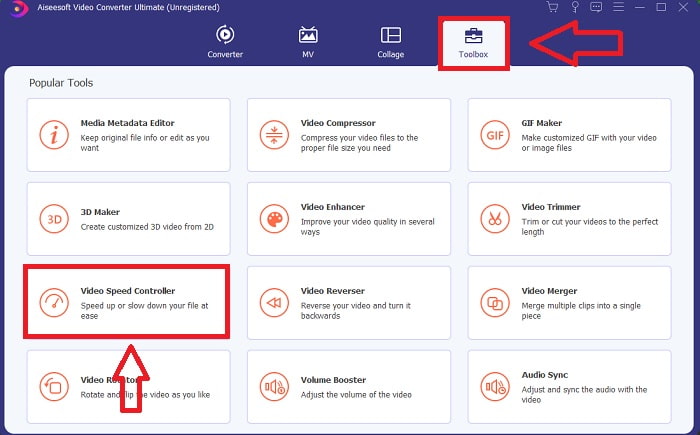
Pas 2: Després de la instal·lació, obre el programa, selecciona l’opció Toolbox i tria Video Speed Controller.
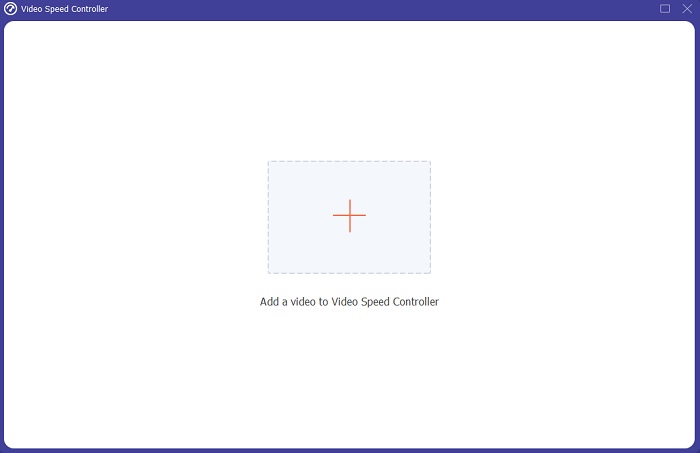
Pas 3: Fes clic al botó + a la barra de preferències per pujar el vídeo MP4 que vols accelerar.
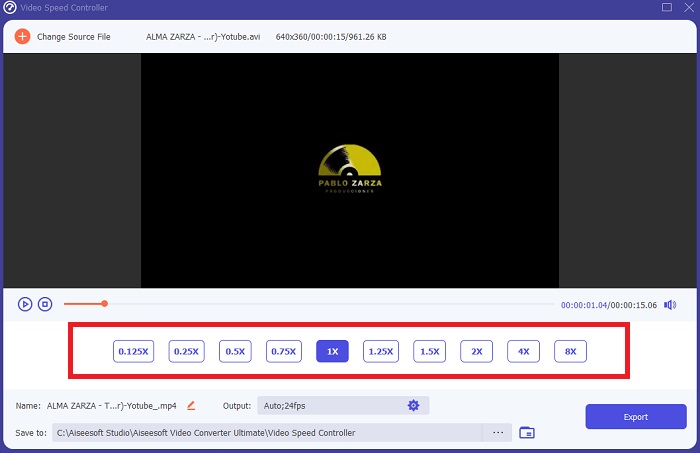
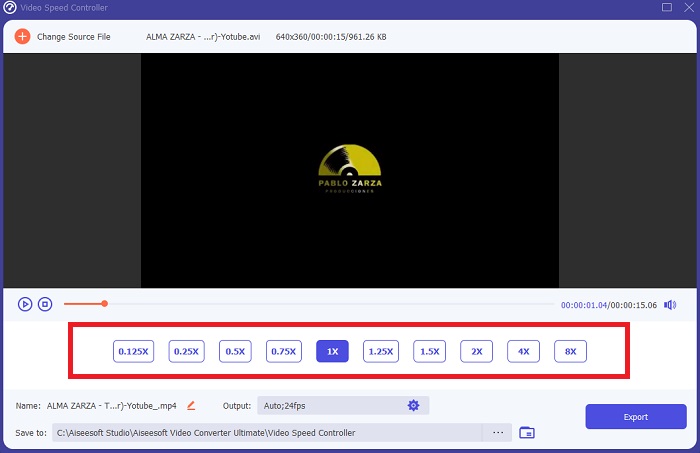
Pas 4: Pots canviar la velocitat de reproducció decidint quantes vegades augmentarà o disminuirà la velocitat de fotogrames del vídeo durant la reproducció.
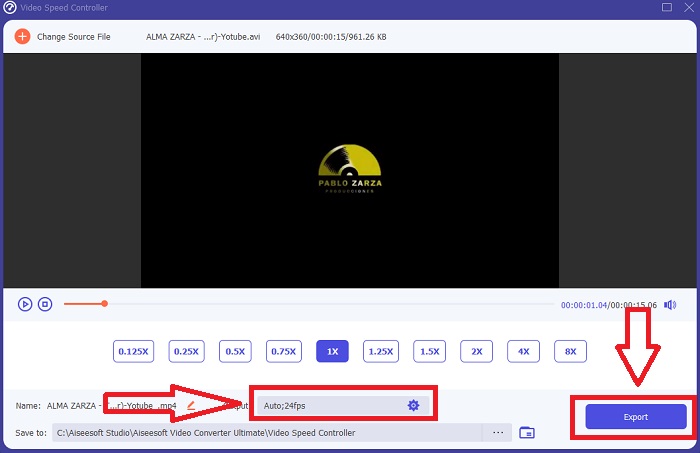
Pas 5: Pots afinar la velocitat de reproducció del teu clip modificant el format, la resolució, la qualitat, etc. Quan estiguis a punt per desar la feina, fes clic a Export i tria una ubicació.
Part 2. Altres maneres d'accelerar un vídeo MP4 [en línia]
Presentarem les millors eines basades en web que poden convertir el vostre vídeo a l'altre nivell. A més, la majoria de les eines web tenen funcions que poden augmentar o disminuir la velocitat de reproducció del videoclip. El millor és que aquestes eines web són gratuïtes i són fàcils d'utilitzar. Perfecte per als usuaris generals que utilitzaran aquestes eines web, oferim els passos a seguir per utilitzar-les correctament.
Consells 1: utilitzeu VEED
Creadors de contingut d’arreu del món confien en VEED i en el seu programari de codi obert per crear vídeos per a xarxes socials i altres finalitats. No cal experiència prèvia en edició de vídeo ni descarregar cap programari abans. El nostre editor de vídeo basat en web és completament gratuït. Afegir una barra de progrés en un subtítol d’Stories d’Instagram, en un clip de YouTube o retallar un fragment perquè s’ajusti a una publicació de Twitter, tot això es pot fer amb VEED. Aquest editor de velocitat per a MP4 és una eina web que necessita una bona connexió per funcionar bé; hi pots pujar directament el fitxer i ajustar la velocitat de reproducció des de la seva interfície. A més, també ofereix diferents funcions, inclosa l’opció d’augmentar la velocitat de reproducció del vídeo.
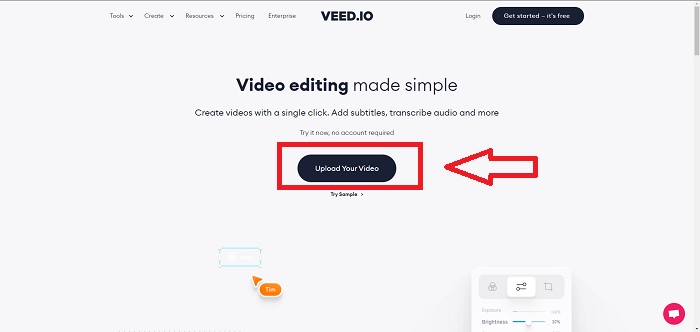
Pas 1: Puja el vídeo des de l’escriptori fent clic a Upload Your Video.
Pas 2: Prem la pista de vídeo per veure la interfície d’edició a la cantonada esquerra de l’eina web. Localitza la funció Speed i tria entre les velocitats de reproducció 0.5x, 1x, 1.5x, 2x. Però si la velocitat que vols no apareix entre les opcions, pots personalitzar la velocitat de reproducció del teu clip seleccionant Custom.
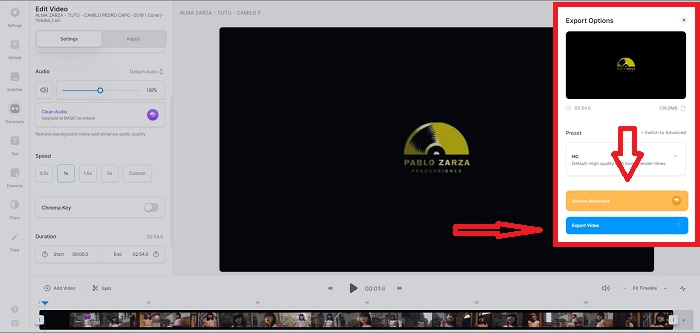
Pas 3: Un cop hagis editat la velocitat de vídeo desitjada, ves a la pestanya d’exportació fent clic a Export. Mentrestant, pots triar la qualitat que prefereixes per al teu vídeo i eliminar la marca d’aigua comprant la versió premium de l’eina web. Si tot està llest, transfereix el vídeo convertit al teu ordinador fent Exporting Video.
Consells 2: utilitzeu InVideo
InVideo és una eina d’edició de vídeo basada en el web que permet a empreses de totes les mides crear i compartir vídeos amb contingut i marca personalitzats a través de diverses plataformes de xarxes socials i llocs web. A més, disposa d’una biblioteca de continguts amb imatges i vídeos de diversos repositoris en línia com Storyblocks i Shutterstock que es poden utilitzar. A diferència de l’eina web anterior presentada en aquest article, InVideo et demana que introdueixis primer la teva adreça de correu electrònic abans de poder utilitzar tota l’eina. Aquesta eina web ofereix una gran quantitat de plantilles per decorar o millorar el teu clip de vídeo. Aquesta eina pot fer que esdevinguis un editor professional gràcies a les seves funcions excepcionals.
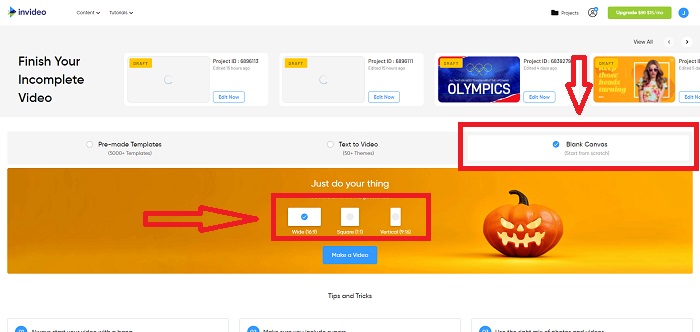
Pas 1: Primer, per accedir a l’eina web, has de crear un compte. Després, tria la plantilla que faràs servir o comença des de zero seleccionant Blank Canvas. Continua pujant el teu fitxer fent clic a Upload a la cantonada esquerra de la interfície.
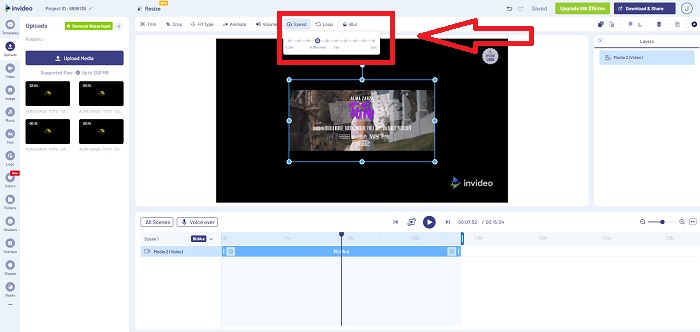
Pas 2: Arrossega el teu clip de vídeo a la pista d’edició i comença a editar-ne la velocitat de reproducció fent clic a la pestanya Speed a la cantonada superior de la interfície. Comença a arrossegar el Slider per personalitzar la velocitat del teu clip.
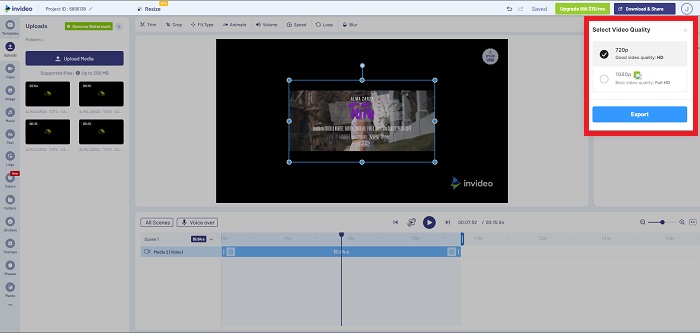
Pas 3: Després d’editar, exporta el fitxer fent clic a Download & Share i desbloqueja la versió premium si tries una qualitat més alta.
Consells 3: utilitzeu Typito
Pots utilitzar Typito per crear vídeos atractius amb plantilles i imatges que ajudaran el teu negoci a destacar de la competència. És, en certa manera, un Canva per a vídeos. Aquesta eina web no és només per a negocis. Es pot fer servir en un projecte escolar i en alguns treballs semiprofessionals en l’àmbit del multimèdia. Aquesta eina web també requereix un correu electrònic per funcionar i convertir el teu clip de vídeo amb els ajustos que desitgis.
Pas 1: Afegeix fitxers multimèdia arrossegant-los des de l’escriptori o fent clic a la icona de carpeta.
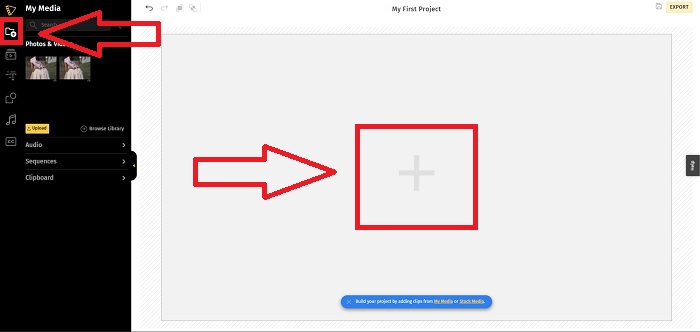
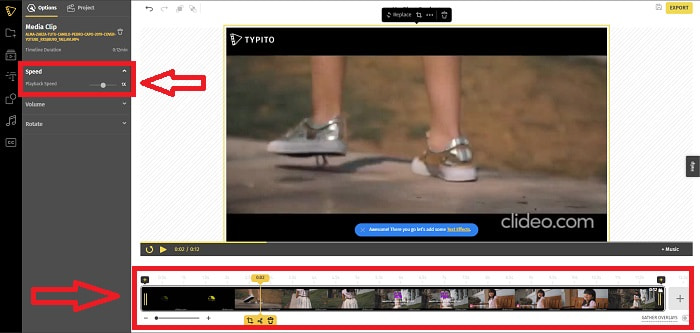
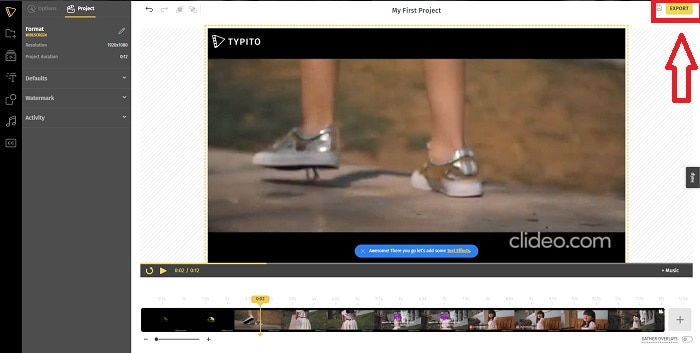
Pas 2: Fes clic al fitxer de vídeo i després a Add Projects perquè el teu fitxer passi a la pista de vídeo i puguis començar a editar-lo. Fes clic a la pista de vídeo de sota, localitza la funció Speed a la cantonada esquerra de la interfície i ajusta la velocitat de reproducció movent el Slider.
Pas 3: Puja el fitxer convertit al teu ordinador fent clic a Export a la cantonada superior dreta de la interfície i triant quin correu electrònic faràs servir per descarregar-lo. Si tot està llest, descarrega’l.
Part 3. Preguntes freqüents sobre com accelerar un vídeo MP4
És millor convertir vídeos fora de línia o en línia?
Convertir fitxers de vídeo utilitzant una connexió a internet pot ser un inconvenient per a alguns usuaris, tant per comoditat com per seguretat. Tanmateix, el bo de convertir fora de línia és que no t’has de preocupar per detalls com iniciar sessió abans d’utilitzar el programari o l’eina web. Tampoc t’has de preocupar pel procés de conversió. Tant si la mida del fitxer és gran com petita, no cal patir pel temps de conversió perquè no depèn d’una connexió a internet. Pots fer clic aquí per aprendre com convertir MP4 a M4V amb passos detallats.
Què és un MP4?
MP4 és un terme que s'utilitza habitualment per a un fitxer d'emmagatzematge multimèdia que emmagatzema fitxers multimèdia en format MP4. Per al contingut de vídeo, s'utilitza freqüentment el format MP4. Aquest format també es pot utilitzar per a subtítols, àudio i imatges. Com a resultat de la gran quantitat de dades comprimides que contenen els fitxers MP4, aquests tipus de fitxers s'anomenen formats de contenidors multimèdia digitals. L'estàndard descriu com s'emmagatzema, però no aborda les dades codificades dins d'aquests contenidors.
Hi ha MP4 disponible a tots els reproductors multimèdia?
Sí, MP4 és un dels formats multimèdia més habituals, fins i tot quan la mida del fitxer és petita. MP4 marca l’estàndard en la majoria de reproductors multimèdia disponibles, ja que és compatible fins i tot amb alguns convertidors. Aquests són els millors reproductors MP4 que pots utilitzar.
Conclusió
Per concloure, no hi ha res especialment bo ni dolent a l’hora de convertir o canviar la velocitat d’un MP4, tant si és en línia com fora de línia. Només difereixen alguns detalls del procés de conversió, però en general el resultat final és sempre el mateix. Atès que alguns convertidors només permeten treballar amb determinats formats de vídeo, hem posat el MP4 com un dels millors exemples de formats disponibles amb les eines presentades en l’article. Però si vols utilitzar un altre format de vídeo per convertir, ves a l’enllaç següent per saber-ne més sobre com convertir MP4 a un altre format.
-
 [Resolt] Com reproduir fitxers MP4 a Google Drive
 MP4 no es reprodueix al meu Google Drive? Com es reprodueixen fitxers MP4 a Google Drive? Aquesta publicació explica tres maneres de reproduir vídeos MP4 a Google Drive.
-
 [Resolt] Reprodueix fitxers MP4 a Chromebook 2021
 Podeu reproduir vídeos a Chromebook? Com es reprodueixen fitxers MP4 des d’USB a Chromebook? Aquesta publicació comparteix 3 maneres de reproduir MP4 a Chromebook.
-
 El reproductor de Windows Media no reprodueix MP4? 5 maneres eficients de solucionar-ho
 No s'ha pogut reproduir MP4 al Windows Media Player? Obteniu més informació sobre els motius i les solucions definitives per reproduir MP4 al Windows Media Player a l’ordinador Windows 10.
