


 Video Converter Ultimate
 Gravadora de pantalla
 Reparació de vídeo
Reforça els teus coneixements utilitzant diferents pràctiques sobre com frenar el vídeo MP4
El muntatge és una tècnica d’edició cinematogràfica que reuneix fragments de pel·lícula temàticament relacionats per crear un únic pla fluït i continu. El muntatge permet que directors, muntadors i tècnics d’imatge i so uneixin les diferents parts d’un film peça a peça, tallant-les i encaixant-les entre si. Alguns muntatges utilitzen clips de vídeo a càmera lenta per dur a terme el procés de creació d’un muntatge. Però, per obtenir aquest tipus d’escena cinematogràfica, cal aprendre a reduir la velocitat de vídeos MP4 o d’altres formats com MOV, AVI, etc. Per resoldre aquesta qüestió, aquest article presenta diversos temes per parlar i aprendre més sobre com crear un muntatge, és a dir, com alentir un vídeo.

Part 1. Per què cal reduir la velocitat d'un vídeo?
Alguna vegada us heu preguntat per què algunes de les pel·lícules que mireu tenen una mostra a càmera lenta d'actes que sempre es destaquen, sobretot si hi ha alguna acció i transició implementada a l'escena de la pel·lícula? I com que sou un fan de les pel·lícules d'acció, voleu recrear la vostra pel·lícula d'acció preferida, però per aconseguir l'impacte d'acció de la pel·lícula, heu de reduir la velocitat de reproducció d'algunes escenes, però no sabeu com aconseguir-ho. aquesta tasca.
Part 2. Les millors eines per frenar els vídeos MP4
Hi ha moltes eines web i programes que poden editar vídeos, inclosa la funció de reduir la velocitat d’un MP4, però aquests són els millors recursos en línia i programes que heu d’utilitzar per aconseguir el vídeo personalitzat que voleu. Alguns s’han de descarregar i instal·lar a l’ordinador, i d’altres només requereixen el vostre correu electrònic, i ja podeu editar directament des del navegador.
Mètode 1. Utilitzeu Video Converter Ultimate
Video Converter Ultimate és un programa gratuït de descarregar que pot reduir la velocitat d’un vídeo de manera permanent. Una de les funcions que ofereix aquest programari permet accelerar i alentir un vídeo de forma molt senzilla. A més de la funció de control de la velocitat del vídeo, aquest programari inclou altres eines, com retallar, invertir, unir, editar i crear collages a partir d’un vídeo per millorar el resultat que desitgeu. A més, totes les eines disponibles en aquest programa es poden utilitzar amb facilitat per qualsevol usuari. A continuació es mostren els passos que heu de seguir per aconseguir l’ajust que voleu.
Pas 1: Feu clic al botó Free Download per començar la descàrrega a l’ordinador. Després, podeu personalitzar el sistema instal·lant i configurant el programari.
Descàrrega gratuïtaPer a Windows 7 o posteriorDescàrrega segura
Descàrrega gratuïtaPer a macOS 10.7 o posteriorDescàrrega segura
Pas 2: Un cop el programari estigui instal·lat, executa’l seleccionant l’opció Eines de la barra de menús i, a continuació, seleccionant Controlador de velocitat de vídeo de la llista que apareix.
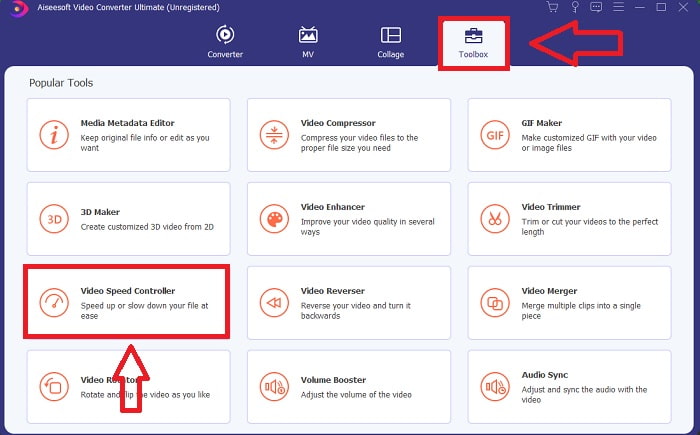
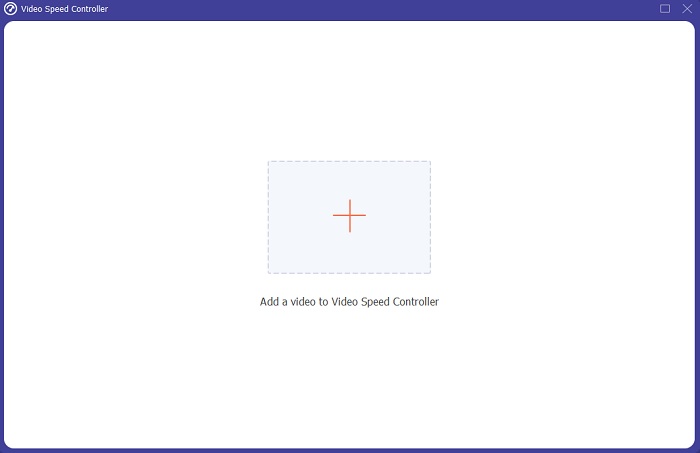
Pas 3: Afegiu qualsevol fitxer fent clic al botó + i modifiqueu el clip de vídeo.
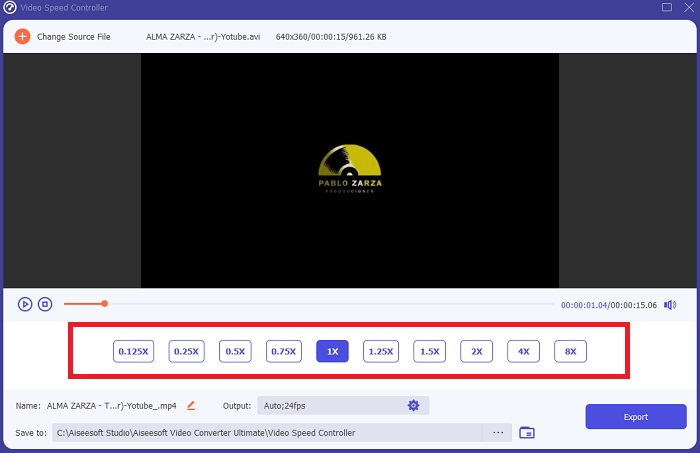
Pas 4: Ajusteu la velocitat de reproducció modificant la velocitat del vídeo.
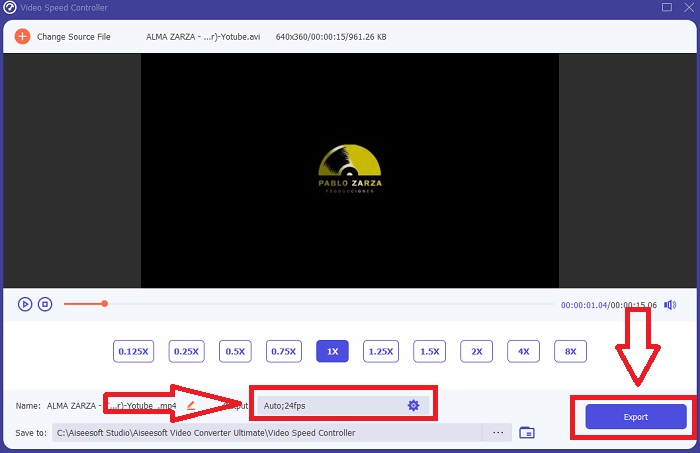
Pas 5: Després de canviar la velocitat de reproducció del vostre clip de vídeo, podeu triar el format d’exportació, la resolució, la qualitat, etc. A continuació, feu clic a Export i trieu una ubicació per desar-hi el fitxer.
Mètode 2. Utilitzeu InVideo
Quan es tracta de crear i compartir vídeos per a xarxes socials i llocs web, InVideo és una eina d’edició de vídeo basada en el web, ideal per a empreses de tota mena. També disposa d’una biblioteca de continguts d’imatges i vídeos procedents de diversos repositoris en línia, com Storyblocks i Shutterstock, que es poden fer servir dins l’aplicació. Per utilitzar InVideo, primer heu d’introduir la vostra adreça de correu electrònic, a diferència de l’eina web anterior comentada en aquest article. Aquesta eina en línia ofereix una gran selecció de plantilles per personalitzar el vostre vídeo. Amb les seves impressionants funcions, aquesta aplicació web pot elevar les vostres habilitats d’edició fins a un nivell professional. Una de les seves funcions pot reduir la velocitat d’un vídeo MP4 de la manera més senzilla possible; aquí teniu els passos indicats:
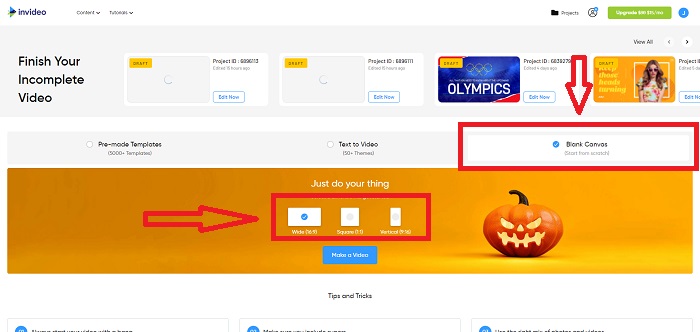
Pas 1: Creeu un compte a l’eina web per obtenir-hi accés. El pas següent és seleccionar la plantilla amb què voleu treballar. Feu clic al botó Upload a la cantonada esquerra de la interfície per començar el procés de pujada.
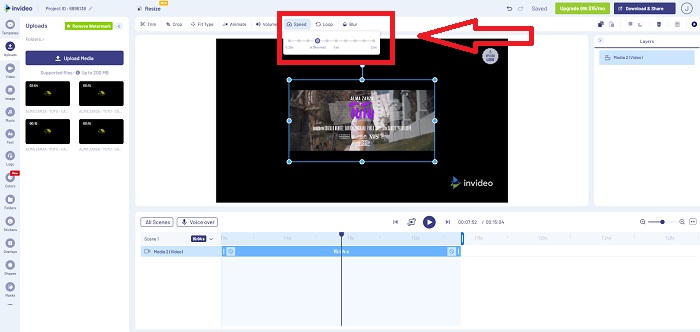
Pas 2: Per editar la velocitat de reproducció del vostre clip de vídeo, feu clic a la pestanya Speed a l’angle superior dret de la interfície i arrossegueu-la a la pista. Després, arrossegueu el Slider per augmentar o reduir la velocitat de reproducció del clip de vídeo.
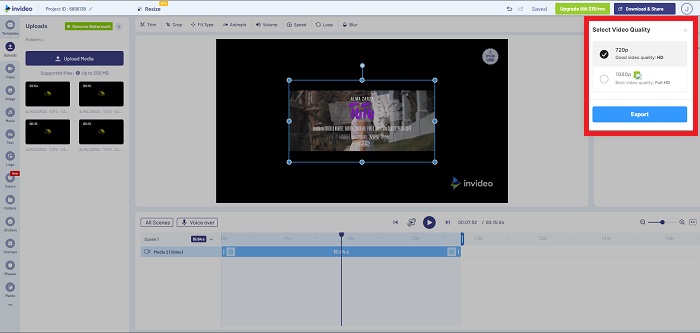
Pas 3: Quan acabeu l’edició, feu clic a Download & Share i desbloquegeu la versió Premium per obtenir millors resultats.
Mètode 3. VLC Media Player
Com que és gratuït, VLC (Video Lan Client) és un dels reproductors multimèdia més utilitzats tant a Windows com a Mac. Permet reproduir diferents tipus de clips de vídeo, com ara vídeos de 360 graus o formats comprimits, fins i tot amb vídeos de la màxima qualitat, ja que és molt flexible. Tanmateix, aquest reproductor multimèdia tan estès de vegades pot presentar algun error. A més, aquest reproductor pot reduir la velocitat d’un fitxer MP4 de manera senzilla. Tots els detalls sobre aquesta funció es descriuen a continuació:
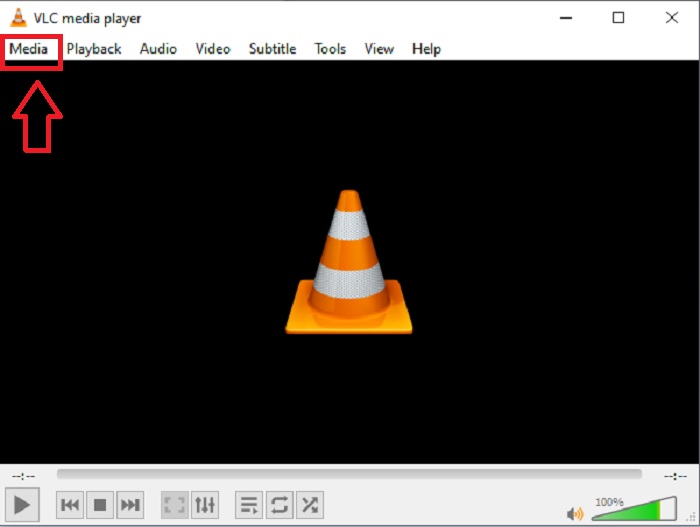
Pas 1: Primer, heu d’afegir el vostre fitxer al menú Media i fer clic a Open File.
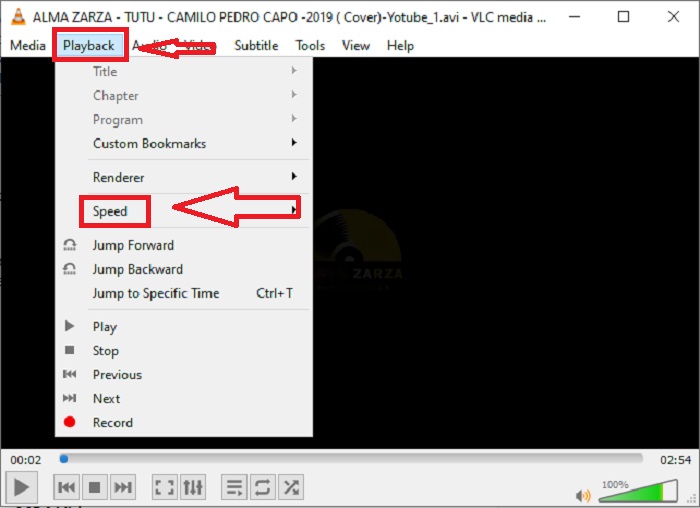
Pas 2: A continuació, seleccioneu la pestanya Playback i, tot seguit, feu clic a l’opció Speed.
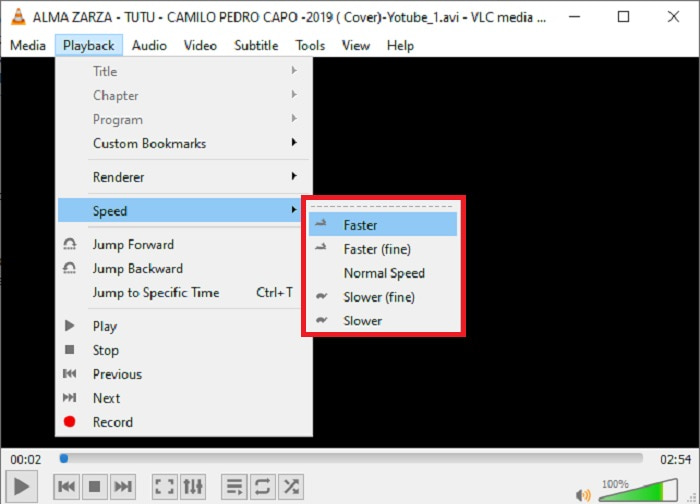
Pas 3: Amb això, se us oferiran diverses opcions de velocitat de reproducció. Si voleu reduir la velocitat del vostre fitxer de vídeo, feu clic a Slower (fine) i Slower, i si voleu augmentar-la, feu clic a Faster (fine) i Faster.
Relacionat:
Com solucionar que VLC no reprodueixi DVD
Part 3. Preguntes freqüents sobre la ralentització dels vídeos MP4
Perdo la qualitat del vídeo si freno?
No, el mateix amb l'augment de la velocitat de reproducció del vostre vídeo; alentir el vostre vídeo no perd la qualitat del vostre vídeo. Per alguna raó per la qual alguns dels vídeos es tornen una mica irregulars després de reduir la velocitat de reproducció del vídeo és que la seva qualitat de vídeo ja és avorrida i baixa. A més, si intensifiqueu per reduir la velocitat de reproducció del vostre videoclip, la velocitat de fotogrames es dividirà per la meitat, provocant un retard i baixant la qualitat.
Puc alentir un vídeo fora de línia?
Hi ha programari que funciona perfectament per reduir la velocitat o alentir un vídeo. Video Converter Ultimate és un programari creat per millorar i millorar el vídeo des de diferents perspectives. A més, amb la seva finalitat, es pot descarregar gratuïtament, i és accessible per a usuaris d'un ampli ventall de públics.
Què és millor frenar un vídeo? En línia o fora de línia?
Alguns dels passos en línia per frenar un vídeo tenen molts processos a seguir que el fan més complicat que utilitzar-lo fora de línia. La majoria del programari es pot descarregar gratuïtament, per la qual cosa és convenient alentir un vídeo fora de línia.
Conclusió
En conclusió, la majoria de reproductors multimèdia actuals admeten el format MP4. Per això, alentar vídeos MP4 és molt més fàcil amb les eines web i els programes presentats en aquest article. Per aprofitar al màxim el potencial del vostre vídeo, descarregueu Video Converter Ultimate. A més de reduir la velocitat del vostre vídeo, aquest programari pot portar-lo a un altre nivell. Amb totes les funcions disponibles, us podreu considerar un editor professional quan el feu servir.
-
 4 millors convertidors de MP4 a M4V per convertir vídeos MP4 en M4V amb facilitat
 Quan hàgiu de canviar els fitxers MP4 a M4V, heu d’aprendre més detalls sobre les diferències entre els dos formats, així com els millors convertidors de MP4 a M4V de l’article.
-
 AMV Converter: 3 millors mètodes per convertir MP4 a AMV a Win / Mac
 Quins són els millors convertidors de MP4 a AMV per convertir els vídeos en Amine Music Video? Podeu obtenir més informació sobre 3 mètodes més eficients per obtenir els vídeos desitjats amb facilitat a l'article.
-
 WebM a MP4 | Converteix gratuïtament WebM a MP4 (en línia i d'escriptori)
 Com veure fitxers WebM sense navegador web? Cal convertir WebM a MP4. Aquests són els 10 principals convertidors gratuïts de WebM a MP4 per canviar WebM a MP4 en línia i en ordinadors Mac i Windows.
