


 Video Converter Ultimate
 Gravadora de pantalla
 Reparació de vídeo
 Baixada segura
Combineu fitxers WAV a la perfecció amb eines i consells de programari
Tant si ets novell en l’edició d’àudio com si ets un professional, combinar fitxers WAV amb les eines i tècniques adequades és necessari per garantir que dos fitxers WAV diferents es fusionin i s’exportin amb qualitat sense pèrdues. D’altra banda, cercar l’eina adequada pot requerir temps i esforç per part de l’usuari. Tot i així, amb l’ajuda d’aquest article, explorarem diverses eines amb els passos per navegar-hi de manera eficaç i consells per començar, fent que el procés sigui més senzill i eficient.

Part 1. Combina fitxers WAV sense pèrdues en segons [amb acceleració GPU]
Quan vulguis combinar dos fitxers WAV en un sol fitxer exportat, la millor i més senzilla manera de fer-ho és utilitzar el Video Converter Ultimate recomanat per FVC. Aquest programari d’Aiseesoft és accessible per a tot tipus d’usuaris, ja que és completament gratuït de descarregar des del seu lloc web oficial. Aquesta eina inclou funcions d’edició de vídeo i àudio amb la capacitat de fusionar múltiples fitxers WAV en un sol fitxer. A més, el programari integra una tecnologia de processament d’alta velocitat que fa que la combinació i l’exportació de fitxers WAV sigui molt més eficient per a l’usuari. Per navegar fàcilment per la tasca de combinar fitxers WAV, segueix la guia següent.
Pas 1. Descarrega i instal·la el combinador de fitxers WAV a l’ordinador, i a continuació obre’l.
Descàrrega gratuïtaPer a Windows 7 o posteriorDescàrrega segura
Descàrrega gratuïtaPer a macOS 10.7 o posteriorDescàrrega segura
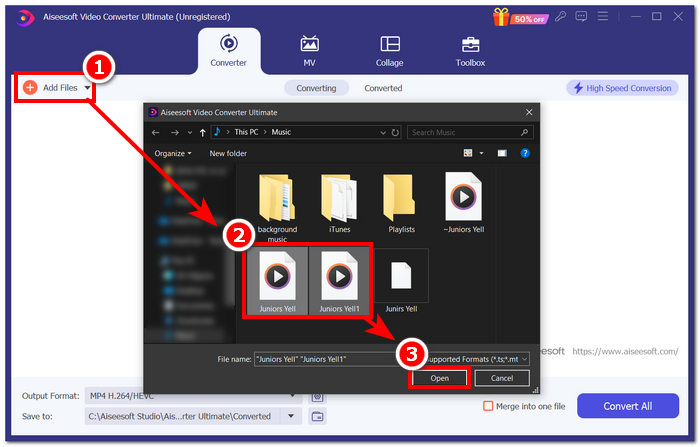
Pas 2. Un cop siguis a la interfície del programari, fes clic al botó Add Files a la cantonada superior esquerra. Després obre i tria els fitxers WAV que vols combinar en un sol fitxer i fes clic al botó Open.
Pas 3. Quan hagis pujat els fitxers WAV que vols combinar al programari, per fer-ho marca l’opció Merge into one file, situada al costat del botó Convert All a la part inferior dreta de la interfície.
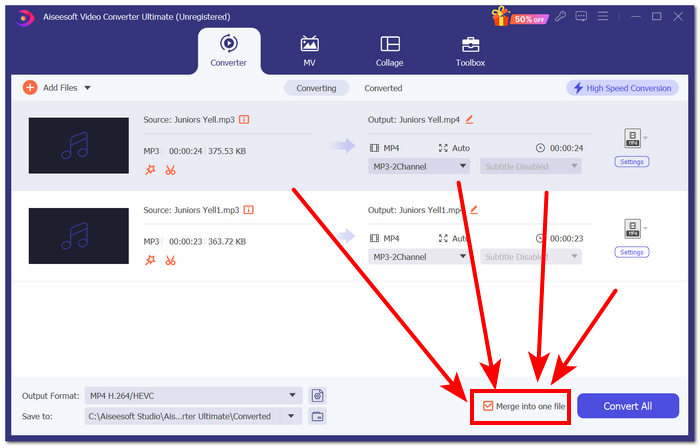
Pas 4. Fes clic al botó Convert All per començar el procés de combinació i exportar-los automàticament a la carpeta de descàrregues.

Consells
• Podeu combinar diversos fitxers WAV a l'eina de programari simultàniament.
• A l'extrem inferior esquerre de la interfície del programari, podeu controlar el format de sortida al format de fitxer més desitjat abans d'exportar-lo.
• També podeu canviar la destinació del fitxer WAV combinat accedint i escollint la carpeta designada situada a l'extrem inferior esquerre de la interfície del programari.
• Per maximitzar la tecnologia de processament d'alta velocitat quan fusioneu i exporteu el vostre fitxer WAV, activeu la configuració de conversió d'alta velocitat situada a l'extrem superior dret de la interfície del programari.
• A més, aquesta eina admet diversos formats, i pots combinar MP4, MKV, FLV, MP3, FLAC i molts altres formats entre si.
Part 2. Combina fitxers WAV en línia
Quan trobeu força difícil combinar els vostres fitxers WAV mitjançant una eina basada en programari, pot ser que necessiteu una solució en línia. Descript és una eina basada en web que funciona com a eina d'edició d'àudio, vídeo i transcriptor en una. Combinar fitxers WAV és relativament fàcil, ja que l'eina basada en web utilitza AI per combinar automàticament els fitxers WAV d'entrada en el moment en què els pengeu i permetre als usuaris previsualitzar-los abans de descarregar-los.
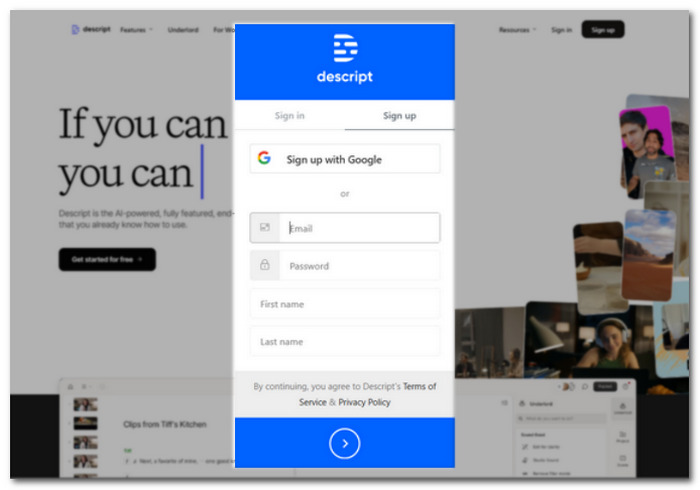
Pas 1. Ves al lloc web oficial de Descript i crea un compte per poder utilitzar aquesta eina per combinar els teus fitxers WAV.
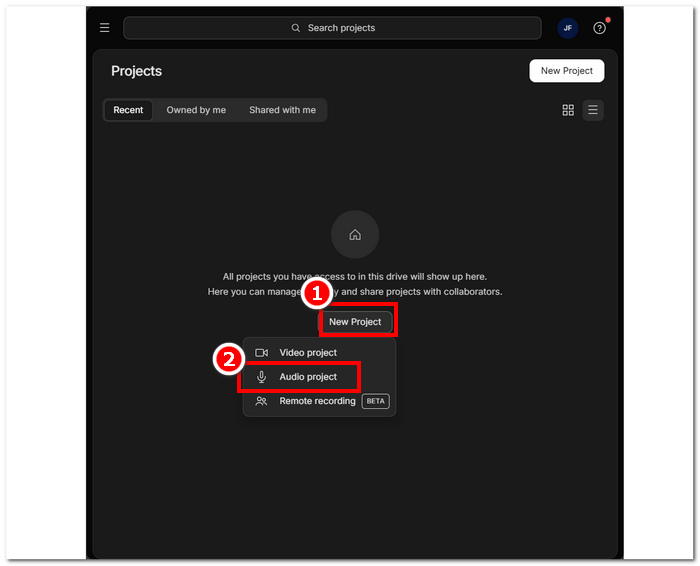
Pas 2. Un cop hagis iniciat sessió a la interfície de l’eina, fes clic a New Project > Audio Project.
Pas 3. Puja els fitxers WAV que vols combinar i fusionar en un sol fitxer al camp Upload a file que apareix a la interfície de l’eina.
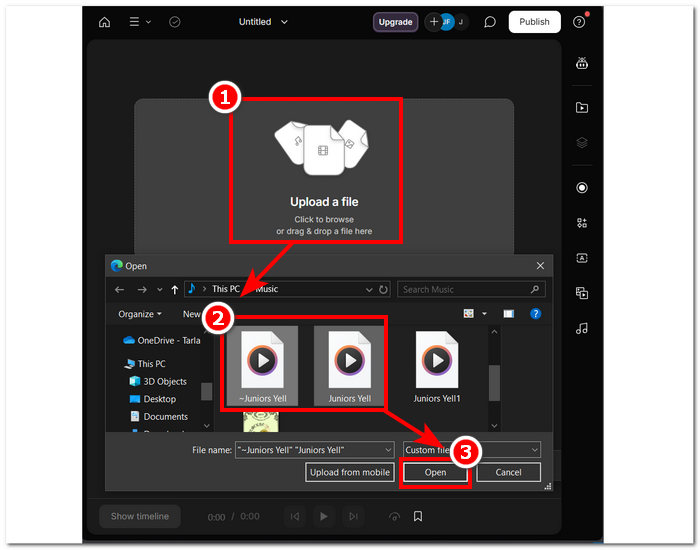
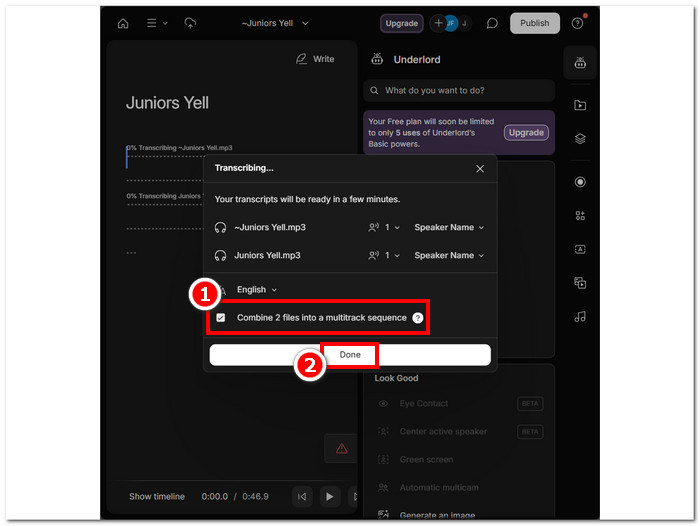
Pas 4. Mentre els teus fitxers WAV s’estan pujant a la interfície de l’eina, apareixerà una finestra que et permetrà decidir si vols que es combinin automàticament. Marca l’opció per permetre el procés de combinació amb IA i després fes clic al botó Done.
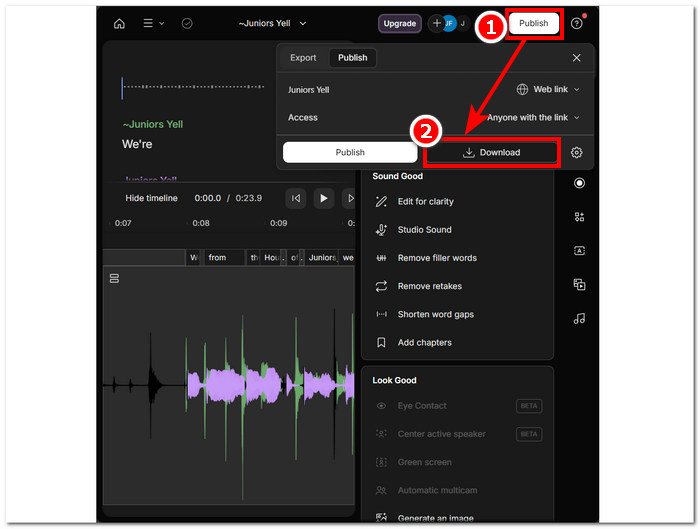
Pas 5. Espera que l’eina acabi de combinar els teus fitxers WAV. Un cop fet, pots reproduir el resultat final per comprovar si la IA ha fet una bona feina combinant els fitxers WAV i fer ajustos si cal. Quan estiguis satisfet, fes clic a Publish > Download perquè els teus fitxers WAV combinats es descarreguin a l’ordinador.
Consells
• Abans de descarregar els fitxers WAV combinats, assegureu-vos de revisar la pista d'àudio a fons per evitar trencaments.
• Estar familiaritzat amb l'eina pot ajudar a encaixar eficaçment el procés de fusió de fitxers WAV.
Part 3. Combina fitxers WAV amb Audacity
Com a editor d’àudio de codi obert, Audacity també pot fusionar pistes com fitxers WAV de forma gratuïta. Aquest programari gratuït per descarregar ha estat ajudant els usuaris en les seves tasques d’edició d’àudio i ha facilitat molt la combinació de fitxers WAV. Audacity permet afegir diversos fitxers WAV d’una sola vegada i també admet la importació de diferents formats d’àudio. A més, disposa d’una funció ràpida per ordenar cada pista perfectament a partir del final de l’anterior, cosa que facilita molt la fusió sense por de sobreescriure res. Per tant, seguir la guia detallada següent t’ajudarà a manejar millor el programari.
Pas 1. Descarrega el programari Audacity a l’ordinador. Un cop el tinguis, obre’l i carrega els fitxers WAV que vols combinar en un de sol.
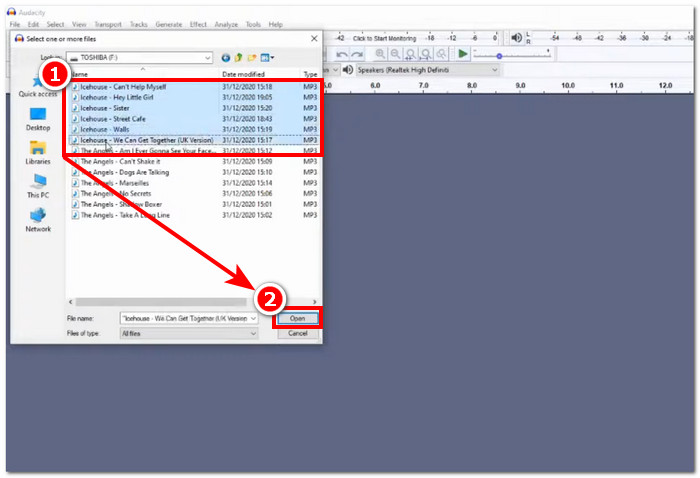
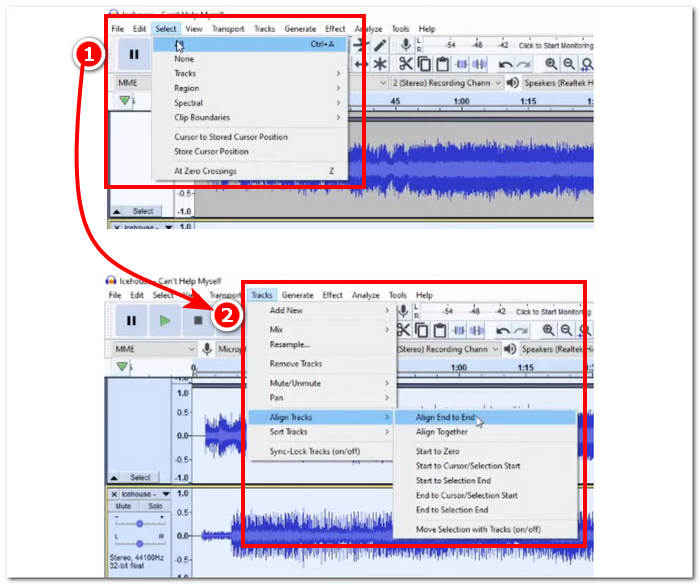
Pas 2. Quan els fitxers WAV estiguin carregats a la interfície de l’eina, comença seleccionant totes les teves pistes fent clic a Select > All a la part superior del menú de l’eina. Després has d’alinear les pistes WAV seleccionades: fes clic a la secció Track i, dins d’Align Tracks, fes clic a Align End to End.
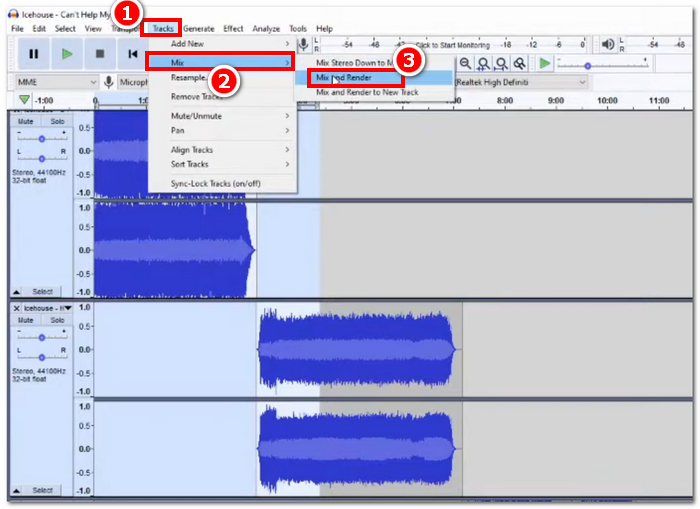
Pas 3. Quan els fitxers WAV estiguin alineats des del final de cada pista, fes clic a la secció Track i, dins de la funció Mix, fes clic a Mix and Render per iniciar el procés de combinació.
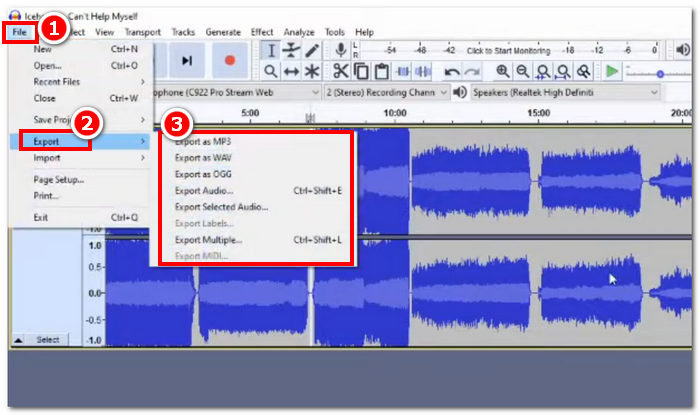
Pas 4. Quan el procés de combinació s’hagi completat, ja pots exportar el teu fitxer WAV fent clic a File > Export i triant el format de sortida que vulguis entre els disponibles.
Consells
• Quan exporteu els vostres fitxers WAV combinats, trieu exportar com a WAV, ja que manté la qualitat d'àudio original.
Part 4. Combina fitxers WAV amb FFmpeg
Una altra eina de programari de codi obert per a la manipulació d'àudio i vídeo és FFmpeg. Aquest potent marc multimèdia es pot utilitzar com a convertidor i per a l'edició multimèdia, com ara vídeo, àudio i altres fitxers multimèdia. En gestionar tasques com la fusió de fitxers WAV, el programari introdueix un codi específic a l'indicador d'ordres per començar el procés de fusió anomenat concatenació de fitxers WAV en un únic fitxer de sortida. A continuació es mostra una guia detallada sobre com utilitzar FFmpeg com a fusió de fitxers WAV.
Pas 1. Ves al lloc web de FFmpeg i instal·la el programa segons el dispositiu que facis servir.
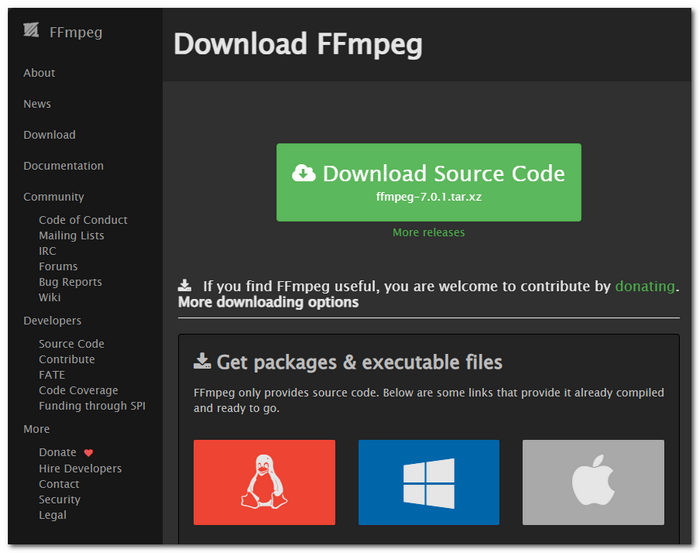
Baixeu el fitxer zip del lloc web i creeu una nova carpeta a la ruta del vostre sistema per emmagatzemar tots els executables FFmpeg, inclòs moure el fitxer zip a la carpeta.
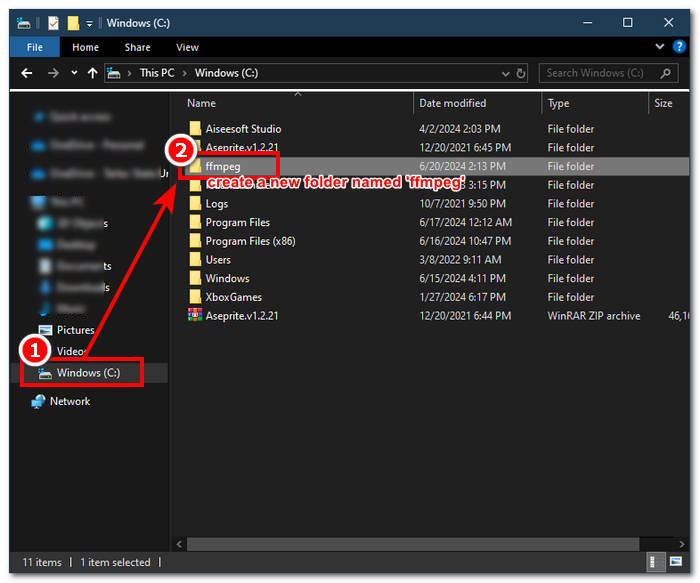
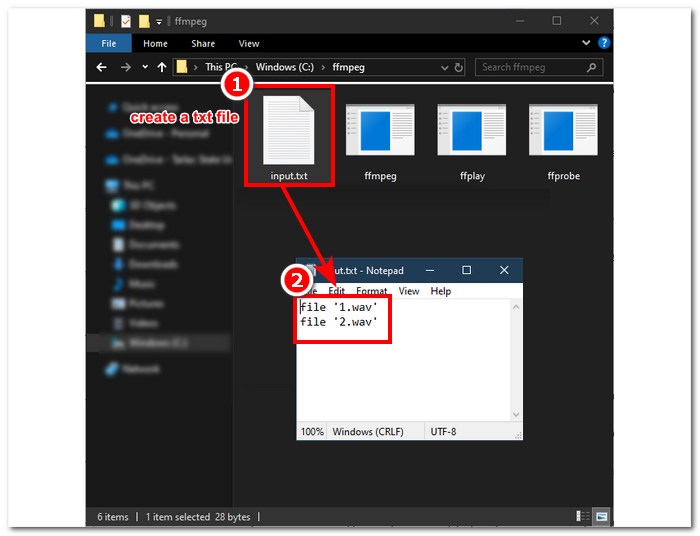
Pas 2. Mou els teus fitxers WAV a la carpeta ffmpeg que acabes de crear i prepara’ls canviant-los el nom a ‘input1.wav’ i ‘input2.wav’ al directori.

Nota: Després, a la mateixa carpeta, crea un fitxer anomenat ‘input.txt’ i introdueix-hi el contingut següent:;
file 'input1.wav'
file 'input2.wav'
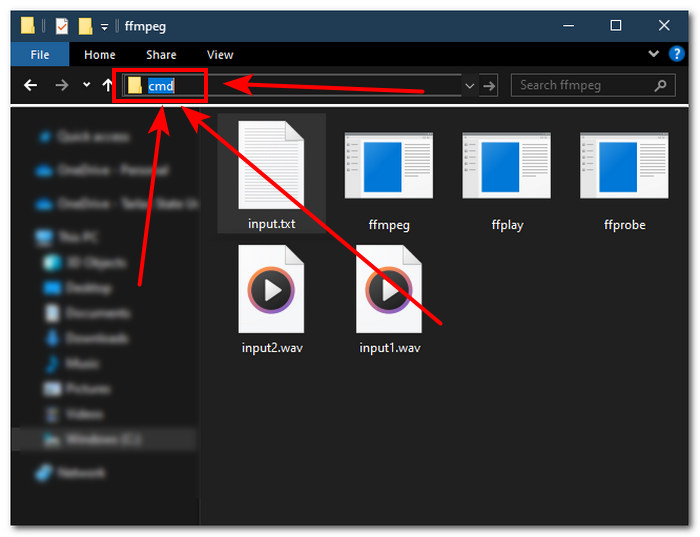
Pas 3. Executa l’intèrpret d’ordres de FFmpeg escrivint ‘cmd’ al camp de la carpeta de fitxers situat a la part superior de la finestra i prem Enter.
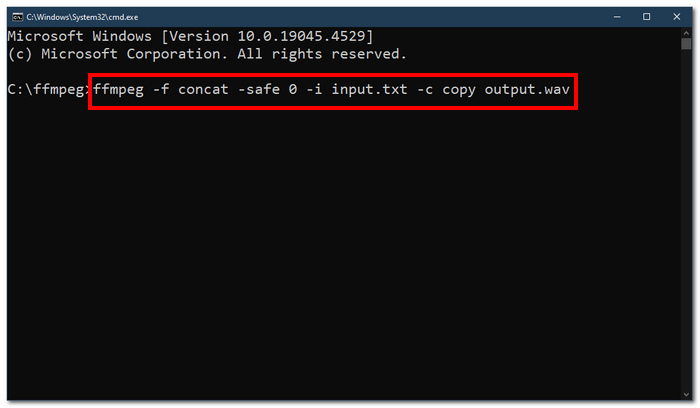
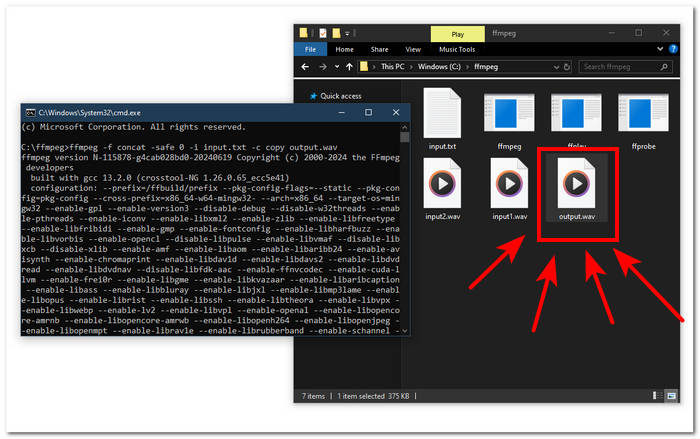
Pas 4. Un cop siguis a l’intèrpret d’ordres de FFmpeg, introdueix l’ordre següent i prem Enter:;
ffmpeg -f concat -safe 0 -i input.txt -c copy output.wav
Pas 5. Apareixerà un nou fitxer WAV a la teva carpeta, cosa que vol dir que has combinat correctament els teus fitxers WAV en un sol fitxer.
Consells
• Com que l'eina es basa en la línia d'ordres, és important conèixer i conèixer la línia d'ordres bàsica per a una navegació eficaç per l'eina.
• Mantingueu totes les vostres carpetes i fitxers relacionats amb FFmpeg en una sola carpeta per organitzar-vos i accedir fàcilment.
• Mireu tutorials i llegiu guies a Internet quan vulgueu fer tasques diferents de la fusió de fitxers WAV.
Part 5. Preguntes freqüents sobre com combinar fitxers WAV
Podeu barrejar fitxers WAV?
Sí, podeu barrejar fitxers WAV mitjançant programari de tercers creat per combinar fitxers WAV, com ara Video Converter Ultimate i Audacity escollits per FVC.
VLC pot combinar fitxers d'àudio?
El reproductor multimèdia VLC no té la capacitat de combinar fitxers WAV, ja que només està creat per a la transmissió multimèdia i la conversió de mitjans.
Com combinar fitxers de vídeo a Windows Media Player?
El reproductor de Windows Media no admet l'edició de fitxers WAV, i molt menys la fusió de fitxers WAV. Windows Media Player és un programari creat per a dispositius Windows dissenyat per reproduir contingut multimèdia.
Quina és la manera més senzilla de combinar fitxers d'àudio?
La manera més senzilla de combinar fitxers WAV és utilitzar Video Converter Ultimate escollit per FVC; aquest programari està dissenyat amb tecnologia de processament d'alta velocitat per ser convenient per als usuaris amb menys experiència en tasques d'edició d'àudio, com ara combinar fitxers WAV.
La combinació de fitxers WAV pot afectar la qualitat de l'àudio?
Sí, les eines de programari poden afectar molt la qualitat d'un fitxer WAV depenent de la qualitat del programari que utilitzeu. Pot tenir la qualitat més baixa quan s'utilitza una eina esquemàtica. Quan utilitzeu eines de programari fiables i fiables, com ara Video Converter Ultimate, Audacity i més, escollides per FVC, pot ajudar a mantenir la qualitat original.
Conclusió
Per concloure, fusiona fitxers WAV mitjançant les eines de programari indicades per combinar-los de manera eficaç i exportar-los amb qualitat sense pèrdues. Cal destacar que trobar les eines adequades i aprendre a fer-les servir és una part crucial del procés. Així, des de l’ús de programes complets com el Video Converter Ultimate recomanat per FVC fins a l’eina avançada de línia d’ordres FFmpeg, l’article s’ha encarregat de llistar els passos i consells útils perquè només hagis de seguir-los tal com s’indica per gaudir d’un procés de combinació senzill i sense complicacions.
-
 Com puc convertir MP4 a WAV en línia de forma gratuïta
 S’intenta convertir MP4 a WAV? No sabeu quin convertidor us pot ajudar perfectament sense pagar ni un cèntim? Llegiu aquest missatge i totes les vostres preguntes tindran resposta.
-
 Ressenya dels 10 millors reproductors de música MP3 gratuïts
 Quin és el millor reproductor de música MP3? Com puc posar música a un reproductor de MP3? Com es pot baixar el reproductor de música MP3? Aquesta publicació us proporciona una revisió detallada dels 10 millors reproductors MP3 gratuïts per a PC amb Windows i Mac.
-
 8 millors reproductors MOV per a PC i Mac per reproduir fitxers de vídeo QuickTime MOV
 Simplement obtingueu més informació sobre els 8 millors reproductors MOV disponibles per a Windows i Mac. Podeu triar el desitjat i adequat per reproduir fitxers MOV amb la qualitat original.
