


 Video Converter Ultimate
 Gravadora de pantalla
 Reparació de vídeo
Trieu el millor gravador de pantalla GIF per gravar GIF [en línia i fora de línia]
És el fet que els GIF són un format de fitxer senzill però fàcil d'accedir a tot el web. La mida del fitxer dels GIF és tan petita que es va convertir en una de les maneres més efectives d'enviar vídeos o imatges en moviment per Internet. Mentre veieu una pel·lícula, heu trobat una gran escena sobre la pel·lícula que esteu veient i voleu que la comparteixis amb els teus amics, éssers estimats o familiars. Però la majoria dels gravadors de pantalla tenen el format MP4 i MOV, que són un dels formats de mida de fitxer més grans. No és nou per a nosaltres que la transferència d'aquest tipus de format de fitxer trigarà una hora o més i la majoria de les vegades fallen a causa de la interrupció d'Internet o, en altres casos, el format no està disponible perquè no tots els reproductors multimèdia locals admeten tots els formats.
Mentre navegues per la web i busques una solució, et trobes amb GIFs. Aquest format de fitxer és molt més petit i fàcil de compartir. Així que et preguntes quin és el millor gravador de GIF que hauries d’utilitzar per gravar l’escena de la pel·lícula que estàs mirant. La llista de sota parla d’algunes eines populars per gravar GIFs que pot ser que ja t’hagis trobat o no a la xarxa. Continua llegint per descobrir quines són aquestes eines i com utilitzar-les per capturar en format GIF animat.

Part 1. Millors característiques que hauria de tenir una gravadora de GIF
Abans de res, escollir el millor gravador de pantalla és imprescindible. Però potser et preguntes què hauries de prioritzar a l’hora d’escollir un gravador de GIF. La llista següent et dona una idea de quines característiques hauria de tenir un gran gravador.
● Ha de ser fàcil d’utilitzar – Tria un producte que no et compliqui la gravació.
● Amigable amb el pressupost – això només s’aplica si l’eina és de pagament. Està bé que sigui econòmica en lloc de gastar els diners en alguna cosa que ja pot oferir una versió premium barata. És un fet que una eina premium proporciona el millor resultat. Això només importa en el cas de les eines de pagament. Les eines gratuïtes en línia o fora de línia no s’han de preocupar per aquest punt.
● Disponibilitat del programa – en el cas que canviïs de PC a Mac o a l’inrevés. No hauries d’haver d’adaptar-te a un nou gravador. Per tant, és imprescindible escollir el gravador de pantalla per a GIF que estigui disponible a totes les plataformes. A més, per evitar complicacions, si hi fan canvis és més probable que siguin simples, com ara el nom, i no pas tota la interfície.
● Sense programari maliciós ni virus – això pot aplicar-se tant a eines en línia com fora de línia. Tot programa hauria de proporcionar-te la millor gravació amb la màxima seguretat. Per evitar pèrdua o filtració de dades.
Tot i que aquestes són les característiques senzilles que ha de proporcionar una gravadora, la singularitat de l'eina que podeu triar es troba a la llista següent. Trobeu la diferència entre cada eina i trieu la millor gravadora GIF de la llista per a la vostra gravació.
Part 2. Millors gravadors de GIF al web
1. Gravador de pantalla gratuït FVC
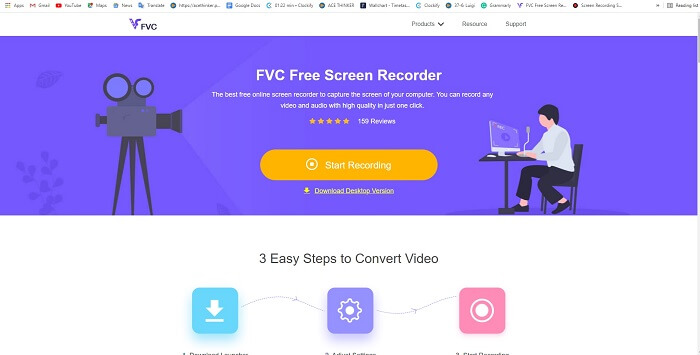
La millor manera de compartir un moment és gravar-lo, i la millor manera de gravar una escena o acció a la teva pantalla és amb el FVC Free Screen Recorder. Aquesta eina de codi obert permet a l’usuari gravar amb l’ajuda d’internet. Si tens connexió a internet, aleshores pots utilitzar aquesta eina. A més, admet els formats de fitxer bàsics, còdecs, etc. Tot i ser un gravador de GIF en línia lleuger per a PC i Mac, t’ofereix una gran oportunitat per fer més gravacions sense cap límit ni marca d’aigua. Per mostrar-te com utilitzar l’eina, has de seguir aquest passos.
Pas 1. Fes clic en aquest enllaç per anar a la pàgina principal.
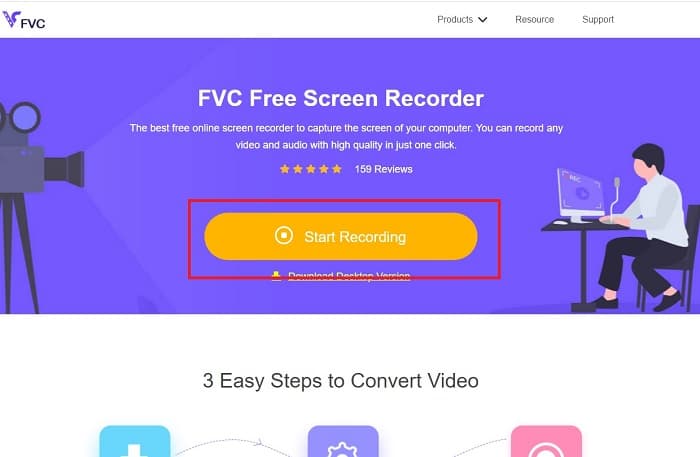
Pas 2. Apareixerà una web com aquesta a la teva pantalla. Fes clic a Start Recording i a Allow per llançar l’eina en línia.
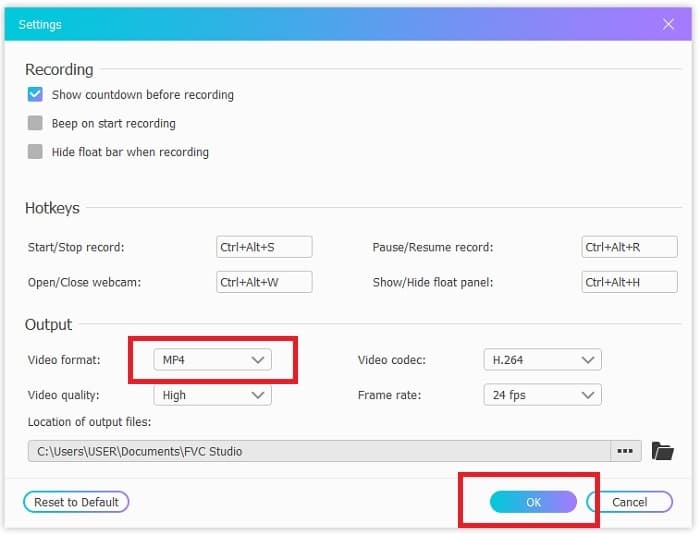
Pas 3. Se t’obrirà una barra d’eines flotant a la pantalla. Prem la icona d’engranatge per anar a la configuració, canvia el format de vídeo i els altres paràmetres si cal. Fes clic a OK per desar els ajustaments.
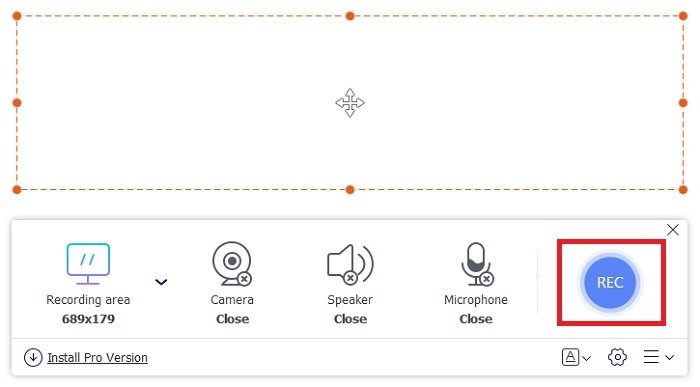
Pas 4. Ajusta la regió de gravació o fes clic a Full screen per enregistrar tota la pantalla. L’altaveu i el micròfon no s’inclouen en la creació de GIFs perquè no hi ha so. Però pots afegir-hi la teva cara obrint la Webcam. Quan estiguis a punt per començar la gravació, fes clic al botó REC per iniciar-la.
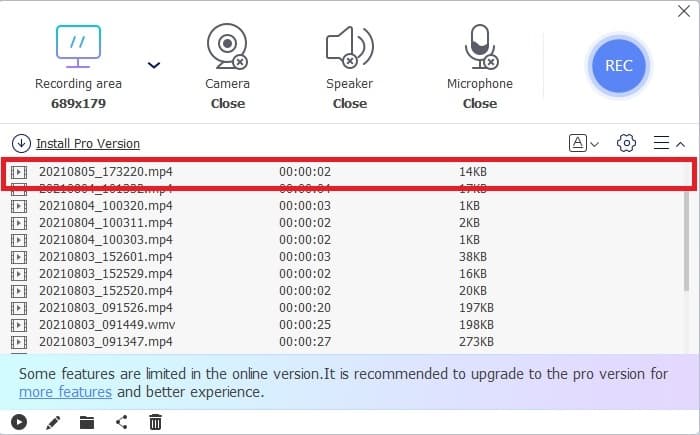
Pas 5. Per finalitzar la gravació, fes clic al botó quadradet per aturar-la. També pots revisar la gravació acabada a la llista d’historial.
2. Gravador de pantalla FVC
Si l’eina gratuïta en línia de FVC ja et posa la pell de gallina, només amb instal·lar aquest millor gravador de GIF – FVC Screen Recorder – obtindràs l’efecte «uau» que tant desitges. Què ofereix aquesta eina per donar-te aquest factor sorpresa? No serveix només per gravar GIFs. També permet gravar vídeo i àudio i fa gravacions de videojocs fantàstiques. Però això és només una característica menor: també produeix diferents formats de sortida com MP4, GIF, MOV i molts més.
Una altra característica és la funció de bloqueig de pantalla, aquesta és la característica única d'aquesta eina, fins i tot un gravador de pes pesat com Bandicam no pot proporcionar aquesta funció. Grava i captura de pantalla en format GIF sense mostrar l'eina. FVC Screen Recorder proporciona la lliura per lliura rei a la gravació. Per tant, independentment del que esteu gravant, aquesta gravadora pot gravar-lo. Per saber com utilitzar aquesta eina, seguiu aquests senzills passos per aconseguir l'èxit de la gravació GIF.
Pas 1. Aquí se t’ofereix l’instal·lador de l’eina. Tria entre els dos sistemes operatius disponibles. Instal·la l’eina al disc dur, canvia les preferències segons les teves necessitats i fes clic a finish per desar.
Descàrrega gratuïtaPer a Windows 7 o posteriorDescàrrega segura
Descàrrega gratuïtaPer a MacOS 10.7 o posteriorDescàrrega segura
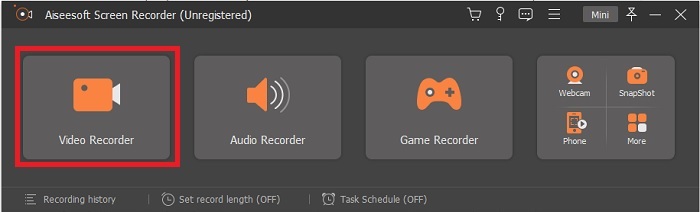
Pas 2. Tria el Video Recorder per gravar el que hi ha a la pantalla. Les opcions disponibles com l’enregistrador d’àudio i el gravador de videojocs són imprescindibles per fer-les servir més endavant.
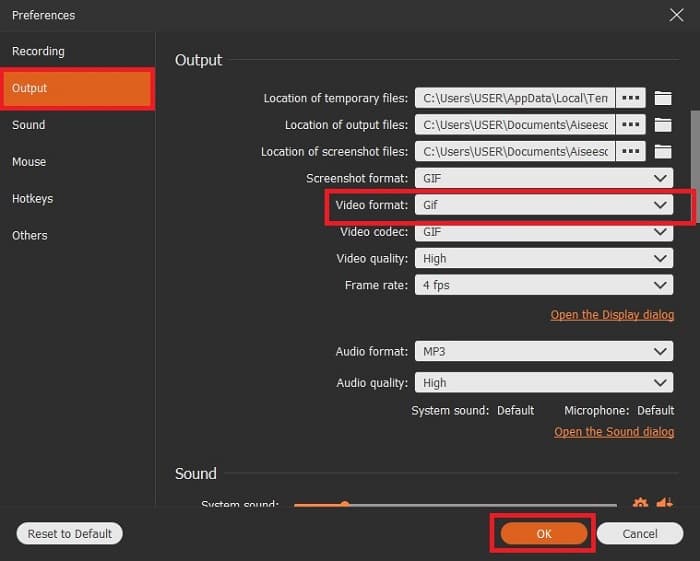
Pas 3. La barra d’eines flotant apareixerà a la pantalla. Fes clic al botó d’engranatge per anar a la configuració i, a l’apartat Output, canvia el format a GIF o al que vulguis utilitzar. Per desar els canvis, fes clic a OK per continuar.
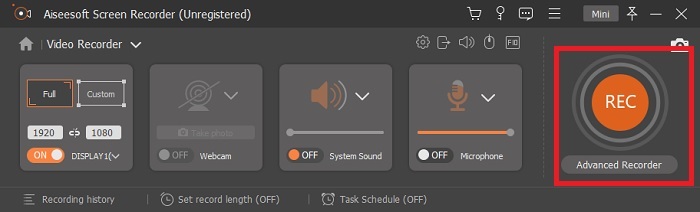
Pas 4. A la barra d’eines principal, ajusta la relació de la pantalla o, si vols una visualització completa, fes clic a full screen. En gravar en format GIF, el so i el micròfon no són importants. Però pots afegir-hi la Webcam per mostrar la teva reacció. Quan ja estiguis llest, fes clic al botó rodó per iniciar la gravació.
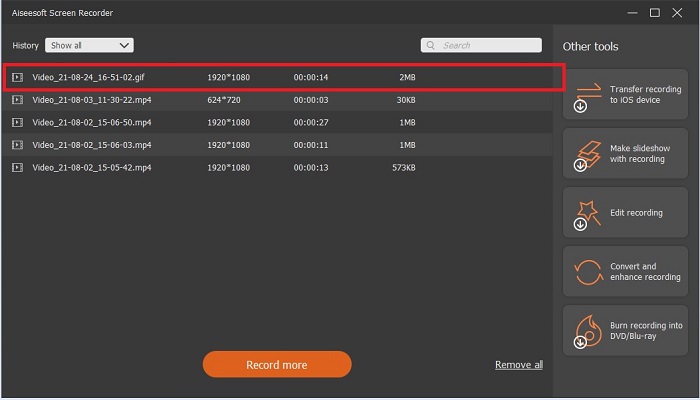
Pas 5. Quan la gravació ja estigui acabada, pots fer clic al botó en forma de cub per aturar-la. Fes clic a Save i Next per desar el progrés. Per revisar el GIF que has gravat abans, fes clic a la icona de tres ratlles i l’historial de gravacions apareixerà a la pantalla.
3. ScreenToGif
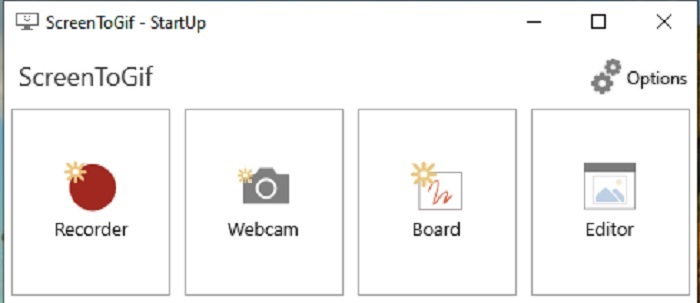
Aquesta eina descarregable de gravador de GIF per a Mac i PC té dues versions diferents: l’Installer i la Portable. Tria la que prefereixis descarregar. Però hi ha casos en què, mentre l’eina s’està executant, pots trobar alguns errors menors. A més, l’únic format disponible en aquesta eina com a resultat final és .gif. Per tant, si desitges un altre format, aquesta eina no te’l pot oferir. Tot i això, és gratuïta, així que si només vols gravar GIFs, la pots fer servir. Ara bé, la seva interfície i les eines són una mica pobres a causa del fons blanc. Pot semblar avorrida, però fa la feina.
4. Gyazo
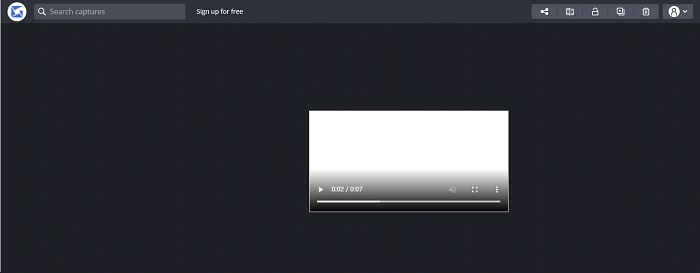
Aquesta és una de les millors eines per gravar GIFs per a Windows. Gyazo és un programari dedicat a la gravació de GIFs. Tot i així, després de la instal·lació es descarregaran automàticament 3 eines al teu equip. Formen part del conjunt, però són diferents entre si i també en la seva funció. Aquestes 3 eines són Gyazo, Gyazo GIF i Gyazo Replay. La gravació d’un GIF amb Gyazo GIF està limitada a 7 segons. Per tant, si la teva gravació supera els 7 segons, aquesta no és la millor opció. A més, el vídeo desat no es descarregarà automàticament al teu ordinador. S’obrirà una pestanya nova al navegador i l’hauràs de descarregar tu mateix. La descàrrega del resultat final dependrà de la teva connexió a internet, així que vés amb compte.
5. Grava'l!
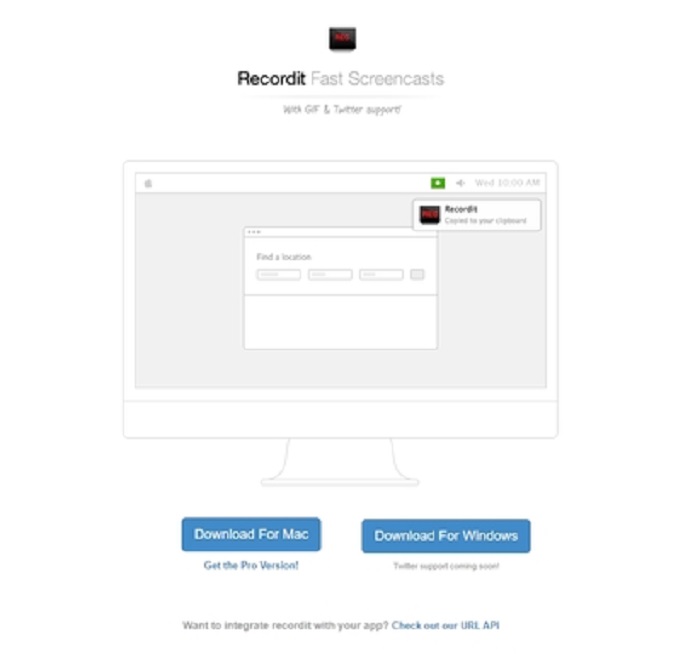
Una altra eina per crear GIFs és RecordIt!, el millor gravador de GIF per a Mac. Aquesta eina també té versió per a Windows. Però el problema d’aquesta eina és la instal·lació. Després de completar tota la configuració, pots trobar dificultats per instal·lar-la al teu sistema. Això és normal perquè, si no actualitzes les aplicacions del teu sistema, l’eina no es podrà descarregar. Hi ha una altra opció, però pot ser perjudicial per a l’ordinador: pots fer clic a «ignore» per descarregar-la i ignorar tots els avisos. Per tant, baixa-la sota la teva pròpia responsabilitat; a més, l’eina conté anuncis, i també has d’anar amb compte amb aquests anuncis perquè alguns no estan restringits. A més, ofereix una versió Pro que elimina els anuncis i afegeix altres funcions.
Part 3. Preguntes freqüents sobre GIF Recorder
Puc convertir GIF en format MOV?
Sí, podeu convertir GIF en format MOV amb l'ajuda d'un convertidor de vídeo en línia com FVC Free Online Video Converter.
Quins són els diferents tipus de GIF?
Hi ha 5 GIF: els GIF de reproducció, els GIF de reacció, el gràfic de cinema, el bucle perfecte i el GIF tècnic. Tot això podria estar basat en animacions, en vídeos i adhesius.
Quines són les altres alternatives per als GIF?
Tot i la creació de GIF des de fa més de 30 anys. Hi ha alguns competidors al web que produeixen imatges en moviment i GIF. Aquestes són les millors alternatives als GIF animats: APNG, WebP, AVIF, MNG i FLIF.
Conclusió
Arribem al final: es diu que tota gran història acaba amb una gran conclusió. Per concloure els detalls anteriors, els GIFs expressen emocions de manera molt més viva a qui els rep. Però no tots els vídeos que vols estan en format GIF. En lloc d’esperar que algú en creï un, per què no el crees tu mateix? Amb l’ajuda del millor gravador de GIF, que és el FVC Screen Recorder. Aquesta eina et permet gravar un GIF i afegir-hi el teu toc personal. Si encara dubtes sobre què hauries d’utilitzar, val la pena tornar a llegir les millors característiques, i totes aquestes característiques pertanyen a l’eina triada: el FVC Screen Recorder.
-
 [2 solucions] Com convertir fitxers SWF a GIF fàcilment de forma gratuïta
 Si no exporteu el format GIF a través del programari Flash, podeu provar de desar els fitxers en format SWF al principi. A continuació, podeu aprendre dues maneres senzilles de convertir fitxers SWF a GIF d’aquest article.
-
 4 maneres de combinar vídeos de forma gratuïta al Windows / Mac / en línia
 Aquí teniu 4 maneres ràpides de combinar vídeos en un vídeo nou. No hi ha límit de format o mida de fitxer de vídeo. Podeu unir-vos a 2, 3, 4 i fins i tot més videoclips en diferents formats i resolucions amb èxit.
-
 (2 solucions) Com convertir vídeos WMV a fitxers GIF de forma gratuïta
 Si voleu retallar les meravelloses parts dels vídeos WMV i fer-ne GIF, podeu obtenir més informació sobre dos mètodes senzills per transferir vídeos WMV a GIF en aquest article.
