


 Video Converter Ultimate
 Gravadora de pantalla
 Reparació de vídeo
 Baixada segura
Com comentar GIF al canal de notícies i rodets d'Instagram
Els GIF o Format de Compensació de Gràfics són imatges animades i combinades o vídeos comprimids que pots utilitzar per afegir diversió i entreteniment a la teva interacció a les xarxes socials. Alguns fins i tot fan servir aquests formats d’imatge com a mems o per mostrar reaccions a una publicació de manera còmica. Però sabies que, abans que es fessin populars el 2012, els GIF estaven a punt de desaparèixer del món d’internet? Afortunadament, a mesura que els usuaris de xarxes socials han anat augmentant, aquestes imatges animades s’han salvat de l’extinció perquè molts usuaris les fan servir per donar més vida a la comunicació virtual. Han acabat dominant les aplicacions de xarxes socials, inclosos la bústia d’entrada i els quadres de comentaris d’Instagram. Per tant, en aquest article aprendràs com comentar amb GIF a Instagram.

Part 1. Instagram admet GIF?
Instagram és una de les aplicacions populars de xarxes socials on la gent pot compartir i modificar les seves fotos estètiques amb subtítols curts. Aquesta plataforma per compartir fotos ha evolucionat contínuament per millorar l'experiència de l'usuari. Una d'aquestes millores és l'ús de GIF, que permet als usuaris afegir una capa addicional de creativitat i expressió a les seves interaccions. Inicialment, l'aplicació només estava pensada per enviar un missatge amb GIF divertits o fent històries IG simpàtiques. Però ara, ja podeu comentar GIF en rodets i publicacions de notícies.
Quan va llançar Instagram aquesta funció?
El GIF a la secció de comentaris d'Instagram va ser llançat el maig de 2023 per Adam Mosseri, el cap de la companyia, amb el director general de Meta, Mark Zuckerberg. Es va afirmar que la presentació d'aquesta darrera funció era una de les fites per als fundadors i copropietaris d'Instagram. Fins i tot van abordar com esperen que sigui a IG, ja que comentar GIF fa anys que és habitual a la secció de comentaris de Facebook. S'espera que aquest assoliment fomenti més implicació entre els usuaris d'IG, ja que poden utilitzar GIF per comentar publicacions i rodets de notícies.
El suport té una restricció regional?
La funció de comentaris GIF d'IG es va limitar a l'Argentina, Irlanda, Itàlia, Japó, Mèxic i els Estats Units durant el seu període de proves. Tot i que Meta no va revelar quan aquesta funció estarà disponible per a tothom, prometen que si aquesta nova funció ha guanyat molt de compromís a la plataforma, lentament la posaran en marxa als usuaris de tot el món. En conseqüència, tampoc hi ha dades que diguin sobre la seva restricció regional.
Part 2. Com comentar GIF a Instagram
Si sou nou a descobrir aquesta nova funció, a continuació es mostren els passos que podeu seguir per comentar GIF a la publicació d'Instagram (sempre que ja hàgiu actualitzat el vostre compte d'Instagram):
Com comentar GIF als rodets d'Instagram:
Pas 1. Primer, ves als reels amb què vols interactuar i toca Comenta.
Pas 2. A continuació, toca el quadre GIF per comentar amb un GIF.
Pas 3. Després tria entre la col·lecció de GIFs el que vols publicar com a comentari. Pots explorar-la a fons o escriure la paraula clau del recurs visual que vols afegir.
Pas 4. Un cop hagis acabat de seleccionar, pots tocar el GIF i s’enviarà a l’instant.
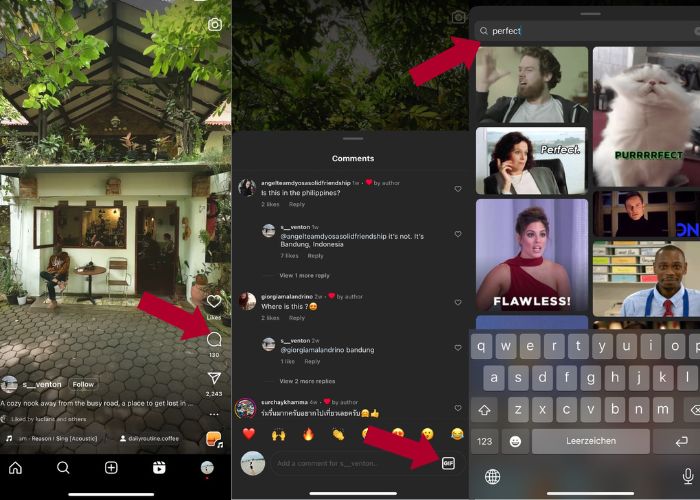
Com publicar GIF a comentaris d'Instagram:
Pas 1. Ves al feed de notícies dels teus amics o d’altres usuaris d’IG i toca la foto a la qual vols afegir-hi el teu GIF i, després, fes clic a la icona de Comentari.
Pas 2. A continuació, toca la icona GIF al quadre de comentaris.
Pas 3. Cerca un GIF o fes scroll per veure’n més, i quan el GIF que hagis seleccionat torni a la secció de comentaris, comprova que s’hagi afegit correctament.
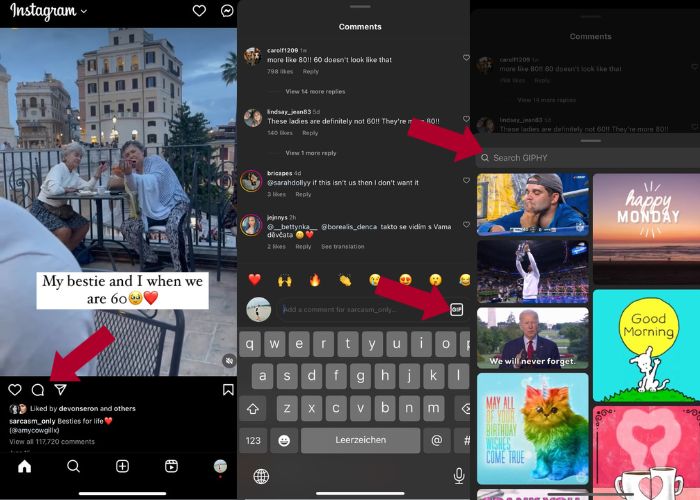
Part 3. Per què no puc comentar GIF a Instagram
Si no podeu afegir un comentari al vostre Instagram amb GIF, podeu provar d'actualitzar la vostra aplicació. Si, per casualitat, encara no trobeu el botó GIF, és possible que el vostre país estigui entre aquelles regions on Meta encara no ha llançat aquesta nova funció. Així que has d'esperar fins que arribi al teu país.
Part 4. Com fer un GIF per a Instagram amb Best GIF Maker
Per personalitzar els teus GIF, has de convertir el teu vídeo en format MP4 a GIF. També has d’animar diverses imatges per crear fitxers GIF. Per això, deixa que Video Converter Ultimate t’ajudi. Aquest programari és una eina completa d’edició de vídeo que facilita editar i convertir vídeos. Disposa d’una eina GIF Maker, amb la qual els usuaris poden crear GIF per al seu Instagram a l’instant. I amb l’ajuda de la funció Loop Animation, et sorprendrà veure com aquesta aplicació pot convertir imatges estàtiques en GIF.
A més, aquesta eina també inclou eines d'edició essencials per millorar els vostres GIF: editeu-ne el contrast, la saturació, la brillantor i la tonalitat. També podeu utilitzar el seu filtre per definir l'estat d'ànim del vostre GIF. I si teniu un vídeo llarg, també podeu retallar-lo amb aquest GIF Maker. A més, aquest programari us permet modificar el format de sortida i la velocitat de fotogrames del vostre GIF. I la millor part és que aquesta aplicació té una interfície intuïtiva per a principiants.
I si trobeu que aquest convertidor de vídeo us intimida, us mostrem com Video Converter Ultimate és tan fàcil d'utilitzar. Només heu de seguir els passos següents:
Pas 1. Instal·la i inicia Video Converter Ultimate
Per començar el procés de conversió, descarrega el programari fent clic al botó de Baixada gratuïta de sota i instal·la’l tot seguit. Un cop finalitzada la instal·lació, pots iniciar el programa a l’ordinador, esperar el procés de configuració i fer clic a Comença ara per iniciar.
Baixada gratuïtaPer a Windows 7 o posteriorBaixada segura
Descarrega gratisPer a MacOS 10.7 o posteriorBaixada segura
Pas 2. Puja els fitxers multimèdia
A la interfície de l’aplicació, ves a la pestanya Caixa d’eines, explora bé el conjunt d’eines i busca l’eina GIF Maker. Des d’aquí, prem Video to GIF si vols convertir un vídeo o Photo to GIF si vols convertir múltiples imatges en un GIF.
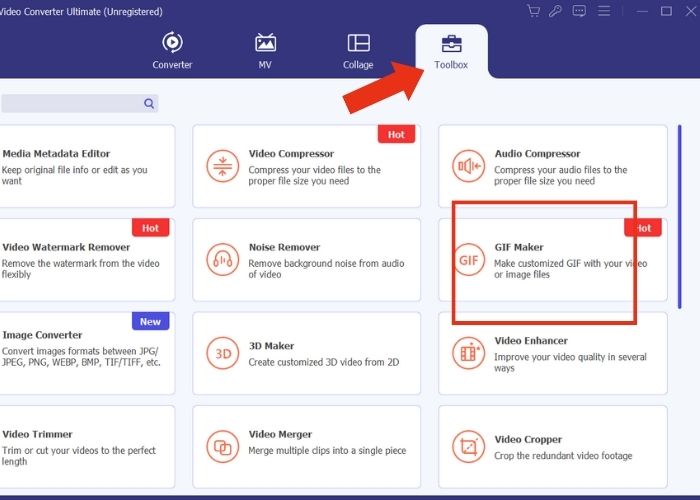
Pas 3. Modifica el fitxer
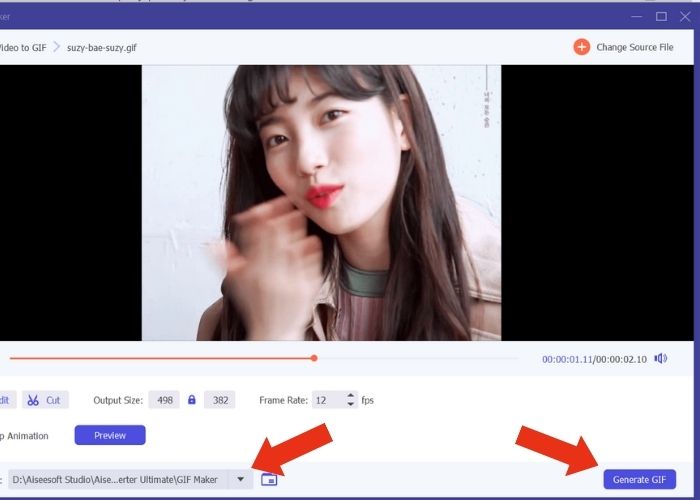
Després d’afegir el fitxer, configura les propietats del GIF modificant la Mida de sortida i la Velocitat de fotogrames. Després, prem Edita per controlar la intensitat del color del vídeo o afegir-hi un filtre per millorar-lo. A continuació, fes clic a Retalla per escurçar la durada dels fitxers originals, ja que la majoria de GIF no haurien de durar més de 6 segons.
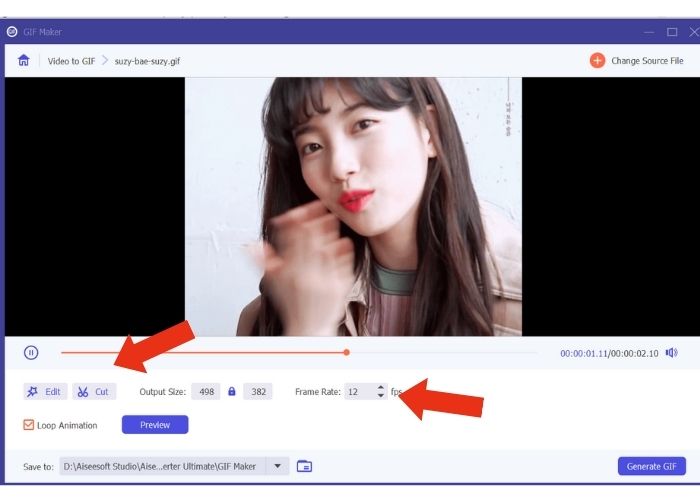
Pas 4. Exporta i desa el resultat
Abans d’exportar el fitxer multimèdia, tria el fitxer o la carpeta on vols desar el resultat. Després, exporta el GIF fent clic al botó Generate GIF. Espera uns instants mentre l’eina processa el teu GIF. Un cop acabat, apareixerà una finestra nova on podràs veure el resultat final.
Part 5. Com pujar el GIF al comentari d'Instagram
Ara que ja teniu el vostre propi GIF, aquesta part us mostrarà com pujar al lloc web de GIPHY. Aquests són els passos que heu de fer:
Pas 1. Crea un compte a GIPHY.
Pas 2. Importa el teu GIF ja creat.
Pas 3. Afegeix etiquetes i fes clic al botó Upload to GIPHY.
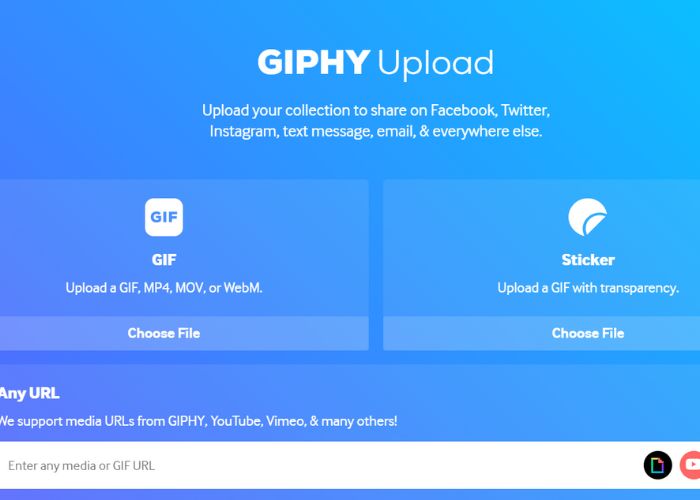
Espereu dies abans que el vostre GIF es carregui a la biblioteca GIPHY del vostre Instagram. Aquesta és una activitat de prova i error, mentre que aquest mètode pot no funcionar al vostre país.
Lectures relacionades:
Canvia la mida de les fotos per a Instagram a l’ordinador, iPhone o Android
Repetir en bucle un GIF amb el millor reproductor de GIF animats per a Windows i Mac
Part 6. Preguntes freqüents sobre com publicar GIF als comentaris d'Instagram
Pots utilitzar GIF per a la foto de perfil d'Instagram?
No. Actualment, els GIF a Instagram només es limiten a les seves històries, missatgeria, quadre de comentaris als rodets i publicacions del canal de notícies.
Els GIF es mostren als missatges d'Instagram?
Sí. Els GIF també funcionen als missatges d'Instagram.
Pots respondre amb imatges a Instagram?
Per als missatges, sí, es pot. Tanmateix, encara no s'ha permès respondre a històries i quadres de comentaris a Reels i Newsfeed.
Com poses un GIF del carret de la càmera a la teva història d'Instagram?
Així és com es publica un GIF a l’story d’Instagram:
Converteix el teu vídeo a GIF mitjançant Video Converter Ultimate i desa el resultat al carret de la càmera. Després, puja’l al lloc web de GIPHY i espera uns quants dies fins que aparegui a la biblioteca. Fes servir l’etiqueta que hi hagis afegit per cercar el teu GIF ja creat.
Per què no puc respondre un comentari a Instagram?
De moment, Instagram només admet comentar GIF en una publicació de notícies i rodets. Malauradament, no permet als seus usuaris respondre a un comentari mitjançant GIF.
Conclusió
Ara que ja saps com comentar amb GIF en una publicació d’Instagram, pots interactuar més amb els teus amics d’Instagram comentant GIF divertits als seus feeds i reels. També en pots crear alguns amb el millor convertidor de vídeo − Video Ultimate Converter. Però recorda comentar amb GIFs amb moderació, o bé et podrien marcar com a correu brossa.
-
 5 millors llocs sobre com desar un GIF a l'iPhone com a vídeo
 No es pot' desar un GIF al meu iPhone? Continueu en aquesta publicació i us donarem les possibles solucions per desar GIF a l'iPhone.
-
 [Gratis i de pagament] GIF Speed Changer: eleccions populars del 2023
 No estàs satisfet amb el GIF que has fet en línia perquè és tediós i lent? Aquest serà el vostre dia de sort perquè us presentem un article sobre el canviador de velocitat GIF i els detalls que us ajudaran a utilitzar-lo i dominar-lo.
-
 Com afegir i fer un filtre d'Instagram abans de publicar una imatge i un vídeo
 Quins són els filtres a Instagram? Com aplicar-ho? Com fer-ne un? Aquestes preguntes tindran respostes senzilles en aquesta publicació, així que llegiu-les.
