


 Video Converter Ultimate
 Gravadora de pantalla
 Reparació de vídeo
 Baixada segura
Passos ràpids i senzills Com girar i capgirar els GIF fent servir fora de línia i en línia
Esteu editant un vídeo en disposició horitzontal i voleu afegir-hi alguns efectes de vídeo fent servir GIF. Tanmateix, el GIF que heu creat i descarregat és en format vertical, i com que és en format vertical, el GIF no encaixa bé. Ara voleu girar-lo i capgirar-ne alguna part. Mentrestant, descarregar des de llocs poc fiables en línia us complica les coses i aquests llocs poden contagiar el vostre dispositiu amb virus. No patiu! Perquè aquest article us ajudarà a utilitzar les millors eines per a girar i capgirar GIF en línia i fora de línia.

Part 1: Com girar i girar GIF amb les millors eines [fora de línia]
1. Video Converter Ultimate
Aquesta és una de les millors eines que aquest article recomana entre totes les opcions en línia i els programes per ajudar a resoldre el problema. Instal·leu FVC Video Converter Ultimate a l’ordinador, un programa amb moltes funcions de millora de vídeo. Una de les funcions disponibles pot girar i capgirar GIF segons el patró que vulgueu, sense perdre qualitat. Mireu els passos següents per aprendre a utilitzar el programari:
Pas 1. Aconsegueix el programa
Premeu el botó Free Download per descarregar el programari a l’escriptori. Després instal·leu el programa i personalitzeu-ne la configuració segons les vostres preferències. Si tot és correcte, inicieu el programa després d’instal·lar-lo i feu clic a Start Now.
Baixada gratuïtaPer a Windows 7 o posteriorBaixada segura
Descarrega gratisPer a MacOS 10.7 o posteriorBaixada segura
Pas 2. Accediu al Video Rotator
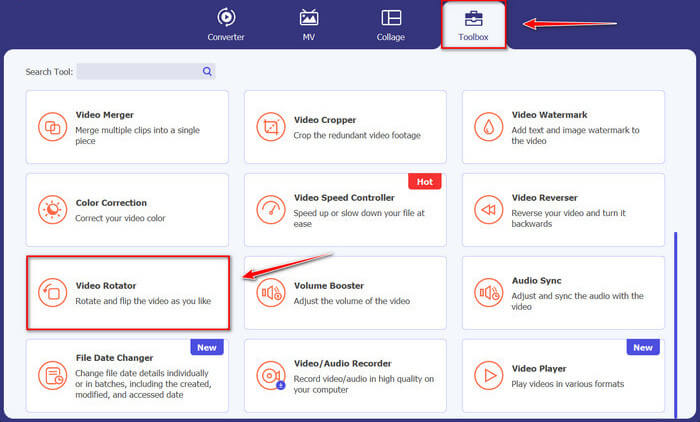
A continuació, fent clic a la funció Toolbox, desplaceu la pantalla cap avall i seleccioneu Video Rotator.
Pas 3. Importeu un fitxer GIF
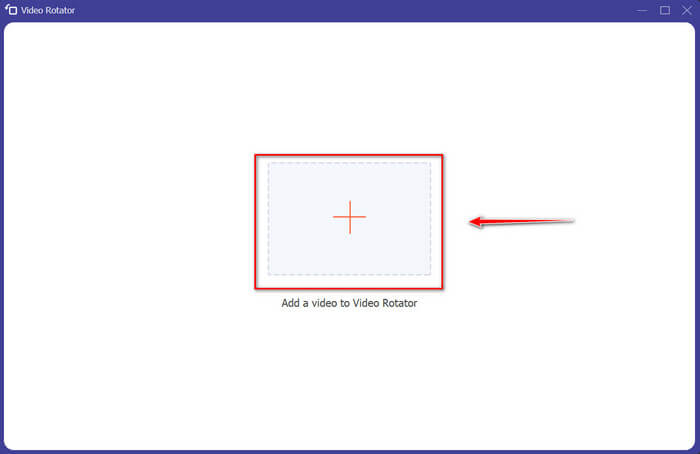
Importeu els fitxers que voleu girar i girar arrossegant fitxers a la interfície, també podeu fer clic al botó + i seleccionar fitxers al vostre ordinador.
Pas 4. Gireu el GIF
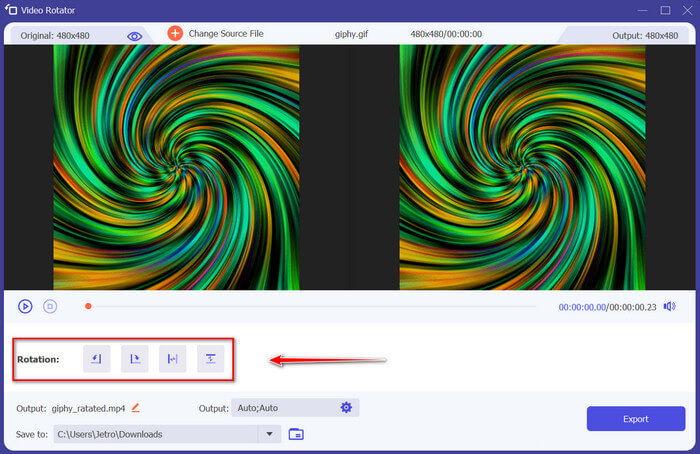
Trieu com girareu i girareu el vostre GIF. Podeu girar-lo 90 graus cap a l'esquerra o cap a la dreta i girar-lo verticalment o horitzontalment.
Pas 5. Descarregueu el GIF girat
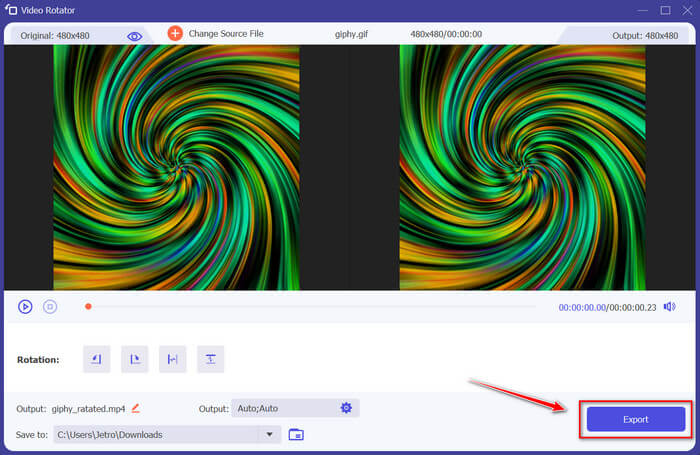
Descarregueu el vostre fitxer fent clic a Export a la cantonada inferior dreta de la interfície. Després d’això, apareixerà una finestra a la pantalla. Feu clic a Rotate Again per girar un altre clip de vídeo o a Okay si ja heu acabat.
2. Photoshop
Una altra gran eina fora de línia que es recomana utilitzar us ajudarà a aprendre a girar i girar GIF. Aquesta eina és de gran mida i més complicada d'utilitzar, però té les mateixes característiques que FVC Video Converter Ultimate. Amb Photoshop, podeu girar i girar GIF com un professional sense desintegrar-ne la qualitat. Seguiu els mètodes indicats a continuació per obtenir coneixements sobre les seves característiques i aspectes tècnics.
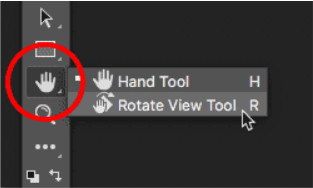
Pas 1. Descarregueu i obriu Photoshop a l’ordinador. Després feu clic a Hand Tool a la llista de funcions de la Toolbar. L’eina Hand Tool és visible per defecte, amb l’eina Rotate View Tool amagada al darrere. Manteniu premuda la icona de Hand Tool fins que aparegui un menú desplegable per seleccionar Rotate View Tool. A continuació, al menú, seleccioneu Rotate View Tool.
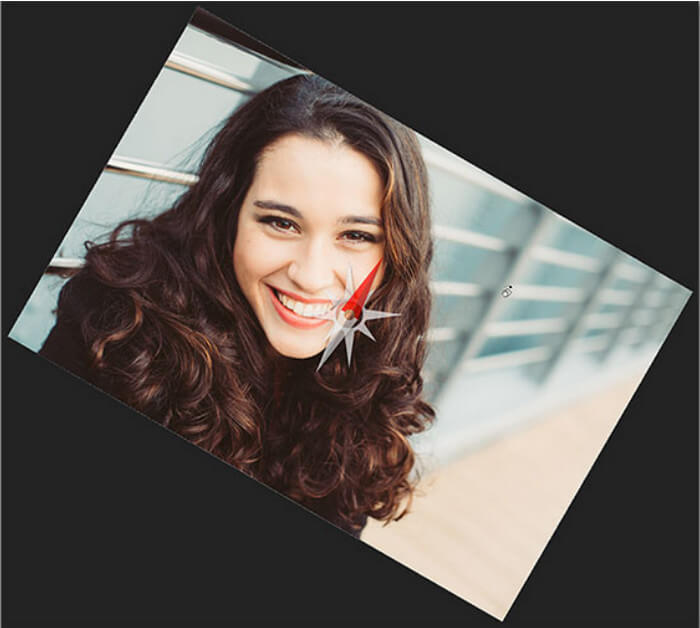
Pas 2. Manteniu premut el botó esquerre del ratolí mentre feu clic a la imatge amb Rotate View Tool. Aleshores apareixerà una brúixola al centre. Després, el marcador vermell de direcció a la part superior de la brúixola sempre assenyala la part real superior de la imatge, de manera que, fins i tot si en gireu l’angle, sempre sabreu on és la part de dalt.

Pas 3. Manteniu premut el botó del ratolí i arrossegueu la imatge per girar-ne la visualització. Arrossegueu en sentit horari o antihorari segons calgui. A mesura que gireu la visualització, la brúixola assenyala la part real superior de la imatge. Per defecte, Photoshop permet girar lliurement l’angle. Tanmateix, si premeu i manteniu premuda la tecla Shift mentre arrossegueu, la visualització es girarà en increments de 15 graus.
3. Fotos
De vegades, els problemes simples només necessiten solucions senzilles. Amb aquesta eina, no cal que baixeu programari i instal·leu aplicacions al vostre dispositiu només per girar i capgirar els GIF. Amb el vostre telèfon Android, ara podeu girar i girar els GIF al vostre gust. Si no esteu segur de com fer-ho, seguiu tots els passos que s'indiquen a continuació:
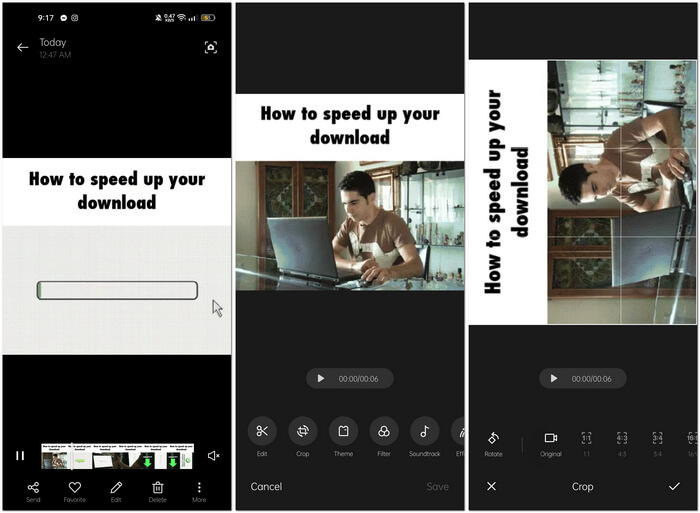
Pas 1. Obriu el telèfon i cerqueu la carpeta de Fotos o Imatges. Seleccioneu un GIF que vulgueu girar i capgirar. Trieu Edit per començar a editar el GIF.
Pas 2. A la part inferior de la pantalla, trieu Crop després d’haver triat un clip.
Pas 3. Gireu el GIF fent clic a Rotate. Només podeu ajustar el GIF verticalment o horitzontalment. Després, feu clic a la icona de Check per desar el GIF ajustat.
Part 2: les millors eines alternatives en línia per girar i girar GIF
1. LunaPic
Aquesta eina web és un editor de baix pressupost que cobreix diverses eines disponibles per a una eina web d'ús gratuït que us pot oferir una perspectiva d'edició semblant a un professional. Com que aquesta eina web cobreix la majoria de formats i xarxes socials disponibles, l'edició es converteix en una mica de pastís, proporcionant una experiència excel·lent per a alguns editors professionals. Veureu eines que altres eines web no proporcionen, especialment aquelles que us ajuden a girar i girar GIF. La interfície és senzilla i es pot adaptar a les preferències de cada usuari. Seguiu els passos que s'indiquen a continuació per utilitzar aquesta excel·lent eina en línia.
Pas 1. Feu clic a la pestanya Upload a l’extrem superior esquerre de la interfície web i afegiu fitxers fent clic a Choose file.
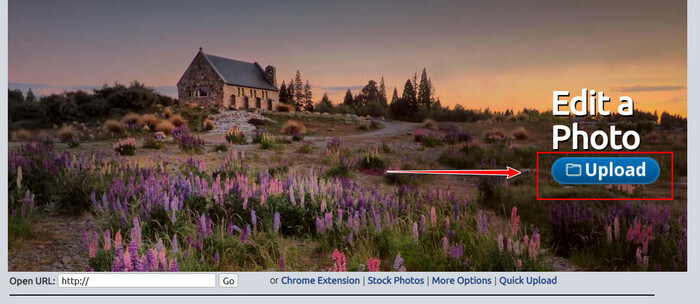
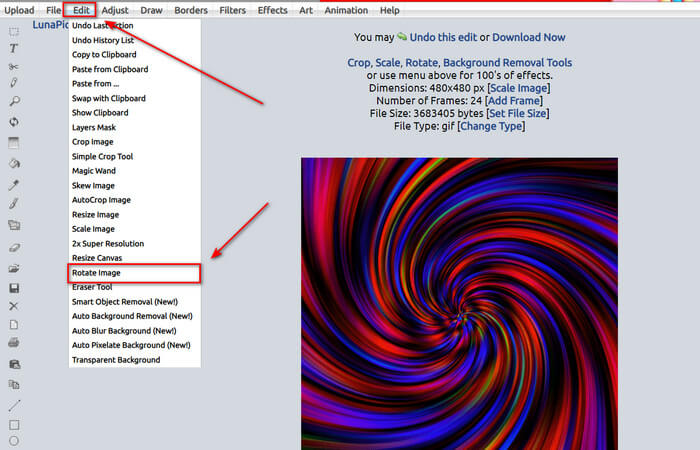
Pas 2. Podeu editar el GIF a la primera interfície després de penjar el fitxer. Però si voleu ajustar la rotació del GIF, continueu fent clic a la pestanya Edit i després a Rotate Image.
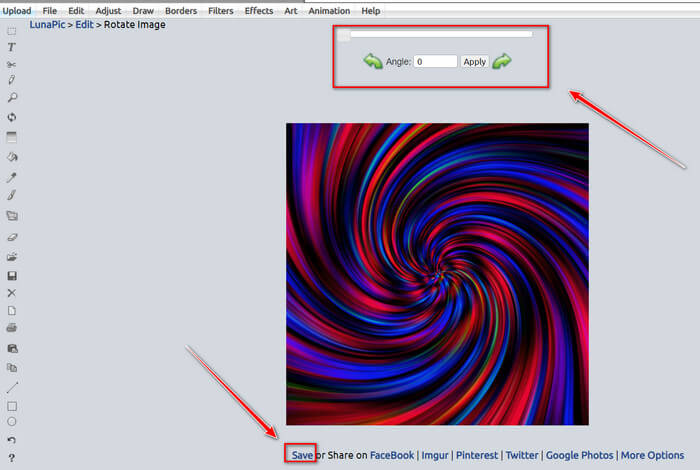
Pas 3. Ajusteu la rotació del GIF introduint un grau concret o fent clic a les fletxes esquerra i dreta. Tot seguit, descarregueu-lo fent clic a Save, situada a la part inferior de la pantalla.
2. Ezgif
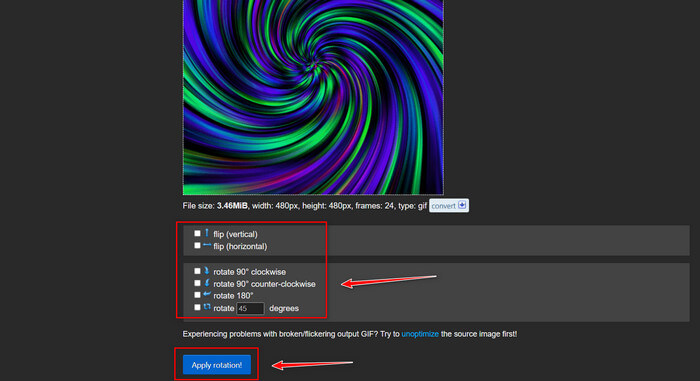
Ezgif.com és un creador de GIF senzill en línia i un conjunt d’eines per crear i modificar GIF animats bàsics. Ezgif pot canviar la mida, retallar, millorar, optimitzar i invertir GIF amb aquesta eina. Una de les seves millors funcions és que podeu girar GIF amb uns passos molt simples. Per aprendre a utilitzar-la, seguiu els passos que es proporcionen a continuació:
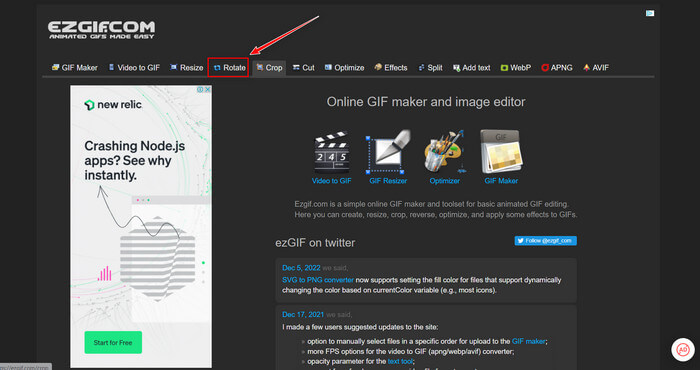
Pas 1. Trieu Rotate a la Toolbar a la part superior de la pantalla.
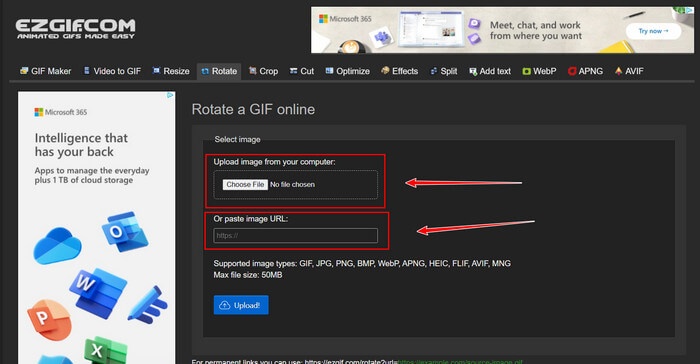
Pas 2. Importeu un fitxer fent clic a Upload File o copieu l’URL d’un GIF i enganxeu-la a la interfície. Després feu clic a Upload.
Pas 3. Marqueu en quina direcció voleu girar el GIF. També podeu introduir un nombre concret de graus perquè pugueu inclinar o girar el GIF segons la vostra preferència. A continuació, feu clic a Apply Rotation i cliqueu la icona Save per descarregar el GIF ajustat.
Part 3. Preguntes freqüents sobre com girar i girar GIF
Puc girar els GIF al meu iPhone?
En comparació amb un telèfon Android, és impossible girar GIF amb un iPhone. Només podeu girar GIF a l'iPhone baixant una aplicació de tercers en línia.
Pots convertir GIF de vídeo d'iPhone?
A l’App Store, hi ha diverses aplicacions de tercers que us permeten crear GIF a partir de vídeos, com ara MP4 to GIF. Potser ja n’heu provat una o més al vostre dispositiu. La diferència d’aquesta tècnica és que farem servir l’aplicació integrada d’Accessos directes (Shortcuts) a l’iPhone o l’iPad. Si no n’éreu conscient, Accessos directes ofereix accés a eines que no estan disponibles de manera nativa a iOS i iPadOS.
Com no podeu utilitzar GIF a la configuració de l'iPhone?
Desplaceu-vos cap avall per la pàgina de l'aplicació Configuració i toqueu "Accessibilitat". A la part superior de la pantalla, toqueu "Moviment" i assegureu-vos que "Redueix el moviment" no estigui seleccionat. Si aquest és el cas, desactiveu-lo i comproveu si els GIF tornen a funcionar.
Conclusió
Al llarg de l’article, hem vist que el format GIF s’ha de girar i capgirar pel que fa a la seva orientació, cosa que és necessària per editar vídeos. Hi ha moltes maneres de fer-ho, gratuïtes o de pagament, fora de línia o en línia; aquestes eines web i programes porten l’edició al següent nivell. Però si voleu accedir al programari d’edició de manera que la connexió a Internet no us pugui causar cap problema en utilitzar-lo, descarregueu Video Converter Ultimate i utilitzeu-lo com a editor fiable també per a altres formats de clips de vídeo. Us ajuda a editar clips de vídeo de manera professional, especialment a girar i capgirar GIF.
-
 Bucle GIF amb el millor Looper GIF animat a Windows i Mac
 Vols conèixer el secret del millor GIF de bucle? Vols fer-ne un? Si és així, esteu al lloc correcte. Per tant, apreneu a crear un bucle amb el millor looper disponible.
-
 4 millors maneres d'eliminar la marca d'aigua del GIF [en línia i fora de línia]
 Necessites eliminar la marca d'aigua del GIF? Amb l'eina d'aquest article, aprendràs els diferents estils amb els diferents eliminadors de filigranes disponibles a la teva plataforma.
-
 Els 4 millors ampliadors GIF fora de línia i en línia que no us podeu perdre
 Aquesta publicació és per a tu si esteu buscant els millors ampliadors de GIF. Hem enumerat els ampliadors GIF en línia i fora de línia de millor rendiment per al vostre ordinador.
