


 Video Converter Ultimate
 Gravadora de pantalla
 Reparació de vídeo
 Baixada segura
Les maneres més excel·lents de com ampliar una imatge per imprimir
Ampliar una imatge es pot fer de dues maneres. Pots engrandir una foto fent-ne un *upscaling* o bé augmentant el nombre de píxels de la imatge. Una altra manera d’ampliar una imatge és canviant-ne la mida real o les dimensions de la fotografia. En aquesta guia t’ensenyarem aquestes dues maneres d’ampliar una foto. Segons les teves necessitats, segur que trobaràs la resposta al que busques. Llegeix aquesta guia per aprendre com ampliar una imatge per imprimir-la, en línia i fora de línia.

Part 1. Amplieu la imatge sense perdre qualitat en línia per a la impressió
Sembla complicat quan sentiu parlar per primera vegada d'ampliar la qualitat d'una imatge. Però, després de llegir aquest post, segur que us serà fàcil. Hi ha un munt d'aplicacions que us poden ajudar a ampliar la vostra imatge. Però el problema és que n'hi ha tants que és difícil triar-ne un. Afortunadament, hem trobat una aplicació que us pot ajudar a ampliar una imatge de manera fàcil i gratuïta.
FVC Free Image Upscaler és una aplicació fantàstica per engrandir fotos que pots fer servir en línia. El millor de les aplicacions en línia és que no cal descarregar-les, cosa que et permet estalviar espai d’emmagatzematge. Pots ampliar la teva imatge amb aquesta eina en línia amb una amplificació de 2x, 4x, 6x o 8x. A més, utilitza un procés d’*upscaling* amb tecnologia d’IA que detecta automàticament les parts de baixa qualitat d’una imatge i després les millora.
A més, els principiants poden utilitzar fàcilment aquesta aplicació perquè té una interfície d'usuari intuïtiva. A més, té un efecte de vista prèvia que us permet comprovar els resultats de la vostra sortida abans de desar-la. FVC Free Image Upscaler es pot utilitzar gratuïtament en tots els navegadors web, com ara Google, Firefox i Safari.
Com ampliar una imatge per imprimir amb FVC Free Image Upscaler
Pas 1. Ves al navegador web i cerca FVC Free Image Upscaler al quadre de cerca. També pots fer clic en aquest enllaç per anar directament a la pàgina principal.
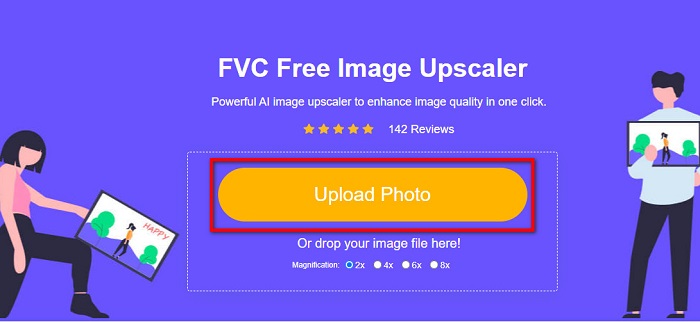
Pas 2. A la interfície principal d’usuari, prem el botó Upload Photo per afegir la imatge que vols engrandir. També pots arrossegar i deixar anar (drag-drop) la imatge per pujar-la.
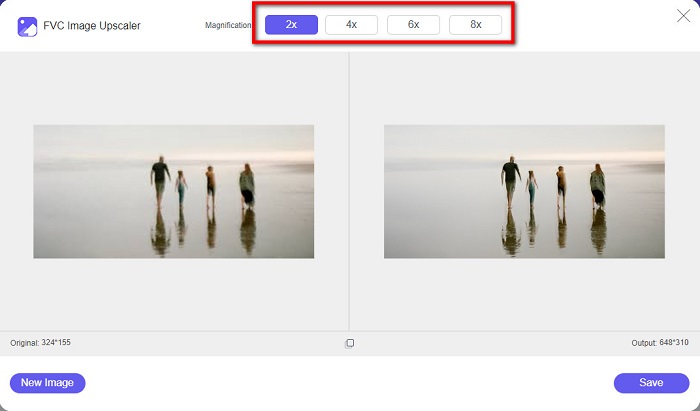
Pas 3. Un cop el fitxer s’hagi pujat, se t’adreçarà a una altra interfície. Selecciona la magnitud que prefereixis per a la teva imatge. Pots triar entre 2x, 4x, 6x i 8x. Com més baixa sigui la qualitat de la teva imatge, més alta hauria de ser la magnitud que triïs.
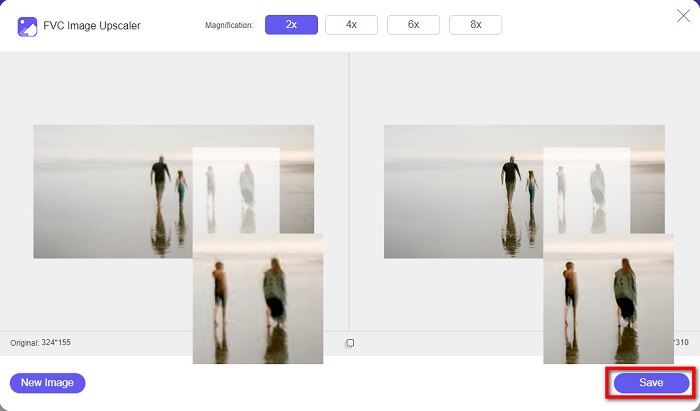
Pas 4. Situa el cursor sobre la imatge de l’esquerra per veure el resultat de l’ampliació. Veus els canvis? Fes clic al botó Save a l’angle inferior dret de la interfície per desar el resultat al teu dispositiu.
I aquests són els passos senzills sobre com ampliar una imatge per imprimir-la en línia amb FVC Free Image Upscaler. Fàcil com un pastís, oi? Però si voleu ampliar una foto canviant les dimensions de la vostra imatge, llegiu la part següent.
Part 2. Com ampliar una imatge a Photoshop sense perdre qualitat
Probablement us heu trobat amb aquesta aplicació quan cerqueu com ampliar una foto. I Adobe Photoshop és l'aplicació d'edició de fotos més eminent a Internet. Adobe Photoshop és utilitzat principalment per professionals que sovint editen imatges per publicar-les en diferents plataformes. Amb les eines i característiques d'aquesta aplicació, segur que podeu produir resultats sorprenents. Però sabíeu que també podeu ampliar una imatge amb Adobe Photoshop? Sí, ho has llegit bé. També és una eina adequada per ampliar imatges sense perdre qualitat. Amb Adobe Photoshop, podeu ampliar la vostra imatge canviant la resolució o introduint manualment l'amplada i l'alçada de la imatge. Tot i que Adobe Photoshop és una aplicació professional, la seva funció d'ampliació és senzilla d'utilitzar. Sense més preàmbuls, aquests són els passos per ampliar una imatge amb Photoshop sense pèrdues.
Pas 1. Primer de tot, descarrega Adobe Photoshop a l’ordinador. Està disponible per a gairebé tots els sistemes operatius, com Windows i macOS. Un cop l’aplicació estigui instal·lada al dispositiu, importa-hi la imatge que vols engrandir.
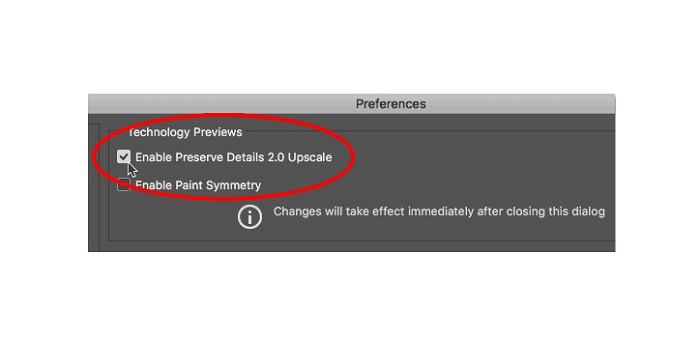
Pas 2. A continuació, habilita l’opció Preserve Details 2.0. Si fas servir un ordinador amb Windows, ves al panell Edit a la Barra de menús. Si fas servir un dispositiu Mac, ves al menú Photoshop CC, tria Preferences i fes clic al botó Technology Previews. Això farà aparèixer el quadre de diàleg de Preferències a l’opció Technology Previews. Marca la casella al costat de Enable Preserve Details 2.0 Upscale. Després prem OK per tancar el quadre de diàleg i tornar a l’opció Technology Previews.
Pas 3. Després, obre el quadre de diàleg Image Size anant al menú Image i seleccionant l’opció Image Size.
Pas 4. Quan ampliem o fem *upscaling* d’una imatge a Photoshop, volem ajustar-ne la dimensió física; en altres paraules, volem afegir o eliminar píxels. Per tant, assegura’t que l’opció Resample estigui seleccionada.
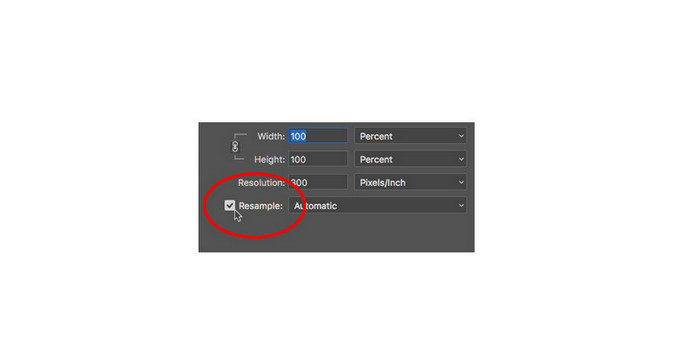
Pas 5. Després, canvia l’alçada i l’amplada de la foto introduint les dimensions que prefereixis per a la imatge. Per defecte, l’amplada i l’alçada estan enllaçades, de manera que, si canvies l’amplada de la imatge, l’alçada es modificarà en conseqüència.
Pas 6. Finalment, canvia el Resample Method a Preserve Details 2.0. El mètode de remostreig per defecte està establert en Automàtic. Però Photoshop no el triarà quan l’opció Resample estigui configurada com a Automàtica. Per tant, canvia l’opció Resample fent clic a Automatic i selecciona Preserve Details 2.0.
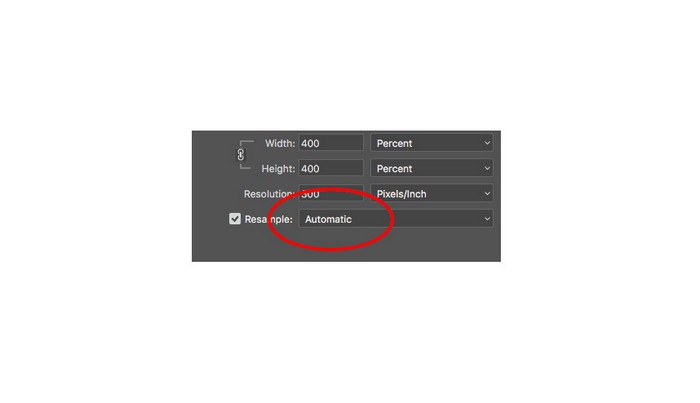
Pas 7. Ara és el moment de previsualitzar els resultats. Després de seleccionar Preserve Details 2.0, la pestanya de previsualització de l’esquerra s’actualitzarà i et mostrarà com quedarà la imatge ampliada. Arrossega la imatge amb el ratolí dins la finestra de previsualització per veure’n les diferents parts.
Seguint aquests passos, segur que aprendràs a ampliar una imatge per imprimir-la sense perdre qualitat.
Relacionat amb:
Els 7 millors ampliadors de fotos en línia i fora de línia
Els 4 millors ampliadors de GIF en línia i fora de línia que no et pots perdre
Part 3. Preguntes freqüents sobre com ampliar la imatge sense perdre qualitat
Puc ampliar la mida del fitxer JPG en línia?
Pots canviar la mida del fitxer de la teva imatge JPG amb FVC Free Image Upscaler. Només cal que augmentis la magnitud a 6x o 8x per engrandir la mida de la teva imatge JPG.
Adobe Photoshop admet fitxers PNG?
Sí. Els fitxers PNG són compatibles amb moltes plataformes, inclòs Adobe Photoshop. Podeu importar gairebé tots els formats de fitxers d'imatge amb Adobe Photoshop, com ara PNG, JPG, JPEG, BMP i WebP.
Ampliar la meva imatge afecta la mida del fitxer?
Si ho és. La mida del fitxer de la imatge augmenta perquè esteu ajustant el nombre total de píxels de la imatge o el nombre de píxels per cada polzada. Però la mida del fitxer també serà més petita quan baixeu l'amplada i l'alçada de la imatge.
Conclusió
I aquests són els mètodes sobre com ampliar una imatge sense perdre qualitat. Tant amb el mètode en línia com amb el fora de línia, pots engrandir la teva imatge sense comprometre’n la qualitat. Però si vols una manera més senzilla d’ampliar una imatge, et recomanem fer servir FVC Free Image Upscaler, una aplicació fàcil d’utilitzar.
-
 Com canviar la mida de la imatge a Illustrator amb 2 maneres diferents
 Aprèn les millors maneres de canviar la mida d'una imatge a Illustrator. Per començar, descarregueu i obriu l'aplicació Adobe Illustrator al vostre PC i seguiu aquests senzills passos.
-
 6 maneres de redimensionar una imatge al web i fora de línia [100% Funcionant]
 Amb el tutorial que afegim aquí, ara podeu canviar la mida d'una imatge en funció de la vostra mida preferida. Aprèn a fer-ho aquí!
-
 Les millors maneres de canviar la mida de la foto al vostre iPhone de forma gratuïta i sense instal·lació
 Canviar la mida d'una foto al vostre iPhone pot ser difícil d'aprendre. Afortunadament, aquest article ofereix un tutorial sobre com canviar fàcilment la dimensió de les imatges.
