


 Video Converter Ultimate
 Gravadora de pantalla
 Reparació de vídeo
 Baixada segura
Procés complet sobre com utilitzar GIMP per canviar la mida de les imatges
Canviar la mida d'una imatge és essencial quan es tracta d'editar una imatge. De vegades, cal canviar l'alçada i l'amplada de la imatge per obtenir la mida preferida. A més, el canvi de mida d'una imatge el fan altres editors de fotos per reduir la mida de la seva imatge o per augmentar la qualitat. Per sort, hem trobat una aplicació que permet canviar la mida d'una imatge.
GIMP és un programari de manipulació d’imatges amb el qual pots editar les teves imatges. A més, GIMP et permet canviar l’alçada i l’amplada de la teva imatge, augmentant-ne la qualitat. Per tant, si vols utilitzar GIMP per canviar la mida d’una imatge, consulta aquest article ara.

Part 1. Com utilitzar GIMP per canviar la mida de les imatges
GIMP és una plataforma d'aplicacions de manipulació gràfica que permet als dissenyadors gràfics crear resultats excel·lents. Permet als usuaris crear elements de disseny, imatges amb guió, icones i molt més. A més, és una aplicació gratuïta i de codi obert que podeu utilitzar en gairebé totes les plataformes multimèdia, com Windows, Mac i Linux. Moltes persones recomanen aquesta aplicació quan busquen una alternativa a Adobe Photoshop.
I malgrat que té una interfície més fàcil que Photoshop, algunes persones encara tenen dificultats per utilitzar GIMP. El que és encara més interessant de GIMP és que us permet editar els píxels de la vostra imatge. I si esteu buscant el millor redimensionador d'imatges, potser voldreu considerar GIMP com la vostra preferència.
En aquesta part, us presentarem dos mètodes per utilitzar GIMP per canviar la mida de la imatge (dimensions i mida).
Com utilitzar GIMP per canviar la mida de la imatge
Pas 1. Primer, descarrega l’aplicació GIMP al teu dispositiu i instal·la-la. Després d’instal·lar-la, obre l’app al teu dispositiu. A continuació, obre la imatge a GIMP.
Tingueu en compte que quan obriu la vostra imatge al GIMP, la imatge s'ampliarà de manera que tota la imatge encaixi al llenç d'imatge. Veureu la mida actual de la vostra imatge a la cantonada superior dreta de la finestra.
Pas 2. Per canviar les dimensions de la teva imatge, ves a Imatge i selecciona el diàleg Escala la imatge. En el diàleg Escala la imatge, pots canviar l’Amplada i l’Alçada de la teva imatge. Escriu la mida de dimensions que prefereixis i passa al pas següent. A més de l’alçada i l’amplada de la imatge, veuràs una cadena que indica que l’alçada i l’amplada estan encadenades entre si, és a dir, quan canviïs l’alçada, l’amplada la seguirà.
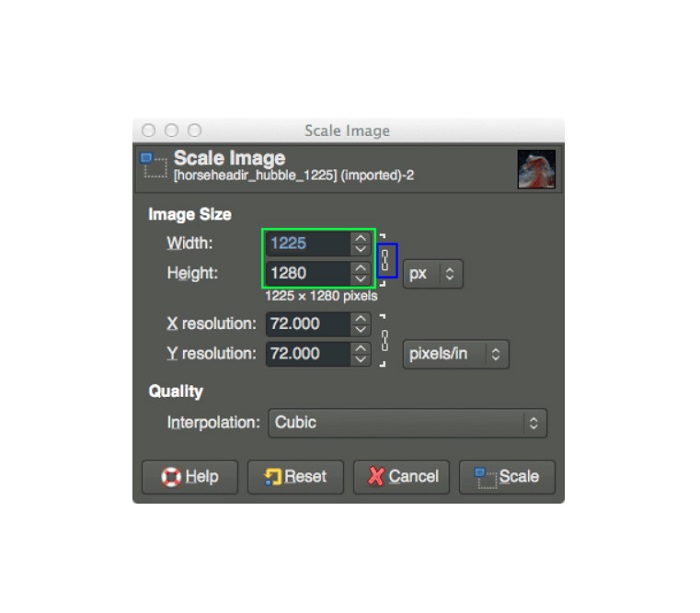
Pas 3. Quan hagis acabat de modificar la mida de les dimensions de la teva foto, ja pots exportar la imatge. Per exportar la imatge, ves a Fitxer > Exporta. I per exportar el resultat amb un nom de fitxer nou, ves a Fitxer > Sobreescriu i posa nom al fitxer.
Com utilitzar GIMP per canviar la mida de les imatges sense perdre qualitat (mida del fitxer):
En aquest tutorial, utilitzarem una imatge JPEG perquè aquest tipus de format és una compressió amb pèrdues, el que significa que quan comprimim la mida d'aquesta imatge, sacrificarem part de la seva qualitat. Però utilitzant GIMP, és possible canviar la mida de la imatge sense afectar-ne la qualitat.
Pas 1. Utilitzant la mateixa imatge anterior, redimensionarem la imatge a 200 px d’amplada i exportarem el fitxer amb diferents nivells de compressió JPEG. Podràs observar a l’exemple següent que, amb un valor de qualitat de 80, la mida de fitxer de la imatge és més petita que amb 100, tot i tenir gairebé la mateixa qualitat.
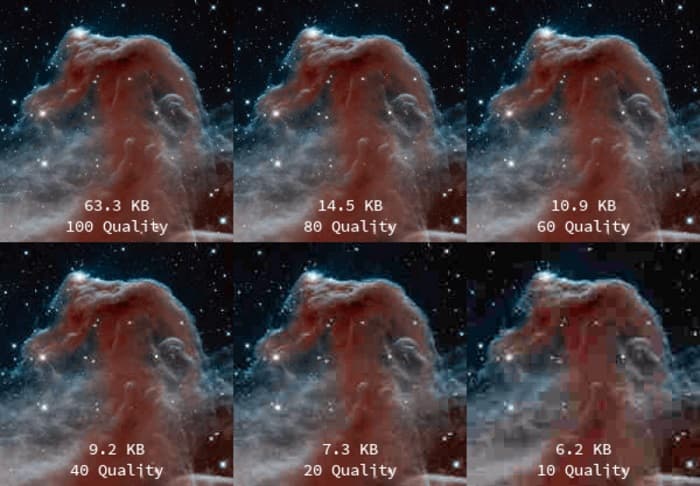
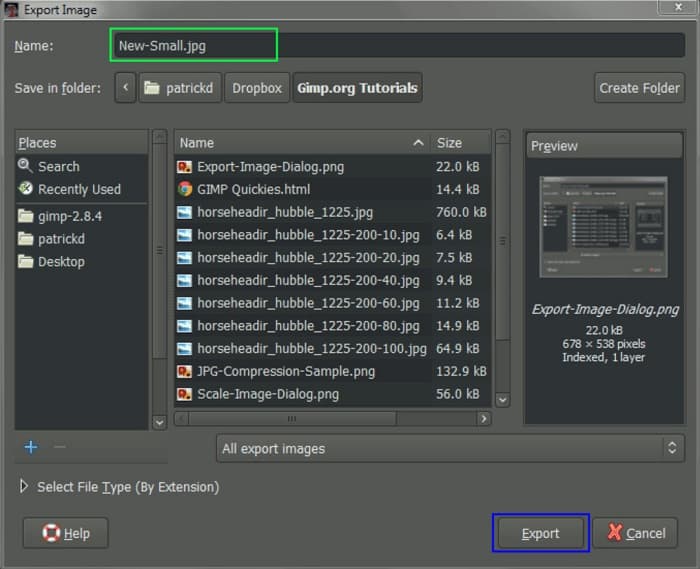
Pas 2. Quan hagis acabat de modificar la mida de la imatge, exportarem el resultat. Fes clic al botó Fitxer i selecciona Exporta.
Pas 3. A la pestanya Exporta la imatge, introdueix el nou nom de la teva imatge. Si et preocupa en quin format es desarà el resultat, GIMP exporta automàticament en el format de fitxer original. En el nostre exemple, veuràs que el format de sortida continua sent .jpg.
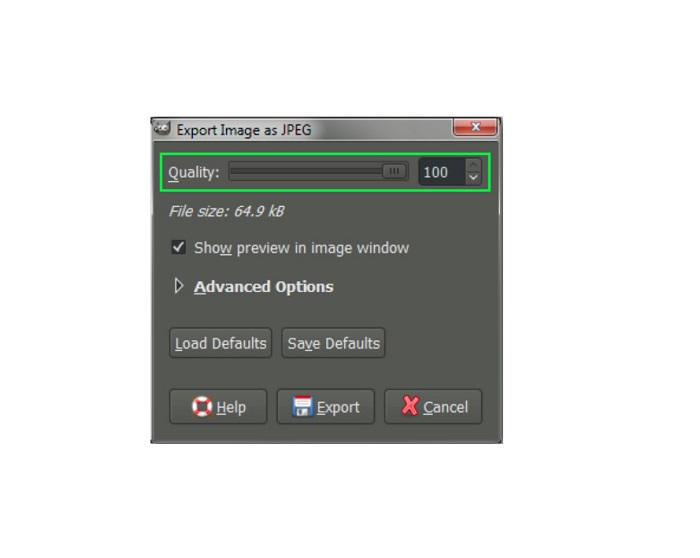
Pas 4. Després de fer clic al botó Exporta, apareixerà la pestanya Exporta la imatge com a JPEG, on podràs canviar la qualitat de la imatge que estàs exportant. Si també tens l’opció Mostra la previsualització a la finestra de la imatge, pots marcar la casella i veure la previsualització de la teva imatge. També veuràs la informació de la Mida del fitxer perquè sàpigues la mida final del fitxer de la teva imatge.
Pas 5. Finalment, marca el botó Exporta per exportar la teva imatge i desar-la al dispositiu.
I així és com utilitzar GIMP per canviar la mida de la dimensió i la mida del fitxer de la imatge. Podeu fer més edició de la vostra imatge, com ara girar una imatge, girar una foto i retallar-la. Llegiu la part següent si encara voleu una opció per canviar la mida de la vostra imatge o millorar la qualitat de les vostres imatges.
Part 2. Alternativa a GIMP
GIMP es troba entre les aplicacions d'edició de fotos més estàndard que utilitzen molts professionals. Tanmateix, alguns usuaris tenen dificultats per utilitzar aquest programari per editar fotos, com ara canviar la mida de les imatges. I si sou dels usuaris que volen utilitzar una aplicació més senzilla, tenim la solució per a vosaltres.
FVC Free Image Upscaler és una aplicació en línia gratuïta amb una interfície d’usuari senzilla, la qual cosa la converteix en una eina apta per a principiants si estàs buscant el millor ampliador d’imatges per millorar la qualitat de la teva imatge. Utilitza un procés d’escalat amb IA que detecta automàticament les parts borroses de la teva imatge i les millora. A més, pots millorar la teva foto amb una ampliació de fins a 8x. També admet els formats d’imatge més comuns, com ara JPEG, JPG, PNG i BMP. I, a diferència d’altres aplicacions d’edició, FVC Free Image Upscaler pot redimensionar la imatge sense perdre qualitat. Per tant, si vols utilitzar aquesta eina per redimensionar i millorar la teva imatge, segueix els senzills passos següents.
Com canviar la mida de la imatge sense perdre qualitat alternativa a GIMP:
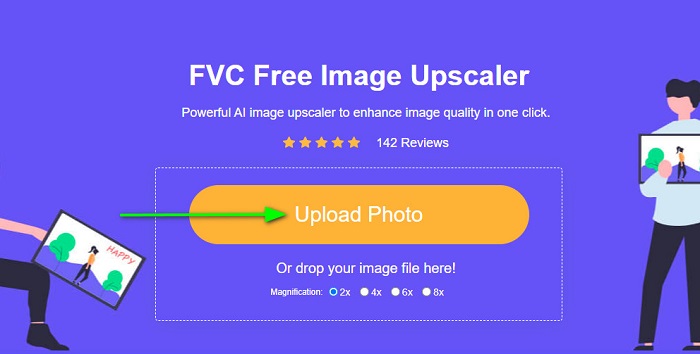
Pas 1. Obre el navegador web i cerca FVC Free Image Upscaler al quadre de cerca. També pots fer clic directament a l’enllaç de la pàgina principal. A la interfície principal del programari, fes clic al botó Puja foto per iniciar l’app al teu dispositiu.
Pas 2. A continuació, fes clic al botó Puja foto a la interfície principal per afegir la foto que vols redimensionar/ampliar.
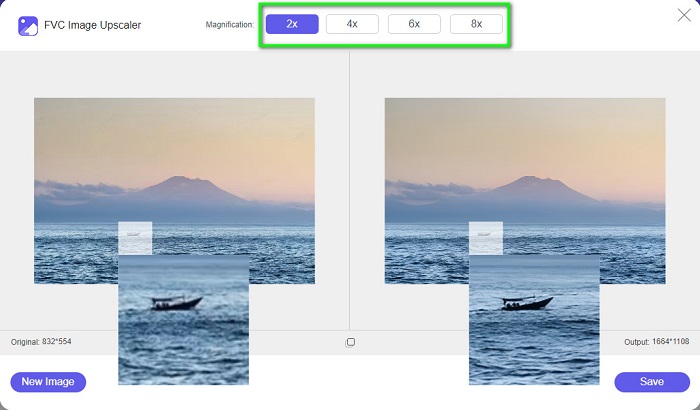
Pas 3. Després de pujar el fitxer, selecciona un dels presets d’ampliació. Pots escollir entre 2x, 4x, 6x i 8x. A continuació, pots comprovar la previsualització del resultat movent el cursor per sobre de la imatge.
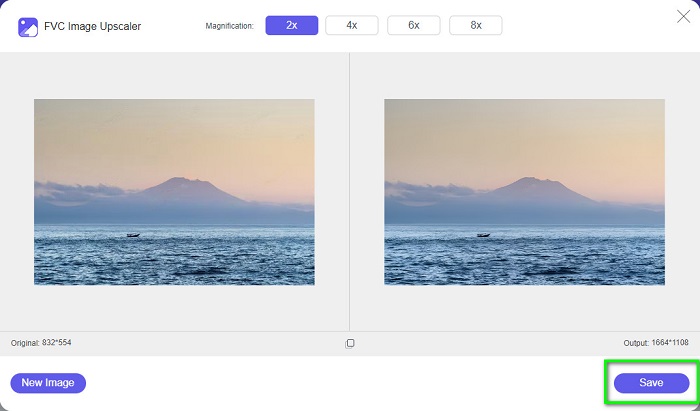
Pas 4. Finalment, prem el botó Desa a l’extrem inferior dret de la interfície per desar el resultat al teu dispositiu.
Relacionat amb:
Com optimitzar una imatge per al web amb les millors solucions [Ràpid]
3 maneres de canviar la mida de la imatge per a Twitter sense perdre qualitat
Part 3. Preguntes freqüents sobre com utilitzar GIMP per canviar la mida de les imatges
GIMP té una versió en línia?
Si ho és. GIMP no és només una aplicació d'edició de fotos fora de línia; també té una versió en línia. Tanmateix, GIMP en línia no conté totes les funcions com la versió d'escriptori de GIMP.
GIMP és el millor Photoshop gratuït?
GIMP no és comparable a Photoshop. Photoshop segueix sent el programari d'edició de fotos més excel·lent per a ordinadors de sobretaula. Tanmateix, GIMP és una de les millors alternatives per a Adobe Photoshop.
GIMP admet fitxers PNG?
Sí. GIMP us permet desar les vostres sortides en JPEG, JPG, PNG i altres formats.
Conclusió
I aquest és el procés sobre com utilitzar GIMP per redimensionar imatges. Encara que GIMP té una interfície complexa, seguint els passos que hem proporcionat més amunt podràs canviar les dimensions i la mida de la teva imatge. Però si prefereixes utilitzar un redimensionador d’imatges en línia gratuït que pugui millorar la qualitat de la teva imatge, fes servir FVC Free Image Upscaler.
-
 6 maneres de redimensionar una imatge al web i fora de línia [100% Funcionant]
 Amb el tutorial que afegim aquí, ara podeu canviar la mida d'una imatge en funció de la vostra mida preferida. Aprèn a fer-ho aquí!
-
 Revisió factual de PicResize que heu de conèixer aquest 2022
 Vols saber si PicResize és la millor opció per editar imatges? Llegiu aquest article mentre revisem l'eina general.
-
 Tot el que necessiteu saber sobre el Waifu2x i l'alternativa
 Necessites saber més sobre Waifu2x? Aquest article proporciona la informació que cal destacar en aquesta aplicació i la seva alternativa.
