


 Video Converter Ultimate
 Gravadora de pantalla
 Reparació de vídeo
Com retallar una imatge a Photoshop
Pots fer moltes coses amb Photoshop; és com una eina tot en un per editar imatges. Si has estat fent servir Photoshop i encara estàs familiaritzat amb totes les seves funcions, o si ets algú que intenta explorar les funcions de retall que ofereix, som aquí per ajudar-te! Aprèn i entén ràpidament i amb facilitat com retallar una imatge a Photoshop. A més, descobreix altres mètodes per retallar imatges en línia si Photoshop no s’ajusta als teus recursos i habilitats.
Part 1. Com retallar una imatge a Photoshop
Aprendre a tallar imatges a Photoshop és important perquè permet als individus separar i manipular diferents elements dins d'una imatge amb precisió. Aquesta habilitat és fonamental per a tasques com l'eliminació de fons, la creació de collages i la realització de millores específiques durant l'edició d'imatges. Ja sigui en disseny gràfic, fotografia de producte o art digital, la capacitat de retallar imatges proporciona flexibilitat i control creatiu, permetent tant als professionals com als entusiastes aconseguir els resultats visuals desitjats en diversos projectes.
A continuació s'explica com retallar una imatge a Photoshop:
Pas 1. Obre una imatge a Photoshop anant a la pestanya File.
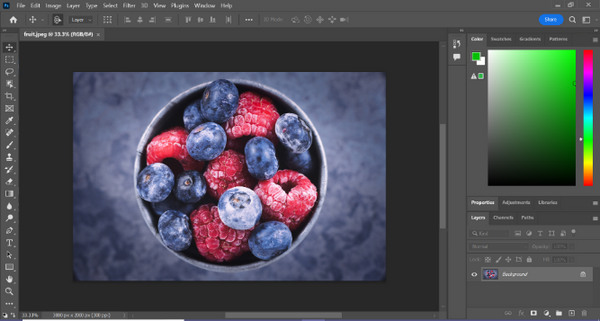
Pas 2. Tria l’eina Object Selection i arrossega el ratolí sobre l’objecte per seleccionar l’àrea que vols retallar.
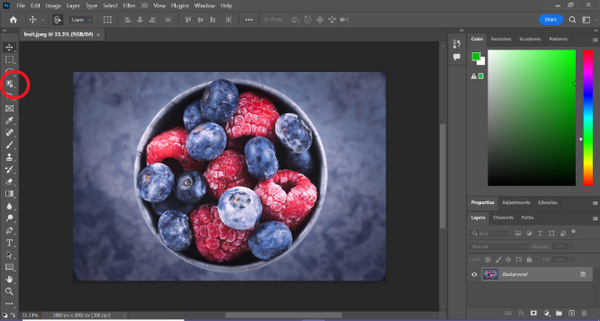
Pas 3. Fes clic a Select and Mask.
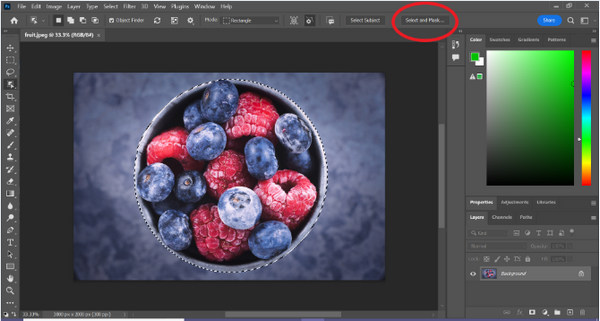
Pas 4. Ajusta la configuració de la selecció, com ara el difuminat (feathering), si cal.
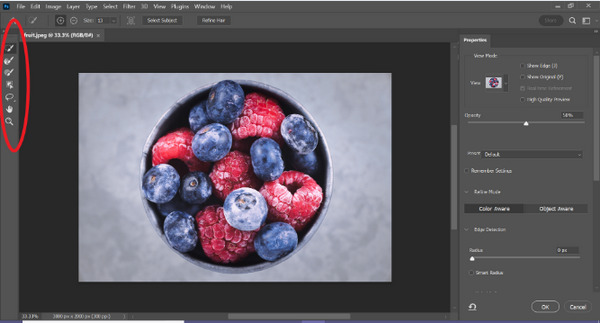
Pas 5. Fes clic a la icona Mask per retallar la imatge i desa la imatge modificada.
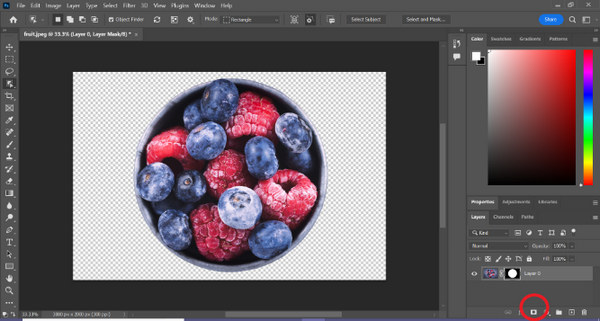
Amb aquesta guia senzilla, ara pots retallar una imatge a Photoshop de manera ràpida i fàcil. Només cal que segueixis la guia i gaudeixis d’un procés d’edició d’imatge precís i sense complicacions. A més, pots canviar el color de la imatge per substituir la part retallada.
Part 2. Com retallar una imatge sense Photoshop en línia?
Si no teniu Photoshop instal·lat a l'ordinador, hi ha una manera de retallar una imatge en línia. Tot i que Photoshop és una eina de qualitat per editar imatges, especialment per retallar una imatge perfectament, va necessitar habilitats i pràctica per dominar-la. Per tant, si aquesta eina està fora de les vostres mans, podeu utilitzar aquests mètodes per retallar una imatge fàcilment.
Mètode 1: eliminador de fons en línia de FVC
L'eina en línia FVC Online Background Remover és versàtil i fàcil d’utilitzar, dissenyada per eliminar automàticament fons d’imatges en formats com PNG, JPG i JPEG. Aquesta eina simplifica la creació de fons transparents i ofereix opcions de personalització, permetent a l’usuari usar un pinzell per seleccionar les àrees específiques que vol eliminar o mantenir.
A més, FVC Free Background Remover permet als usuaris canviar el fons de la imatge a un color sòlid de la seva elecció o fins i tot substituir-lo per una altra foto. L'eina va més enllà de l'eliminació de fons, oferint funcions d'edició senzilles com ara retallar, reubicar, girar i girar, que permeten als usuaris millorar l'atractiu general de les seves imatges. A continuació es mostren els passos sobre com utilitzar-ho.
Pas 1. Primer, ves al seu lloc web oficial i fes clic a Upload Image.
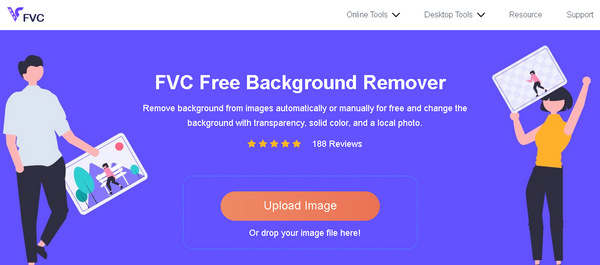
Pas 2. Espera que acabi el procés. Després d’això, pots editar la imatge afinant-ne les vores i movent el subjecte.
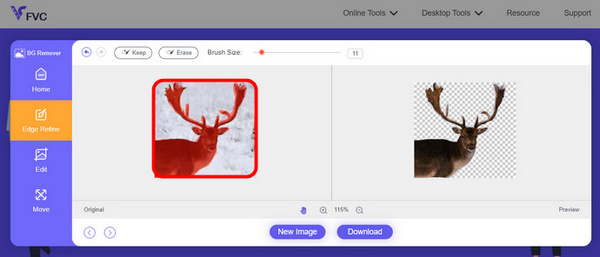
Pas 3. Per desar el resultat, fes clic al botó Download.
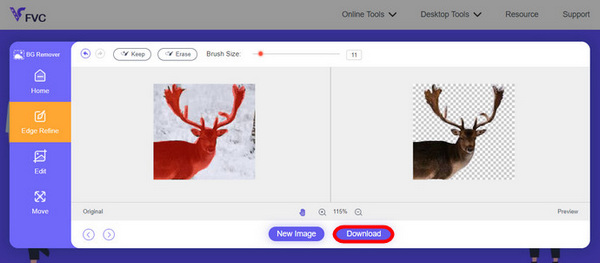
FVC Image Background Remover és realment una eina ideal per retallar una imatge. A banda de ser gratuïta, l’eina és molt fàcil d’utilitzar per afegir un fons a una imatge. Ho veus? Només has de seguir uns quants passos senzills i podràs eliminar el fons de les teves fotos amb molta facilitat.
Mètode 2: Ús de la funció iPhone iOS 16
L'iPhone iOS 16 aporta diverses funcions i actualitzacions noves. Un dels quals és la imatge retallada. Aquesta funció de retall d'imatges permet als usuaris aïllar el tema d'una foto i crear retalls de fotos directament als seus iPhones.
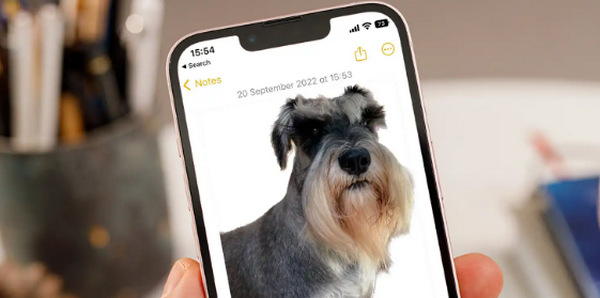
Pas 1. Obre una foto a l’app Fotos del teu dispositiu.
Pas 2. Mantén premut el subjecte de la foto i apareixerà un contorn blanc brillant.
Pas 3. Ara, copia i enganxa la imatge a les teves notes, aplicacions de missatgeria o missatges. També la pots enviar directament per AirDrop a un altre iPhone.
Aquesta funció de retall de fotos només està disponible a iOS 16 i posteriors a iPhone XS, iPhone XR i posteriors.
Part 3. Preguntes freqüents sobre retallar una imatge a Photoshop
Com retallar algú d'una imatge i posar-la en una altra a Photoshop?
Per retallar una persona d’una foto a Photoshop i col·locar-la en una altra, segueix aquests passos:
1. Utilitza l’eina Lasso o la Ploma per delinear la persona amb cura.
2. Fes clic amb el botó dret i tria Layer via Copy per duplicar l’àrea seleccionada.
3. Obre la imatge de destinació, crea una capa nova i enganxa-hi la capa copiada.
4. Ajusta la mida i la posició segons calgui, i refina les vores per aconseguir una integració perfecta.
Com retalleu alguna cosa a Photoshop i la feu transparent?
Per retallar un objecte a Photoshop i fer-lo transparent:
1. Utilitza l’eina Ploma o la vareta màgica (Magic Wand) per seleccionar l’objecte.
2. Prem Delete per eliminar l’àrea seleccionada.
3. Desa la imatge en format PNG.
4. Assegura’t que l’àrea eliminada apareix amb un patró de quadriculat, indicador de transparència.
Com es resta una forma a Photoshop?
Per restar una forma a Photoshop:
1. Crea dues formes amb l’eina Shape o qualsevol eina de selecció.
2. Assegura’t que totes dues formes són en capes separades.
3. Selecciona la capa superior, ves a Path Operations a la barra d’eines i tria Subtract Front Shape.
4. La forma superior es restarà de la forma inferior, creant una nova forma amb l’àrea restada.
Puc retallar objectes complexos amb detalls fins a Photoshop?
Sí, Photoshop ofereix eines avançades com l'eina Pen per a seleccions precises d'objectes complexos. Apropeu-vos per obtenir més precisió, creeu punts d'ancoratge al voltant de l'objecte i perfeccioneu el camí per obtenir retalls detallats.
Quina diferència hi ha entre Capa mitjançant tall i Capa mitjançant còpia quan es retalla una imatge a Photoshop?
La capa mitjançant tallar elimina l'àrea seleccionada i la col·loca en una capa nova. Mentre que, Capa mitjançant Còpia duplica l'àrea seleccionada en una nova capa, deixant l'original intacte. Trieu en funció de si voleu conservar l'original o no durant el procés de tall.
Conclusió
És fàcil, oi? Ara que ja saps com retallar una imatge a Photoshop, porta aquesta habilitat més enllà i explora altres funcions de Photoshop. A més, pots provar altres mètodes per retallar una imatge en línia mitjançant FVC Online Background Remover o amb el teu dispositiu iPhone. Retallar una imatge és ara més fàcil que mai, així que no deixis passar aquesta oportunitat i potencia la teva creativitat seguint aquesta guia.
-
 Com eliminar la filigrana de la foto a Photoshop [Passos]
 Photoshop és una de les eines d'edició més populars. Obteniu el tutorial gratuït aquí amb Photoshop per eliminar la marca d'aigua de les fotos. A més, descobreix maneres alternatives.
-
 Com retallar a Photoshop: Guia per a principiants [2025]
 Descobriu com retallar imatges a Photoshop amb aquesta guia fàcil de seguir. A més, apreneu a seleccionar àrees, ajustar les relacions d'aspecte i molt més per retallar fotos.
-
 Com canviar el color a Photoshop | Guia integral 2025
 Voleu portar la vostra creativitat al següent nivell aprenent a canviar el color de fons a Photoshop? Aquest article té tot el que necessiteu saber. Llegeix-ho ara!
