


 Video Converter Ultimate
 Gravadora de pantalla
 Reparació de vídeo
 Baixada segura
Apreneu a fer una imatge més clara amb aquests mètodes fàcils
Quan captures una imatge que acaba sortint borrosa, es considera un defecte. I resulta molt insatisfactori tenir una imatge borrosa. Però, per sort, avui dia hi ha un munt d’aplicacions que et poden ajudar a enfocar i desfer la borrositat de la teva imatge. Adobe Photoshop és una de les aplicacions d’edició de fotos més famoses. Tanmateix, no és una eina fàcil per a principiants. Per això, et mostrarem mètodes més senzills que pots utilitzar perquè la teva foto borrosa tingui una qualitat excel·lent. Llegeix el text següent per aprendre com fer una imatge més clara amb passos fàcils.

Part 1. Com fer una imatge més clara en línia
Amb l'ús de la tecnologia d'IA, ara hi ha molts escaladors d'imatges en línia que poden millorar la vostra imatge automàticament. Utilitzar aplicacions en línia per fer la vostra imatge més clara és convenient perquè no cal que baixeu res al dispositiu. També estalviarà espai d'emmagatzematge al vostre dispositiu perquè hi podeu accedir des del vostre navegador.
FVC Free Image Upscaler és l’aplicació en línia més coneguda si vols enfocar o fer la teva imatge més nítida. Aquesta eina és fàcil d’utilitzar perquè té una interfície d’usuari molt senzilla. A més, pots millorar la qualitat de la teva imatge amb una ampliació de 2x, 4x, 6x i 8x. També, FVC Free Image Upscaler utilitza tecnologia d’IA (Intel·ligència Artificial) que detecta automàticament les parts borroses de la teva imatge i després les millora. Et permet corregir amb precisió els píxels perduts, les textures de color i més detalls.
A més, admet diversos formats d'imatge, com ara PNG, JPG, JPEG i WebP. I el que és fantàstic d'aquesta eina en línia és que no necessiteu cap compte per accedir-hi. També és d'ús gratuït i segur d'utilitzar. I malgrat que és una aplicació en línia, no conté cap anunci molest que us pugui distreure, i és ràpid i eficient d'utilitzar. Per tant, si busqueu una eina convenient, FVC Free Image Upscaler és la millor eina.
Com fer una imatge més clara en línia amb FVC Free Image Upscaler:
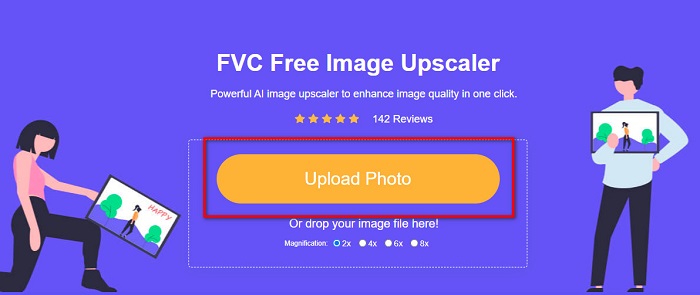
Pas 1. A l’ordinador, obre el navegador i cerca FVC Free Image Upscaler al quadre de cerca. O bé, pots fer clic a l’enllaç proporcionat per anar directament a la pàgina principal de l’aplicació. Fes clic al botó Upload Photo per iniciar l’app.
Pas 2. Després d’iniciar l’aplicació, torna a fer clic a Upload Photo per afegir la imatge que vols ampliar/enfocar. Es mostraran els fitxers de l’ordinador, on hauràs de localitzar la teva imatge i obrir-la.
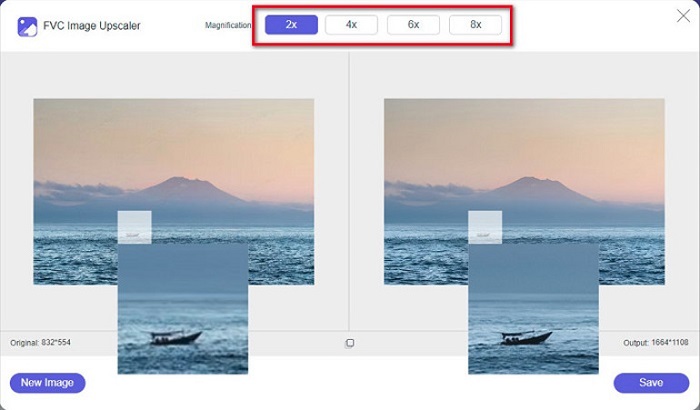
Pas 3. A continuació, selecciona el valor predeterminat de magnification que prefereixis. Com més alta sigui la magnificació, més nítida es tornarà la teva imatge. Però tingues en compte que la mida del fitxer també augmentarà a mesura que augmenti la qualitat. Pots triar una magnification entre 2x, 4x, 6x i 8x.
Pas 4. Veuràs els resultats a la part dreta de la interfície. I si estàs satisfet amb el resultat, fes clic al botó Save per desar la imatge al teu dispositiu.
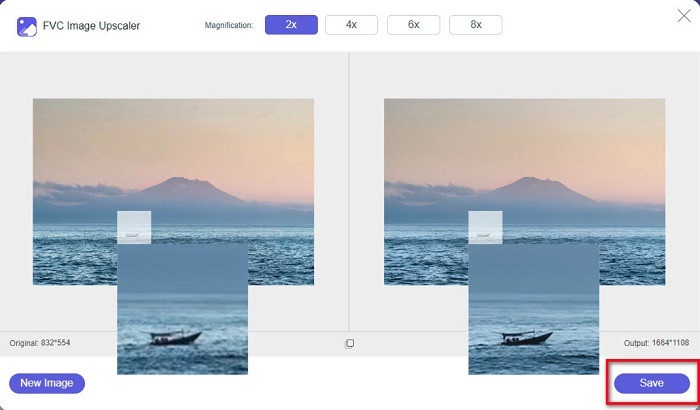
Només has d'esperar que la teva imatge es desi i voilà! Ara pots compartir la teva increïble foto amb amics o en altres plataformes de xarxes socials.
Part 2. Com fer una imatge més clara fora de línia
També és bo utilitzar una aplicació fora de línia quan vulgueu millorar o editar la vostra imatge. Moltes aplicacions d'edició de fotos estan fora de línia; heu de comprar-los abans d'utilitzar-los. Però no et preocupis; en aquesta part, oferirem una eina gratuïta fora de línia que podeu utilitzar al vostre escriptori.
Paint.net és una de les aplicacions d’edició de fotos més utilitzades que és gratuïta i segura. Aquesta eina fora de línia té una interfície d’usuari més senzilla que Adobe Photoshop, que fan servir molts professionals. Tot i tenir una interfície simple, pot produir resultats excepcionals i et permet enfocar la teva imatge borrosa. A més, disposa d’altres funcions d’edició que t’ajuden a millorar la imatge. Amb Paint.net, pots enfocar, corregir el color i afegir fons a la teva foto.
A més, movent el control lliscant, podeu triar la nitidesa de la vostra imatge i eliminar-ne les parts borroses. Tanmateix, només està disponible en dispositius Windows. Tanmateix, si voleu fer una imatge més gran mentre l'afinau, podeu utilitzar Paint.net.
Com fer una imatge més gran i més clara amb Paint.net:
Pas 1. Primer, descarrega i instal·la Paint.net a l’ordinador d’escriptori i obre’l quan hagi acabat la instal·lació. Després, puja la teva imatge fent clic a File > Open.
Pas 2. A continuació, ves a Effects > Photo > Sharpen. Apareixerà una altra finestra on podràs ajustar la nitidesa de la imatge per desfer la borrositat.
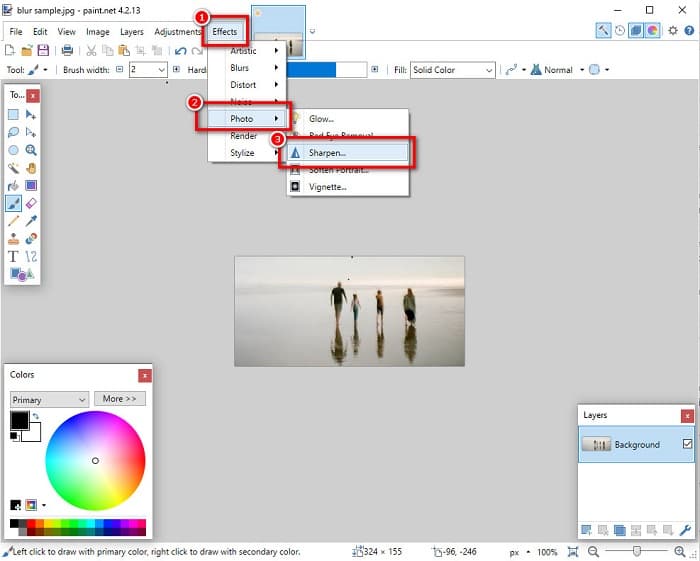
Pas 3. A la pestanya Sharpen, mou el control lliscant per seleccionar la nitidesa que prefereixis per a la teva imatge. També pots fer clic a la fletxa amunt/avall per triar numèricament el valor de nitidesa de la teva imatge.
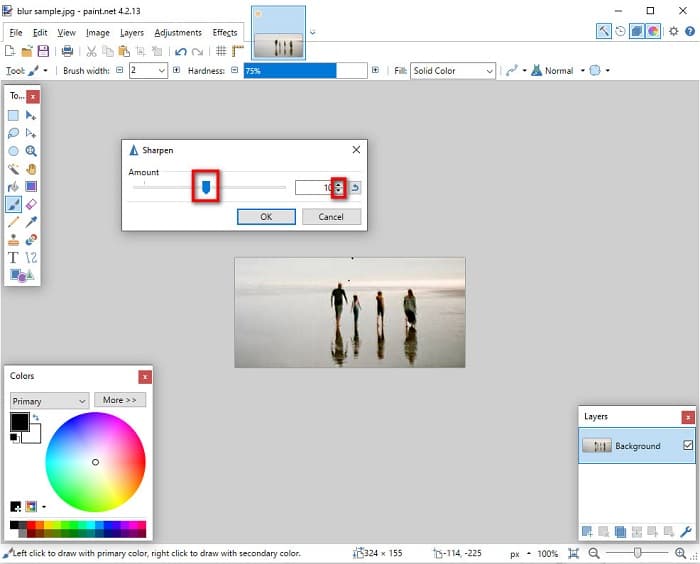
Pas 4. Finalment, fes clic al botó OK i ves a File > Save per desar el resultat a l’ordinador.
Part 3. Com fer una imatge més clara al vostre iPhone
I si teniu una imatge borrosa capturada amb el vostre iPhone, també podeu utilitzar una aplicació de desenfocament per al vostre dispositiu iPhone. Nombroses aplicacions d'edició d'imatges que podeu baixar des de l'AppStore us poden ajudar a desenfocar la vostra imatge. Tanmateix, no totes les aplicacions són gratuïtes; heu de comprar-los abans d'utilitzar-los. Afortunadament, hem trobat una aplicació d'imatges de desenfocament que es pot utilitzar gratuïtament des de l'AppStore. Llegiu aquesta secció completament per saber com fer que una imatge sigui més clara al vostre dispositiu iPhone.
Si et preguntes quina és l’app d’edició de fotos gratuïta que et pot ajudar a desfer la borrositat d’una imatge, VSCO és l’aplicació que estàs buscant. VSCO és una coneguda aplicació d’edició de fotos disponible a l’App Store. A més, quan desfàs la borrositat d’una imatge amb VSCO, hi ha alguns ajustos als quals t’has de fixar. Per desfer la borrositat de la teva foto amb VSCO, has d’ajustar la claredat, la nitidesa i l’exposició de la imatge. VSCO també té altres eines d’edició que pots utilitzar per retocar les teves imatges. A més, admet els formats d’imatge més comuns de l’iPhone, com HEIC i HEIF. Un petit inconvenient d’aquesta aplicació és que només admet uns quants formats d’imatge i que has de pagar per utilitzar-ne altres funcions d’edició.
Com fer una imatge més clara a l'iPhone amb VSCO:
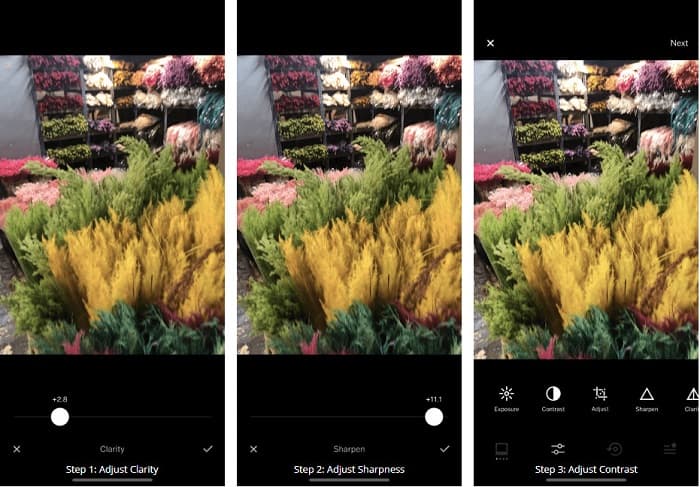
Pas 1. Instal·la VSCO des de l’App Store i després obre l’aplicació a l’iPhone.
Pas 2. Obre la teva imatge i després ves a Clarity. L’opció Clarity t’ajudarà a eliminar el soroll a gran escala de la imatge. Només has de moure el control lliscant de Clarity una mica més avall de la interfície.
Pas 3. Tot seguit, ajustarem la nitidesa de la teva imatge. La funció Sharpen t’ajudarà a obtenir la definició que vols a la imatge. Després, movent el slider, pots seleccionar el nivell de nitidesa que vols per a la teva foto.
Pas 4. Quan hagis acabat d’editar la claredat i la nitidesa de la imatge, passarem a ajustar el contrast. Mou l’opció Contrast i el Contrast slider per triar la brillantor i la foscor que vols per a la foto.
Pas 5. Finalment, ajustarem l'Exposure de la teva foto per aclarir-la una mica. Augmentar l’exposició de la imatge t’ajudarà a equilibrar la foscor amb el contrast. I això és tot! Ajustant aquestes funcions, pots desfer la borrositat de la teva imatge. Fes clic aquí per aprendre com canviar la mida d’una imatge en un iPhone.
Part 4. Com fer que una imatge sigui més clara al vostre Android
També hi ha aplicacions a Android que podeu utilitzar per fer una imatge més clara. Per tant, si voleu una imatge borrosa desada a la vostra galeria, aquesta aplicació us pot ajudar a millorar la vostra imatge. Llegiu aquesta part per saber com desenfocar una imatge al vostre dispositiu Android.
L’app Remini (per a Android) és probablement una de les millors aplicacions d’edició de fotos que pots utilitzar al teu dispositiu Android. Aquesta aplicació et permet editar i fins i tot desfer la borrositat de la teva imatge. A més, és fàcil d’utilitzar i és gratuïta. Mitjançant l’opció Enhance, pots fer la teva foto més clara. Tot i això, has de crear un compte abans de poder utilitzar aquesta aplicació. I amb la seva versió Pro, pots accedir a funcions avançades per desfer la borrositat.
Com desenfocar una imatge amb Remini per a Android:
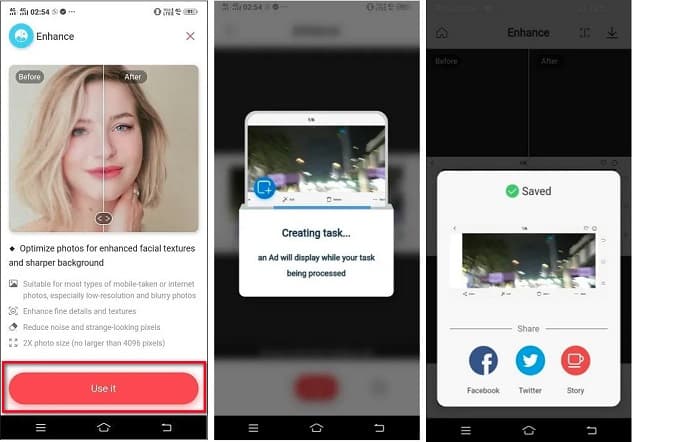
Pas 1. Instal·la Remini al teu dispositiu Android. Després d’instal·lar l’aplicació, obre-la immediatament. A la interfície principal de l’app, toca el botó Use it per començar a desfer la borrositat de la imatge.
Pas 2. A continuació, selecciona la imatge i fes clic al botó vermell que hi ha a la part inferior de la interfície. Això crearà una tasca i mostrarà un anunci mentre es processa.
Pas 3. Després, apareixerà el resultat final, on podràs comparar el abans i el després de la teva imatge. I si ja estàs satisfet amb el resultat, desa la imatge.
Part 5. Preguntes freqüents sobre com fer una imatge més clara
Puc utilitzar GIMP per desenfocar una imatge?
Sí. GIMP és un increïble programari d'edició de fotografies que podeu utilitzar per desenfocar la vostra imatge. També podeu descarregar aquesta aplicació al vostre dispositiu Windows.
El desenfocament d'una imatge augmenta la mida del fitxer?
Sí. Desenfocar una imatge significa augmentar la qualitat i la resolució de la imatge. Quan la resolució augmenta, la mida del fitxer de la imatge també augmenta.
Quina aplicació puc utilitzar per desenfocar la meva imatge?
YouCam Perfect és una aplicació que us pot ajudar a desenfocar la vostra imatge. Amb la seva tecnologia d'IA, podeu desenfocar immediatament la vostra imatge.
Conclusió
Aquesta publicació ha explicat el que necessites saber sobre com fer una imatge més clara. Així que, si estàs buscant aplicacions que et permetin desfer la borrositat d’una imatge, els mètodes anteriors t’ajudaran a aconseguir-ho. Però si prefereixes utilitzar una eina en línia amb una interfície fàcil d’utilitzar, fes servir FVC Free Image Upscaler.
-
 Revisió factual de PicResize que heu de conèixer aquest 2022
 Vols saber si PicResize és la millor opció per editar imatges? Llegiu aquest article mentre revisem l'eina general.
-
 Tot el que necessiteu saber sobre el Waifu2x i l'alternativa
 Necessites saber més sobre Waifu2x? Aquest article proporciona la informació que cal destacar en aquesta aplicació i la seva alternativa.
-
 Com optimitzar la imatge per al web utilitzant les millors solucions [ràpida]
 Com optimitzar la imatge per a la web? Necessitareu programari fiable i un tutorial; tota la informació és aquí.
