


 Video Converter Ultimate
 Gravadora de pantalla
 Reparació de vídeo
 Baixada segura
Elimineu l'objecte de les fotos amb el 6 programari efectiu [gratuït]
Milions de fotògrafs, fins i tot els que tot just comencen, han fet múltiples preses d’escenes de postes de sol, platges, llocs turístics, la lluna i moltes altres coses. Amb les imatges, podem expressar qui som realment. Amb una simple fotografia, pots despertar la creativitat de tothom i la seva bèstia artística interior. No sempre que fem una captura obtenim una imatge perfecta; de vegades, hem d’eliminar un objecte concret que no hauria de sortir a la foto que has fet. Necessites una eina per eliminar objectes de les fotos? Aquí et presentarem diferents maneres i eines que pots utilitzar per eliminar a l’instant els objectes innecessaris de la imatge que has fet.

Part 1. Elimina l'objecte de la foto amb el millor eliminador d'objectes [servei web]
FVC Free Watermark Remover és la nostra primera opció per eliminar objectes de fotos en línia de manera gratuïta. Amb aquesta eina, pots esborrar al moment qualsevol cosa que espatlli la teva imatge perfecta sense haver de descarregar el programari a l’ordinador, encara que no tinguis experiència en aquest tipus d’edició. Pots confiar en aquesta eina perquè només hauràs de ressaltar l’objecte i ella eliminarà els objectes de la imatge sense deixar-ne rastres. Considerem que aquesta eina és entretinguda i efectiva per eliminar elements innecessaris de la imatge; si la vols utilitzar, copia els passos que indiquem a continuació.
Pas 1. Per obrir l’eina de supressió d’objectes desenvolupada per FVC, pots fer clic en aquest enllaç al lloc web oficial.
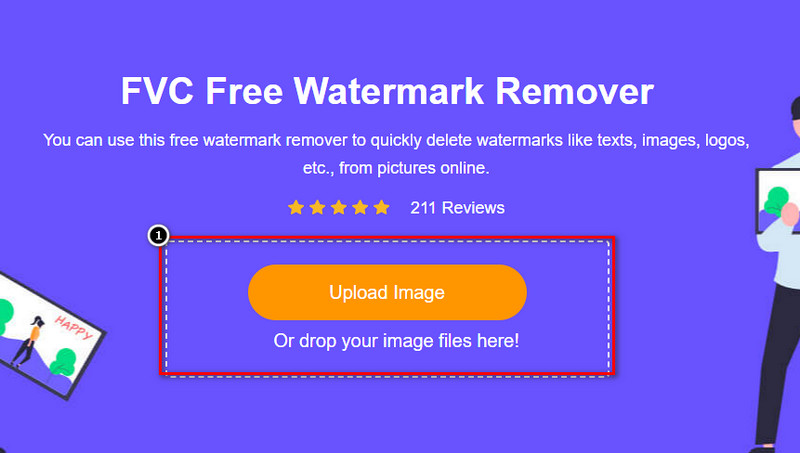
Pas 2. Prem Upload Image per importar la foto que has fet i que conté un objecte innecessari.
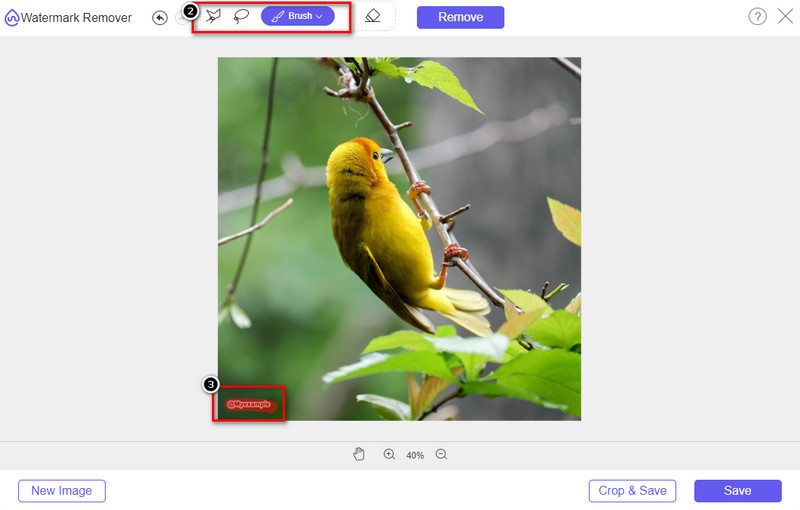
Pas 3. Amb les eines disponibles aquí, hauràs de ressaltar l’objecte.
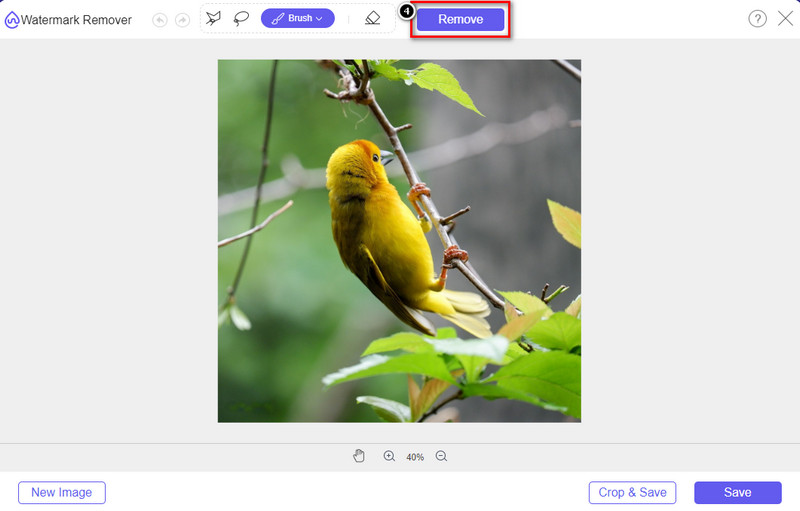
Pas 4. Prem el botó Remove per eliminar l’objecte amb l’ajuda de la tecnologia d’IA que aquesta eina incorpora.
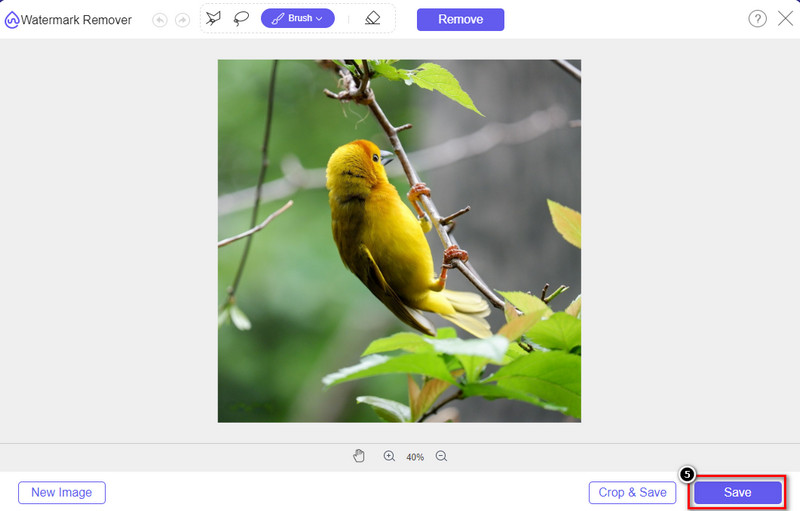
Pas 5. Per descarregar la imatge perfecta que has editat aquí, fes clic a Save.
Part 2. Eliminar l'objecte de la foto de manera professional mitjançant programes d'escriptori [Windows i Mac]
Photoshop
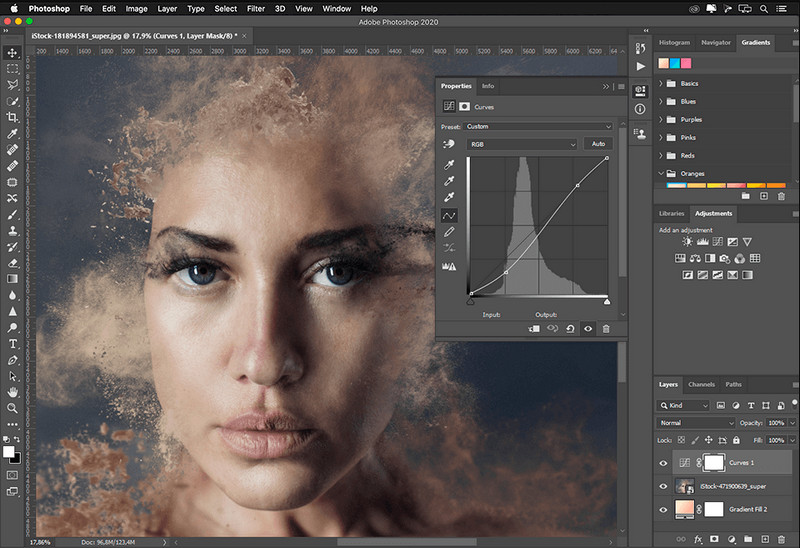
Si necessiteu una eina professional per eliminar objectes de les fotos, Photoshop és la resposta! Aquesta eina és un editor d'imatges complet que Adobe ens presenta amb orgull. Res no us impedeix fer que la imatge sembli increïble amb la seva característica i funció. A causa de la seva popularitat entre els professionals, molts principiants intenten utilitzar aquest programari per editar i crear les seves imatges. Per tant, si voleu saber com utilitzar aquesta eina professional, podeu seguir el tutorial que afegim a continuació.
Pas 1. Obre el lloc web oficial d’Adobe i descarrega Photoshop a l’ordinador.
Pas 2. Fes clic a File i prem Open per pujar la imatge que has d’editar aquí.
Pas 3. A la secció esquerra, selecciona l’eina Magic Wand Tool perquè tracï automàticament l’objecte que has pujat a la imatge.
Pas 4. Ves a la secció Edit i selecciona sota aquesta opció Content-Aware Fill.
Pas 5. Un cop l’obris, eliminarà automàticament la marca d’aigua; després fes clic a OK.
GIMP
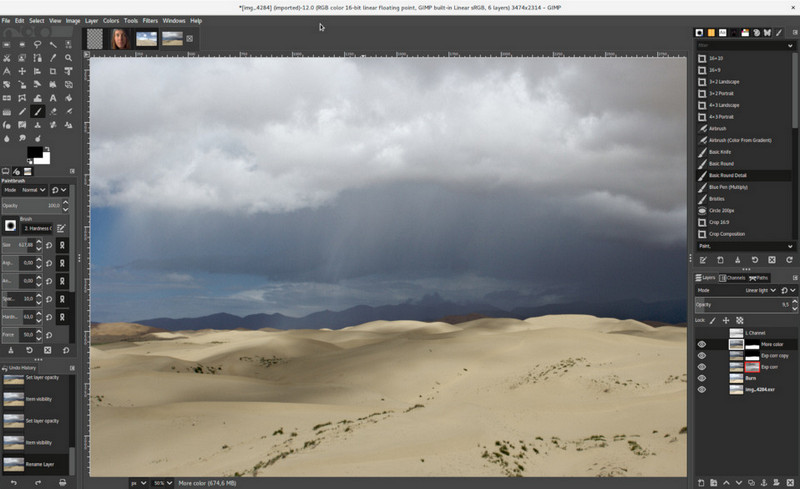
GIMP és un editor d’imatges complet que pots utilitzar per eliminar objectes de fotos a Mac, Linux i Windows de manera gratuïta. És una eina fiable, com Photoshop. Tot i que l’eina és la més destacada quan es parla d’alternatives a Adobe Photoshop, encara està en desenvolupament actiu. Amb aquesta eina, pots editar intensament les teves imatges per fer-les visualment atractives per al públic. A més, pots personalitzar-ne la interfície si vols fer la feina més fàcil. Si estàs pensant a descarregar aquesta eina per a edicions professionals, et podem assegurar que ho podràs aconseguir. Encara que és un editor de codi obert, l’eina encara s’ha d’acabar de polir perquè la seva interfície gràfica (GUI) continua en desenvolupament. Així que, si la vols utilitzar, els passos següents t’orientaran per ensenyar-te a eliminar un objecte d’una foto amb GIMP. Els passos que oferim a continuació et serviran de guia.
Pas 1. Descarrega i llança el programari perquè puguis pujar la imatge que has d’editar. També descarrega el seu connector, el connector Resynthesizer.
Pas 2. A l’eina de la part esquerra, selecciona Free Select i canvia el mode a Add Current Selection.
Pas 3. Dibuixa ara sobre l’objecte que vols eliminar; després de traçar-lo correctament, prem Enter al teclat.
Pas 4. Per utilitzar el connector que has descarregat, ves a Filter, després a Enhance i fes clic a Heal Selection.
Pas 5. Llavors apareixerà un quadre de diàleg; canvia l’amplada de mostreig si cal, estableix el mostreig a all-around i l’ordre d’ompliment a random. Prem OK per començar a sintetitzar l’objecte dins la imatge.
Aplicació de fotos al Mac
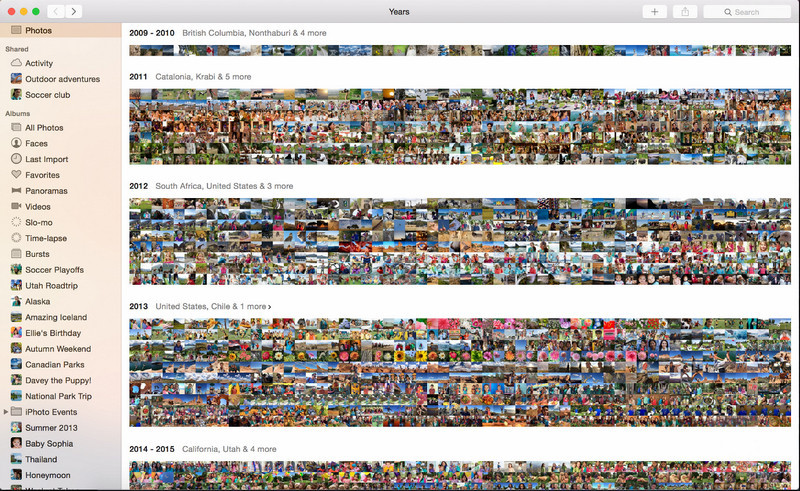
L’app Fotos és una funció integrada en els productes Apple actualitzats, com el Mac. Aquesta aplicació ve preinstal·lada, de manera que pots saltar-te el pas de la descàrrega i començar a utilitzar-la immediatament. El programari no és un editor d’imatges, perquè la seva funció principal és ser una biblioteca i un visor de fotos al Mac o als dispositius iOS. Tot i que no tinguis un editor d’imatges professional al Mac, pots aprofitar aquestes funcions per obtenir un resultat professional amb un sol clic. Així que, si vols eliminar un objecte amb l’app Fotos, pots seguir els passos que indiquem.
Pas 1. Obre l’app Fotos al Mac i selecciona la imatge que conté un objecte innecessari.
Pas 2. A la part superior dreta, fes clic al botó Edit per començar a editar la imatge.
Pas 3. A la part dreta veuràs l’opció Retouch; fes-hi clic per utilitzar aquesta funció.
Pas 4. Fes clic i arrossega el ratolí per la zona que vols eliminar.
Pas 5. Prem el botó Done per desar els canvis aplicats a la imatge.
Part 3. Elimina l'objecte de la foto mitjançant l'aplicació a Android i iOS
CORRECCIÓ DE Photoshop
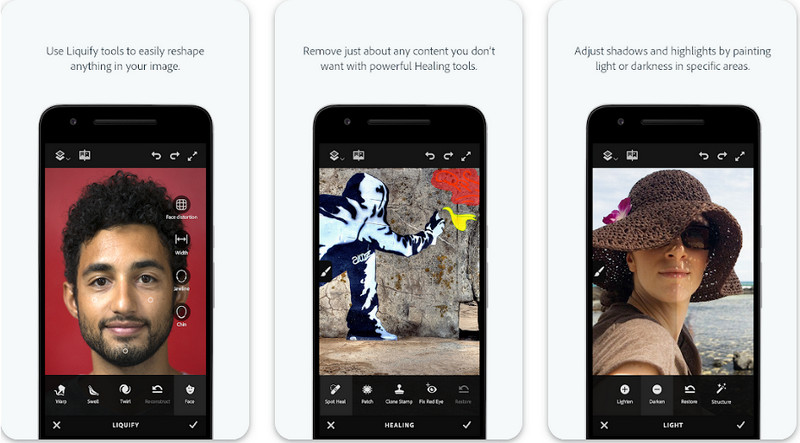
Photoshop FIX és una aplicació d’Android efectiva que elimina objectes de fotos i que treballa de manera professional però és fàcil d’utilitzar. És una aplicació de codi obert que pots descarregar al dispositiu quan obres el Play Store. Tot i ser de codi obert, veuràs que la seva funció per eliminar objectes és excel·lent, sens cap dubte. És una de les aplicacions més descarregades als dispositius Android per fer aquesta tasca. Per tant, si vols saber com utilitzar aquesta app, continua llegint el que ve a continuació.
Pas 1. Descarrega l’app al dispositiu Android.
Pas 2. Prem On My Phone perquè es mostrin totes les imatges de la teva biblioteca. Tria la imatge que vols editar.
Pas 3. Per utilitzar la funció d’eliminació d’objectes d’aquesta app, fes clic a Healing.
Pas 4. Aquí tens dues opcions per eliminar-lo. Per “pintar” l’objecte i eliminar-lo, tria Spot Heal. Però si vols clonar un píxel, has de triar Clone Stamp. Ressalta la marca d’aigua amb l’opció que hagis triat.
Pas 5. Desa la imatge al teu carret de càmera, i això és tot!
Retoc fotogràfic
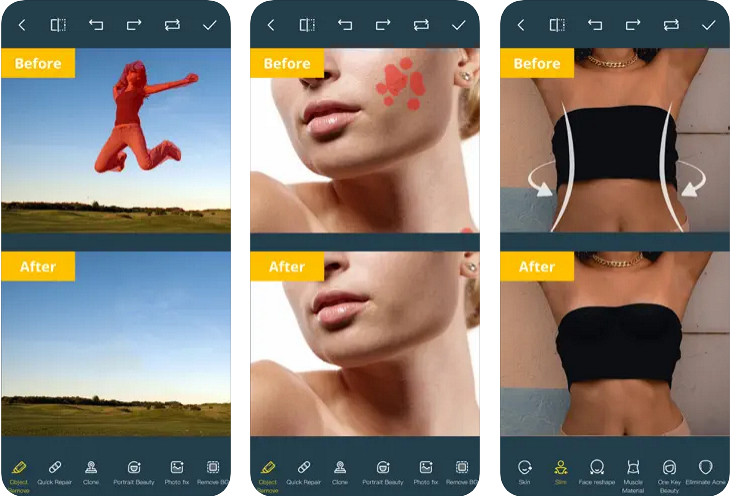
Photo Retouch és una aplicació fiable per eliminar objectes d’una foto a l’iPhone sense complicacions. Encara que no siguis un expert a l’hora d’eliminar objectes de les teves imatges, ho podràs fer de manera efectiva. Pots descarregar aquesta app gratuïtament a l’App Store si la vols provar. A més, també pots eliminar el fons i la marca d’aigua de la foto si necessites aquesta funció. Si estàs a punt per utilitzar aquesta app per eliminar l’objecte de la teva imatge, pots seguir els passos que hem afegit.
Pas 1. Descarrega l’app oficial i després obre-la.
Pas 2. Fes clic a Photo Eraser i després a Photo. Selecciona la imatge amb el fons innecessari que vols eliminar, i assegura’t que la imatge és a l’apartat Fotos del teu iPhone.
Pas 3. A la part inferior, selecciona l’opció Object Removal.
Pas 4. Utilitza el pinzell que inclou aquesta app per traçar l’objecte que vols eliminar i fes clic a GO per suprimir-lo.
Relacionat:
Elimina la marca d’aigua de Dreamstime
Elimina la marca d’aigua del filtre de Picsart
Part 4. Preguntes freqüents sobre com eliminar objectes de les fotos
Per què he d'eliminar objectes de les fotos?
Hi ha moltes vegades que capturem alguna cosa, i hi ha Photobombers. Aquest objecte és un problema per a la majoria de professionals d'altres persones perquè no ressalta la imatge que captureu. Per tant, en comptes de tornar a prendre la imatge, podeu llegir les següents maneres ideals d'eliminar l'objecte de la vostra foto.
Puc retallar la imatge per eliminar objectes?
Si, tu pots. Si l'objecte el voleu eliminar al costat de la foto, podeu provar de retallar la imatge amb el vostre editor integrat. Tanmateix, aquesta opció no és una opció, especialment si l'objecte es troba a la part central o a prop de la imatge que captureu. Retallar la imatge retallarà la foto, així que és millor pensar-ho dues vegades si voleu provar aquesta opció.
Per què no puc pujar una imatge per eliminar l'objecte?
No pots pujar la imatge; la imatge està malmesa o l'extensió d'imatge no és compatible. Si la vostra imatge està danyada, hi ha maneres de solucionar-ho. Els podeu trobar a la web si els cerqueu. Normalment, podria ser l'extensió de fitxer de la imatge; per resoldre aquest problema, haureu de convertir-lo.
Conclusió
Eliminar objectes de la foto és fàcil a causa de l'eina i l'aplicació que oferim en aquest article. Aleshores, quina eina prefereixes més? Esperem que aquesta guia que afegim us ajudi a resoldre fàcilment el problema.
-
 Com convertir imatges de baixa resolució en alta resolució en línia
 Si voleu aprendre a convertir imatges de baixa resolució en imatges d'alta resolució en línia, aquest article és per a vosaltres. Llegeix completament per saber com.
-
 Mètodes fàcils sobre com eliminar la filigrana a prova de trets
 Elimineu la marca d'aigua Shootproof seguint aquests senzills mètodes. Utilitzeu aquests increïbles eliminadors de filigrana per eliminar fàcilment la filigrana Shootproof de la vostra imatge.
-
 Com eliminar la marca d'aigua de Bandicam sense esforç [3 maneres efectives]
 Com eliminar la marca d'aigua de Bandicam? Amb les eines, afegim aquí sabreu com tractar-ho de manera eficaç!
