


 Video Converter Ultimate
 Gravadora de pantalla
 Reparació de vídeo
 Baixada segura
Com eliminar persones de les fotos per crear resultats nets
Capturar moments memorables mai no havia estat tan fàcil com conservar aquests records en l’actualitat. Tot i així, hi ha ocasions en què persones indesitjades s’escolen en les nostres fotos precioses i distreuen l’atenció del punt focal desitjat. Tant si es tracta d’un lloc turístic concorregut, un paisatge urbà ple de gent o un retrat familiar estimat, sovint sorgeix la necessitat de treure una persona de les fotos per crear resultats més nets i visualment més atractius.
En aquest article, aprofundim en esbrinar què utilitzar per eliminar persones de les teves fotos de manera eficaç. Des d'eines en línia fàcils d'utilitzar fins a aplicacions de tercers, llegir aquest article us pot garantir eines fiables que s'adaptin a les vostres preocupacions per eliminar una persona o un objecte de les vostres fotos. A què estas esperant? Descobriu aquestes eines i aplicacions en línia que s'enumeren en aquest article i apreneu a obtenir resultats d'aspecte professional.

Part 1. Mètodes en línia per eliminar persones de les fotos
Eliminador de filigrana sense FVC
L'FVC Free Watermark Remover és una eina en línia que es pot utilitzar de manera gratuïta en qualsevol dels navegadors del teu ordinador. Aquesta eina gratuïta per eliminar marques d’aigua no només suprimeix les marques de la teva foto, sinó que també resol les teves necessitats d’eliminar una persona de la imatge. FVC Free Watermark Remover admet formats d’imatge molt habituals, com JPG, PNG i BMP. Aquesta eina et permet esborrar manualment text, persones i objectes no desitjats de les teves imatges simplement utilitzant la seva eina de llaç per obtenir resultats precisos i exactes. Per eliminar una persona d’una foto, aquesta eina només requereix quatre passos. Només necessites connexió a Internet i no cal descarregar res ni subscriure’t a cap pla, cosa que la fa perfectament accessible tant per a professionals com per a principiants.
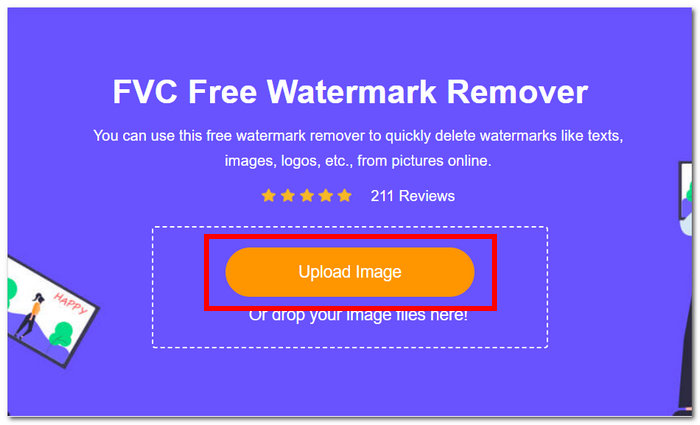
Pas 1. Ves al lloc web de l'FVC Free Watermark Remover i puja la teva imatge al camp designat per carregar imatges.
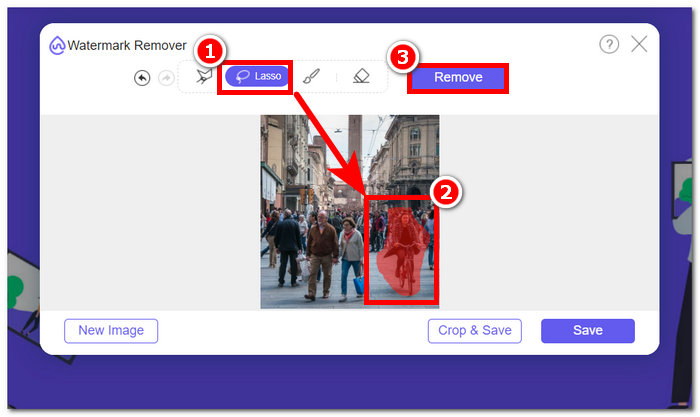
Pas 2. Un cop la teva imatge es carregui a l’eina, selecciona l’eina Llaç a la part superior de la pantalla i ressegueix manualment l’objecte o la persona que vulguis suprimir de les fotos.
Pas 3. L’objecte o la persona que hagis seleccionat es destacarà en vermell, indicant que s’ha marcat per ser eliminat. Fes clic al botó Remove situat a la barra de navegació per continuar amb el procés d’eliminació.
Pas 4. FVC Free Watermark Remover eliminarà automàticament l’objecte o la persona; després fes clic al botó Save per descarregar la foto a l’escriptori.
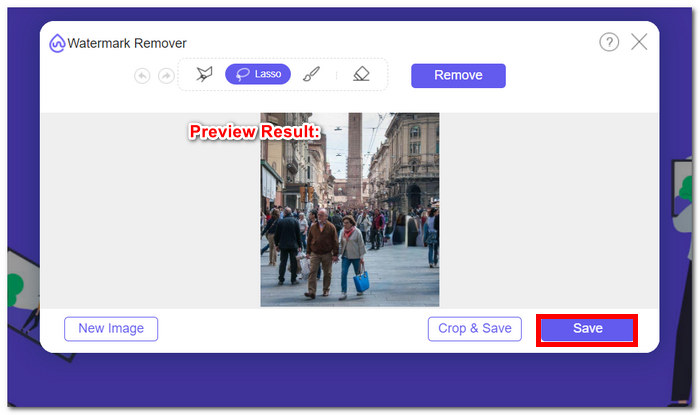
Amb FVC Free Watermark Remover, no cal que consumis temps per fer tasques com eliminar una persona d'una foto. De fet, aquestes eines prioritzen el vostre temps per crear imatges de qualitat que exportin resultats sense perdre la seva qualitat.
Sala de fotos
PhotoRoom ofereix una potent eina de servei web dissenyada específicament per eliminar sense esforç persones no desitjades de les teves fotos. Aquesta eina pot esborrar ràpidament objectes i persones no desitjats amb només uns quants clics confiant en les seves capacitats d'IA. Amb l'ajuda del seu pinzell màgic, podeu eliminar objectes de les vostres fotos estimades encara que no tingueu habilitats avançades d'edició de fotografies.
Pas 1. Ves al lloc web oficial de PhotoRoom i deixa-hi anar la imatge de la qual vols eliminar persones fent clic a Start from Photo.
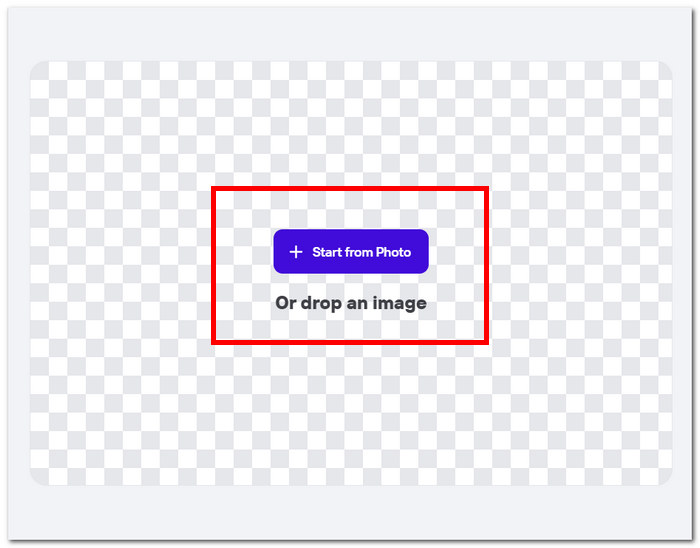
Pas 2. Un cop la foto es carregui a l’eina, hauràs de fer clic sobre la persona que vulguis eliminar. El processament començarà automàticament després que hagis resseguit la zona que conté l’objecte o la persona indesitjada.
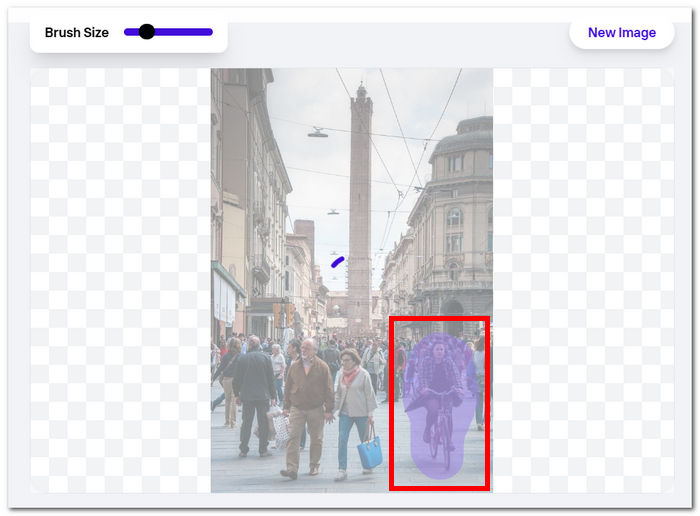
Pas 3. L’eina eliminarà màgicament l’objecte o les persones seleccionades; només et quedarà fer clic al botó Download.
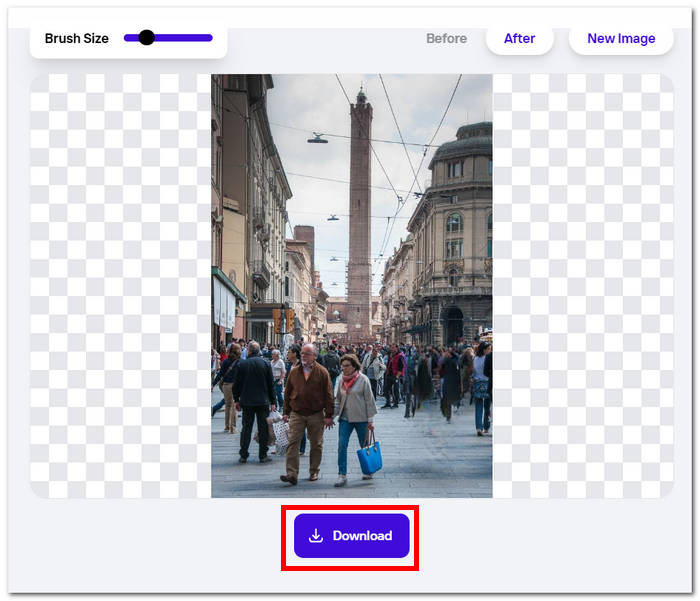
Amb PhotoRoom, aconseguir fotos netes i sense distraccions sempre està a l'abast, oferint una solució senzilla per eliminar qualsevol contingut no desitjat de les vostres imatges. Per eliminar una persona d'una foto en línia, hauríeu de conèixer la vostra eina i PhotoRoom és una eina a tenir en compte.
Hotpot.ai
Hotpot.ai ofereix l'eliminació sense esforç de persones, objectes no desitjats i temes borrosos. Utilitzant tecnologia d'IA avançada, processa les teves fotos a l'instant després de la càrrega, garantint una edició ràpida i precisa. Aquest procés simplificat facilita la neteja de les teves fotos, proporcionant-te resultats polits en poc temps. Eliminar una persona d'una foto amb IA és una de les característiques d'orgull d'aquesta eina.
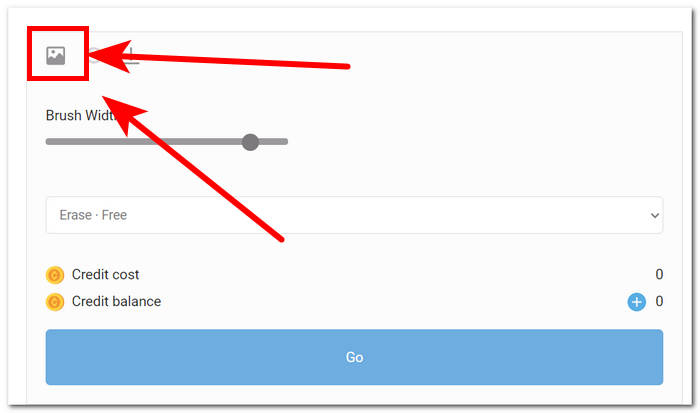
Pas 1. Ves al lloc web de Hotpot.ai i, per pujar la imatge, fes clic a la icona de Media situada a l’angle superior esquerre de la configuració.
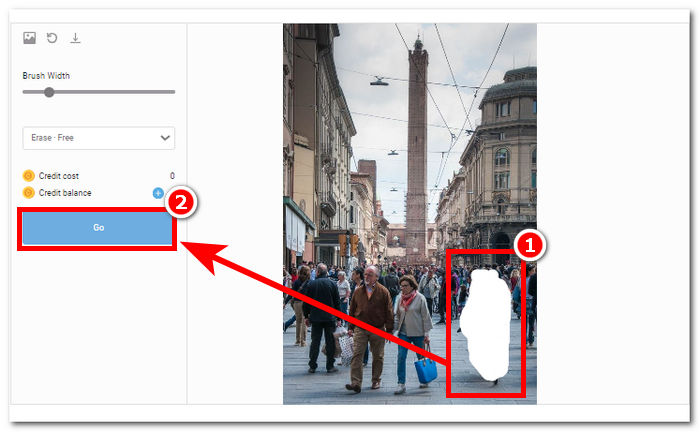
Pas 2. Cobreix les persones indesitjades que vulguis eliminar passant-hi el ratolí per sobre i aplicant-hi ressaltats blancs per tapar-les. Un cop hagis cobert les persones indesitjades, fes clic al botó Go per processar la foto.
Pas 3. Després que l’eina processi la foto, et mostrarà el resultat i, quan n’estiguis satisfet, fes clic al botó Download situat a l’angle superior esquerre de la configuració de l’eina.
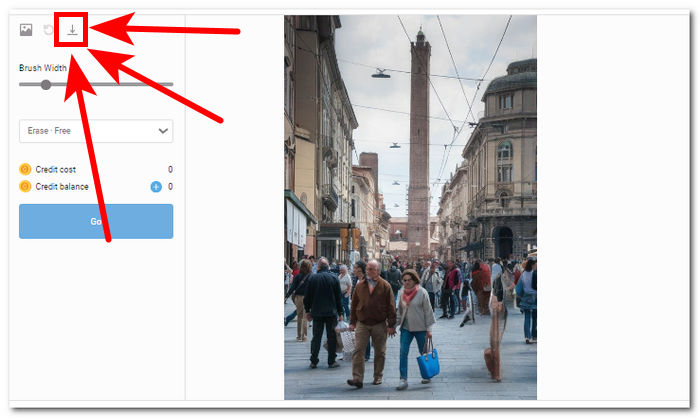
Amb Hotpot.ai, pots aconseguir imatges d’aspecte professional i millorar l’atractiu general dels teus projectes de fotografia. Digues adeu a les distraccions i benvingut a fotos impecables amb l'eina de millora d’imatges.
Photoeditor.ai
Photoeditor.ai ofereix resultats precisos, ja que ofereix no només un editor de fotos bàsic, sinó també l'eliminació d'objectes no desitjats o persones que estan arruïnant les vostres fotos. Els seus resultats són comparables als de les eines en línia de pagament disponibles a Internet. Aquesta eina és una d'aquestes eines de confiança que us permet utilitzar el seu servei de forma gratuïta; tot el que necessites és una connexió a Internet i la teva foto.
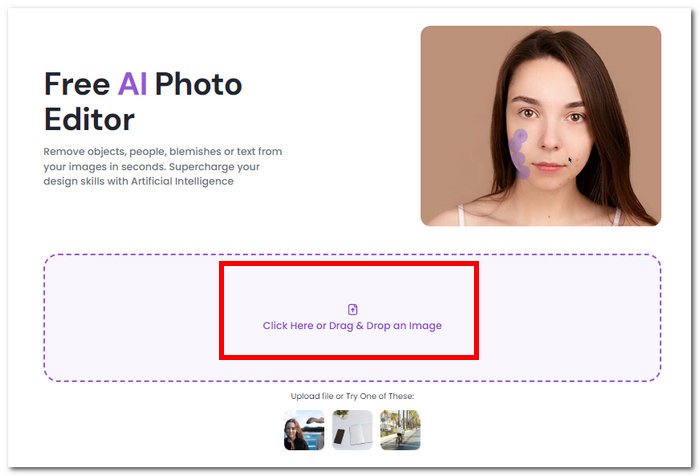
Pas 1. Ves al lloc web de Photoeditor.ai i carrega la teva foto fent clic al camp Drop an Image situat a la interfície de l’eina.
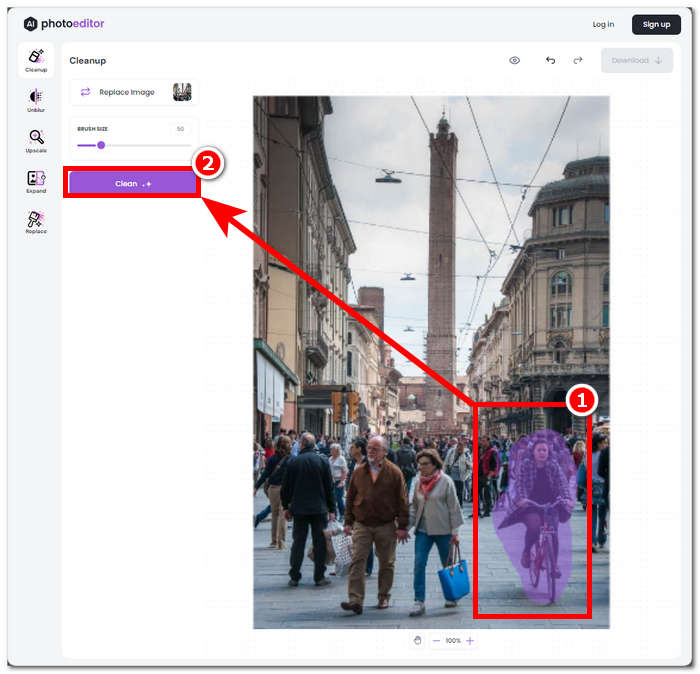
Pas 2. Un cop la foto es carregui a l’eina, selecciona i ressegueix manualment les persones indesitjades de la imatge i fes clic al botó Clean situat a l’angle superior esquerre de la interfície de l’eina.
Pas 3. Un cop el procés hagi finalitzat, podràs previsualitzar la teva foto i, quan n’estiguis satisfet, procedeix a desar-la fent clic a la secció del botó Download.
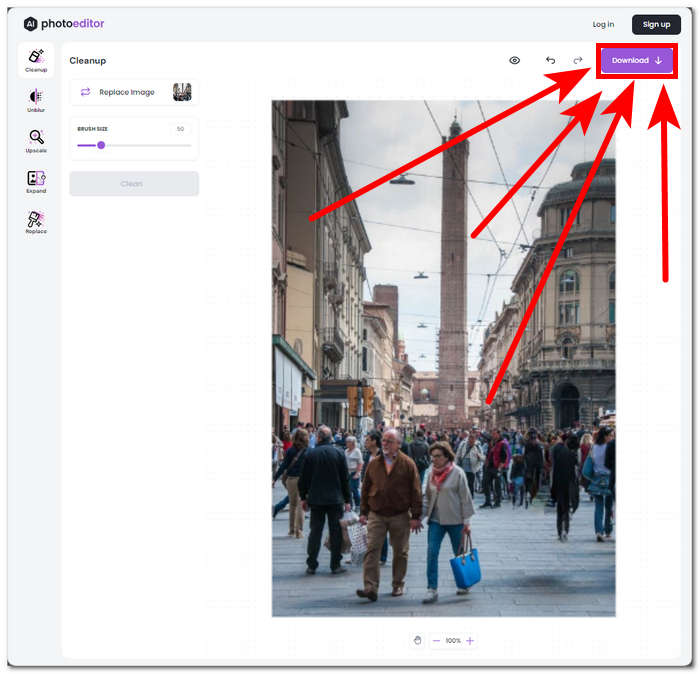
Photoeditor.ai és una eina senzilla que us permet eliminar objectes i persones no desitjades en un instant sense haver de preocupar-vos de perdre qualitat. Aquesta eina és ideal per a aquells que busquen una eina que ofereixi edició bàsica de fotografies, com ara l'eliminador de text i el millorador facial.
Part 2. Com eliminar persones de les fotos a iOS i Android
Arregla l'editor i retoc de fotos
Com eliminar una persona d'una foto en un iPhone? Aquesta aplicació té un excel·lent servei d'edició de fotografies bàsic per a nivell professional, com un eliminador d'objectes o persones. Disponible per descarregar als vostres dispositius mòbils, l'aplicació inclou un nivell avançat d'eliminació d'objectes i potenciadors de fons, potenciadors de cara i cos. Aquesta aplicació utilitza editors de fotos professionals per treballar amb els teus concerts de fotos; per tant, això no donarà a l'aplicació accés fora de línia i, finalment, requerirà que pagueu.
Pas 1. Descarrega l’aplicació Fix The Photo Editor & Retouch a l’App Store o a Google Play.
Pas 2. Obre l’aplicació Fix The Photo Editor & Retouch; et permetrà seleccionar la foto que vols editar. Després ves a la secció Remove Objects i fes clic a Remove People/ Object.
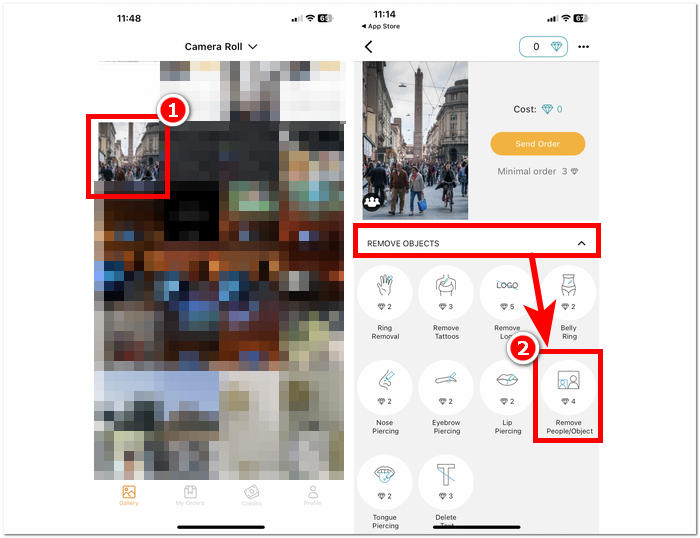
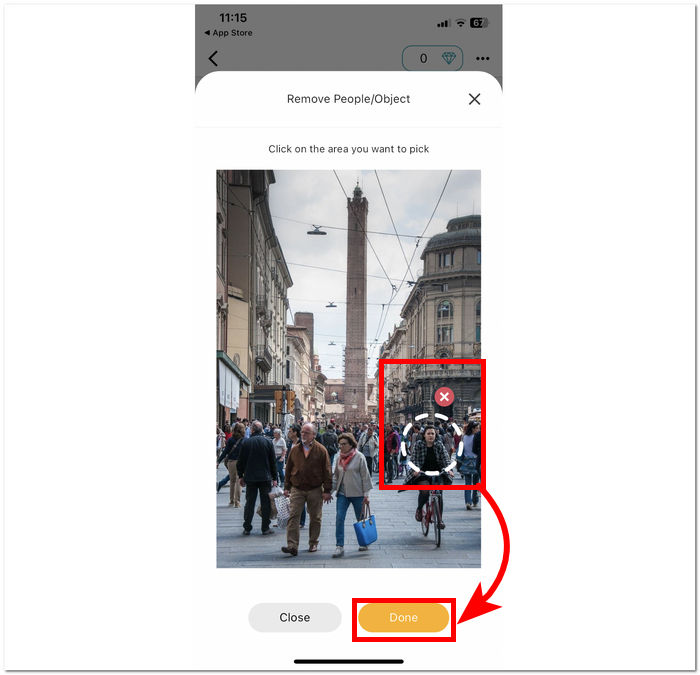
Pas 3. Simplement fes clic a la zona que contingui les persones que vulguis eliminar de la foto. Un cop hagis acabat de seleccionar els objectes o individus indesitjats, fes clic a Done per finalitzar el procés.
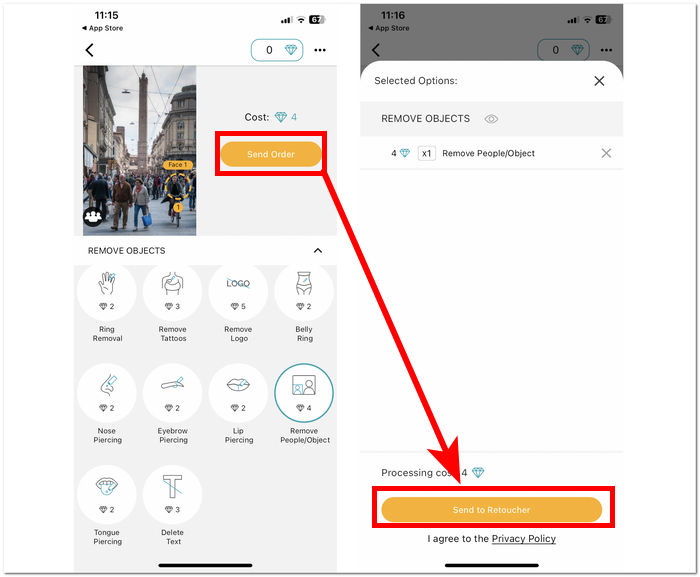
Pas 4. Fes clic a Send Order i paga l’import requerit per poder eliminar i descarregar la foto editada.
A més de la seva funció per eliminar persones de les teves fotos, Fix The Photo Editor & Retouch és una de les aplicacions de confiança, ja que no depèn de la IA per editar les imatges, sinó d’editors fotogràfics reals per optimitzar-les. Per això el servei no és gratuït, però pots provar-lo aprofitant-ne el període de prova gratuït.
PhotoDirector
L'aplicació PhotoDirector us permet eliminar persones o qualsevol objecte no desitjat de les vostres fotos sense esforç amb la seva interfície i funcions senzilles. Aquesta aplicació ofereix una eliminació ràpida d'objectes als vostres dispositius mòbils amb una varietat d'efectes que permeten l'edició de fotografies mitjançant l'ús de capes. Aquesta aplicació no només se centra en l'eliminació d'objectes, sinó que la seva IA té un estil de nivell professional que pot fer que aquesta aplicació suprimeixi i editi les teves fotos amb precisió.
Pas 1. Descarrega i obre l’aplicació PhotoDirector al teu dispositiu mòbil, ja sigui iOS o Android, de manera gratuïta.
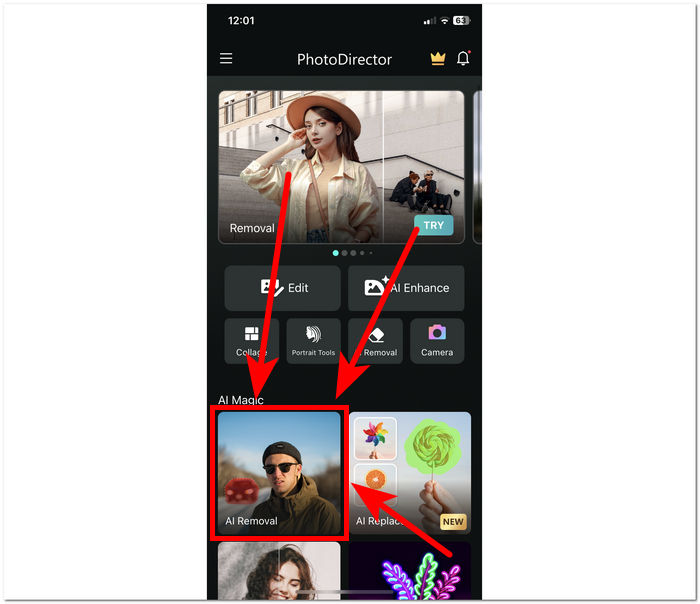
Pas 2. A la interfície de l’aplicació, fes clic a AI Removal i tria la foto que vols editar.
Pas 3. Un cop la foto es carregui a l’aplicació, ressegueix manualment l’objecte o les persones que vulguis eliminar de la imatge.
Pas 4. Quan l’objecte o les persones quedin ressaltats en vermell, simplement fes clic al botó Remove. Un cop el procés hagi acabat, fes clic a la icona de marca de verificació situada sota el botó Remove per desar la imatge editada a la teva galeria.
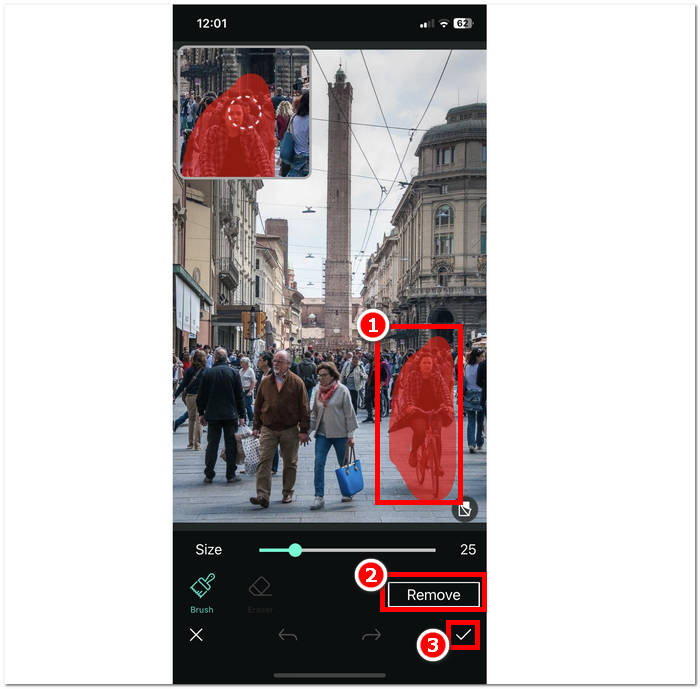
L'aplicació PhotoDirector té diverses funcions útils que donen als usuaris un motiu per triar l'aplicació per completar diferents tasques, a part de l'eliminació de persones. Preguntes com com esborrar una persona d'una foto en un iPhone? No és un problema quan aquesta aplicació destaca per eliminar objectes no desitjats sense cap problema. La variació de les funcions de l'aplicació de vegades pot dificultar el rendiment, ja que pot dificultar la velocitat de processament.
Elimina l'objecte no desitjat
Aquesta aplicació elimina sense esforç els subjectes no desitjats de les teves fotos, la qual cosa et permet esborrar les persones no desitjades amb facilitat. Elimina l'objecte no desitjat ofereix no només l'eliminació d'individus, sinó també objectes, adhesius i text de les teves fotos. Es pot descarregar gratuïtament als vostres dispositius Android, amb una interfície senzilla perfecta per als nouvinguts.
Pas 1. A la Play Store del teu dispositiu Android, descarrega i obre l’aplicació Remove Unwanted Object.
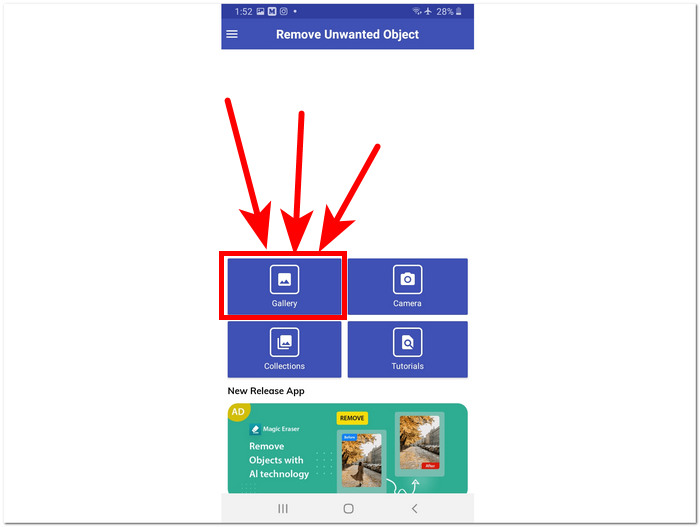
Pas 2. Quan siguis a la interfície de l’aplicació, fes clic a la icona Gallery situada a la interfície i selecciona la foto que vols editar.
Pas 3. Un cop hagis carregat la foto a l’aplicació, fes clic a l’eina Llaç situada a la part inferior de l’aplicació i ressegueix la persona o l’objecte que vulguis eliminar.
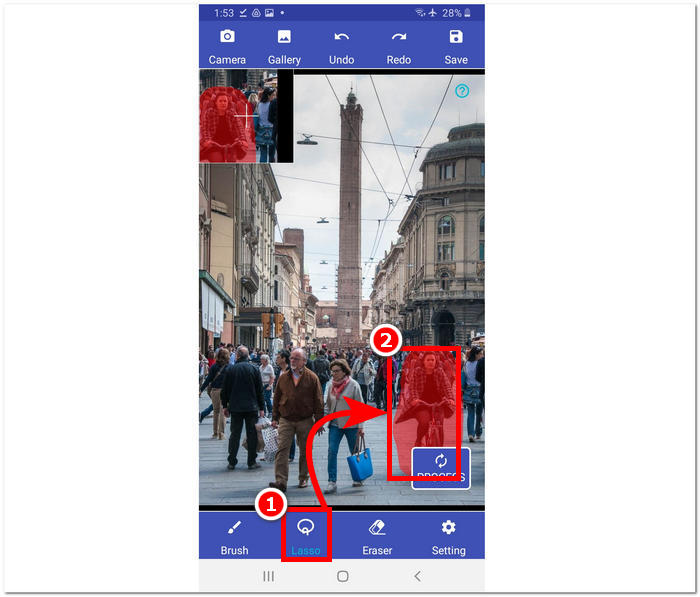
Pas 4. A continuació, fes clic al botó Process per eliminar l’àrea seleccionada i, després, fes clic al botó Save a l’angle superior dret per descarregar la foto a la teva galeria.
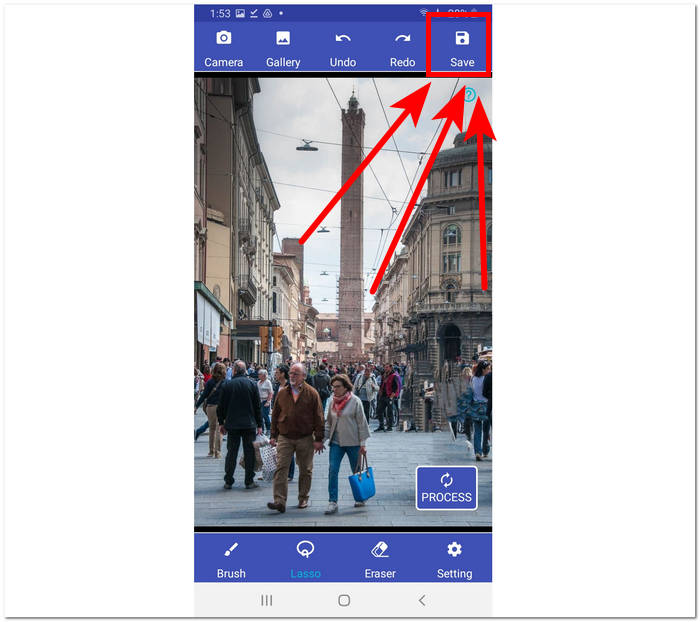
Eliminar objecte no desitjat proporciona una solució senzilla per eliminar qualsevol objecte no desitjat. No obstant això, és important tenir en compte que l'aplicació inclou anuncis, que poden perjudicar l'experiència de l'usuari.
Retocar - Eliminar objectes
Retoc - Elimina objectes està disponible per a la descàrrega gratuïta als teus dispositius mòbils, oferint una sèrie de funcions potents al teu abast. Aquesta innovadora aplicació aprofita la tecnologia d'IA d'avantguarda juntament amb eines de raspall precises, fent que l'eliminació d'objectes sigui més fàcil i eficient que mai. Amb la seva interfície intuïtiva i resultats ràpids, aconseguir edicions sense problemes mai no ha estat més senzill.
Pas 1. Al teu dispositiu Android, descarrega l’aplicació Retouch - Remove Objects i, un cop instal·lada, obre-la.
Pas 2. Quan siguis a la interfície de l’aplicació, fes clic a la secció Remove Object per seleccionar la foto de la galeria que vols editar.
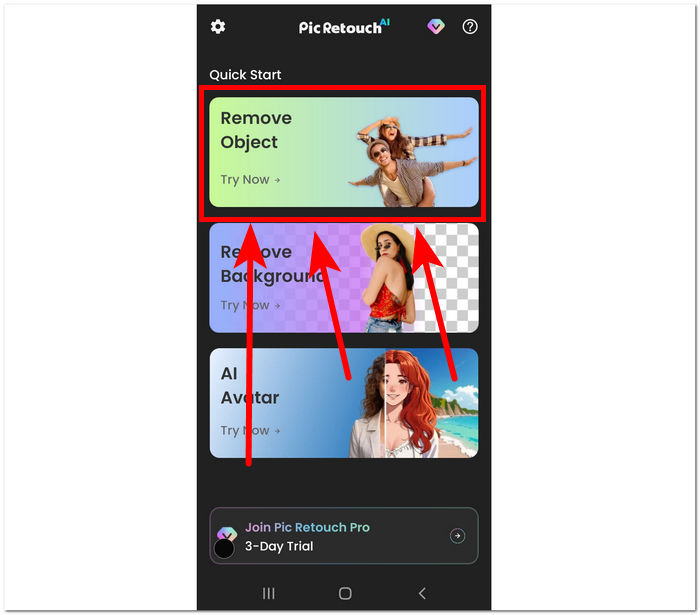
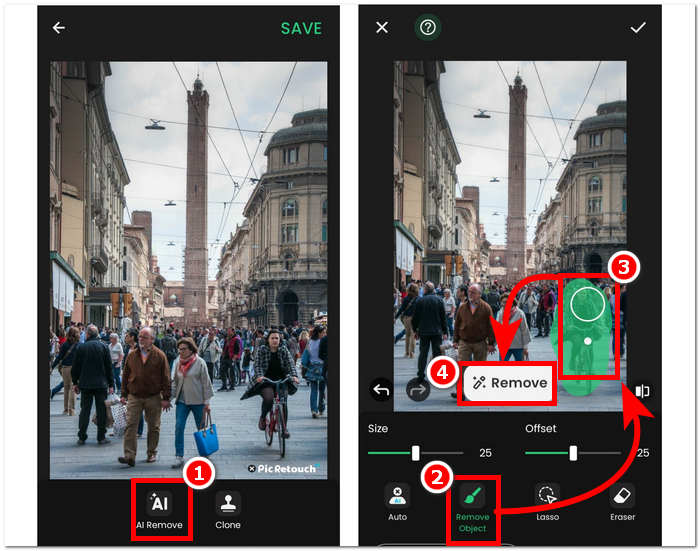
Pas 3. Un cop la teva foto s’hagi pujat a l’aplicació, fes clic a l’opció AI Remove. Situada a la part inferior de la interfície de l’eina, selecciona Remove object i ressegueix l’objecte o la persona que vulguis eliminar de la foto. Finalment, inicia el procés d’eliminació fent clic al botó Remove.
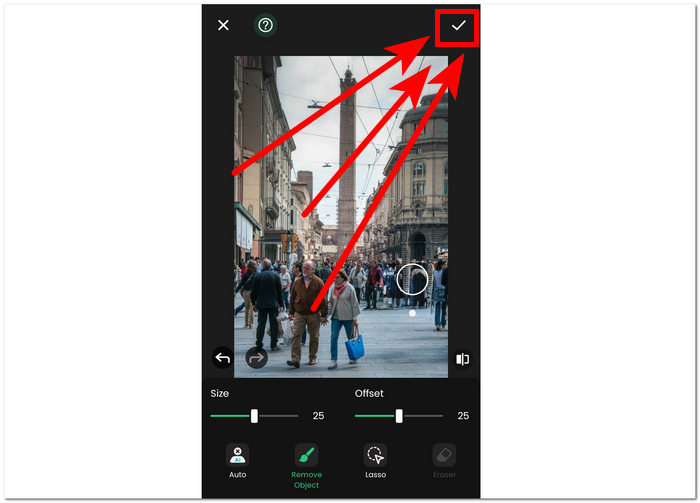
Pas 4. Quan finalitzi el processament, fes clic a la marca de verificació situada a l’angle superior dret per descarregar definitivament la foto a la teva galeria.
Retouch - Remove Objects és una aplicació gratuïta disponible per a dispositius Android, a canvi de mostrar anuncis dins de la interfície. Tot i això, l’app ofereix una manera senzilla d’efectuar tasques com l’eliminació d’objectes, l’eliminació de fons, l'eliminació d’emojis i la generació d’avatars amb IA.
Part 3. Preguntes freqüents sobre l'eliminació de persones de les fotos
L'iPhone té una goma d'esborrar d'objectes?
No, l'iPhone no té una funció d'esborrar d'objectes integrada a partir dels últims models. Tanmateix, és possible que vulgueu comprovar i fer la vostra recerca sobre les aplicacions de tercers disponibles que ofereixen una funcionalitat similar per eliminar objectes de les fotos.
És possible fer Photoshop a algú d'una imatge?
Sí, és possible treure algú d'una imatge amb Photoshop mitjançant Adobe Photoshop o un altre programari d'edició de fotografies. Si seleccioneu i editeu amb cura l'àrea al voltant de la persona, podeu eliminar-la perfectament de la imatge mantenint la integritat del fons.
La funció de retall de l'iPhone manté tot el fons?
La funció de retall de l'iPhone, disponible en determinades aplicacions d'edició, sol tenir com a objectiu mantenir el tema intacte mentre s'elimina el fons. Tanmateix, l'èxit de preservar tot el fons depèn de factors com la complexitat del fons i la precisió de l'eina de retall.
És difícil eliminar persones de les fotos?
El nivell de dificultat depèn de factors com la complexitat del fons, la qualitat de la foto i les habilitats d'edició de l'usuari. No obstant això, amb les eines i tècniques adequades, és possible aconseguir resultats perfectes.
Puc eliminar diverses persones d'una foto de grup?
Sí, pots eliminar diverses persones d'una foto de grup utilitzant les mateixes tècniques que eliminar una sola persona. Tanmateix, pot requerir més temps i precisió per garantir que el resultat final sembli perfecte.
Conclusió
En conclusió, eliminar persones de les fotos obre un ventall infinit de possibilitats per millorar i reparar els teus records més estimats. Tant si utilitzes eines en línia com aplicacions mòbils, el procés t’ofereix una porta d’entrada a imatges més netes i captivadores. Amb les eines adequades al teu abast, pots aconseguir fàcilment resultats d’aspecte professional i garantir que les teves fotos mantinguin el punt focal per al qual van ser pensades. Així doncs, explora la varietat d’opcions descrites en aquest article i comença el teu camí cap a crear fotos netes i visualment espectaculars, lliures de distraccions indesitjades.
-
 Els 9 millors eliminadors de fons d'imatge per obtenir resultats ràpids i precisos
 Experimenta la rapidesa i la precisió de l'esborrador d'imatges de fons de millor rendiment. Digues adéu a l'eliminador de fons complex i adopta nou maneres eficients avui!
-
 Com eliminar el text de la imatge a Windows/Mac/Online
 Digues adéu al text que distraeix a les teves imatges! Exploreu com esborrar text de les imatges amb aquestes solucions senzilles dissenyades perfectament per eliminar el text.
-
 Com eliminar el fons de la imatge: Eines sense problemes
 Descobriu sis eines per eliminar el fons de qualsevol imatge sense esforç. Digues adéu a l'edició complicada i esborra els fons d'imatges amb facilitat avui!
