


 Video Converter Ultimate
 Gravadora de pantalla
 Reparació de vídeo
3 maneres d'eliminar text de la imatge Photoshop
Afegir text a les imatges pot augmentar significativament la comunicació i la creativitat, fent que sigui més visual i fàcil transmetre un missatge. Tanmateix, poden sorgir situacions en què la necessitat d'eliminar el text esdevingui imprescindible per diferents motius. Tant si esteu treballant amb una eina de grau professional com Photoshop, opteu per la versatilitat de PicsArt o exploreu solucions en línia com FVC Online Watermark Remover. No us preocupeu, aquest article està dissenyat per ajudar-vos a eliminar de manera eficient el text de les vostres imatges, ja sigui per a programari o eines basades en web.
Reflexionant sobre la pregunta de com eliminar text d’una imatge? Aquest article ofereix seccions que t’ajudaran a aprendre instruccions pas a pas adaptades a cada plataforma, perquè puguis seguir el procés i aconseguir imatges polides sense complicacions. Elimina text en un moment simplement continuant la lectura d’aquest article, gaudeix de la comoditat d’eliminar text i eleva la qualitat del teu contingut visual avui mateix!

Part 1. Com eliminar text d'una imatge a Photoshop
Adobe Photoshop és conegut com una potència per a l'edició d'imatges. Quan elimineu text d'una imatge a Photoshop, és fonamental recordar treballar en una capa duplicada i altres. Això garanteix la preservació de la vostra imatge original, la qual cosa us permet experimentar i fer canvis sense alterar el fitxer font. Però en aquest cas, aprendràs les capacitats de l'eina d'emplenament en funció del contingut de Photoshop per eliminar el text no desitjat de les teves imatges.
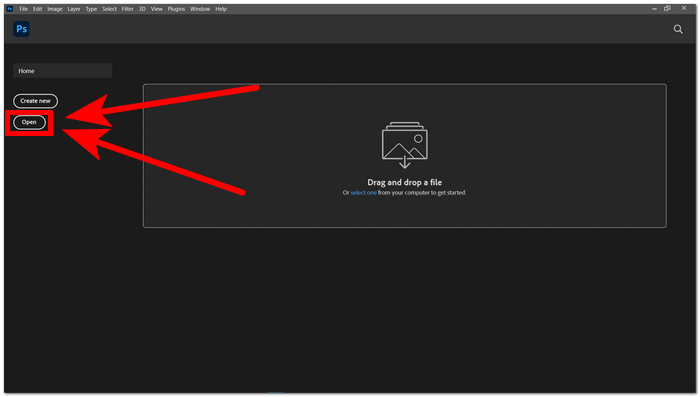
Pas 1. Obre Adobe Photoshop des de l’escriptori. Si no tens el programa, pots anar al seu lloc web oficial per instal·lar-lo. Un cop instal·lat, obre el programa i, a la interfície, Obre la imatge de la qual vulguis eliminar text.
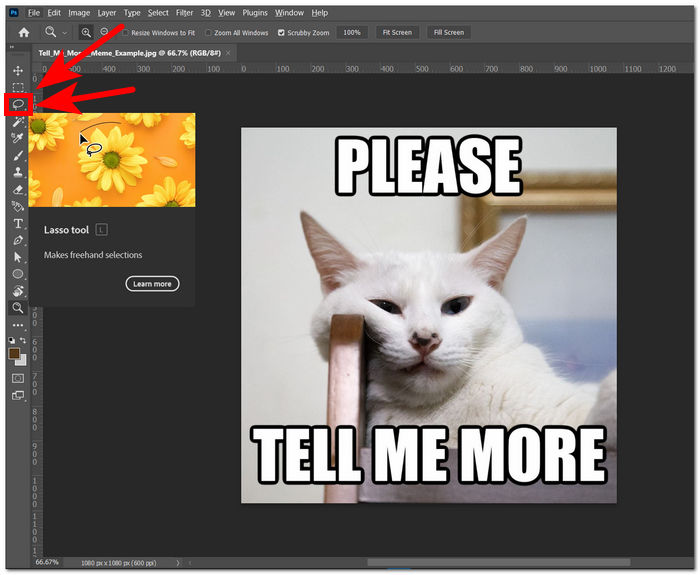
Pas 2. Un cop la imatge s’hagi carregat al programa, selecciona l’eina Llaç (Lasso Tool) situada a la barra d’eines de l’esquerra.
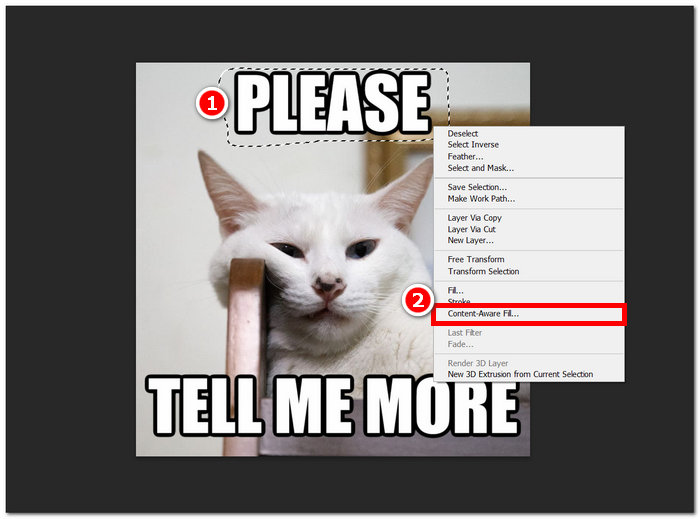
Pas 3. Hauràs de resseguir o encerclar el text no desitjat de la teva imatge. Després de resseguir el text que vols eliminar, fes clic amb el botó dret del ratolí i selecciona Emplenament segons el contingut (Content-Aware Fill) a la configuració.
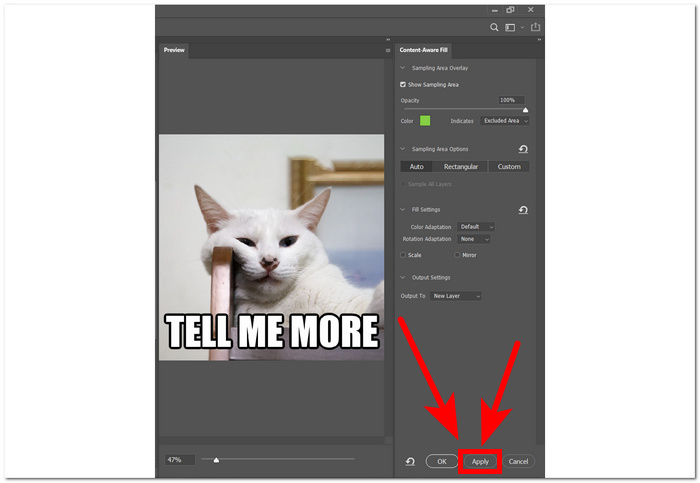
Pas 4. Després de seleccionar l’emplenament segons el contingut, podràs previsualitzar el resultat en eliminar el text de la imatge. Quan estiguis satisfet amb el resultat, només cal que facis clic a Aplica (Apply) per desar els canvis.
Adoptar aquest pas de precaució reflecteix un enfocament professional de l’edició d’imatges a Photoshop, proporcionant un entorn segur i flexible per a l’exploració creativa. A més, també pots fer servir Photoshop per canviar el fons de la teva imatge després d’haver eliminat el text.
Part 2. Com eliminar el text de les imatges en línia
Reflexioneu sobre com eliminar el text d'una imatge de forma gratuïta? FVC Online Watermark Remover és una eina d'eliminació de text o filigrana basada en web que elimina el text no desitjat de les vostres imatges en un instant i és gratuïta. L'esmentada eina admet formats que és més probable que s'utilitzin en qualsevol imatge. L'eina està integrada amb IA per eliminar el text de les imatges de manera ràpida i segura per aconseguir una precisió prometedora en el seu resultat.
Pas 1. Ves al lloc web oficial de FVC Online Watermark Remover.
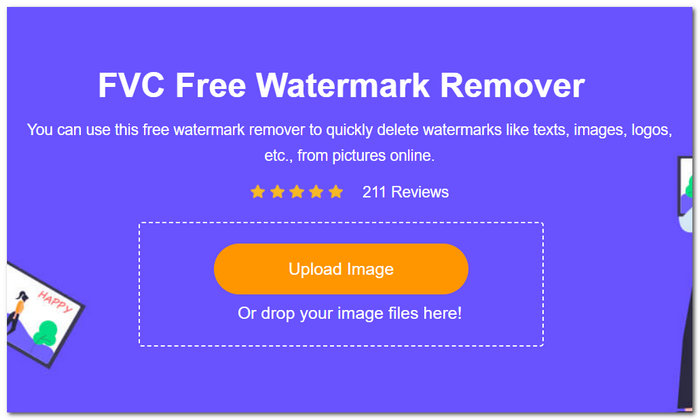
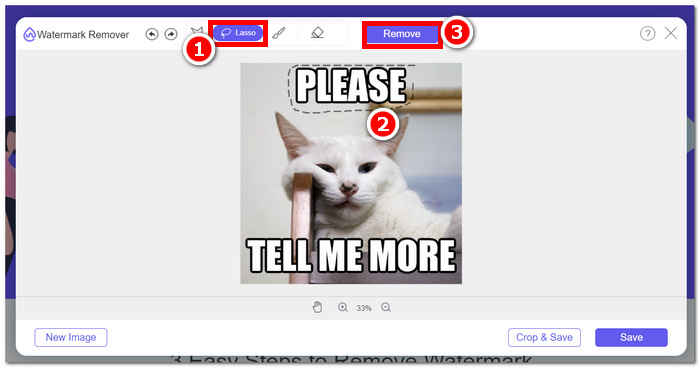
Pas 2. Al lloc web, carrega la imatge al camp de pujada d’imatges. Quan la imatge estigui carregada, selecciona l’eina Llaç (Lasso) situada a la part superior de la pantalla i ressegueix amb l’eina el text que vols eliminar.
Pas 3. Després de resseguir amb l’eina el text no desitjat, fes clic al botó Remove per esborrar automàticament el text de la imatge.
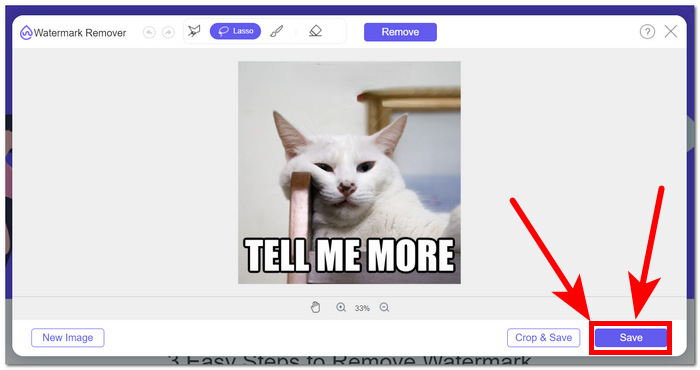
Pas 4. Quan l’eina acabi d’eliminar el text de la teva imatge, fes clic a Save per descarregar la imatge a l’escriptori.
En conclusió, les eines en línia com FVC Online Watermark Remover són de gran ajuda per a qualsevol persona nou en el camp de l'edició digital i que vulgui eliminar text sense haver de descarregar programari i treballar amb moltes eines. És a dir, només és correcte utilitzar eines convenients i que us permetin estalviar temps. Aquest és un punt fort de l'ús d'eines en línia.
Part 3. Com eliminar text de la imatge amb Adobe Illustrator
Adobe Illustrator, reconegut principalment com a editor de gràfics vectorials, té la versatilitat d'estendre la seva utilitat a tasques específiques d'edició d'imatges. Això amplia la seva aplicabilitat més enllà de l'àmbit dels gràfics vectorials. En particular, Illustrator resulta excepcionalment útil quan s'enfronta a imatges que entrellacen tant elements de text com vectorials. La integració perfecta de les capacitats d'edició de text i de vectors permet als usuaris gestionar diversos elements de disseny dins d'una única plataforma. Això fa d'Illustrator una opció preferida per a aquells que treballen en projectes que exigeixen una combinació de precisió gràfica i elements textuals.
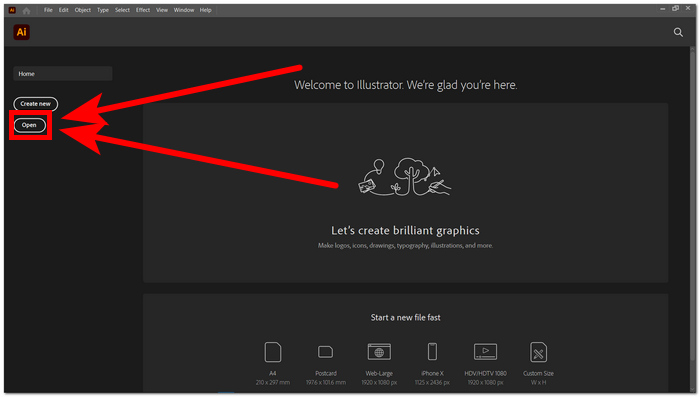
Pas 1. Obre la imatge a Illustrator. Si no tens el programa Adobe Illustrator, primer ves al seu lloc web oficial per descarregar i instal·lar el programa. Un cop instal·lat, obre’l i carrega-hi la imatge.
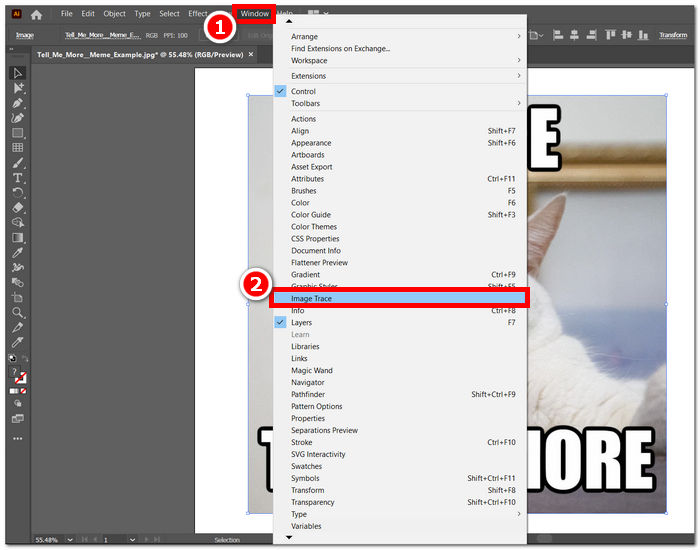
Pas 2. Quan la imatge s’hagi carregat al programa, fes clic a la secció Window situada a l’extrem superior esquerre de la pantalla. Dins del menú Window, fes clic a Image Trace.
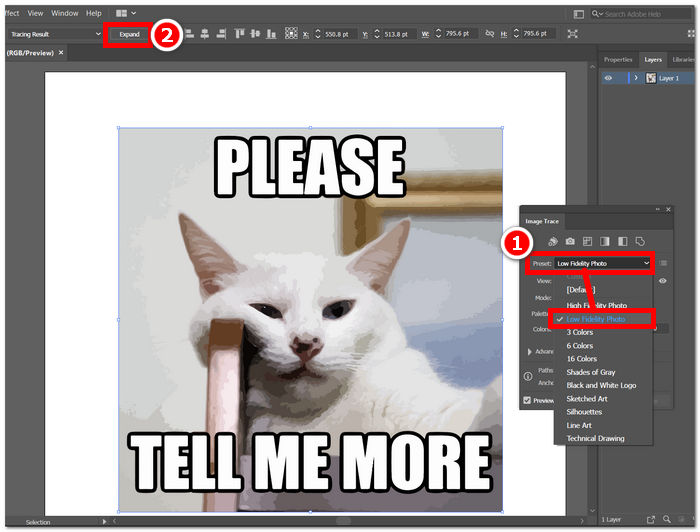
Pas 3. Apareixerà una finestra emergent amb la configuració d’Image Trace i, al camp de predefinits, selecciona Low Fidelity Photo. El botó Expand apareixerà a la part superior esquerra de la pantalla. Fes-hi clic per continuar.
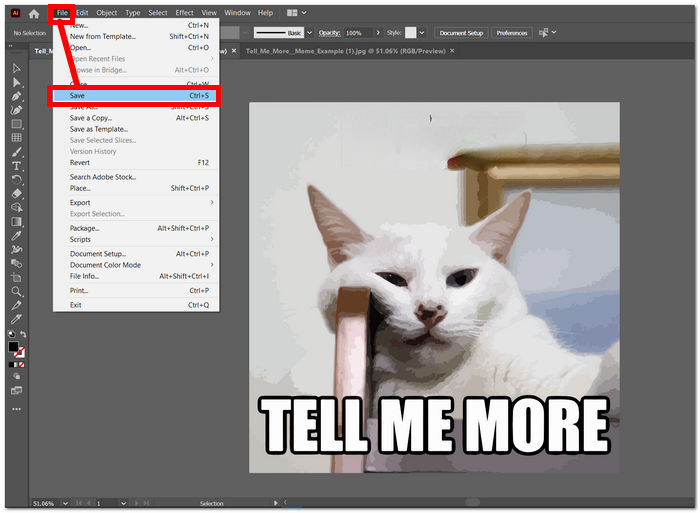
Pas 4. Ara ja pots suprimir manualment el text de la imatge fent doble clic sobre el text concret i prement el botó Supr (Del) del teclat. Quan hagis eliminat manualment tot el text, ja pots desar la imatge a l’escriptori. Només cal que vagis a File a l’extrem superior esquerre de la pantalla i facis clic a Save.
Eliminar text de les imatges amb Adobe Illustrator no és el seu ús principal. Està pensat sobretot per a gràfics vectorials. També pots canviar la mida de les imatges a Illustrator fàcilment. Els punts forts d’Adobe Illustrator rauen en les dimensions de les formes; no és possible suprimir o eliminar completament text només amb Illustrator, cal utilitzar un altre programa d’Adobe per eliminar del tot el text de la imatge.
Part 4. Com eliminar text de la imatge amb PicsArt
PicsArt, conegut per la seva versatilitat d'edició creativa, funciona com una plataforma mòbil i basada en web. Per eliminar el text d'una imatge mitjançant PicsArt, els usuaris poden aprofitar les seves funcions fàcils d'utilitzar. Els usuaris poden obrir les seves imatges a l'aplicació PicsArt i utilitzar eines com la goma d'esborrar o l'eina pinzell per esborrar el text no desitjat meticulosament. Ajustar les opcions de transparència i combinació garanteix un resultat perfecte, millorant la qualitat general de la imatge.
Pas 1. Ves a l’eliminador de text en línia de PicsArt. Pots fer-ho amb qualsevol navegador que tinguis instal·lat.
Pas 2. Un cop el lloc web s’hagi carregat, puja la imatge al camp Text Remover.
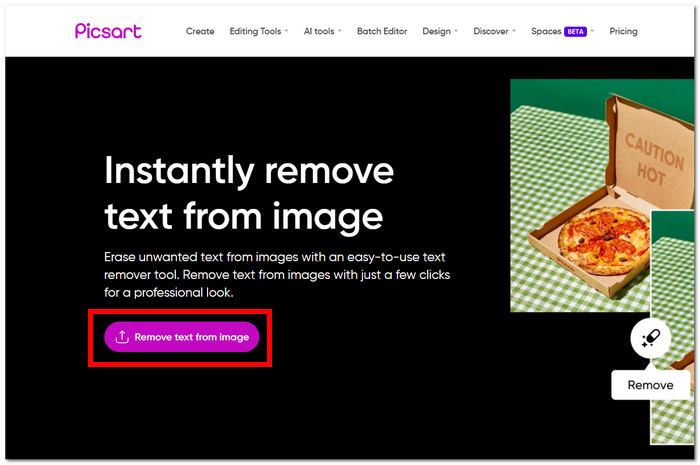
Pas 3. A la interfície de l’eina, selecciona l’eina Remove i elimina el text de la imatge resseguint el text no desitjat.
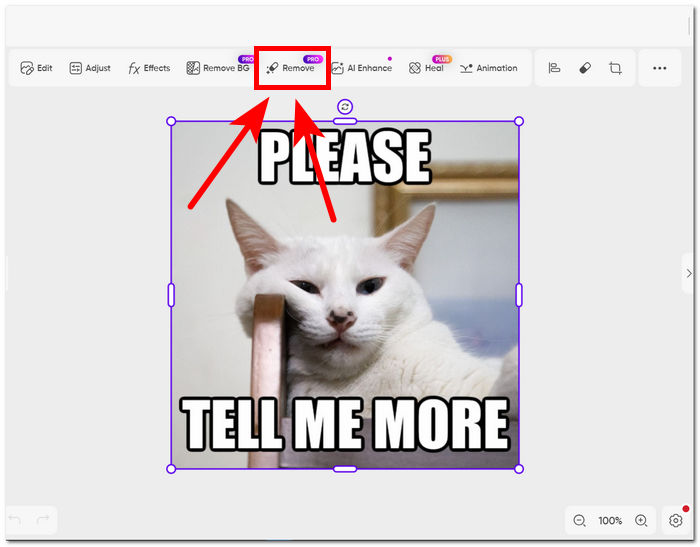
Pas 4. Un cop hagis acabat de resseguir el text, fes clic a Remove per esborrar el text de la imatge i fes clic a Export per desar a l’escriptori les imatges sense text.
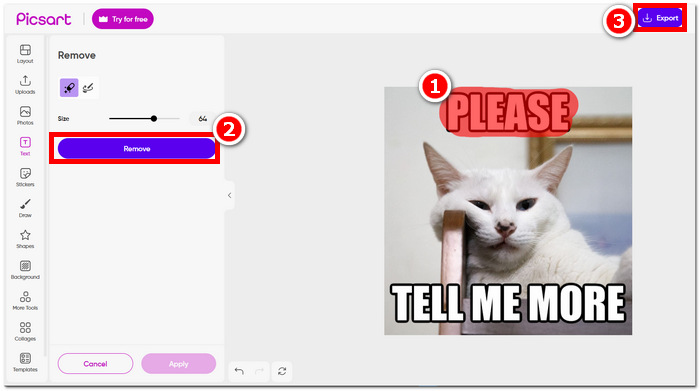
D'altra banda, és possible que la plataforma hagi ofert una manera còmoda i senzilla d'eliminar text de les vostres imatges; encara necessita una subscripció per exportar completament la imatge sense la marca d'aigua de picsart. Aprofitant les capacitats de la plataforma, els usuaris poden aconseguir imatges netes i polides sense la destrucció de text no desitjat.
Part 5. Preguntes freqüents sobre l'eliminació de text de les imatges
Es pot esborrar el text d'una imatge en un iPhone?
Sí, podeu esborrar el text d'una imatge en un iPhone mitjançant aplicacions com TouchRetouch o Adobe Photoshop Express, totes dues disponibles a l'App Store. Simplement instal·leu l'aplicació escollida, obriu la vostra imatge i utilitzeu les eines proporcionades per eliminar el text no desitjat sense esforç. Millora la teva experiència d'edició mòbil amb aquestes aplicacions fàcils d'utilitzar.
Com eliminar el text d'una imatge a MS Word?
A MS Word, eliminar el text d'una imatge és senzill: seleccioneu la imatge, aneu al menú Format i trieu Elimina el fons. Després, retalla o ajusta manualment la imatge segons sigui necessari per eliminar el text no desitjat i aconseguir el resultat desitjat. Aquest procés senzill permet l'eliminació de text eficient directament dins de l'entorn familiar MS Word.
Com puc eliminar el farcit del text a Illustrator?
Per eliminar l'emplenament del text a Illustrator, només cal que seleccioneu el text i aneu al tauler Aparença. A partir d'aquí, feu clic a l'opció Opacitat i reduïu-la perquè el text sigui transparent. Aquest procés senzill us permet aconseguir el nivell de transparència desitjat per al text seleccionat a Illustrator.
Com esborrar el text d'una imatge?
L'eliminació de text d'una imatge es pot aconseguir mitjançant un programari d'edició de fotografies com Adobe Photoshop. Simplement obriu la imatge i utilitzeu una eina adequada per eliminar el text sense problemes. Aquest procés permet l'eliminació precisa i eficient del text no desitjat de les imatges.
Com puc eliminar el text d'una imatge sense desenfocar-la?
Per eliminar el text d'una imatge sense desenfocar-la, utilitzeu eines com el segell de clons o el pinzell curatiu en programari d'edició de fotos com Photoshop. Aquestes funcions us permeten substituir perfectament el text pel fons que l'envolta, mantenint la claredat i la integritat de la imatge. Aquest mètode garanteix un resultat net i professional sense comprometre la qualitat general.
Conclusió
Tant si ets un dissenyador gràfic professional com un aficionat a la fotografia, saber com eliminar text de les imatges és una habilitat valuosa. Amb les eines adequades, com Photoshop, FVC, Adobe Illustrator i PicsArt, pots triar el mètode que s’adapti millor a les teves preferències i al teu flux de treball. Prova aquestes tècniques per aconseguir imatges netes i polides sense la distracció del text no desitjat.
-
 Com eliminar el fons de la imatge amb GIMP
 Comenceu amb GIMP i el procés pas a pas per eliminar fons de les imatges. Descobriu maneres eficients de crear imatges transparents amb GIMP avui!
-
 Mètodes excel·lents amb GIMP per eliminar les marques d'aigua de les imatges
 Heu d'acceptar que una imatge sense filigrana és més agradable a la vista dels espectadors. Llegiu aquesta publicació per saber com eliminar les filigranes amb GIMP.
-
 Mètode sobre com utilitzar Photoshop per eliminar text d'una imatge
 Proveu aquesta tècnica sorprenent sobre com eliminar el text de les imatges a Photoshop. Això us ajudarà a convertir-vos en un expert en esborrar aquests elements no desitjats.
