


 Video Converter Ultimate
 Gravadora de pantalla
 Reparació de vídeo
 Baixada segura
Com canviar la mida d'una imatge a Powerpoint sense degradar la qualitat
Darrerament, molta gent ho presenta tot en format digital en lloc de la manera tradicional, fins i tot abans de la pandèmia. Mentre ens esforcem per avançar cap al futur, tot es pot tornar més fàcil amb l’ajuda de la tecnologia i el programari per presentar el negoci, suports visuals, idees, vendes, etc., i tot això es pot fer amb PowerPoint. Pots tenir aquest programa de presentacions al teu dispositiu per a aquest propòsit; a més, molts usuaris busquen una manera de canviar la mida de la imatge en aquest programa. Estàs disposat a aprendre com canviar la mida d’una imatge a PowerPoint? Continua llegint aquest article, ja que hi expliquem la informació que has de saber sobre aquest tema.

Part 1. Com canviar la mida d'una imatge a PowerPoint amb 2 maneres efectives d'utilitzar [de manera individual i múltiple]
Quan ajusteu la longitud i l'alçada de la imatge a cada diapositiva, podeu establir una dimensió exacta o canviar la relació d'aspecte arrossegant el marc. Tot i que podeu fer-ho aquí de manera natural, es produeix una certa distorsió quan es canvia la mida de la imatge. Per tant, si voleu saber com canviar la mida de les imatges en diverses diapositives a PowerPoint o individualment, podeu seguir els passos que afegim a continuació. Seguiu-lo en conseqüència i canviareu la mida en menys d'un minut.
3 maneres de canviar la mida de la imatge a PowerPoint [individualment i per lots]
1. Canviar la mida de la imatge arrossegant el marc
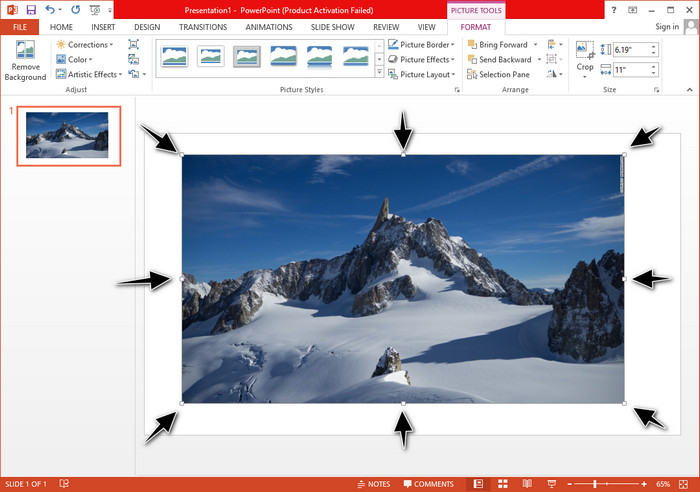
Un cop hàgiu carregat la imatge a PowerPoint, hi veureu petits punts. Aquests punts de la imatge són ajustables, el que significa que podeu canviar la mida de la foto lliurement segons les vostres especificacions. Un cop canvieu la longitud, l'alçada no seguirà el mateix que ajustar la mida.
2. Canviar la mida de la imatge modificant l’alçada i la llargada
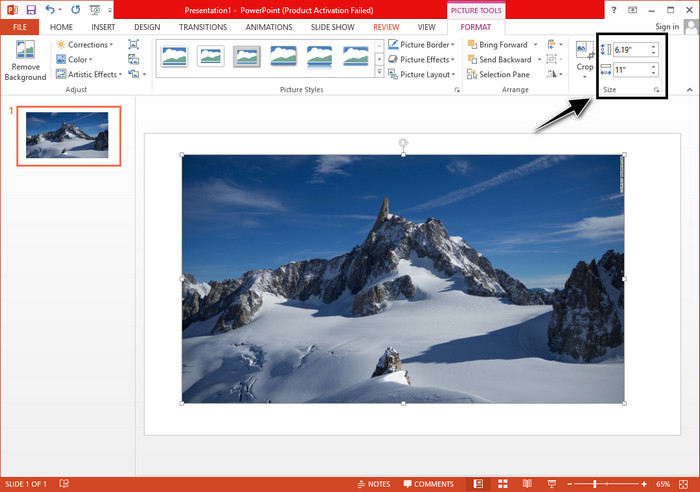
Quan carregueu la imatge a PowerPoint, feu clic a la pestanya Format per canviar la imatge a una mida específica. A la part superior, podeu afegir la seva alçada i longitud exactes. Tanmateix, un cop hàgiu canviat una mesura, l'altra s'ajustarà automàticament perquè la relació d'aspecte principal està activa.
3. Canviar la mida de diverses imatges alhora a PowerPoint
Què has de fer per canviar la mida de múltiples imatges en una sola diapositiva de PowerPoint? Per fer-ho, hauràs de pujar les fotos a la diapositiva. Un cop hagis pujat diverses imatges a la diapositiva, has de prémer i mantenir premuda la tecla Control i després seleccionar una per una totes les imatges de les quals vols canviar la mida. A continuació, aplica l’opció de redimensionament que vulguis d’entre les que hem presentat més amunt: arrossegar el marc o canviar el valor numèric.
Part 2. Com canviar la mida d'una imatge a PowerPoint sense distorsionar gratuïtament [Servei web]
Com canviar la mida d’una imatge a PowerPoint sense deformar-la? Pots fer servir el FVC Free Image Upscaler per canviar automàticament la mida de la foto que puges i que vols utilitzar en una presentació de PowerPoint. Tot i ser una eina en línia, el seu rendiment és millor que el redimensionador de PowerPoint, perquè crea PPI per evitar que la imatge es vegi borrosa encara que en canviïs la mida. Et preguntes si vols utilitzar aquesta eina i començar a canviar la mida de la teva imatge? En aquest cas, segueix els passos següents que hem inclòs mentre t’ensenyem a utilitzar aquesta eina de la manera més senzilla possible.
Avantatges de canviar la mida d’una foto amb FVC Free Image Upscaler:
◆ Pots utilitzar aquest redimensionador de fotos de manera gratuïta i sense pèrdua de qualitat.
◆ Admet una àmplia gamma de formats que podeu carregar.
◆ Té una potent tecnologia d'IA que us pot ajudar a canviar la mida de qualsevol foto.
◆ Podeu accedir a aquesta solució web des de qualsevol cercador que tingueu a l'escriptori.
◆ No cal instal·lar ni baixar-lo abans d'utilitzar-lo.
Passos sobre com canviar la mida sense distorsionar mitjançant l'escalador d'imatges gratuïts FVC:
Pas 1. Obre el lloc web d’aquest redimensionador fent clic en aquest enllaç.
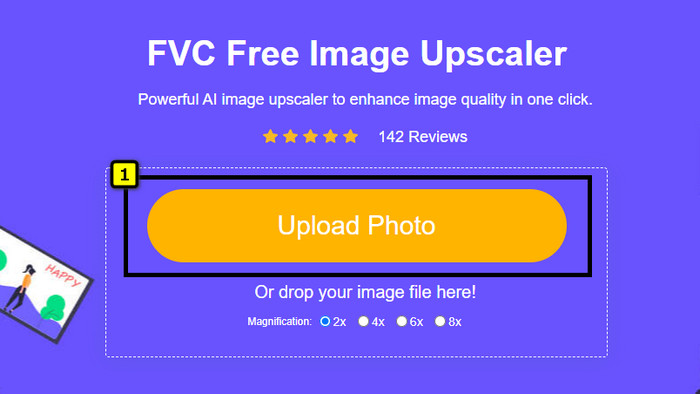
Pas 2. Quan s’obri el lloc web, fes clic a Upload Photo per afegir la foto de la qual vols canviar la mida i utilitzar-la a la teva presentació de PowerPoint.
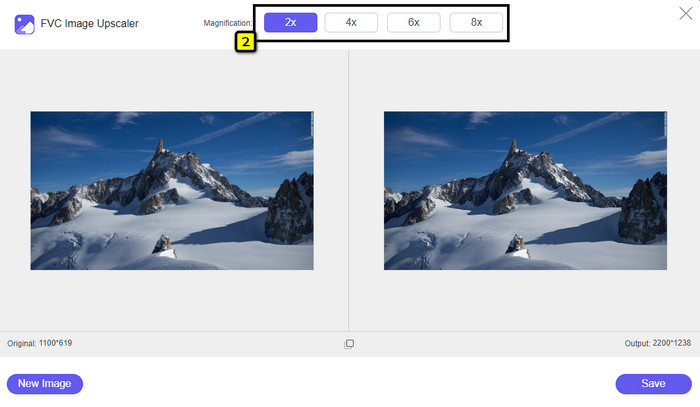
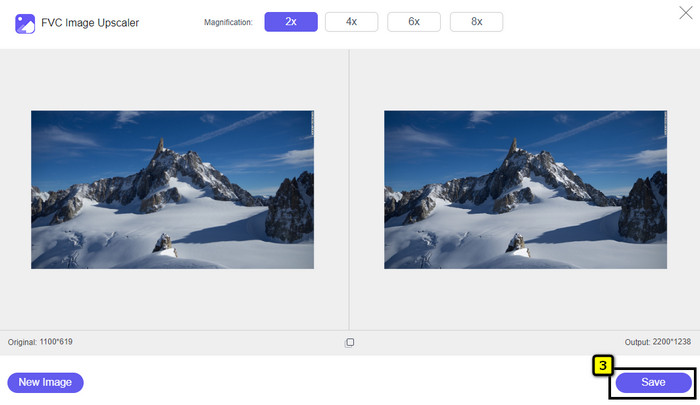
Pas 3. Després de pujar la imatge, espera que es carregui. Selecciona l’augment de mida que vols aplicar a la teva imatge triant entre les opcions 2x, 4x, 6x o 8x.
Pas 4. Fes clic a Save per exportar la imatge redimensionada que has modificat aquí. Així de fàcil: tindràs la imatge redimensionada al teu disc local sense cap deformació ni borrositat afegida.
Part 3. Preguntes freqüents sobre com canviar la mida d'una imatge a PowerPoint
Quina és la longitud i l'alçada màximes d'una foto per a Powerpoint?
Quan canvieu la mida de la imatge a la dimensió màxima per a Powerpoint com a pantalla ampla, podeu configurar el píxel a 1280 x 720 px. Però quan el mostreu a la pantalla, haureu de seguir la relació d'aspecte 16:9, que és de 1920 x 1080 px.
Hi ha alguna drecera per canviar la mida de la foto a PowerPoint?
Per canviar l'alçada de la imatge, heu de mantenir premuda la tecla Maj i, a continuació, feu clic a la fletxa amunt per augmentar-la i a la fletxa avall per reduir-la. Per a aquells que vulguin canviar l'amplada de la imatge, podeu tornar a mantenir premuda la tecla Maj i, a continuació, prémer la fletxa dreta per augmentar l'amplada i la fletxa esquerra per reduir l'amplada segons les vostres preferències.
Per què la meva imatge es va tornar borrosa després de canviar-ne la mida a PowerPoint?
Quan esteu a punt de canviar la mida de la imatge a PowerPoint, la imatge s'ha estirat i hi ha la possibilitat que la imatge es torni borrosa. Però si voleu un editor d'imatges capaç de crear píxels alhora que canvien la dimensió, podeu evitar tenir una imatge pixelada a PowerPoint.
Puc utilitzar GIF per a Powerpoint?
Sí, podeu utilitzar GIF a totes les diapositives de PowerPoint. Tanmateix, quan la dimensió GIF no s'afavoreix a la mida desitjada, haureu de canviar-la. I el resultat del GIF redimensionat es va tornar borrós o pixelat.
Conclusió
En resum, pots aprendre tres tècniques per canviar la mida d’una imatge a PowerPoint seguint el tutorial que hem afegit en aquesta entrada. Encara que ho puguis fer fàcilment en el programa de presentacions, hi ha vegades que es produeixen deformacions quan se’n canvien les dimensions. Pots resoldre aquest problema fent servir l’eina en línia que hem esmentat, perquè no deforma cap de les imatges redimensionades. Amb els passos que hem inclòs, pots aprendre com canviar la mida de la imatge amb FVC Free Image Upscaler.
-
 Millor aplicació Photo Resizer en línia, fora de línia, Android i iPhone
 Quines són les millors aplicacions de redimensionament de fotos? Feu clic a la pàgina per conèixer les cinc aplicacions de redimensionament de fotos més potents que podeu utilitzar per millorar o canviar la mida del vostre fitxer.
-
 Com canviar la mida de la imatge: Adobe Canvia la mida de la imatge [en línia i fora de línia]
 Si esteu buscant una imatge de redimensionament d'Adobe, tenim la solució per a vosaltres. Consulteu aquesta publicació a fons per aprendre a canviar la mida de les imatges amb Adobe al vostre ordinador.
-
 Com canviar la mida de la foto per a Facebook [Passos ràpids i fàcils]
 Si tens problemes per penjar una imatge de gran mida a Facebook, tenim una solució per a tu. Acaba aquest article per saber com canviar la mida de les fotos per a Facebook.
