


 Video Converter Ultimate
 Gravadora de pantalla
 Reparació de vídeo
 Baixada segura
Canvia la mida de la imatge sense perdre qualitat: compressió sense pèrdues
Una de les preocupacions més grans a l’hora de canviar la mida d’una imatge és perdre’n la qualitat. Doncs bé, la resposta varia en funció de com s’hagi redimensionat la foto, quina eina s’hagi utilitzat i altres factors. Afortunadament, una realitat poc valorada és que pots canviar la mida d’una imatge sense perdre qualitat si es fa correctament. Si segueixes les millors pràctiques, entens els matisos del redimensionament d’imatges i trobes l’eina adequada, pots mantenir perfectament la nitidesa i la claredat de les teves imatges, independentment dels ajustos de mida que facis.
En aquesta guia, aprofundirem en tres mètodes efectius per canviar la mida de les imatges mantenint la seva integritat visual i garantint que la qualitat es mantingui gairebé igual.

Part 1. La forma més ràpida de canviar la mida de la imatge sense perdre qualitat [compatible per lots]
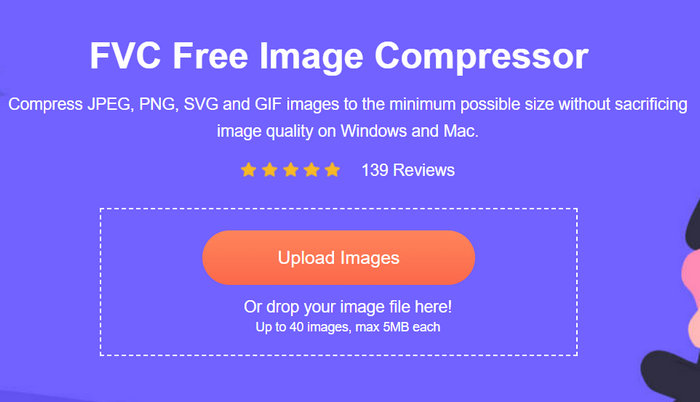
L'FVC Free Image Compressor és una eina en línia gratuïta per comprimir imatges, ideal per a usuaris que busquen una manera més ràpida de canviar la mida d’imatges sense perdre qualitat. Amb un sol clic, les teves fotos es redimensionaran automàticament i la seva qualitat es mantindrà gairebé intacta. A més, aquesta eina és molt fàcil de fer servir: qualsevol nivell d’usuari la pot utilitzar sense sentir-se perdut en el procés. Finalment, quan tinguis un munt d’arxius d’imatge per redimensionar, aquesta eina et permetrà comprimir fins a 40 fitxers d’imatge alhora.
Així és com pots canviar la mida d’una imatge sense perdre qualitat amb FVC Free Image Compressor
Pas 1. Ves al navegador i escriu Free Image Compressor a la barra de cerca.
Pas 2. Un cop siguis al lloc web, fes clic a Upload Images per importar les fotos que vols redimensionar. L’eina comprimirà automàticament totes les fotos que hagis pujat.
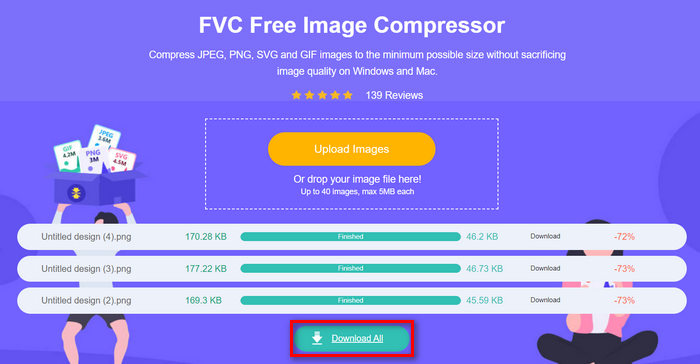
Pas 3. Espera que el procés de compressió acabi. Quan hagi acabat, veuràs una barra d’estat indicant que ha finalitzat i informació sobre la mida de la imatge abans i després de la compressió. Després, fes clic a Download All per desar la teva imatge.
Amb el compressor d'imatges gratuït FVC, canviar la mida d'una imatge no afectarà el vostre esforç. A més, aquesta eina és completament gratuïta i molt accessible, per la qual cosa és una eina de compressió on-the-go per a tothom.
Part 2. Com reduir una imatge a Photoshop sense perdre qualitat
Mentrestant, quan tingueu Photoshop instal·lat al vostre dispositiu, podeu utilitzar-lo per reduir els fitxers d'imatge. Aquesta eina és un programari d'edició de fotografies conegut pel seu magnífic conjunt de funcions i capacitats. Amb Photoshop, no només podeu editar i millorar les fotos amb precisió, sinó també optimitzar-les per a diversos propòsits, inclosa la reducció de la mida del fitxer. Aquests són els dos mètodes que podeu provar per canviar la mida d'una imatge sense perdre qualitat.
Canviar la mida de la imatge per píxels
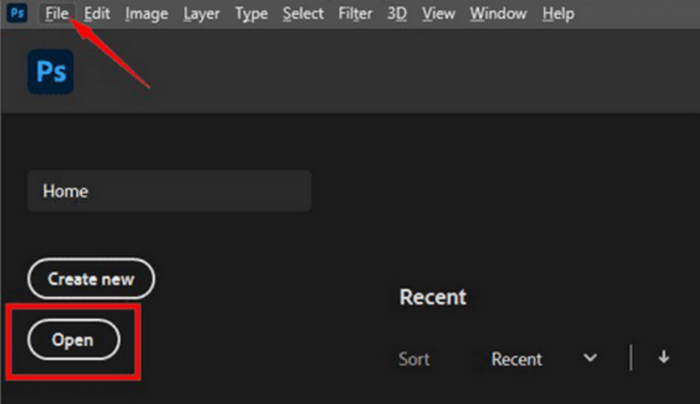
Pas 1. Obre la teva imatge a Photoshop fent clic a Open o ves a File i selecciona la imatge que vols redimensionar.
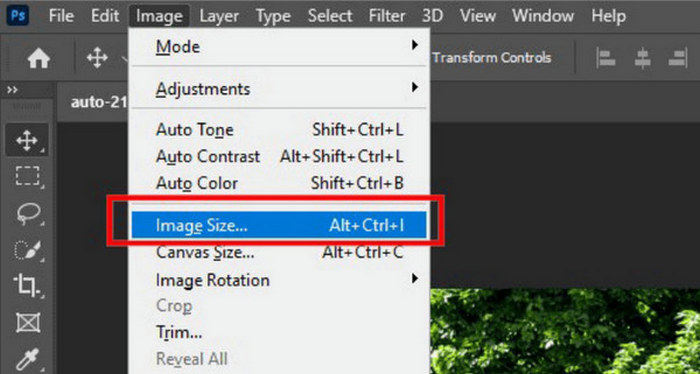
Pas 2. Ara, ves a la pestanya Image i selecciona Image Size del menú.
Pas 3. Al quadre de diàleg Image Size, tria Pixels al menú desplegable. Per establir dimensions específiques, introdueix valors als quadres de text d’amplada i alçada i fes clic a OK per redimensionar la imatge.
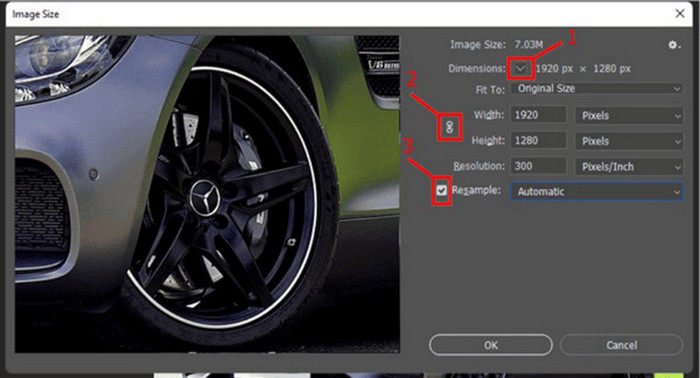
Pas 4. Finalment, desa el fitxer d’imatge fent clic al botó Save As sota la pestanya File.
Deseu el fitxer PSD en format JPEG abans de desar-lo.
Canviar la mida de la imatge per polzades
Pas 1. Obre la teva imatge a Photoshop fent clic a Open o ves a File i selecciona la teva imatge.
Pas 2. Ara, ves a la pestanya Image i selecciona Image Size.
Pas 3. Al quadre de diàleg Image Size, tria Inches al menú desplegable. Per establir dimensions específiques, introdueix valors als quadres de text d’amplada i alçada i fes clic a OK per redimensionar la imatge.
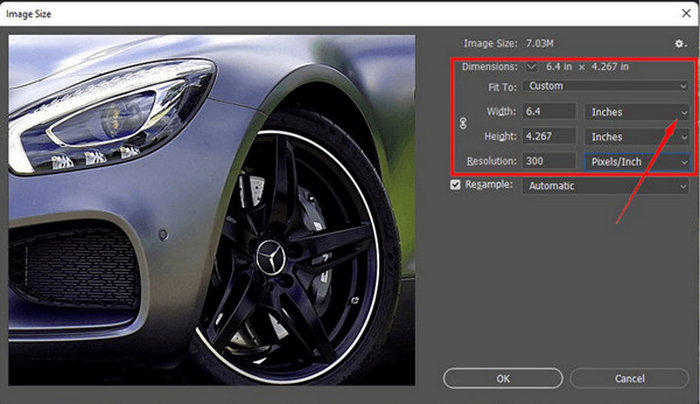
Pas 4. Finalment, fes clic al botó Save As a la pestanya File per desar la imatge final.
Photoshop és una eina versàtil i potent que permet als usuaris editar fotos i canviar-les la mida sense perdre qualitat. A més, els usuaris poden aprofitar els algorismes d'alta qualitat de Photoshop per assegurar-se que les seves imatges es mantenen nítides i clares fins i tot després d'ajustos de mida importants. Tanmateix, un desavantatge d'utilitzar aquesta eina és que pot ser bastant complexa, cosa que dificultarà la navegació per les seves funcions als principiants.
Part 3. Canviar la mida de la imatge sense perdre qualitat mitjançant l'augment d'escala d'IA
L'FVC Free Image Upscaler és una eina basada en IA dissenyada per canviar la mida d’imatges sense perdre qualitat. Empra tecnologia de superresolució amb IA, entrenada amb milions de casos, per reconèixer i millorar automàticament les parts borroses d’una imatge. Aquesta eina pot corregir píxels perduts, colors, textures i altres detalls, assegurant que la imatge es redimensioni sense perdre qualitat.
Pas 1. Primer, has d’accedir al seu lloc web oficial.
Pas 2. Un cop hi hagis accedit, importa el fitxer d’imatge que vols redimensionar fent clic al botó Upload Photo.
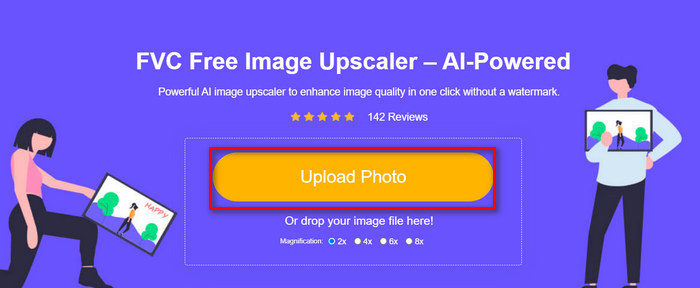
Pas 3. Ara tria com vols fer l’escalat. Pots escalar la teva imatge de 2x fins a 8x. D’aquesta manera, pots canviar la mida de la imatge sense perdre qualitat.
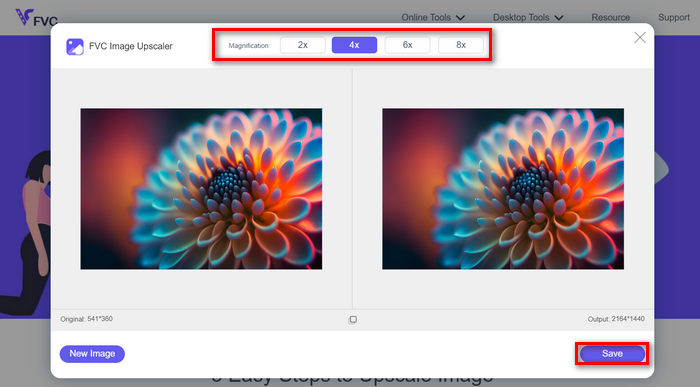
Pas 4. Quan hagis acabat, fes clic al botó Save, i el nou fitxer redimensionat es descarregarà automàticament a l’ordinador.
Aquest ampliador d’imatges impulsat per IA és una eina excel·lent per canviar la mida d’imatges sense perdre qualitat. Aquesta funció no només redimensiona la imatge, sinó que també l’escala i l’enriqueix o millora.
Part 4. Comparació de 3 mètodes per canviar la mida de la imatge sense perdre qualitat
| Eina de redimensionament d'imatges | Compressió per lots | Velocitat | Facilitat d'operació |
| Compressor d'imatges gratuït FVC | Sí, fins a 40 imatges | Ràpid | Extremadament fàcil d'utilitzar |
| Photoshop | No | Mitjana | Bastant senzill d'operar |
| FVC Free Image Upscaler | No | Ràpid | Extremadament fàcil d'utilitzar |
Part 5. Preguntes freqüents sobre el canvi de mida de la imatge sense perdre qualitat
Les imatges perden qualitat quan es redueixen?
En part, no. Les imatges generalment no perden qualitat quan es redueixen. La reducció d'una imatge o la reducció de la seva mida conserva el detall i la nitidesa originals de la imatge perquè no perd informació de píxels. Tanmateix, la percepció de la qualitat pot variar segons el mètode de compressió utilitzat i la capacitat del programari per gestionar el procés de reducció d'escala de manera eficient.
Com canviar la mida d'una imatge a Paint sense perdre qualitat?
Per canviar la mida d'una imatge a Paint sense perdre qualitat, obriu Paint i carregueu la vostra imatge. Després d'això, feu clic al botó de canviar la mida a la pestanya d'inici. Al quadre de diàleg Canviar la mida i inclinar, trieu l'opció percentatge o píxels. Assegureu-vos que la casella de selecció Mantenir la relació d'aspecte estigui marcada per mantenir les proporcions de la imatge. A partir d'aquí, introduïu com voleu canviar la mida de la imatge i feu clic a D'acord.
Quina és la millor eina per canviar la mida de les imatges sense perdre qualitat?
Hi ha moltes eines excel·lents per canviar la mida d’imatges sense perdre qualitat. Tanmateix, quan es tracta de la manera més ràpida amb una funció de compressió per lots, l’eina FVC Free Image Compressor és la millor opció. Et permet redimensionar fins a 40 imatges alhora mantenint uns resultats d’alta qualitat, fet que la converteix en una solució molt eficient i fàcil d’utilitzar per a usuaris de tots els nivells.
Conclusió
Amb els mètodes i les eines adequades, pots canviar la mida d’imatges sense perdre qualitat. Així doncs, tant si tries qualsevol d’aquestes eines com si no, l’objectiu principal és trobar l’eina adequada per a tu. Preparat per millorar les teves imatges sense esforç? Prova aquestes eines avui mateix i comprova’n la diferència!
-
 Reductors de mida de la imatge superior en dispositius d'escriptori i mòbils
 Mireu les aplicacions més destacades d'aquest article per obtenir el millor reductor de mida de la foto al vostre dispositiu preferit. Apreneu la millor optimització de mida per a imatges ara!
-
 5 millors mètodes per reduir la mida de la imatge en qualsevol dispositiu
 Apreneu els mètodes efectius per canviar la mida o comprimir la mida de la imatge fent clic en aquesta publicació. Descobriu redimensionadors de fotos excepcionals i les seves instruccions pas a pas.
-
 Elimina persones de les fotos: edició de fotos ràpida i senzilla
 Vols desfer-te de la gent de la teva foto? Llegiu aquest article perquè us mostrem els mètodes millors i més fàcils per eliminar persones de les fotos mitjançant aplicacions.
