


 Video Converter Ultimate
 Gravadora de pantalla
 Reparació de vídeo
 Baixada segura
Guia definitiva per utilitzar la IA per millorar la imatge a l'ordinador i al mòbil
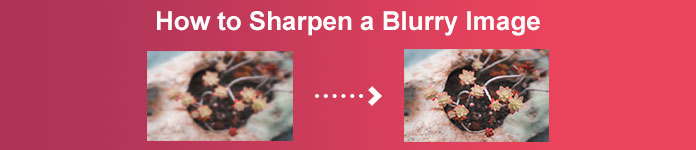
T’ha passat mai que tens una imatge apagada i sense vida? Potser a la teva foto li falta nitidesa i definició. Però ho sabies? Hi ha moltes aplicacions per enfocar imatges que pots trobar a internet. No necessites solucions d’escriptori cares per donar més nitidesa a la teva imatge. Buscant a internet, trobaràs moltes aplicacions que t’ajudaran a enfocar-la. Però ja no cal que continuïs buscant, perquè et presentem les millors eines per enfocar imatges i t’ensenyem com fer-les servir. Llegeix aquest article fins al final per aprendre a enfocar imatges gratis tant en línia com fora de línia.
Part 1. Com millorar la imatge gratuïtament en línia sense registrar-se
Malgrat això, hi ha moltes aplicacions per aguditzar una imatge; es recomana que utilitzeu l'eina més senzilla i segura. És per això que hem cercat els millors afiladors d'imatges i els hem enumerat només per a tu. A més, us mostrarem com utilitzar aquestes eines de nitidesa d'imatges.
Enfoca la imatge amb FVC Free Image Upscaler
FVC Free Image Upscaler és la millor eina per donar nitidesa a una imatge. Si estàs buscant una eina d’IA per enfocar imatges, aleshores FVC Free Image Upscaler és l’eina que necessites. A més, és compatible amb diversos formats d’imatge, com PNG, JPG, JPEG i BMP. I gràcies a la seva tecnologia d’IA (intel·ligència artificial), pots millorar la teva imatge fins a 2x, 4x, 6x i 8x d’augment. El més fantàstic d’aquesta eina en línia és que hi pots accedir des de tots els navegadors web, inclosos Google, Firefox i Safari.
A més, molts principiants prefereixen utilitzar aquesta eina perquè té una interfície d'usuari senzilla. A més, tot i que es tracta d'una aplicació en línia, té un procés d'afinació ràpid, cosa que fa que sigui còmode d'utilitzar. També podeu previsualitzar la vostra imatge de sortida abans de descarregar-la al vostre dispositiu. Per tant, si voleu utilitzar aquesta eina per millorar la vostra imatge, seguiu les senzilles instruccions següents.
Com millorar una imatge amb FVC Free Image Upscaler:
Pas 1. Obre el navegador i cerca FVC Free Image Upscaler al quadre de cerca. També pots fer clic directament a l’enllaç per anar a la pàgina principal.
Pas 2. A continuació, fes clic al botó Upload Photo a la interfície principal per importar la imatge que vols enfocar.

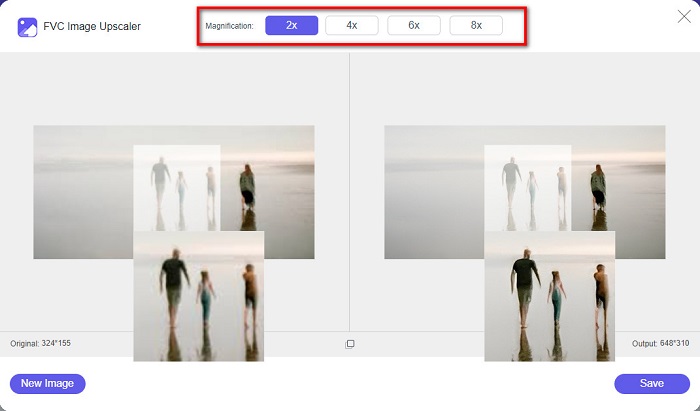
Pas 3. Tot seguit, tria el valor de magnification que vols per a la teva imatge. Pots seleccionar entre 2x, 4x, 6x i 8x d’augment. Després veuràs la previsualització del resultat.
Pas 4. Finalment, per desar la imatge resultant, fes clic al botó Save. L’aplicació desarà la imatge automàticament i ràpidament a les carpetes del teu ordinador.
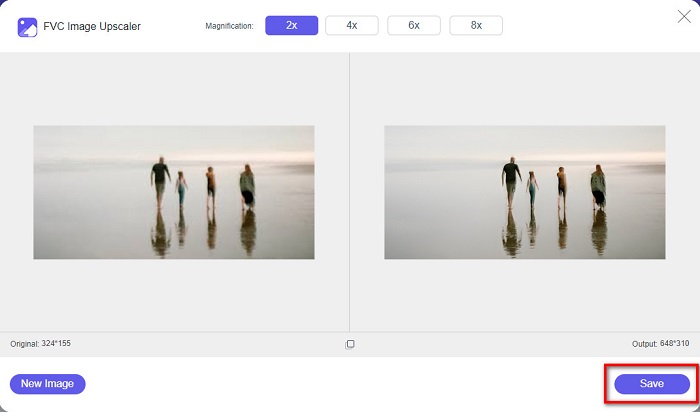
I ja està! Tan senzill com això, podeu millorar fàcilment la part borrosa de la vostra imatge i afegir-hi nitidesa.
Afina la imatge amb VanceAI
VanceAI és un enfocador d’imatges en línia que pots utilitzar si vols enfocar la teva imatge o donar-li més definició. Quan afegeixes nitidesa a la imatge, sens dubte es veurà millor. Per això, si vols enfocar la teva imatge ràpidament, VanceAI és l’eina indicada. A més, la pots utilitzar gratuïtament a gairebé tots els navegadors web, com Google i Safari. També millora automàticament les zones borroses de la teva imatge amb només uns quants clics. Gràcies a la seva interfície fàcil d’utilitzar, els principiants poden fer servir aquesta aplicació sense problemes. A més, és compatible amb els formats d’imatge més habituals, com JPG, JPEG i PNG. Tanmateix, quan enfoquis la teva imatge amb VanceAI, hi deixarà una marca d’aigua.
Com millorar la mida d'una imatge borrosa amb VanceAI:
Pas 1. Al navegador, cerca VanceAI i ves a la seva pàgina principal. A la interfície principal, fes clic al botó Upload Image per pujar la imatge que vols enfocar.
Pas 2. Després de pujar la imatge, fes clic al botó Start to Process a la cantonada inferior dreta de la interfície.
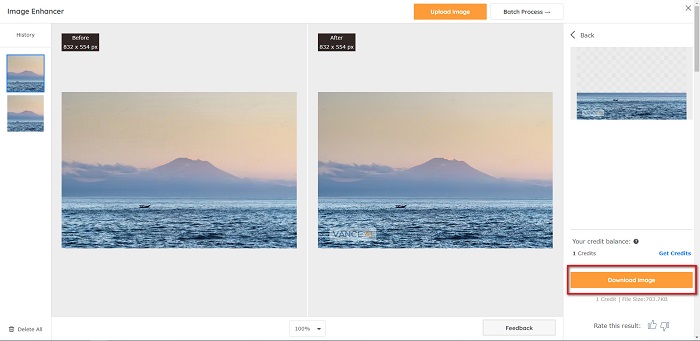
Pas 3. Finalment, veuràs la previsualització del resultat de la teva imatge. A continuació, fes clic al botó Download Image per descarregar la imatge enfocada.
Augmenta l'enfocament d'una imatge borrosa amb PineTools
PineTools és una altra aplicació en línia per enfocar imatges que pots utilitzar amb facilitat. Amb la seva interfície senzilla, els principiants també poden fer servir aquesta eina per millorar la qualitat de la imatge. Pots ajustar la força o nitidesa de la imatge amb el control lliscant. A més, pots seleccionar la mida de la màscara de convolució de la imatge entre 3x3 i 5x5. Un altre avantatge d’aquesta aplicació en línia és que hi pots accedir des de gairebé tots els navegadors web, inclosos Google i Safari. L’inconvenient de PineTools és que conté molts anuncis que poden distreure’t mentre enfoques la imatge. Tot i així, molts principiants fan servir aquesta eina perquè és molt pràctica.
Com millorar la mida d'una imatge borrosa amb PineTools
Pas 1. Primer, cerca PineTools al navegador i fes clic a la pàgina que porta al seu lloc web. Després, fes clic al botó Choose Files a la primera interfície per pujar la foto que vols enfocar.

Pas 2. Després, al panell Sharpen, mou la mini box fins a la força o nitidesa que prefereixis per a la teva imatge.
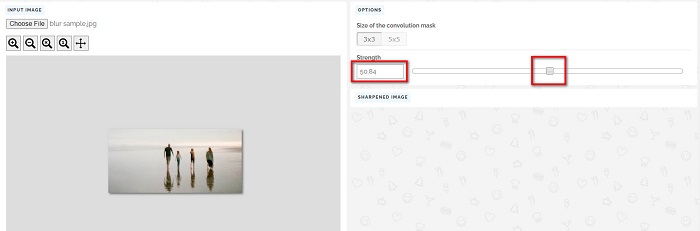
Pas 3. A continuació, fes clic al botó Sharpen que hi ha a la part inferior de la interfície per enfocar la imatge. Si vols desar el resultat, fes clic al format d’imatge que vulguis, i es desarà al teu dispositiu.
Part 2. Com millorar la nitidesa d'una imatge a Windows/Mac
Com enfocar una imatge al Photoshop
Adobe Photoshop és un programari d'edició d'imatges potent i àmpliament utilitzat que utilitzen nombroses persones a tot el món. És tant per a principiants com per a professionals, i conté nombroses funcions que permeten a les persones editar imatges de manera precisa i creativa. Des d'ajustos senzills fins a dissenys complexos, Photoshop us permet donar vida a les vostres idees. Els seus filtres d'enfocament ajuden a fer que les fotografies semblin més nítides modificant-ne el contrast i els detalls. Enfocar una foto a Photoshop és senzill i no danyarà l'original gràcies a les seves capes i filtres sofisticats, ideals per a imatges de xarxes socials, fotografia comercial i disseny gràfic.
Pas 1. Fes clic a Layers panel > Filter menu > Convert for Smart Filters.

Pas 2. Tria Sharpen > Unsharp Mask under Filter.
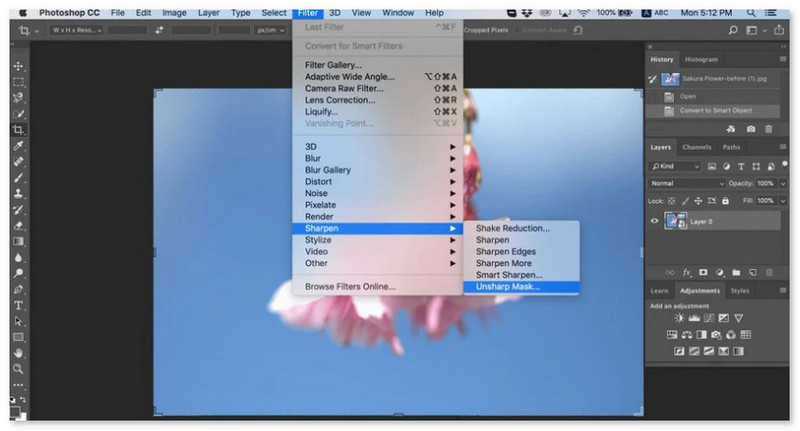
Pas 3. Ajusta els paràmetres i fes clic a OK.
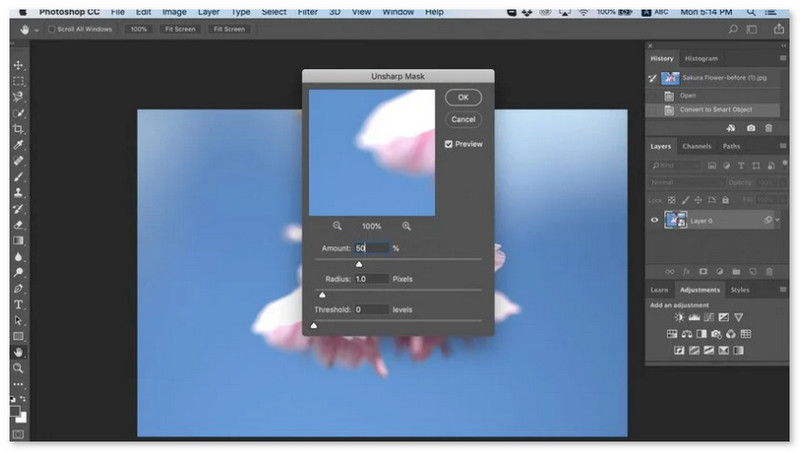
Com enfocar una imatge al GIMP
A diferència de l'aplicació de nitidesa d'imatges presentada anteriorment, GIMP és una eina fora de línia que podeu utilitzar si voleu millorar la vostra imatge o millorar-ne la qualitat. A més, molts professionals utilitzen aquesta eina per millorar les imatges i millorar-les. Moltes persones reconeixen aquesta eina com una alternativa a Adobe Photoshop. Admet gairebé tots els formats d'imatge, com ara PNG, JPG, JPEG, WebP i BMP. A més, té moltes funcions d'edició que podeu utilitzar, com ara el retoc de fotografies, el canvi de composicions i molt més. Però l'inconvenient d'aquesta aplicació és que té una interfície difícil d'utilitzar, cosa que dificulta l'ús per als principiants.
No obstant això, si sou un professional en moltes aplicacions d'edició de fotografies, segurament trobareu GIMP una eina fantàstica per millorar una imatge.
Com millorar una imatge a GIMP:
Pas 1. Descarrega l’enfocador d’imatges GIMP al teu dispositiu. A la interfície principal del programa, importa la teva imatge fent clic a File > Open.
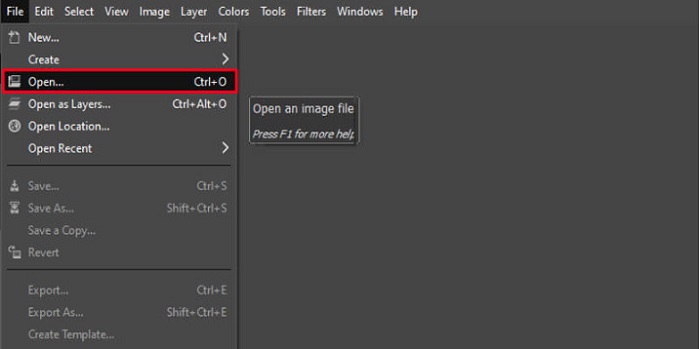
Pas 2. Després, crea una capa duplicada fent clic al botó Layer > Duplicate. També pots utilitzar les tecles de drecera per duplicar la capa. Prem Shift + Ctrl + D i la capa es duplicarà.
Pas 3. A continuació, reduirem el soroll anant a Filter > Enhance > Noise Reduction. Després, farem servir l’opció High Pass per aplicar la nitidesa que volem. Ves a Filters > Enhance > i selecciona l’opció High Pass.
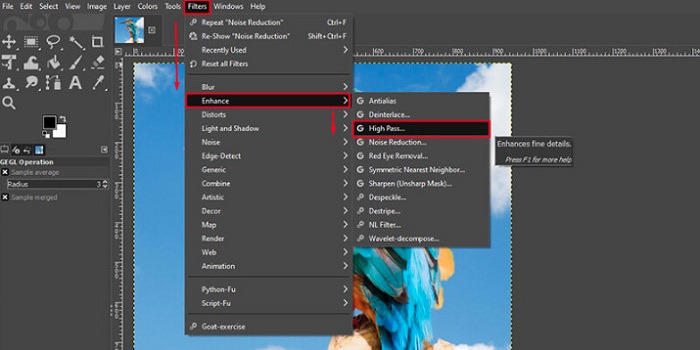
Pas 4. Tot seguit, farem servir l’opció Vivid Light per il·luminar la imatge i afegir-hi detalls. Ves a Option a la secció de mode i canvia de Normal a Vivid Light.
Pas 5. Torna a crear una capa duplicada per als tocs finals i ves a Filters > Enhance > Sharpen (Unsharp Mask). Després, pots ajustar el Radius, Amount i Threshold de la imatge. Finalment, prem Ctrl + S al teclat per desar el resultat.
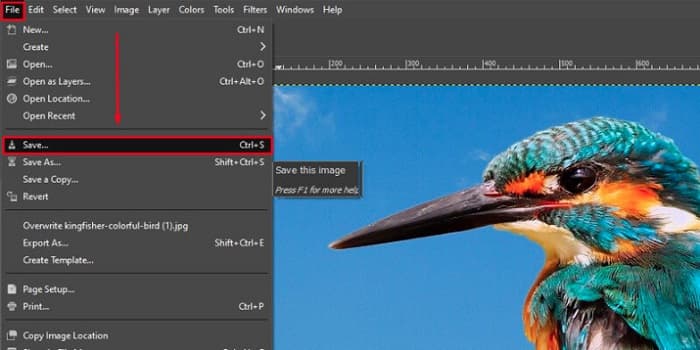
I això és tot! Si ets dels que busquen com enfocar imatges amb GIMP, aquesta és la guia que necessites. Només has de seguir aquests passos per millorar la qualitat de la teva imatge amb GIMP.
Part 3. Com millorar la nitidesa de la imatge a l'iPhone/Android
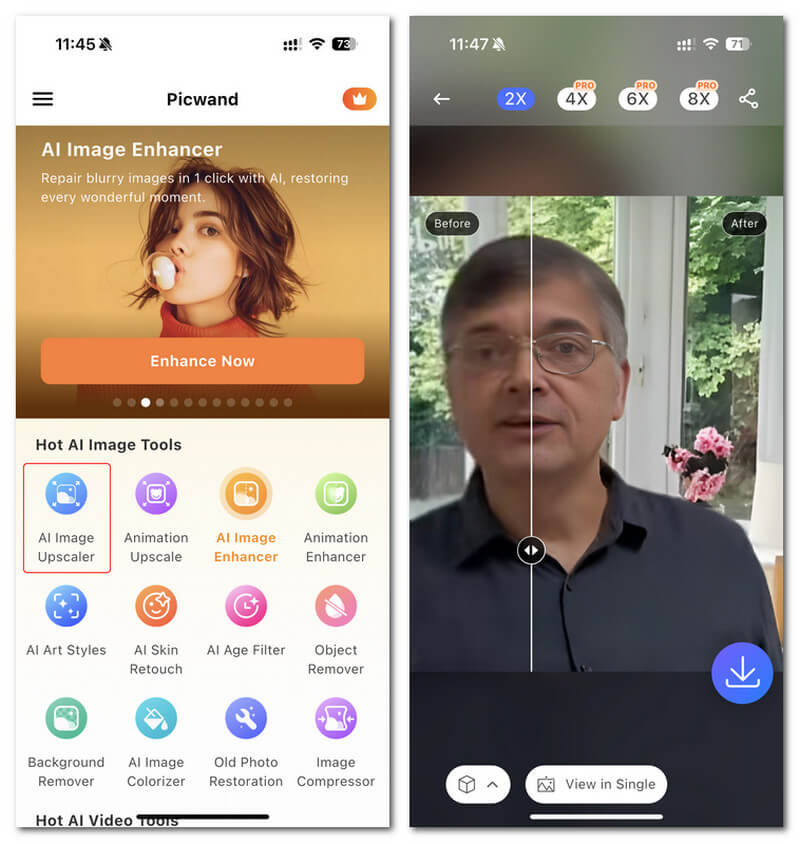
Picwand AI Photo Editor és un potent editor que t'ajuda a editar les teves imatges amb IA. Pots editar directament al lloc web de Picwand o descarregar-lo al teu iPhone o dispositius Android. Hi ha nombroses funcions intel·ligents com ara ampliar imatges, retallar fons, extreure objectes i aclarir imatges, tot gràcies a la IA avançada. Corregeix imatges borroses, retoca imatges antigues o elimina elements no desitjats amb Picwand i fes-ho de manera ràpida i precisa. La seva interfície senzilla el fa adequat per a qualsevol persona, independentment de la seva experiència.
Pas 1. Obre l’aplicació i tria AI Image Upscaler.
Pas 2. Puja una imatge i selecciona el factor d’augment desitjat.
Pas 3. Toca la icona de descàrrega per exportar-la.
Part 4. Preguntes freqüents sobre com millorar la visió borrosa
Hi ha una aplicació per arreglar imatges pixelades?
Sí. Pots utilitzar un ampliador d’imatges per ajustar els píxels de la teva imatge. Una de les millors eines per arreglar fotos pixelades és PIXLR. També és una bona opció per desfer el desenfocament de la imatge.
GIMP és gratuït?
GIMP és una aplicació d'edició d'imatges disponible a Windows, Mac i Linux. És una aplicació d'ús gratuït, en la qual podeu canviar el seu codi font. Tanmateix, heu de comprar l'aplicació per accedir a les seves altres funcions d'edició.
Puc millorar una imatge amb Canva?
Afortunadament, Canva té una funció on podeu afegir nitidesa a la vostra imatge. Per tant, Canva pot ser una eina adequada per a vosaltres si teniu una imatge borrosa.
Conclusió
Confiem haver respost els teus dubtes sobre com enfocar imatges. Hi ha 7 maneres de fer-ho bé i ràpid, com ara amb Video Converter Ultimate, PhotoShop, VanceAI i d’altres. A més, si busques una eina totalment gratuïta, pots fixar-te en FVC Free Image Upscaler. És una eina en línia 100% gratuïta.
-
 Els 4 principals reductors de qualitat d'imatge que podeu utilitzar en línia i fora de línia
 Aquests reductors de qualitat d'imatge us poden ajudar a reduir la qualitat de la vostra imatge per alguns motius. Si en necessiteu un, llegiu aquest article!
-
 Maneres oficials d'augmentar la imatge a 4k amb un tutorial pràctic
 Per augmentar la imatge a 4k, necessitareu un programari al vostre dispositiu. Si no en teniu cap, haureu de seleccionar l'eina que incloem aquí.
-
 Com editar la claredat de la foto amb aplicacions gratuïtes i de pagament
 Com editar la claredat de la foto? Aquesta pregunta es respondrà a mesura que llegiu aquest article i afegirem consells que haureu de conèixer!
