


 Video Converter Ultimate
 Gravadora de pantalla
 Reparació de vídeo
Les maneres més convenients de convertir MP3 a M4R per a dispositius Apple
T’has plantejat mai convertir la teva música preferida en to de trucada al teu iPhone? Seria possible? I tant que sí. Només cal convertir el fitxer per poder-ho fer. Per què l’hem de convertir primer? Perquè el puguem configurar com a to de trucada? Principalment perquè, per establir un fitxer concret com a to de trucada, ha d’estar en format M4R. Així doncs, has de trobar el millor convertidor d’MP3 a M4R per a iTunes que s’adapti a tu. Aquest article ofereix diferents mètodes perquè puguis convertir el teu fitxer MP3, i fins i tot fer una conversió per lots d’MP3 a M4R, llegint el contingut que trobaràs a continuació.

Part 1. La manera més viable de convertir MP3 a M4R
Video Converter Ultimate és, amb diferència, l'eina més convincent que podeu utilitzar per convertir MP3 a M4R. No només un fitxer únic, sinó que també pot fer una conversió per lots de MP3 a MP4. És un convertidor que pot produir vídeos HD i àudio sense pèrdues. De fet, és ideal i recomanable per convertir el fitxer sense perdre la seva qualitat original. La velocitat és 30 vegades més ràpida que el convertidor normal que hi ha. A més, si esteu convertint una llista de reproducció per desar-la al vostre telèfon, definitivament aquesta eina pot fer la feina per vosaltres. Sense esforç i sense suar. Mentrestant, aquí teniu algunes de les altres funcions que també podeu gaudir, a part de convertir àudio. A més, a continuació es va escriure una guia pas a pas per a la vostra referència si decidiu utilitzar-la.
◆ Edita les metadades.
◆ Acceleració de GPU d'alta velocitat.
◆ Suport tècnic en temps real.
◆ S'admet la compressió de vídeo.
Pas 1. Per utilitzar-lo, descarrega l’aplicació fent clic al botó de descàrrega de més avall. Un cop l’app s’hagi descarregat al teu Windows o Mac, obre-la.
Descàrrega gratuïtaPer a Windows 7 o posteriorDescàrrega segura
Descàrrega gratuïtaPer a macOS 10.7 o posteriorDescàrrega segura
Pas 2. A la interfície principal de l’eina, veuràs dues opcions per pujar el fitxer. Pots fer clic a la icona del Signe més al centre o bé al botó Add Files de la part superior esquerra. Tria el fitxer desitjat i puja’l.
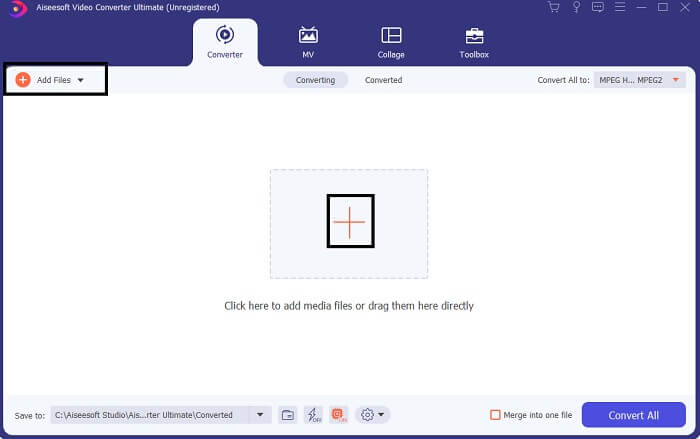
Pas 3. Per obtenir el resultat que vols, canvia el format fent clic al menú desplegable situat a la part superior dreta de la interfície.
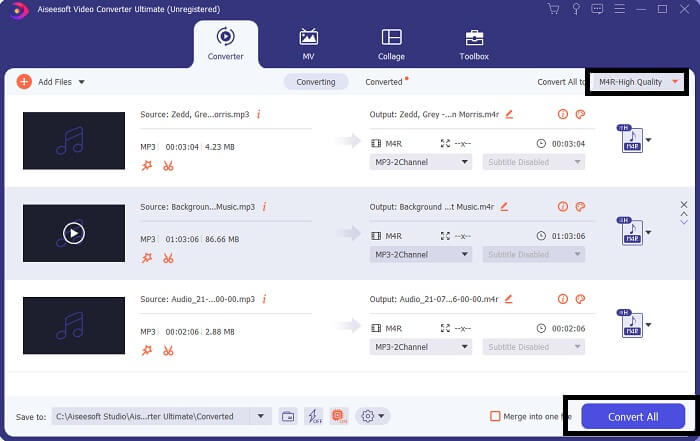
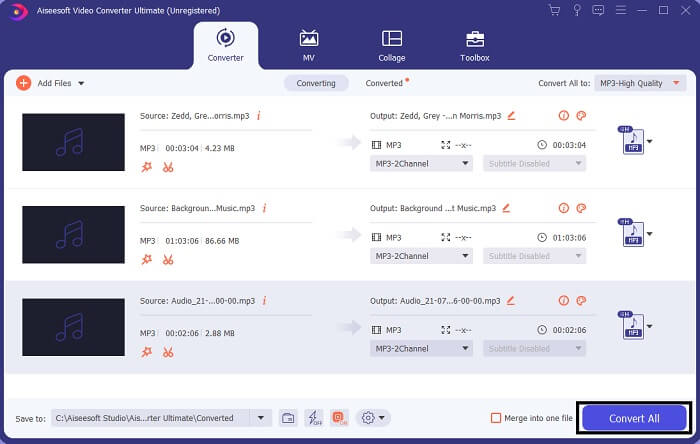
Pas 4. Finalment, fes clic al botó Convert All a l’extrem inferior dret de la interfície principal. Després espera que el fitxer es converteixi.
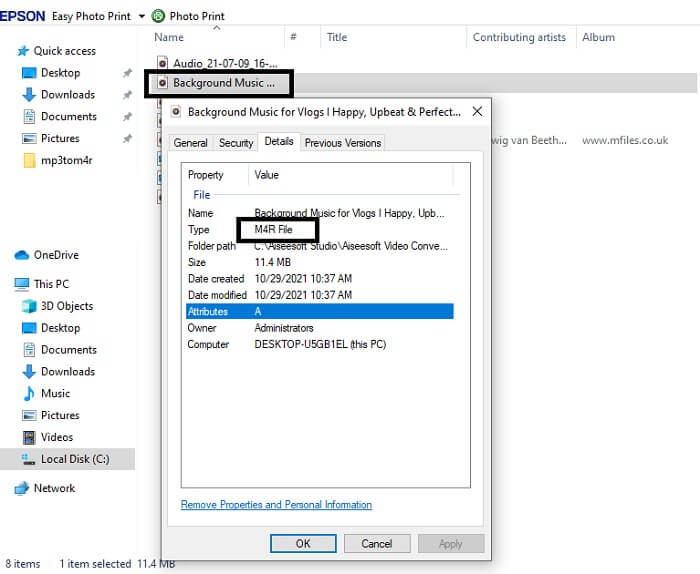
Pas 5. Per acabar, obre la carpeta on s’ha desat l’àudio de sortida i transfereix-lo al teu iPhone. Pots utilitzar una eina o una app de transferència per fer-ho. Pots trobar recomanacions a internet: només cal que hi facis una cerca i segueixis el procés per configurar-lo com a to de trucada del teu iPhone.
Part 2. Algunes de les millors eines per convertir MP3 a M4R en línia
Convertidor d'àudio en línia gratuït FVC
Una eina de pagament per convertir és bona, però res no supera una eina pràctica. Tenint en compte les teves necessitats, FVC ha creat una versió gratuïta de l’eina. FVC Free Audio Converter és la teva eina d’accés gratuït en qualsevol moment i lloc. Només necessites una connexió a internet que funcioni i un navegador compatible. Aquest convertidor d’MP3 a M4R per a tons de trucada d’iPhone pot produir àudio d’alta qualitat i sense pèrdua. El resultat és satisfactori i sense haver de gastar-hi diners. I encara hi ha més: sabies que també pot fer conversions per lots? Sí, així és! A continuació trobaràs algunes funcions destacables que també obtindràs si l’utilitzes. D’altra banda, també s’hi inclou una guia per a la teva comoditat.
◆ El fitxer convertit té una qualitat similar a l'original.
◆ 100% gratuït i segur d'utilitzar.
◆ Sense límit de mida a la conversió.
◆ S'admet la conversió per lots.
Pas 1. Per accedir a l’eina, visita el lloc web oficial de l'FVC Free Audio Converter.
Pas 2. Un cop allà, fes clic a Add Files to Convert. Si és la primera vegada que l’utilitzes, has de permetre l’accés fent clic a Open FVC Launcher. A continuació apareixerà una finestra a la pantalla que et permetrà localitzar el fitxer que vols convertir.
Baixa la versió d’escriptori per convertir fitxers per lots.
Pas 3. Després de pujar el fitxer, es mostrarà una altra finestra emergent. A la part inferior, canvia el format del fitxer de sortida marcant M4R.
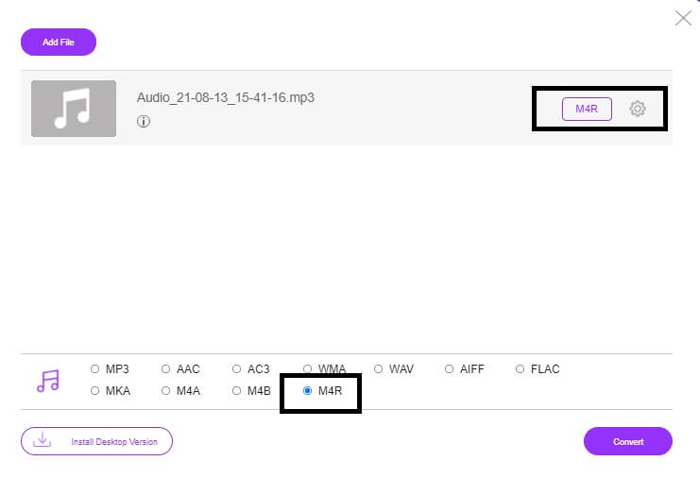
Pas 4. Després fes clic al botó Convert per iniciar la conversió.
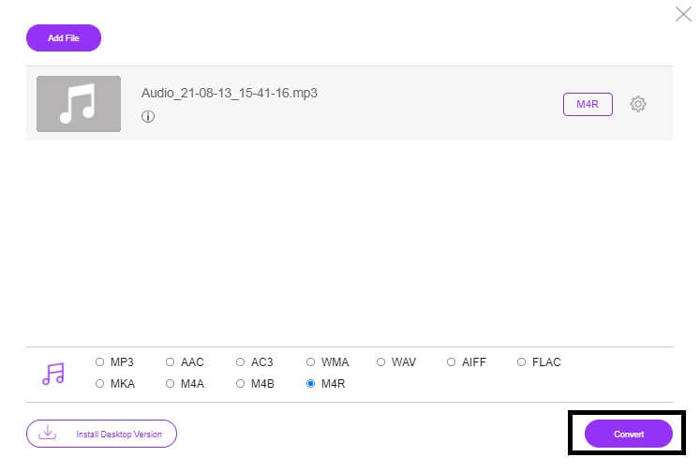
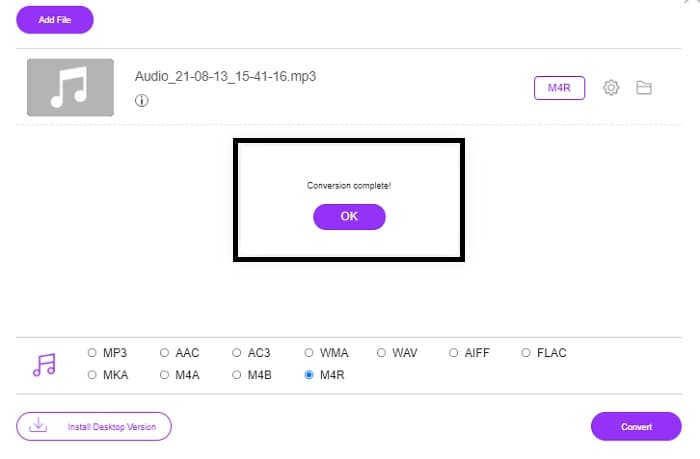
Pas 5. Finalment, selecciona una carpeta on desar el fitxer, i aquest s’hi guardarà automàticament. Després transfereix-lo al teu iPhone. Tingues en compte que pots fer conversions en lot, així que no et limitis.
Relacionat:
M4ROnline per File Converter
Senzilla però fiable: així és com els usuaris descriuen aquesta eina en línia. Per defecte, està pensada específicament per convertir d’MP3 a M4R. Com el nom ja indica, per a això es va crear aquesta eina. Funciona en diferents navegadors web, de manera que no cal descarregar-la ni comprar-la. Si visites el lloc web, veuràs la simplicitat de la seva interfície. És molt directa: només has de fer clic al botó Browse per començar el procés de pujada i conversió. Si la vols provar, es recomana visitar el lloc web oficial i fer-ne l’experiència. Per això aquesta eina és una bona alternativa. També pots consultar els passos següents per conèixer el procés d’ús de l’eina.
Pas 1. El primer que has de fer és anar a la pàgina oficial de M4R Online i després fer clic a Browse.
Pas 2. Tria el fitxer des de la teva carpeta i fes clic al botó Upload File.
Pas 3. Quan vegis el missatge de finalització, fes clic al fitxer per descarregar-lo.
Online-convert.com
Aquesta és una eina que fa temps que dona servei. Es pot dir que molta gent ha trobat aquesta eina en línia molt útil per a les seves necessitats de conversió. En cas contrari, no hauria continuat existint fins avui si no s’hagués demostrat que és pràctica. En visitar la pàgina inicial del lloc, veuràs totes les eines disponibles. Convertidor d’àudio, convertidor de vídeo, convertidor d’imatges, convertidor de documents, convertidor d’ebooks: tot plegat a la pàgina principal. Tenir-les compilades facilita a l’usuari trobar les eines que necessita. Per això mereix ser afegida a aquesta llista de convertidors d’MP3 a M4R per a iTunes. A continuació tens el procediment per utilitzar l’eina com a referència.
Pas 1. Visita el lloc oficial de l’eina i tria Audio Converter.
Pas 2. Fes clic al desplegable Drop down i tria el format de sortida, després fes clic a GO.
Pas 3. A continuació apareixerà una finestra nova. Allà fes clic al botó Choose Files i puja el fitxer. Per iniciar el procés de conversió, fes clic a Start Conversion. Un cop el fitxer estigui llest, es descarregarà automàticament al teu ordinador.
MP3 contra M4R
El format MP3 va ser llançat l'any 1993 pel Moving Picture Experts Group (MPEG). Era l'estàndard per emmagatzemar música, ja que podia comprimir l'àudio a una mida molt més petita que altres formats sense comprimir. Encara s'utilitza àmpliament avui dia, especialment per distribuir àudio en línia.
S'utilitza un fitxer M4R per desar un to de trucada d'iPhone personalitzat creat amb Apple iTunes. Normalment, podeu veure aquest format quan transferiu un to de trucada de l'ordinador a un dispositiu iOS. Els fitxers M4R creats amb iTunes solen incloure protecció de drets d'autor.
Part 3. Preguntes freqüents sobre la conversió de MP3 a M4R
Què és M4R?
És una extensió de fitxer creada específicament per Apple i utilitzada estrictament com a to de trucada per a iPhone i altres dispositius Apple. Això és tan bo com M4A i MP4 quan es tracta de qualitat.
Hi ha un convertidor de MP3 a M4R a part d'iTunes?
Definitivament, n'hi ha. Podeu triar entre les eines anteriors o considerar l'ús de Windows Media Player mitjançant l'extracció. Si no voleu passar per tots els processos, només podeu utilitzar les eines gratuïtes disponibles en línia. Converteixen directament l'àudio al format desitjat en lloc de passar pel llarg procés d'extracció.
Per què he de convertir el meu fitxer de MP3 a M4R per utilitzar-lo com a to de trucada?
És imprescindible. Perquè es consideri un fitxer com a to de trucada, el fitxer ha de tenir per defecte el format M4R per reproduir-lo com a to de trucada.
Conclusió
Amb tot això, segur que podeu confiar en les eines esmentades anteriorment. Només has d'accedir a quina eina et pot ser útil en funció de les teves necessitats. Si sou un estudiant i ciutadà habitual que vol convertir i voleu convertir MP3 a M4R a Mac de forma gratuïta o qualsevol dispositiu que utilitzeu, podeu consultar les eines gratuïtes. Per a ús professional, es recomana utilitzar Video Converter Ultimate. Sempre podeu tornar a aquesta pàgina si voleu saber més sobre més eines per convertir.
-
 [Gratis i en línia] 3 mètodes per convertir MP3 a MP4 amb imatge
 Com convertir MP3 a MP4 en alta qualitat? Aquesta publicació mostra 3 mètodes gratuïts i eficients per canviar MP3 a MP4 amb imatges al Windows i al Mac.
-
 Obteniu informació sobre com convertir MP3 a un format WAV
 Vols saber com convertir MP3 a WAV? Determineu quina de les eines produeix la conversió de millor qualitat que podeu obtenir.
-
 Directrius sobre com convertir M4A a WAV [PC i Mac]
 Obteniu més informació sobre com convertir M4A a WAV amb passos detallats i diferents eines que podeu triar.

