


 Video Converter Ultimate
 Gravadora de pantalla
 Reparació de vídeo
 Baixada segura
Converteix el teu PPT a MP4 amb 3 mètodes efectius
El PPT és una gran eina a l'hora de presentar presentacions, ja sigui a l'escola, a la feina, etc. De vegades, després d'una presentació, alguns poden demanar una còpia del material PPT per a la seva referència.
Tanmateix, és important reconèixer que algunes persones no poden accedir al fitxer perquè no tenen l'aplicació o l'eina de programari instal·lada als seus dispositius. Amb això, la majoria dels presentadors tenen una versió MP4 convertida de la presentació per compartir fàcilment el material per a tothom.
Per tant, si busques una manera de convertir el teu PPT a MP4 per compartir ràpidament i facilitar l’accés al contingut del fitxer, ets a la pàgina adequada. Per això, continua llegint aquest article i endinsa’t en l’aprenentatge dels 3 mètodes diferents que tens per transformar el teu fitxer PPT en un vídeo.

Part 1: Com convertir PowerPoint a MP4 dins de PPT
Mitjançant la presentació de PowerPoint, els usuaris poden convertir fàcilment els seus PPT a MP4. És una gran característica integrada per a la comoditat i la flexibilitat.
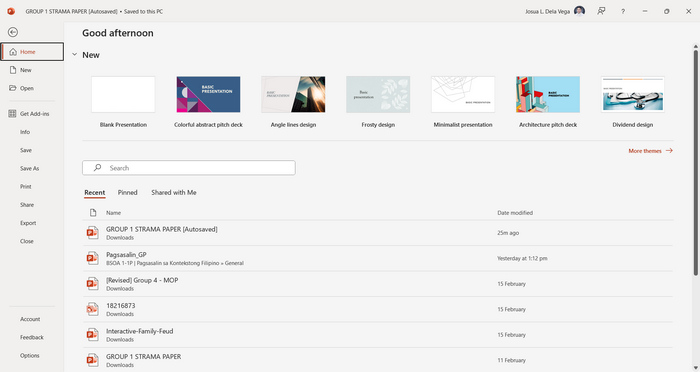
Pas 1. Obre la teva presentació amb el programa de presentacions PowerPoint del teu dispositiu.
Pas 2. Ves a la pestanya Fitxer, busca el botó Exporta i fes-hi clic.
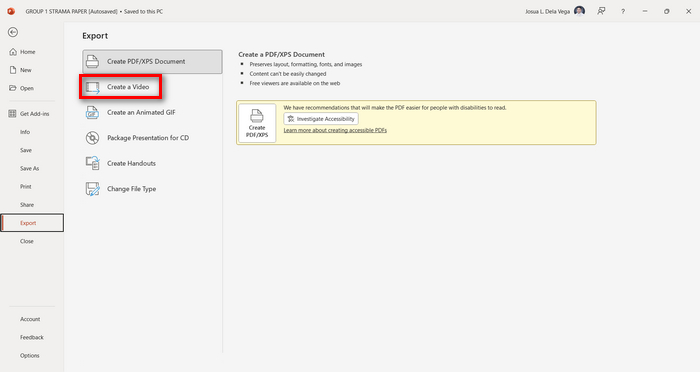
Pas 3. Un cop siguis a la pestanya Exporta, fes clic a l’opció Crea un vídeo.
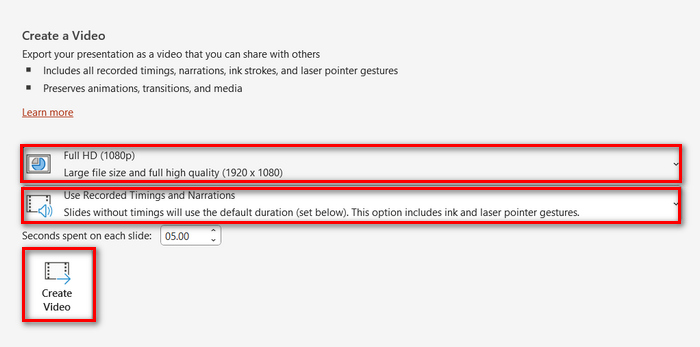
Pas 4. Ara, defineix la resolució de vídeo que prefereixis. Pots triar entre 480p i 4K. A més, a l’opció Utilitza temporitzacions i narracions gravades, pots establir manualment la durada de les diapositives. Després, fes clic al botó Crea el vídeo.
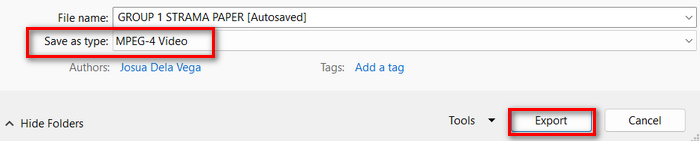
Pas 5. Després de fer clic al botó Crea un vídeo, s’obrirà una nova finestra on podràs comprovar el format del fitxer de sortida i la carpeta on el vols desar. Quan ho tinguis configurat, simplement fes clic al botó Exporta i espera que finalitzi el procés.
Realment és molt pràctic convertir PowerPoint a MP4 utilitzant la seva funció integrada. Tanmateix, li manca personalització si vols afegir-hi música de fons. Tot i això, si el teu únic objectiu és compartir la presentació, això no suposarà cap problema per a tu.
Part 2: Converteix PPT a MP4 amb àudio en línia gratuït
Si teniu el fitxer PPT i el voleu convertir en línia perquè no teniu cap eina o aplicació de programari de presentació de PowerPoint al vostre dispositiu, podeu utilitzar MagicSlides. Aquesta eina de conversió en línia us permet convertir fàcilment PowerPoint a MP4 simplement important el fitxer al seu sistema.
Pas 1. Puja el fitxer PPT que vols convertir a MP4 fent clic al botó Puja el teu fitxer d’origen.
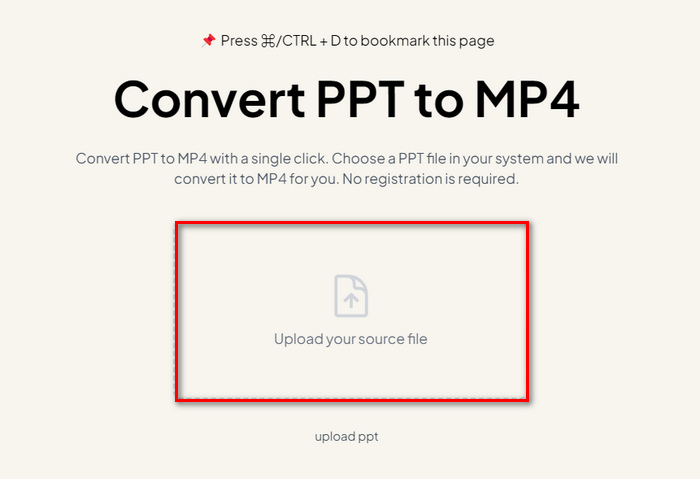
Pas 2. Un cop el fitxer s’hagi importat, fes clic al botó Create MP4 per començar el procés de conversió.
Pas 3. Quan hagi acabat, primer pots previsualitzar el fitxer PPT convertit i, quan estiguis satisfet amb el resultat, simplement fes clic al botó Download per desar-lo directament al teu dispositiu.
Tot i que aquesta eina ofereix passos molt senzills per convertir PPT a MP4, la importació de fitxers PPT requereix molt de temps, cosa que pot ser inquietant, sobretot quan tens pressa. A més, no té cap opció de personalització. Literalment, va transformar fitxers PPT en un vídeo.
Part 3: Com convertir PPT a MP4 amb efectes i àudio
Si vols convertir el teu PPT a MP4, però aquesta vegada amb efectes i àudio, aquesta opció és ideal per a tu. Amb FVC Screen Recorder, pots convertir la teva presentació de PowerPoint en un fitxer MP4 creatiu i interactiu gràcies a les seves funcions d’edició. A més, no t’has de preocupar per la qualitat del resultat, ja que admet resolució de vídeo de fins a 4K. Per utilitzar-lo, segueix la guia següent:
Pas 1. Primer, descarrega el programa i instal·la’l a l’ordinador.
Descàrrega gratuïtaPer a Windows 7 o posteriorDescàrrega segura
Descàrrega gratuïtaPer a MacOS 10.7 o posteriorDescàrrega segura
Pas 2. Obre la teva presentació de PowerPoint i assegura’t que estigui en mode de pantalla completa.
Pas 3. Ara, a l’eina de gravació de pantalla, tria la funció Video Recorder i selecciona l’àrea de gravació com a Full.
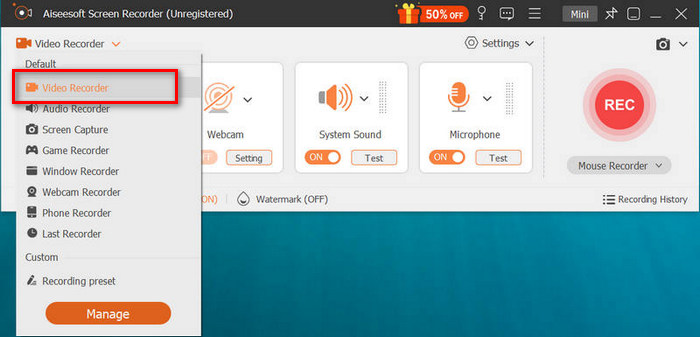
Pas 4. Després, comença a reproduir la presentació de diapositives de PowerPoint. Igualment, fes clic al botó REC per iniciar la gravació del PowerPoint.
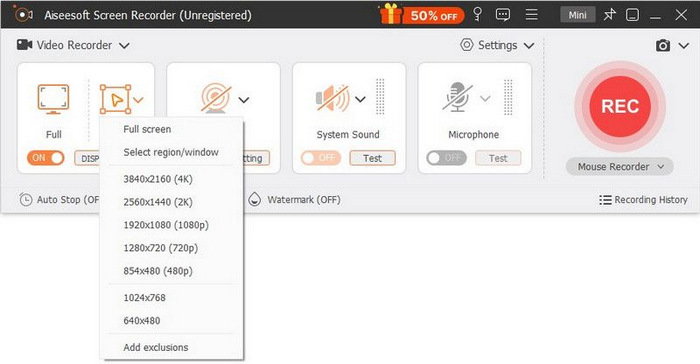
Pas 5. Quan acabis, simplement fes clic al botó Stop, i aniràs a la interfície de previsualització. Des d’allà, a la cantonada inferior trobaràs les funcions d’edició que pots utilitzar per editar l’àudio i els efectes en convertir el teu PPT a MP4.

Pas 6. Finalment, pots accedir al teu fitxer fent clic al botó Open Folder.
El millor d'utilitzar FVC Screen Recorder per convertir PowerPoint en MP4 és que podeu controlar el temps i el ritme de les diapositives. A més, a diferència d'altres eines que només ofereixen una conversió bàsica, aquesta eina té funcions d'edició que es poden utilitzar per millorar encara més el fitxer MP4 convertit.
Part 4: Preguntes freqüents sobre la conversió de PPT a MP4
Quant de temps triga a convertir PPT a MP4?
El temps del procés de conversió depèn de la mida del fitxer que s'està convertint. Però normalment, les presentacions senzilles no triguen gaire temps durant la conversió.
Puc conservar les animacions i les transicions en convertir PPT a MP4 en PPT?
Sí. La funció integrada permet als usuaris retenir animacions i transicions durant el procés de conversió. Això és per garantir que els elements visuals de la presentació, com ara transicions i animacions, es mantenen mentre es converteixen al format MP4. Tanmateix, és important tenir en compte que la compatibilitat d'animacions i transicions pot variar segons la versió de PowerPoint utilitzada i la complexitat dels efectes aplicats.
Es mantindrà la qualitat de la meva presentació de PowerPoint en convertir-la a MP4?
Sí. La presentació de PowerPoint admet una resolució de vídeo de fins a 4K. Per tant, escollir una resolució més alta ajudarà a mantenir la qualitat de la presentació. A més, quan trieu convertir el vostre PPT a MP4 mitjançant alguna eina de conversió avançada que ofereix opcions per ajustar la configuració de la taxa de bits i la compressió per optimitzar encara més la qualitat del vídeo, podeu garantir una sortida de qualitat.
Conclusió
Convertir el format de PPT a MP4 realment ofereix comoditat i un fàcil accés per compartir el fitxer a través de diverses plataformes i dispositius. Ara que ja saps com convertir-los, és el moment de posar aquest coneixement en pràctica. Comença a convertir avui mateix i amplia l’abast i l’impacte de les teves presentacions!
-
 Com canviar la mida d'una imatge a PowerPoint [la manera més ràpida de canviar la mida]
 Aprendre a canviar la mida de les imatges a PowerPoint és essencial, sobretot si voleu utilitzar-lo a la vostra presentació. Llegeix aquest article per saber com fer-ho.
-
 Revisió d'Apowersoft Watermark Remover: característiques, avantatges i contres i preu
 Apowersoft Watermark Remover és una de les millors eliminacions de filigranes que admet en línia i fora de línia, feu clic aquí per saber-ne més!
-
 Com arreglar el vídeo que no es reprodueix a PowerPoint | Guia ràpida
 No es reprodueix el vostre vídeo de PowerPoint? Supereu la frustració dels vídeos incrustats que no es reprodueixen ara amb les nostres cinc millors solucions per resoldre'ls sense esforç.
