


 Video Converter Ultimate
 Gravadora de pantalla
 Reparació de vídeo
 Baixada segura
3 mètodes eficients per convertir MP4 a AMV al vostre Windows i Mac amb facilitat
Si voleu enviar alguns vídeos MP4 grans al vostre telèfon intel·ligent, com ara una pel·lícula gran, és possible que no hi hagi prou espai d'emmagatzematge. Per convertir MP4 a fitxer AMV, podeu utilitzar l'algorisme de compressió avançat per obtenir un vídeo molt més petit. Tant si necessiteu convertir els vídeos en línia, com si voleu modificar i editar els vídeos amb una mida determinada, podeu obtenir més informació sobre els 3 convertidors de MP4 a AMV més eficients de l'article.

Part 1: Com convertir MP4 a AMV en línia
Si només necessites convertir un simple MP4 a AMV amb facilitat, FVC Free Online Video Converter és un versàtil convertidor de vídeo en línia, compatible amb MP4, AMV, AVI i molts altres fitxers. També et permet ajustar la configuració de vídeo i àudio, i fins i tot convertir els fitxers sense marca d’aigua ni altres restriccions.
- 1. Converteix MP4 a AMV, AVI, MKV i més altres vídeos amb qualitat original.
- 2. Ajusteu la freqüència de fotogrames, la qualitat de vídeo, el còdec de vídeo, la qualitat d'àudio i molt més.
- 3. Proporcioneu una interfície d'usuari senzilla per convertir els fitxers AMV només en 3 passos.
- 4. És un mètode segur i estable per convertir els fitxers sense filigrana.
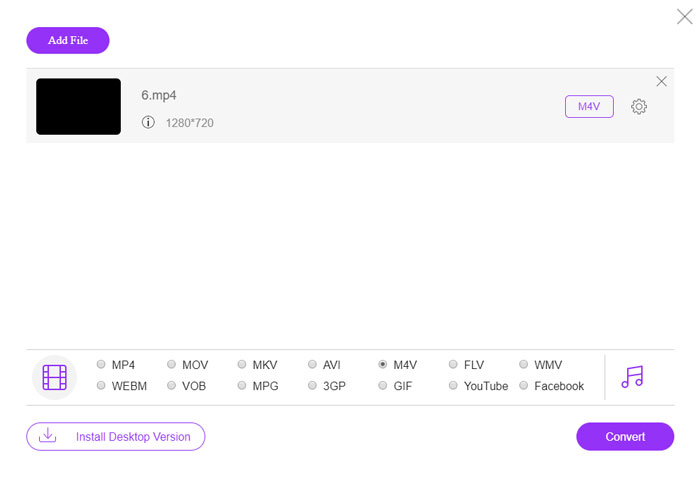
Pas 1. Ves al convertidor en línia de MP4 a AMV en qualsevol navegador i fes clic al botó Add File to Convert per instal·lar el convertidor de vídeo per primera vegada. També pots carregar els fitxers MP4 al programa.

Pas 2. Tria AMV com a format de sortida a la part inferior. Per descomptat, també pots ajustar la configuració de vídeo i àudio, com ara el còdec de vídeo, la resolució de vídeo, la taxa de bits de vídeo, la velocitat de fotogrames i més per obtenir el vídeo desitjat.

Pas 3. Després, pots fer clic al botó Convert per començar a convertir MP4 a AMV. Trigarà uns quants segons a obtenir el fitxer desitjat i, a continuació, podràs transferir el vídeo al teu telèfon intel·ligent.
Part 2: Com convertir MP4 a AMV amb VLC Media Player
VLC Media Player és un dels convertidors més populars de MP4 a AMV. També proporciona algunes funcions bàsiques d’edició i conversió de vídeo. A més, també podeu previsualitzar el vídeo AMV de sortida després de la conversió. Consulteu el procés detallat a continuació.
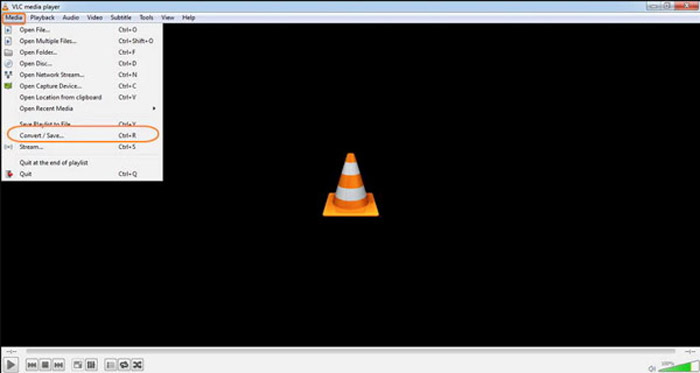
Pas 1. Obre VLC Media Player a l’ordinador, ves al menú Media i tria l’opció Convert/Save. Fes clic a l’opció Add a la dreta de la llista File Selection a la pestanya File i cerca els fitxers MP4.
Pas 2. Fes clic al botó Convert/Save per continuar. A la finestra Convert, pots seleccionar AMV com a format de sortida. Fes clic al botó Edit Selected Profile per ajustar la configuració de vídeo i àudio.
Pas 3. Fes clic a l’opció Browse i tria una ubicació i un nom de fitxer per al fitxer de sortida. Després, pots fer clic al botó Start per convertir els fitxers MP4 a AMV a l’ordinador.
Part 3: el millor mètode per convertir MP4 a AMV amb facilitat
FVC Video Converter Ultimate és un convertidor tot en un de MP4 a AMV tant per a Windows com per a Mac. No només converteix els formats de vídeo, sinó que també et permet ajustar diferents paràmetres de vídeo i àudio, afegir subtítols/pistes d’àudio i fins i tot editar fàcilment els fitxers de vídeo convertits.
- 1. Converteix MP4 a AMV i altres formats de vídeo amb qualitat original.
- 2. Ajusteu la velocitat de fotogrames, la qualitat del vídeo, la velocitat de bits, el còdec de vídeo i molt més.
- 3. Proporcioneu diverses funcions d'edició de vídeo per girar, retallar, ajustar filtres, etc.
- 4. Acceleració de maquinari avançada per convertir el vídeo amb una velocitat 70 vegades més ràpida.
Descàrrega gratuïtaPer a Windows 7 o posteriorDescàrrega segura
Descàrrega gratuïtaPer a macOS 10.7 o posteriorDescàrrega segura
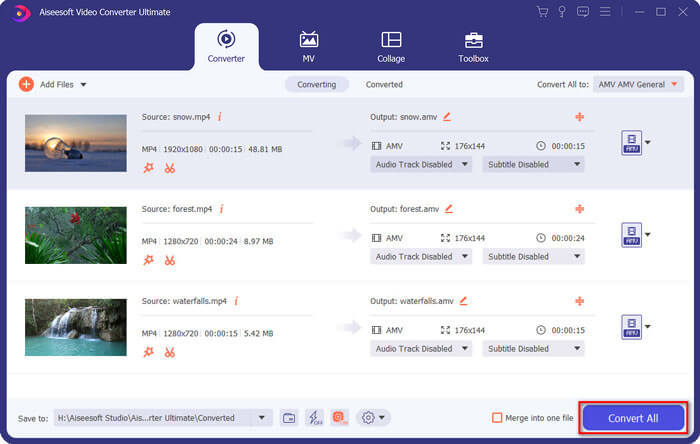
Pas 1. Descarrega i instal·la el convertidor de MP4 a AMV i engega el programa a l’ordinador. Tria el botó Convert i fes clic a l’opció Add File per carregar els fitxers MP4, o arrossega directament diversos fitxers MP4 a aquest programa.

Pas 2. Fes clic a la icona de format al costat dret del fitxer de vídeo i tria AMV com a format de sortida. També pots fer clic a la icona de l'Gear per ajustar la configuració de vídeo i àudio, o fins i tot editar el vídeo/ajustar filtres amb facilitat.

Pas 3. Quan estiguis satisfet amb l’AMV de sortida, com ara la mida del vídeo, pots fer clic al botó Convert All per iniciar la conversió de MP4 a AMV. Després, podràs transferir els fitxers AMV a un altre dispositiu.
Part 4: Preguntes més freqüents sobre la conversió de fitxers MP4 a AMV
1. Què és el format de fitxer AMV?
El fitxer AMV es coneix com el fitxer Anime Music Video. Normalment és un dispositiu portàtil de reproducció multimèdia procedent de i a la Xina. El format de vídeo AMV es presenta per a baixa resolució, que té una resolució de vídeo entre 94x64 i 160x120. Quan convertiu MP4 a AMV, podeu enviar més vídeos al vostre telèfon intel·ligent amb facilitat.
2. Com es reprodueixen fitxers AMV a l'ordinador i al telèfon intel·ligent?
Quan es converteixen fitxers MP4 a AMV, com es reprodueixen els fitxers de vídeo al telèfon intel·ligent o a l’ordinador? De fet, simplement podeu prendre AMV com una variant del format AVI, que és viable a la majoria dels reproductors multimèdia. Si heu de reproduir els fitxers AMV als vostres dispositius iOS, podeu utilitzar VLC Media Player o un altre reproductor multimèdia.
3. Quines diferències hi ha entre AMV i MP4?
MP4 és un dels formats de vídeo més utilitzats que es poden utilitzar per al servei i el dispositiu de transmissió en línia. AMV és una variant de Motion JPEG, amb taules de quantificació fixes en lloc de variables. En convertir MP4 a AMV, podeu comprimir el vídeo i estalviar més espai d’emmagatzematge, especialment per transferir els vídeos a dispositius.
Conclusió
Quina és la millor opció per convertir MP4 a AMV? Només cal obtenir més detalls sobre els millors mètodes a l'article. Si necessiteu convertir i comprimir els vídeos en línia sense programari addicional, FVC Free Online Video Converter és la solució definitiva que podeu tenir en compte.
-
 AVI VS MP4: millor (qualitat / compressió / mida de fitxer ...)
 Quin és un millor format de vídeo, AVI o MP4? Si voleu obtenir una comparació detallada, podeu consultar aquest article AVI VS MP4. Podeu conèixer les diferències i similituds entre AVI i MP4 en molts aspectes.
-
 Top 10 de programari de reproductor MP4 per a Windows i Mac (gratuït i de pagament)
 Llegiu i obteniu el vostre millor reproductor MP4 a partir de les recomanacions del darrer 10 programari de reproductor de vídeo MP4. Podeu reproduir fitxers de vídeo MP4 a Windows i Mac sense problemes.
-
 Com convertir MP4 a WMV per a Mac / Windows
 Aquesta publicació explica com es converteix el vídeo MP4 a format WMV a Mac o Windows. També us oferirem diverses opcions, inclosos programes d'escriptori i convertidors en línia basats en web. A punt per conèixer les millors eines de conversió de MP4 a WMV?
