


 Video Converter Ultimate
 Gravadora de pantalla
 Reparació de vídeo
 Baixada segura
Com convertir QuickTime a MP4 al Windows / Mac / en línia / iOS / Android
En la majoria dels casos, el format de fitxer QuickTime fa referència a MOV. QuickTime desa els vídeos en format MOV per defecte. No obstant això, els fitxers QuickTime MOV no són compatibles amb tots els reproductors multimèdia. En comparació amb MOV, MP4 és una opció millor. Podeu obtenir el mateix contingut de vídeo amb una mida de fitxer més petita i una millor compatibilitat. Per això, molta gent converteix QuickTime a format MP4. Després ve la pregunta de com convertir un vídeo QuickTime a MP4 al vostre ordinador? Aquí teniu 3 solucions que podeu utilitzar.

Part 1: Com convertir QuickTime a MP4 en línia de forma gratuïta
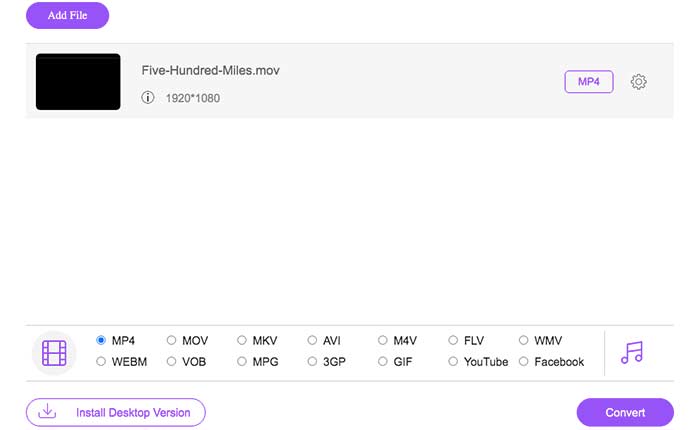
FVC Free Online Video Converter és un convertidor de vídeo a MP4 gratuït per a usuaris de Windows i Mac. Pots convertir fitxers QuickTime MOV i altres fitxers a MP4 en línia de franc. A diferència dels típics convertidors de vídeo en línia, no hi ha límit màxim de mida de fitxer. Pots convertir per lots fitxers MOV grans a MP4 sense pèrdua de qualitat. No s’afegirà cap marca d’aigua als fitxers de sortida. Així doncs, pots exportar pel·lícules QuickTime a MP4 en línia amb total tranquil·litat.
Pas 1: Obre el lloc oficial de FVC Free Online Video Converter. Fes clic a l’opció Add Files to Convert. La primera vegada que converteixis vídeo a MP4 en línia, hauràs de descarregar el llançador FVC.
Pas 2: Navega i importa el teu vídeo QuickTime a la finestra emergent.
Pas 3: MP4 és el format de vídeo de sortida per defecte. Si no és així, pots canviar manualment el format de sortida a MP4 a la part inferior.
Pas 4: Fes clic a Convert per convertir QuickTime a MP4 de franc en línia.
Part 2: Com convertir QuickTime MOV a MP4 al Windows
Si vols convertir ràpidament un vídeo MOV a MP4 a l’ordinador, pots canviar-ne l’extensió. QuickTime MOV és un format de contenidor de vídeo MPEG-4, mentre que MP4 també és un format de fitxer de vídeo MPEG-4. MP4 és un subconjunt del format QuickTime MOV. Per tant, pots convertir MOV a MP4 a Windows simplement canviant-ne l’extensió.
Pas 1: Obre la carpeta que conté el teu fitxer MOV.
Pas 2: Assegura’t que l’extensió del fitxer sigui visible. En altres paraules, has de veure l’extensió de fitxer .mov. Si no és així, hauràs de mostrar manualment les extensions dels noms de fitxer.
Pas 3: Tria Rename al menú que apareix en fer clic amb el botó dret.
Pas 4: Canvia l’extensió del fitxer de .mov a .mp4.
Pas 5: Prem la tecla Enter del teclat. Després podràs canviar un vídeo QuickTime a MP4 a Windows.
Part 3: Com convertir QuickTime Movie a MP4 al Mac
Pel que fa als usuaris de Mac, podeu utilitzar iMovie com a convertidor gratuït de MOV a MP4. iMovie està disponible per a dispositius MacOS i iOS. Podeu convertir i editar fitxers QuickTime MOV a l’ordinador Mac amb facilitat. Aquesta secció us mostrarà com convertir QuickTime a MP4 al Mac.
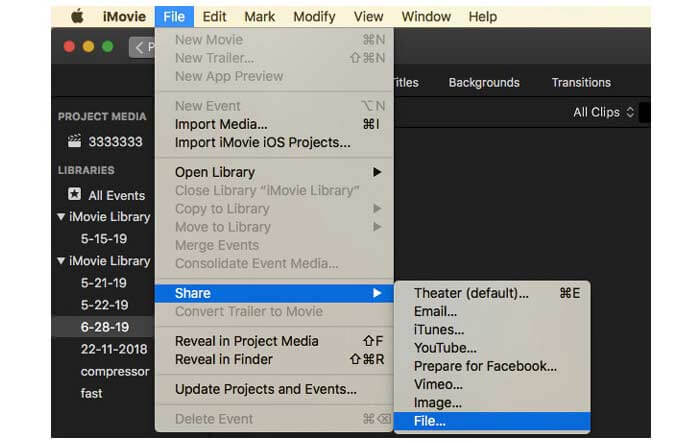
Pas 1: Descarrega, instal·la i obre iMovie al Mac. Tria New Movie al menú desplegable File.
Pas 2: Fes clic a Import Media per afegir una pel·lícula QuickTime a iMovie.
Pas 3: Tria el vídeo QuickTime MOV importat. Després selecciona Share al menú desplegable File. Selecciona File al submenú.
Pas 4: Ajusta la configuració del vídeo de sortida quant a destinació, resolució, qualitat i més. Fes clic a Next per continuar.
Pas 5: Defineix un nom de fitxer i una carpeta de sortida. Finalment, fes clic a Save per convertir QuickTime a MP4 al Mac amb iMovie.
Part 4: Com convertir un vídeo de MOV a MP4 amb VLC
VLC és un convertidor, reproductor i editor de vídeo de codi obert i gratuït per a multiplataforma. Tant els usuaris de mòbils com d’escriptoris poden convertir MOV a fitxers MP4 de forma gratuïta mitjançant VLC. Per tant, també podeu convertir QuickTime a MP4 a iPhone i Android amb VLC. VLC és gratuït i segur de descarregar. Podeu anar al seu lloc oficial per obtenir el paquet de descàrrega net.
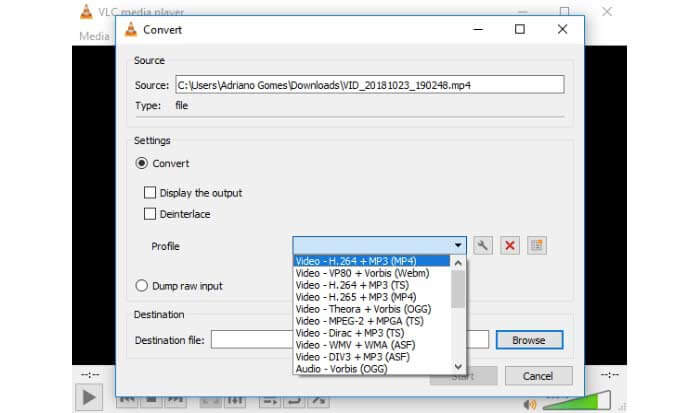
Pas 1: Executa VLC. Tria Convert/Save a la llista Media.
Pas 2: A la finestra Open Media, fes clic a Add per importar un vídeo QuickTime MOV. Després fes clic a Convert/Save per continuar.
Pas 3: Desplega la llista Profile. Selecciona Video – H.264 + MP3 (MP4).
Pas 4: Fes clic a Start per començar a convertir QuickTime a MP4 amb VLC.
Part 5: Preguntes més freqüents sobre la conversió de QuickTime a MP4
Es pot convertir MOV a MP4 amb QuickTime?
No. Podeu obrir vídeos MOV amb QuickTime Player. Però no és compatible convertir un vídeo MOV a MP4 mitjançant QuickTime.
Està disponible QuickTime Pro?
Sí. L'última versió és QuickTime Player 7. Apple ja no ofereix l'actualització QuickTime Pro. Encara podeu utilitzar QuickTime Player Pro al vostre equip Windows o Mac. Però Apple et va augmentar el suport de QuickTime.
Quins programes poden obrir vídeos MOV?
Podeu reproduir fitxers MOV amb QuickTime Player, iTunes, VLC, Windows Media Player, Adobe Flash i molt més.
Mitjançant els conversors de vídeo en línia i fora de línia anteriors, pots convertir QuickTime a MOV de franc al teu telèfon i ordinador. Pots utilitzar un convertidor MOV a MP4 en línia, canviar l’extensió del fitxer, iMovie i VLC per convertir el format de vídeo de QuickTime MOV a MP4. Si vols convertir per lots fitxers QuickTime a MP4 sense aplicacions de tercers, FVC Free Online Video Converter pot ser la teva primera opció. És 100% segur i gratuït. Pots convertir per lots vídeo QuickTime a MP4 i altres formats amb alta qualitat.
-
 MOV VS MP4: quin és millor
 MOV VS MP4, quin és millor? Aquesta publicació explica la diferència entre MP4 i MOV, de manera que podeu obtenir la millor opció per fer servir els vostres fitxers de vídeo.
-
 Top 4 maneres gratuïtes de convertir MTS a MOV
 No es pot reproduir el fitxer MTS a l'ordinador o al telèfon iPhone / Android? Què és un fitxer MTS i com reproduir-lo? Quin és el millor convertidor de vídeo MTS? Aquesta publicació comparteix 4 maneres senzilles i gratuïtes d'ajudar-vos a convertir MTS a MOV per obtenir una millor reproducció.
-
 6 maneres fàcils de convertir TS a AVI / MKV / MOV / WMV a Windows / Mac
 Voleu convertir fitxers TS a AVI / MKV / MOV / WMV ràpidament? En aquest article es mostren els convertidors de vídeo en línia i fora de línia amb una guia completa. Potser podeu obtenir el millor convertidor gratuït de TS aquí.
