


 Video Converter Ultimate
 Gravadora de pantalla
 Reparació de vídeo
 Baixada segura
Què pots fer quan l'iPad deixa de reproduir vídeos
Segons una enquesta recent, l’iPad és més popular que el telèfon intel·ligent pel que fa a la reproducció de vídeos, en part per la seva pantalla gran. Tanmateix, l’iPad no és perfecte i molts usuaris es troben amb el problema que l’iPad no reprodueix vídeos. Les persones normals no poden esbrinar per què passa aquest problema, i encara menys com solucionar-lo. Per tant, aquest article identificarà i compartirà solucions 100% que funcionen, perquè pugueu tornar a gaudir dels vostres vídeos preferits amb fluïdesa.

Primera part: Per què l'iPad no reprodueix vídeos
Hi ha moltes raons per les quals l'iPad deixa de reproduir vídeos a la memòria o a YouTube. Les causes més freqüents són:
- 1. L'iPad no admet el format de vídeo. És compatible amb H.264, MPEG-4 i Motion JPEG.
- 2. Mala connexió a Internet.
- 3. Programari o aplicació obsolet. Apple continua publicant actualitzacions per a iOS per tal de corregir errors i introduir noves funcions. Si no heu actualitzat l'aplicació de programari i vídeo, pot provocar que els vídeos no es reprodueixin a l'iPad.
- 4. No hi ha prou espai. Es necessita molta memòria i emmagatzematge intern per reproduir vídeos a l’iPad, especialment vídeos d’alta resolució.
- 5. L'iPad es congela o es queda atrapat. De vegades, l'iPad no respon prou ràpidament i el vídeo no es reprodueix en absolut.
Part 2: 5 solucions per solucionar l'iPad que no reprodueix vídeos
Solució 1: converteix a format de vídeo de l'iPad
Si un vídeo local no es reprodueix a l’iPad Pro, la causa principal és un problema de compatibilitat. FVC Free FLV Converter us pot ajudar a convertir qualsevol vídeo per a iPad, com ara de MP4 a iPad, de M2TS a iPad, etc. Encara que és gratuït, el convertidor de vídeo us ofereix moltes funcions de nivell professional d’una manera que qualsevol pot aprendre ràpidament.
Descàrrega gratuïtaPer a Windows 7 o posteriorDescàrrega segura
Descàrrega gratuïtaPer a MacOS 10.7 o posteriorDescàrrega segura
Com convertir vídeos en format iPad
Pas 1: Afegiu vídeos
Executeu el millor convertidor de vídeo per a iPad un cop l’hàgiu instal·lat a l’ordinador. A continuació, feu clic al menú Add File(s) i importeu el vídeo que no es reprodueix a l’iPad. Pot convertir fitxers de vídeo per lots.
Consell: Primer heu de transferir els vídeos de l’iPad a l’ordinador.

Pas 2: Definiu l’iPad com a format de sortida
Feu clic i desplegueu l’opció Output format, desplaceu-vos fins a trobar Apple iPad i seleccioneu-la, i trieu el vostre model d’iPad. A continuació, el convertidor establirà automàticament el format, el còdec i més paràmetres.

Pas 3: Converteix el vídeo per a iPad
Torneu a la interfície principal, feu clic al botó Open Folder i establiu una ubicació específica per desar-hi el resultat. Finalment, feu clic al botó Convert per començar a convertir els vídeos perquè es puguin reproduir a l’iPad. Quan hagi acabat, transferiu els resultats al vostre iPad i mireu-los.

Solució 2: reinicieu l'iPad
L'iPad pot quedar atrapat en un mode específic i els vídeos no es reproduiran. Afortunadament, és molt fàcil desfer-se del problema.
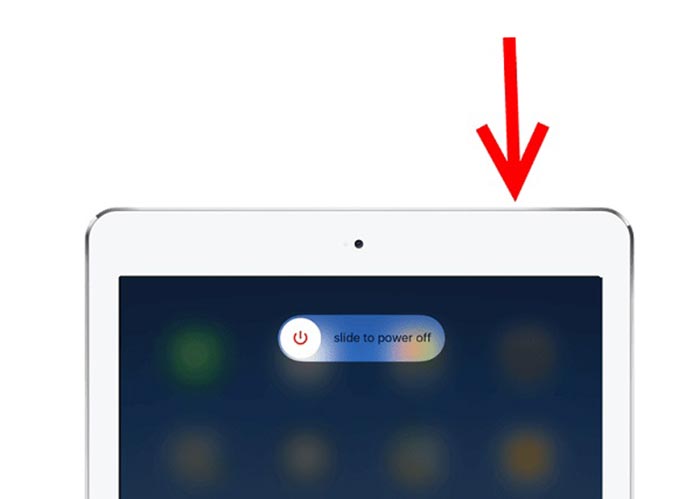
Pas 1: Manteniu premut el botó Power o Side durant una estona fins que aparegui la pantalla d’apagada.
Pas 2: Moveu el control lliscant cap a la dreta i la pantalla del vostre iPad es tornarà negra.
Pas 3: Espereu almenys 20 segons i torneu a mantenir premut el botó Power fins que el logotip d’Apple aparegui a la pantalla. Ara, proveu de reproduir el vídeo de nou.
Solució 3: esborreu la memòria cau de l'iPad
La manca d’emmagatzematge és un altre motiu pel qual l’iPad no reprodueix vídeos als llocs web. La solució és molt senzilla, tancant aplicacions en segon pla i esborra la memòria cau a Safari.
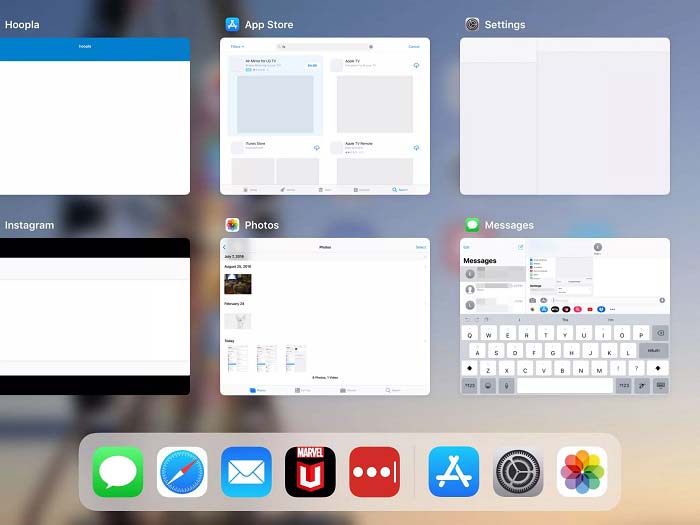
Pas 1: Entreu al mode multitasca amb els dits i tanqueu totes les aplicacions que s’executen en segon pla.
Pas 2: Obriu l’aplicació Settings, toqueu Safari i després Clear History and Website Data.
Pas 3: Torneu a reproduir el vídeo a l’iPad i hauria de funcionar amb normalitat.
Solució 4: actualització de programari
El programari obsolet pot causar molts problemes, inclosos els vídeos que deixen de reproduir-se a l'iPad. De fet, és fàcil actualitzar el programari fins ara.
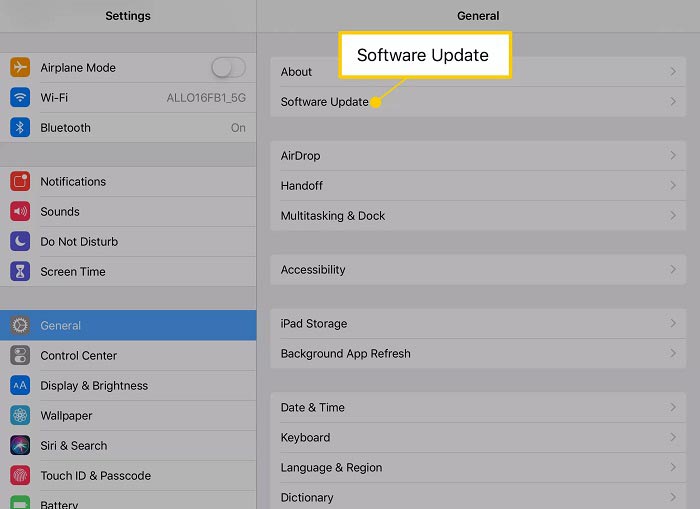
Pas 1: Executeu l’aplicació Settings des de la pantalla d’inici, toqueu General i Software Update.
Pas 2: Si hi ha una actualització disponible, toqueu el botó Download and Install. Quan se us demani, introduïu el codi d’accés.
Pas 3: Espereu que finalitzi la instal·lació i torneu a reproduir el vostre vídeo.
Solució 5: comproveu el servei d’Apple
Tot i que és estrany, és possible que el servei d'Apple no funcioni i els vídeos no es reprodueixin a l'iPad en aquesta situació. Si heu provat les solucions anteriors i el problema continua, seguiu els passos següents per comprovar-ho.
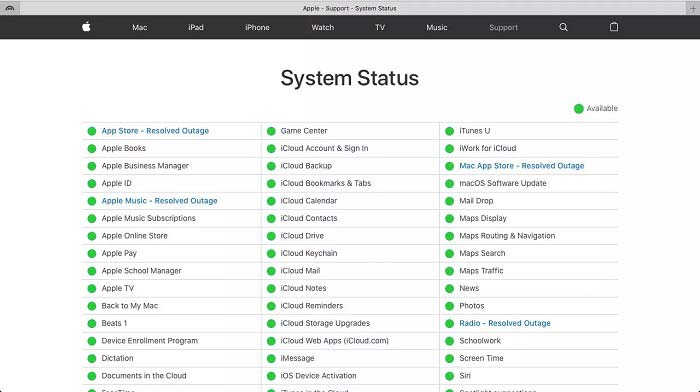
Pas 1: Obriu un navegador i visiteu https://www.apple.com/support/systemstatus/.
Pas 2: Si la icona d’estat d’un servei d’Apple es torna groga o vermella, vol dir que el servei està inactiu. Tot el que podeu fer és esperar que torni a estar operatiu.
Part 3: PMF sobre l'iPad que no reprodueix vídeos
Per què no puc reproduir MKV al meu iPad?
L’iPad no admet la reproducció de vídeos MKV. Heu de canviar el vídeo MKV a formats de vídeo compatibles amb l’iPad, com ara MOV, i després reproduir-los a l’iPad. Llegiu 2 maneres fàcils de reproduir fitxers MKV a l’iPad per obtenir més detalls,
Per què no es reprodueixen els vídeos de TikTok?
En primer lloc, comproveu la vostra connexió a Internet quan deixeu de reproduir els vídeos de TikTok. A continuació, actualitzeu l'aplicació TikTok a la versió més recent. A més, és millor que vegeu TikTok amb una xarxa Wi-Fi, però no amb dades mòbils.
Com es reprodueix MP4 a l'iPad Air?
L'iPad Air admet vídeos MP4 amb còdec d'àudio AAC. Podeu provar de reproduir-lo directament al vostre telèfon.
Conclusió
Aquesta peça de resolució de problemes us ajuda a solucionar el problema que l'iPad no reprodueix vídeos a la memòria. FVC Free FLV to MP4 Converter és la millor solució per als vídeos locals que no es reprodueixen. És capaç d'ajustar còdecs de vídeo i oferir preajustos per a gairebé tots els dispositius iPad. El més important és que el convertidor és bastant fàcil d'utilitzar. Si teniu altres problemes, no dubteu a deixar un missatge a l'àrea de comentaris a sota d'aquesta publicació.
-
 3 maneres principals de reproduir MP4 a Chromebook
 Podeu reproduir vídeos a Chromebook? Com es reprodueixen fitxers MP4 des d’USB a Chromebook? Aquesta publicació comparteix 3 maneres de reproduir MP4 a Chromebook.
-
 WebM Player Review - 5 millors programes per reproduir fitxers WebM sense problemes
 Si voleu reproduir amb èxit un WebM al vostre dispositiu, heu d’aprendre més informació sobre els 5 millors reproductors de WebM per a Android, iPhone, Windows i Mac d’aquest article.
-
 10 millors reproductors de vídeo FLV per a Windows 10/8/7, Mac, iOS i Android que heu de provar (darrer 2021)
 El reproductor FLV us ajuda a accedir fàcilment als vostres fitxers FLV al vostre dispositiu Windows, Mac, Android i iOS. Consulteu els millors reproductors de fitxers FLV que podeu descarregar ara mateix.
