


 Video Converter Ultimate
 Gravadora de pantalla
 Reparació de vídeo
 Baixada segura
Millors solucions per a vídeos que no es reprodueixen a Chrome: 4 solucions
Quan obres el navegador com de costum, a punt per gaudir d’una pel·lícula o d’un vídeo curt en un lloc web, et trobes que els vídeos no es reprodueixen a Chrome. En aquest moment és normal posar-se nerviós i anar actualitzant la pàgina o canviant de lloc web per veure quin és el problema. No pateixis, aquest tipus de problema és molt habitual i molts usuaris han experimentat errors de reproducció de vídeo per diversos motius. El que hem de fer és esbrinar la causa del problema i després trobar la solució adequada. En aquest article et proporcionarem quatre maneres de solucionar aquesta fallada i et recomanarem les millors eines de reparació de vídeo. Esperem que aquest petit problema no afecti gaire el teu estat d’ànim a l’hora de mirar vídeos.

Part 1. Quins vídeos pot reproduir l'iPhone
L'iPhone pot reproduir una sèrie de vídeos de diversos formats de vídeo, especialment els fitxers codificats en H.264 i MPEG-4 amb àudio AAC en formats MP4, M4V i MOV, així com M-JPEG amb àudio estèreo en format AVI. A part d'això, els iPhones admeten els formats de vídeo següents:
Reparació de vídeo FVC
Trobeu que els vídeos no es reprodueixen a Chrome i la pàgina del vostre navegador indica que el vídeo està malmès. No importa quantes vegades actualitzeu la pàgina web o canvieu de reproductor de vídeo, no servirà de res. Ara només heu de trobar una manera de reparar el vídeo malmès.
Aquesta operació no requereix realment que siguis un professional ni que tinguis coneixements profunds de codi; només cal que trobis un programari de reparació de vídeo fiable i li deixis tots els problemes. Et recomanem FVC Video Repair, una eina tot terreny que pot reparar vídeos danyats per dispositius corruptes, atacs de virus, fallades del sistema, etc.
Ara admet formats de vídeo, com ara MP4, MOV i 3GP. Només cal que pengeu el vídeo danyat juntament amb un vídeo de mostra i FVC Video Repair restaurarà tots els paràmetres del vídeo danyat d'acord amb els estàndards del vídeo de mostra, com ara la resolució, la taxa de bits, el codificador i la velocitat de fotogrames. No calen habilitats especialitzades, només cal que feu clic a tres petits per obtenir el vídeo complet.
Baixada gratuïtaPer a Windows 7 o posteriorBaixada segura
Baixada gratuïtaPer a macOS 10.7 o posteriorBaixada segura
Prendrem com a exemple un vídeo de YouTube descarregat trencat i us mostrarem com arreglar els vídeos de YouTube que no es reprodueixen a Chrome mitjançant la reparació de vídeos FVC.
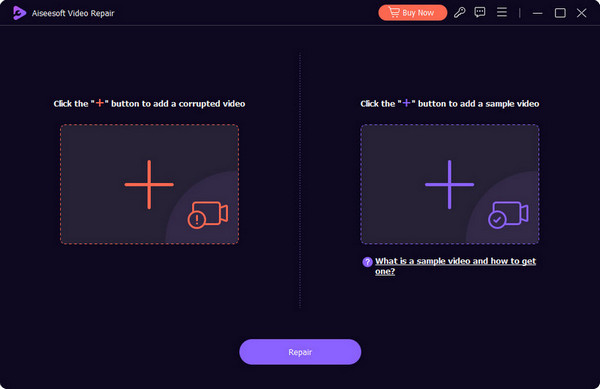
Pas 1. Descarrega i instal·la FVC Video Repair a l’ordinador. Obre’l i entra a la interfície principal. Prepara el teu vídeo malmès i un vídeo de mostra.
El millor és assegurar-se que el vídeo de mostra i el vídeo corrupte siguin de la mateixa font i que siguin propers entre si pel que fa al format, la nitidesa, la velocitat de fotogrames, la taxa de bits i altres paràmetres. Si no sabeu com trobar un vídeo de mostra, podeu fer clic als consells d'ajuda de la interfície.
Pas 2. Fes clic al botó vermell + per pujar el teu vídeo malmès, i fes clic al botó morat + per pujar el vídeo de mostra.
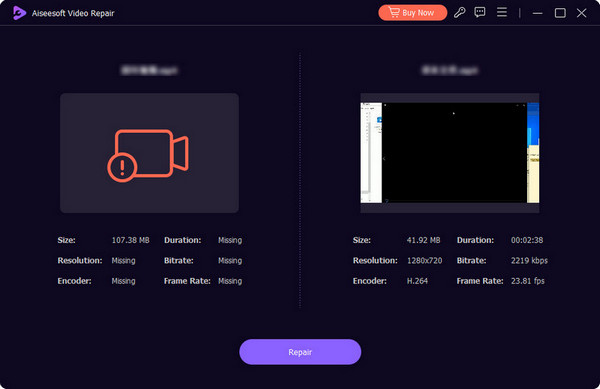
Pas 3. Després de pujar els vídeos, tots els seus paràmetres es mostraran a la interfície. A continuació, fes clic a Repair per començar a reparar el vídeo.
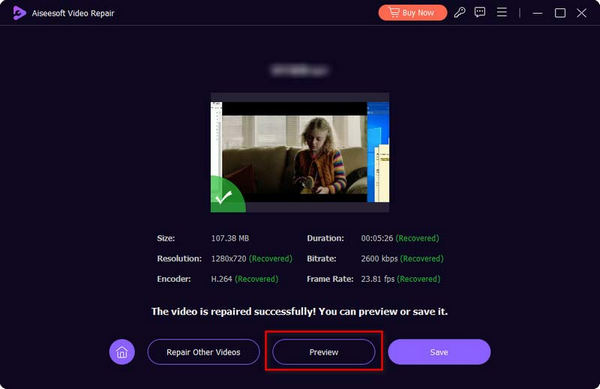
Quan el procés de reparació s’hagi acabat, fes clic a Preview per comprovar el resultat.
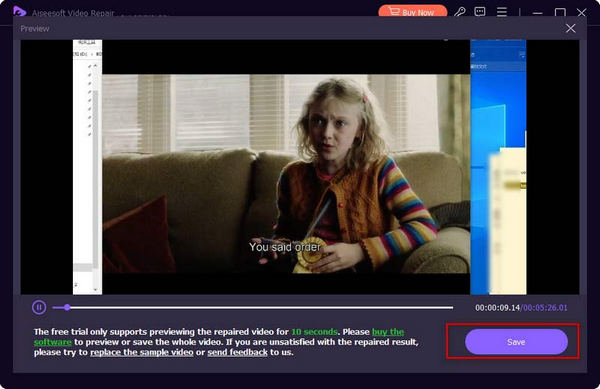
Si tot és correcte, fes clic a Save per descarregar el vídeo reparat al teu ordinador.
Part 2. Solucionat: Els vídeos no es reprodueixen a Chrome
Suposem que el problema no és amb el vídeo. En aquest cas, heu de considerar si hi ha algun problema amb el navegador en si o si li falta un dels complements necessaris per llegir el vídeo. A continuació, tractarem cadascuna de les tres opcions per ajudar-vos a solucionar per què els vídeos no es reprodueixen a Chrome.
Solució 1: Activa Flash Player
Quan el que voleu reproduir és un vídeo Flash, però no teniu Adobe Flash Player instal·lat al navegador, veureu un missatge a la finestra de reproducció del vídeo. El missatge us indicarà que heu de fer clic a Activa Adobe Flash Player. Si no veieu aquest missatge, podeu comprovar manualment si Flash Player està activat correctament.
A continuació s'explica com habilitar Flash Player al navegador Chrome.
Pas 1. Obre el navegador Google Chrome al teu ordinador. Ves a la pàgina del vídeo que vols veure.
Pas 2. Busca la icona de Lock al costat esquerre de l’URL del vídeo. Fes-hi clic.

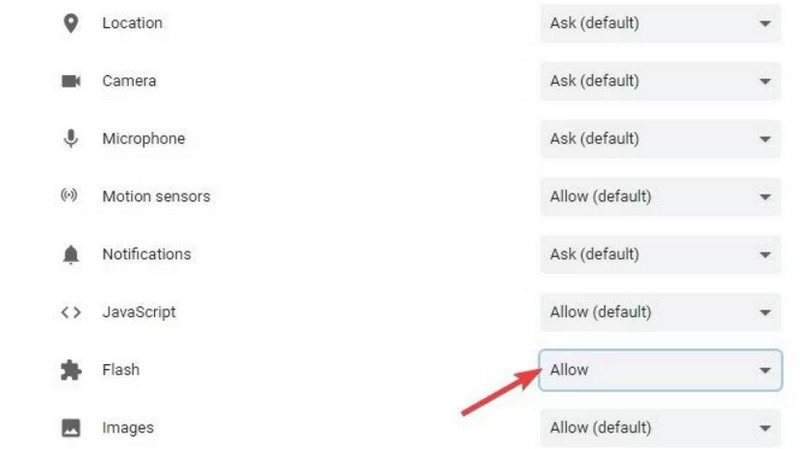
Pas 3. S’obrirà una llista. Tria Flash i selecciona Allow al quadre que hi ha al costat.
Pas 4. Torna a obrir la pàgina de reproducció del vídeo i comprova si el problema s’ha solucionat.
Solució 2: Esborrar les galetes i la memòria cau
Cada vegada que obriu un fitxer com ara un vídeo, àudio o imatge al navegador, es generen dades emmagatzemades a la memòria cau, que s'utilitzen per fer que la propera vegada que obriu la interfície consumeixi menys temps de càrrega. Tanmateix, quan s'acumulen massa dades emmagatzemades a la memòria cau, serà una càrrega per a vosaltres reproduir el vídeo amb normalitat. Heu d'esborrar la memòria cau periòdicament per alliberar més espai i garantir que el navegador pugui continuar funcionant de manera eficient per carregar i reproduir vídeos nous.
Si les galetes i la memòria cau fan que YouTube no reprodueixi vídeos a Chrome, feu servir la guia següent per esborrar-les.
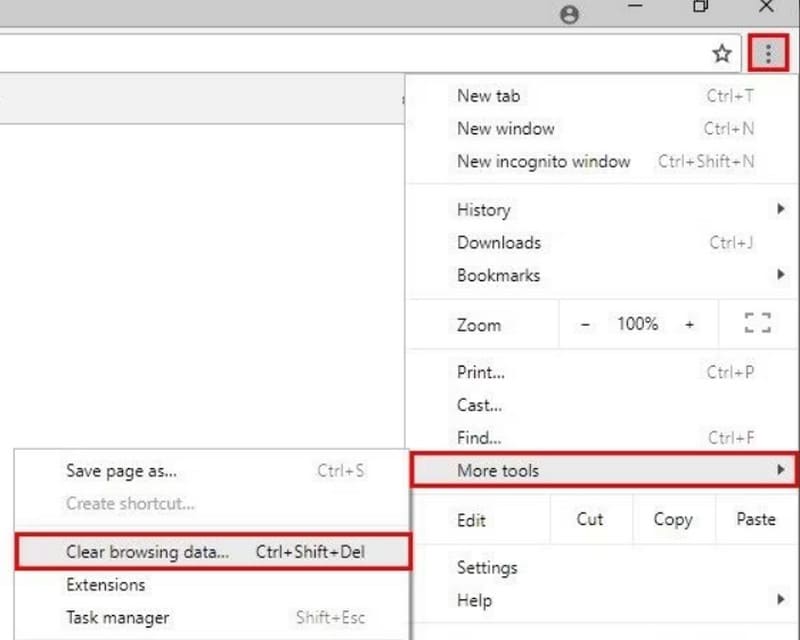
Pas 1. Obre el navegador Chrome. Ves a l’extrem superior dret de la pàgina web i fes clic a la icona de tres punts, que representa Més.
Pas 2. Tria Més eines a la llista desplegable i fes clic a Esborra les dades de navegació.
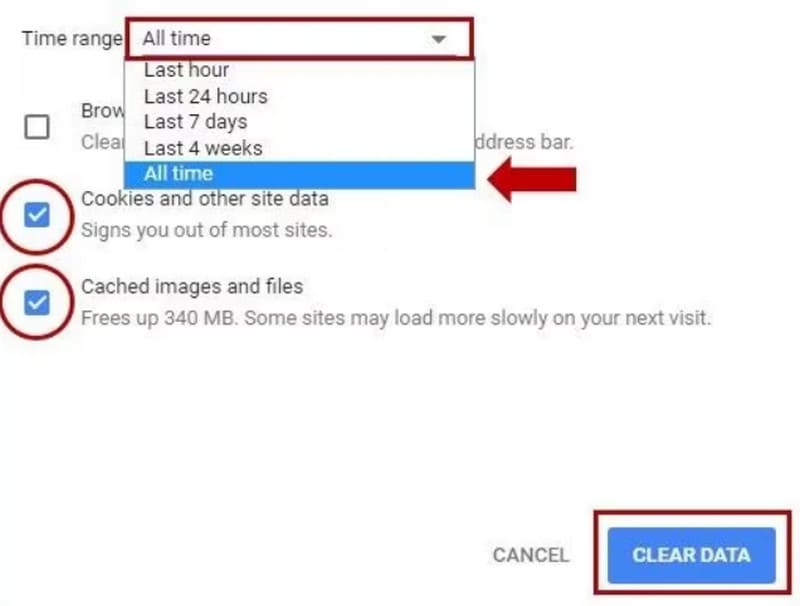
Pas 3. Apareixerà una finestra nova emergent. Tria Interval de temps > Tot el temps. Després marca la casella al costat de Cookies i altres dades del lloc i Imatges i fitxers emmagatzemats en memòria cau.
Pas 4. Finalment, fes clic a ESBORRA LES DADES.
Solució 3: Reinicieu l'aplicació del navegador Chrome
De vegades, el navegador es pot quedar encallat de sobte o mostrar errors inexplicables, igual que l'ordinador o el telèfon mòbil. La solució més senzilla en aquest moment és reiniciar. Si trobeu que els vídeos de YouTube, HBO Max, TikTok o Amazon no es reprodueixen a Chrome, proveu de tancar el navegador i reiniciar-lo. A continuació, torneu a anar a la pàgina web que conté el vídeo al qual us dirigiu.
Pas 1. Ves a la barra d’adreces de la part superior de la pàgina web.
Pas 2. Introdueix chrome://restart i prem Retorn al teclat. Pots afegir aquesta adreça als preferits sempre que la necessitis.

Part 3. Preguntes freqüents sobre els vídeos que no es reprodueixen a Chrome
Per què no es reprodueixen els vídeos a Chrome?
Hi ha molts motius possibles. Pot ser que la xarxa a la qual estàs connectat sigui inestable, que el vídeo actual estigui malmès, que el format del fitxer sigui incompatible amb el reproductor de vídeo, o que el navegador tingui massa memòria cau. Pots descartar aquestes possibilitats una per una per identificar quina és realment la que t’impedeix veure el vídeo correctament.
Per què la transmissió en directe no funciona al meu portàtil?
Suposem que continues experimentant retards quan mires transmissions en directe. En aquest cas, el motiu més probable és que la velocitat del Wi-Fi a la qual està connectat el teu dispositiu és massa baixa o molt inestable. Prova de canviar la connexió de xarxa.
Quin és el millor reproductor de vídeo per a un Chromebook?
La millor opció és, per descomptat, VLC Media Player. Tot i així, també pots provar més alternatives a VLC Media Player, com ara QuickTime Player, Windows Media Player, etc.
Conclusió
En aquesta publicació veuràs 4 opcions per ajudar-te a resoldre el problema dels vídeos que no es reprodueixen a Chrome. Això inclou habilitar Adobe Flash Player, esborrar la memòria cau del navegador i reiniciar el navegador. Si descobreixes que el problema és del mateix fitxer de vídeo, assegura’t de deixar que FVC Video Repair s’encarregui de solucionar-ho tot. És fàcil d’utilitzar i els resultats de la reparació són immediats.
-
 3 maneres efectives de fer captures de pantalla a Google Chrome [Guia]
 Descobriu com fer captures de pantalla de llocs web ràpidament a Google Chrome amb aquests senzills passos. Estalvieu temps i augmenteu la productivitat amb la nostra guia fàcil d'utilitzar.
-
 Els 10 millors reproductors HD per veure pel·lícules HD en Windows / Mac / iOS / Android
 Aquesta és la vostra última revisió del reproductor de vídeo HD. Podeu obtenir avantatges i desavantatges imparcials dels 10 millors reproductors HD del mercat. Només heu de llegir i triar el vostre millor reproductor HD amb suport per a tots els formats.
-
 Reparació de vídeo Remo: revisió completa actualitzada el 2025
 Esteu buscant eines de reparació de vídeo en línia? Et tenim! Obteniu una revisió en profunditat de Remo Video Repair i apreneu com pot arreglar els vostres fitxers de vídeo danyats de manera eficient.
