


 Video Converter Ultimate
 Gravadora de pantalla
 Reparació de vídeo
 Baixada segura
Top AMV Screen Recorder per a ordinadors Windows i Mac
Actions Media Video també conegut com AMV. És un format de fitxer de vídeo produït específicament per substituir MP4 com a format universal que es pot reproduir per a la majoria de reproductors multimèdia. Si esteu familiaritzat amb el format AVI, aquesta és una versió modificada i millorada. Aquest format de fitxer conté un vídeo comprimit. El format AMV està creat per permetre que reproductors i dispositius econòmics puguin reproduir vídeos. Tanmateix, el fitxer inicial representat és baix perquè la velocitat de fotogrames és baixa. Malgrat això, encara podeu considerar-lo com un bon format alternatiu a l'hora de renderitzar el vostre vídeo de sortida.
Relativament, també pots plantejar-te utilitzar un gravador de pantalla que t’ajudi a renderitzar vídeos en un fitxer AMV amb facilitat. De fet, hi ha un munt d’eines que poden fer aquesta feina per tu. D’altra banda, no cal que sigui sempre un fitxer AMV. Simplement és bo saber que ara existeix aquest tipus de fitxer. Per això, hem enumerat alguns gravadors de vídeo .amv per a Android i per a ordinador. Pots consultar la llista següent per saber-ne més.

Part 1. Enregistrador AMV en línia superior
1. Gravador de pantalla gratuït FVC
Quan parlem d’eines gratuïtes accessibles en línia, potser penses en limitacions, marques d’aigua i manca de seguretat. Tot i que això pot ser cert, no tots els gravadors de pantalla gratuïts són iguals. N’hi ha alguns que han trencat els esquemes i han aportat solucions a aquests problemes. FVC Free Screen Recorder és un d’ells. Sens dubte, aquesta eina et donarà més llibertat pel que fa a les teves necessitats d’enregistrament de pantalla. Amb el marc ajustable, pots seleccionar la relació d’aspecte que vulguis i personalitzar les teves gravacions. A més, el bitrate és ajustable. El bitrate també és important perquè t’ajuda a ajustar la qualitat del vídeo que estàs renderitzant. Hi ha molt més per descobrir sobre aquesta eina extraordinària.
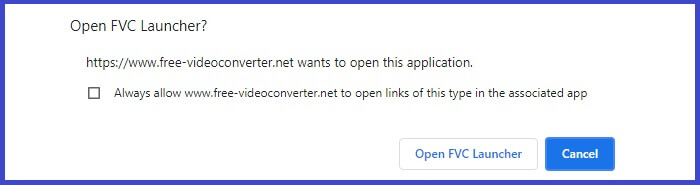
Pas 1. Inicia l’aplicació visitant la pàgina oficial https://www.free-videoconverter.net/free-screen-recorder/. Fes clic al botó Start Recording per iniciar l’aplicació.
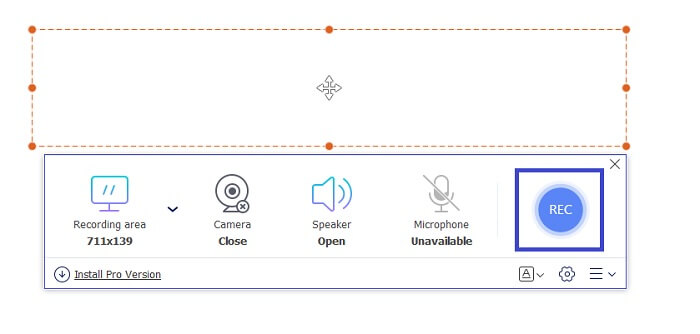
Pas 2. Un cop l’eina estigui en marxa, ajusta la relació d’aspecte de la gravació movent el marc ratllat fins a obtenir la mida de vídeo desitjada. A continuació, fes clic a REC per començar a gravar.
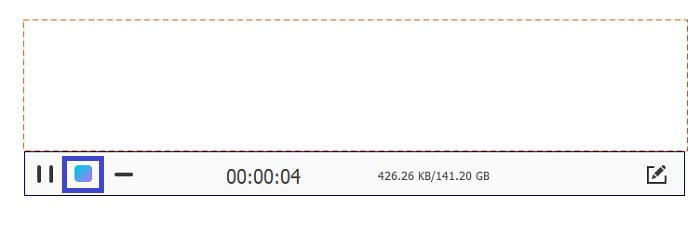
Pas 3. Mentrestant, fes clic a la icona del llapis per habilitar les anotacions en temps real, on pots afegir formes, línies i text. Quan hagis acabat la gravació, fes clic al botó amb el quadrat blau per aturar-la.
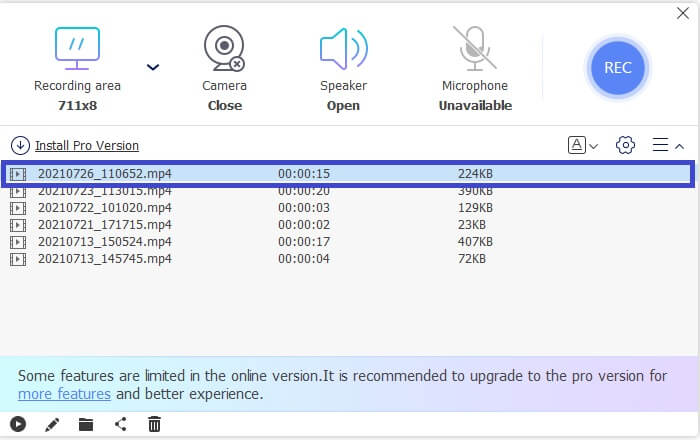
Pas 4. Per veure el fitxer que has gravat, fes clic al nom del fitxer a la part inferior de la interfície principal. Fes doble clic per reproduir-lo.
Pros
- Enregistrament il·limitat.
- Sense límit de durada.
- Bitrate ajustable per a una sortida de vídeo d'alta qualitat.
- Admet el retall de vídeo.
Contres
- No té subtítols generats automàticament.
2. Screencast-O-Matic
Personalitzeu la vostra gravació amb Screencast-O-Matic i experimenteu la barreja i l'enregistrament de pantalla enregistrant vídeos importats i vídeos gravats. Per no parlar, és una eina en línia que pot capturar pantalla, permet dibuixar a la pantalla, amb subtítols automatitzats i pot gravar àudio alhora. Pots triar afegir narració o subtítols mentre enregistres el teu vídeo. Això és útil principalment per als creadors de tutorials de vídeo i els que estan estalviant diners. L'únic inconvenient d'aquesta aplicació gratuïta és el procés de registre. És llarg. Mentrestant, aquí teniu com podeu utilitzar-lo.
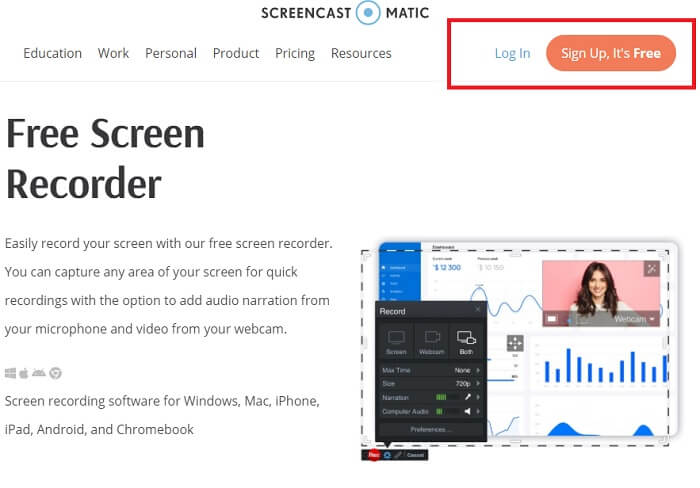
Pas 1. Ves a la pàgina principal i registra’t per crear un compte.
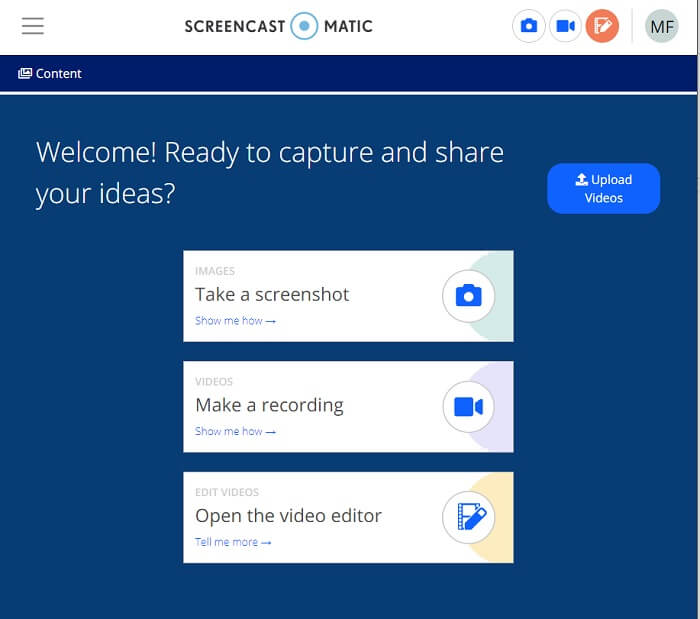
Pas 2. Després de registrar-te, arribaràs a una pàgina on se’t demanarà quina acció vols dur a terme. Tria Make a Recording.
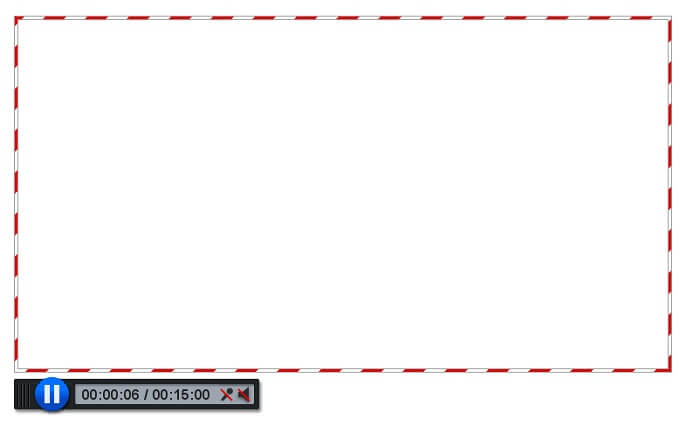
Pas 3. L’eina apareixerà tot seguit. Per començar a gravar, fes clic al botó vermell REC. Hauràs de fer clic al mateix botó per aturar la gravació.
Si no esteu satisfet amb les funcions que poden oferir aquestes dues increïbles aplicacions gratuïtes, podeu continuar llegint la següent eina que us ofereix. Aquesta vegada parlarem d'eines premium que pots descarregar al teu ordinador.
Part 2. Top Desktop AMV Recorder
1. Gravador de pantalla FVC
La primera eina d'escriptori és FVC Screen Recorder. Té la capacitat d'enregistrar la pantalla de l'ordinador, l'àudio del sistema i capturar la transmissió en línia sense soroll de fons. L'eina enregistra el so del sistema de l'ordinador, això significa que la qualitat de l'àudio és molt satisfactòria. A més dels formats molt compatibles, aquesta eina admet la tecnologia d'acceleració per a la transmissió de jocs en línia. SENSE marca d'aigua, només gravació de qualitat. Només obtindreu el millor si feu servir aquesta eina. Qualitat HD, àudio sense pèrdues, enregistrament suau durant la transmissió en directe i acceleració. Tot el que necessiteu per a les vostres necessitats de gravació és aquí. A més, hi ha una funció de bloqueig de finestres que us permet gravar només una finestra específica. A més, l'eina és fàcil d'utilitzar, comenceu fent clic al botó següent.
Descàrrega gratuïtaPer a Windows 7 o posteriorDescàrrega segura
Descàrrega gratuïtaPer a MacOS 10.7 o posteriorDescàrrega segura
Pas 1. Fes clic al botó Video Recorder per començar a gravar.
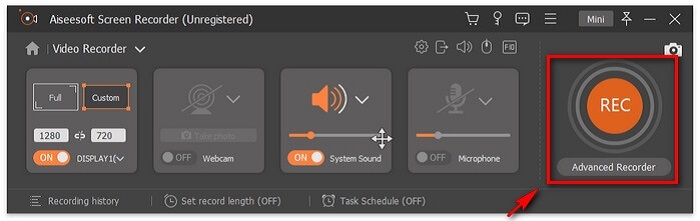
Pas 2. Comença a gravar i afegeix anotacions a la pantalla mentre graves.
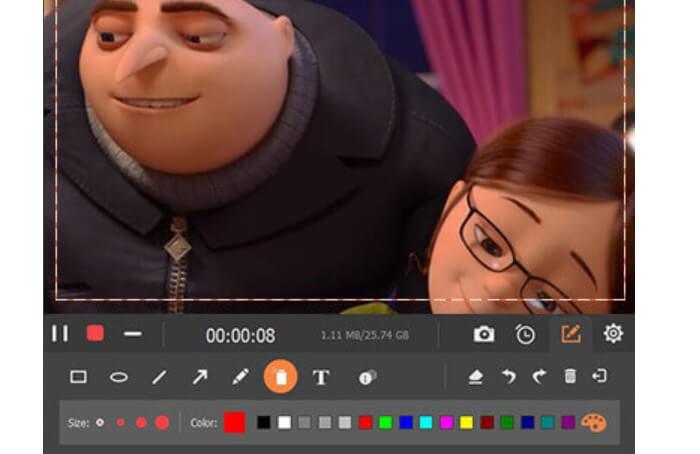
Pas 3. Finalment, atura la gravació fent clic al botó amb el quadrat vermell.

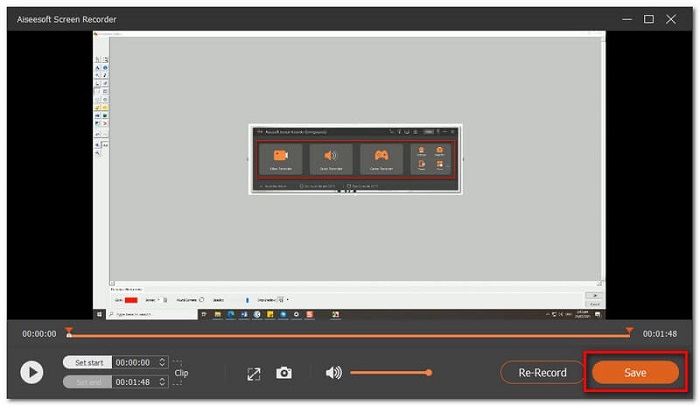
Pas 4. Ara apareixerà una altra pantalla. Tria entre Re-Record i Save.
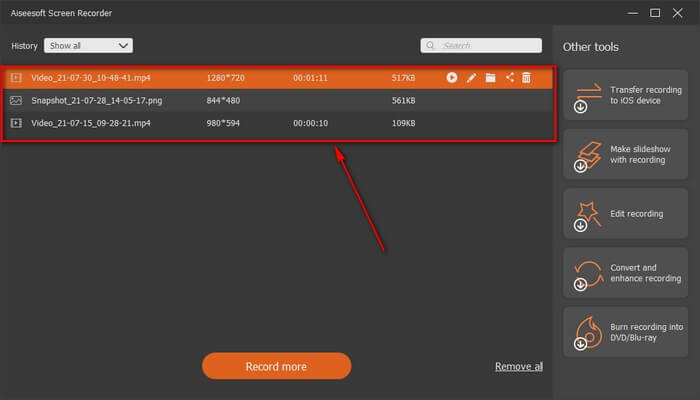
Pas 5. Troba el fitxer gravat a la finestra següent que apareixerà.
2. Bandicam
Finalment tenim Bandicam. És una de les eines més fiables quan es tracta d'enregistrament de pantalla. Un és perquè l'eina té una interfície molt senzilla. Tots els paràmetres que heu de comprovar i les funcions es mostren en una pantalla. Quan inicieu l'eina, podreu veure immediatament tots els paràmetres i funcions. De fet, la definició real d'una interfície fàcil d'utilitzar. Fins i tot un principiant en aquest tipus de tecnologia pot fer front fàcilment. Per mostrar-vos el que es diu, aquí teniu com podeu utilitzar-lo.
Pas 1. Ves al lloc web oficial de l’eina per descarregar i instal·lar l’aplicació.
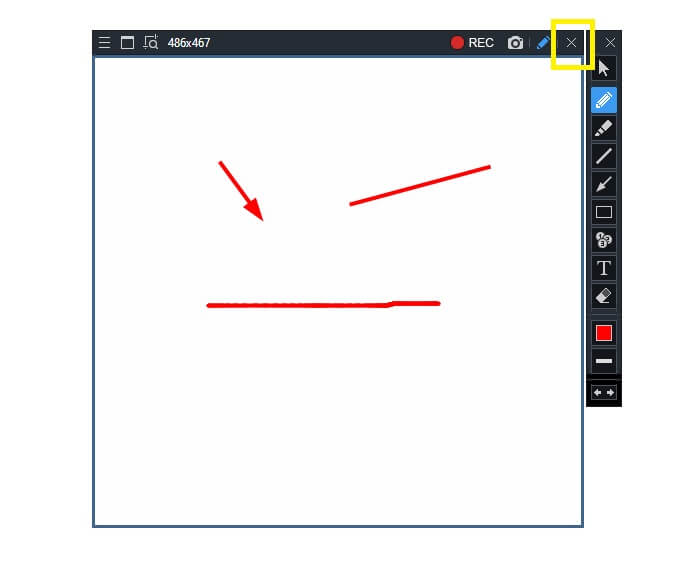
Pas 2. Fes clic al botó REC a la part superior dreta de la interfície. Després, l’eina et demanarà que ajustis la mida del marc.
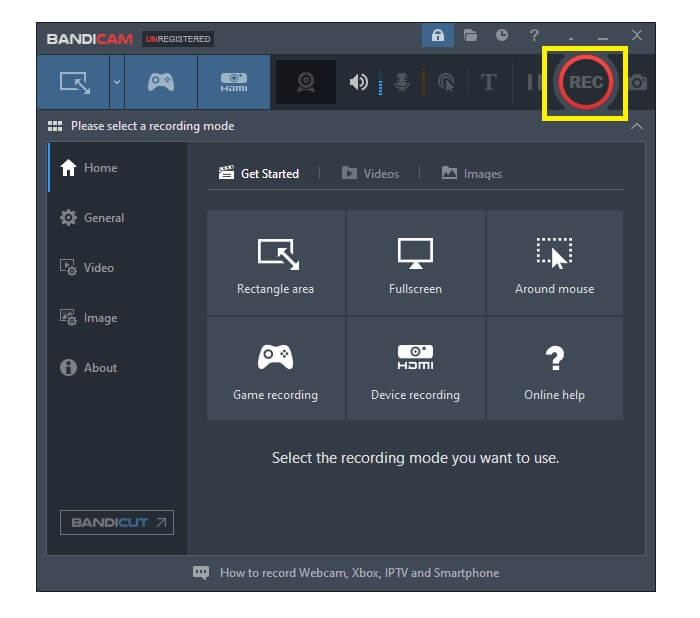
Pas 3. A partir d’aquí, comença a anotar mentre graves. Fes clic al botó X de l’angle dret per finalitzar la gravació.
Totes les eines escrites són realment útils. Bandicam representa simplicitat i usabilitat. Mentrestant, Screencast-O-Matic és versàtil. D'altra banda, FVC Screen Recorder pot proporcionar eines gratuïtes i Premium que superen les eines enumerades per complet. La funció de bloqueig de la finestra és notablement un avantatge perquè permet fer múltiples tasques i eficiència. Cap altre gravador de pantalla pot fer aquesta capacitat, només és amb FVC Screen Recorder.
Llegeix més:
2. Com comprimir fitxers AMV de gran mida
Part 3. Preguntes freqüents sobre AMV Recorder
Per què no puc obrir un fitxer AMV al meu ordinador?
Hi ha diverses raons per les quals. El més comú, però, és que el fitxer no té programari adequat al vostre ordinador. Descarrega'n un en línia.
El reproductor MP4 no reprodueix Error de format i com solucionar-ho?
És senzill. Canvia el fitxer .amv a la versió més recent. Converteix-lo. Si el vols convertir, segueix la guia següent:
1. Visita aquest enllaç https://www.free-videoconverter.net/free-online-video-converter/.
2. Obre el llançador i puja-hi el teu fitxer.
3. Tria el format que prefereixis. Un cop fet, el fitxer es començarà a renderitzar.
4. Fes clic al botó de baixada per obtenir el fitxer gravat.
Com associo un fitxer amb el programari?
Hi ha dues maneres de fer-ho. Una és triant el fitxer AMV, després selecciona Tria el programa per defecte i després Explora (Browse). L’altra manera és registrar un fitxer al registre de Windows.
Conclusió
Per concloure, AMV és bo conèixer el format que podeu considerar utilitzar, però no recomanat per a aquells que busquen vídeos de bona qualitat. A més, la llista de gravadors de pantalla AMV no es limita només a AMV, sinó que pot produir més formats com MP4, MOV i molt més.
-
 Els cinc millors enregistradors de teclat i ratolí per a Windows i Mac
 Aquests són els cinc millors programes de gravació de ratolí i teclat que us permeten estalviar moviments del ratolí i clics al teclat i repetir els esdeveniments.
-
 Els 4 millors gravadors de pantalla AVI gratuïts per capturar vídeos de pantalla com a fitxers AVI
 Per gravar la pantalla en fitxers AVI d'alta qualitat, l'article identifica i comparteix els 4 millors enregistradors de pantalla AVI gratuïts d'aquesta publicació. Obteniu més detalls per trobar el que desitgeu en conseqüència.
-
 Els 6 millors enregistradors WAV gratuïts disponibles per a Windows i Mac
 El millor programari de gravació WAV que compartim en aquest article té diverses funcions útils que us ajudaran a capturar professionals de l'àudio i la veu.
