


 Video Converter Ultimate
 Gravadora de pantalla
 Reparació de vídeo
 Baixada segura
T'ensenyarà a gravar àudio amb VLC a Windows i Mac
Sents la teva banda sonora preferida però no en trobes la font? No et preocupis, pots utilitzar directament un programari de gravació d'àudio per ajudar-te a capturar aquest clip. Si no saps quin tipus de producte triar, fes una ullada a VLC Media Player. No només és completament gratuït, sinó que també és compatible amb els sistemes operatius Windows, Mac i Linux. Tant si vols recopilar àudio gravat com si vols recopilar material per crear tons de trucada personalitzats, aquest programari és més que suficient per satisfer les teves necessitats.
Com aconseguir que un reproductor de vídeo enregistri àudio? No et preocupis. Aquest article té la resposta que busques. T’ensenyarem com enregistrar àudio amb VLC Media Player. Si creus que té poques funcions, també pots provar les alternatives que recomanem.

Part 1. Com gravar àudio amb VLC a Windows
El reproductor multimèdia VLC té funcions integrades de gravació de vídeo i àudio i també ofereix algunes funcions d'edició senzilles per ajudar-vos a obtenir els millors resultats. Les seves funcions no s'aturen mai a reproduir fitxers en diversos formats. Sense més preàmbuls, vegem com utilitzar VLC per gravar pantalles amb àudio. Aquesta part s'aplica principalment als usuaris de Windows.
Aquí teniu una guia pas a pas sobre com gravar àudio amb VLC Media Player en un PC amb Windows.
Pas 1. Assegura’t de tenir la versió més recent de VLC Media Player a l’ordinador. Obre’l i entra a la interfície principal.
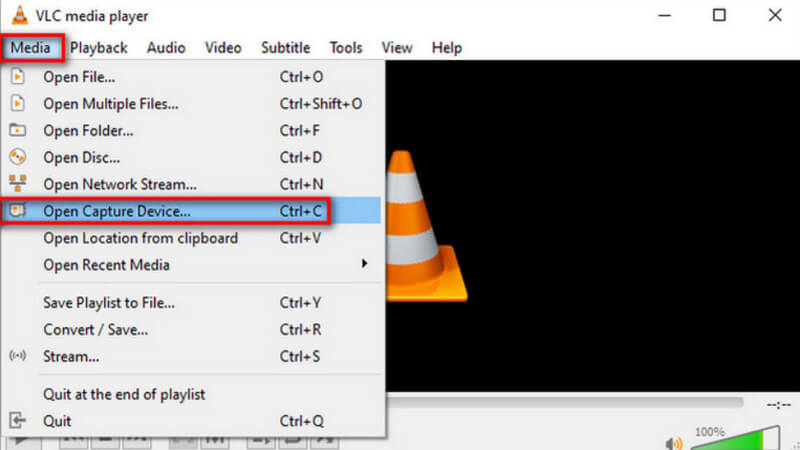
Pas 2. Fes clic a Media a l’angle superior esquerre. Després tria Open Capture Device a la llista desplegable.
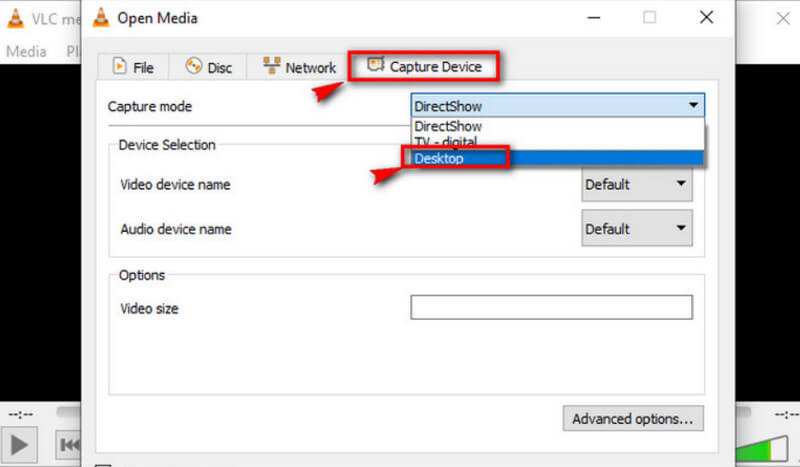
Pas 3. S’obrirà la finestra Open Media. Ves a la pestanya Capture Device i tria Desktop.
Pas 4. A continuació, fes clic a Play per començar a enregistrar.
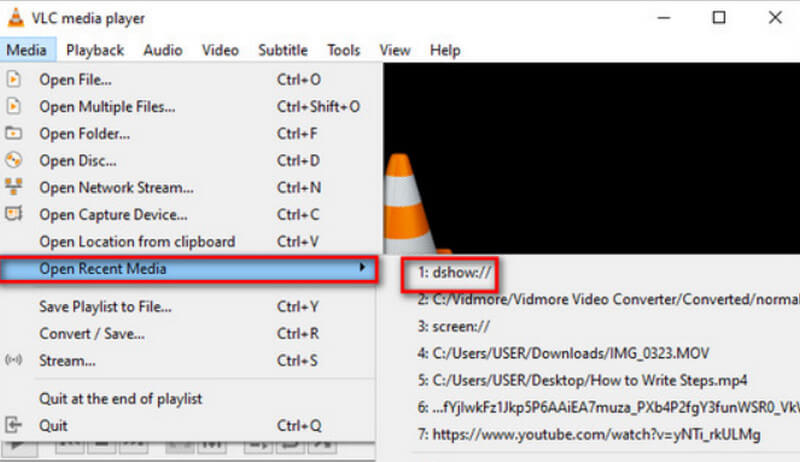
Pas 5. Si vols desar el vídeo enregistrat, fes clic a Media > Convert/Save. Per trobar el vídeo desat, tria Media > Open Recent Media.
Part 2. Una guia sobre com gravar àudio amb VLC Media Player a Mac
Si sou usuari d'un ordinador Mac, aneu directament a aquesta secció. Aquí teniu instruccions per gravar àudio en temps real amb VLC com a referència.
A continuació s'explica com gravar àudio amb VLC Media Player en un dispositiu Mac.
Pas 1. Aconsegueix VLC Media Player al teu MacBook. Obre’l a l’escriptori.
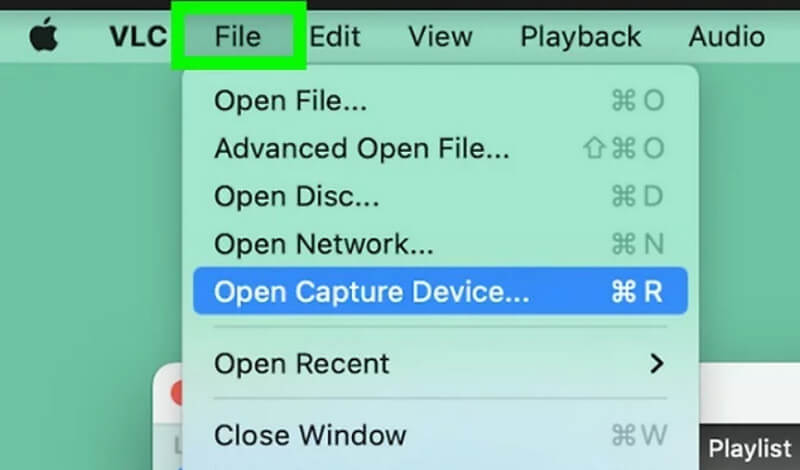
Pas 2. Tria File al menú superior. Després selecciona Open Capture Device a la llista desplegable.
Pas 3. Apareixerà una finestra Open Source. Tria la pestanya Capture i marca la casella al costat d’Audio. Configura la font d’àudio al quadre que hi ha sota Audio.
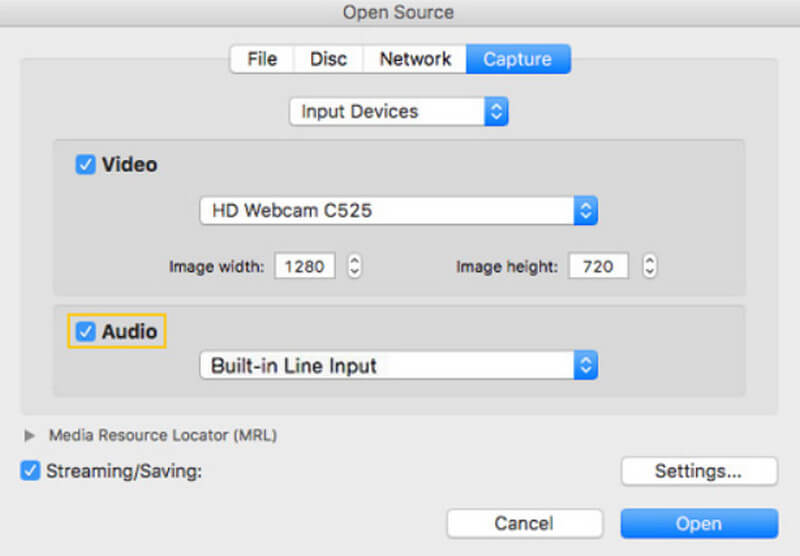
Pas 4. Quan acabis la configuració, fes clic a Open. Torna a la barra de menú i tria Playback > Record.
Ara heu iniciat correctament la gravadora de veu VLC.
Si vols buscar l’àudio enregistrat, fes clic a Media > Open File. Navega fins al fitxer amb el nom vlc-record.
Part 3. Millor alternativa a la gravadora de veu VLC per gravar àudio
Gravador de pantalla FVC
L’enregistrador de veu de VLC és completament gratuït, però és força limitat pel que fa a funcionalitats i no tens gaires formats de sortida per triar. Tot i que inclou un editor d’àudio integrat, no és gaire fàcil d’utilitzar. Per enregistrar àudio tens una opció molt millor en general, que és FVC Free Screen Recorder.
El gravador de pantalla FVC admet la gravació d'àudio des d'un micròfon o un sistema informàtic. Els formats de sortida actuals que podeu triar inclouen MP3, WMA, AAC, M4A, FLAC i més. L'àudio gravat gairebé no tindrà cap diferència de qualitat respecte a la música original i no es produirà cap latència. A més, FVC proporciona un conjunt complet d'eines d'edició d'àudio i vídeo, de manera que si no esteu satisfets amb la vostra feina, podeu retallar la durada de l'àudio o fins i tot convertir el format del fitxer abans de la sortida. És una eina tot en un, de manera que si necessiteu gravar vídeo, videoconferència o joc, també la podeu buscar.
Descàrrega gratuïtaPer a Windows 7 o posteriorDescàrrega segura
Descàrrega gratuïtaPer a macOS 10.7 o posteriorDescàrrega segura
Aquí teniu una guia sobre com utilitzar la millor alternativa per a VLC Media Player per gravar àudio.
Pas 1. Descarrega i instal·la FVC Screen Recorder a l’ordinador. Obre’l a l’escriptori. Tria Audio Recorder a la interfície principal.
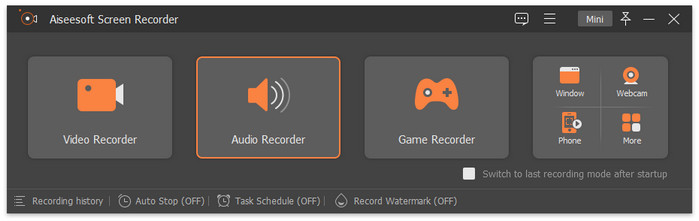
Pas 2. Quan entris a la pàgina Audio Recorder, ajusta el volum de gravació i tria System Sound o Microphone com a font d’àudio.
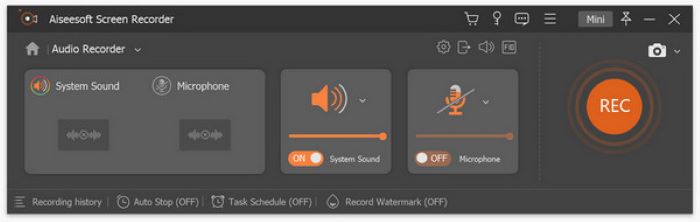
Pas 3. A continuació, fes clic a REC per començar a enregistrar àudio.
Si vols fer edicions addicionals al teu àudio MP3 enregistrat, ves a la finestra Recording History. Aquí hi trobaràs un retallador d’MP3, unificador de fitxers i convertidor de fitxers.
Part 4. Preguntes freqüents sobre gravar àudio amb VLC
Pot el VLC gravar l'àudio per separat de la pantalla?
Ho sentim, però el reproductor multimèdia VLC no és compatible amb aquesta funció en aquest moment. Però podeu trobar aquesta placa al gravador de pantalla FVC.
Quina és la millor alternativa a VLC per gravar un escriptori amb àudio?
FVC Screen Recorder és la millor alternativa, ja que no només admet l’enregistrament del so del sistema de l’escriptori, sinó que també captura la imatge. Té funcions d’edició d’àudio més completes que el gravador d’MP3 de VLC.
És VLC segur per a Mac?
VLC Media Player ja és un reproductor i editor de vídeo molt clàssic. És completament gratuït i de codi obert per a usuaris de Mac, Windows i Linux. No conté virus ni programari maliciós, i també protegeix absolutament la privadesa i la seguretat dels seus usuaris.
Conclusió
Si vols entendre com enregistrar àudio amb VLC Media Player, aquest article és el que necessites. Aquí hem explicat com utilitzar el programa per capturar àudio a Windows i Mac i també hem assenyalat els problemes que pot tenir a la pràctica. Per ajudar-te a evitar aquests inconvenients, recomanem utilitzar FVC Screen Recorder com a alternativa a VLC Media Player. Ofereix funcions més completes i una interfície d’enregistrament més intuïtiva. Admet molts més formats de sortida, així com nombroses eines d’edició d’àudio i vídeo.
-
 Solució ràpida del reproductor multimèdia VLC que no reprodueix vídeo [Guia 2025]
 Esteu buscant un mètode ràpid i fàcil per arreglar VLC Media Player que no reprodueix vídeos? Aquest article inclou totes les solucions automàtiques i manuals per resoldre aquest problema.
-
 Captura de pantalla a VLC: com fer instantànies a VLC Media Player
 Com fer instantànies al VLC Media Player i on guardar-les? Passeu per la funció d'instantània de VLC i la seva alternativa a l'article.
-
 Com gravar vídeo de pantalla amb àudio amb el reproductor multimèdia VLC
 És una guia pas a pas sobre la funció de gravació de pantalla VLC. Podeu trobar el procés detallat, la resolució de problemes i la millor alternativa a l'article.
