


 Video Converter Ultimate
 Gravadora de pantalla
 Reparació de vídeo
 Baixada segura
Manera simplificada de gravar Blu-ray a OBS Studio i altres eines possibles
El disc Blu-ray emmagatzema la màxima qualitat que es pot guardar en un disc. Pot desar un vídeo de fins a 1080 píxels. Igual que en àudio, produeix un so cristal·lí en comparació amb els CD. A més, no cal preocupar-se per emmagatzemar grans volums al Blu-ray perquè disposa de molt d’espai. D’altra banda, OBS Studio és un programa de codi obert gratuït que es pot descarregar. És compatible amb plataformes com Windows, macOS i Linux. A més, és perfecte per gravar àudio i vídeo de la pantalla del teu ordinador. Alguns usuaris troben complicat gravar Blu-ray amb el programa d’estudi. Així que queda’t i llegeix aquest article per saber com gravar pel·lícules Blu-ray amb OBS i quin enregistrador professional hauries d’utilitzar per obtenir un vídeo de sortida d’alta qualitat.

Part 1. Com gravar pel·lícules Blu-ray amb OBS Studio
Conegut per ser una potent eina sense transmissions, OBS Studio rep actualitzacions periòdiques a causa dels seus influents patrocinadors Youtube, Twitch, Facebook, API.video, own3d.pro i moltes altres plataformes. No cal preocupar-se per la transmissió a causa d’aquestes principals plataformes. D’altra banda, construeix el seu nom com l’eina més complexa per enregistrar i amb menys orientació. Però si voleu una transmissió senzilla, no cal que us submergiu en paràmetres complicats. A més, convertiu-vos en difícils de gestionar llegint aquest article per conèixer els passos i detalls sobre OBS Studio.
A continuació, es detallen alguns passos per utilitzar OBS Studio:
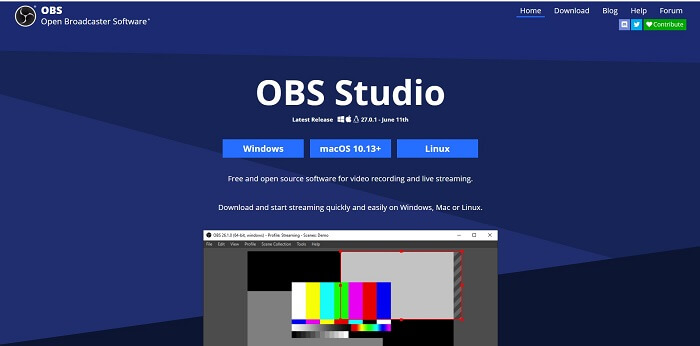
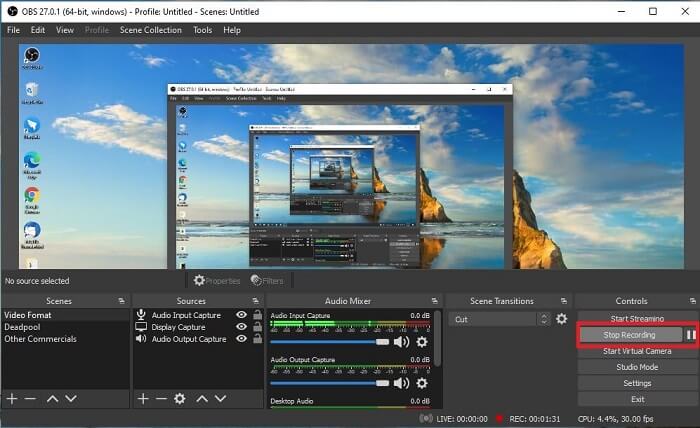
Pas 1. Ves al teu navegador. Després tria el sistema operatiu que estàs utilitzant, descarrega’l, configura’l, instal·la’l i fes clic a Finish per iniciar l’eina.
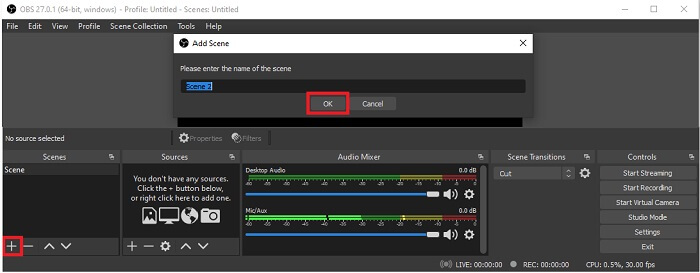
Pas 2. Ves al panell de Scenes, fes clic a la icona Add per afegir una escena i posa-li un nom. Fes clic a OK per continuar.
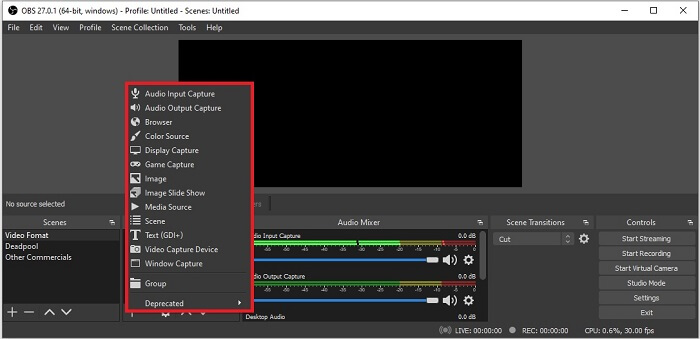
Pas 3. Continua cap al panell de fonts. Fes clic a la icona Plus i apareixeran diferents opcions. Aquí tens algunes opcions bàsiques que s’hi inclouen. Audio Input Capture per gravar la teva veu amb el micròfon. Després, Audio Output Capture per gravar el so que surt del sistema. I Display Capture per gravar tota la pantalla. Finalment, Game Capture per gravar els teus muntatges de joc. Fes clic a OK per desar. Un cop hagis reunit totes les fonts necessàries, ajusta el volum a la pestanya Audio Mixer.
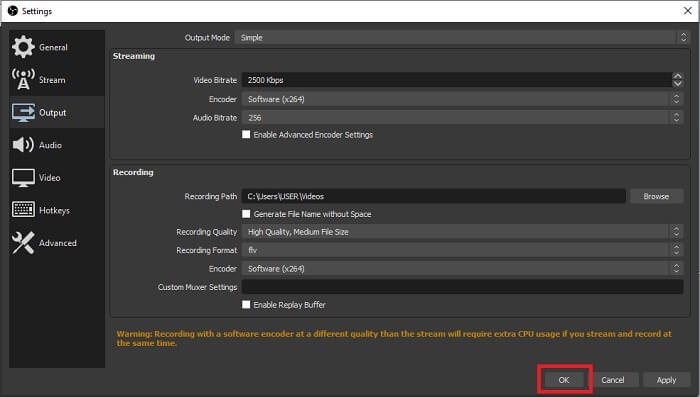
Pas 4. Fes clic al botó Settings sota el Control Panel a la part inferior dreta de la interfície. Ves a la pestanya Output, estableix el format i ajusta les opcions segons les teves necessitats. Configura la resta d’opcions i fes clic a OK per desar.
Pas 5. Fes clic al botó Start Recording i comença a gravar. De la mateixa manera, quan hagis acabat la gravació, fes clic a la part inferior dreta, al mateix lloc on havies clicat per començar a gravar. Pots comprovar la gravació a l’explorador de fitxers.
Pros
- El seu vestit per gravar qualsevol vídeo i reproduir en directe.
- No us ofereix una prova gratuïta. Perquè és gratuït.
- Ofereix moltes opcions per triar.
Contres
- No és la millor opció per a principiants perquè hi ha moltes coses a configurar.
- No admet l'edició de vídeo, de manera que haureu d'instal·lar una altra eina per editar-la. I l’eina en si és de 85,6 MB, que és l’emmagatzematge més gran que té un gravador de pantalla.
Part 2. Mètode en línia per capturar Blu-ray amb OBS Alternative
L’estudi OBS és, de fet, una bona opció per gravar i transmetre. Però l'eina té molt a la seva interfície, de manera que és una molèstia per al nou usuari gravar. Aquí teniu una eina alternativa en línia que podeu utilitzar.
Gravador de pantalla gratuït FVC (eina en línia)
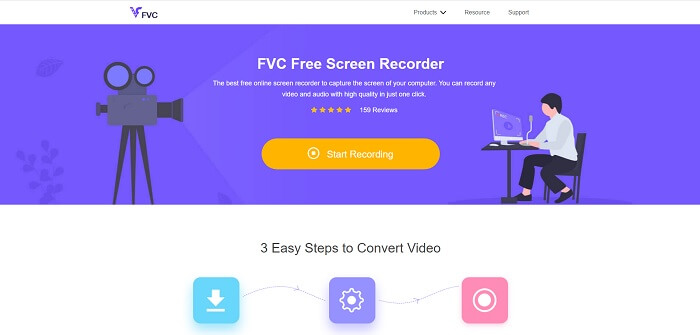
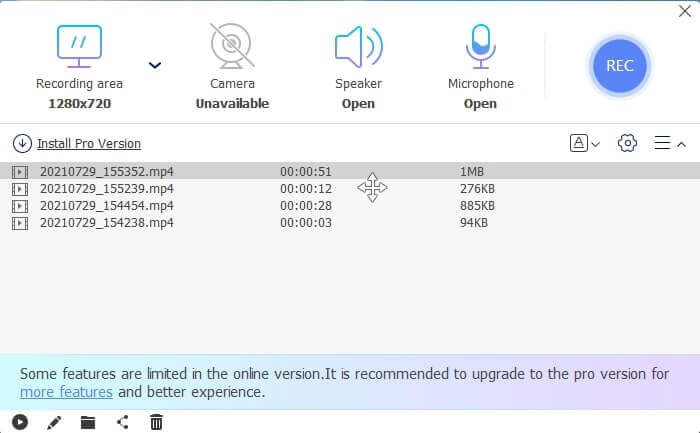
Una eina gratuïta en línia que és menys feixuga de gestionar per a l’usuari és el FVC Free Screen Recorder. Funciona de la mateixa manera que gravar Blu-ray amb OBS Studio, però és més fàcil d’utilitzar gràcies a la seva barra d’eines flotant tan manejable. Aquesta eina detallada i precisa t’ajuda a gravar qualsevol tipus de plataforma de vídeo i àudio disponible, amb so nítid i vídeo en alta definició que després pots desar en Blu-ray. En lloc de descarregar un fitxer gran per usar-lo només una vegada, per què no proves aquesta eina en línia? Ara fem una volta per veure com funciona aquesta eina. A continuació tens alguns passos sobre com utilitzar aquesta eina en línia.
Pas 1. Obre el navegador i visita https://www.free-videoconverter.net/free-screen-recorder/. Després fes clic al botó Start Recording per iniciar l’eina en línia. Una barra flotant apareixerà a la pantalla després d’engegar l’eina.
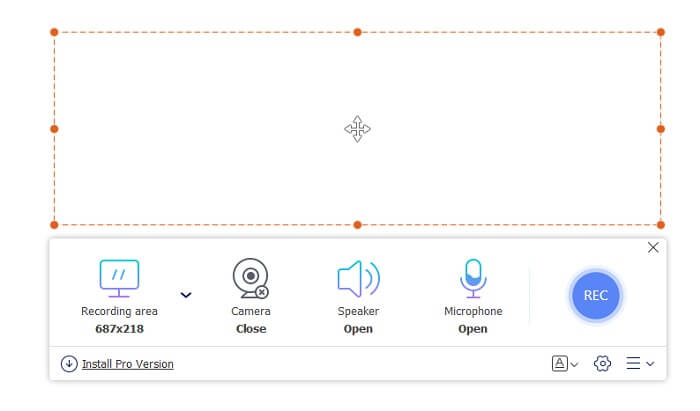
Pas 2. A la barra d’eines flotant hi ha 4 panells diferents que pots triar. Pots ajustar la mida del marc o fer clic a pantalla completa. A continuació, fes clic a la icona del Speaker per al volum del sistema. També pots afegir la teva veu i cara si fas clic per activar el Microphone i la Webcam. Però si no tens intenció d’afegir-los, pots tornar a fer-hi clic per desactivar-los. Després fes clic al botó rodó REC per començar a gravar.
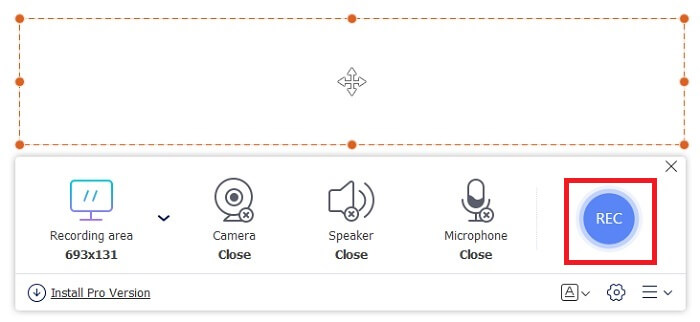
Pas 3. Quan hagis acabat la gravació, fes clic al botó square per aturar-la. Totes les gravacions que hagis fet es llisten al history dropdown. Fes clic al primer vídeo enregistrat, ja que és el més recent.
Pros
- Obriu el codi font gratuït en línia. Sense descàrrega, així que sense problemes.
- Millor gravador de pantalla per a serveis en línia que admet totes les plataformes.
- Fàcil d'utilitzar gràcies a la instrucció puntual de l'eina.
Contres
- Necessita una connexió a Internet perquè l’eina funcioni.
- Les funcions premium no s’admeten de forma gratuïta.
Part 3. Millor recanvi OBS per gravar pel·lícules Blu-ray
Un altre dels millors discos Blu-ray d'OBS Studio és aquest gravador de pantalla FVC. Si voleu gravar en línia i fora de línia i disponible per a totes les plataformes, això és per a vosaltres.
Gravador de pantalla FVC
A diferència d'OBS Studio, aquesta eina és fàcil d'utilitzar amb una barra d'eines manejable. FVC Screen Recorder és una de les millors alternatives per enregistrar. Inclou funcions com OBS que són més puntuals i fàcils d’entendre. Per exemple, gravar pantalla, càmera web, àudio i so del sistema, i molts més. Aquesta eina també té la funció de bloqueig que l’obs no té. Llevat que aquesta eina sigui de pagament. A més, si disposeu d’aquest gravador de pantalla, feu la decisió correcta.
Seguiu els passos següents sobre com utilitzar aquesta eina al màxim.
Pas 1. Fes clic al botó de descàrrega per instal·lar el programari, després configura les preferències desitjades i fes clic a Finish per continuar. A continuació, l’eina s’iniciarà.
Descàrrega gratuïtaPer a Windows 7 o posteriorDescàrrega segura
Descàrrega gratuïtaPer a MacOS 10.7 o posteriorDescàrrega segura
Pas 2. Fes clic a Video Recorder. A continuació, apareixeran 4 panells diferents. Al primer panell pots ajustar la mida del marc per canviar la relació d’aspecte o fer clic a Full per gravar tota la pantalla. El segon panell, Webcam, serveix per gravar la teva cara mentre graves la pantalla. El panell següent és System Sound per enregistrar l’àudio del sistema. Finalment, el microphone per introduir la teva veu al vídeo. Fes clic al botó amb forma de disc per començar a gravar.
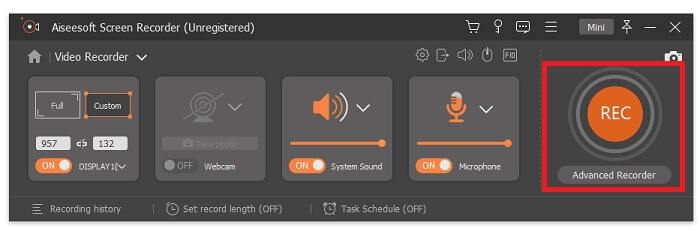
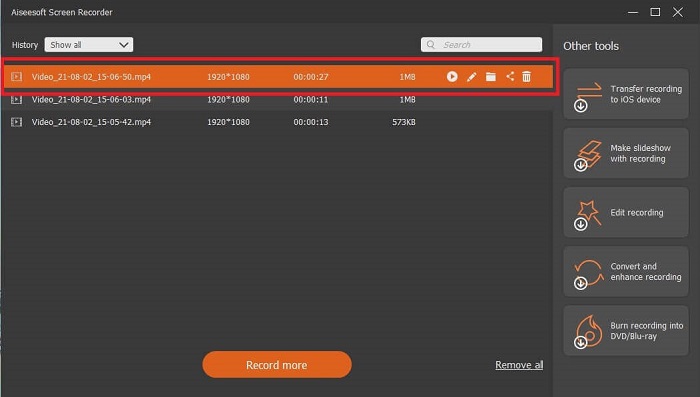
Pas 3. Quan acabis la gravació de vídeo, fes clic al botó square per aturar-la. Fes clic al botó Play per reproduir el vídeo enregistrat.
Pros
- Té aquesta característica única del que anomenem pantalla de bloqueig per evitar molèsties durant la gravació.
- Pot gravar durant 24 hores sense cap disfunció d'àudio-vídeo.
- Emmagatzematge i fàcil d'utilitzar pel seu format de dades de compressió i informació fàcil d'executar.
Contres
- Per adquirir-lo s’ha de pagar ja sigui un mes, un any o tota la vida.
- Cal utilitzar-lo per descarregar-lo del lloc web per utilitzar-lo.
Per llegir més
1. Gravar vídeo de pantalla amb VLC Media Player
2. Gravar la pantalla amb àudio al Mac amb QuickTime
Part 4. Preguntes més freqüents sobre la gravació de Blu-ray a OBS Studio
Quina diferència hi ha entre Blu-ray, DVD i CD?
La diferència principal entre cada format de disc òptic és la sortida i l’emmagatzematge que pot emmagatzemar per si sol. Indica que un CD pot emmagatzemar fins a 700 MB d’un fitxer, un DVD pot emmagatzemar fins a 4,7 GB de dades, mentre que el Blu-ray pot emmagatzemar fins a 25 GB. En alguns casos, un reproductor Blu-ray de doble capa pot mantenir 50 GB de dades. També té una capa de disc triple i una capa quàdruple.
És OBS una eina gratuïta? És segur descarregar-lo?
Sí, OBS Studio és una eina sense cost sense càrrecs ocults. A més, podeu descarregar-lo en totes les plataformes diferents. Un altre sí, està protegit contra malware, virus, cucs, segrestadors de navegadors i molt més.
Quins còdecs de vídeo admeten Blu-ray?
Per a vídeo: MPEG-2, MPEG-4 AVC i SMPTE VC-1.
Per a àudio: Linear PCM (LPCM), Dolby Digital® (DD), Dolby Digital® Plus (DD+), Dolby® TrueHD, DTS Digital Surround® i DTS-HD®.
Conclusió
Al cap i a la fi, els gravadors de pantalla al final del dia són útils per la seva capacitat. OBS és una bona opció per gravar, però a causa de diverses opcions, fa que l'usuari endevini i li pregunti si ho fa bé. Però a causa de la llista en línia i fora de línia que admet totes les diverses plataformes. Ara teniu el poder de triar. Per triar quin és el millor per a vosaltres.
Com el gravador de pantalla FVC. És una eina fàcil d’utilitzar i puntual que ajuda l’usuari a gravar en qualsevol moment i en qualsevol lloc. Tot i que és una eina de pagament per utilitzar. Tot i això, val la pena cada cèntim gastat. Recordeu que no us heu d’estressar amb els difícils d’utilitzar si el fàcil d’utilitzar pot fer-ho millor.
-
 Acció! Screen Recorder Review: contra, avantatges i la seva millor alternativa
 Action Screen Recorder és el programari de gravació de jocs desitjat per capturar vídeos sobre el joc? Només cal obtenir més detalls a la ressenya i la seva alternativa a l'article.
-
 3 millors gravadors de trucades de Facebook per a ordinadors, iOS i Android
 Quan voleu gravar trucades de Facebook per estalviar coses valuoses, hi ha moltes gravadores de trucades de Facebook per triar. Aquí podeu aprendre les 3 millors eines per gravar videotrucades de Facebook per a PC, iOS i Android.
-
 Els 6 millors enregistradors WAV gratuïts disponibles per a Windows i Mac
 El millor programari de gravació WAV que compartim en aquest article té diverses funcions útils que us ajudaran a capturar àudio i veu com a professionals.
