


 Video Converter Ultimate
 Gravadora de pantalla
 Reparació de vídeo
 Baixada segura
Funció de la instantània VLC: aquí teniu la guia per fer captures de pantalla al reproductor multimèdia VLC
Quan es reprodueix un vídeo tutorial o una pel·lícula al reproductor VLC, com es fa una captura de pantalla al reproductor multimèdia VLC? Ja sigui que hàgiu de capturar una instantània com a miniatura o afegir una anotació a un marc determinat, podeu utilitzar la funció Instantànies ocultes de VLC.
Com es prenen instantànies amb VLC Media Player? Un cop hàgiu pres els marcs desitjats, on es guarden les captures de pantalla? És possible desar les instantànies en els formats desitjats? Quan vulgueu obtenir més informació sobre el procés i la millor alternativa, podeu trobar informació útil a l'article.

Part 1: Com fer instantànies a VLC i trobar la ubicació
1. Com fer una captura de pantalla al reproductor multimèdia VLC
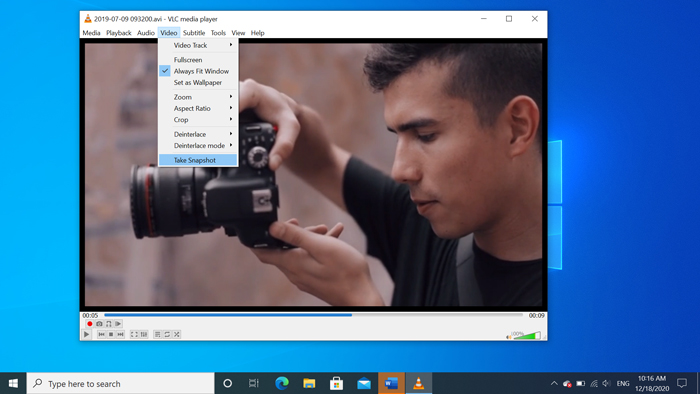
Si utilitzeu el VLC Media Player més recent, hi ha una icona de càmera a la part inferior de la interfície d'usuari. Només cal que feu clic a la càmera per fer una captura de pantalla a VLC Media Player. Per a l’altra versió, podeu utilitzar les tecles d'accés ràpid o els botons per capturar les captures de pantalla com es mostra a continuació.
Step 1: Once you have installed the VLC Media Player, you can launch the program on your computer. After that, you can import the desired movies into the media player.
Step 2: When you reach the desired frame you want to take a snapshot in VLC, click the Video menu, and choose the Take Snapshot option to save the desired snapshot.
També podeu utilitzar la drecera per fer una captura de pantalla a VLC. Aquí teniu el valor predeterminat per a la vostra referència. MAJÚS + S per a Windows, Ordre + ALT + S per a Mac i CTRL + ALT + S per a Linux.
Step 3: Then you can find a popup thumbnail with the snapshot on the top of VLC Media Player, as well as the saved file location and file name. But it will fade within a few seconds.
2. On es desen les captures de pantalla de VLC
Si no podeu obtenir la informació de la miniatura emergent, aquí teniu les destinacions predeterminades per a les captures de pantalla de VLC. Per descomptat, podeu fer diverses instantànies per obtenir més informació sobre la carpeta de destinació de les instantànies.
Windows 7/8/10: C: Usuariusuari Les meves imatges
Windows XP: C: Els meus documents Les meves imatges
Mac OS X: les instantànies es desen a l’escriptori /
Linux: les instantànies es desen a $ (HOME) /. Vlc /
3. Com es configuren les preferències per a les instantànies a VLC
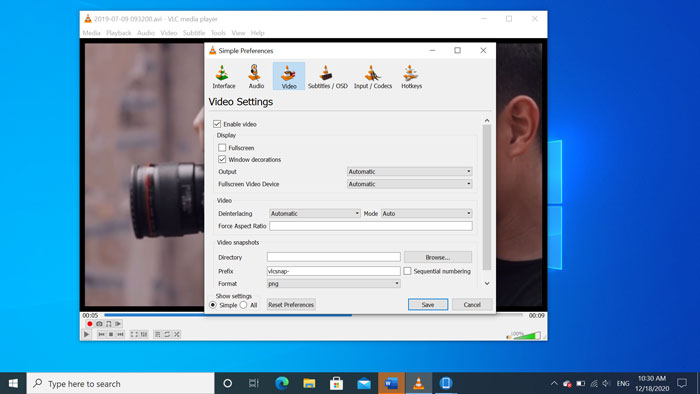
Is it possible to set up the preferences for the snapshots? When you want to change for another format, or destination folder, you can go to the Tools menu and select the Preferences to tweak the settings.
Video Directory: Once you have clicked the Browse button, you can choose the VLC screenshot location as your desktop, or other frequently used destination instead.
Prefix: afegirà algun prefix i sufix a les captures de pantalla capturades a VLC Media Player. Marqueu la casella de numeració seqüencial si voleu utilitzar números en lloc de la data / hora actual.
Format: podeu triar JPG, PNG i TIFF com a format de foto de sortida.
Part 2: l'alternativa en línia de VLC per fer captures de pantalla
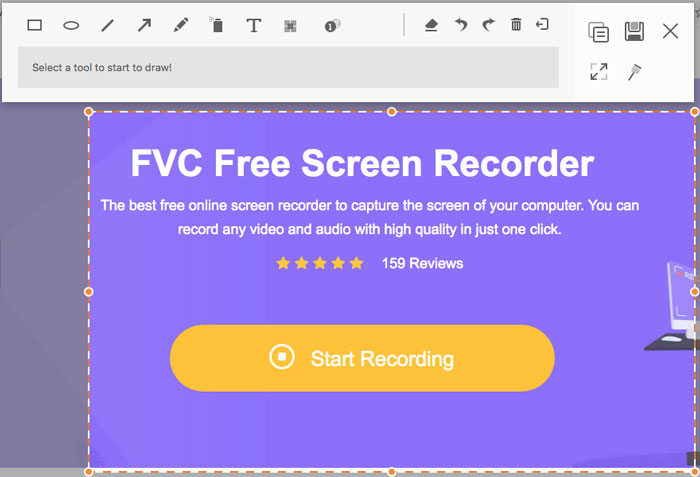
VLC Media Player is an easy method to capture video screenshots. But when you need to add annotation, tweak the frame to capture, or take any snapshot on Windows and Mac, FVC Free Screen Recorder is a VLC online alternative to take screenshots. It enables you to record any video and audio with high quality in just one click. Moreover, you can also manage the screenshot within the online video recorder.
- 1. Captureu pel·lícules, ordinadors i moltes altres activitats a l'ordinador.
- 2. Ajusteu les tecles d'accés directe, la carpeta de destinació, la qualitat de vídeo / àudio i molt més.
- 3. Editeu la captura de pantalla en temps real, com ara les línies, el text, el ressaltat, la línia, etc.
- 4. Proporcioneu enregistrament de pantalla gratuït sense filigrana ni altres restriccions.
- 5. Grava vídeos amb alta qualitat.
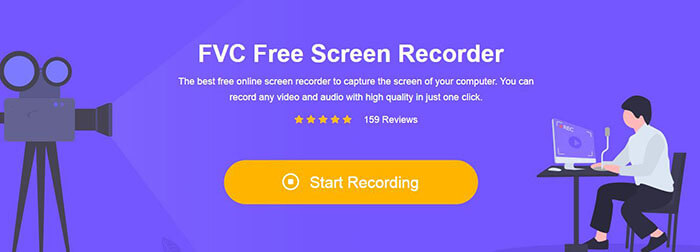
Step 1: Go to the online screen recorder, you can click the Start Recording icon to download and install the installer. Then you can launch the online screen recorder to capture any activity on your computer.
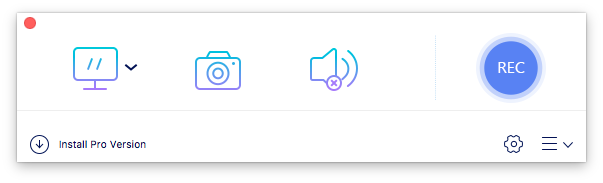
Step 2: Once you have launched the online screen recorder, click the camera icon to take a snapshot online as a VLC alternative. Tweak the capturing area with your mouse to get a snapshot.
Step 3: After that, you can add annotations, such as watermark, callout, arrow, text, and more other elements into the screenshot. Moreover, you can also manage the screenshot within the program directly.
Part 3. Preguntes més freqüents sobre la captura de pantalla del reproductor multimèdia VLC
1. Com ajustar les tecles d'accés ràpid per fer una captura de pantalla en VLC?
If there is a conflict for the hotkeys, especially when you are doing other tasks, you can go to the Tools menu and choose the Preferences option. Then you can choose the Hotkeys button and enter the snapshot into the search column. Click the Take video snapshot and press the new key or combination for VLC snapshots.
2. Com capturar instantànies en VLC amb la millor qualitat?
Quan hàgiu de fer una captura de pantalla de vídeo en VLC amb la qualitat original, podeu triar el mode de pantalla completa i triar el format de fitxer com a PNG. Per evitar qualsevol imatge borrosa, podeu fer una pausa en un marc determinat que vulgueu capturar prèviament.
3. És possible capturar una captura de pantalla de pel·lícules de YouTube a VLC?
Yes. To capture screenshots of YouTube movies in VLC, you can stream and play the YouTube movies within the media player. Click on the Media option and choose the Open Network Stream option. Then enter the direct YouTube URL to the video. After that, you can play the video and capture the desired snapshot accordingly. You can also try FVC Free Screen Recorder or other recording tools like DU Screen Recorder to take the snapshot.
Conclusió
Fer instantànies de vídeo a VLC Media Player és una tasca senzilla. Però quan voleu localitzar la carpeta de destinació, modificar la configuració de les instantànies o fins i tot triar una alternativa en línia, FVC Free Screen Recorder és sempre la millor opció per ajudar-vos.
-
 Revisió de Snagit 2021: avantatges, inconvenients i la millor alternativa
 Quina és la millor alternativa a Snagit? Hi ha una eina de captura de pantalla com Snagit? Aquesta publicació revisarà Snagit i compartirà la millor alternativa a Snagit per capturar pantalla.
-
 Gravació de pantalla QuickTime: enregistra vídeo amb àudio a Mac i PC
 La pantalla de gravació amb àudio al Mac és molt útil. El reproductor integrat, QuickTime Player, ho pot fer. Llegiu el seu missatge i sabeu capturar la pantalla amb so a Mac i PC.
-
 La revisió imparcial del jugador real i les millors alternatives
 Si escolliu Reproductor real per reproduir el reproductor multimèdia, heu de llegir la nostra breu introducció i revisió imparcial, així com obtenir més informació sobre la millor alternativa de l'article.
