


 Video Converter Ultimate
 Gravadora de pantalla
 Reparació de vídeo
 Baixada segura
Els 5 millors gravadors WebM per gravar vídeos WebM en alta qualitat
L’extensió de fitxer WEBM és utilitzada habitualment pels navegadors web. La majoria són navegadors moderns com Google Chrome, Opera, Firefox, Safari i Edge. Normalment aquests navegadors funcionen amb llocs web HTML5 que admeten transmissió de vídeo en directe. Un bon exemple en són YouTube, Twitch i altres plataformes multimèdia. Admet resolucions de vídeo des de 360p fins a la més alta resolució. Si comparem aquest format, és un format comprimit semblant a MKV, MOV i MP4. La diferència rau en el contingut del fitxer del format. Tant Windows com Mac poden reproduir aquest tipus de fitxer sempre que el reproductor tingui els còdecs i connectors adequats. Mentrestant, si busques una manera millor d’enregistrar o obtenir fitxers WebM, consulta la llista dels millors gravadors WebM que trobaràs a continuació.

Part 1. Millor gravador WebM: gravador de pantalla FVC
Aconsegueix la manera més senzilla de fer instantànies, gravar la pantalla i gravar els fitxers de vídeo WebM en tres senzills passos amb FVC Screen Recorder. Aquest gravador de pantalla .webm per a Windows i Mac pot gravar llocs WebM com YouTube, trucades de Skype i transmissió en directe, i altres llocs admeten el format WebM. Captureu el vostre joc en directe sense comprometre la qualitat del vídeo. A més de poder gravar el vídeo, l'àudio i el micròfon. No hi ha soroll de fons garantit perquè enregistra els sons del sistema. Per tant, experimenteu una gravació perfecta i excel·lents funcions d'edició per al vostre tutorial de vídeo amb la gravació de pantalla FVC. D'altra banda, aquí teniu com s'utilitza l'eina.
Pas 1. Baixa FVC Screen Recorder utilitzant els botons de descàrrega que tens a continuació.
Descàrrega gratuïtaPer a Windows 7 o posteriorDescàrrega segura
Descàrrega gratuïtaPer a MacOS 10.7 o posteriorDescàrrega segura
Pas 2. Instal·la i inicia l’aplicació després de seguir l’assistent de configuració.
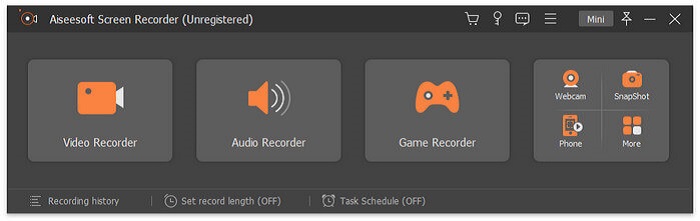
Pas 3. Quan aparegui la barra flotant, fes clic a Video Recorder.
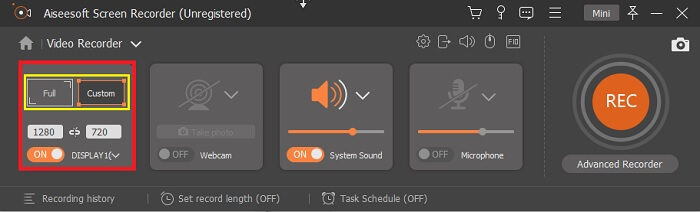
A partir d’aquí apareixerà una altra finestra. Aquesta vegada fes clic a Custom o Full Screen. Si tries personalitzat, ajusta la mida del marc a la mida que desitgis.
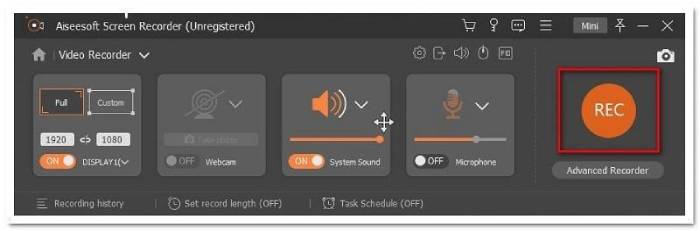
Pas 4. Per començar a gravar, fes clic al botó REC i simplement fes el que acostumes a fer.
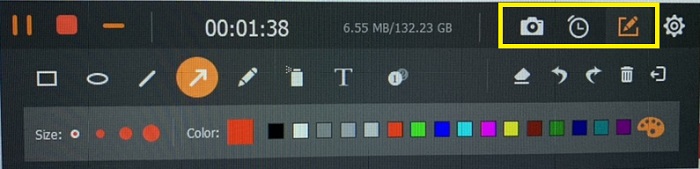
A continuació, podeu anotar, afegir fletxes i enviar missatges de text a la gravació.
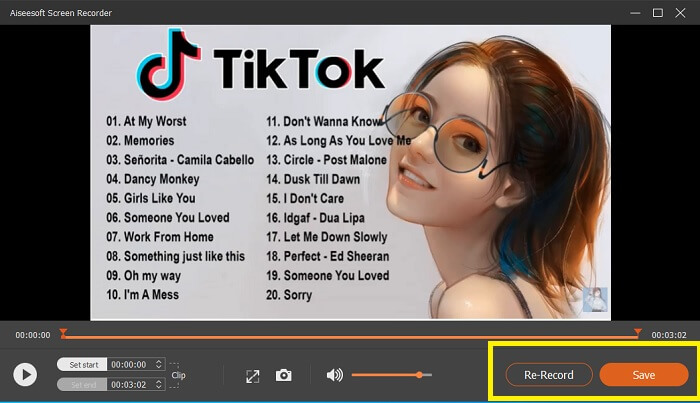
Pas 5. Després, fes clic al botó quadrat vermell per aturar la gravació. A continuació es mostrarà una finestra nova que et permetrà triar entre desar o tornar a gravar. Per comprovar la gravació, revisa la llista a la part inferior de la barra flotant.
Part 2. Altres gravadors WEBM populars per al vostre ordinador
1. Gravador de pantalla gratuït FVC
Funció destacada: Lliure de programari maliciós. 100% segur
Si la primera eina no t’ha convençut, potser estàs buscant una opció més pràctica. FVC Free Screen Recorder és l’eina ideal si vols aprofitar grans funcions sense gastar ni un cèntim. Encara que les eines gratuïtes solen ser conegudes per produir una qualitat inferior en comparació amb les de pagament, aquesta eina eleva una mica el llistó. Pot produir vídeos d’alta qualitat i un so nítid malgrat ser gratuïta. A més, és fàcil d’utilitzar. Segueix els passos següents per saber-ne més.
Pas 1. Obre l’aplicació al teu PC mitjançant el navegador web. No importa quin navegador facis servir, aquesta eina és prou flexible per accedir-hi des de qualsevol lloc. Fes clic a l'enllaç per anar directament a la pàgina oficial.
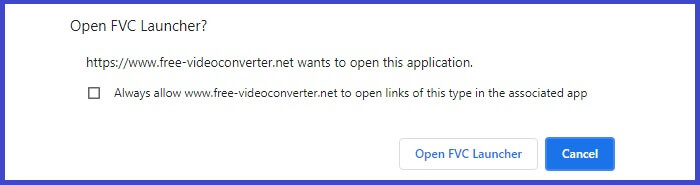
Pas 2. Inicia l’eina fent clic al botó Start Recording.
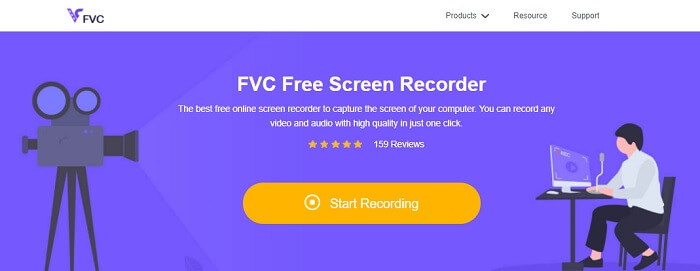
Pas 3. Després d’iniciar l’eina, veuràs aparèixer la barra flotant. Ajusta el marc per canviar la relació d’aspecte i comença a gravar fent clic al botó REC.
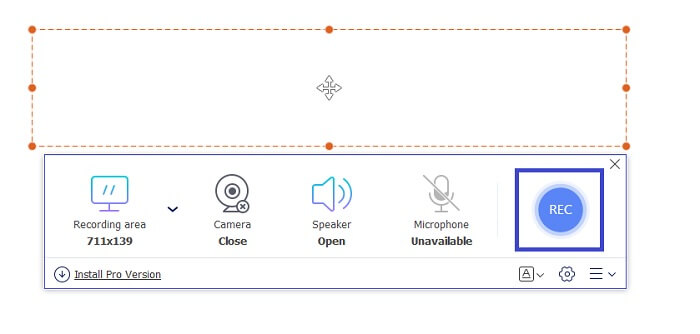
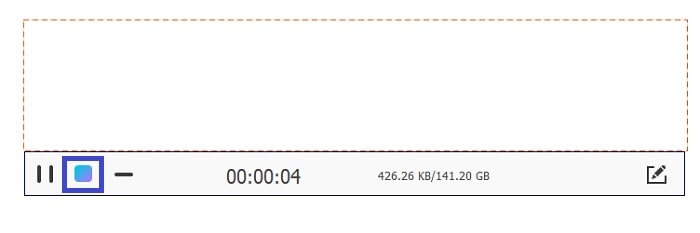
Pas 4. Mentrestant, per aturar la gravació, fes clic al botó quadrat que es mostra a la imatge següent.
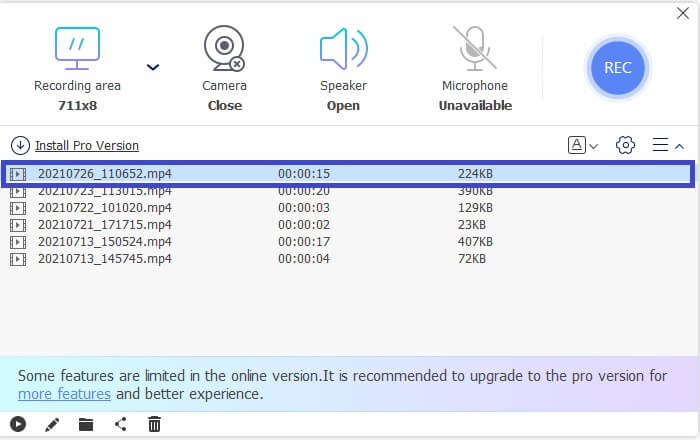
Pas 5. Per veure el fitxer que has gravat, comprova la llista que hi ha sota la barra d’eines flotant.
Pros
- 100% segur de programari maliciós.
- És flexible per ajustar la relació d'aspecte, la taxa de bits i la velocitat de fotogrames.
- Admet imatge a imatge.
Contres
- No admet l'acceleració de maquinari.
2. Tiny Take
Funció destacada: Permet la col·laboració o el treball en remot.
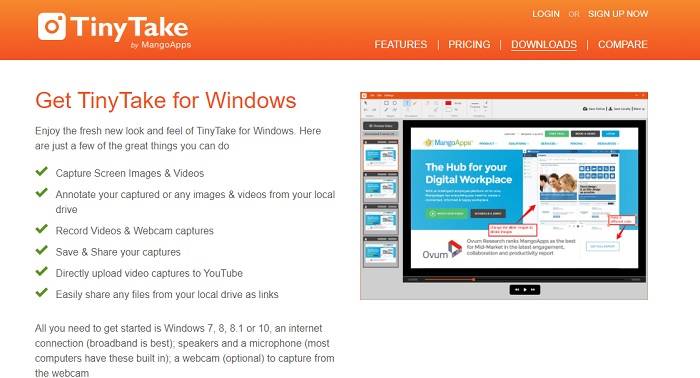
TinyTake és una eina de gravació de vídeo i captura de pantalla gratuïta desenvolupada per Mango Apps. Tiny Take ofereix solucions excel·lents per a la captura de pantalla o l'enregistrament de reunions professionals o personals senzilles. El que va fer popular aquesta eina és la funció de col·laboració on podeu treballar de forma remota, compartir fitxers a granel, utilitzar funcions d'anotació i emmagatzematge a llarg termini i la Galeria (en línia).
Pros
- Pot capturar imatges i vídeos des de la vostra unitat local.
- Comparteix-ho directament a YouTube.
- Anotar durant la gravació.
Contres
- Sense funció de tancament de la finestra.
3. Screencast-O-Matic
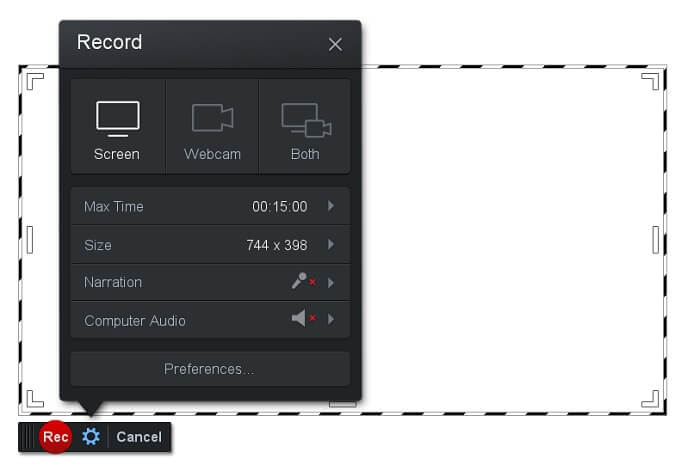
Funció destacada: L’eina té una interfície fàcil d’utilitzar i de navegar. Molt intuïtiva.
Screencast-O-Matic és un dels programes més utilitzats per molta gent. El que pot fer és gravar la pantalla de l’ordinador de manera gratuïta un cop t’hagis registrat. Es recomana crear un compte per utilitzar l’eina gratuïta. A més d’això, el desenvolupador hi ha incorporat una funció amb la qual pots editar el vídeo directament abans d’exportar-lo. Pots recórrer a la biblioteca integrada de recursos de l’eina per inspirar-te i continuar millorant els teus vídeos. També pots fer captures de pantalla i compartir tot el contingut als teus comptes de xarxes socials.
Pros
- Té una funció d'allotjament al núvol.
- Penja un vídeo per editar-lo.
- Contingut de l'amfitrió.
Contres
- Cal inscripció.
4. Screencastify
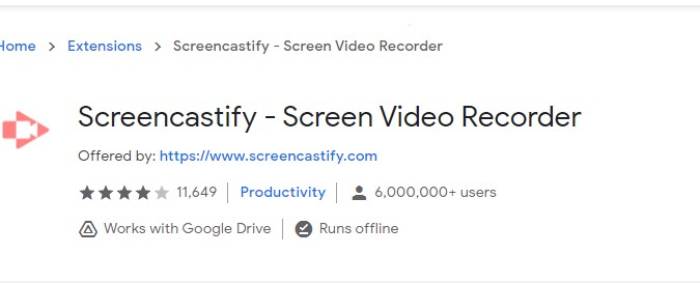
Funció destacada: Extensió per al navegador web
Donem una mica de diversitat a la llista. Screencastify és una eina que depèn del web específicament una extensió del navegador Chrome. Això és utilitzat principalment per educadors i estudiants. Principalment per la senzillesa de l'eina i la capacitat d'anotació que manté l'educador i l'estudiant enfocats a la classe. La majoria de les persones que estan estudiant mitjançant Udemy i aquests llocs d'aprenentatge utilitzen aquest gravador de pantalla. Si feu el mateix, podeu considerar utilitzar-lo. Mentrestant, aquí teniu informació més detallada sobre l'eina.
Pros
- Compatible amb totes les plataformes multimèdia.
- Contingut de l'amfitrió.
- Penja un vídeo per editar-lo.
Contres
- Tot i que és un accés fàcil perquè depèn del navegador, també pot ser desavantatge.
- Necessita molts permisos per utilitzar-lo.
Part 3. Preguntes freqüents sobre WebM Recorder
Per què el meu fitxer WebM no s'obre?
Entenc la confusió; potser penses que estàs utilitzant un navegador modern i, tot i així, no es reprodueix. Has comprovat si estàs executant la versió més recent del navegador? Si no, actualitza’l, si us plau. És un dels motius més comuns pels quals un vídeo no es reprodueix. Però tingues en compte que aquestes són algunes de les versions admeses pel fitxer WebM: Chrome 6, Firefox 4 i Internet Explorer 9 i superiors. O bé pots provar d’utilitzar reproductors WebM per ajudar-te a obrir-lo.
Per què no puc reproduir vídeos WebM al meu Mac?
Recomano molt que baixeu el reproductor VLC o el connector VLC per a Mac OS X. Ha de tenir un processador Intel de 64 bits.
Part 4. Quadre de comparació
| Característica | Gravador de pantalla FVC (Premium) | Gravador de pantalla FVC gratuït | TinyTake | ScreenCast-O-matic | ScreenCastify |
| Gravació d'àudio i vídeo |  | | | | |
| Funció d'edició de vídeo | | |  | | |
| Funció de la finestra de bloqueig | | | | | |
| Característica d'anotació | | | | | |
| Admet WebM | | | | | |
| Segur contra programari maliciós | | | | | |
| Taxa de bits i relació d'aspecte ajustables | | | | | |
Conclusió
Totes les eines de gravació WebM revisades en aquest article són fiables i eficients. Només has de veure quina eina s'adaptarà als requisits del teu ordinador i del teu sistema operatiu. La majoria de la gent anirà a un terreny segur utilitzant una aplicació basada en web. Però encara és la teva crida per decidir.
-
 La gravadora d’àudio sense revisió Cinch Review i la millor alternativa
 Cinch Audio Recorder és la millor manera de descarregar música de llocs de transmissió. Només cal obtenir més informació sobre la ressenya imparcial i la millor alternativa de l'article.
-
 Els cinc millors enregistradors de teclat i ratolí per a Windows i Mac
 Aquests són els cinc millors programes de gravació de ratolí i teclat que us permeten estalviar moviments del ratolí i clics al teclat i repetir els esdeveniments.
-
 Els 4 millors gravadors de pantalla AVI gratuïts per capturar vídeos de pantalla com a fitxers AVI
 Per gravar la pantalla en fitxers AVI d'alta qualitat, l'article identifica i comparteix els 4 millors enregistradors de pantalla AVI gratuïts d'aquesta publicació. Obteniu més detalls per trobar el que desitgeu en conseqüència.
