


 Video Converter Ultimate
 Gravadora de pantalla
 Reparació de vídeo
 Baixada segura
Guia definitiva sobre com fer captures de pantalla de FaceTime [2025]
FaceTime és una aplicació de videotrucades àmpliament utilitzada que va ser desenvolupada per Apple perquè els seus usuaris puguin mantenir converses de vídeo en temps real tant a l’iPhone, l’iPad com al Mac. Ara bé, fer captures de pantalla durant les trucades de FaceTime és una manera fantàstica de desar moments amb les persones amb qui parlem, especialment quan algú ha estat molt de temps sense veure’ns. Així doncs, si vols guardar moments preciosos durant aquestes trucades, aquest article és per a tu. Dedica una estona a llegir-lo i descobreix 3 maneres de fer captures de pantalla a FaceTime fàcilment. Comencem!

Part 1: La millor manera de fer captures de pantalla de FaceTime a iPhone/iPad/Mac
La manera definitiva i més senzilla de fer captures de pantalla de FaceTime en dispositius Apple és utilitzant el FVC Screen Recorder. Aquesta eina de tercers per gravar la pantalla està dissenyada perfectament per fer captures tant a l’iPhone, l’iPad com al Mac. Per tant, si utilitzes qualsevol d’aquests dispositius i vols fer captures de pantalla quan facis videotrucades de FaceTime amb la família, amics i persones estimades, et beneficiaràs molt de les seves funcions de captura i gravació de telèfon. A més, aquesta eina és molt fàcil de fer servir per qualsevol usuari gràcies a la seva interfície intuïtiva. Finalment, si vols ser creatiu amb les teves captures de FaceTime, gaudiràs segur de les funcions d’edició que et permeten personalitzar-les.
Mètode 1: per a Mac
Pas 1. Primer, descarrega i instal·la FVC Screen Recorder al teu Mac. Aquest programari és compatible amb gairebé totes les versions de macOS, inclosa la més recent, macOS 14 Sonoma.
Descàrrega gratuïtaPer a Windows 7 o posteriorDescàrrega segura
Descàrrega gratuïtaPer a MacOS 10.7 o posteriorDescàrrega segura
Pas 2. A continuació, obre l’eina.
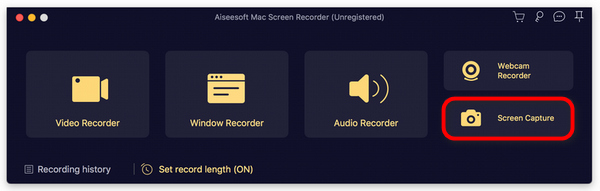
Pas 3. Ara, mentre estiguis fent una videotrucada de FaceTime al teu Mac, fes clic al botó Screen Capture que trobaràs a la finestra flotant de la interfície de l’eina.
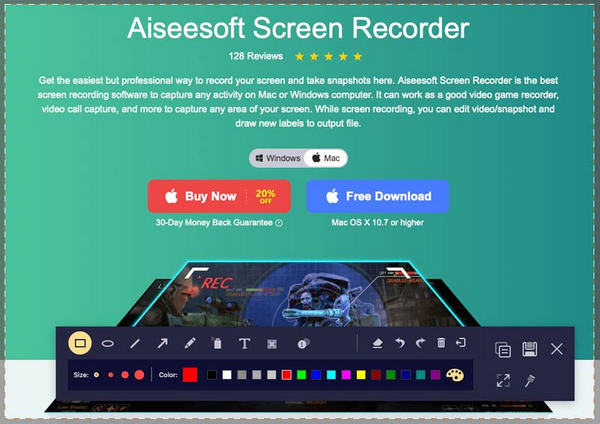
Pas 4. Aquest pas és opcional, però pots editar les imatges de la teva captura de pantalla de FaceTime utilitzant les diverses eines d’edició de la part inferior.
Pas 5. Finalment, fes clic a Save per desar la imatge al teu Mac.
Mètode 2: per a iPhone i iPad
Pas 1. Descarregueu i obriu FVC Screen Recorder, però aquesta vegada a l’ordinador amb Windows.
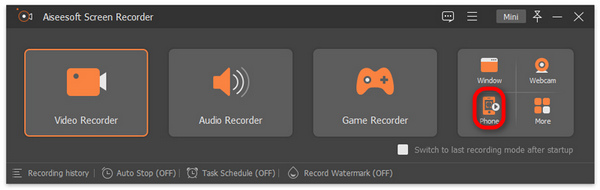
Pas 2. Ara, després d’instal·lar l’eina, obre-la i, al costat dret de la finestra flotant de la interfície, juntament amb les altres 3 opcions, fes clic a l’opció Phone.
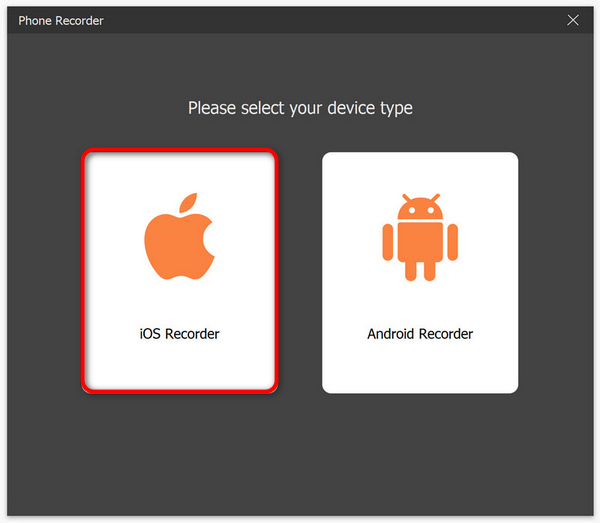
Pas 3. Després, feu clic a l’opció iOS Recorder.
Pas 4. Ara apareixerà una nova finestra amb instruccions en pantalla on també se’t demanarà que triïs entre Screen Mirroring o Audio Mirroring. En el teu cas, tria Screen Mirroring.
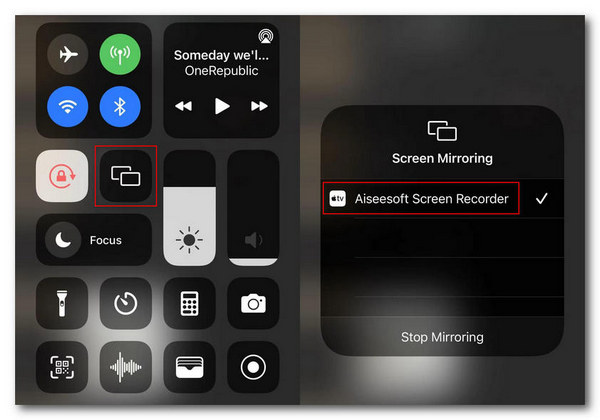
Pas 5. Ara, al teu iPhone o iPad, obre el Centre de control i prem Screen Mirroring. Després, toca Aiseesoft Screen Recorder per connectar l’iPhone o l’iPad a l’ordinador.
Pas 6. Finalment, per fer una captura de pantalla al teu iPhone o iPad, només has de fer clic a la icona de Snapshot.
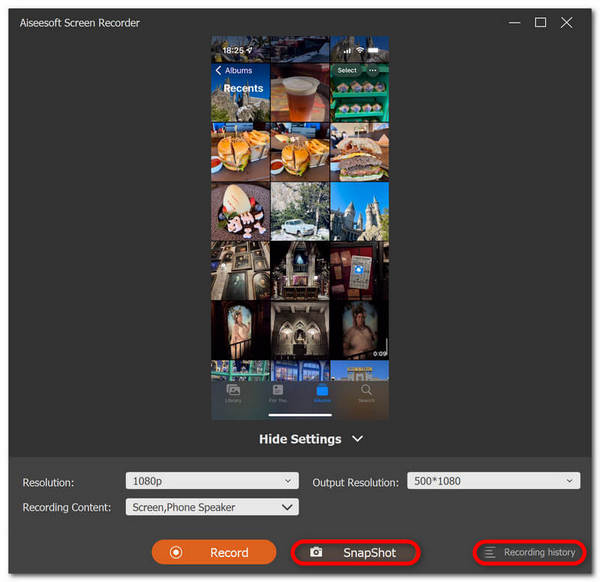
FVC Screen Recorder és una eina versàtil quan es tracta de fer captures de pantalla. Imagineu una eina que pugui suportar diversos dispositius iOS. Massa bo per ser veritat, però ho és. Per tant, independentment del dispositiu iOS que utilitzeu, podeu fer captures de pantalla de FaceTime durant les videotrucades amb aquesta eina de gravació de pantalla.
Part 2: Com fer una captura de pantalla de FaceTime a iPhone/iPad
Fer captures de pantalla de FaceTime en un iPhone o iPad es pot fer sense problemes mitjançant les seves funcions de captures de pantalla integrades.
Pas 1. Comprova el dispositiu iOS o iPadOS que estàs utilitzant durant una videotrucada de FaceTime.
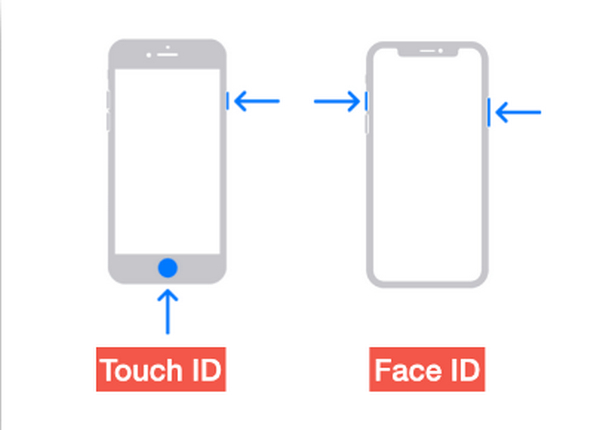
Pas 2. Si té Touch ID, has de prémer simultàniament els botons Inici i Engegada per fer una captura de pantalla de la videotrucada de FaceTime. En canvi, si el teu iPhone o iPad té Face ID, pots fer una captura de pantalla de la trucada de FaceTime prement alhora els botons Pujar volum i Engegada.
Pas 3. Accedeix a la teva captura de pantalla a l’app Fotos, a la carpeta Captures de pantalla,
Si feu captures de pantalla de FaceTime és només un tros de pastís en un iPhone o iPad a causa de les seves funcions de captures de pantalla integrades. Tanmateix, cal tenir cura de prémer els botons necessaris durant una trucada activa de FaceTime, ja que pot suposar un risc d'interrupció accidental, com ara finalitzar la trucada o apagar el volum sense saber-ho.
Part 3: Com fer una captura de pantalla de FaceTime a Mac
Quan teniu una videotrucada de FaceTime al vostre Mac, la manera més senzilla de fer-ho és fer-hi captures de pantalla de FaceTime mitjançant les seves tecles d'accés ràpid.
Pas 1. Primer obre la teva videotrucada de FaceTime al Mac.
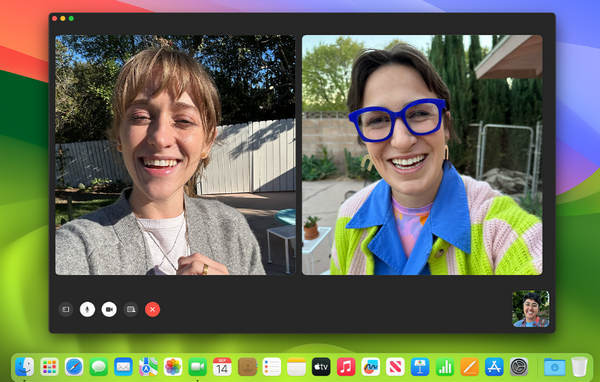
Pas 2. Ara, fes una captura de pantalla de FaceTime utilitzant les dreceres de teclat mentre estiguis en plena videotrucada.
Nota: Per capturar una imatge de tota la pantalla de la teva videotrucada de FaceTime, prem i mantén les tecles Command, Shift i 3 alhora. En canvi, si només vols capturar una part de la pantalla, prem i mantén les tecles Command, Shift i 4. Finalment, si vols capturar només la finestra de FaceTime, prem simultàniament les tecles Command, Shift, 4 i la barra espaiadora.
Pas 3. La captura de pantalla es desarà directament a l’escriptori.
L'única cosa sobre l'ús de tecles d'accés directe durant una captura de pantalla de FaceTime a Mac és que no la podeu editar si voleu personalitzar les imatges de la captura de pantalla. No obstant això, si només voleu fer-ne una captura de pantalla, està bé, però si voleu ser creatiu, podeu utilitzar eines de tercers com ara FVC Screen Recorder.
Part 4: Preguntes freqüents sobre com fer captures de pantalla de FaceTime
On van les captures de pantalla de FaceTime?
Pots accedir a les teves captures de pantalla de FaceTime a l'aplicació Fotos del teu dispositiu. Normalment, després de fer una captura de pantalla durant una trucada de FaceTime, s'hi desarà directament, concretament a la carpeta de captures de pantalla d'aquesta aplicació.
FaceTime us indica quan algú fa captures de pantalla?
No. FaceTime no té cap funció que notifiqui algú que faci una captura de pantalla durant una videotrucada de FaceTime. Per tant, si algú fa una captura de pantalla durant la trucada de FaceTime, no rebrà cap notificació.
Les captures de pantalla de FaceTime no s'estan desant?
Si teniu problemes amb les captures de pantalla de FaceTime que no es desen al vostre dispositiu iOS, hi pot haver diversos motius. En primer lloc, heu d'assegurar-vos que l'emmagatzematge del vostre dispositiu no estigui ple, ja que aquesta pot ser una de les raons principals per les quals les captures de pantalla de FaceTime no es desen. Bàsicament, això evita que es desin noves captures de pantalla. A més, comproveu la configuració de privadesa del vostre dispositiu potser perquè l'aplicació Fotos no té permís per desar captures de pantalla. Si el problema persisteix, reiniciar el dispositiu o actualitzar el programari pot ajudar a resoldre el problema.
Conclusió
En conclusió, fer captures de pantalla a FaceTime durant les videotrucades és la manera més senzilla de desar i capturar moments inoblidables amb les persones estimades a l’altra banda de la línia. Tant si utilitzes les funcions integrades als dispositius iOS com si optes per eines de tercers com FVC Screen Recorder, hi ha diversos mètodes disponibles per capturar aquests moments sense esforç. Per tant, no dubtis a aprofitar aquestes eines i funcions per treure el màxim profit de les teves experiències a FaceTime. Truca ara als teus éssers estimats per FaceTime i desa aquell moment fent-ne una captura de pantalla.
-
 Com resoldre la captura de pantalla que no funciona a l'iPhone [2025]
 Teniu problemes per fer captures de pantalla al vostre iPhone? Et tenim! Apreneu la nostra guia completa per ajudar-vos a corregir les captures de pantalla que no funcionen als iPhones de manera ràpida i senzilla.
-
 Captura de pantalla a Windows sense pantalla d'impressió [Guia 2025]
 Buscant maneres de fer captures de pantalla a Windows sense una pantalla d'impressió. Aquest article us ho va facilitar. Llegeix això ara i captura la teva pantalla sense esforç!
-
 4 maneres de fer captures de pantalla a Snapchat sense que ho sàpiguen
 Vols fer una captura de pantalla a Snapchat sense que ho sàpiguen? Aquest article té 4 mètodes efectius dissenyats només per a tu. Comprova-ho ara i prova-ho tu mateix!
