


 Video Converter Ultimate
 Gravadora de pantalla
 Reparació de vídeo
 Baixada segura
4 maneres de capturar pantalla a Windows Media Player
Windows Media Player és un reproductor popular que et permet visualitzar tota mena de continguts multimèdia. El reproductor inclou funcions com ara visualització de fotos, reproductor de música, visualització de vídeos i organitzador de col·leccions musicals. L’ús de Windows Media Player ajuda els usuaris a realitzar tasques relacionades amb els mitjans, i en aquest article expliquem com fer una captura de pantalla a Windows Media Player. Reproduir una escena memorable d’una pel·lícula, un fragment d’un tutorial o un moment divertit amb el reproductor et dona la llibertat de fer captures de pantalla i desar aquests moments quan et convingui. Tanmateix, molts usuaris potser no coneixen les eines i tècniques integrades disponibles per capturar captures de pantalla dins d’aquest reproductor versàtil. Llegeix fins al final d’aquest article per conèixer quatre mètodes fàcils i efectius per fer una captura de pantalla a Windows Media Player, que inclouen l’ús de programari, tecles de drecera, l’eina Retall i la seva pròpia eina integrada, que et permetran capturar aquests moments amb facilitat.
Part 1. Com fer una captura de pantalla al Windows Media Player
Fer una captura de pantalla a Windows Media Player és senzill i no hauria de consumir gaire temps ni en fer-ho ni en aprendre’n. Hi ha moltes maneres de fer-ho, i la manera recomanada de fer captures de pantalla de reproductors multimèdia a Windows 11 o versions anteriors és mitjançant eines de programari com Screen Recorder seleccionada per FVC. Aquest programari és una eina versàtil dissenyada per satisfer la necessitat de capturar la pantalla de tot tipus de continguts multimèdia, especialment a Windows Media Player. Amb aquest programari, els usuaris poden dur a terme tasques en pantalla i gravar vídeos, àudio i jocs en un sol lloc, a diferència d’altres eines que se centren només en una funció específica. A més, aquest programari ofereix funcions fàcils d’utilitzar i que estalvien temps. Les seves eines d’edició faciliten que els usuaris puguin editar les seves captures de pantalla just en el moment de fer-les.
Pas 1. Comença descarregant i instal·lant aquesta eina de captura de pantalla a l’ordinador. Un cop completat el procés d’instal·lació, obre el programari.
Descàrrega gratuïtaPer a Windows 7 o posteriorDescàrrega segura
Descàrrega gratuïtaPer a MacOS 10.7 o posteriorDescàrrega segura
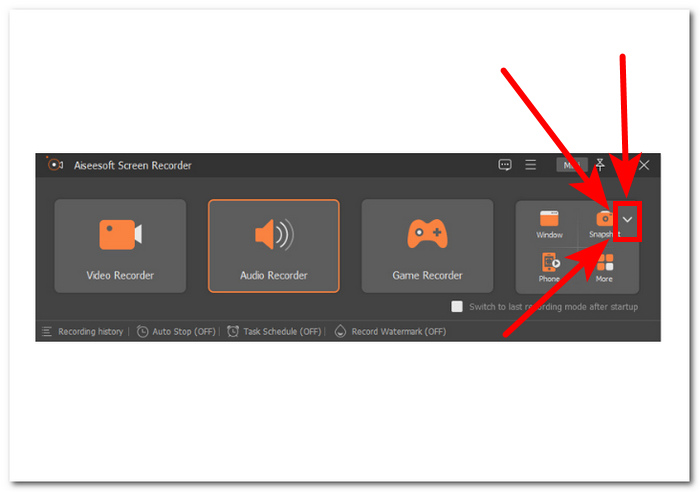
Pas 2. Un cop obert el programari, veuràs una icona amb un botó de fletxa avall de Snapshot situada al costat dret. Fes clic en aquest botó per continuar.
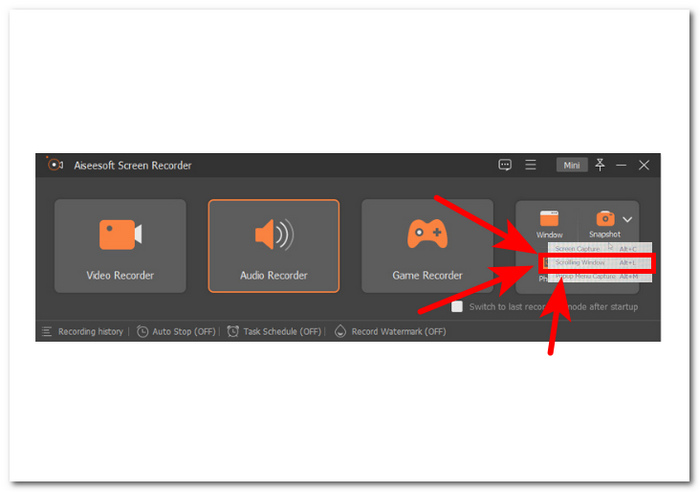
Pas 3. Selecciona l’opció Scrolling Window al menú desplegable. Alternativament, pots utilitzar la drecera Alt+L al teclat.
Pas 4. Amb l’opció Scrolling Window seleccionada, el programari farà automàticament una captura de pantalla. Ara pots desplaçar-te cap avall per capturar tota la informació que necessitis. El programari capturarà tota la llargada de la pàgina o document, permetent-te desar-la o compartir-la segons convingui.
El gravador de pantalla recomanat per FVC és una eina fiable que es pot utilitzar per fer una captura de pantalla d'un vídeo al Windows Media Player. Aquest programari està disponible de forma gratuïta tant en dispositius Mac com Windows, la qual cosa garanteix una àmplia base d'usuaris. Amb la seva varietat de funcions de gravació i captura de pantalla, aquesta eina de captura de pantalla és perfecta per a qualsevol persona que necessiti una eina fiable i polivalent per capturar la pantalla de l'ordinador.
Part 2. Captura de pantalla al Windows Media Player amb dreceres de Windows
Si utilitzeu Windows Media Player i necessiteu fer una captura de pantalla, no cal que baixeu cap eina de tercers. Per capturar imatges d'un vídeo Windows Media Player, podeu utilitzar les tecles de drecera per capturar de manera ràpida i senzilla una captura de pantalla del vídeo que esteu veient. Aquesta pot ser una manera fantàstica d'agafar una imatge fixa d'un vídeo per consultar-la o compartir-la amb altres persones. Només cal que utilitzeu les tecles de drecera adequades i la vostra captura de pantalla es desarà per transferir-la fàcilment al programari d'edició de documents o imatges.
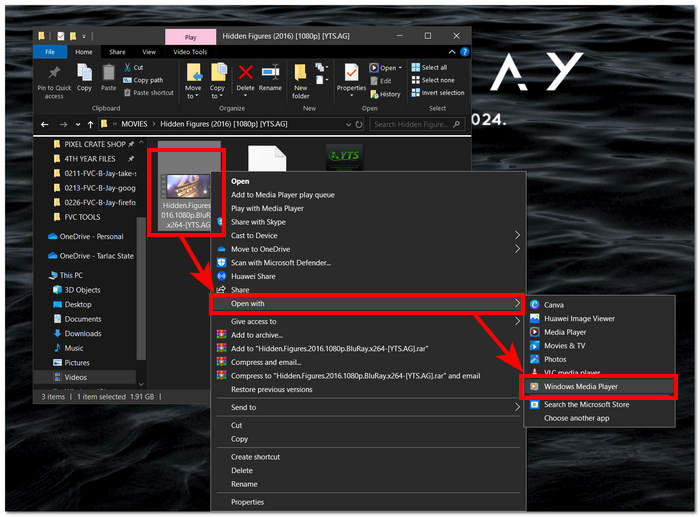
Pas 1. Per començar, inicia el Windows Media Player a l’ordinador. Selecciona el vídeo del qual vols fer una captura de pantalla.
Pas 2. Quan arribis al fotograma exacte del vídeo que vols capturar com a captura de pantalla, posa el vídeo en pausa fent clic al botó Pause.
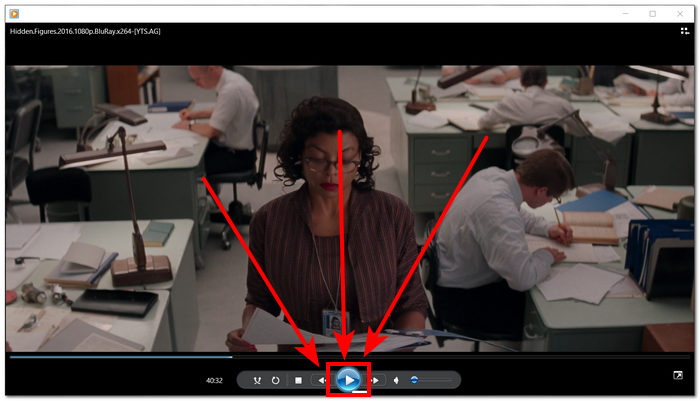
Pas 3. Busca el botó PrtScn al teclat i prem-lo. Això farà una captura de la pantalla i la desarà com a fitxer d’imatge. (Com fer una captura de pantalla sense PrtSc?)
Pas 4. La captura de pantalla es desa automàticament a la ubicació d’emmagatzematge predeterminada de l’ordinador. Per trobar-la, busca una finestra emergent que digui screenshot saved.
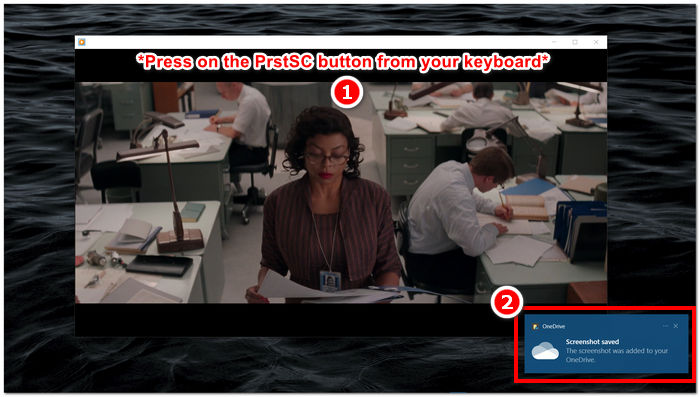
Quan feu una captura de pantalla al Windows Media Player, l'ús de tecles de drecera pot estalviar temps als usuaris i eliminar la necessitat d'utilitzar una eina. Tot i que aquest mètode és eficient i beneficiós per a aquells que tenen pressa, és important tenir en compte que no permet cap edició de la captura de pantalla.
Part 3. Com fer una captura de pantalla al Windows Media Player amb l'eina Snipping
Si voleu capturar una captura de pantalla mentre reproduïu un vídeo al Windows Media Player, podeu fer-ho fàcilment sense haver d'instal·lar cap programari addicional. L'eina de retall de Windows, que ja està integrada a tots els dispositius Windows, es pot utilitzar per fer captures de pantalla de qualsevol part de la pantalla, inclosa la finestra de reproducció de vídeo del reproductor multimèdia. Aquesta funció pot ser útil si necessiteu capturar ràpidament una imatge fixa d'un vídeo amb finalitats de referència o de compartir.
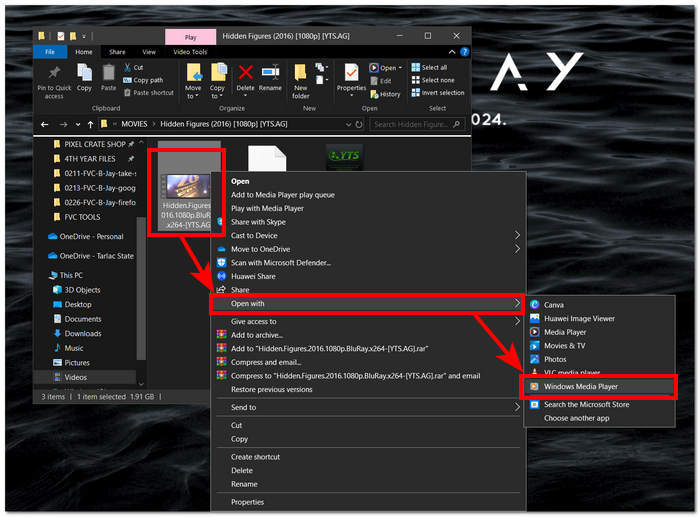
Pas 1. Obre el vídeo del qual vols fer una captura de pantalla amb el Windows Media Player.
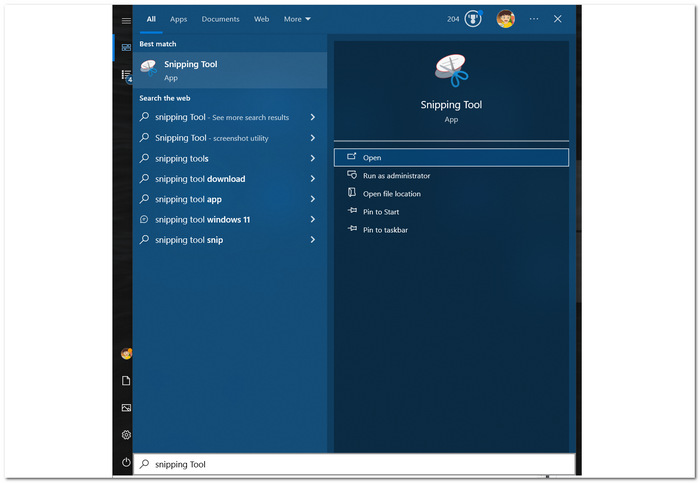
Pas 2. Cerca l’eina Snipping Tool al dispositiu Windows mitjançant la cerca al menú Inici i obre-la.
Pas 3. A la seva interfície, fes clic a Window Snip a l’apartat Mode i, després, selecciona manualment l’àrea de la qual vols fer la captura de pantalla.
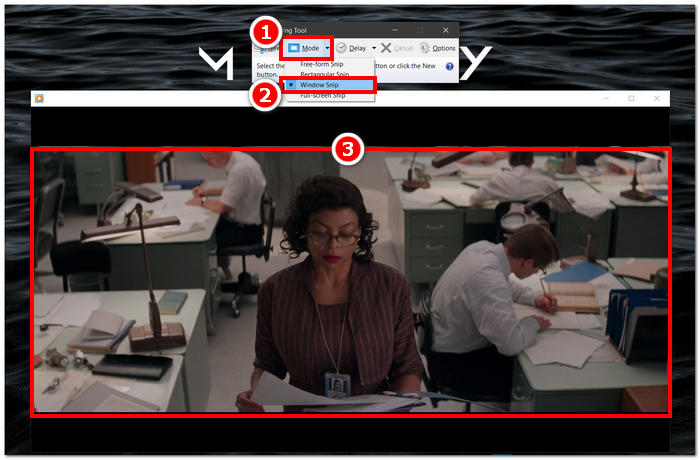
Pas 4. Després de fer clic a l’àrea, s’obrirà una finestra nova que et permetrà anotar-la i desar-la a l’ordinador.
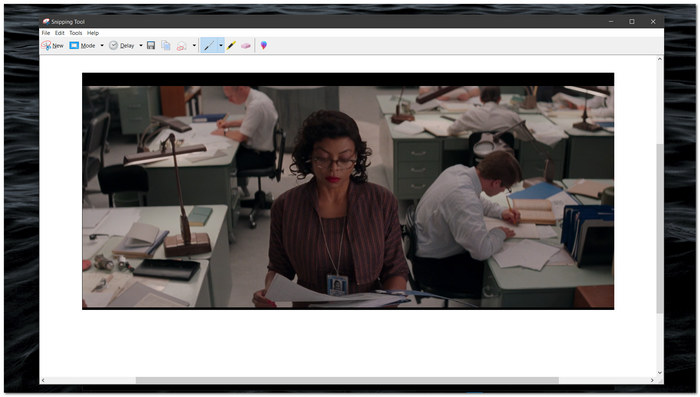
Capturar captures de pantalla mentre es veuen vídeos al Windows Media Player és fàcil gràcies a les capacitats natives de l'eina de retall de Windows. Aprofitant l'eina de retall de Windows, els usuaris poden millorar la seva experiència multimèdia i agilitzar el procés de captura i compartició de contingut sense problemes.
Part 4. Com fer una captura de pantalla al Windows Media Player amb la seva eina integrada
Windows Media Player no inclou una funció integrada, de manera que no permet als usuaris fer captures de pantalla dins del reproductor. Tanmateix, encara hi ha una tecla de drecera que es pot utilitzar, a més de les esmentades anteriorment, per fer captures de pantalla al Windows Media Player.
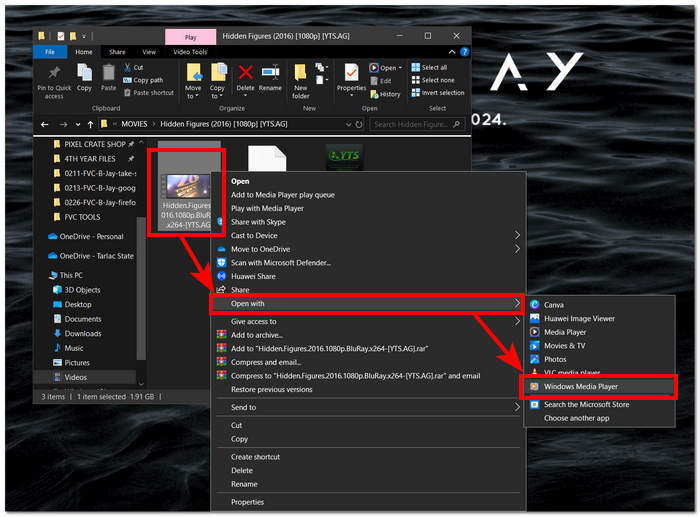
Pas 1. Per fer una captura de pantalla d’un vídeo que s’està reproduint a Windows Media Player, primer obre el vídeo al reproductor.
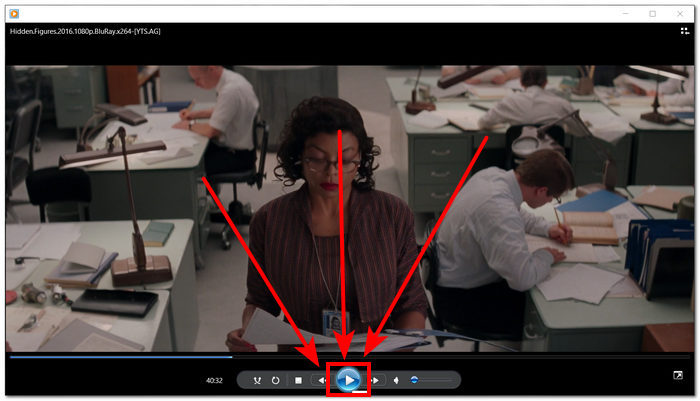
Pas 2. Primer hauràs de Pause el reproductor just en el moment exacte que vols capturar.
Pas 3. Per fer una captura de pantalla d’un vídeo en pausa a l’ordinador, pots utilitzar la combinació de tecles Windows Logo + Shift + S al teclat.
Pas 4. Després de seleccionar manualment la part de la qual vols fer la captura de pantalla, aquesta es desarà automàticament al porta-retalls. La podràs utilitzar fàcilment enganxant-la al correu electrònic, plataforma de missatgeria o aplicació de notes que vulguis.
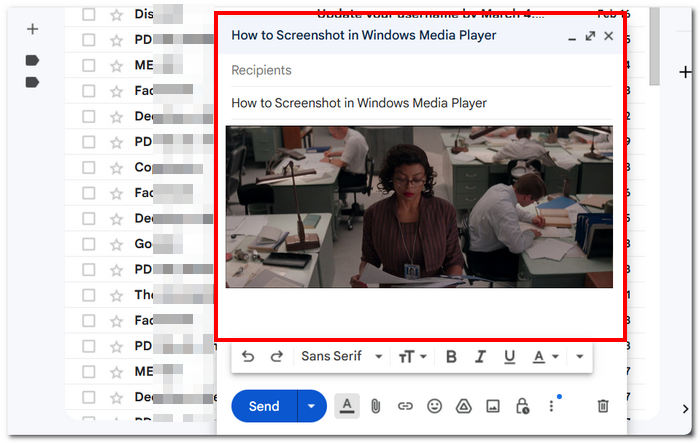
És possible que el Windows Media Player no tingui una funció integrada per fer captures de pantalla. Tanmateix, a diferència de la captura de pantalla de VLC, segueix sent un reproductor multimèdia fiable i potent, tenint en compte que és gratuït i preinstal·lat al dispositiu.
Part 5. Preguntes freqüents sobre com fer una captura de pantalla al Windows Media Player
Puc fer captures de pantalla al Windows Media Player sense utilitzar cap programari addicional?
És possible capturar captures de pantalla al Windows Media Player sense cap programari addicional. Windows té una eina integrada anomenada eina de retall que us permet fer captures de pantalla de qualsevol part de la vostra pantalla, inclosa la finestra de reproducció de vídeo a Windows Media Player.
Puc personalitzar la configuració de l'eina de retall per a una millor captura de pantalla?
L'eina de retall ofereix paràmetres personalitzables com ara el mode predeterminat (p. ex., retall rectangular, retall de forma lliure), el retard abans de capturar i el format en què es desaran les captures de pantalla (per exemple, PNG, JPEG).
Hi ha una manera més ràpida de fer captures de pantalla a Windows Media Player?
Hi ha eines de captura de pantalla de tercers disponibles que ofereixen funcions més avançades i mètodes més ràpids per fer captures de pantalla. Si sovint necessiteu fer captures de pantalla mentre feu servir Windows Media Player, podeu explorar aquestes opcions.
Puc capturar captures de pantalla de vídeos que es reprodueixen en mode de pantalla completa?
Sí, és possible utilitzar l'eina de retall per fer captures de pantalla fins i tot mentre es reprodueixen vídeos en mode de pantalla completa. Simplement canvieu a l'eina de retall i captureu l'àrea desitjada de la pantalla que conté el vídeo.
Quin és el mètode recomanat per fer captures de pantalla d'alta qualitat al Windows Media Player?
El mètode recomanat per fer captures de pantalla d'alta qualitat al Windows Media Player és utilitzar el mètode del programari. Aquesta eina permet als usuaris seleccionar i capturar àrees específiques de la pantalla, inclosa la finestra de reproducció de vídeo, garantint la claredat i la precisió de la captura de pantalla. Aprofitant les funcions de l'eina de programari, els usuaris poden fer captures de pantalla nítides i detallades sense necessitat de programari de tercers.
Conclusió
Hem explorat diversos mètodes per capturar captures de pantalla a Windows Media Player, des de solucions basades en programari fins a eines integrades com l’eina Retall i les tecles de drecera. Aquestes tècniques són accessibles i poden ajudar els usuaris a conservar i compartir moments significatius de les seves experiències multimèdia sense esforç. Amb les funcionalitats que hem vist aquí, els usuaris poden integrar de manera fluida la captura de pantalla en l’ús de Windows Media Player i elevar la qualitat de les seves interaccions amb els continguts multimèdia.
-
 Com fer captures de pantalla de desplaçament al Firefox sense esforç
 Apreneu a desplaçar-vos per les captures de pantalla al Firefox per capturar pàgines web senceres a l'instant. Seguiu el nostre senzill tutorial pas a pas per aprendre a utilitzar aquesta funció.
-
 Com fer captures de pantalla al Samsung S23 al palmell de la mà
 Tot el que necessiteu saber sobre com fer captures de pantalla al Samsung S23, maximitzant les funcions insígnies del dispositiu per a una experiència de captura de pantalla perfecta.
-
 Com fer una captura de pantalla al Windows Media Player de manera eficient
 Descobriu els mètodes més senzills per capturar captures de pantalla al Windows Media Player sense esforç. Millora la teva experiència de captura de pantalla amb la nostra guia completa.
