


 Video Converter Ultimate
 Gravadora de pantalla
 Reparació de vídeo
 Baixada segura
[Resolt] 4 mètodes per fer captures de pantalla a Android
Fer captures de pantalla és una de les coses més habituals que podem fer avui amb el nostre telèfon. Quan volem desar una imatge, un text o una publicació que hem vist a la pantalla mentre fèiem scroll, en fem una captura. Ara bé, si fas servir un dispositiu Android i et preguntes com treure’n el màxim profit a les funcions de captura de pantalla, t’ho expliquem! En aquest article, aprendràs com fer captures de pantalla a Android de 4 maneres i aprofitar al màxim les capacitats del teu dispositiu. Continua llegint per desar, amb una captura de pantalla, el contingut que t’importa!

Part 1: Com fer una captura de pantalla al telèfon Android
És possible que us pregunteu això, però fer captures de pantalla a Android realment varia segons el fabricant del dispositiu i la versió del sistema operatiu. Per tant, si sou un usuari d'Android i no sabeu quin mètode utilitzar quan voleu fer una captura de pantalla, comproveu els passos següents:
Mètode 1: Ús dels botons de maquinari
La manera més habitual de fer captures de pantalla en un dispositiu Android és utilitzant el seu maquinari o botons físics. És el mètode més conegut utilitzat per fer captures de pantalla a Android per la seva accessibilitat i comoditat.
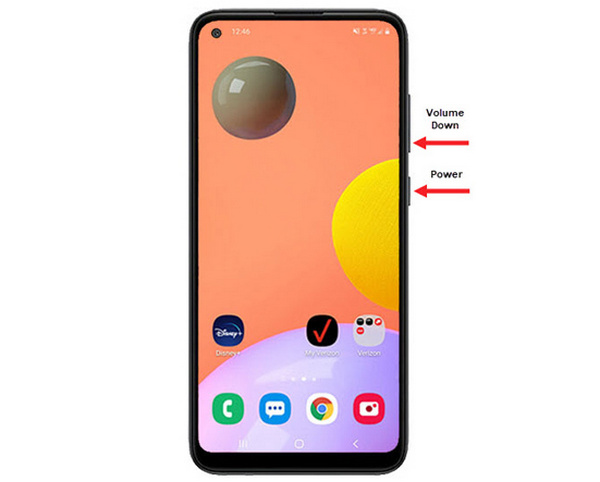
Pas 1. Primer, al teu telèfon Android, prem els botons Baixar volum i Engegar/Apagar alhora. Mantén-los premuts fins que es faci la captura de pantalla.
Pas 2. Després, accedeix a la teva captura de pantalla a l’aplicació Galeria.
Per tant, si els botons del vostre maquinari funcionen correctament, podeu seguir aquest mètode per fer captures de pantalla al vostre Android fàcilment.
Mètode 2: Ús de dreceres
Avui dia, alguns dispositius Android tenen una funció de captura de pantalla integrada al tauler de configuració ràpida, que és útil per fer una captura de pantalla ràpidament.
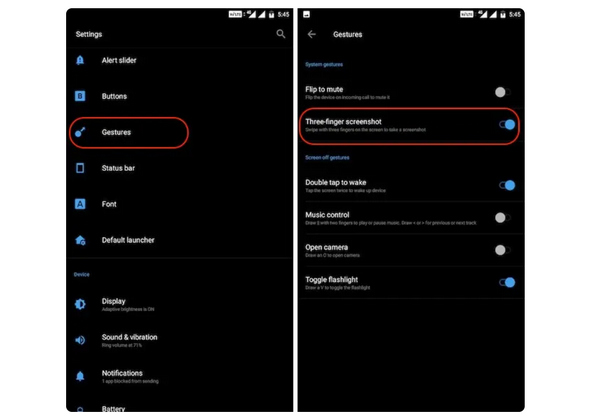
Pas 1. Primer, al teu telèfon Android, ves a Configuració. Desplaça’t una mica cap avall i selecciona l’opció Gestos o Botons.
Pas 2. Des d’aquí, busca l’opció Captura de pantalla i activa-la.
Pas 3. Finalment, per fer una captura de pantalla amb aquest mètode, només has de lliscar cap avall amb tres dits sobre la pantalla que vols capturar.
Aquest mètode és millor quan no voleu prémer els botons per fer una captura de pantalla. Tanmateix, primer heu de configurar-ho a la vostra configuració. Per tant, si no el coneixeu, només heu de seguir els passos anteriors.
Mètode 3: Ús de Google Assistant
Mentrestant, si el vostre telèfon Android té un Assistent de Google, podeu utilitzar-lo per fer una captura de pantalla fàcilment.
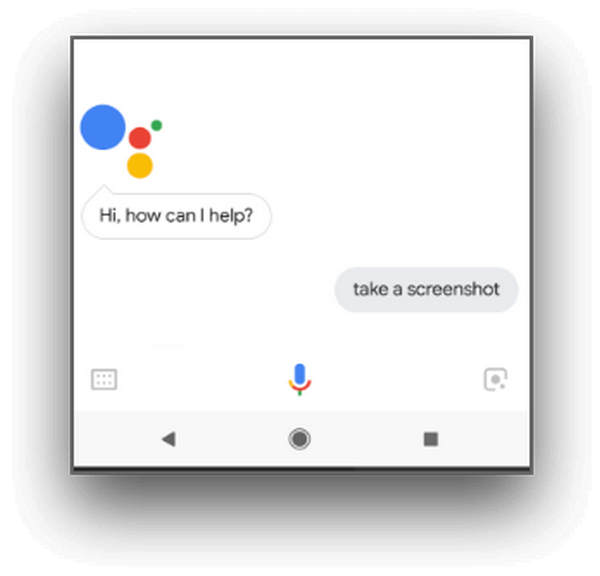
Pas 1. Primer, has d’activar l’Assistent de Google prement el botó d’inici o fent una ordre de veu dient OK, Hola Google.
Pas 2. Quan estigui activat, digues Fes una captura de pantalla o Captura de pantalla.
Nota: Hi ha d’haver una animació o has de sentir un so que indiqui que la captura de pantalla s’ha fet.
Pas 3. Pots accedir a la teva captura de pantalla a l’aplicació Galeria del telèfon, a la carpeta Captures de pantalla.
Nota: Això no és aplicable a tots els dispositius Android, així que, si el teu telèfon disposa d’un Assistent de Google que et permet fer captures de pantalla mitjançant una ordre de veu, només cal que segueixis aquests passos.
Part 2: Com fer captures de pantalla a la tauleta Android
Si teniu una tauleta Android i us pregunteu com fer-ne una captura de pantalla, a continuació us indiquem com:
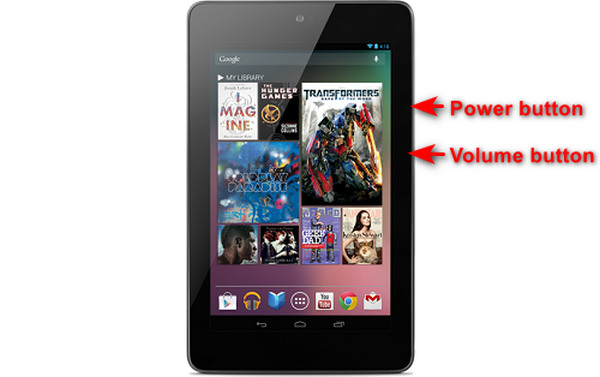
Pas 1. A la teva tauleta Android, prem alhora el botó Engegar/Apagar i el de Baixar volum i mantén-los premuts uns segons.
Nota: Hauries de rebre una notificació indicant que la captura de pantalla s’ha fet.
Pas 2. Després, accedeix a la teva captura de pantalla a la Galeria de la tauleta, dins la carpeta Captures de pantalla.
Si aquest mètode no funciona a la vostra tauleta Android, el següent que heu de fer és utilitzar aplicacions de tercers de Google Play Store perquè pugueu fer captures de pantalla.
Part 3: Com fer captures de pantalla a Android amb un ordinador
Ara bé, si vols fer una captura de pantalla a Android utilitzant un ordinador, potser perquè cap d’aquests mètodes no funciona al teu telèfon, la millor eina que pots fer servir és FVC Screen Recorder. Aquesta eina està pensada per fer captures de pantalla de qualsevol telèfon que tingui la pantalla duplicada a l’ordinador, de manera que és perfectament compatible amb dispositius Android. Així, mitjançant la seva funció Phone Recorder, els usuaris poden fer una captura de pantalla d’Android amb un ordinador sense cap complicació. A més, en comparació amb qualsevol altra eina de tercers disponible actualment, aquesta té una interfície molt intuïtiva i fàcil d’usar que no et suposarà cap problema.
Pas 1. Primer, baixa i obre FVC Screen Recorder a l’ordinador.
Descàrrega gratuïtaPer a Windows 7 o posteriorDescàrrega segura
Descàrrega gratuïtaPer a MacOS 10.7 o posteriorDescàrrega segura
Pas 2. Ara, fes clic a l’opció Phone recorder. La trobaràs al costat dret de la finestra de l’eina, juntament amb les altres 3 opcions.
Pas 3. A continuació, fes clic a Android Recorder.
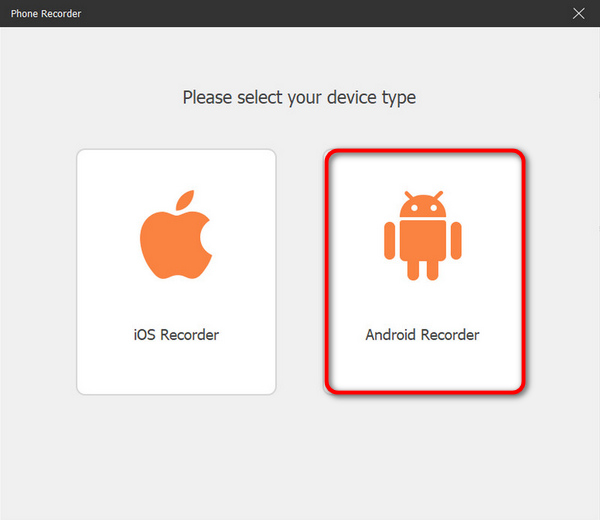
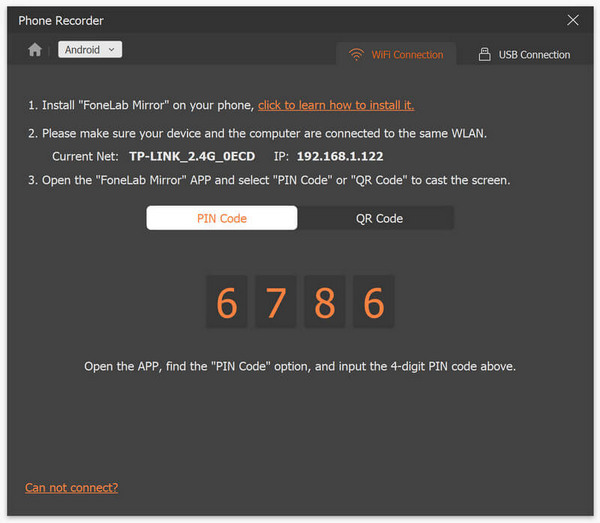
Pas 4. Per projectar la pantalla del telèfon, ho pots fer mitjançant Wi-Fi o USB. Tanmateix, si tries Wi-Fi, pots projectar fàcilment el telèfon a la funció phone recorder de l’eina a l’ordinador mitjançant un Codi PIN o un Codi QR.
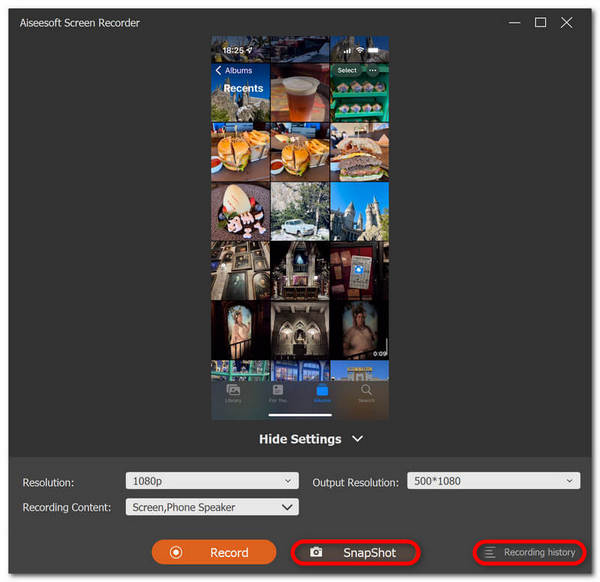
Pas 5. Quan la duplicació s’hagi activat, per fer una captura de pantalla a l’ordinador de la pantalla del teu Android, només cal que facis clic a la icona Snapshot.
Pas 6. Finalment, accedeix directament a les imatges de les teves captures de pantalla a la carpeta corresponent del teu ordinador amb Windows.
FVC Screen Recorder és una eina perfecta quan voleu fer una captura de pantalla a Android amb un ordinador. Amb la seva funció de gravació del telèfon, tot us serà fàcil, des de configurar els dispositius fins a fer captures de pantalla. Aquesta eina té tot el que necessiteu.
Part 4: Com fer captures de pantalla de desplaçament a Android
Si voleu fer una captura de pantalla d'una pàgina web o una conversa llarga a Android d'una sola vegada, en lloc de fer un munt de captures de pantalla, seguiu els passos següents:
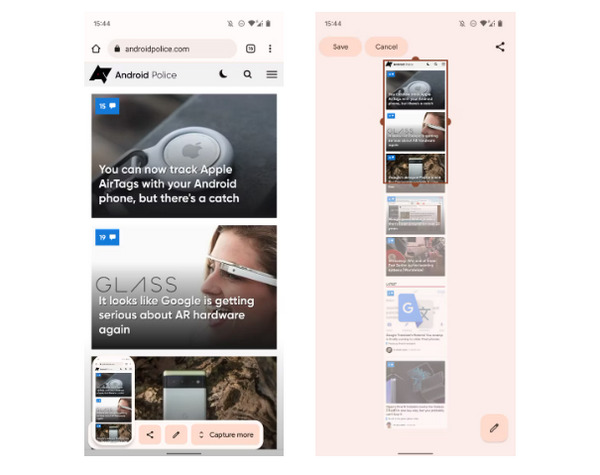
Pas 1. Primer, al teu telèfon Android, fes una captura de pantalla.
Pas 2. A continuació, toca el botó Capture More després de prémer la previsualització de la captura de pantalla.
Nota: Quan fas servir la finestra per ampliar una captura de pantalla, el sistema mostra una lupa per obtenir una millor precisió.
Pas 3. Finalment, toca Desa per desar la teva captura de pantalla.
Ja no faràs un munt de captures de pantalla només per mostrar tota la pàgina web o tota la conversa de captura de pantalla.
Part 5: Preguntes freqüents sobre com fer captures de pantalla a Android
Puc canviar la carpeta de captures de pantalla predeterminada al meu dispositiu Android?
Sí. Podeu canviar la carpeta de captures de pantalla predeterminada si voleu. Tot el que heu de fer és crear una carpeta nova o seleccionar una carpeta diferent per a les vostres captures de pantalla al vostre telèfon Android.
Com fer una captura de pantalla en un telèfon Android si els seus botons de maquinari no funcionen?
En primer lloc, si us pregunteu si encara podeu fer una captura de pantalla si els botons de maquinari del vostre telèfon Android no funcionen, la resposta és Sí. Per tant, en casos com aquest, el millor és utilitzar una eina de gravació de pantalla de tercers com la gravació de pantalla FVC, que permetrà als usuaris fer captures de pantalla al seu telèfon Android simplement utilitzant la seva funció de gravació de telèfon.
Puc anotar o editar captures de pantalla al meu dispositiu Android?
Sí. Pots anotar o editar les teves captures de pantalla i fotos al teu dispositiu Android. Això es pot fer directament després de fer una captura de pantalla mitjançant les seves funcions d'edició integrades. Podeu afegir text, dibuixos, fletxes i formes a les vostres captures de pantalla, així com retallar, canviar la mida i aplicar filtres.
Conclusió
Ja ho tens. Fer captures de pantalla al teu Android ara és bufar i fer ampolles. Només cal que sàpigues quin mètode s’adapta al teu dispositiu i tot funcionarà perfectament. Així doncs, tria el teu mètode i comença a capturar aquests moments inoblidables al teu Android avui mateix!
-
 Com fer captures de pantalla al Mac fàcilment amb aquesta guia bàsica
 Vols fer una captura de pantalla al teu Mac però no saps com? Et tenim! Et mostrarem les maneres més senzilles i ràpides de capturar i desar imatges de la pantalla.
-
 Com fer captures de pantalla al Mac fàcilment amb aquesta guia bàsica
 Vols fer una captura de pantalla al teu Mac però no saps com? Et tenim! Et mostrarem les maneres més senzilles i ràpides de capturar i desar imatges de la pantalla.
-
 Captura de pantalla un vídeo fàcilment amb aquesta guia bàsica [2024]
 Apreneu a fer captures de pantalla de vídeos amb aquests mètodes senzills fàcilment. Segueix la nostra guia i comença a fer captures de pantalla dels teus vídeos preferits ara!
