


 Video Converter Ultimate
 Gravadora de pantalla
 Reparació de vídeo
 Baixada segura
Pas a pas sobre com afegir imatges de l'àlbum a MP3 utilitzant el millor programari a l'escriptori
Afegir una caràtula d’àlbum pot ser molt útil, sobretot si vols ajudar l’oient a sentir-se més vinculat a la música que està escoltant. Amb aquesta caràtula, els usuaris poden fer-se una idea del contingut de la música, especialment en el cas dels fitxers digitals. En alguns casos, l’MP3 no té una caràtula d’àlbum adequada o no està incrustada al fitxer. Si et passa el mateix, és essencial aprendre com afegir caràtula d’àlbum a un MP3 al teu ordinador. Per saber-ne més, continua llegint aquest article, on t’oferim una informació compacta sobre el problema.

Part 1. Com afegir la caràtula de l'àlbum a MP3 amb Video Converter Ultimate [Editor d'etiquetes recomanat]
Busques utilitzar un programari definitiu per afegir caràtula d’àlbum a un MP3? FVC Video Converter Ultimate és l’editor de metadades recomanat per a aquesta tasca. Aquest programari no es recomana pas per casualitat. A diferència d’altres programes, en què només hi ha uns quants formats de caràtula que pots pujar i utilitzar com a portada per al teu MP3, amb aquesta eina no tens aquesta limitació. Amb aquest programari definitiu, pots afegir caràtula d’àlbum als teus fitxers MP3, WAV, WMA, AAC, FLAC i a més de 1.000 formats de vídeo i àudio. És increïble, oi? Aquesta eina és la primera opció per afegir una imatge de portada al teu àlbum. Vols saber com utilitzar aquest programari definitiu? En aquest cas, pots llegir i seguir detingudament la demostració que t’incloem a continuació.
Pas 1. Fes clic al botó de baixada de sota i tria el sistema operatiu que utilitzes actualment. Un cop descarregat el programari, procedeix a instal·lar-lo. Quan ho tinguis tot llest, fes clic a Inicia ara per obrir el programari a l’ordinador.
Descàrrega gratuïtaPer a Windows 7 o posteriorDescàrrega segura
Descàrrega gratuïtaPer a macOS 10.7 o posteriorDescàrrega segura
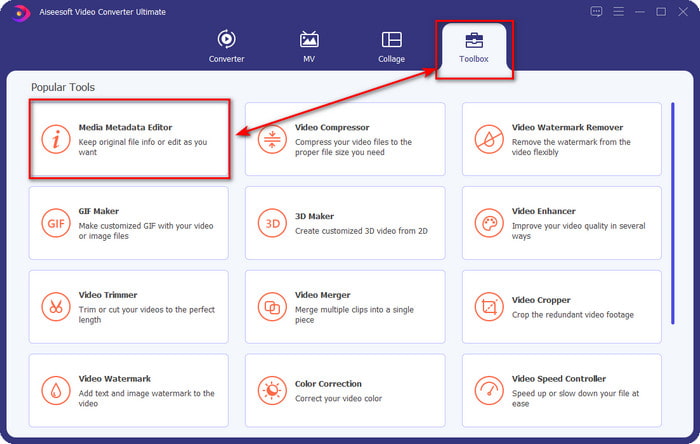
Pas 2. Ves a la secció Caixa d’eines i fes clic a Editor de metadades multimèdia que hi trobaràs dins.
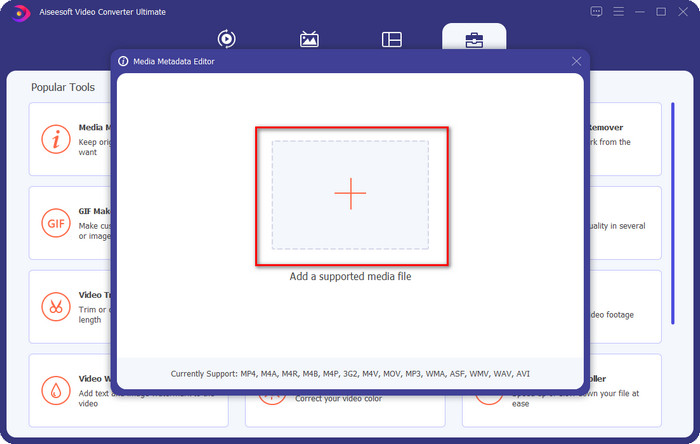
Pas 3. Selecciona el fitxer de música al qual vols afegir la caràtula fent clic al botó +. Per inserir el fitxer de música que has seleccionat, fes clic a Obre.
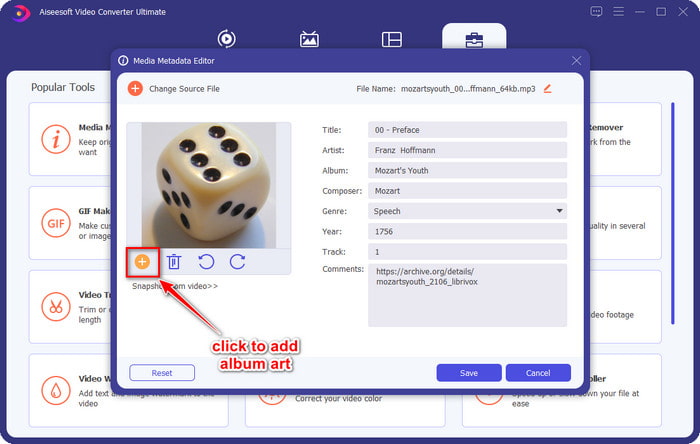
Pas 4. A continuació, fes clic al botó + a la part inferior esquerra de la interfície, cerca la caràtula que vols utilitzar i fes clic a Obre. Afegeix les altres metadades que vulguis al quadre de text, si cal.
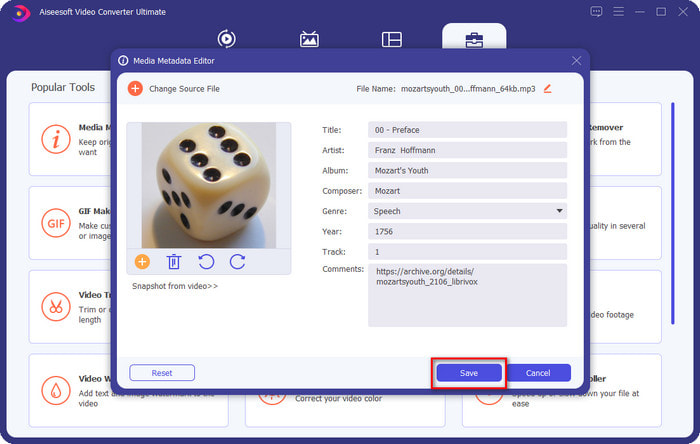
Pas 5. Quan hagis acabat d’afegir la caràtula d’àlbum i les metadades al fitxer MP3, ja pots fer clic a Desa per adjuntar la caràtula al fitxer MP3 que has pujat. Fàcil, oi? Tot es torna possible i senzill si utilitzes aquesta eina definitiva per resoldre el problema.
Part 2. Com afegir una imatge de l'àlbum a MP3 mitjançant l'editor de metadades gratuït del VLC Media Player]
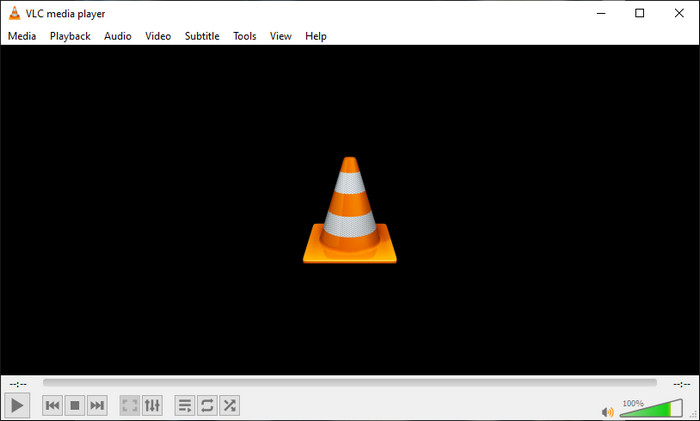
VLC Media Player és el millor reproductor multimèdia que la majoria de nosaltres tenim. Aquesta eina pot reproduir qualsevol fitxer de vídeo i també pot editar metadades, com ara afegir caràtula d’àlbum al fitxer de música. Amb aquest reproductor multimèdia, pots ajustar lliurement o afegir metadades. Si vols un tutorial sobre com afegir caràtula d’àlbum a MP3 a Windows 10/11 o Mac amb aquesta eina, segueix els passos que tens a continuació.
Pas 1. Descarrega el reproductor multimèdia a l’ordinador i obre’l.
Pas 2. A la interfície principal, fes clic a Eines i, en el menú que s’obre, fes clic a Informació.
Pas 3. Fes clic amb el botó dret del ratolí sobre la icona de VLC a l’angle inferior dret, afegeix la caràtula d’àlbum i fes clic a Desa.
Part 3. Com afegir una imatge de l'àlbum a MP3 a iTunes [Editor de metadades integrat a Mac]
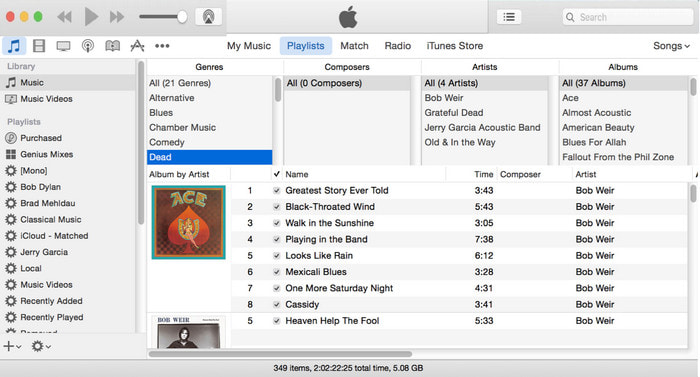
Per als usuaris de Mac, iTunes és el nostre editor de metadades habitual per afegir la imatge de portada al nostre fitxer MP3. Aquesta aplicació integrada pot ajudar-nos a editar les metadades dels fitxers que tenim al Mac. Tanmateix, el programari actualment no està disponible en algunes versions de Mac, perquè ara s’ha dividit en tres aplicacions separades que fan la mateixa funció que iTunes. Però encara està disponible en alguns Mac amb versions més antigues. Si ets un usuari de Mac que vol saber com afegir caràtula d’àlbum a un MP3 a iTunes, pots seguir els passos següents.
Pas 1. Obre l’aplicació iTunes al teu Mac.
Pas 2. Fes clic a Música, després a Biblioteca i fes clic amb el botó dret sobre el fitxer de música que no té caràtula.
Pas 3. A les opcions de dalt, fes clic a Il·lustració, després a Afegeix il·lustració, selecciona la imatge que vols pujar i fes clic a D’acord per aplicar-la.
Part 4. Preguntes freqüents sobre com afegir una imatge d'àlbum a MP3
Puc afegir la caràtula de l'àlbum a MP3 a l'Audacity?
Malauradament, no podeu afegir l'art de la imatge al fitxer MP3 que teniu amb Audacity. Aquesta eina no admet cap format d'imatge o vídeo perquè està pensat per utilitzar-lo com a editor de música. Però encara podeu utilitzar Audacity com a editor de metadades si voleu editar les vostres metadades MP3.
Per què falta la caràtula de l'àlbum al meu fitxer d'àudio?
Hi ha tres motius pels quals no hi ha la caràtula de l'àlbum al fitxer d'àudio. El primer motiu és que el fitxer que heu de descarregar no inclou la caràtula de l'àlbum, sobretot si es tracta de pirateria. La majoria dels fitxers de música que hem baixat al web no inclouen la caràtula de l'àlbum per evitar problemes de redacció. A continuació, el fitxer va desaparèixer perquè la imatge no estava correctament adjuntada. Alguns usuaris es troben amb aquest problema i és difícil de manejar, per la qual cosa és essencial utilitzar un sumador professional de caràtules d'àlbum. Finalment, la imatge està malmesa; si el fitxer que has penjat no està disponible com a caràtula de l'àlbum o el fitxer de música que tens està malmès, aquest podria ser el motiu.
Quines són les millors metadades que puc utilitzar?
Si l’editor de metadades que hem esmentat més amunt et queda curt, pots fer clic en aquest enllaç per anar a un nou article i descobrir tots els millors editors de metadades que pots utilitzar.
Conclusió
Ara que tenim la idea d'afegir la caràtula de l'àlbum en MP3, és hora d'escollir quina eina creiem que ens convé més. Si sou un usuari de Mac i no voleu descarregar cap programari al vostre escriptori, heu de triar iTunes. Però iTunes s'elimina gradualment a la versió actualitzada de Mac. Si voleu descarregar una eina gratuïta que us pot ajudar a afegir la portada a la vostra música, VLC és una bona opció. Tanmateix, l'eina no és una eina professional. Per tant, si voleu un programari expert que us pugui adaptar en aquesta tasca disponible en els dos sistemes operatius, Windows i Mac, feu servir el programari definitiu. Baixeu el programari al vostre escriptori per tenir l'eina professional al vostre abast fent clic al botó de descàrrega que es presenta més amunt.
-
 Com veure fàcilment metadades de fotos i vídeos a iOS
 Vols saber com veure les metadades a l'iPhone i l'iPad? Aleshores, llegir aquest article us pot ajudar a resoldre aquest problema sense esforç.
-
 Les millors tècniques sobre com editar etiquetes iD3 a iTunes [Consells efectius]
 Necessites saber com editar etiquetes a iTunes? Aleshores ets al lloc correcte. Com hem comentat els mètodes, podeu seguir per editar les etiquetes amb iTunes.
-
 Com editar les propietats dels fitxers WAV a Windows 10/11 i Mac [Resolt]
 Esteu buscant una manera d'editar les propietats dels vostres fitxers WAV a Windows 10/11? Aquesta pregunta tindrà resposta si continueu llegint aquest article.
