


 Video Converter Ultimate
 Gravadora de pantalla
 Reparació de vídeo
Com afegir subtítols als vídeos que deseu al vostre escriptori
Subtitles are the best way to translate dialogues of other countries into your native language to a text. This is created for those who don't understand the dialogues of the actor or actresses. Also, they improve the overall engagement of the audience to the film, series, and movies as well. But in some cases, the video you download has no subtitles or has a separate file for it. So, the best way to add subtitles to videos is presented in this article. So, keep on reading this write-up as we provide steps on how to insert your subtitles and what are the different tools you can use.

Part 1. 4 de les millors eines que podeu utilitzar per afegir subtítols al vostre vídeo
1. Video Converter Ultimate (Windows i Mac)
Did you know that you can add subtitles to Video Converter Ultimate? This phenomenal converter has a lot of different features that keep us amaze every time. The overall performance of this software is phenomenal in the line of converting files, editing, making, adding and more. But for now, we will now be going to explain how to add subtitles to a video on a perfect sequence of text. In addition, this tool supports all of the subtitle formats you can use to add it to your video. So, without any more delays, let's proceed on how to add the subtitles by following this step provided only for you below.
5 Easy Steps on How to Add Subtitles on your Video with the Video Converter Ultimate
Step 1. Download the software into your Windows or Mac drive. Next, install it and do the quick set-up then click finish.
Descàrrega gratuïtaPer a Windows 7 o posteriorDescàrrega segura
Descàrrega gratuïtaPer a macOS 10.7 o posteriorDescàrrega segura
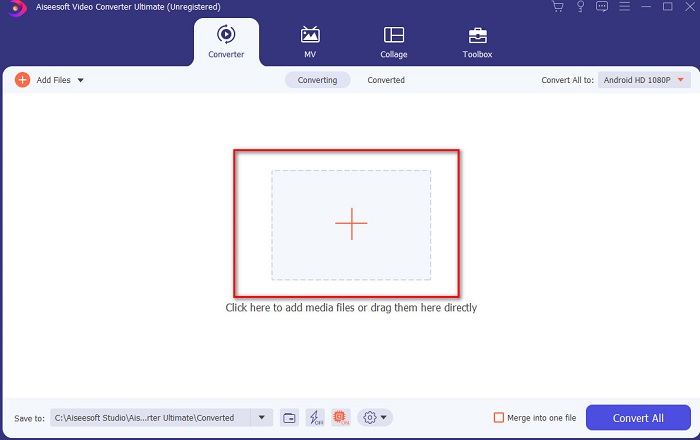
Step 2. Launch the tool, and click the plus button at the middle of the interface. Then locate the video on the folder and click Open.
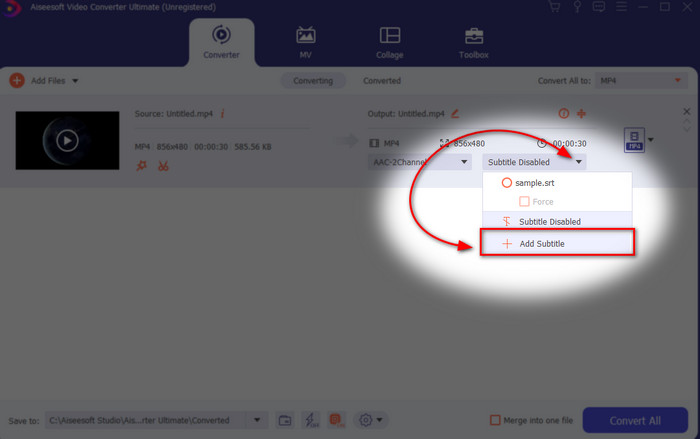
Step 3. On the interface, click the drop-down button for Subtitle and click Add Subtitle. Select the subtitle file on the file folder and click open.
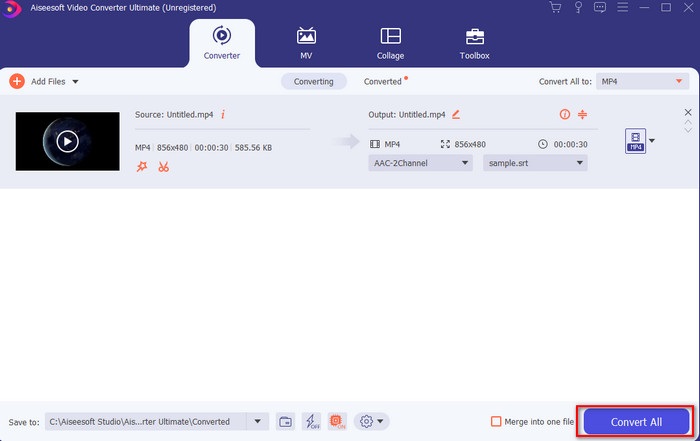
Step 4. After you add the subtitle you can now export it by clicking the Convert All.
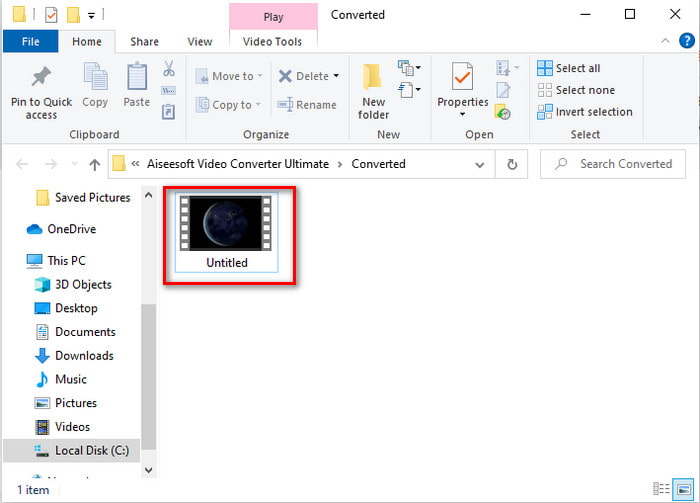
Step 5. The file explorer will pop up next to your screen with the video file that has a subtitle on it. Hit the file to watch and read the subtitle without delays.
Relacionat:
How to Cut and Merge Songs Online
2. iMovie (Mac i iPhone)
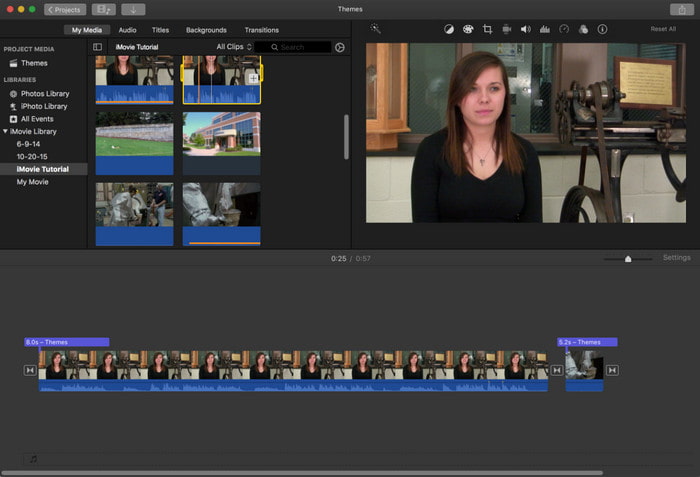
One of the best tools Apple can offer to their users, so adding subtitles to a video on iMovie is easy and free. This default tool is the best in editing and more on Mac, so adding subtitles here is easy as it is. But you can't use SRT subtitle format and add it to your video because this format is not supported by the iMovie. However, the overall performance of this Mac default editor is great to be used by anyone who is on a tight budget. Also, this tool offers a premium version that supports a lot of editing features you can use.
3. Adobe Premiere Pro (Windows i Mac)
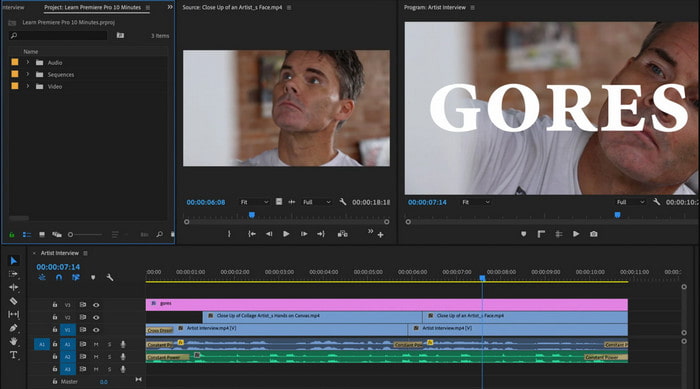
Adobe Premiere Pro offers the best editing features used by professionals in the editing industry. Also, this tool can add SRT subtitle format unlike on iMovie you can't. Moreover, this tool supports almost all of the subtitle formats you can use. Although the tool seems flawless, the price of it is enormous and if you just want to add subtitles to video on Adobe Premiere Pro this is an okay choice but not the best. Especially if you are on a tight budget and don't want to spend a lot. Also, if you are a beginner this is not the best choice because you will need a lot of time to study it first.
4. Clideo (en línia)
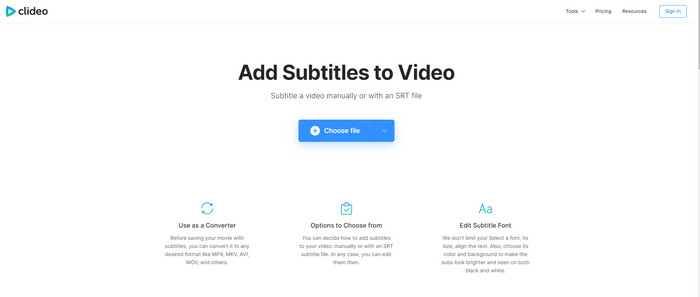
Clideo supports editing features you can use for free if you have an internet connection. This tool can be used in all devices as long as you have a browser. Although the tool is flexible the subtitle format it supports is only .srt. So, if your subtitle is not in the format of SRT then you must manually do it here which is a bit of a hassle for you. Also, the process of adding the video here will depend on your internet. With that being said, if you have a slow internet then expect a lot of time waiting than adding subtitles to video online.
Part 2. Preguntes freqüents sobre com afegir subtítols al vídeo
Quins són els diferents tipus de format de subtítols?
Al web, hi ha molts formats de subtítols diferents, però el format més utilitzat que ja et trobes és el format de subtítols SRT, WEBVTT i SBV. Com que aquests són els millors i flexibles formats que podeu utilitzar fàcilment, però n'hi ha SSA, TTML, DFXB, TXT i més. Tot i que funcionen molt bé, el primer format de subtítols esmentat és el millor que podeu utilitzar.
Quina és la diferència principal entre els subtítols i els subtítols?
Tot i que utilitzen el mateix format, encara hi ha diferències principals entre subtítols i subtítols. En primer lloc, s'inclouen subtítols al vídeo per traduir la llengua parlada de l'actor o actriu a la llengua de l'espectador. Això s'utilitza més habitualment per a aquells que poden escoltar l'àudio però no poden entendre el que diuen. Mentre que els subtítols es fan per descriure el que està passant i mitjançant text com efectes de so. Aquests estan fets per a aquells que poden veure vídeos però no poden escoltar l'àudio amb claredat o sords.
Dub vs Sub; Quin és millor?
Alguns altres espectadors prefereixen Dub que sub, mentre que altres ho fan a l'inrevés. Tot i que són una manera potent de traduir millor el mitjà al públic. El doblatge i els subtítols tenen moltes diferències, per exemple, els subtítols són versions traduïdes de l'àudio i es converteixen en text al vídeo. Mentre que els doblatges són utilitzats pels espectadors que tenen dificultats per llegir. Per tant, en comptes de llegir el context, fan servir doblatges per centrar-se millor en allò que estan veient. Per tant, sempre depèn de tu quin prefereixes utilitzar, si pots aconseguir llegir mentre mireu els subscriptors és millor, però si voleu centrar-vos en el vídeo en si, feu servir el doblatge.
Conclusió
Finally, we now understand and learn how to add subtitle files to your video permanently. As we make your searching easier and present different solutions for you to use. Still, it is undeniable that the Video Converter Ultimate is the best choice on the list. Because it supports all of the subtitle formats for you to use. So, instead of a huge amount of money to the other tool that has the same function or even better than the other tool. Then why don't you acquire it first and try it for yourself? To know what we are talking about.
-
 Tutorial: 4 maneres gratuïtes de combinar vídeos a l'iPhone en un de nou
 Llegiu i obteniu 4 maneres senzilles de combinar vídeos a l'iPhone. S'admeten tots els models d'iPhone i versions d'iOS. Podeu combinar dos i més vídeos a l'iPhone en un vídeo nou ràpidament.
-
 Com comprimir fitxers M4V a una mida més petita (gratuït i en línia)
 Si cerqueu una manera senzilla de reduir la mida del fitxer M4V, heu de venir a llegir aquest article. Aquí compartirem la forma més senzilla de comprimir fitxers M4V amb vosaltres.
-
 Comprimir WebM - Com comprimir fitxers WebM en línia
 Com es pot comprimir el fitxer WebM en línia? Quina és la manera més ràpida de comprimir fitxers grans? Aquesta publicació explica dues maneres gratuïtes de comprimir WebM.
