


 Video Converter Ultimate
 Gravadora de pantalla
 Reparació de vídeo
Domina l'art d'afegir una marca d'aigua a iMovie amb passos detallats
Un dels millors editors que pots utilitzar al Mac és l’iMovie. Aquesta eina ofereix una interfície molt intuïtiva per als usuaris de Mac. Tot i que l’eina és excel·lent i fàcil de gestionar, alguns usuaris encara busquen un tutorial sobre com utilitzar-la. Així que, si ets usuari de Mac i vols aprendre com afegir una marca d’aigua al vídeo a iMovie, pots seguir la guia que presentem a continuació per aconseguir grans resultats amb l’eina.

Part 1. Tutorial sobre com afegir una marca d'aigua a un vídeo a iMovie a macOS
Ja hem presentat l'iMovie, de manera que els detalls següents us ensenyaran com posar una marca d'aigua en un vídeo a iMovie. Per saber com afegir, podeu seguir la guia detallada a continuació i llegiu-la detingudament per comprendre tota la idea.
Pas 1. Obre l’iMovie al teu Mac i, si no el trobes, pots anar ràpidament al Finder i cercar-lo.
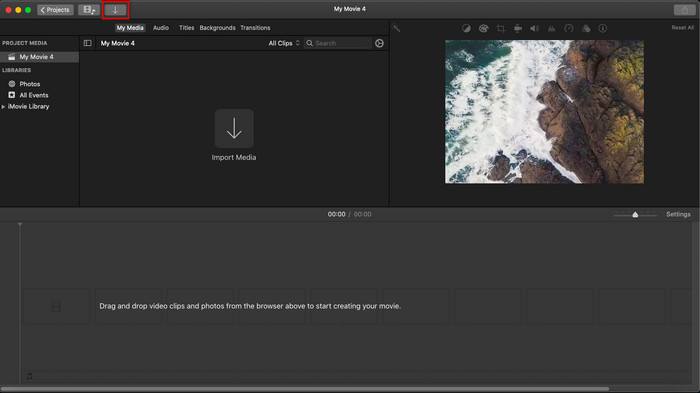
Pas 2. Fes clic al botó Importa per pujar el vídeo i la imatge que vols utilitzar com a marca d’aigua. Arrossega el fitxer de vídeo i la imatge a la Línia de temps de sota, igual que amb les imatges. Assegura’t que el vídeo estigui a la part superior de la línia de temps del vídeo. Fes alguns ajustos a la imatge arrossegant-la, canviant-ne la mida i més.
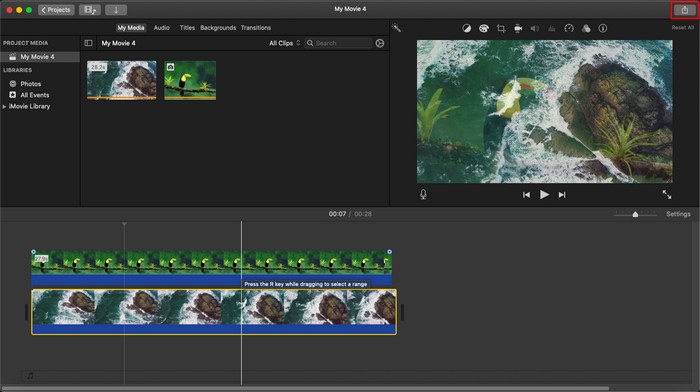
Pas 3. Si ja estàs satisfet amb els ajustos, fes clic a Exporta a la part superior dreta de l’eina i després a Exporta fitxer.
Pros
- Es pot utilitzar gratuïtament en qualsevol dispositiu Apple, com ara dispositius macOS i iOS.
- Fes edicions ràpides als vídeos en brut per fer-los veure bé.
- Hi ha disponibles funcions d'edició essencials fins a la mitjana.
Contres
- Admet menys format, així que si voleu editar el vídeo aquí, heu de convertir-lo a MOV o qualsevol format compatible amb dispositius Apple.
- Menys suport per a l'edició professional.
Part 2. La millor eina per utilitzar i posar una marca d'aigua al vídeo en ordinadors Mac d'una manera menys complicada
Si creus que afegir una marca d’aigua a iMovie és difícil, pots utilitzar en canvi la millor alternativa, Video Converter Ultimate. Aquesta eina ofereix una manera molt més fàcil d’afegir una marca d’aigua al teu vídeo. Imagina-ho així: aquesta eina definitiva és encara més assequible d’utilitzar, fins i tot si iMovie ja és fàcil. Encara que sigui senzilla d’usar, la qualitat final que ofereix és excel·lent, i un dels seus avantatges respecte a iMovie és que admet més formats d’imatge que pots utilitzar per pujar. Vols saber-ne més? Doncs pots llegir les funcions que et presentem a continuació.

FVC Video Converter Ultimate
Més de 5.689.200 descàrregues- Ofereix funcions d'edició completes que podeu utilitzar per fer que el vostre vídeo sigui més destacat que l'altre.
- Admet processos ultra ràpids i acceleració de maquinari per importar i exportar el vídeo ràpidament.
- Admet formats de vídeo com MOV, MKV, AVI, MP4, FLV, RMVB i més.
- Té una interfície molt interactiva per tenir la millor experiència.
- Disponible a totes les plataformes d'escriptori com Windows i Mac.
Descàrrega gratuïtaPer a Windows 7 o posteriorDescàrrega segura
Descàrrega gratuïtaPer a macOS 10.7 o posteriorDescàrrega segura
No és increïble tenir totes aquestes funcions en una eina? Si estem a la mateixa pàgina, aprofundim en els detalls de com marcar un vídeo a iMovie, però d'una manera més senzilla amb l'eina definitiva.
Passos sobre com inserir una marca d'aigua al vídeo amb l'eina definitiva
Pas 1. Descarrega el programari al teu Mac, segueix el procediment d’instal·lació i prem Inicia ara per obrir l’eina.
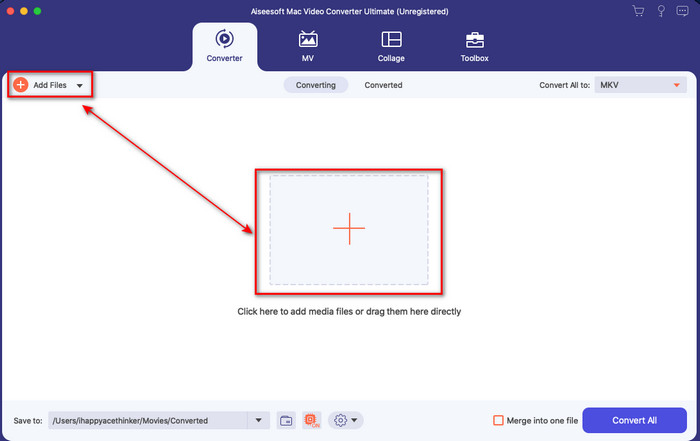
Pas 2. Puja el fitxer de vídeo que vulguis fent clic al botó + o Afegeix fitxers. Busca el vídeo a la carpeta que apareixerà a la pantalla i prem Obre per pujar-lo.
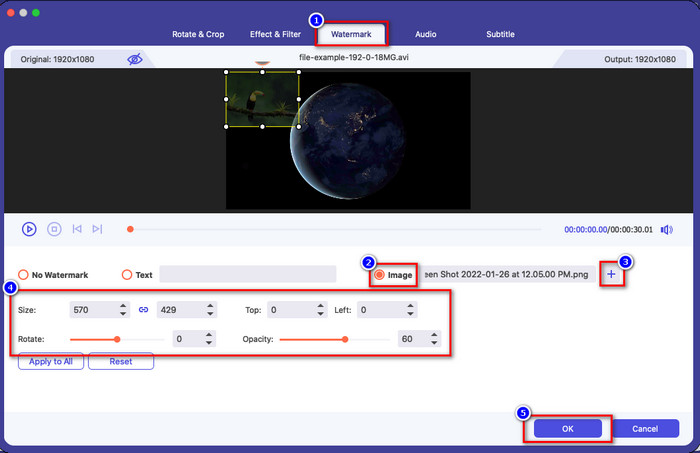
Pas 3. Fes clic al botó de vareta per obrir la finestra d’edició a la interfície de l’eina. Després, fes clic a la secció Marca d’aigua, marca Imatge, prem el botó + per afegir la imatge que vols. Després, ajusta’n la opacitat o gira la imatge i fes clic a D’acord per desar els canvis que has fet.
Opcional. Si vols canviar el format, fes clic a Converteix-ho tot a, tria el format disponible a la llista i fes-hi clic. Si no vols canviar el format, pots passar al pas final.
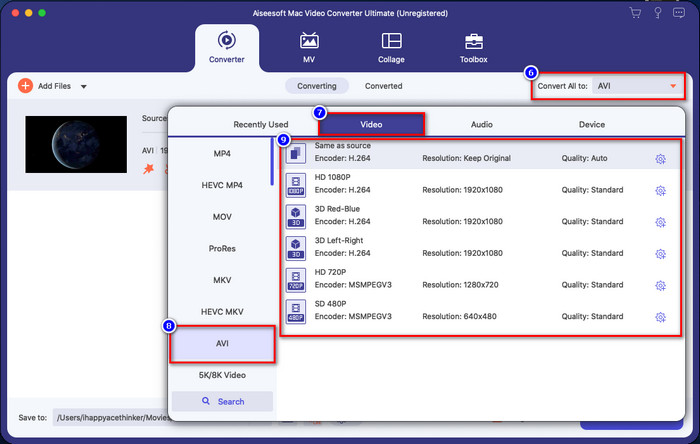
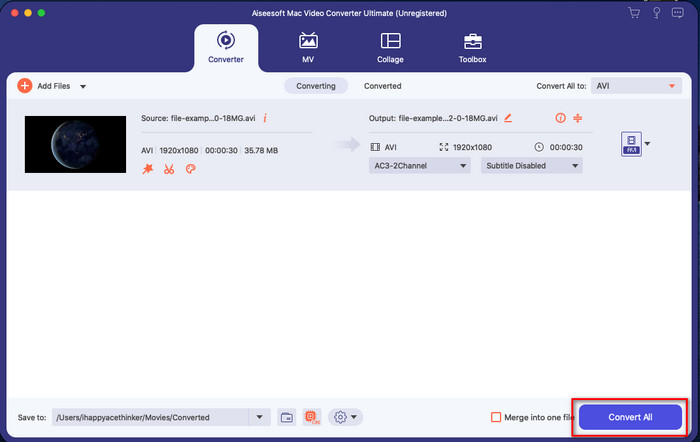
Pas 4. Per exportar el vídeo amb la marca d’aigua, fes clic a Converteix-ho tot. No cal esperar gaire temps gràcies al procés de conversió ultra ràpid que ofereix. Amb això, ja hauràs afegit la marca d’aigua en forma d’imatge al teu vídeo en menys d’un minut.
Pros
- És la millor opció per a qualsevol usuari que tingui poca o cap idea de com editar.
- Admet més formats de vídeo que podeu carregar per estalviar temps i evitar convertir-lo.
- Disponible a totes les plataformes com Windows o Mac per descarregar.
Contres
- No es pot descarregar gratuïtament, però no és massa car.
- Cal descarregar-lo a la vostra unitat.
Part 3. Preguntes freqüents sobre com afegir una marca d'aigua a iMovie
És gratuït d'utilitzar iMovie?
Sí, iMovie és gratuït si tens un producte Apple, però no el pots descarregar si utilitzes Android o Windows. Tingues en compte que no hi ha iMovie disponible en altres plataformes. Per tant, si descarregues un iMovie a l’ordinador o al telèfon que no sigui Apple, és probable que no funcioni tan bé com l’iMovie original o, pitjor encara, que contingui un virus. Per evitar això, pots fer clic i llegir aquest article per conèixer les alternatives a iMovie.
L'iMovie és el millor editor del Mac?
Podem dir que és un dels millors, però no el millor, perquè diferents editors ofereixen múltiples funcions d'edició que no podeu trobar a iMovie. Tot i que d'alguna manera li manca, no deixa de ser un editor de primer nivell que podeu utilitzar al vostre Mac de forma gratuïta per editar vídeos per a vlogging, negocis, promocions i molt més.
Després d'exportar el vídeo a iMovie, té una marca d'aigua?
A partir d'avui, la marca d'aigua del vídeo no es troba als vídeos exportats. Per tant, podeu gaudir dels vídeos descarregats que editeu a l'iMovie lliurement sense la molesta marca d'aigua.
Puc utilitzar el vídeo .avi a iMovie?
iMovie no admet una àmplia gamma de formats, però pots fer clic i llegir aquest article i aprendre què pots fer per fer que el teu fitxer AVI sigui compatible amb iMovie.
Conclusió
Aquest article ja demostra que pots utilitzar l’editor integrat que Apple et proporciona i afegir marques d’aigua als vídeos amb els passos que hem afegit i que pots seguir fàcilment. Tot i que pots utilitzar iMovie gratuïtament, continuem pensant que Video Converter Ultimate és la millor eina per a aquesta tasca en qualsevol moment. Per tant, si vols ajuda, el pots descarregar al teu Mac o Windows prement el botó de descàrrega que es mostra a dalt.
-
 3 mètodes per convertir MPEG a WMV sense perdre qualitat
 Voleu veure els vostres vídeos al vostre reproductor preferit, però no admet el format del vídeo? Llegiu aquest article perquè us oferim les maneres més eficients de convertir MPEG a WMV.
-
 2 de les opcions preferides del convertidor per convertir F4V a WMV [2022]
 Ets un dels usuaris que busca la millor manera de convertir F4V a WMV? Si és així, proveu de llegir aquest escrit per saber més millor com fer-ho i quines són les eines disponibles.
-
 Els millors convertidors de MXF a WMV per convertir MXF a WMV de forma gratuïta
 Voleu conèixer la manera més senzilla de canviar el vostre fitxer MXF a format WMV? Si esteu preparat per explorar com fer-ho, heu de llegir atentament aquest article.
