


 Video Converter Ultimate
 Gravadora de pantalla
 Reparació de vídeo
 Baixada segura
La manera més fàcil de combinar pistes a Audacity [Guia 2025]
Combinar elements com altres sons, música o pistes és essencial per fer que un projecte d'àudio sigui creatiu i únic. Aquest procés es fa habitualment mitjançant una aplicació d'editor d'àudio dedicada que té una funció per combinar pistes en una sola. Avui en dia, una eina s'utilitza habitualment per combinar diverses pistes, i aquesta és Audacity.
Aquesta eina és coneguda per molta gent pel fet de ser gratuïta i de codi obert, però també disposa d’un molt bon conjunt de funcions d’edició que atrauen els usuaris. Per tant, si busques una guia sobre com fusionar pistes a Audacity o una manera alternativa de fer-ho fàcilment, continua llegint aquest article.

Part 1. Com fusionar pistes a Audacity
Audacity és un programari d'edició d'àudio gratuït molt utilitzat que ofereix moltes funcions d'edició, inclosa la famosa pista de fusió d'Audacity.
Amb aquesta funció, els usuaris poden importar fàcilment diversos elements de so a la línia de temps d'edició. A continuació, des de la línia de temps d'edició, poden alinear les pistes en una única pista movent-les manualment a l'ordre desitjat. A part d'això, aquesta eina té grans funcions d'edició que són essencials per polir la pista combinada. Les funcions d'entrada i sortida poden crear una transició suau entre les pistes. Mentrestant, la funció d'ajust de volum farà que totes les pistes sonin equilibrades quan es fusionin.
Ara, per què els editors d'àudio fusionen pistes?
Per crear transicions fluides. Fusionar múltiples pistes permet als usuaris crear transicions més suaus, sense talls ni buits evidents entre diferents pistes d’àudio.
Per simplificar el flux de treball. Combinar diverses pistes consolida múltiples capes d’àudio en una sola. Aquest procés fa que sigui més fàcil gestionar i editar les pistes sense haver de fer malabars amb fitxers separats.
Per crear un so equilibrat. Fusionar diversos elements de so d’àudio permetrà als editors d’àudio ajustar els nivells de volum, sincronitzar el temps i barrejar diferents pistes.
A continuació s'explica com fusionar pistes a Audacity:
Pas 1: Primer, descarrega i instal·la Audacity al teu ordinador.
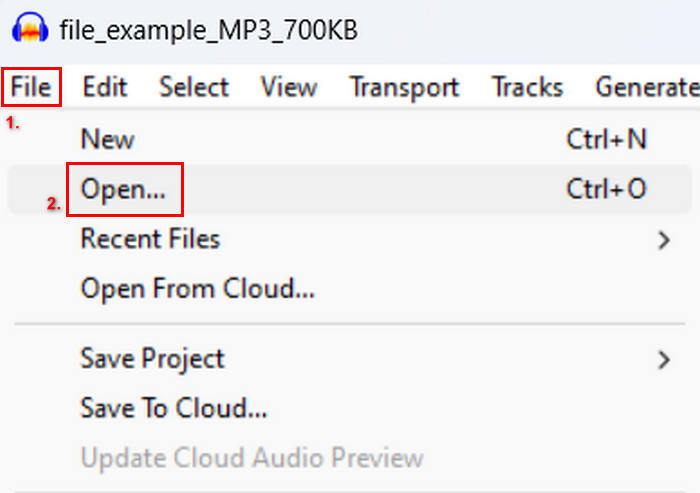
Pas 2: Obre l’eina, ves a la pestanya File, fes clic a Open i importa les pistes que vols fusionar.
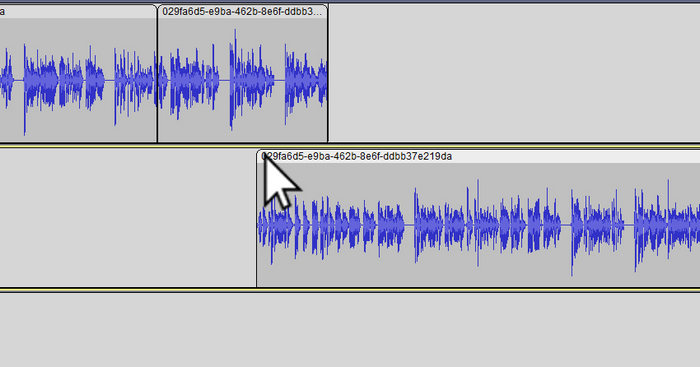
Pas 3: Ara que totes les teves pistes s’han importat a la línia de temps, el següent que has de fer és fer clic al capçal del fragment (Clip head) de la pista per moure-les i organitzar-les en l’ordre que vulguis.
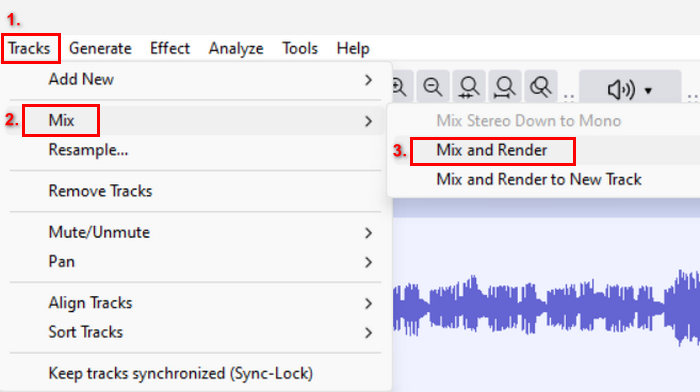
Pas 4: Un cop hagis alineat les teves pistes, barreja-les en una sola composició. Per seleccionar les pistes que vols fusionar, mantén premuda la tecla Ctrl mentre hi fas clic. Després, per fusionar les pistes triades en una sola pista, ves a Tracks, fes clic a Mix i tria Mix and Render.
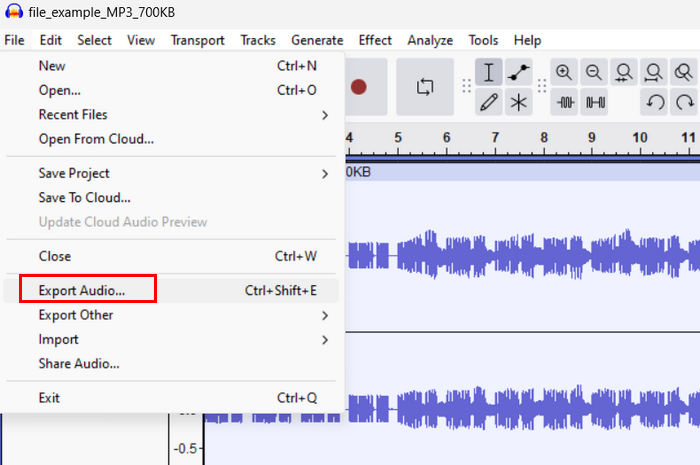
Pas 5: Per exportar el fitxer, ves a la pestanya File i tria Export Audio.
Per garantir una transició suau i un so equilibrat de les pistes d’àudio combinades, utilitza els efectes Amplify o Normalize dins de l’eina. A més, fes servir entrades i sortides esvaïdes (fade-ins i fade-outs) per crear transicions fluides entre pistes i aconseguir un so més professional i polit. Consulta aquí com fer un fade de l’àudio a Audacity.
Part 2. Combina les pistes amb l'alternativa d'Audacity
Si estàs buscant una alternativa excel·lent perquè trobes difícil entendre com funciona la funció de fusionar pistes d’Audacity, pots fer servir el Video Converter Ultimate, escollit per FVC. Es tracta d’una eina completa que ofereix un conjunt d’eines per a necessitats d’àudio i vídeo, com ara el fusió d’àudio. El que fa aquesta eina és que, després d’importar l’àudio que has de fusionar, pots canviar fàcilment l’ordre de les pistes segons com ho vulguis i editar-les de seguida abans de fusionar-les amb un sol clic.
Característiques principals:
• Pot combinar diversos fitxers d'àudio en 1.000 formats com MP3, AAC, WAV, FLAC, OGG i més.
• Conté funcions d'edició bàsiques com ara efectes de retallat, divisió ràpida, esvaït d'entrada i esvaït.
• Permet editar la sortida d'àudio igual que el codificador, la freqüència de mostreig, la taxa de bits, el canal, etc.
• Procés ràpid de fusió.
• Disponible tant per a Windows com per a MacOS.
A continuació s'explica com fusionar pistes amb Video Converter Ultimate escollit per FVC:
Pas 1: Primer, has de descarregar i instal·lar l’eina al teu dispositiu.
Descàrrega gratuïtaPer a Windows 7 o posteriorDescàrrega segura
Descàrrega gratuïtaPer a macOS 10.7 o posteriorDescàrrega segura
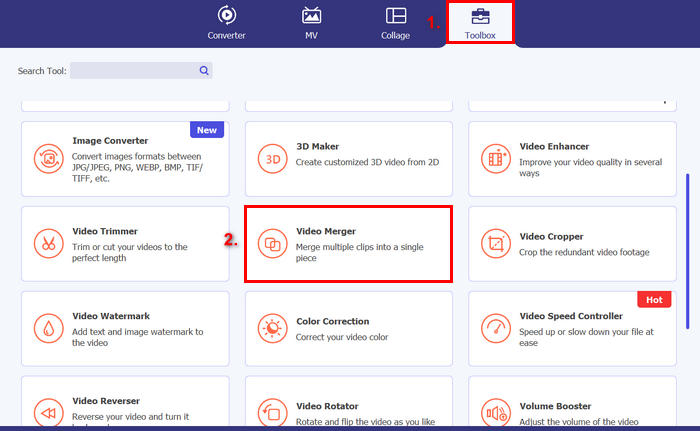
Pas 2: Obre l’eina, ves a la pestanya Toolbox i tria Video Merger. Després, fes clic a la icona de signe més per importar fàcilment els fitxers d’àudio que vols fusionar.
Pas 3: Ara, totes les pistes d’àudio que has importat es poden veure a la part inferior. Si n’has d’ajustar la seqüència, arrossega simplement el clip d’àudio al lloc adequat. O bé selecciona el clip i fes clic al botó Forward o Backward. Després d’això, fes clic al botó Export per desar el teu projecte.
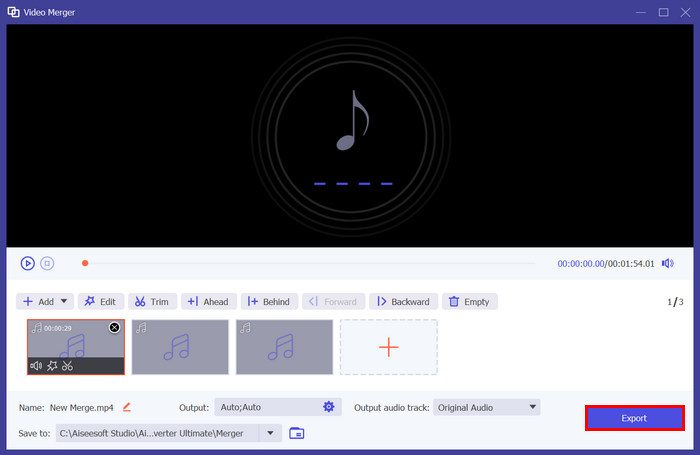
Nota: Si necessites canviar el format d’àudio o personalitzar alguns paràmetres d’àudio, ves a la configuració d’Output. Des d’allà, pots canviar el format, el codificador, la freqüència de mostreig (sample rate), el canal i la taxa de bits (bitrate) de les teves pistes d’àudio. Quan hagis acabat, fes clic al botó Export.
Aquí ho tens. El Video Converter Ultimate escollit per FVC és realment una gran alternativa per a Audacity. Amb la seva interfície molt fàcil d'utilitzar i intuïtiva, fins i tot els principiants poden utilitzar fàcilment l'eina quan fusionen diverses pistes.
Part 3. Preguntes freqüents sobre la fusió de pistes a Audacity
Com importo diversos fitxers d'àudio en una pista a l'Audacity?
Per importar múltiples fitxers d’àudio a Audacity, ves a la pestanya File, fes clic a Open i selecciona els fitxers d’àudio que vols fusionar. Cada fitxer apareixerà en una pista separada a la línia de temps. A partir d’aquí, pots alinear i fusionar manualment les pistes utilitzant l’opció Mix and Render del menú Tracks.
Com puc moure l'àudio d'una pista a una altra a l'Audacity?
Hi ha dues maneres de moure una pista quan fusioneu diverses pistes a Audacity. Per moure una pista única, feu clic i arrossegueu la nansa de clip de la pista i col·loqueu-la en l'ordre que vulgueu. Mentrestant, per moure diverses pistes, seleccioneu totes les pistes que voleu moure mitjançant l'eina de selecció. A continuació, arrossegueu qualsevol nansa de clip dins de l'àrea seleccionada per moure tots els clips escollits simultàniament.
Quantes pistes té Audacity?
Audacity no té un límit fix en el nombre de pistes que podeu editar. Amb això, podeu crear i importar tantes pistes com vulgueu. Tanmateix, quan treballeu amb diverses pistes, heu de tenir en compte la capacitat del vostre ordinador perquè el rendiment pot dependre de la potència de processament i la memòria del vostre sistema.
Conclusió
Ara que ja saps com fusionar pistes a Audacity, pots crear fàcilment transicions suaus i àudio equilibrat per als teus projectes. A més, pots explorar altres funcions com fade-ins, fade-outs i ajustos de volum per obtenir un so millor. Mentrestant, si vols una opció més senzilla o més avançada, prova el Video Converter Ultimate seleccionat per FVC. És fàcil d’utilitzar i ofereix més opcions de personalització per als teus fitxers d’àudio.
-
 Com utilitzar Audacity per invertir l'àudio a Windows 10/11
 Si esteu editant un fitxer d'àudio a l'Audacity i us pregunteu com invertir-lo tot o una part, llegiu aquí i apreneu a invertir l'àudio fàcilment a l'Audacity.
-
 Com esvair l'àudio a Audacity: 4 maneres diferents [2025]
 Descobriu els passos sobre com esvair l'àudio a l'Audacity de manera eficaç i alguns coneixements addicionals sobre els efectes de fade-in/out d'Audacity. Posa't el cinturó ara i endinsem-nos.
-
 Com dividir l'àudio a Audacity amb gran precisió [Guia]
 Intenteu aprendre a dividir pistes a Audacity? Ets a la pàgina correcta! En aquest article, apreneu com podeu separar una pista en dues amb molta facilitat.
