


 Video Converter Ultimate
 Gravadora de pantalla
 Reparació de vídeo
Apreneu a editar etiquetes iD3 a iTunes [la manera més ràpida i senzilla]
iTunes és un programari polivalent que pots utilitzar com a reproductor multimèdia, biblioteca multimèdia, eina de gestió i aplicació client per a dispositius Apple. Inicialment, el programari només se centrava en una col·lecció de tipus de música de pagament. Tanmateix, la demanda d’altres funcions va créixer i el programari va rebre una gran actualització del seu sistema. D’aquesta manera, l’eina ara pot fer altres coses com les esmentades anteriorment. Així que, si vols saber com editar etiquetes ID3 a iTunes, aquest és l’article adequat per a tu; continua llegint per obtenir-ne més informació.

Part 1. Formes efectives d'editar etiquetes ID3 a iTunes mitjançant 3 mètodes diferents
Podeu utilitzar tres mètodes diferents per editar les metadades d'iTunes al Mac si no sabeu com editar les metadades amb iTunes. Podeu consultar els passos següents i triar quin mètode voleu utilitzar; garantim que tindreu les metadades actualitzades mitjançant iTunes per a cap dels tres que trieu.
Mètode 1. Utilitzeu Edita a iTunes
Pas 1. Obre l’app iTunes al teu Mac.
Pas 2. Fes un sol clic al fitxer multimèdia, fes clic a Edita i, a sota, fes clic a Informació de l’àlbum.
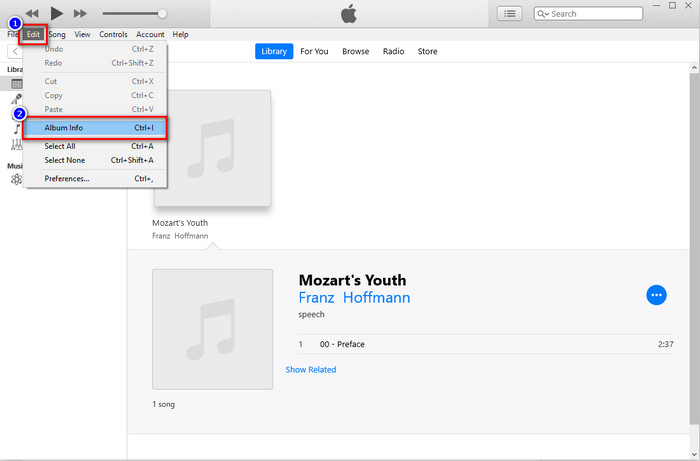
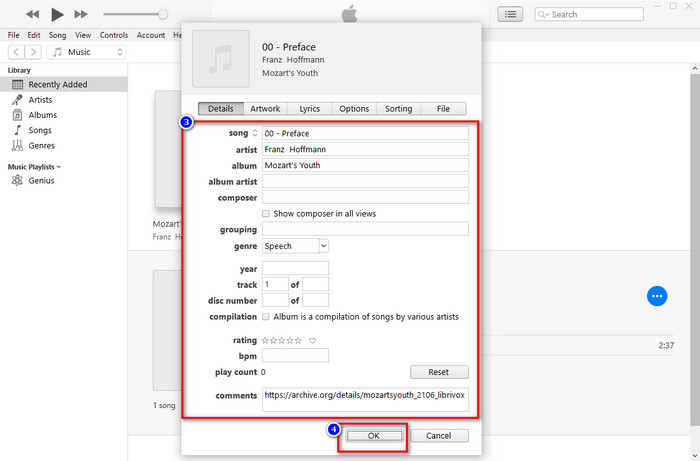
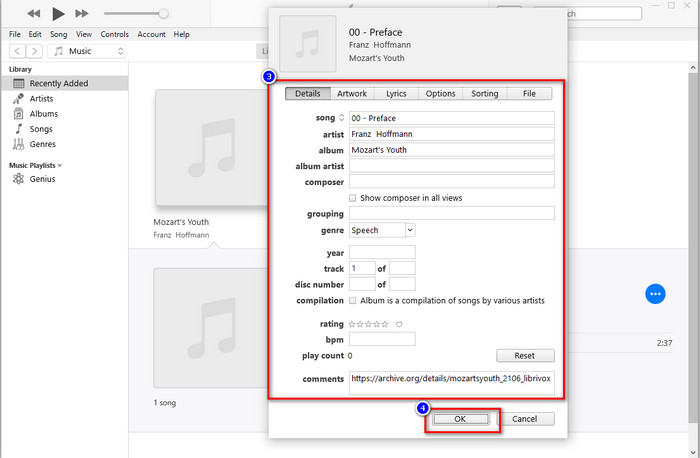
Pas 3. Es mostrarà un panell nou on pots canviar les etiquetes dels fitxers que tens a la pantalla. Si ja has editat la informació, ara pots fer clic a D’acord per desar els canvis que has fet.
Mètode 2. Feu clic amb el botó dret a iTunes
Pas 1. Inicia iTunes i busca el fitxer multimèdia.
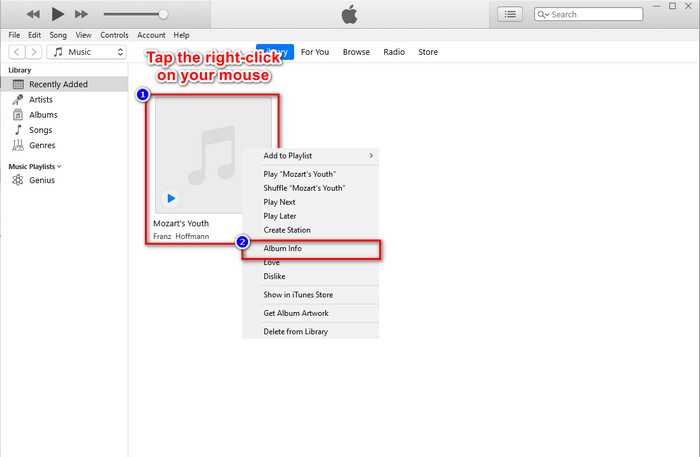
Pas 2. En lloc d’anar a Edita, pots prémer el botó dret del ratolí i fer clic a Informació de l’àlbum.
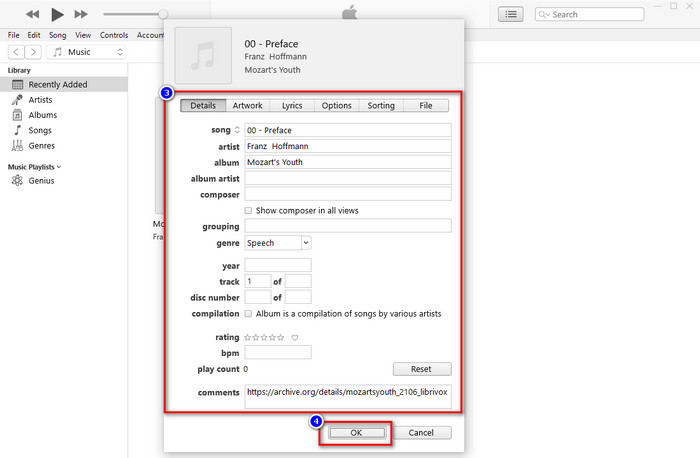
Pas 3. Canvia les metadades al panell omplint el quadre de text per actualitzar les metadades a iTunes, i quan acabis, ja pots fer clic a D’acord per desar.
Mètode 3. Utilitzeu els tres punts a iTunes
Pas 1. Busca iTunes al Finder i fes-hi clic per obrir-lo.
Pas 2. Un cop hagis iniciat el programari, fes un clic al fitxer. A la pantalla apareixerà una icona amb tres punts, fes-hi clic i selecciona Informació de l’àlbum.
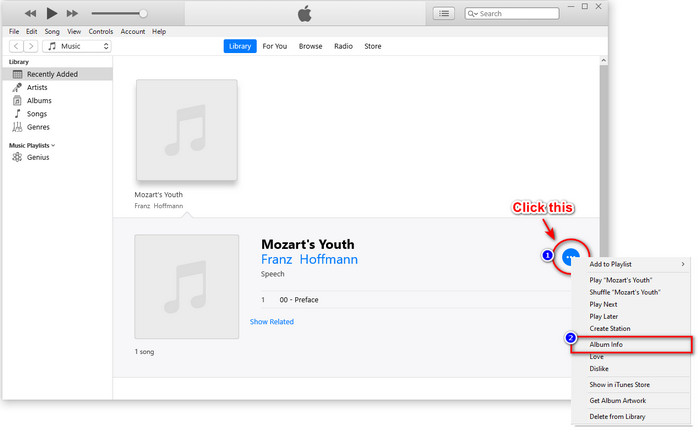
Pas 3. Es mostrarà un panell a la pantalla perquè hi omplis les dades essencials que necessites com a etiqueta ID3; després prem D’acord si vols desar els canvis.
Si ho observeu, no hi ha cap canvi significatiu en els mètodes, però encara els incloem tots perquè pugueu triar. Tot i que iTunes està disponible a Mac, la versió d'actualització de Mac ja no és compatible amb iTunes; aleshores què hauries d'utilitzar? Afortunadament, incloem programari que podeu utilitzar en lloc de corregir les metadades d'iTunes al Mac. Per saber més sobre aquesta alternativa de programari, podeu continuar llegint la part 2 a continuació i aprendre a utilitzar-la.
Part 2. L'alternativa definitiva per editar metadades MP3 a Mac sense iTunes fàcilment [recomanat]
De manera nativa, iTunes està superat per tres funcions diferents a Apple: música, podcast i programes o pel·lícules. Així que ara, a la versió moderna de Mac, no podeu utilitzar iTunes perquè el van substituir. Aleshores, què heu de fer per editar metadades MP3 al Mac sense iTunes? Encara és possible? Bé, amb l'ajuda de l'eina definitiva, tot és possible.
FVC Video Converter Ultimate és la millor alternativa que pots utilitzar per canviar les metadades al teu Mac o Windows. Amb aquesta eina, pots carregar fàcilment els teus fitxers MOV, M4V, WMV, FLV, RMVB, MP4 i més de 1000 formats addicionals. Fins i tot si tens un format molt poc habitual, aquesta eina també el permet. Una altra cosa fantàstica que ofereix aquesta eina i que no tens a iTunes és tot el que hi ha a la Caixa d’eines relacionat amb els vídeos. Si vols utilitzar aquesta magnífica eina al teu Mac per canviar les metadades, pots llegir el tutorial següent i seguir-lo pas a pas.
Pas 1. Si us plau, fes clic al botó de baixada de sota i tria Mac; però si fas servir Windows, has de fer clic al botó corresponent. Després, instal·la’l i segueix el procés ràpidament, i tot seguit obre l’eina.
Descàrrega gratuïtaPer a Windows 7 o posteriorDescàrrega segura
Descàrrega gratuïtaPer a macOS 10.7 o posteriorDescàrrega segura
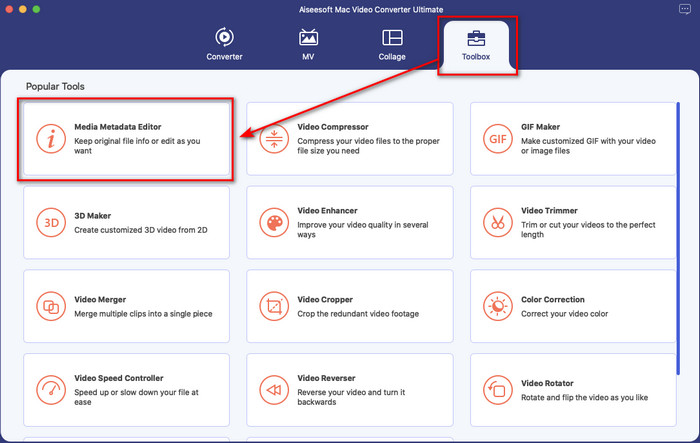
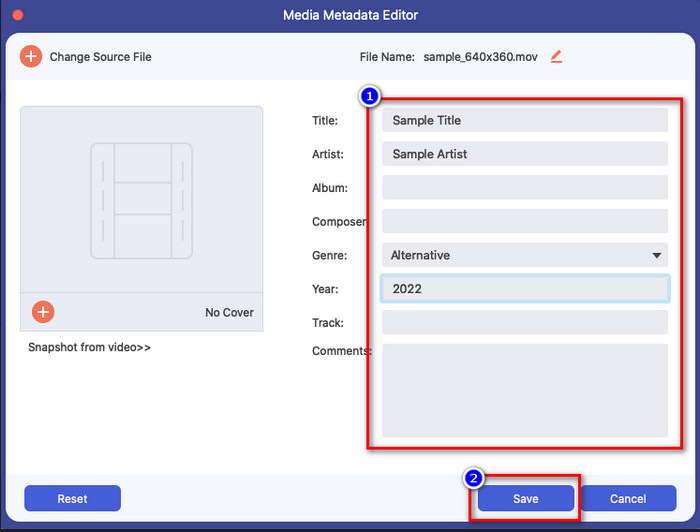
Pas 2. Obre la Caixa d’eines de l’eina definitiva i localitza-hi l’Editor de metadades multimèdia.
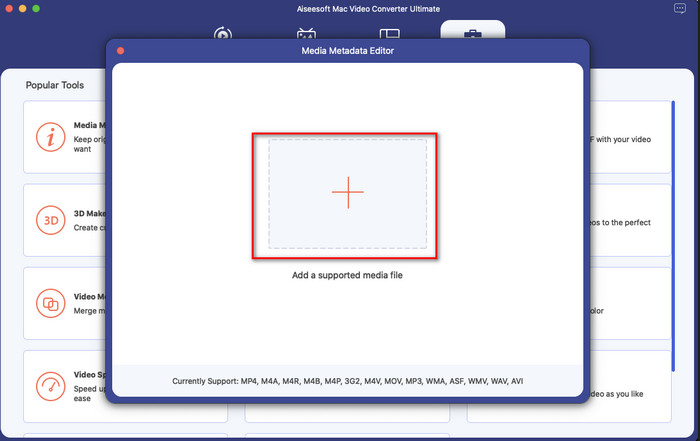
Pas 3. Fes clic al botó + i aleshores apareixerà una finestra del gestor de fitxers a la pantalla del Mac; selecciona el fitxer multimèdia, fes-hi clic i prem Obre per continuar.
Pas 4. Omple les metadades de cada quadre de text segons correspongui i, després, prem Desa per aplicar totes les metadades que has afegit amb el programari definitiu. Fàcil, oi? Gràcies a aquesta eina definitiva, la pots fer servir lliurement a un cost baix en lloc de l’editor de metadades de música d’iTunes.
Pros
- Us ofereix la possibilitat de pujar qualsevol fitxer multimèdia que tingueu fàcilment.
- Un dels millors editors de metadades del 2022, segons les revisions.
- És capaç de fer edició de vídeo i àudio i també convertir.
- Està disponible en tots els sistemes operatius, com Windows 10/11 o macOS.
Contres
- No està integrat, per tant caldrà descarregar l'eina.
- La compra és essencial per alliberar tot el potencial del programari.
Part 3. Preguntes freqüents sobre l'edició d'etiquetes iD3 a iTunes
Per què no puc trobar iTunes al meu Mac?
Si la versió del vostre Mac és 10.14 o superior, iTunes no hi està disponible perquè l'aplicació integrada es divideix en tres eines diferents: programes o pel·lícules, música i podcast. Tanmateix, encara podeu utilitzar iTunes a la 10.13 o la versió inferior de Mac.
iTunes admet el sistema operatiu Windows per canviar les metadades?
Afortunadament, podeu descarregar iTunes al sistema operatiu Windows si el voleu al vostre escriptori. Per tant, si utilitzeu canviar les metadades d'iTunes a Windows, podeu seguir els mateixos passos anteriors. Tot i que les imatges són eines a Mac, encara és possible copiar els passos anteriors per canviar fàcilment les metadades del fitxer multimèdia.
S'eliminen els meus fitxers a iTunes?
El nom de la marca ha canviat, però el fitxer que teniu a l'iTunes es troba a l'aplicació Apple Music. A més, la targeta de regal d'iTunes encara es pot utilitzar per comprar música a la nova botiga de música. Tot i que la música, els podcasts i les pel·lícules es divideixen, la seva funció segueix sent la mateixa, però la seva GUI és molt millor ara que l'iTunes anterior.
Quan és el primer llançament d'iTunes?
Va ser el 9 de gener de 2001; Apple va obrir el millor reproductor multimèdia que conté diferents fitxers multimèdia, com ara música, vídeo i podcasts.
Conclusió
Ara que ja sabem com editar etiquetes ID3 a iTunes, és el moment de fer-ho seguint els passos anteriors. Si no estàs satisfet amb iTunes o no el pots trobar, et suggerim que facis servir la millor alternativa disponible, que és el FVC Video Converter Ultimate. Amb aquesta eina, pots afegir o eliminar fàcilment les metadades de qualsevol vídeo o àudio protegit per DRM d’Apple. Així que, si el vols conèixer millor, l’has de descarregar ara i provar-lo tu mateix.
-
 Revisió completa de les metadades de FFmpeg sobre l'ús i la funcionalitat
 Voleu saber com utilitzar l'editor de metadades FFmpeg? Segurament, el programari no és fàcil d'utilitzar, però amb aquest article, podeu fer-ho amb facilitat.
-
 Com veure fàcilment metadades de fotos i vídeos a iOS
 Vols saber com veure les metadades a l'iPhone i l'iPad? Aleshores, llegir aquest article us pot ajudar a resoldre aquest problema sense esforç.
-
 4 editors de metadades de llibres d'àudio suggerits el 2022
 Si no teniu cap idea sobre l'editor d'etiquetes d'Audiobook, aquest article us ajudarà. Coneix-ho millor llegint cada detall a continuació i les eines a utilitzar.
