


 Video Converter Ultimate
 Gravadora de pantalla
 Reparació de vídeo
Vegeu tot el potencial de Final Cut Pro per fer vídeos a càmera lenta
Final Cut Pro is a powerful post-production video editing tool available for Mac users only. Video and audio editing, advanced color grading, closed captioning, and more are all possible with this program. Similar to other editing and delivery software, Final Cut Pro includes everything you'll need from beginning to end. This software is also great in making slow-motion videos, thanks to one of its tools that can adjust the playback speed of the video. In order to achieve the slow-motion effect you desire; continue reading to know all the details to make slow-motion videos using Final Cut Pro. Continue reading for further knowledge.

Part 1. Com fer vídeos a càmera lenta a Final Cut Pro?
Quan s'utilitza en vídeos o pel·lícules, la càmera lenta pot ajudar a cridar l'atenció sobre una acció concreta o millorar l'impacte dramàtic o emocional de l'obra en qüestió. Baixar la velocitat d'un clip sembla genial sense importar per a què l'utilitzeu. Us mostrarem com crear efectes de càmera lenta de Final Cut Pro en només uns quants passos senzills. Anem-hi, oi?
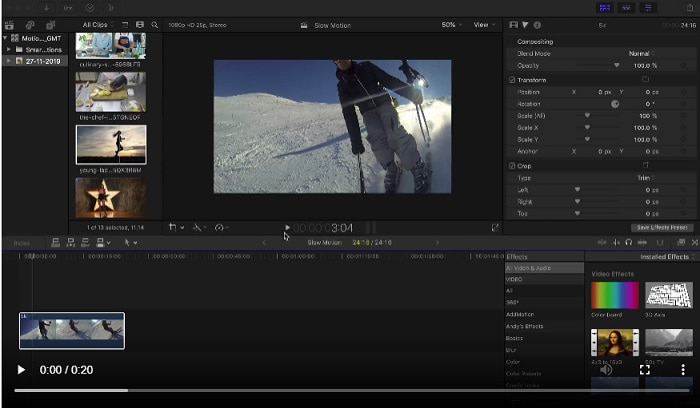
Step 1. In the Timeline, find and click on the clip you want to edit.
Step 2. To access the Retime menu, either click on the Speed Meter icon in the viewer window or press Command + R on your keyboard.
Step 3. Select between two-speed levels: Slow and Fast. Alternatively, press Command + R on your keyboard to bring up a drop-down menu above your clip.
Step 4. Changing the clip's timing is as simple as adjusting the speed percentages found under each option. It will shorten the clip if you speed it up and lengthen it if you slow it down when using this effect. The duration of the clip will change depending on the speed.
Part 2. Excel·lents opcions per utilitzar per fer càmera lenta a Windows
Mètode 1. Utilitzeu Video Converter Ultimate
Supposed that Final Cut Pro is very difficult software to use in order to make a slow-motion video, then we recommend using Video Converter Ultimate. This software is free to download and available on both Windows and Mac, so you don't have to worry about downloading it. It has different kinds of tools available that can edit your video like what the Final Cut Pro can do.
Among these tools, there is a Video Speed Controller that can make slow-motion videos by adjusting the playback speed of a normal speed video. Unlike the Final Cut Pro, this software is accessible to use and it doesn't take time to learn in using every tool. In addition, it supports various video formats so that you will not have a hard time looking for the best software for the video format you need to convert. Now that you have the idea of how great the Video Converter Ultimate is, let's dig into the procedures on how to make a slow-motion using this software.
Step 1. You must first download and install the software before you can use it. In order to do this, simply click on the Free Download button that's located below. Download it to your desktop and start installing it by clicking on the Start Now button.
Descàrrega gratuïtaPer a Windows 7 o posteriorDescàrrega segura
Descàrrega gratuïtaPer a macOS 10.7 o posteriorDescàrrega segura
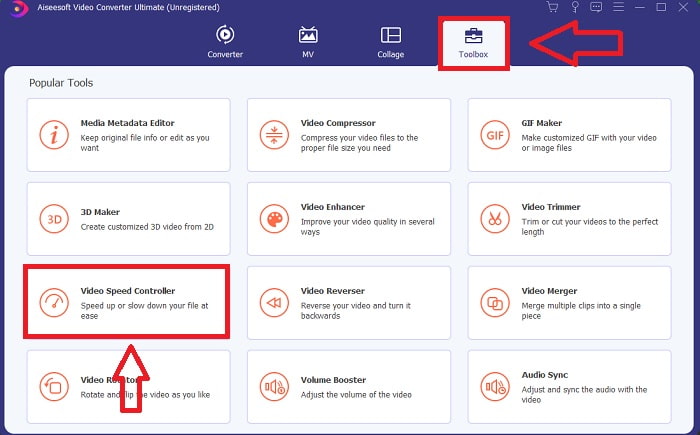
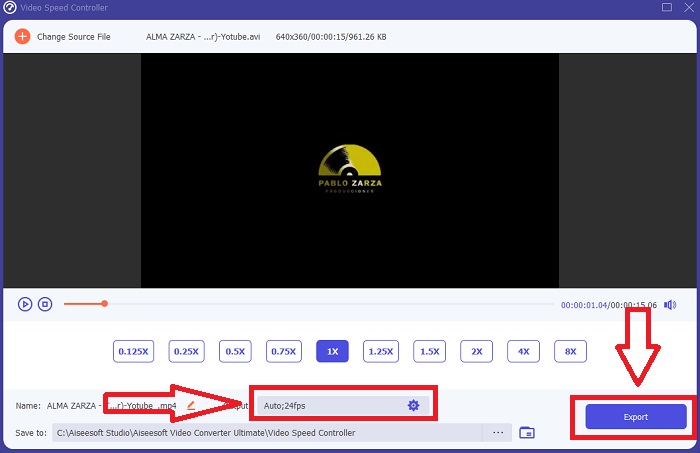
Step 2. Once the program has been installed, you will be able to see the start-up menu on the main software interface after it has been completed. By clicking the Toolbox tab in the menu tab, you can quickly and easily view all the featured tools this software can offer. And if you want to slow down your video or change the speed, choose Video Speed Controller from the list of available tools.
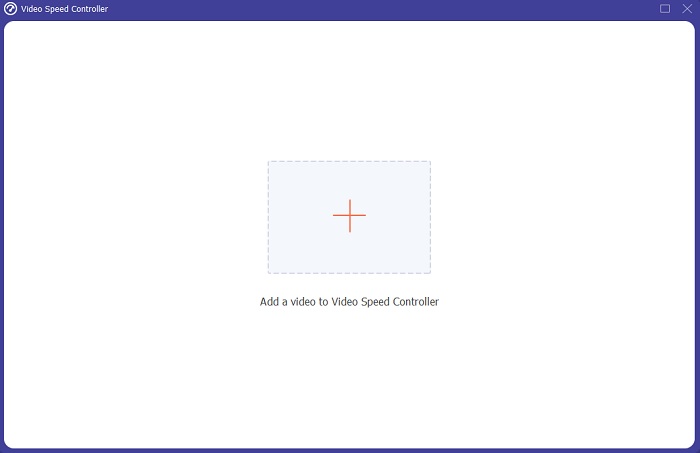
Step 3. In the event that you choose to proceed, another window will appear on your computer's display screen. You can begin uploading your video and start modifying its playback speed by selecting the plus sign +.
Step 4. Unlike the Final Cut Pro you can make the normal speed video to slow motion with one click. To create a slow-motion video out of this tool, you will now decrease the playback speed of your video by clicking all the values below 1, these integers will serve as the multiplier of how low are you going to decrease the frame rate of your video.
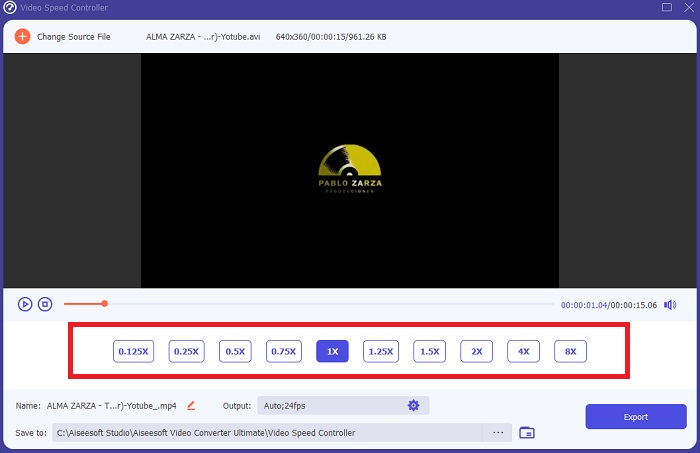
Step 5. You can now fine-tune the quality of your video by adjusting its format, resolution, frame rate, and other parameters if you're satisfied with its overall speed. You will also have the option of renaming your video output if you so desire. You can save your work by selecting Export from the File menu and browsing to a location on your computer's file system.
Mètode 2. Utilitza el moviment 5
Motion és una potent eina de gràfics en moviment dissenyada per a editors de vídeo que facilita la creació de títols cinematogràfics en 2D i 3D, transicions fluides i efectes realistes en temps real. Motion està dissenyat per a editors de vídeo. El moviment també és una altra alternativa a Final Cut Pro per fer vídeos a càmera lenta, ja que també està disponible a Mac. Amb les seves útils eines, ara podeu fer vídeos a càmera lenta fàcilment. Per saber més sobre com fer càmera lenta amb Motion 5, aquí teniu els passos que s'indiquen.
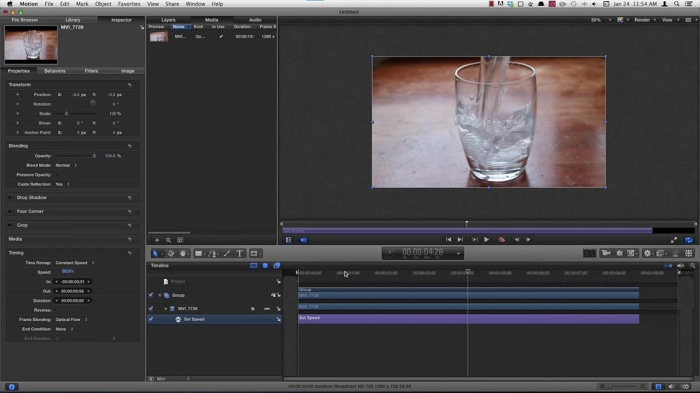
Step 1. Open the Motion 5, and drag the video file to the Timeline.
Step 2. Select the movie clip, and locate the Gear icon on the editing tools above the video track. After that, click Retiming and proceed with Set Speed.
Step 3. After you proceed, at the left corner of the interface, click the Properties and locate the Inspector window. And you will see the Retiming setting at the bottom. Set the speed to below 100 to achieve the slow-motion effect. And in order to make your slow-motion video play smooth, click Frame Blending and choose Optical Flow.
Relacionat:
Part 3. Preguntes freqüents sobre Final Cut Pro
Com igualeu l'àudio a Final Cut Pro?
Seleccioneu el vídeo a la línia de temps a Final Cut Pro. Seleccioneu una configuració d'equalització diferent al menú emergent Equalització de la secció Millores d'àudio de l'inspector d'àudio. Trieu l'opció Flat si voleu eliminar tot l'EQ.
Com estabilitzeu el vídeo a Final Cut Pro?
Es pot accedir a l'inspector de vídeo seleccionant un clip a la línia de temps a Final Cut Pro i fent clic al botó d'inspector. Canvieu entre Estabilització i Persiana enrotllable marcant la casella adequada. Podeu utilitzar la funció d'estabilització de Final Cut Pro marcant la casella i Final Cut Pro buscarà el millor mètode d'estabilització en funció de la seva anàlisi.
Com equilibres l'àudio esquerre i dret a Final Cut Pro?
Seleccioneu Esquerra/Dreta estèreo al menú emergent Mode a la secció Panoràmica de l'inspector d'àudio. Una de les opcions següents farà que el so es mogui cap a l'esquerra o cap a la dreta: Pan Amount és on poseu els vostres diners. Només assegureu-vos de no sobrepassar-lo.
Conclusió
In the final analysis, Final Cut Pro makes the best software available on Mac. It has different kinds of tools that can make your post-editing process a bit extraordinary. But it is only available on Mac, how are you going to make slow-motion videos, if you're using Windows? Video Converter Ultimate is the answer to your problem, all the details about this software are already given above. And how great this software is that it can turn your videos to slow motion.
-
 3 maneres d'accelerar el vídeo a l'iPhone [provat]
 Teniu problemes per ajustar la velocitat de reproducció del vostre vídeo perquè feu servir un iPhone? Aquest és un article excel·lent per ajudar-vos amb el vostre problema.
-
 Com reduir la velocitat d'un vídeo: consells perfectes [escriptori/telèfon mòbil]
 Estàs cansat de buscar les millors eines que ajudin a frenar un vídeo en línia? Llegiu aquest article en particular perquè us il·lumineu amb la informació que s'enumeren a continuació.
-
 Reproductor de Windows Media | Aprèn a accelerar els vídeos [provat]
 Voleu alentir el vostre videoclip amb el Windows Media Player, però teniu problemes per fer-ho? Aquest article és ideal per llegir i pot il·lustrar el vostre punt de vista sobre com accelerar els vídeos amb Windows Media Player.
