


 Video Converter Ultimate
 Gravadora de pantalla
 Reparació de vídeo
 Baixada segura
Com corregir el color amb les 5 millors eines imprescindibles
La correcció de color és un procés fonamental en l’edició de vídeo que millora i harmonitza els colors d’un vídeo, proporcionant un resultat visualment atractiu i captivador. Consisteix a ajustar el contrast, la saturació, la brillantor i els tons d’un vídeo per aconseguir l’ambient visual perfecte. Tant si ets un videògraf professional com un creador de contingut en potència, entendre com dur a terme la correcció de color és un punt d’inflexió per oferir imatges envoltants. El procés comença identificant i analitzant l’equilibri de color existent, les llums, les ombres i els tons mitjans del metratge de vídeo. A partir d’aquí, s’efectuen ajustos mitjançant programari especialitzat que permet un control autèntic sobre aquests elements de color. Endinsem-nos a fons en aquest article per aprendre com arreglar problemes de color en un vídeo amb les millors eines en què pots confiar.

Part 1. Cinc maneres de corregir el color del vídeo
Trobar diverses correccions de color gratuïtes de l'editor de vídeo en línia per augmentar l'atractiu visual del vostre vídeo pot ser tan fàcil com penseu. Tanmateix, buscar-ne de més avançats i fiables és una mica complicat per crear l'estat d'ànim adequat per als vostres vídeos. Descobriu cinc maneres efectives de perfeccionar els colors del vostre vídeo mitjançant diversos programaris versàtils, millorant la vostra narració i atraient el vostre públic.
1. Video Converter Ultimate
Video Converter Ultimate és una solució de vídeo tot en un que et permet millorar la qualitat del vídeo ajustant paràmetres essencials com la brillantor, el contrast i la saturació. Aquest pràctic corrector de color també et permet editar vídeos amb funcions com retallar, escalar i unir. A més, ofereix una gran quantitat d’opcions de conversió de vídeo, cosa que et permet transformar vídeos en milers de formats i adaptar-los a diversos dispositius com MP4, MKV, MOV, MP3, AAC, GIF, iPhone, Samsung i Apple TV, assegurant que es puguin gaudir en diferents plataformes. A més, els usuaris poden afegir subtítols i marques d’aigua per fer els seus vídeos més personalitzats. Amb una interfície senzilla, aquesta eina és perfecta tant si ets principiant com si ets un usuari experimentat. Segueix els passos següents per aprendre a corregir el color del teu vídeo amb èxit mitjançant Video Converter Ultimate.
Pas 1: Descarrega i instal·la el corrector de color
Primer, obtén l’eina fent clic en un dels botons de Baixada gratuïta de sota. Segons el sistema operatiu del teu ordinador, assegura’t de descarregar la versió de Video Converter Ultimate adequada per al teu equip. Segueix les instruccions per instal·lar-la.
Baixada gratuïtaPer a Windows 7 o posteriorBaixada segura
Baixada gratuïtaPer a macOS 10.7 o posteriorBaixada segura
Pas 2: Obre Video Converter Ultimate
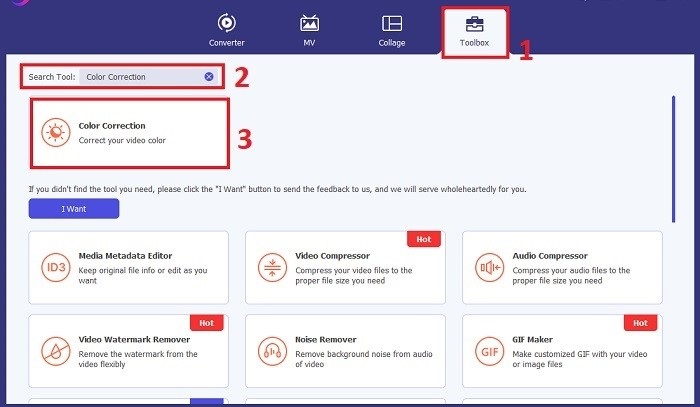
Un cop instal·lat, obre Video Converter Ultimate. Ves a la Caixa d’eines al menú principal i busca la funció de Correcció de color. Fes-hi clic per continuar.
Pas 3: Importa el vídeo per a la correcció de color
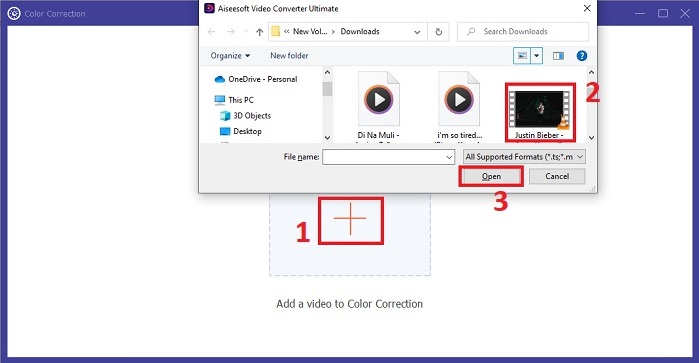
Ara, fes clic al botó amb el signe més per importar el vídeo al qual vols corregir el color. Cerca el fitxer de vídeo al teu ordinador. Després, selecciona Obre per portar-lo al programari.
Pas 4: Ajusta la configuració del color del vídeo i desa
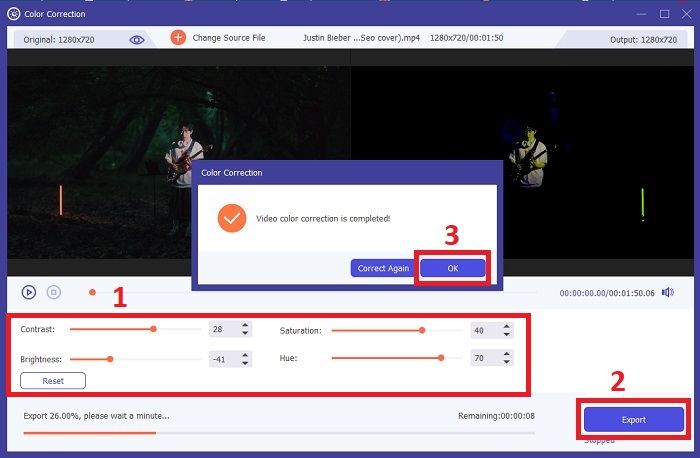
Després d’importar el vídeo, ajusta amb precisió paràmetres de color com la brillantor, el contrast, la saturació i el to per aconseguir la correcció de color desitjada. Quan estiguis satisfet amb els ajustos de color, fes clic a Exporta. Deixa que l’eina processi el vídeo i desi la versió corregida a la ubicació que hagis triat.
2. Correcció de color Premiere Pro
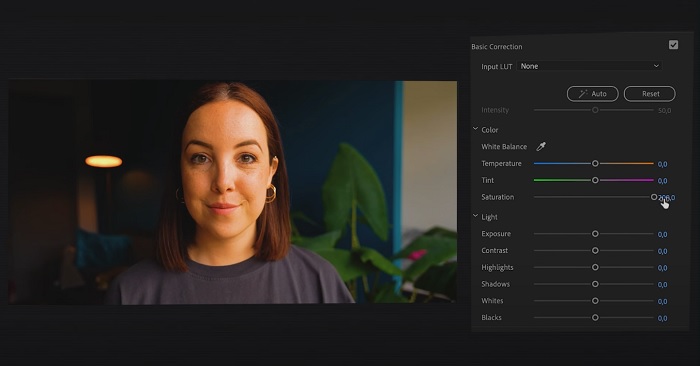
Premiere Pro és conegut pel seu programari d'edició de vídeo d'alta qualitat i les seves capacitats de correcció de color completes. Ofereix diverses eines i efectes de classificació de colors per fer ajustaments precisos. La correcció de color Premiere Pro us permet ajustar el balanç de color i l'exposició o aplicar aspectes creatius per aconseguir l'estil visual desitjat. També podeu triar entre els seus centenars d'efectes de vídeo i transicions integrats o començar amb plantilles dissenyades professionalment i modificar-les per crear la sortida desitjada. A més, té funcions de col·laboració i s'integra perfectament amb altres programaris d'Adobe, la qual cosa el converteix en una de les millors opcions entre els professionals.
Pas 1. Comença obrint Premiere Pro i important el teu vídeo. Després, ves a l’espai de treball Color.
Pas 2. Dins de l’espai de treball Color, fes servir el panell Lumetri Color per ajustar l’exposició, l’equilibri de color i els aspectes creatius.
Pas 3. Utilitza els vectorscopis per assegurar que els ajustos de color siguin exactes i s’alineïn amb el resultat que desitges. Finalment, visualitza i exporta el vídeo corregit.
3. Davinci Resolve Color Correction
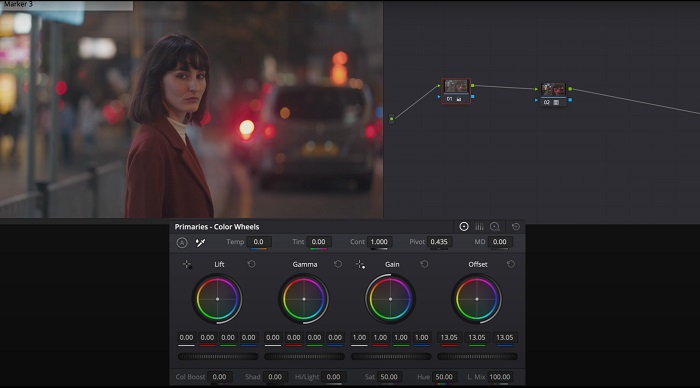
Exploreu les excepcionals capacitats de gradació de color. Aquest programari tot en un combina edició professional, correcció de color, efectes visuals i postproducció d'àudio. Amb la interfície fàcil d'utilitzar de l'eina i el conjunt complet de funcions, podeu donar vida a la vostra visió creativa amb precisió i estil. Les eines avançades de classificació de color de Davinci Resolve Color Correction us permeten destacar els vostres vídeos. Tant si esteu treballant en pel·lícules d'avantguarda de Hollywood com en projectes personals, aquesta eina permet als professionals i entusiastes crear narracions atractives amb una qualitat inigualable.
Pas 1. Obre Davinci Resolve i importa el teu vídeo. Un cop importat, navega fins a la pestanya Color.
Pas 2. Dins de la pestanya Color, utilitza les rodes de color, les corbes i els nodes per corregir el color del teu vídeo. Pots fer servir els vectorscopis disponibles per fer ajustos precisos.
Pas 3. Després de fer els ajustos de color necessaris, previsualitza el vídeo corregit per assegurar-te que compleix les teves expectatives. Quan estiguis satisfet, exporta el vídeo corregit perquè estigui llest per utilitzar.
4. Final Cut Pro Color Correction
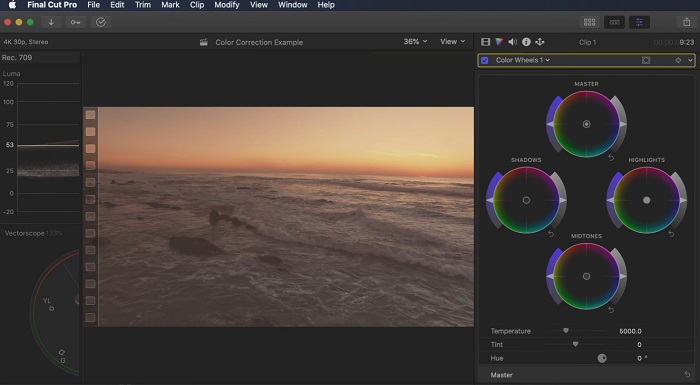
Si sou un usuari de Mac que busqueu una aplicació d'edició de vídeo de primer nivell, Final Cut Pro és una opció fantàstica. Compta amb una interfície fàcil d'utilitzar i funcions potents que fan que l'edició sigui una brisa. Pel que fa a la correcció del color, Final Cut Pro ofereix un tauler de color i rodes de color per ajustar l'exposició, la saturació i la tonalitat. Podeu aplicar efectes de color en temps real i utilitzar eines avançades de classificació per millorar el vostre metratge. A més, exporta sense problemes a dispositius Apple i plataformes en línia populars. Si sou un professional que busca eficiència i creativitat, Final Cut Pro és una obvietat. Assegureu-vos que teniu macOS 13.4 o posterior i un ordinador Mac amb silicona Apple per obtenir un rendiment òptim.
Pas 1. Pots començar important el teu vídeo a Final Cut Pro i, a continuació, anar a l’espai de treball Color.
Pas 2. Utilitza el Tauler de color (Color Board) o les Rodes de color (Color Wheels) per fer els ajustos essencials d’exposició, saturació i to.
Pas 3. Refina encara més el color del teu vídeo utilitzant eines addicionals d’etalonatge (color grading), assegurant el millor resultat possible. Un cop acabat, previsualitza i exporta el vídeo corregit.
5. Correcció de color After Effects
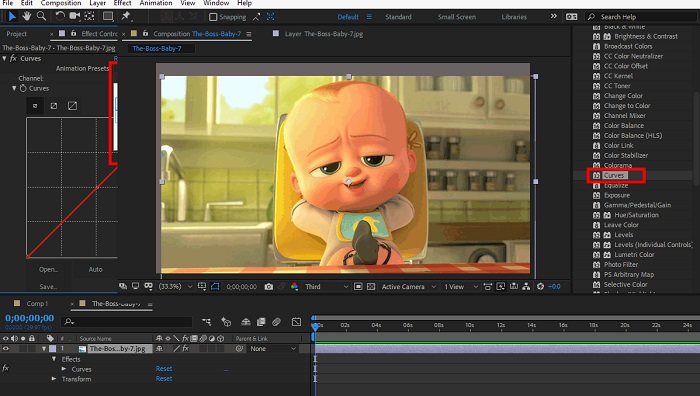
After Effects és un famós programari de gràfics en moviment i efectes visuals amb capacitats robustes de correcció de color. A part dels seus efectes bàsics de correcció de color, proporciona diverses capes d'ajust i efectes per millorar i modificar els colors. Podeu animar ràpidament text i gràfics, donant-los vida amb moviments captivadors. La correcció de color After Effects us permet aprofitar nivells, corbes i modes de fusió per aconseguir la gradació de color desitjada. És una opció de correcció de color versàtil gràcies a la seva integració amb diferents productes d'Adobe i una gran comunitat que ofereix tutorials i complements. A més, el programari evoluciona contínuament, introduint funcions com ara un tauler de propietats intuïtiu, un control de capes transparents i una representació eficient de diversos fotogrames que agileixen els fluxos de treball i mantenen les creacions a l'avantguarda de la creativitat.
Pas 1. Importa el teu clip de vídeo al projecte de l’eina. Aplica efectes de correcció de color navegant fins al panell Effects & Presets i seleccionant les eines de correcció de color adequades, com ara Curves, Levels o Color Balance.
Pas 2. Fes clic a l’efecte de correcció de color aplicat per accedir als seus paràmetres. Després, modifica els ajustos com l’exposició, el contrast, la saturació i el to per corregir i millorar els colors del teu vídeo.
Pas 3. Previsualitza el vídeo al panell Composition per veure com afecten les correccions de color al metratge. Ajusta’n els paràmetres en funció de la previsualització, assegurant que s’aconsegueixi la correcció de color desitjada, i procedeix a fer el render o exportar el vídeo corregit.
Lectures relacionades:
Millors apps gratuïtes per potenciar el color de fotos a Android i iOS
4 maneres sorprenents d’afegir un filtre a un vídeo a Windows i macOS
Part 2. Preguntes freqüents sobre els correctores de color de vídeo
Com puc fer la correcció de color en un iMovie?
Per corregir colors a iMovie, importa el teu clip de vídeo, selecciona’l i fes clic al botó de Correcció de color (icona de vareta màgica). Ajusta els controls lliscants d’exposició, saturació i color per aconseguir l’aspecte que prefereixis.
Com puc accedir a les eines de correcció de color a l'OpenShot?
Per a la correcció de color a OpenShot Video Editor, selecciona un clip, ves a la pestanya Effects i fes clic a Color Correction. Ajusta els controls lliscants de brillantor, contrast, to i saturació per aconseguir la correcció de color desitjada.
Com puc accedir a les eines de correcció de color a Sony Vegas?
Per a la correcció de color a Sony Vegas, selecciona el clip al qual vols corregir el color, ves a la pestanya Video FX i cerca Color Corrector. Arrossega’l i deixa’l anar sobre el clip i ajusta les propietats de color a la finestra Effect Controls.
Conclusió
Dominar la correcció de color és essencial per millorar l’atractiu visual dels teus vídeos i crear una experiència de visualització captivadora. En aquesta guia, hem explorat cinc potents correctors de color per aconseguir una correcció de color impecable. Si busques eines d’edició de vídeo d’alta qualitat, planteja’t utilitzar Video Converter Ultimate, Premiere Pro, Final Cut Pro, DaVinci Resolve o After Effects. Aquests programes ofereixen una gran varietat de funcions i capacitats per ajudar-te a crear vídeos d’aspecte professional. Cada programa té el seu propi conjunt de característiques i funcions que s’adapten a diferents preferències i nivells d’experiència.
-
 Com afegir i fer un filtre d'Instagram abans de publicar una imatge i un vídeo
 Quins són els filtres a Instagram? Com aplicar-ho? Com fer-ne un? Aquestes preguntes tindran respostes senzilles en aquesta publicació, així que llegiu-les.
-
 Mètodes sense problemes per convertir imatges en blanc i negre
 Vols que les teves fotos semblin nostàlgiques? Tenim una resposta per a tu. Aquesta publicació oferirà maneres notables de convertir una imatge en color a blanc i negre.
-
 6 filtres de Snapchat animats de Snapchat preferits a Snapchat
 Vols conèixer les millors maneres d'afegir filtres als vídeos de Snapchat? Bé, podeu fer clic aquí i conèixer els diferents filtres que podeu utilitzar per aplicar als vídeos de Snapchat.
