


 Video Converter Ultimate
 Gravadora de pantalla
 Reparació de vídeo
 Baixada segura
Com eliminar la marca d'aigua iStock en vídeos i imatges de manera eficaç amb passos
Quan necessites tenir a mà un fitxer de mitjà visual amb llicència, pots accedir a iStock per descarregar aquests fitxers. No tothom pot utilitzar el lloc web de franc, cosa que vol dir que hauràs de comprar la imatge amb diners reals. Encara que aquí pots descarregar el fitxer de manera gratuïta, s’hi afegirà una marca d’aigua al fitxer que descarreguis. En afegir una marca d’aigua per defecte al fitxer, aquest lloc web indica que el fitxer pertany a iStock. No et molesta la marca d’aigua? Si estem en sintonia, llegeix aquest blog fins al final perquè et mostrem la solució que hem trobat a internet. També afegirem els plans que pots contractar al lloc web esmentat i com eliminar la marca d’aigua d’iStock en cadascun dels casos.

Part 1. Com suprimir iStock Watermarkon vídeos i imatges amb les 3 maneres útils
1a via. Compra d'un crèdit a iStock
Comencem amb la compra de crèdit a iStock. El crèdit a iStock és una moneda; aquest lloc web reconeix el crèdit igual als vostres diners. Podeu utilitzar el crèdit per comprar qualsevol fitxer amb una quantitat determinada. Podeu desar imatges d'iStock sense filigrana si compreu un crèdit. Per saber com fer-ho, podeu llegir completament els passos que afegim a continuació per ajudar-vos a fer-ho.
Pas 1. Obre el lloc web oficial i inicia sessió al teu compte. Si encara no has creat un compte, en pots crear un abans de comprar el crèdit necessari.
Pas 2. Al lloc web, prem Pricing per veure quins plans admet aquesta eina.
Pas 3. Hi haurà una llista de crèdits que pots comprar; tria quants crèdits vols i després fes clic a Purchase Credits.
Pas 4. Omple la informació i les dades de facturació que utilitzaràs per comprar aquí el crèdit.
2n Camí. Elimineu la marca d'aigua d'iStock als vídeos mitjançant el convertidor de vídeo FVC Ultimate
Per eliminar la marca d’aigua d’iStock en un vídeo, hauràs d’utilitzar l’eliminador de marques d’aigua definitiu, el FVC Video Converter Ultimate. És l’eliminador de marques d’aigua més triat, que treballa sense esforç per suprimir la marca d’aigua dels teus vídeos. Aquesta eina elimina la marca d’aigua fotograma a fotograma i no deixa cap rastre quan l’exportes. Així que, si tens previst utilitzar aquest programari a l’escriptori, et podem assegurar que tindràs un vídeo sense marca d’aigua en molt poc temps. Vols utilitzar aquest programari? Si és així, continua i segueix els passos que afegim a continuació per ajudar-te a eliminar la marca d’aigua del vídeo que has desat a iStock.
Pas 1. Fes clic al botó de descàrrega que hem afegit més avall per instal·lar el programa a l’ordinador. Tria el sistema operatiu adequat per obtenir la versió correcta. Instal·la i configura l’eina després de descarregar-la i després fes clic a Start Now per obrir el programari i començar a utilitzar-lo.
Descàrrega gratuïtaPer a Windows 7 o posteriorDescàrrega segura
Descàrrega gratuïtaPer a macOS 10.7 o posteriorDescàrrega segura
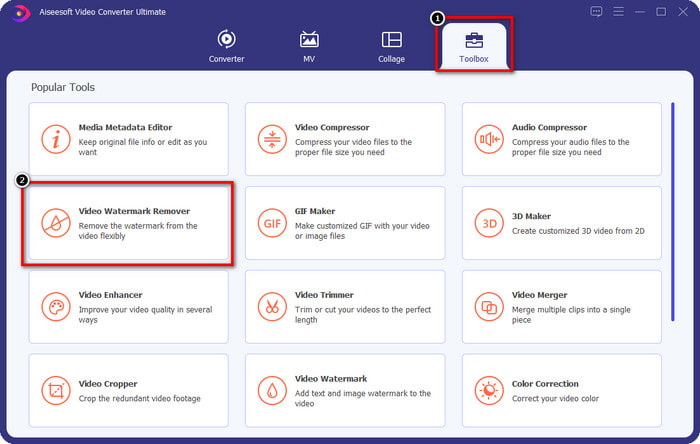
Pas 2. Ara que ja tens aquest eliminador de marques d’aigua d’iStock, has d’anar a la Toolbox. Cerca Video Watermark Remover per utilitzar aquesta funció.
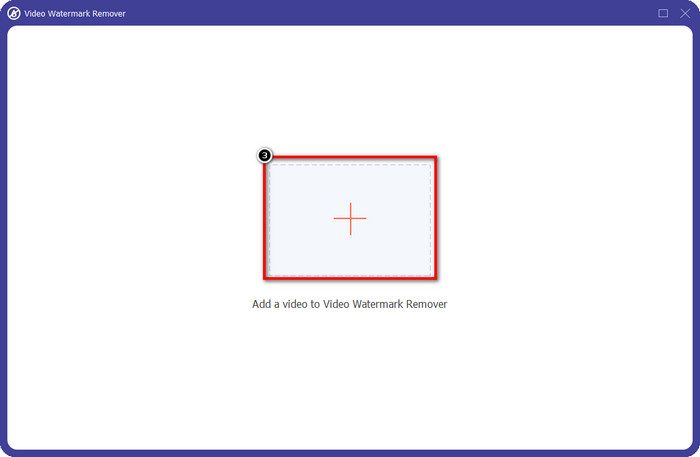
Pas 3. Prem el botó + per pujar el fitxer de vídeo que has descarregat d’iStock i que té una marca d’aigua. Troba el fitxer de vídeo a l’explorador d’arxius que apareixerà a la pantalla i després prem Open per pujar-lo.
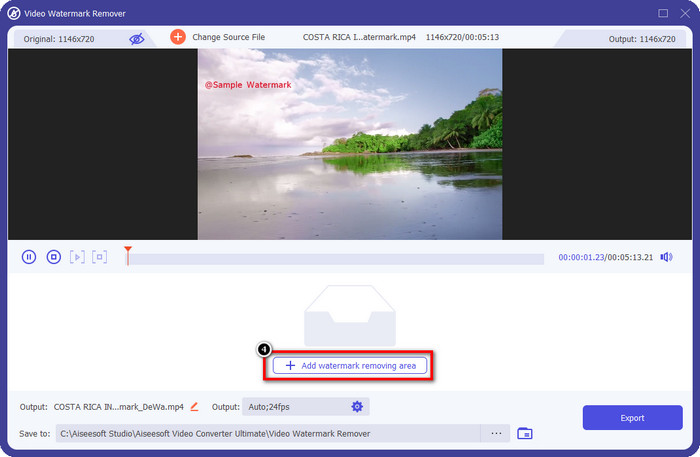
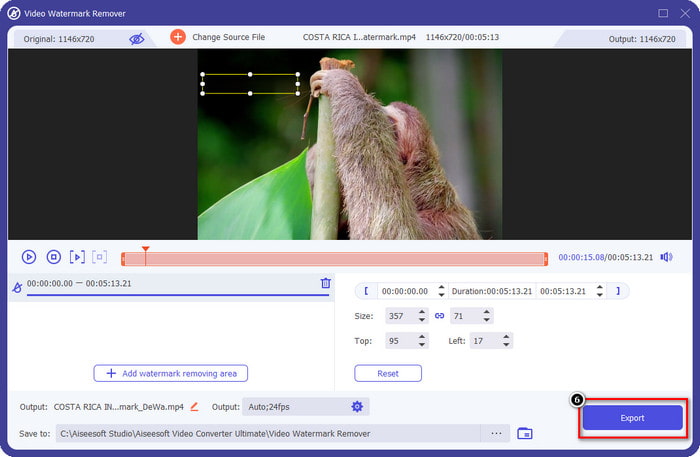
Pas 4. A la nova finestra, selecciona Add Watermark Removing Area per marcar la zona de la marca d’aigua del vídeo que has pujat.
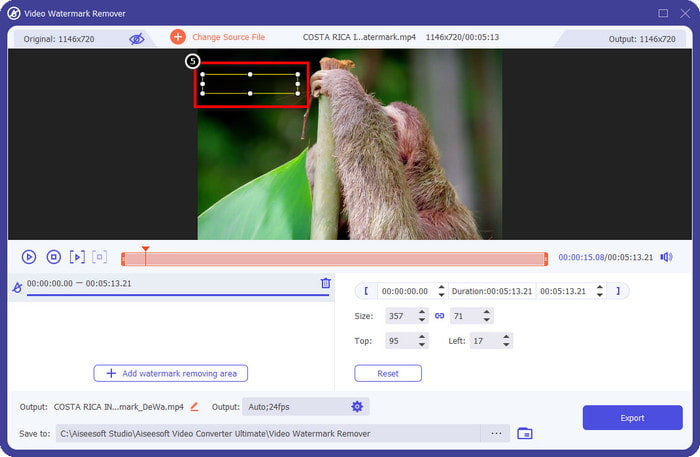
Pas 5. A la part central superior, ajusta la forma rectangular i situa-la sobre la marca d’aigua perquè s’apliqui a aquesta àrea.
Pas 6. Comença a exportar el fitxer quan hagis fet tot el que s’indica en aquest pas prement el botó Export. Amb això, ja hauràs acabat d’eliminar la marca d’aigua del teu vídeo amb l’ajuda de l’eina definitiva.
3a via. Elimineu la filigrana d'iStock a les imatges mitjançant l'eliminador de marques d'aigua gratuït FVC
Per tractar les marques d’aigua de les imatges, hauràs d’utilitzar el FVC Free Watermark Remover. És un pràctic eliminador en línia de marques d’aigua d’iStock que pots utilitzar per eliminar de manera eficient la marca d’aigua de les imatges sense descarregar res al teu dispositiu. A més, no cal que hi compris ni contractis res perquè és gratuït. Tot i ser una eina en línia, el seu rendiment a l’hora d’eliminar marques d’aigua és innegablement millor que el d’altres eliminadors de marques d’aigua per a imatges que pots utilitzar. No et creus el que diem? Només hi ha una manera de demostrar-te que rendeix excel·lentment: seguint els passos que afegim aquí.
Pas 1. Si us plau, fes clic en aquest enllaç per utilitzar immediatament l’eliminador de marques d’aigua en línia per a imatges.
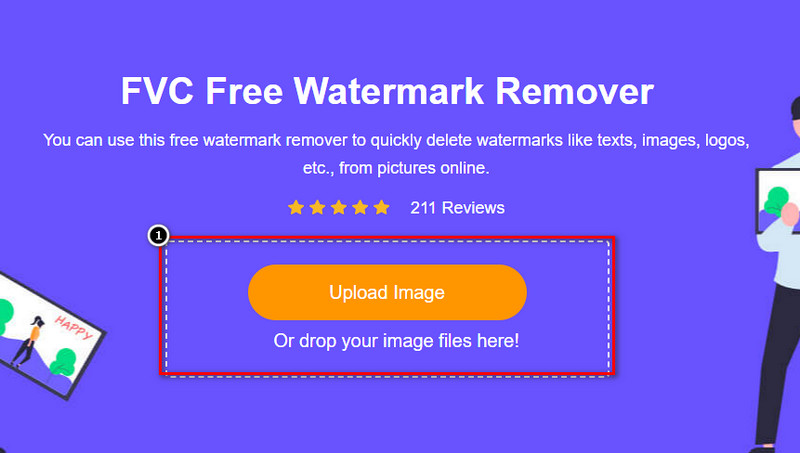
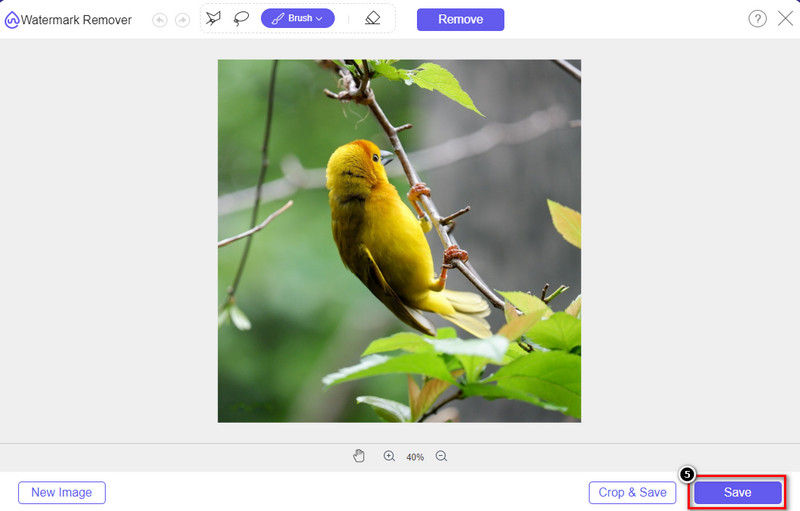
Pas 2. Prem Upload Image, selecciona la imatge amb marca d’aigua i espera que acabi el procés de pujada.
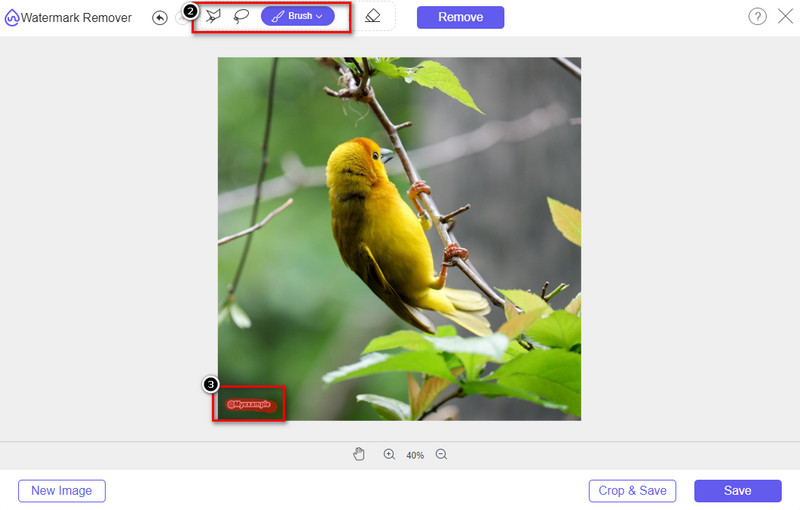
Pas 3. Draw sobre la marca d’aigua amb aquestes eines per ressaltar-la.
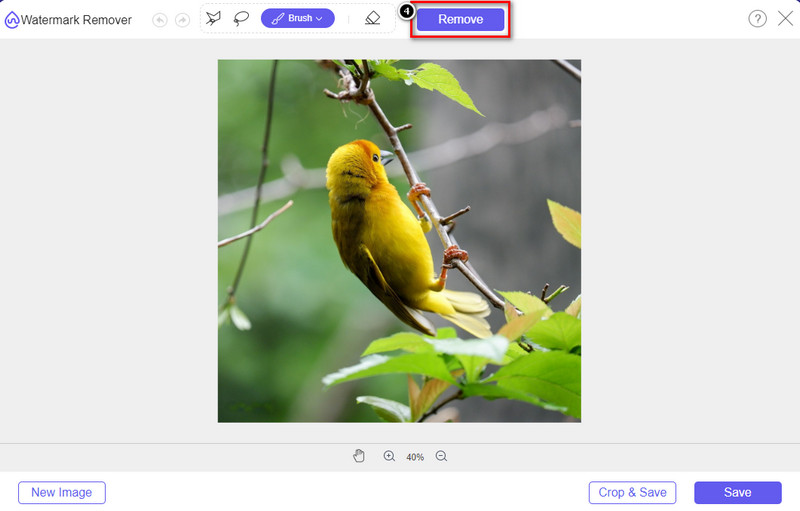
Pas 4. Fes clic a Remove per veure com queda un cop eliminada la marca d’aigua aquí.
Pas 5. Finalment, per desar el fitxer d’imatge, fes clic a Save per exportar la imatge sense la marca d’aigua d’iStock.
Relacionat:
Com eliminar la marca d’aigua dels vídeos exportats de Renderforest
Com eliminar la marca d’aigua de Viva Video als vídeos
Part 2. Preguntes freqüents sobre com eliminar la filigrana d'iStock
Com descarregar imatges iStock sense filigrana de forma gratuïta?
Si voleu descarregar immediatament una imatge a iStock, el lloc web aplicarà una marca d'aigua a la imatge. Aquest lloc web protegeix tots els fitxers per evitar problemes de drets d'autor i l'ús excessiu d'una determinada imatge. Si voleu descarregar una imatge sense filigrana, heu de comprar una mica de crèdit; podeu seguir els passos que afegim anteriorment sobre com fer-ho.
Quant és el preu d'un sol crèdit a iStock?
El preu d'un sol crèdit a iStock val $12. Podeu utilitzar el crèdit per comprar un fitxer multimèdia aquí i descarregar-lo sense la marca d'aigua al suport visual que vulgueu. Com més crèdit compreu, hi haurà un descompte per crèdit; podeu consultar els crèdits disponibles que us poden agradar.
No és car comprar un fitxer a iStock?
En comparació amb l'altre lloc web que ofereix el mateix servei, és un dels llocs web més barats que podeu utilitzar per comprar un fitxer amb llicència. Un cop compreu un fitxer aquí, podeu utilitzar-lo sense límits a diferència de l'altre, on un cop compreu, encara hi ha limitacions en l'ús del fitxer.
Conclusió
Ara que ja sabeu com eliminar eficaçment la marca d'aigua d'iStock en vídeos i imatges, podem dir que la feina està feta. Aleshores, quin camí prefereixes més? Voleu comprar un crèdit per tenir el fitxer a punt sense la marca d'aigua? O voleu utilitzar les eines que afegim aquí que podrien tractar la marca d'aigua en imatges i vídeos? Sigui quina sigui la vostra elecció, encara tindreu el fitxer perfecte i llest per utilitzar-lo sense la pertorbació de la marca d'aigua.
-
 Com eliminar la filigrana amb Pixlr en passos detallats [Efectiu]
 Vols saber com eliminar una filigrana amb Pixlr? Si és així, segueix llegint a continuació per saber com fer-ho i les alternatives que pots utilitzar.
-
 Elimina la marca d'aigua d'Animotica als vídeos exportats amb 3 maneres provades
 Alguna vegada us heu preguntat si és possible eliminar la marca d'aigua d'Animotica als vídeos que heu exportat? Aquest article ofereix una guia de com fer-ho.
-
 Maneres gratuïtes d'eliminar la marca d'aigua de VideoShop als vídeos [sense esforç]
 Per eliminar la marca d'aigua de VideoShop, el vostre dispositiu necessitarà un eliminador de filigrana. Per saber què són, llegiu aquest article.
