


 Video Converter Ultimate
 Gravadora de pantalla
 Reparació de vídeo
 Baixada segura
Com eliminar el logotip d'un vídeo a Adobe Premiere Pro amb uns quants clics
Adobe Premiere Pro és una aplicació de programari d’edició de vídeo creada per Adobe Inc. Aquesta aplicació pot millorar els teus vídeos perquè disposa de moltes eines d’edició que pots utilitzar. Així, si vols saber com eliminar una marca d’aigua d’un vídeo a Adobe Premiere Pro, pots aprendre-ho en aquesta publicació. A més, hem provat diverses aplicacions i et podem oferir una alternativa per eliminar un logotip o una marca d’aigua dels teus vídeos. Aquest article t’ensenyarà els mètodes més ràpids i senzills per eliminar un logotip o una marca d’aigua dels teus vídeos.

Part 1: Com eliminar la filigrana d'un vídeo a Adobe Premiere Pro
Pots eliminar marques d’aigua dels teus vídeos amb uns quants clics utilitzant Adobe Premiere Pro. Si disposes d’aquesta aplicació, no cal que pensis com pots eliminar les marques d’aigua o el logotip dels teus vídeos, perquè resoldrà el teu problema. A més, pots utilitzar aquesta aplicació per millorar els teus vídeos. Adobe Premiere Pro té moltes funcions, com ara projectes simultanis, edició de RV, transicions, efectes, etiquetes, diversos tipus de vídeo, compatibilitat amb múltiples formats de vídeo, publicació directa, plantilles de gràfics en moviment i més. Tanmateix, aquesta aplicació és cara si la vols comprar. A més, és només realment adequada per a usuaris avançats, és a dir, que els principiants tindran dificultats per fer-la servir. També necessites una targeta de memòria gran perquè requereix molta memòria per funcionar bé. Si vols utilitzar Adobe Premiere Pro per eliminar logotips del teu vídeo, segueix aquests senzills passos que tens a continuació.
Pas 1: El primer pas que has de fer és descarregar Adobe Premiere Pro al teu dispositiu. Pots utilitzar la versió de prova gratuïta o comprar l’aplicació. Executa l’aplicació després del procés d’instal·lació.
Pas 2: Obre el teu vídeo amb un logotip a l’aplicació fent clic a File > Open. Després, copia el vídeo i arrossega’l a la part superior del teu vídeo principal.
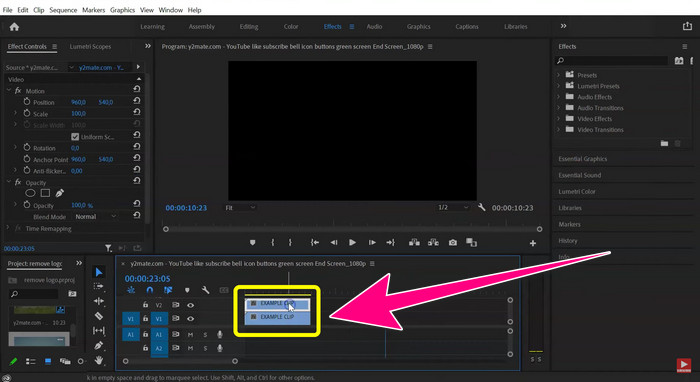
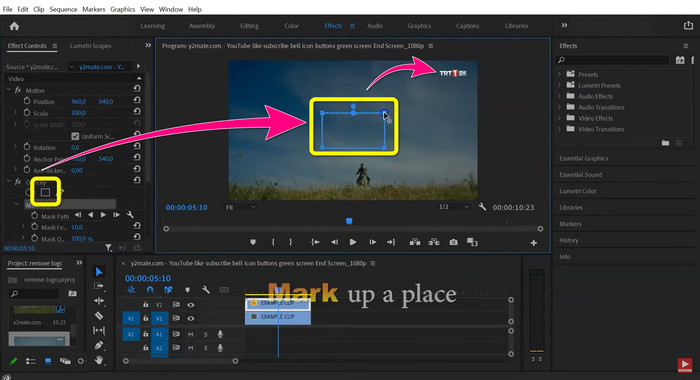
Pas 3: Fes clic a la màscara de polígon. Quan aparegui el quadre a la pantalla, utilitza l’eina Motion per arrossegar el quadre sobre el logotip. Pots continuar amb File > Save quan hagis acabat d’eliminar el logotip i gaudir mirant el teu vídeo.
Part 2: la millor manera alternativa d'utilitzar Premiere per eliminar la marca d'aigua del vídeo
Si ets principiant i tens dificultats per utilitzar Adobe Premiere Pro per eliminar logotips o marques d’aigua dels teus vídeos, no et preocupis. Tenim les millors alternatives per a tu. Et podem oferir una manera molt més senzilla d’eliminar objectes molestos dels teus vídeos. Es tracta de Video Converter Ultimate. T’ofereix els dos millors mètodes per eliminar les marques d’aigua o el logotip dels teus vídeos: l’eina Video Watermark Remover i l’eina Video Cropper. Aquest programari és més fàcil d’utilitzar que Adobe Premiere Pro. Per tant, fins i tot un principiant sense experiència en eliminar logotips o marques d’aigua el pot fer servir amb eficàcia. A més, pots utilitzar aquest programari tant si ets usuari de Mac com de Windows. A més, pots utilitzar aquesta aplicació de franc, però també pots comprar-la per gaudir de totes les seves funcions. És més barata que Adobe Premiere Pro. Segueix els passos següents per eliminar els logotips o les marques d’aigua dels teus vídeos.
Ús de la funció d'eliminació de filigrana de vídeo
Pas 1: Descarrega la versió oficial de Video Converter Ultimate fent clic al botó Download que hi ha a continuació. Instal·la’l al teu Windows o Mac. Executa el programari.
Descàrrega gratuïtaPer a Windows 7 o posteriorDescàrrega segura
Descàrrega gratuïtaPer a macOS 10.7 o posteriorDescàrrega segura
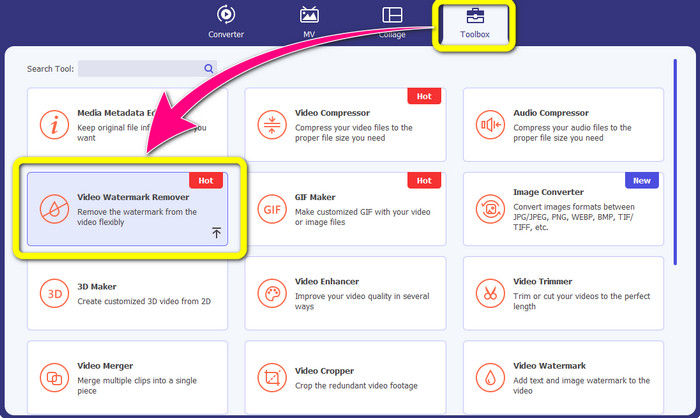
Pas 2: Quan s’obri el programari, hi ha quatre opcions a la part superior: Converter, MV, Collage i Toolbox. Selecciona el panell Toolbox i fes clic a Video Watermark Remover dins del panell Toolbox.
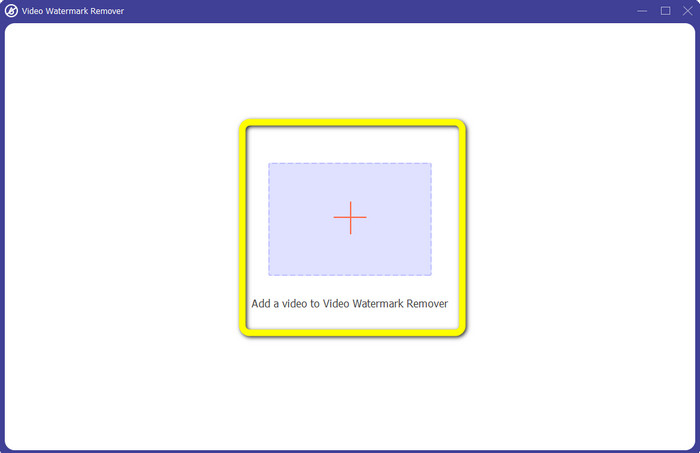
Pas 3: Apareixerà una finestra nova a la pantalla. Per importar el teu vídeo amb una marca d’aigua, fes clic al signe + al mig de la interfície.
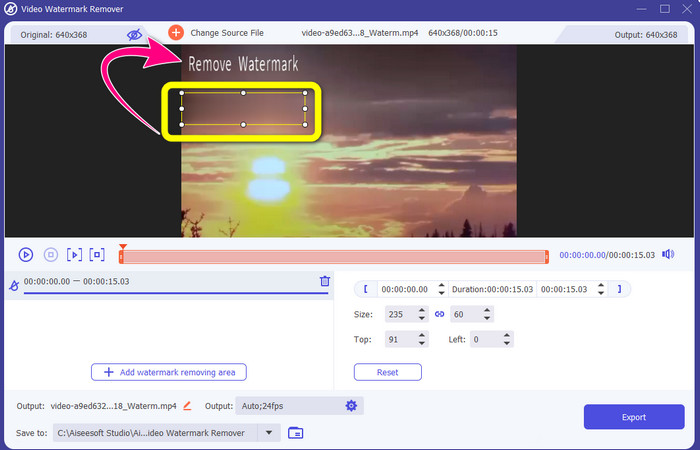
Pas 4: Fes clic a Add Watermark Removing Area. Arrossega el quadre que apareix a la pantalla i situa’l de manera que cobreixi la marca d’aigua dels teus vídeos.
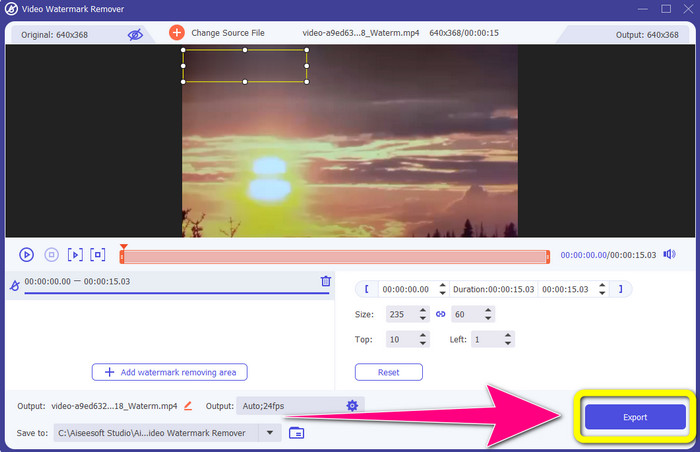
Pas 5: L’últim pas és el més fàcil. Tot el que has de fer és fer clic al botó Export i desar el teu resultat final. Espera uns moments i el teu vídeo final estarà completament llest.
Ús de la funció de retall de vídeo
També podeu utilitzar aquesta funció de retall de vídeo per eliminar les marques d'aigua dels vostres vídeos, si la marca d'aigua es troba a la vora del vostre vídeo.
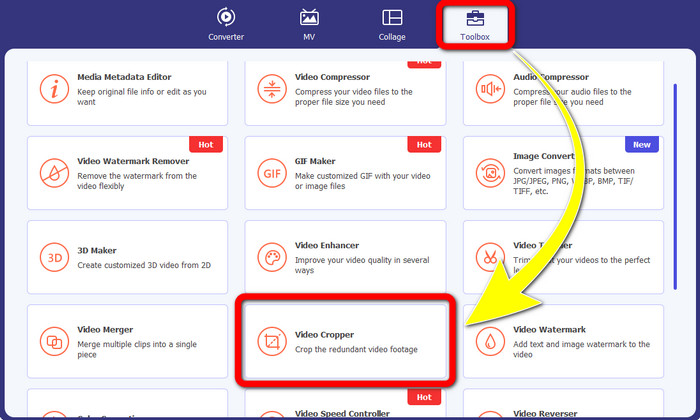
Pas 1: Inicia l’aplicació al teu ordinador Windows o Mac. Fes clic al botó Video Cropper dins del panell Toolbox.
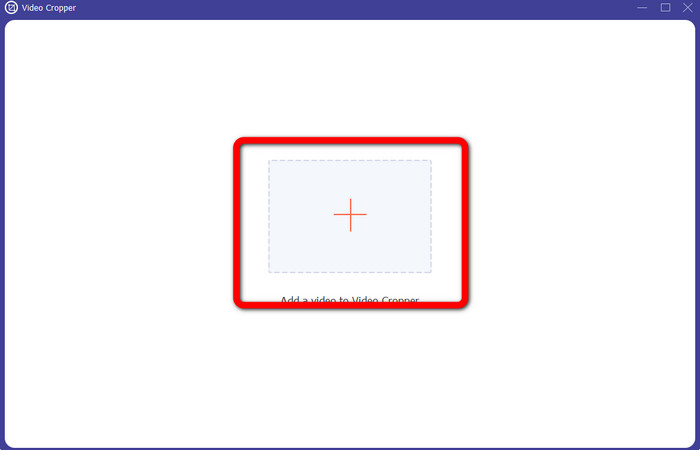
Pas 2: Apareixerà una altra finestra a la pantalla. Fes clic a la icona + per inserir el vídeo amb la marca d’aigua que vols eliminar.
Pas 3: En aquesta part, ja pots retallar el teu vídeo per eliminar la marca d’aigua movent els punts.
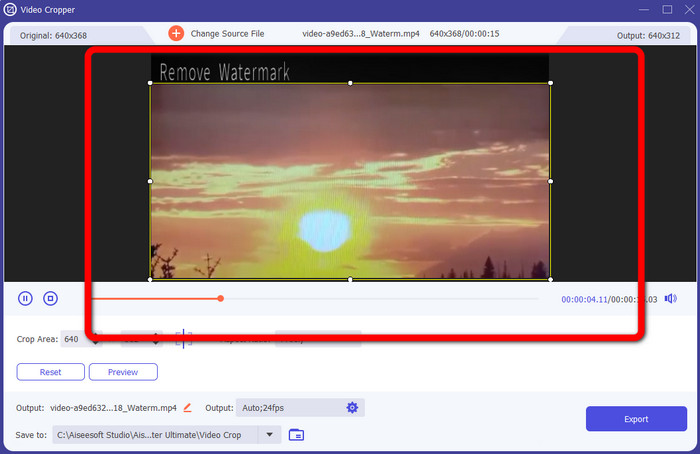
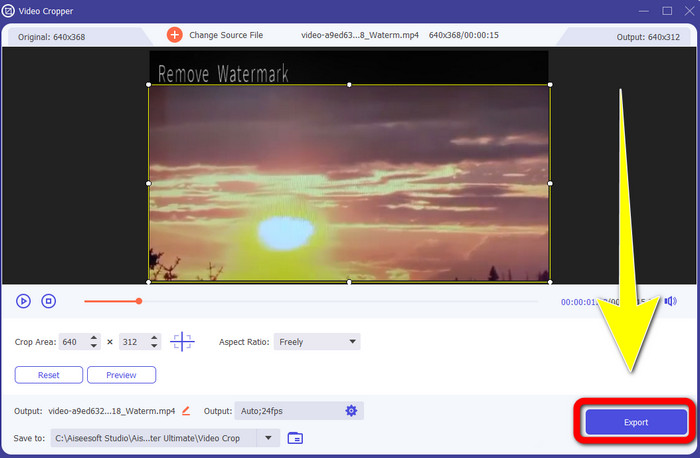
Pas 4: Si estàs content amb el que has fet en eliminar les marques d’aigua dels teus vídeos, fes clic al botó Export i desa el teu vídeo.
Part 3: Preguntes freqüents sobre l'eliminació de la marca d'aigua del vídeo a Premiere Pro
Com eliminar la marca d'aigua del vídeo sense desenfocar amb Premiere Pro?
Adobe Premiere Pro pot eliminar una marca d’aigua del teu vídeo sense difuminar-la. Així encara pots gaudir de la qualitat del teu vídeo. Segueix el pas següent.
1. Adjunta el teu fitxer a Adobe Premiere Pro.
2. Copia el teu vídeo i arrossega’l a la part superior del vídeo original.
3. Fes clic a l’eina de màscara de polígon.
4. Cobreix la marca d’aigua i desa el teu resultat final.
Com puc eliminar un logotip de marca d'un vídeo?
Heu de descarregar un eliminador de logotip com Video Converter Ultimate per eliminar un logotip de marca del vostre vídeo. Aquest programari fora de línia pot eliminar instantàniament elements molests dels vostres vídeos, com ara logotips, marques d'aigua, segells de data, textos i molt més.
Com puc eliminar un logotip d'un vídeo sense que quedi borrós?
La millor solució és descarregar Video Converter Ultimate al vostre escriptori. Després d'eliminar el logotip i qualsevol objecte no desitjat dels teus vídeos, l'àrea no es desenfoca.
Quins són els desavantatges d'utilitzar Adobe Premiere Pro?
És un model basat en subscripció. Heu de pagar mensualment o anualment per utilitzar l'aplicació de manera coherent. A més, és un ús elevat de memòria RAM, on podeu quedar-vos sense memòria si esteu editant amb metratge complex i llarg. Finalment, és complicat d'utilitzar. Es triga un mes a aprendre aquesta aplicació. Fins i tot els professionals admeten que encara estan aprenent a utilitzar Adobe Premiere Pro.
Quines són les aplicacions més fiables que puc utilitzar per eliminar les marques d'aigua dels meus vídeos?
Les aplicacions que podeu utilitzar per eliminar les marques d'aigua dels vostres vídeos són Video Converter Ultimate, Aiseesoft Free Watermark Remover Online, HitPaw Remove Watermark Online, BeeCut i Adobe Premiere Pro. Aquestes aplicacions estan provades i val la pena provar-les.
Conclusió
Com pots veure més amunt, pots eliminar un logotip d’un vídeo a Premiere Pro. A més, pots utilitzar una excel·lent alternativa a Adobe Premiere Pro: Video Converter Ultimate. Et permet eliminar fàcilment marques d’aigua o logotips dels teus vídeos.
-
 Enfocaments provats per crear vídeos a càmera lenta a Adobe Premiere
 Un dels millors programes d'Adobe és Premiere; funciona més per millorar els vídeos al següent nivell, com ara fer vídeos a càmera lenta. Llegiu aquest article per obtenir més informació sobre Adobe Premiere i les seves funcions útils.
-
 Maneres ràpides i senzilles de com sincronitzar àudio i vídeo a Adobe Premiere Pro
 Vols saber com sincronitzar l'àudio i el vídeo a Premiere Pro? Aleshores, aquest article s'adaptarà a les vostres necessitats. Mentre ho provem per nosaltres mateixos com sincronitzar per proporcionar només els passos reals i senzills.
-
 Com accelerar el vídeo a Premiere Pro i amb les seves alternatives
 Vols saber com utilitzar l'estrena professional per accelerar un vídeo? Aleshores esteu a l'article correcte, ja que us oferim passos i altres alternatives assequibles.
