


 Video Converter Ultimate
 Gravadora de pantalla
 Reparació de vídeo
 Baixada segura
Les millors tècniques per eliminar la marca d'aigua d'Animoto als vídeos de manera permanent
Animoto és un creador de vídeos basat en núvol que qualsevol pot utilitzar per fer un vídeo excel·lent per impressionar el públic que veurà el vídeo. Amb milions d'usuaris, Animoto es va fer famós per editar i crear vídeos sense tenir amplis coneixements sobre la postproducció. A causa de l'ús diari que visita el lloc web, molts usuaris gaudeixen utilitzant-lo i creen múltiples vídeos curts sorprenents per a les seves presentacions.
No obstant això, la versió gratuïta de l’eina deixa un logotip de l’eina al final del vídeo. Això pot resultar molest per a algunes persones i, sens dubte, cal eliminar-lo per poder presentar el vídeo de manera pulcra i sense cap marca d’aigua. Per oferir-te l’eina que necessites per eliminar la marca d’aigua d’Animoto de franc, has de mantenir el ritme llegint aquest article, ja que hi resumim totes les eines que pots utilitzar i que t’ajudaran.

Part 1. Com eliminar la filigrana del vídeo d'Animoto [El removedor de filigrana més utilitzat el 2022]
FVC Video Converter Ultimate - Eliminador de marques d'aigua definitiu a Windows i Mac
Si vols eliminar la marca d’aigua d’Animotica, pots fer servir i aprofitar les funcions i característiques que FVC Video Converter Ultimate porta incorporades. Aquesta eina proporciona la manera més efectiva d’eliminar la marca d’aigua del teu vídeo, i és precisament suprimint-la. Amb aquesta eina, pots cobrir el logotip d’Animoto amb el logotip personalitzat que hagis creat perquè el logotip de l’eina no aparegui al vídeo que has fet. Pel que fa al rendiment global en l’eliminació de marques d’aigua, podem dir fàcilment que és la millor que hem trobat al mercat.
A més, a part d'eliminar i afegir la marca d'aigua, també podeu aprofitar les altres característiques i funcions com ara editar, convertir, crear MV i molt més. En totes les seves característiques i funcions, podem admetre que serveix el plat adequat a la taula amb un propòsit final. Per tant, si voleu saber com eliminar una filigrana d'un vídeo d'Animoto, podeu llegir la informació següent.
Pas 1. Prem el botó de descàrrega de sota per instal·lar-la al teu Windows o Mac. Tria el botó adequat per descarregar la versió correcta per al teu sistema operatiu. Després fes clic al fitxer que has descarregat per començar la instal·lació, segueix el procés d’instal·lació i, finalment, obre-la.
Descàrrega gratuïtaPer a Windows 7 o posteriorDescàrrega segura
Descàrrega gratuïtaPer a macOS 10.7 o posteriorDescàrrega segura
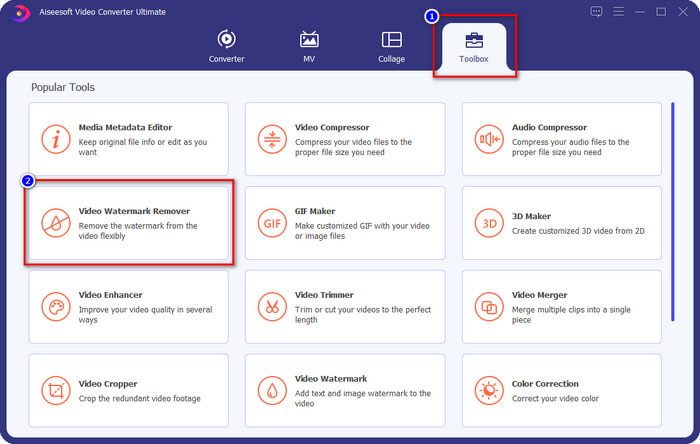
Pas 2. Ves a la Caixa d’eines (Toolbox) per obrir el Video Watermark Remover que inclou l’eina.
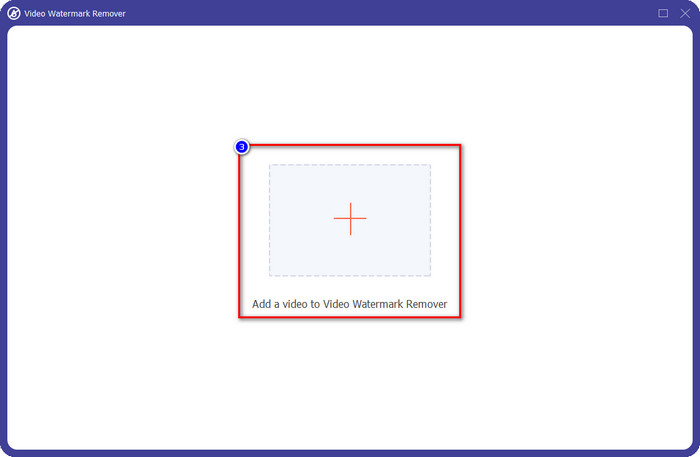
Pas 3. A continuació, fes clic al botó + que apareixerà a la pantalla per pujar el vídeo que has editat a Animoto amb una marca d’aigua.
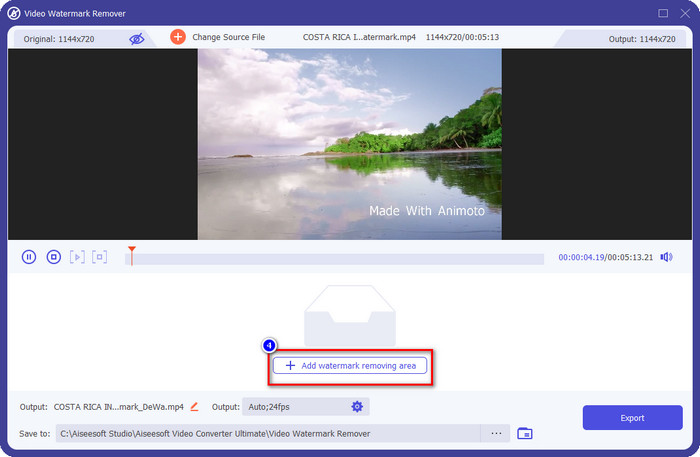
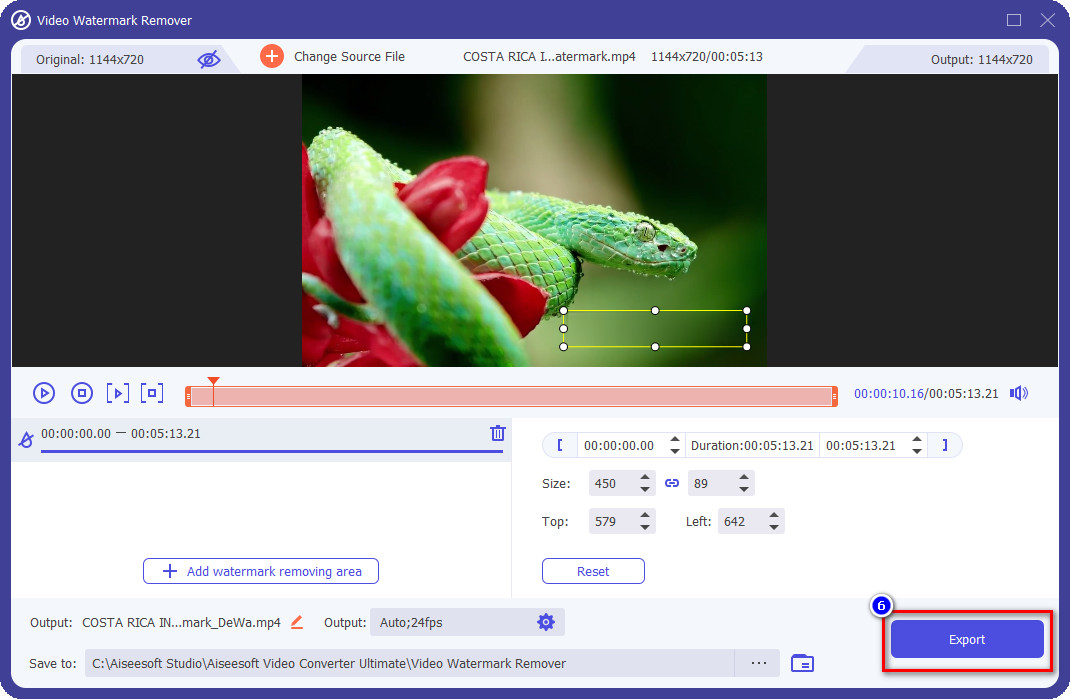
Pas 4. Veureu que apareix una finestra nova a la pantalla un cop hàgiu pujat el vídeo. Fes clic a Add Watermark Removing Area a la part central inferior de la interfície.
Pas 5. Ajusta el quadre de selecció perquè s’adapti a la marca d’aigua i col·loca’l al seu lloc.
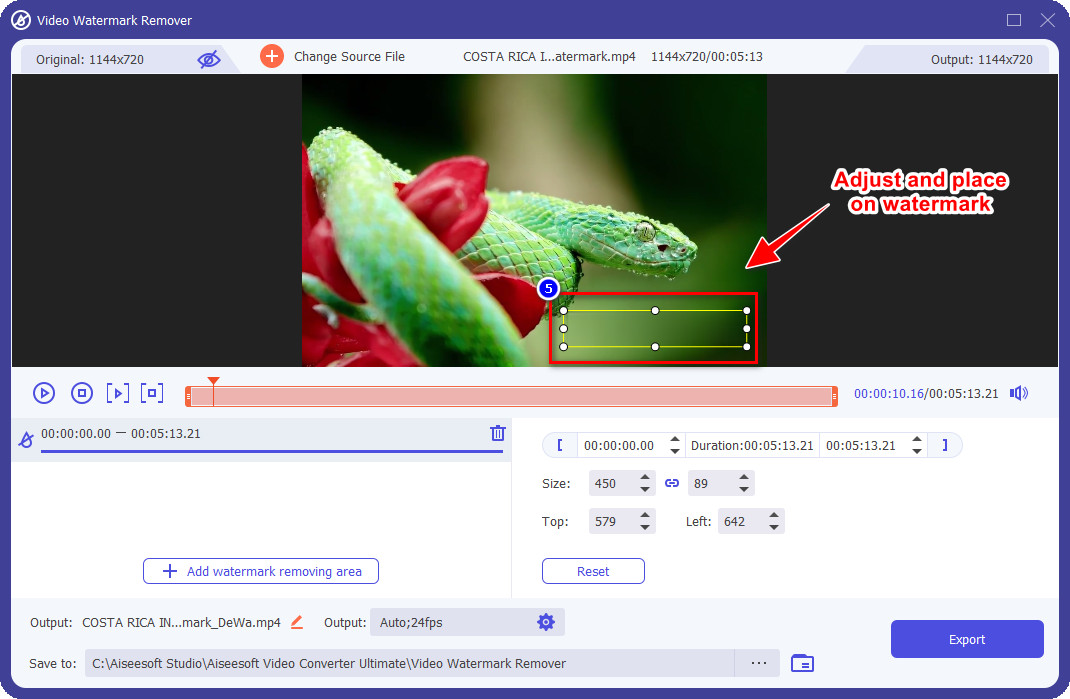
Pas 6. Després de situar el quadre de selecció sobre la marca d’aigua, pots fer clic al botó Export per desar el resultat final del vídeo sense la marca d’aigua.
iMovie al Mac
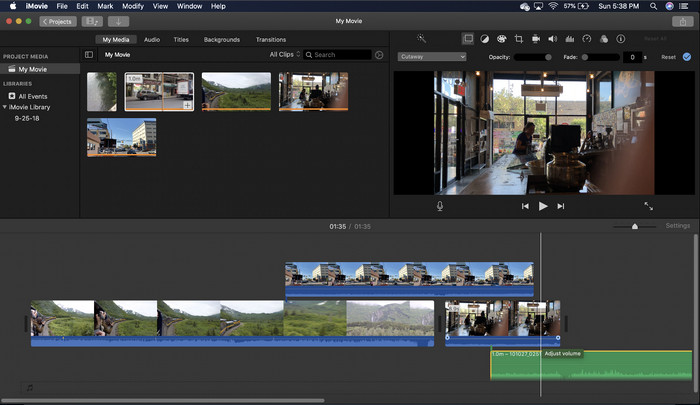
iMovie és un editor de vídeo popular que podeu utilitzar per eliminar la marca d'aigua del vostre vídeo retallant-lo. Cada usuari de Mac pot utilitzar el seu potencial sense descarregar el programari al seu dispositiu perquè ja està preinstal·lat, estalviant-vos temps a la baixada i instal·lació, fins i tot a l'emmagatzematge. Tot i que l'eina és excel·lent per a l'edició de vídeo, la funció d'eliminació de la filigrana que admet no és com la que ofereix la primera eina. Retalla el marc del vídeo per eliminar la marca d'aigua del vídeo, de manera que si la marca d'aigua es col·loca al mig, haureu de retallar gairebé la meitat de la presentació visual del vídeo.
No sempre és la millor opció per eliminar la filigrana, però si el logotip es troba al final del vídeo, podeu seguir els passos següents per saber com eliminar la filigrana d'Animoto del vídeo retallant-la.
Pas 1. Obre l’editor de vídeo al teu dispositiu Mac anant al Finder, després a Aplicacions; dins d’aquest apartat pots buscar iMovie i fer-hi doble clic.
Pas 2. Puja el vídeo que vulguis fent clic al botó Import i cercant el fitxer de vídeo al disc local.
Pas 3. Ara que el vídeo ja està pujat, has de arrossegar el vídeo que has pujat a la línia de temps.
Pas 4. A la part dreta de la interfície de l’eina veuràs molts icones de funcions d’edició; fes clic a la icona de retallar (crop) de la llista.
Pas 5. Canvia el marc per excloure la marca d’aigua d’Animoto del teu vídeo.
Pas 6. Fes clic al botó Compartir (share) a la part superior esquerra i, a continuació, a Export as a Video per començar el procés de descàrrega del vídeo.
Part 2. Forma addicional de desar vídeos d'Animoto sense filigrana
Puc desar vídeos editats a Animoto sense una marca d'aigua? Tu pots. En lloc d'utilitzar el programari que hem esmentat anteriorment, adquireu la quota de subscripció en aquesta eina web per desar el vídeo que heu editat aquí, però aquesta vegada sense la marca d'aigua. Per ajudar-vos a fer-ho, podeu seguir els passos següents.
Pas 1. Obre el navegador, cerca Animoto Video Editor i després obre el seu lloc web oficial.
Pas 2. Al lloc web oficial, fes clic a Pricing.
Pas 3. A sota, veuràs que hi ha dos tipus de subscripció que pots utilitzar: mensual i anual. No et deixis enganyar pel preu més baix de l’anual, perquè et costarà més en subscripcions que la mensual, ja que anual vol dir per any.
Pas 4. Crea-hi un compte i afegeix l’adreça de facturació i el mètode de pagament que vulguis utilitzar. Després d’això, ja podràs utilitzar la versió Pro d’aquesta eina en línia.
Relacionat:
Com eliminar les marques d’aigua de Photobucket
Com eliminar la marca d’aigua d’un GIF
Part 3. Preguntes freqüents sobre com eliminar la filigrana d'Animoto
Animoto i Animotica són el mateix?
Aquests dos editors de vídeo no estan relacionats entre ells, però els articles sobre ells sovint parlen de comparar cada eina. I tots dos són la millor alternativa l'un per l'altre per si mateixos.
Què és millor, difuminar o retallar la marca d'aigua d'Animoto?
El desenfocament pot tenir un efecte bo i dolent en el vostre vídeo; La part bona de difuminar la marca d'aigua és que pot ser imperceptible als nostres ulls nus, sobretot si es barreja o es barreja bé amb el color. Però el costat dolent és que veus una marca traçable després d'exportar-la si no ha anat bé. En el cultiu, és el mateix; quan retalleu el vídeo, no hi haurà efectes posteriors desenfocats al vídeo, però la mida del fotograma es fa més estreta.
Animoto té un pagament únic?
Malauradament, no admet pagaments únics. Però si voleu ser més barat i utilitzar-lo durant molt de temps, us suggerim que trieu la subscripció anual per utilitzar l'eina web durant un any i que us torneu a subscriure l'any següent i endavant.
Conclusió
Aleshores, de quina manera creieu que utilitzareu per eliminar la marca d'aigua d'Animoto? Sigui quina sigui la vostra decisió, esperem que us ajudem a resoldre el problema d'eliminar la marca d'aigua del vídeo que heu editat a Animoto.
-
 4 millors maneres d'afegir una marca d'aigua a qualsevol vídeo ràpidament
 Aprenem a afegir una marca d'aigua a qualsevol vídeo a Windows, Mac, en línia, iOS i Android amb passos detallats si llegiu aquest article.
-
 4 maneres efectives d'eliminar les marques d'aigua de Tiktok dels vídeos de Tiktok
 Necessites eliminar la marca d'aigua de Tiktok dels teus vídeos de Tiktok exportats? Podeu fer-ho aquí amb l'ajuda de les eines que us presentem; pots fer-ho fàcilment.
-
 Com afegir una marca d'aigua a un vídeo a iMovie al Mac [All Embracing]
 Vols conèixer els secrets d'afegir una marca d'aigua a un vídeo a iMovie? No vesseu el te a ningú i apreneu-lo llegint aquest article.
