


 Video Converter Ultimate
 Gravadora de pantalla
 Reparació de vídeo
 Baixada segura
La millor manera d'eliminar la filigrana de Wondershare DVD Creator ràpidament
Pel que fa a l'extracció d'un DVD, CD i Blu-ray, no us podeu equivocar en triar el Wondershare DVD Creator. Aquesta eina pot extreure totes les dades i gravar els fitxers ISO al disc; és un destripador i cremador. Tot i que és un dels millors destripadors i cremadors, encara deixarà una marca d'aigua al vídeo, sobretot si feu servir la versió gratuïta. Frustrant oi? Sempre hi ha una solució en aquest tipus d'escenaris que et pot ajudar. La informació són els detalls que necessiteu saber i aprendre a eliminar la filigrana del WonderShare DVD Creator en pocs minuts.

Part 1. Com eliminar la filigrana de Wondershare DVD Creator
La millor solució que pot resoldre el teu problema és eliminar la marca d’aigua de Wondershare DVD Creator amb l’ajuda de l’eina definitiva, que és el FVC Video Converter Ultimate. Aquesta eina professional pot eliminar la marca d’aigua afegida al DVD, CD i Blu-ray ripejats tan ràpid com la seda. Cada cop més usuaris es diverteixen utilitzant aquesta eina gràcies a les funcions integrades i a la velocitat del procés. Amb aquesta eina, pots eliminar qualsevol marca d’aigua del teu vídeo fàcilment i ràpidament.
A més de les seves capacitats per eliminar la filigrana, també podeu afegir una nova marca d'aigua al vídeo. Podeu fer una marca d'aigua personalitzada i aplicar-la al vostre vídeo si voleu. Per tant, si creieu que podeu dependre d'aquesta eina, la qual cosa és cert, podeu seguir els passos següents, ja que us oferim com eliminar la marca d'aigua que WonderShare DVD Creator deixa al vostre vídeo.
Com eliminar la filigrana de Wondershare DVD Creator amb el programari definitiu:
Pas 1. Per descarregar el programari a l’ordinador, pots fer clic en el botó de descàrrega que es mostra a continuació i triar el botó adequat per descarregar-ne la versió correcta. Instal·la el programari a l’ordinador i fes clic a Inicia ara per executar-lo. Abans de continuar, assegura’t de familiaritzar-te amb la interfície gràfica d’usuari de l’eina per gaudir d’una experiència fluida.
Descàrrega gratuïtaPer a Windows 7 o posteriorDescàrrega segura
Descàrrega gratuïtaPer a macOS 10.7 o posteriorDescàrrega segura
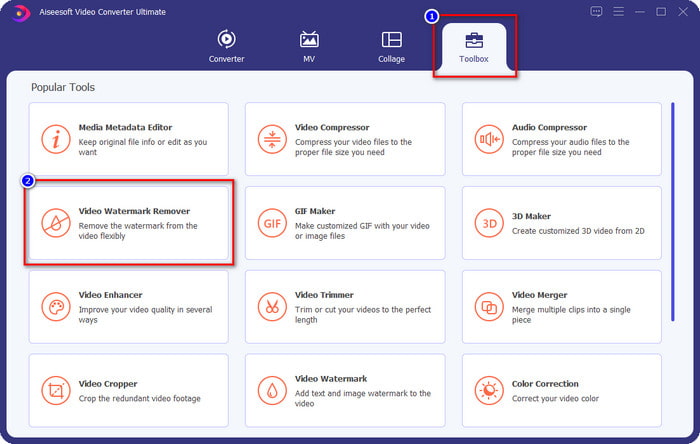
Pas 2. Després de llançar el programari, ves a la Caixa d’eines i busca el Video Watermark Remover. També hi ha altres funcions disponibles en aquesta eina; les pots revisar més endavant, un cop hagis eliminat la marca d’aigua.
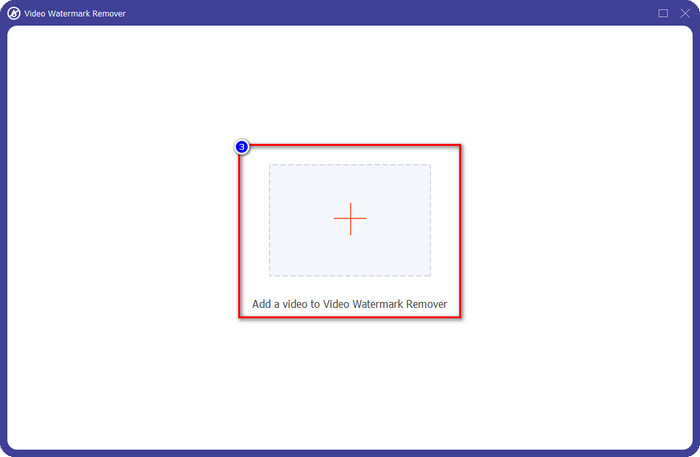
Pas 3. Prem la icona del signe més per afegir el vídeo que has exportat amb Wondershare DVD Creator, fes clic primer al fitxer i prem Obre per pujar-lo correctament a l’eina.
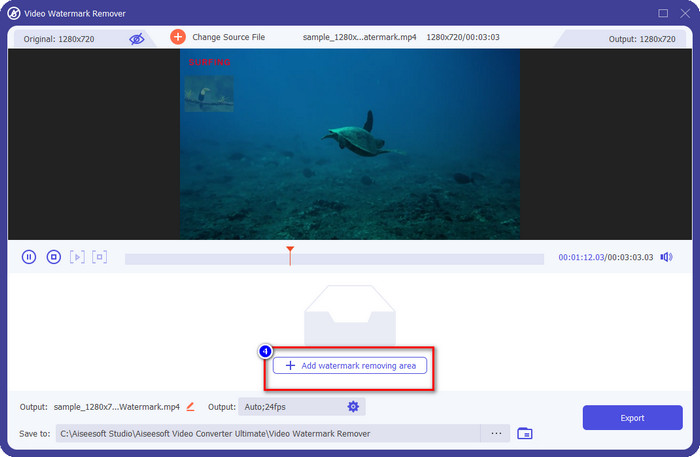
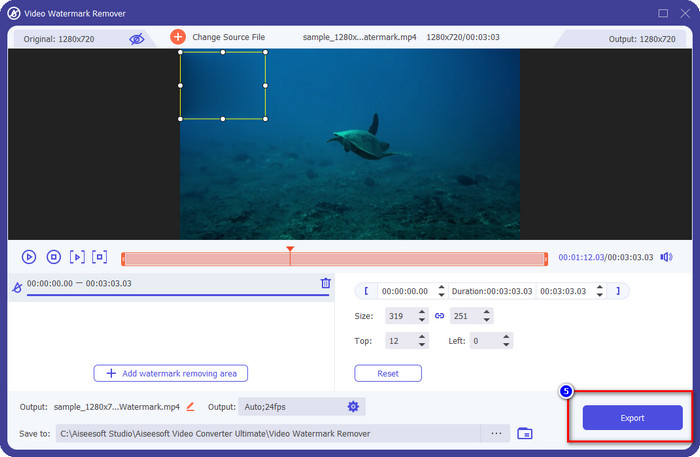
Pas 4. Un cop finalitzada la pujada, continua fent clic a Afegeix àrea d’eliminació de marca d’aigua. Això et permet cobrir la marca d’aigua del vídeo que tens.
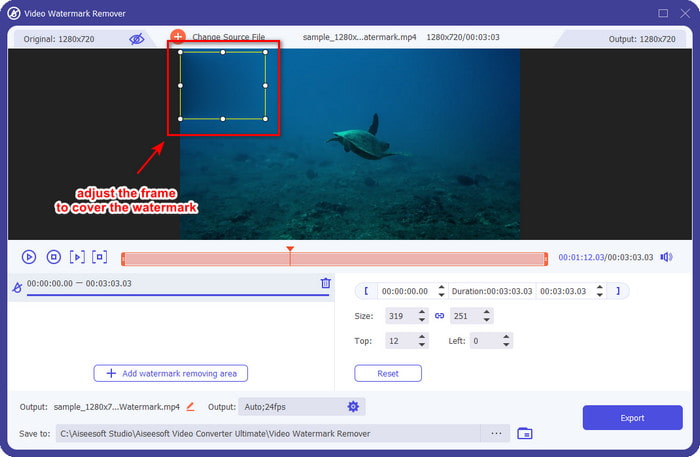
Pas 5. Assegura’t de cobrir la marca d’aigua del vídeo perquè, quan l’exportis, aquesta desaparegui. Per fer-ho, pots ajustar l’àrea del requadre que cobreix la marca d’aigua fins que quedi completament tapada.
Pas 6. Un cop acabat, ja pots desar el vídeo sense marca d’aigua fent clic al botó Exporta. Tan senzill com això: ara ja tens el vídeo que has exportat de Wondershare sense la marca d’aigua.
Pros
- No és massa complex d'utilitzar, així que si ets un principiant, pots aconseguir-ho.
- Fa bé en eliminar la marca d'aigua del vídeo que has penjat.
- No té limitacions en la càrrega i la mida del fitxer.
- El procés d'importació i exportació es va fer més lleuger perquè admet el procés ultraràpid.
- Admet diversos formats de vídeo com MP4, AVI, MKV, WMV i més de 1000 formats.
- Disponible per descarregar a les versions de Windows i Mac.
Contres
- És necessari descarregar-lo.
- Podeu comprar el programari per tenir les funcions i característiques definitives que podeu obtenir aquí, però no us costarà gaire.
Part 2. Com extreure i gravar fitxers a Wondershare DVD Creator sense filigrana
Per ripejar i gravar l’arxiu, Wondershare DVD Creator et pot ajudar, i si vols eliminar la marca d’aigua del vídeo exportat, pots comprar l’eina. Encara que et costarà més que el programari definitiu, és una bona eina per utilitzar. Pots seguir els passos següents per aprendre a fer servir Wondershare DVD Creator sense marca d’aigua.
Abans de procedir a extraure i gravar els fitxers de vídeo, assegureu-vos de descarregar el programari al vostre escriptori i comprar la seva versió premium al seu lloc web oficial.
Com extraure vídeos en CD, DVD i Blu-ray amb Wondershare DVD Creator:
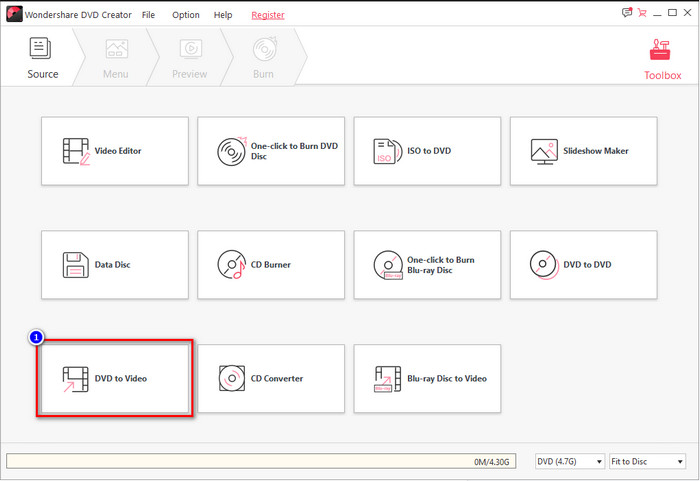
Pas 1. Després de descarregar el programari, fes clic a Wondershare DVD Creator per obrir-lo al teu dispositiu. A la interfície principal, fes clic a Més eines de DVD i prem DVD a vídeo.
Pas 2. Fes clic a Carrega DVD per carregar el disc que has inserit al dispositiu que estàs utilitzant, ves a Afegeix DVD i puja el fitxer de vídeo que vols ripejar del disc.
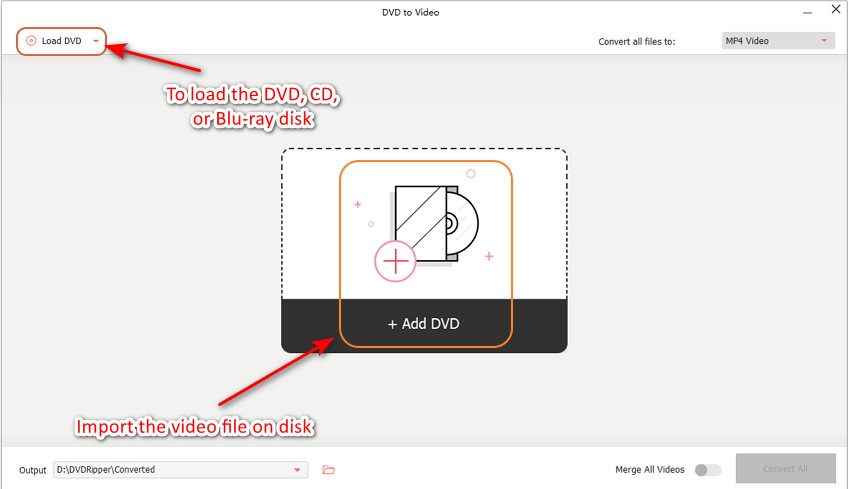
Assegureu-vos que el CD, DVD o Blu-ray ja estigui injectat al dispositiu que feu servir perquè pugueu trobar el fitxer a la carpeta de l'ordinador.
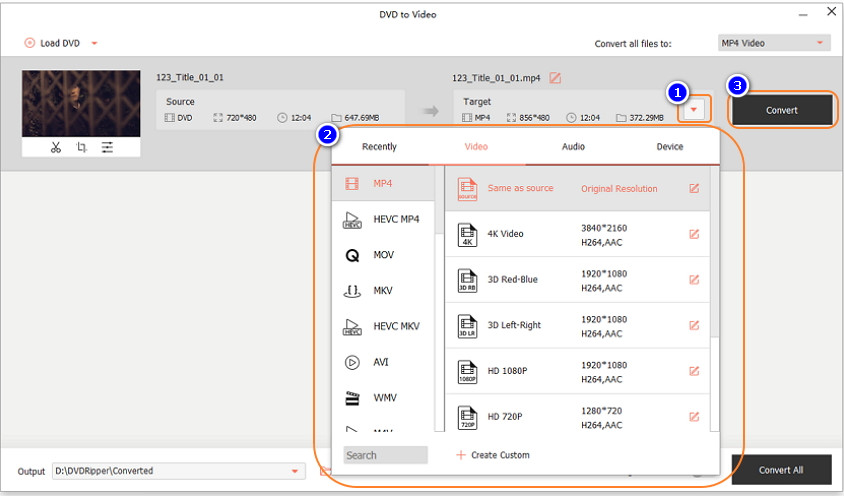
Pas 3. Fes clic al botó desplegable i tria el format que vulguis; fes clic a Converteix per començar a ripejar el vídeo al disc.
Com gravar vídeos en CD, DVD i Blu-ray amb Wondershare DVD Creator:
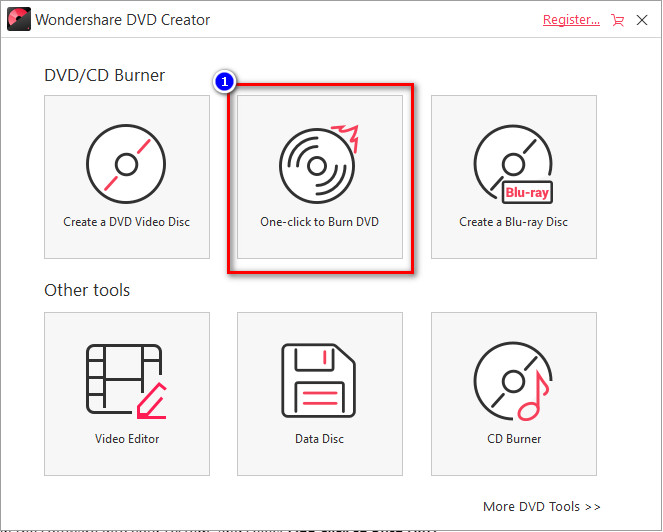
Pas 1. Executa el programari al teu sistema i selecciona Un clic per gravar DVD.
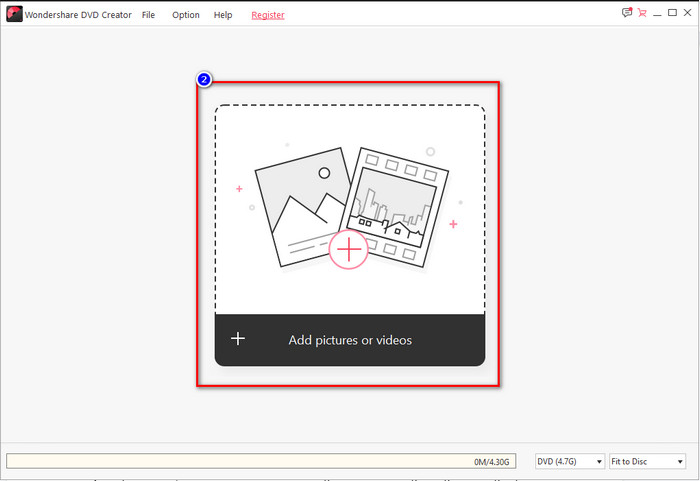
Pas 2. Fes clic a Afegeix imatges o vídeo i puja el vídeo que vols gravar al teu CD, DVD o Blu-ray.
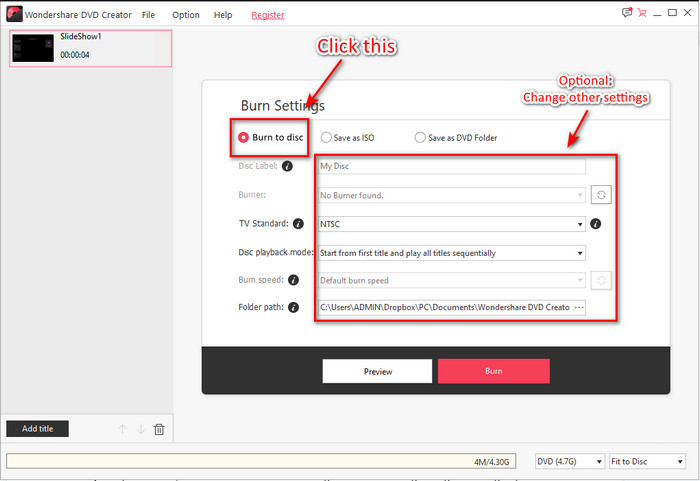
Pas 3. Insereix el disc, fes clic a Grava al disc i, després, canvia els altres paràmetres de gravació segons les teves especificacions.
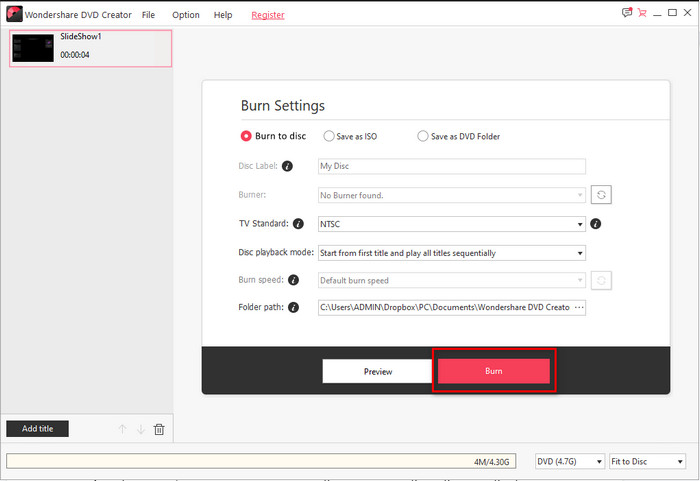
Pas 4. Quan estigui tot a punt, fes clic a Grava per començar a gravar l’arxiu al disc que has inserit.
Relacionat:
Com afegir una marca d’aigua a un GIF
Com eliminar la marca d’aigua d’un GIF
Part 3. Preguntes freqüents sobre com eliminar la filigrana a Wondershare DVD Creator
Quant costa Wondershare DVD Creator?
Per a una subscripció d'un any, haureu de pagar $39,95 a l'any, $55,95 per a tota la vida i la llicència multiusuari $89,95. No admet una subscripció d'un mes, i si us subscriviu a l'any, renovarà automàticament la vostra subscripció.
Es pot esborrar la marca d’aigua de Wondershare DVD Creator?
Absolutament Sí, la marca d'aigua dels vídeos que exporteu en aquest programari es pot esborrar. Compreu el programari o utilitzeu un eliminador de marques d'aigua com el FVC Video Converter Ultimate. Tota la informació que necessitareu ja es troba aquí en aquest article.
Hi ha altres maneres d’eliminar la marca d’aigua de Wondershare?
A part d'utilitzar un eliminador de filigrana, podeu utilitzar un tallador de vídeo per tallar la dimensió del vídeo que no tingui filigrana i desar-lo. Tanmateix, no és ideal per tallar el vídeo per eliminar la marca d'aigua perquè consumirà moltes dimensions i fotogrames del vídeo. La possibilitat de perdre la qualitat del vídeo és alta.
Conclusió
Ara que podem eliminar la marca d'aigua de prova de Wondershare DVD Creator, podeu triar quina s'adapta a la vostra situació amb l'ajuda d'un altre programari com el FVC Video Converter Ultimate o comprant-lo. Ens assegurem que obtindreu la millor sortida del vostre vídeo sense cap filigrana. Per tant, si creieu que aquest article us ajuda, podeu deixar un cinc estrelles a continuació i esperem que pugueu aplicar tota la informació anterior per ajudar-vos a eliminar la marca d'aigua del vídeo.
-
 La millor manera d'afegir una marca d'aigua a un vídeo a Photoshop a Windows i Mac
 Voleu saber com afegir una marca d'aigua a un vídeo a Photoshop? En aquest cas, aquest article us proporcionarà una o dues coses que haureu de saber.
-
 3 millors solucions sobre com eliminar la filigrana dels vídeos fàcilment
 Vols eliminar la molesta marca d'aigua del vídeo? Amb aquest bloc, podeu aprendre les diferents idees per eliminar la marca d'aigua d'un vídeo.
-
 4 millors maneres d'afegir una marca d'aigua a qualsevol vídeo ràpidament
 Aprenem a afegir una marca d'aigua a qualsevol vídeo a Windows, Mac, en línia, iOS i Android amb passos detallats si llegiu aquest article.
