


 Video Converter Ultimate
 Gravadora de pantalla
 Reparació de vídeo
 Baixada segura
Com eliminar la filigrana del vídeo amb Final Cut Pro i Ultimate Tool
Les marques d’aigua, logotips i segells s’afegeixen a les fotografies quan les exportes si l’editor o l’eina amb què fas la presa és la versió gratuïta. És ben conegut que al teu ordinador és fàcil eliminar-los per fer el vídeo encara més atractiu sense la marca d’aigua. Els usuaris de Mac, però, tenen una mica més de dificultats per eliminar aquestes marques que queden al vídeo. Hi ha pocs eliminadors de marques d’aigua disponibles en aquest sistema operatiu, i alguns no aconsegueixen treure’n la marca. Però no et preocupis, perquè Final Cut Pro i FVC Video Converter Ultimate són aquí per ajudar-te a gestionar la marca d’aigua d’una vegada per totes. La informació que detallem a continuació t’oferirà una guia detallada sobre com eliminar la marca d’aigua d’un vídeo amb Final Cut Pro i amb el programari definitiu.

Part 1. Com eliminar la filigrana del vídeo amb Final Cut Pro [Completa amb els passos]
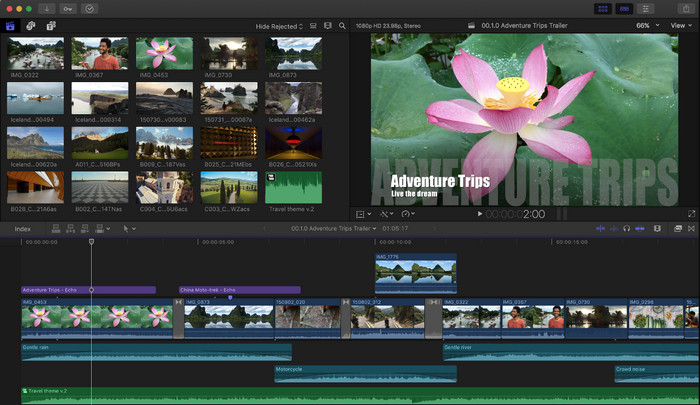
Final Cut Pro és un editor basat en Mac que podeu utilitzar per eliminar la marca d'aigua, transformar i elevar el vídeo. Aquesta eina es compara habitualment amb l'Adobe Premiere Pro perquè funcionen bé per fer que el vídeo sembli fantàstic. Si voleu tenir una sortida professional a Mac, aquest és el vostre editor preferit. Amb el seu rendiment i eficiència a Mac, no hi ha cap dubte sobre per què aquesta eina es va convertir en un editor de vídeo de primer nivell als dispositius Apple i per què es va convertir en l'opció més favorable per a l'edició que l'iMovie. Per ensenyar-vos a utilitzar Final Cut Pro per eliminar la marca d'aigua, seguiu el pas a pas a continuació.
Pas 1. Pots visitar el lloc web oficial amb Safari i descarregar-lo des d’allà; assegura’t de descarregar també el connector de SpliceX, perquè és important si faràs servir Final Cut Pro al Mac.
Pas 2. A la secció superior, fes clic a File i després a Open per pujar el vídeo amb la marca d’aigua que tens desat al disc local.
Pas 3. Arrossega el fitxer de vídeo que has pujat a la línia de temps per començar a eliminar la marca d’aigua del vídeo.
Pas 4. A la banda dreta de la interfície, fes clic a la icona de crop. Aquesta vegada, però, hauràs d’excloure el vídeo i deixar-hi només la zona on hi ha la marca d’aigua. Després, fes clic a Done per desar.
Pas 5. Ves a Effects, fes clic a Blur i selecciona l’efecte que vulguis entre els efectes preinstal·lats disponibles. Arrossega l’efecte triat per aplicar-lo a la línia de temps. Ajusta el Blur Boost segons la teva preferència i, després d’això, ja pots desar el vídeo sense la marca d’aigua.
Part 2. Una manera molt més fàcil d'eliminar la filigrana d'un vídeo amb l'eliminador de filigrana professional
Si creieu que el Final Cut Pro és difícil d'utilitzar, heu de provar d'utilitzar la versió molt més fàcil per eliminar la marca d'aigua, que és el FVC Video Converter Ultimate. Aquesta eina finalment elimina la marca d'aigua del vídeo que teniu, com el que us ofereix Final Cut Pro, però d'una manera molt més fàcil. Es va fer popular eliminar la marca d'aigua d'un vídeo perquè és fàcil d'utilitzar i l'eficiència que proporciona als usuaris. I no hauríeu de descarregar connectors per utilitzar aquesta eina.
A més, admet funcions addicionals com l'edició de vídeo, com ara retallar, retallar, fusionar, estrènyer i molt més. Per tant, si instal·leu aquest programari al vostre Mac, no us penedireu perquè ara teniu una eina polivalent que és molt més barata que el Final Cut Pro. Per ensenyar a un usuari de Mac com tu com eliminar una filigrana a Final Cut Pro de la manera més senzilla, pots seguir els passos següents.
Pas 1. Per descarregar la versió per a Mac d’aquesta eina, fes clic al botó de descàrrega per a Mac i espera que acabi el procés de baixada. Un cop descarregat el programari, instal·la’l a l’escriptori fent clic al fitxer. Segueix el procés d’instal·lació que apareixerà i fes clic a Start Now per obrir l’eliminador definitiu de marques d’aigua.
Descàrrega gratuïtaPer a Windows 7 o posteriorDescàrrega segura
Descàrrega gratuïtaPer a macOS 10.7 o posteriorDescàrrega segura
Pas 2. Ara que el programari ja s’ha iniciat, fes clic a Toolbox a la part superior i després obre Video Watermark Remover de la llista disponible.

Pas 3. Fes clic a la icona + per pujar el vídeo amb una marca d’aigua. Selecciona el fitxer a la carpeta que apareixerà a la pantalla i prem Open per pujar-lo correctament.
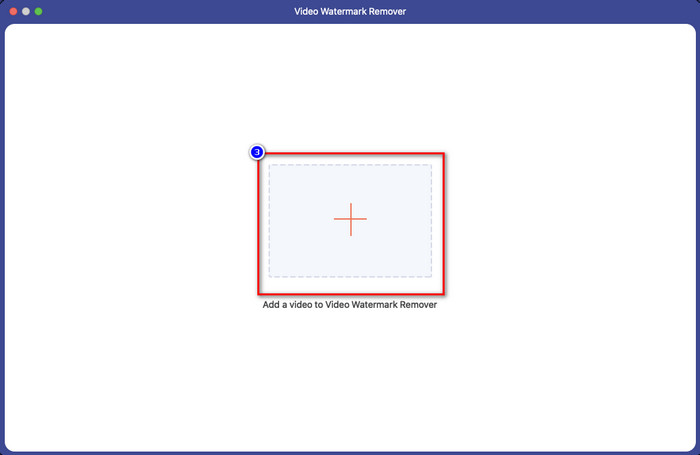
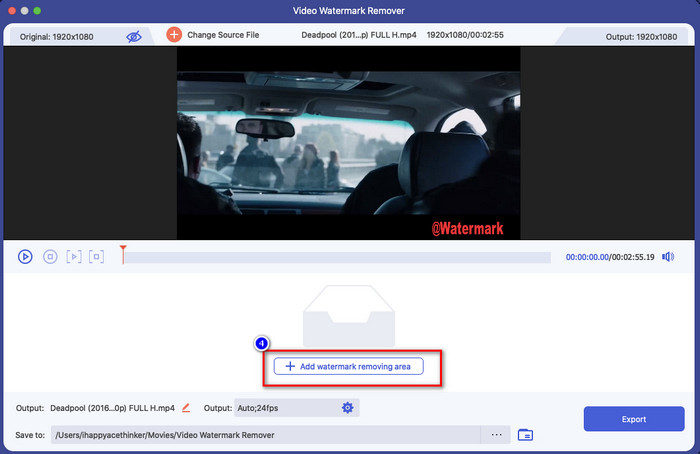
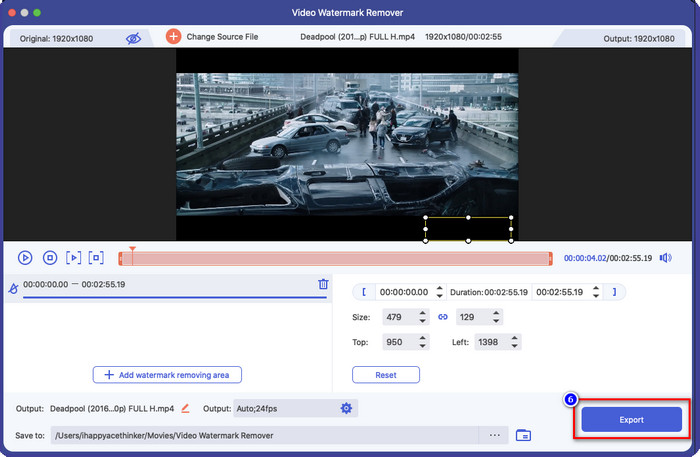
Pas 4. Prem Add Watermark Removing Area per començar a eliminar qualsevol marca d’aigua del teu vídeo.
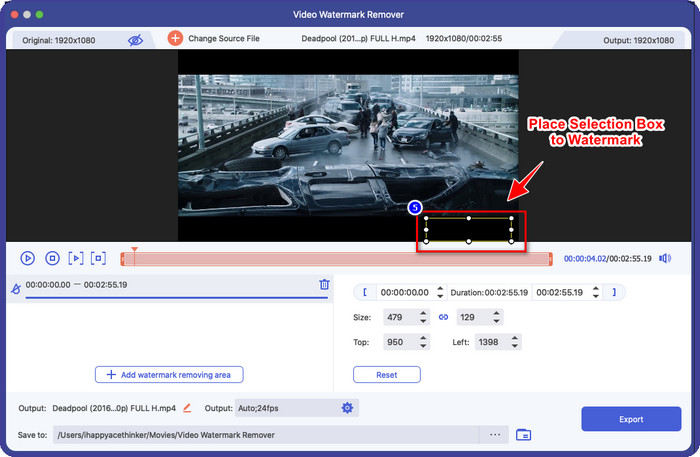
Pas 5. Després de fer-hi clic, s’obrirà una finestra nova; aquesta vegada has de col·locar el quadre de selecció a la zona on hi ha la marca d’aigua. Pots ajustar el quadre de selecció arrossegant els punts per canviar-ne la mida.
Pas 6. Tan fàcil com això: ara ja pots fer clic a Export per descarregar el vídeo sense la marca d’aigua. Fàcil, oi? Així és com s’elimina una marca d’aigua d’un vídeo utilitzant la millor alternativa a Final Cut Pro.
Relacionat:
Com eliminar les marques d’aigua de Photobucket
Com eliminar la marca d’aigua d’un GIF
Part 3. Preguntes freqüents sobre com eliminar la filigrana d'un vídeo a Final Cut Pro
Quant costaria comprar el Final Cut Pro?
Tot i que Final Cut Pro és un pagament únic, el seu cost és extremadament elevat, però les seves funcions i funcions d'edició són molt esperades si teniu això. Si teniu un pressupost d'$299, podeu tenir-ne la versió premium i utilitzar-lo a la vostra satisfacció.
Quant dura la prova gratuïta de Final Cut Pro?
Teniu una prova gratuïta de 90 dies per experimentar i decidir si aquesta eina és l'eina adequada per a vosaltres; amb aquest període, podreu experimentar com funciona l'eina de manera professional.
La prova gratuïta de Final Cut Pro té una marca d'aigua?
Si no heu comprat una clau de llicència per a aquest programari encara que feu servir la seva versió gratuïta, quedarà una marca d'aigua a la vostra sortida final. Per tant, si voleu evitar que això passi, és millor comprar l'aplicació o utilitzar un eliminador de filigrana que no deixi una marca d'aigua com el programari definitiu.
Conclusió
De fet, Final Cut Pro pot eliminar la filigrana de qualsevol vídeo que tinguis quan ho necessitis. A part de la funció d'eliminació de la marca d'aigua, també podeu aprofitar la funcionalitat general que té aquest editor de vídeo professional. Tanmateix, el cost és massa, i alguns usuaris tenen dificultats per manejar aquest programari. Així doncs, afegim la millor alternativa que pots utilitzar si no vols gastar molt, i és fàcil d'utilitzar; aquesta és l'eina definitiva. Esperem haver ajudat els usuaris de Mac a resoldre el seu problema de marca d'aigua amb l'ajuda d'aquestes dues eines. Si tens altres preguntes sobre aquest tema, pots enviar-nos un correu electrònic i segur que et respondrem immediatament.
-
 Maneres fàcils d'eliminar la filigrana de les imatges de graduació
 Voleu conèixer les millors maneres d'eliminar les marques d'aigua de les imatges de graduació? Llegint aquest article, podreu saber com eliminar fàcilment les marques d'aigua a les fotos de grau.
-
 Com eliminar la filigrana Lumion a Windows i Mac fàcilment
 Necessites eliminar la marca d'aigua Lumion per presentar-la professionalment? Bé, hi ha eines que podeu utilitzar per ajudar-vos a desfer-vos de la marca d'aigua que deixa.
-
 Com treure la marca d'aigua de Weibo en vídeos i imatges fàcilment
 Teniu problemes per eliminar la marca d'aigua de Weibo al vídeo i la imatge exportats? En aquest cas, necessiteu un eliminador de filigrana que us enumerem a continuació que us pugui ajudar.
