


 Video Converter Ultimate
 Gravadora de pantalla
 Reparació de vídeo
 Baixada segura
Com eliminar la filigrana de Filmora als projectes/vídeos exportats fàcilment
Wondershare Filmora es considera un editor de vídeo de nivell mitjà que podeu utilitzar per crear un ajustament del projecte en el qual esteu treballant. Tot i ser un editor de nivell mitjà, té funcions completes que us agradaria utilitzar, com ara efectes, plantilles, connectors, etc. Si sou un principiant i voleu experimentar una edició de vídeo sense problemes, però produïu una sortida fanàtica. sens dubte, aquesta podria ser una opció per a tu.
A causa de la seva facilitat d’ús, molts usuaris l’han provat i hi han produït un vídeo, i el resultat és magnífic, però hi ha una marca d’aigua del producte. Una manera d’eliminar-la és comprant un pla mensual, anual o perpetu; però què passa si no tens diners per comprar-lo? Aquí t’ensenyarem com eliminar la marca d’aigua de Filmora a tots els vídeos que exportis.

Part 1. Com eliminar la filigrana de Filmora sense canviar la mida del vídeo
FVC Video Converter Ultimate és l’editor de vídeo definitiu que pots descarregar per editar les marques d’aigua dels vídeos, fins i tot si estan en resolució 4K. Els usuaris de Windows i Mac poden gaudir d’aquest editor no només perquè està disponible en els seus sistemes operatius, sinó també per les seves funcions i característiques. Potser no és l’editor de vídeo número 1, però la seva potència per eliminar la marca d’aigua en vídeo és sorprenentment impressionant.
Tot i que haureu de comprar el programari, considerem que el seu preu és més barat que el de Filmora. Necessites un eliminador de filigrana Filmora? És el vostre favor, i aquí teniu els passos per eliminar eficaçment aquest eliminador de filigrana per eliminar la filigrana o els segells del vídeo.
Pas 1. Descarrega la versió oficial d’aquest editor fent clic al botó de baixada que hem afegit a continuació. Instal·la’l, obre el programa i veuràs a la pantalla una interfície gràfica d’usuari molt atractiva.
Descàrrega gratuïtaPer a Windows 7 o posteriorDescàrrega segura
Descàrrega gratuïtaPer a macOS 10.7 o posteriorDescàrrega segura
Pas 2. Ara que l’editor està obert, hi ha quatre opcions disponibles en aquest programa. Per poder eliminar la marca d’aigua, obre la Caixa d’eines. Selecciona Eliminador de marca d’aigua de vídeo, que es troba al menú de la Caixa d’eines.
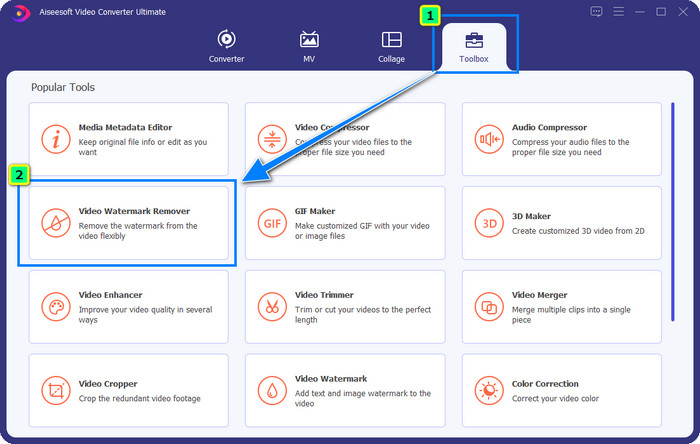
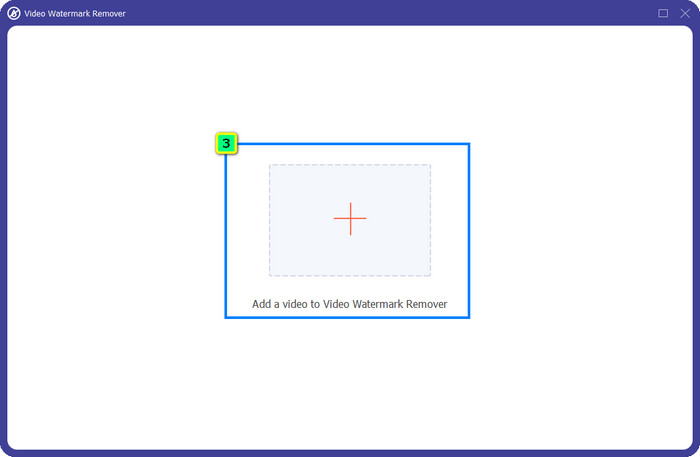
Pas 3. Després de fer-hi clic, apareixerà una finestra nova a la pantalla. Al centre, fes clic a la icona de més per afegir-hi el fitxer al qual vols eliminar la marca d’aigua de Wondershare Filmora.
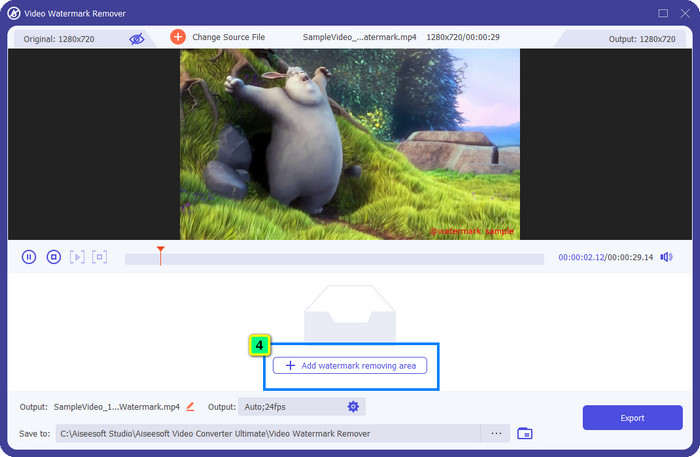
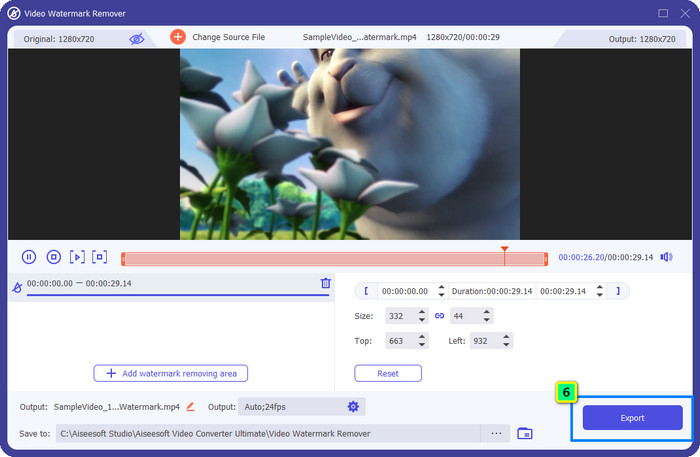
Pas 4. A continuació, fes clic a Afegeix àrea per eliminar la marca d’aigua per començar a utilitzar la funció d’eliminació de marques d’aigua d’aquesta eina.
Pas 5. Ara, tot el que has de fer és col·locar el quadre sobre la marca d’aigua i assegurar-te que la marca d’aigua que vols eliminar quedi dins del quadre. Si no és així, pots ajustar el quadre arrossegant els punts de les vores per canviar-ne la mida.
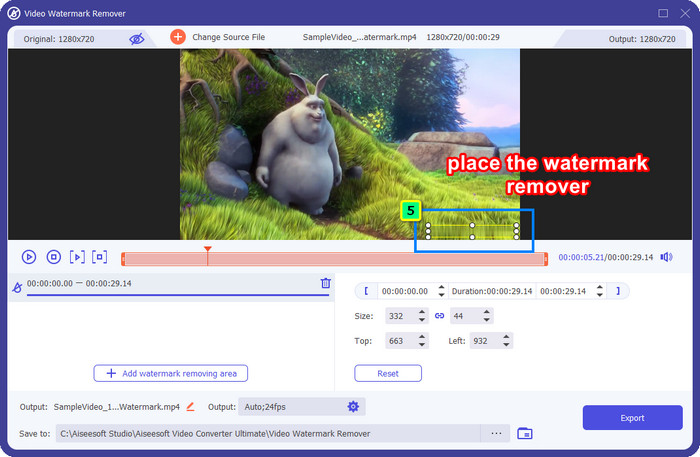
Pas 6. Per començar a treure la marca d’aigua incrustada en el teu vídeo, fes clic a Exporta, i el resultat final estarà llest en qüestió de segons, així de fàcil.
Part 2. Com eliminar la filigrana de Filmora mitjançant la retallada de la filigrana
Com que l’eliminador de marques d’aigua que hem presentat primer és efectiu, potser també et calgui un enfocament diferent amb aquest eliminador de marques d’aigua de l’editor de vídeo Filmora, i és mitjançant l’eina d’escapçat (retall). FVC Video Converter Ultimate incorpora un retallador de vídeo amb IA que pots utilitzar per canviar la mida del vídeo i eliminar-ne la marca d’aigua incrustada. Tot i que aquest mètode requereix menys passos que l’eliminador de marques d’aigua, continua sent una opció i no pas la primera tria. Per què? Perquè redueix les dimensions de la imatge i pot retallar algunes parts del vídeo.
No obstant això, si voleu provar d'utilitzar-lo, podeu tenir-ho un cop tingueu l'eina definitiva al vostre dispositiu.
Descàrrega gratuïtaPer a Windows 7 o posteriorDescàrrega segura
Descàrrega gratuïtaPer a macOS 10.7 o posteriorDescàrrega segura
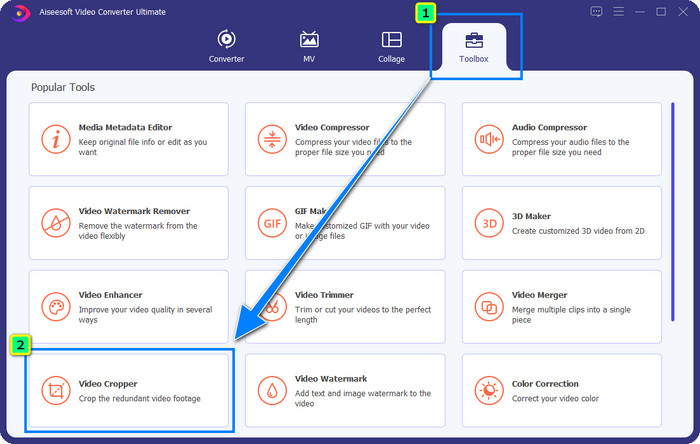
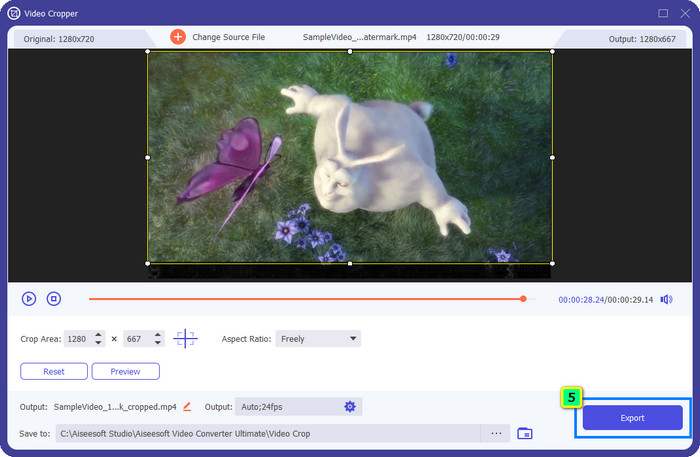
Pas 1. Després de descarregar el programa, fes clic a Caixa d’eines i localitza el Retallador de vídeo.
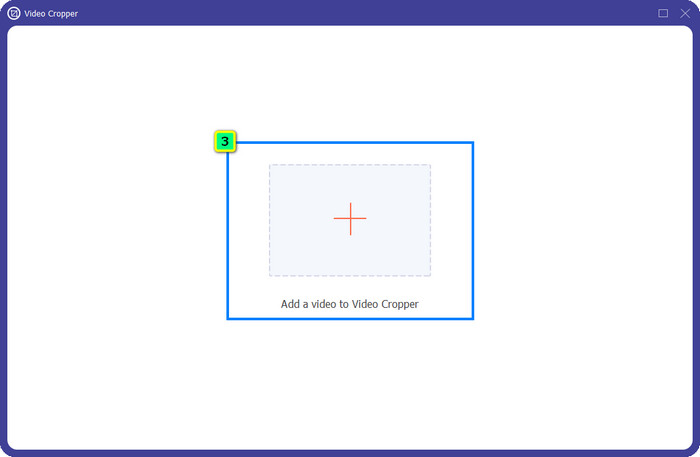
Pas 2. Afegeix aquí el vídeo que vols retallar fent clic al signe de més.
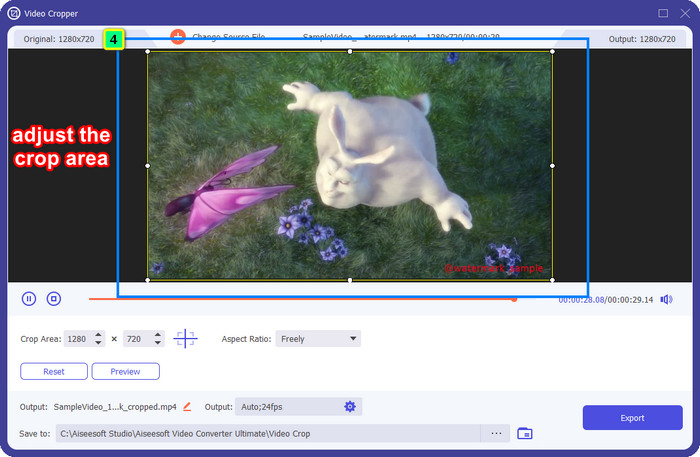
Pas 3. Pots canviar el marc arrossegant els punts segons les teves preferències.
Pas 4. Si estàs satisfet amb la versió retallada, fes clic a Exporta, i la IA retallarà el vídeo automàticament.
Part 3. Com eliminar la filigrana de Filmora Online de forma gratuïta
Com eliminar el logotip de Filmora sense descarregar cap programa? Pots provar d’utilitzar el Video Watermark Remover Online. És una solució en línia per a aquells que necessiten fer una eliminació ràpida de la marca d’aigua del vídeo sense descarregar cap programari. És flexible; hem afegit aquest eliminador de marques d’aigua en aquest article perquè hi pots accedir des de diferents navegadors web del teu dispositiu.
Com que és una eina en línia, hi ha certes limitacions, com ara quantes vegades podeu eliminar una marca d'aigua, una petita gamma de formats d'entrada de vídeo i la velocitat de processament. Però si això no t'importa, pots començar a seguir els passos.
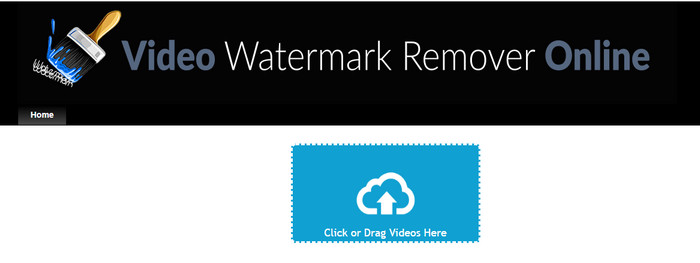
Pas 1. Obre el teu navegador web preferit, cerca’n el nom i fes clic al resultat que et porti directament al domini principal d’aquest eliminador de marques d’aigua.
Pas 2. Fes clic a la icona de penja, o bé arrossega i deixa anar el fitxer de vídeo amb la marca d’aigua.
Pas 3. Espera que l’eina processi el vídeo, ja que rastreja la marca d’aigua. Després prem Elimina la marca d’aigua.
Part 4. Preguntes freqüents sobre com eliminar el logotip de Filmora
Com eliminar la marca d'aigua de Filmora?
La manera oficial d'eliminar la marca d'aigua de Filmora és comprant un pla mensual, anual o perpetu. De manera que cada vegada que exporteu el projecte que heu creat aquí no deixarà una marca d'aigua a la sortida final. Podeu utilitzar diferents codis de registre gratuïts disponibles al web si no us agrada comprar un pla.
És segur descarregar una versió trencada de Wondershare Filmora?
No, no ho és! La descàrrega d'aquest programari en un lloc web de tercers no és el que recomanem, ja que alguns llocs web no són segurs per accedir-hi i la versió del seu craquejat pot portar programari maliciós al vostre ordinador. Eviteu accedir a llocs web de tercers maliciosos i baixar-los des d'ells per evitar danys irreparables.
Quin és el millor editor de vídeo alternatiu per a Filmora?
Per als usuaris de Windows, val la pena llegir la informació que afegim en aquest article, ja que hi incloem els 5 millors editors de vídeo per a Windows que pots descarregar o utilitzar al teu sistema i que funcionen millor o de manera similar a Filmora. Però si fas servir un dispositiu Mac, hi podràs trobar quins són els millors editors de vídeo per a Mac alternatius a Wondershare Filmora que funcionen millor a macOS.
Conclusió
Tot està inclòs! En aquest article s'afegeix informació sobre com eliminar la filigrana de Filmora. Aleshores, què en penseu de les eines que afegim? Tot i que no teniu experiència amb l'eliminació de la filigrana, podeu seguir el tutorial de cada eina que afegim. Avui pots començar a gaudir mirant el projecte que has creat a Filmora sense comprar cap pla. Comparteix aquest article amb els altres, perquè els puguem ajudar! Compartir és preocupar-se!
-
 Com eliminar la filigrana de Wondershare DVD Creator amb facilitat
 Aquest article inclou informació sobre com eliminar la filigrana de Wondershare DVD Creator. Per obtenir tota la informació que necessiteu és imprescindible llegir això.
-
 Obteniu informació sobre com eliminar la marca d'aigua de Movavi de forma gratuïta [imprescindible!]
 Exportar un vídeo o una imatge a Movavi deixarà una marca d'aigua, però és possible eliminar-la? Per ensenyar a eliminar la filigrana de forma gratuïta, llegiu això.
-
 3 maneres fàcils d'eliminar la marca d'aigua de Fiverr a Windows i Mac
 Esteu a la pàgina correcta si busqueu una aplicació que pugui eliminar la marca d'aigua de Fiverr. Llegiu aquesta publicació per saber com podeu eliminar fàcilment la marca d'aigua de Fiverr.
