


 Video Converter Ultimate
 Gravadora de pantalla
 Reparació de vídeo
 Baixada segura
Les maneres més ràpides i fàcils d'escurçar el vídeo amb les millors eines
Retallar o escurçar un vídeo és important perquè només destaca els clips necessaris del vostre vídeo. Retallar un vídeo significa treure l'inici del final d'un videoclip. Aquest element fonamental de l'edició és necessari perquè no perdis l'atenció del teu públic. Per tant, si voleu retallar o escurçar el vostre vídeo llarg, en aquest article aprendràs com escurçar un vídeo.

Part 1. 2 Mètodes per escurçar un vídeo en una talladora utilitzant la millor aplicació
FVC Video Converter Ultimate és la millor eina d’escriptori per retallar el teu vídeo. Aquesta eina té una interfície de programari intuïtiva i és gratuïta. Aquest convertidor offline et permet afegir segments al teu fitxer de vídeo. A més a més, disposa d’una funció amb la qual pots dividir ràpidament el teu vídeo en diferents parts segons les teves preferències. I si estàs cercant una eina que pugui fusionar diversos formats de fitxer en un de sol, aquesta aplicació ho pot fer per tu.
A més, aquesta eina ofereix moltes funcions avançades, com un creador de GIF, unificador de vídeos, eliminador de marques d’aigua de vídeo, etc. I el que és encara millor és que admet nombrosos formats de fitxer, incloent-hi MP4, WMV, FLV, AVI, MPG, WebM, MKV i més de 1000 formats més. Per tant, si vols utilitzar aquesta aplicació per escurçar el teu vídeo, t’oferim dos mètodes que pots seguir.
Mètode 1. Utilitzeu el Video Trimmer de FVC
Pas 1. Primer, descarrega FVC Video Converter Ultimate fent clic al botó Descarrega de sota. Segueix el procés d’instal·lació i, després, executa l’aplicació.
Descàrrega gratuïtaPer a Windows 7 o posteriorDescàrrega segura
Descàrrega gratuïtaPer a macOS 10.7 o posteriorDescàrrega segura
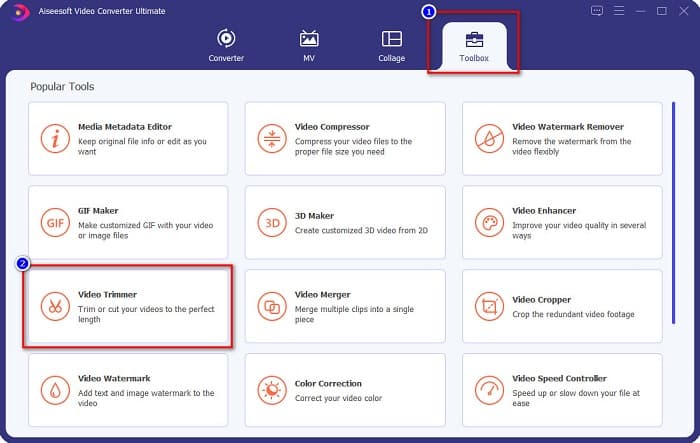
Pas 2. A continuació, selecciona el panell Eines situat a la part superior de la interfície del programari. Després, al panell d’eines, fes clic a Retallador de vídeo (Video Trimmer).
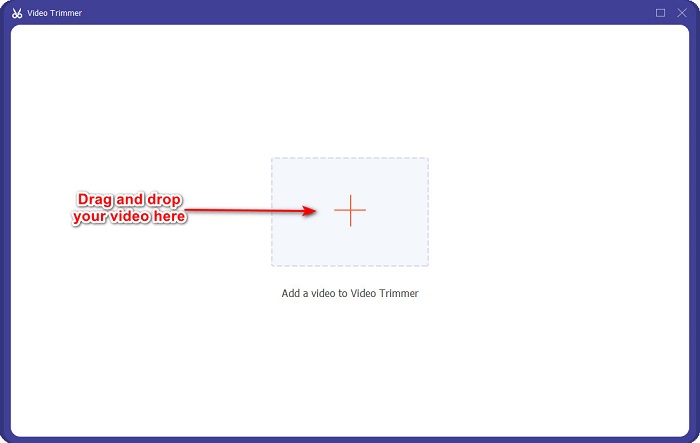
Pas 3. Després, a la següent interfície, fes clic al botó amb el signe + o arrossega i deixa anar el teu vídeo sobre el signe +.
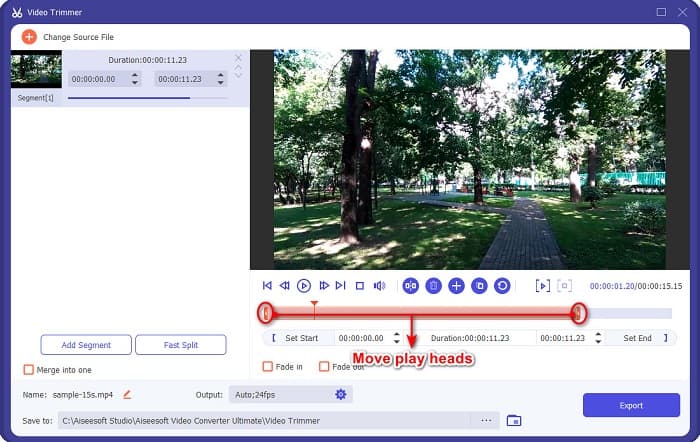
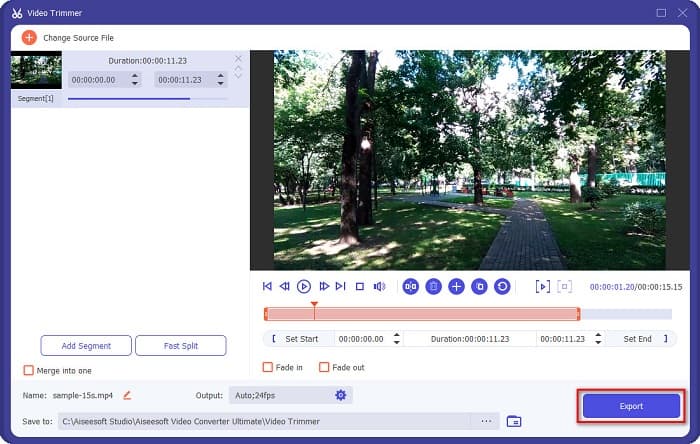
Pas 4. Tot seguit, mou els botons del capçal de reproducció fins a la longitud desitjada. La punta de fletxa indica la posició de la previsualització del teu vídeo. I els caps de reproducció indiquen la durada del teu vídeo. Pots veure els canvis temporals del teu vídeo a la finestra de previsualització.
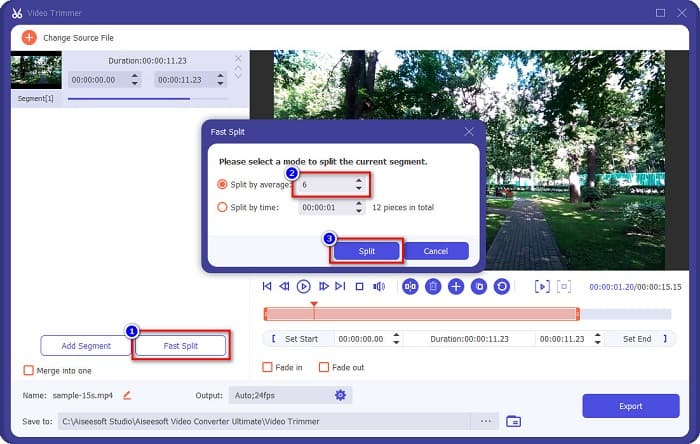
Opcional. Si vols una manera més senzilla de dividir el teu vídeo en segments:
1. Fes clic al botó Divisió ràpida (Fast Split).
2. Selecciona el nombre de divisions que vols al teu vídeo i, després, prem Divideix (Split).
3. Si no voleu dividir el vostre vídeo, aneu al pas següent.
Pas 5. Finalment, fes clic al botó Exporta per aplicar els canvis al teu vídeo. Llavors el resultat es desarà automàticament als fitxers del teu ordinador.
Mètode 2. Utilitzeu el canviador de velocitat de vídeo de FVC
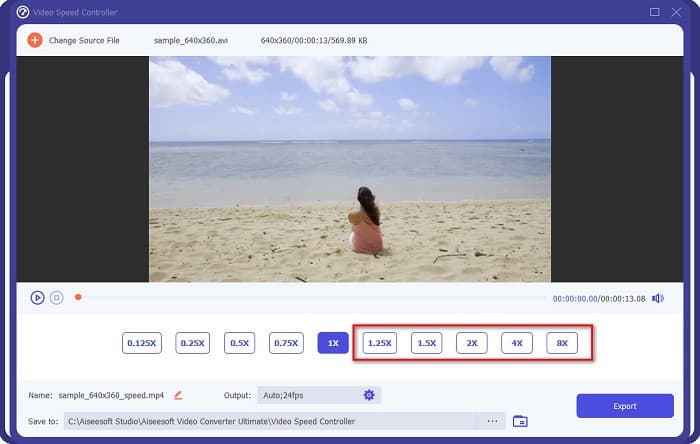
FVC Video Converter Ultimate també té una funció on podeu canviar la velocitat del vostre vídeo a velocitats de 0,125x, 0,25x, 0,5x, 0,75x, 1,25x, 1,5x, 2x, 4x i 8x. I si voleu escurçar la durada del vostre vídeo, ajusteu-lo a una velocitat ràpida. Per obtenir passos més detallats, seguiu la guia següent.
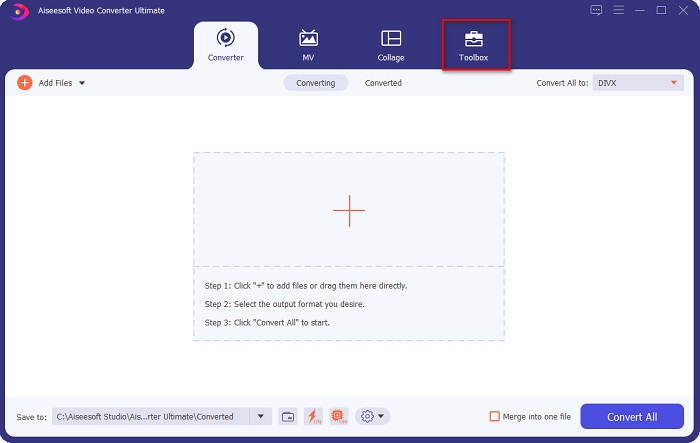
Pas 1. Obre FVC Video Converter Ultimate. I, a la interfície principal del programari, fes clic a l’opció Eines (Toolbox).
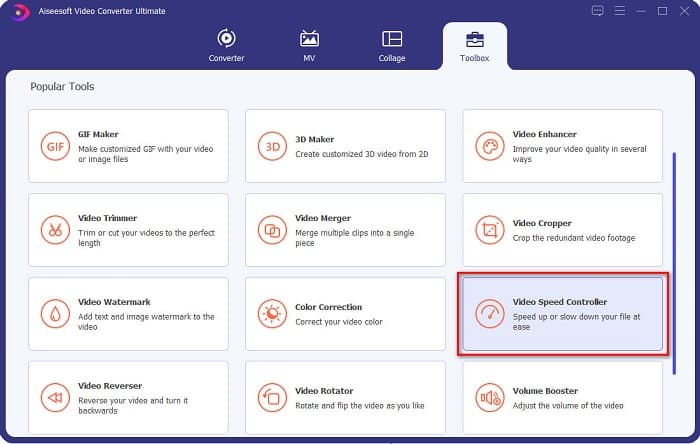
Pas 2. Després, fes clic a Controlador de velocitat de vídeo (Video Speed Controller) i continua amb el següent pas.
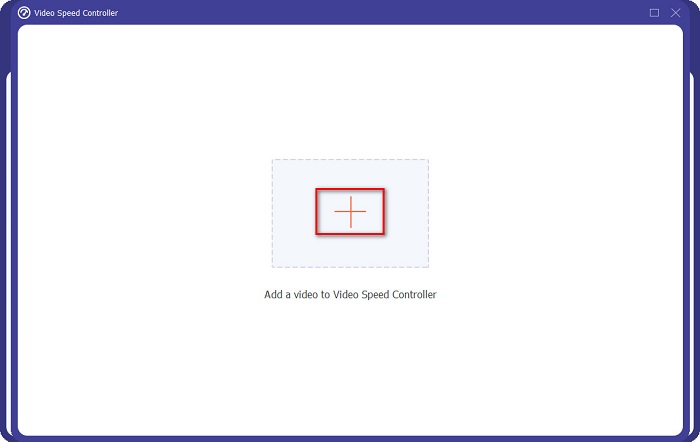
Pas 3. A continuació, fes clic al botó amb el signe + per pujar el vídeo que vols escurçar. Es mostraran les carpetes de l’ordinador, on seleccionaràs el vídeo i el pujaràs a la interfície del programari.
Pas 4. Per escurçar el teu vídeo, selecciona una velocitat d’entre 1,25x i 8x.
Pas 5. Per al pas final, fes clic al botó Exporta per desar els canvis del teu vídeo. El resultat es desarà automàticament als fitxers del teu ordinador.
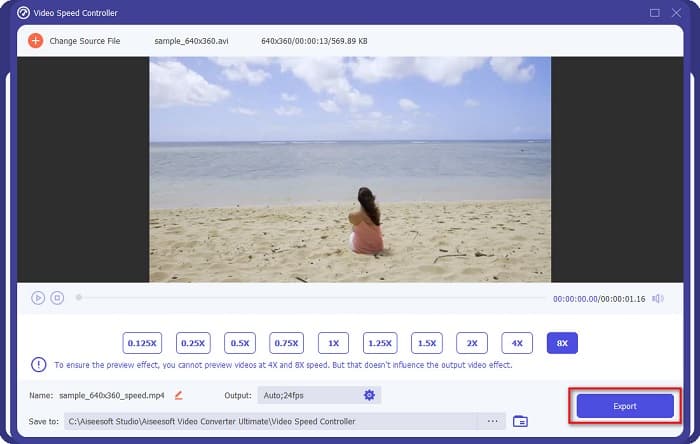
Per a una durada de vídeo més curta, seleccioneu la velocitat 8x.
Pros
- Admet nombrosos formats de fitxer, inclosos MOV, MKV, AVI, MP4, WMV, WMA, MPEG i més de 1000 formats.
- Té una interfície de programari fàcil d'utilitzar.
- Us permet dividir ràpidament el vostre vídeo amb només uns quants clics.
- Es pot descarregar a totes les plataformes multimèdia, com Windows, Mac i Linux.
Contres
- Compreu l'aplicació abans d'accedir a les seves altres funcions.
Part 2. 2 Trimmer de vídeo en línia per provar
Si voleu retallar el vostre vídeo sense descarregar res, hi ha retalladors de vídeo en línia que podeu utilitzar. Hem enumerat els millors retalladors de vídeo en línia que molta gent utilitza en aquesta part.
Retalla el vídeo
Trim Video és una eina en línia per retallar vídeos que és fàcil d’utilitzar gràcies a la seva interfície d’usuari intuïtiva. És una eina pràctica perquè no requereix instal·lació, a diferència d’altres eines en línia. A més, té una funció amb la qual pots girar el teu vídeo a 90, 180 o 270 graus. A més a més, no has de dubtar de la seguretat de les teves dades, perquè aquesta eina protegeix la privadesa. Tanmateix, com que és una aplicació basada en web, conté anuncis que et poden distreure.
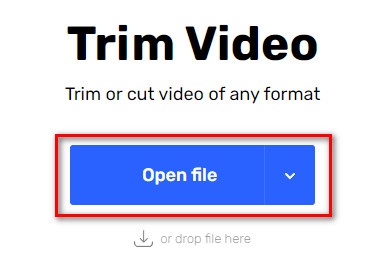
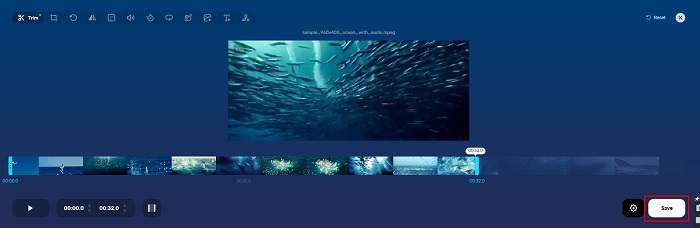
Pas 1. Al navegador, cerca un retallador de vídeo en línia. Després, fes clic al lloc de Trim Video. A la interfície principal del programari, fes clic al botó Obre fitxer (Open File).
Pas 2. Després, ajusta els botons del capçal de reproducció fins a la longitud desitjada.
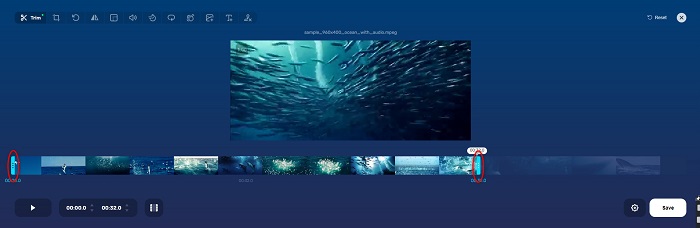
Pas 3. Fes clic al botó Desa (Save) per canviar la durada del teu vídeo.
Pros
- Té una GUI fàcil d'utilitzar.
- Té funcions per retallar i girar el vostre vídeo.
- És segur d'utilitzar.
Contres
- Conté anuncis molestos.
- Té un procés de càrrega i càrrega lent.
Clideo
Una altra eina en línia per retallar vídeos és Clideo. Aquesta eina en línia té una interfície d’usuari senzilla, cosa que la fa molt fàcil de fer servir. També admet la majoria de formats de fitxer estàndard, com AVI, MP4, VOB, MPG, MOV, etc. A més, aquesta eina aplica un alt nivell de seguretat, cosa que significa que les teves dades estan segures i no podran ser vistes per altres persones. A més a més, Clideo no conté anuncis que et puguin distreure.
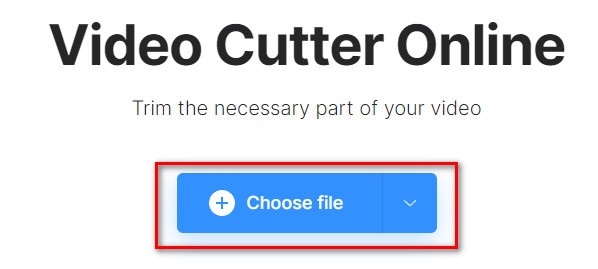
Pas 1. Al navegador que facis servir, cerca el retallador de vídeo Clideo. I, a la primera interfície del programari, fes clic al botó Tria fitxer (Choose File). Es mostraran les carpetes del teu ordinador, on seleccionaràs el vídeo que vols escurçar.
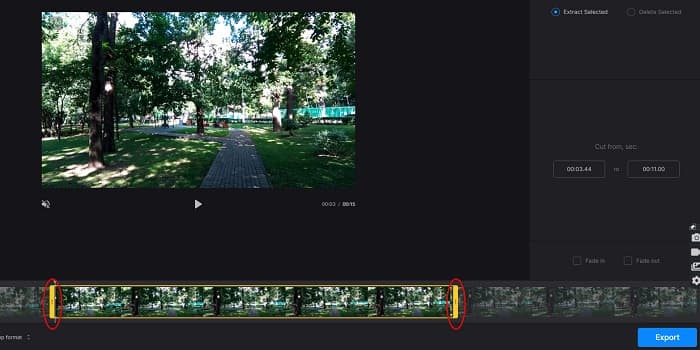
Pas 2. Mou els botons del capçal de reproducció fins a la durada que vols que tingui el teu vídeo.
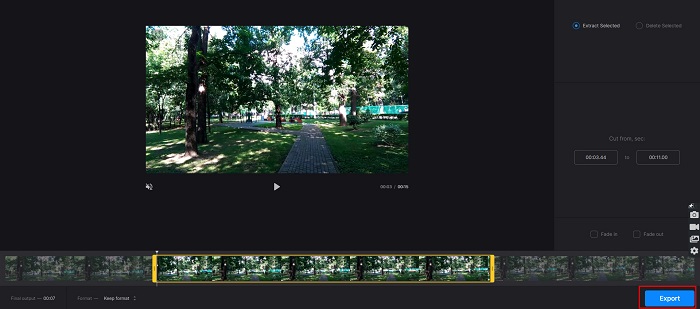
Pas 3. Per al pas final, fes clic al botó Exporta per canviar la durada del teu vídeo.
Pros
- Té una interfície fàcil d'utilitzar.
- És segur d'utilitzar.
- No conté cap anunci.
Contres
- És possible que experimenteu un procés lent quan la vostra connexió a Internet és lenta.
Part 3. Preguntes freqüents sobre com escurçar el vídeo
Com escurçar el vídeo a l'iPhone?
Primer, obriu l'aplicació Foto i seleccioneu el vídeo que voleu retallar. A continuació, toqueu Edita. Després, moveu els controls lliscants a la durada del vídeo desitjada i toqueu Fet per desar els canvis del vostre vídeo.
Retallar el vídeo afecta la qualitat?
No. La majoria de les eines de retall no afecten la qualitat del vostre vídeo. Però si us assegureu una eina que no afecta la qualitat quan escurceu el vostre vídeo, feu servir FVC Video Converter Ultimate.
Escurçar el vídeo afecta la mida del fitxer?
Sí. Com més curt sigui el vostre vídeo, menys mida del fitxer té. En canvi, si el vostre vídeo és llarg, conté una mida de fitxer enorme.
Conclusió
Això és tot sobre com escurçar un vídeo utilitzant un retallador i un canviador de velocitat de vídeo. Totes les eines esmentades ofereixen grans resultats i t’asseguren el millor rendiment. Però si estàs buscant la millor eina, amb moltes funcions per utilitzar i àmpliament popular pel que fa a escurçar vídeos, FVC Video Converter Ultimate és l’eina ideal per a tu.
-
 Com tallar i combinar cançons en línia: 4 millors maneres que heu de conèixer
 Quan vulgueu retallar i combinar cançons en línia per crear una peça musical, podeu obtenir més informació sobre les 4 millors eines en línia per retallar les cançons i combinar fitxers de l'article.
-
 Descobriu el millor tallador MP4 amb procediment i informació
 Vols aprendre a tallar vídeos com els vloggers que veus? A continuació, continueu llegint aquesta publicació per saber quins retalladors MP4 podeu utilitzar.
-
 5 talladors de MP3 per tallar qualsevol àudio fàcilment [Actualitzat el 2022]
 Necessites un tallador de MP3 per retallar l'àudio? En aquest cas, llegiu aquest article perquè oferim les eines de les quals podeu confiar que us proporcionen un tall fàcil de l'àudio.
